
Love what you are seeing?
We have created several courses where we dive more into the technical aspects. So, if you like what you read here, you'll love our courses!!





By:
Greg Jenkins
|
February 9, 2026
|
Technology
Last week I wrote a post about a “gotcha” that can trip people up as they’re building campaigns in Keap. This week I want to tackle another common misunderstanding I see.
That’s the mental model most people have. And it’s mostly accurate…by default.
The key phrase in that question is “by default”.
The reason I’m emphasizing it is because that isn’t always the behavior you’ll see.
Keap has specific sequence settings and goal settings that can affect how things behave – and can make either #1 or #2 above untrue.
If you don’t thoroughly understand these settings, it’s really easy to think you have things figured out and then get completely blindsided when something doesn’t work the way you expected.
Have you ever noticed how each sequence in your campaign has a little badge in the lower-left corner?
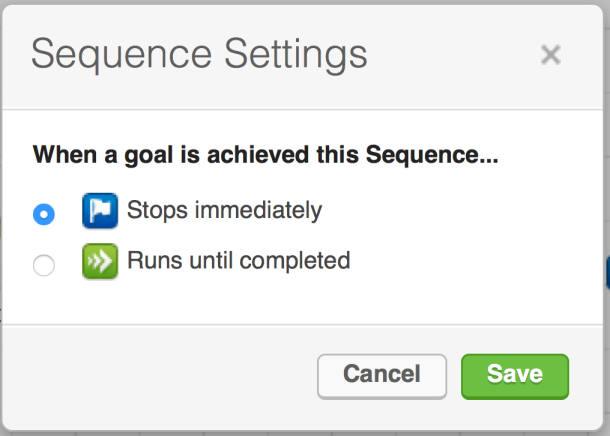
That badge tells you how the sequence behaves when goals are achieved.
This breaks the “rule” that goals always stop the sequence to the left – because sequences can be configured not to stop.
Why would you do that? A classic example is a “10 Tips” sequence where you’ve promised ten emails. Even if the contact buys something midway through, you may still want them to receive all ten tips you promised. In that case, “Runs until completed” makes sense.
Here’s a video that walks through how this sequence setting works in practice:
Watch: Keap sequence settings explained
When a goal is achieved, a contact usually starts the sequence after the goal, right?
Again, that’s true most of the time. But there’s a setting that controls whether goals can act as entry points into your campaign.
If you click on the colored badge in the lower-left corner of any goal, you’ll see its Goal Settings. You can choose whether that goal should be an entry point or not.
This is often overlooked, but it’s really useful for more complex campaigns where you might want multiple entry points – or want to prevent a goal from behaving as an entry point.
There are a few caveats:
Remember: Keap evaluates goals across everything on the same campaign canvas.
If a contact is “in” that campaign, every goal on that canvas is potentially listening for them (subject to its settings).
That means:
Here’s an example:
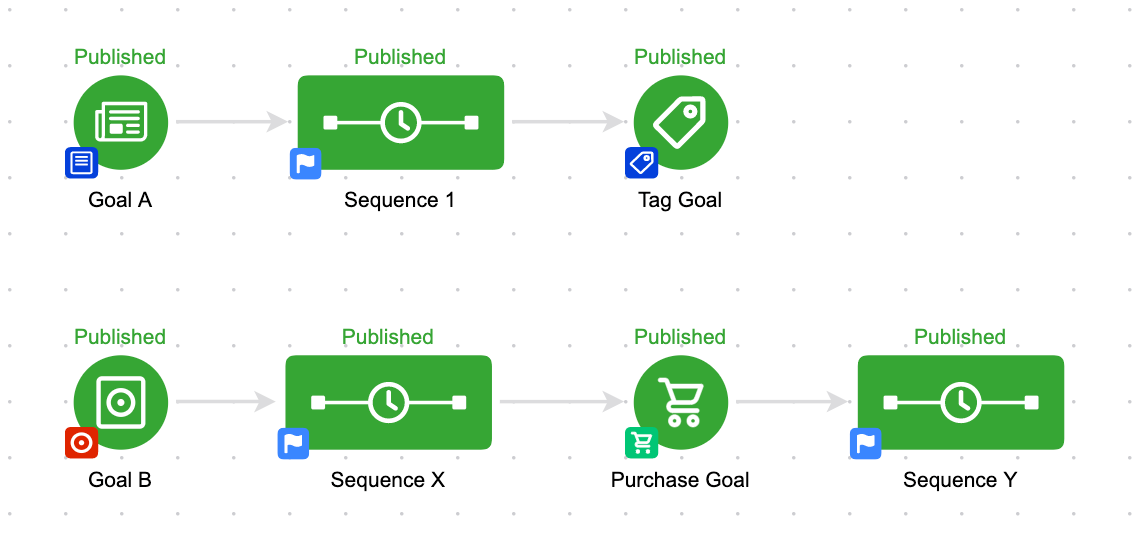
This is one campaign. Even though there are separate and parallel processes, because they’re built on the same campaign builder canvas, the system thinks of them as being part of the same campaign.
So if someone is in Sequence 1 and they achieve the Purchase Goal in the bottom stream, they’ll not only stay in Sequence 1 (depending on sequence settings), they’ll also start Sequence Y.
What I’ve found with things like this is that it’s hard to fully “get it” before you actually need it – the information feels abstract until you’ve bumped into a real-world use case.
That’s why I like to show several different examples. My hope is that when you encounter these situations in your own app, you’ll already have an idea of what the expected behavior looks like.
If you love this stuff and want to dive deeper, I strongly recommend checking out the Advanced Automations Complete Collection course from Keap Academy. It covers the fundamental basics and the bells and whistles – everything you need to know about the campaign builder.
And if you prefer a video tutorial, here’s an overview of this “gotcha” in video form:
We have created several courses where we dive more into the technical aspects. So, if you like what you read here, you'll love our courses!!