Zapier Sub-zaps: How and When to Use Them

Zapier Sub-zaps: How and When to Use Them

Zapier is a staple in the toolbox of so many small businesses, myself included. – and thanks to years of slow and steady effort, I consider myself a pretty savvy Zapier user.

But recently I learned a little Zapier trick and immediately knew I had leveled-up.

My long time friend Kevin Mogavero introduced me to a Zapier feature called Sub-zaps – and the power and utility hit me like a ton of bricks.

What are Zapier Sub-Zaps?

Essentially it’s a set of Zapier steps that you plan to be able to repurpose.

So, if there are common actions you want to bake into other Zapier recipes, you can build it as a sub-zap, and then just summon it as needed.

Here’s an article from the Zapier help center.

When would I use Zapier Sub-zaps?

There are lots of use cases – but essentially you could use a Sub Zap any time you have multiple Zapier recipes with multiple identical steps.

For me, the ton-of-bricks use case that came to mind was some progress tracking Zaps I had built for a course of mine.
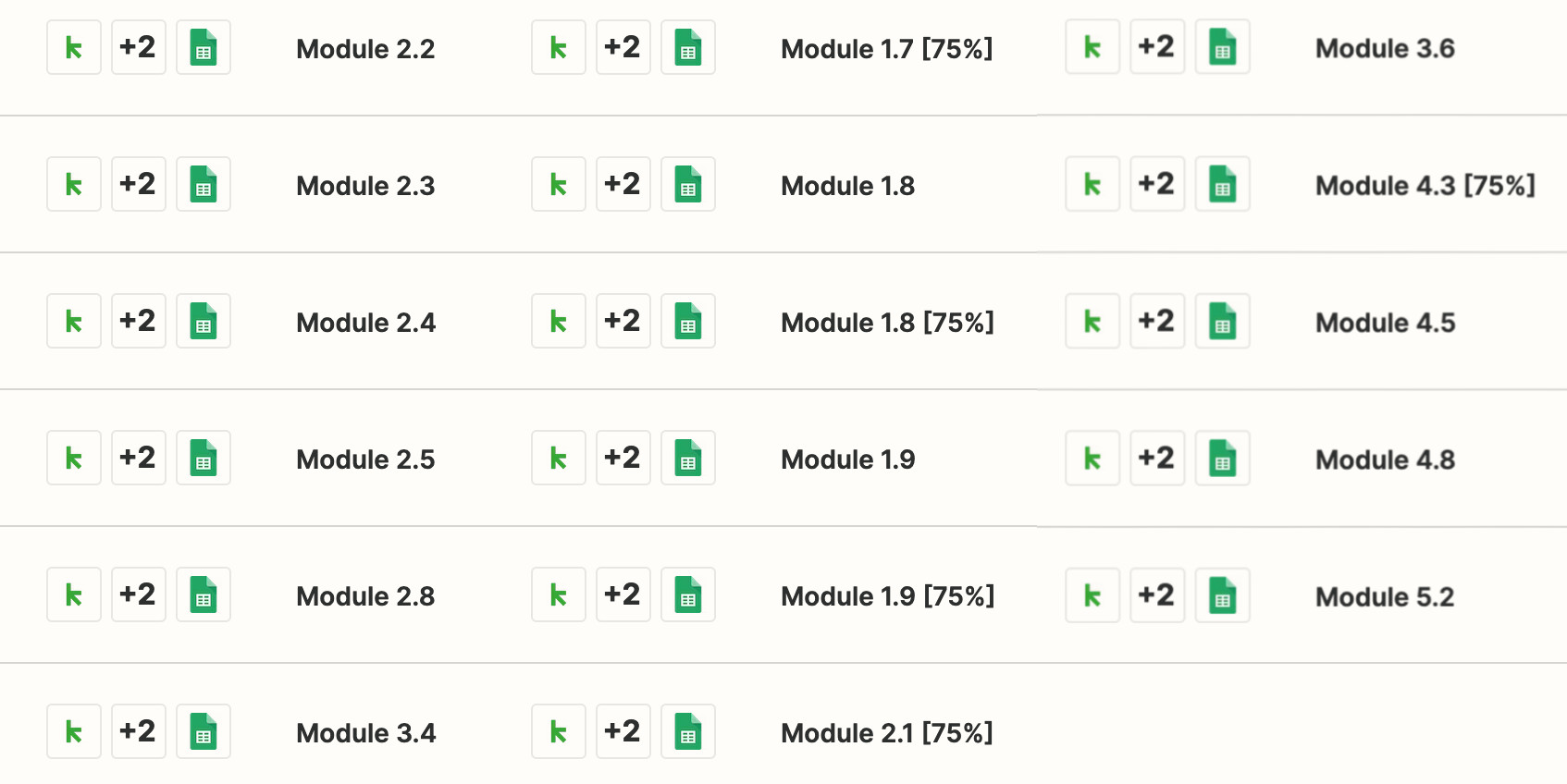
Zapier Recipes

The triggers all needed to be unique, but the subsequent steps didn’t – so I could have consolidated by sending all the initial triggers into a single sub-zap and saved myself a ton of time.

How do I set-up Zapier Sub-Zaps?

Here’s a robust walk-through from Kevin with two example use cases to illustrate just how this works:

Another way of thinking about this, for the old-time Keap users among us – subzaps are kind of like legacy Infusionsoft action sets. You bundle together things you want to have happen, then just ‘call’ that set of actions as part of another process.

Huge shout out to Kevin for turning me onto this beta Zapier feature – and for his permission to share the video with you all.

Hopefully you found this post valuable – if you have any questions feel free to drop them in the comments below. Thanks for reading (and watching).


How to Update to GA4

How to Update to GA4

So, if you have a website then the odds are pretty good that you also use Google Analytics.

And if you do, then you might have seen some emails like these, telling you it’s time to update to GA4.

Sunset GA4

I ignored an email or two, but Google Analytics kept reminding me that this change was coming and that I needed to update.

I gave it a try – but quickly got frustrated, and so I reached out to two friends, Jade and Paul, for help.

They were kind enough to not only help get me updated to GA4, but they also recorded the entire thing to serve as a guide for anyone else navigating this change.

Here’s part 1:

Now, as you saw, they hit a snag when they didn’t have access to Google Tag Manager – so once I gave them the right permissions they continued on with part two of this process:

I know that sometimes it feels like there’s a never ending list of things to learn, especially for entrepreneurs. So I hope this post, and the videos you just watched, help this process feel clearer, and more manageable.

But, that said, if you would like help with this process don’t hesitate to reach out to Paul or Jade.

Remember, not everything that needs to be done needs to be done by you. You got this.

Entrepreneur’s Calm, Organized, Predictable Growth Framework

Entrepreneur’s Calm, Organized, Predictable Growth Framework

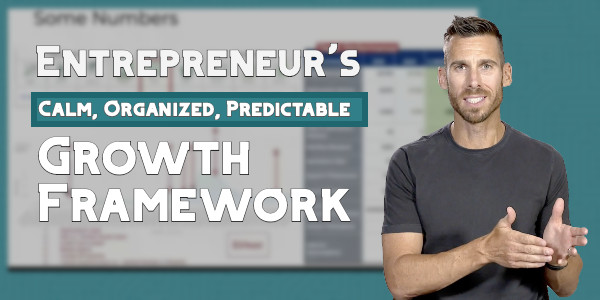
Justin MacDonald has worked in a handful of businesses, of varying shapes and sizes – and each time he’s installed the same framework to standardize and improve the customer experience.

And each time it’s worked to produce calm, organized, predictable results.

On this webinar he shared that framework, along with real world examples of where he’s used it, and how it will work for your business too.

Here’s the Lifecycle Marketing assessment Justin mentioned toward the end of the video.

I know a ‘calm, organized, predictable, growth framework’ sounds like click-bait, but it’s not. I’m not saying it’s easy, but I am saying it’s true.

Justin is a rockstar – and I’m being sincere when I say that Monkeypod wouldn’t be where it is today without his wisdom and advice.

I’m genuinely excited about this one, I hope you enjoy it.

Advanced Keap Reporting [with Google Sheets]

Advanced Keap Reporting [with Google Sheets]

Sometimes the native Keap reports give you exactly what you’re after.

And when that happens, life is great.

But use Keap long enough and you’re bound to run into a constraint, or limitation you didn’t expect.

Sometimes there seems to be some aspect of the report that is unnecessarily rigid.

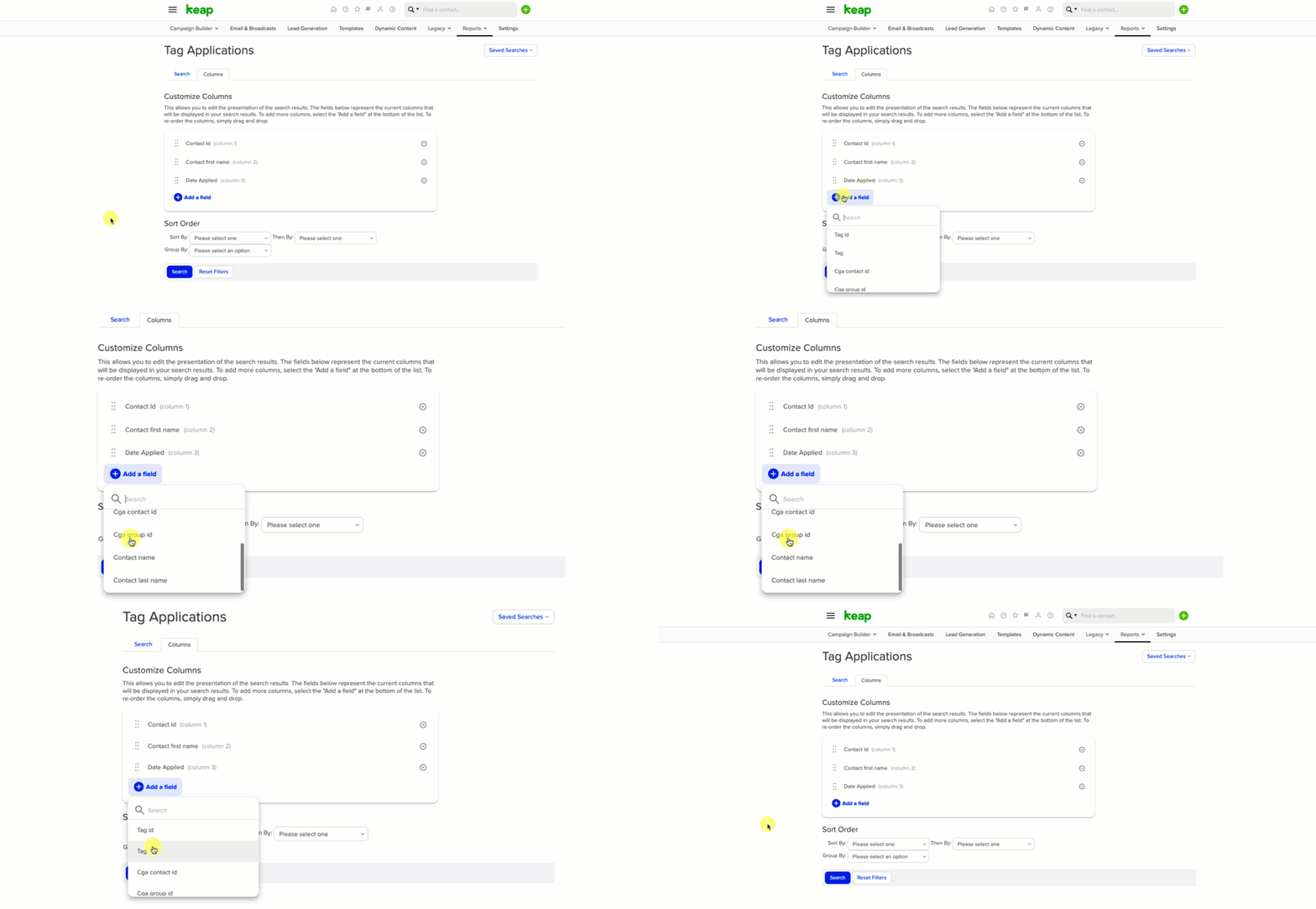
A common situation is when you have the criteria you need on one report, but the fields you want to add to the results aren’t available.

limited keap reports

This happens because different reports query different types of records. So, you might be querying tag data, but trying to pull in contact fields.

Or searching against email data, and trying to draw in order information, etc.

What do I do about it?

One solution is to export the info you can from the report with the criteria you want, and then use Google Sheets (or excel) to finesse the rest of what you’re after.

A similar scenario came up recently in the Monkeypod Community and Jade and Moshe put their heads together to come up with a solution.

Check it out:

I’ll be the first to admit that spreadsheets make my eyes glaze over a bit – but if you can develop a baseline level of comfort with them, you can really unlock some massive power.

Here are the specific formulas Jade described in the video above:

=IFERROR(ARRAYFORMULA(VLOOKUP(A2:A,‘Contact search – with tag and custom fields’!A:B,2,FALSE)),“”)


=VLOOKUP(A2,’Contact search – with tag and custom fields’!A:C,2,FALSE)

 
Hope this helps you multiply the value you’re getting from the data inside your Keap account. Thanks for following along.
 
Oh, and if you like this type of stuff, here’s another trick for bending the rules on Keap’s reporting.
Dynamic Monthly Loop Campaign

Dynamic Monthly Loop Campaign

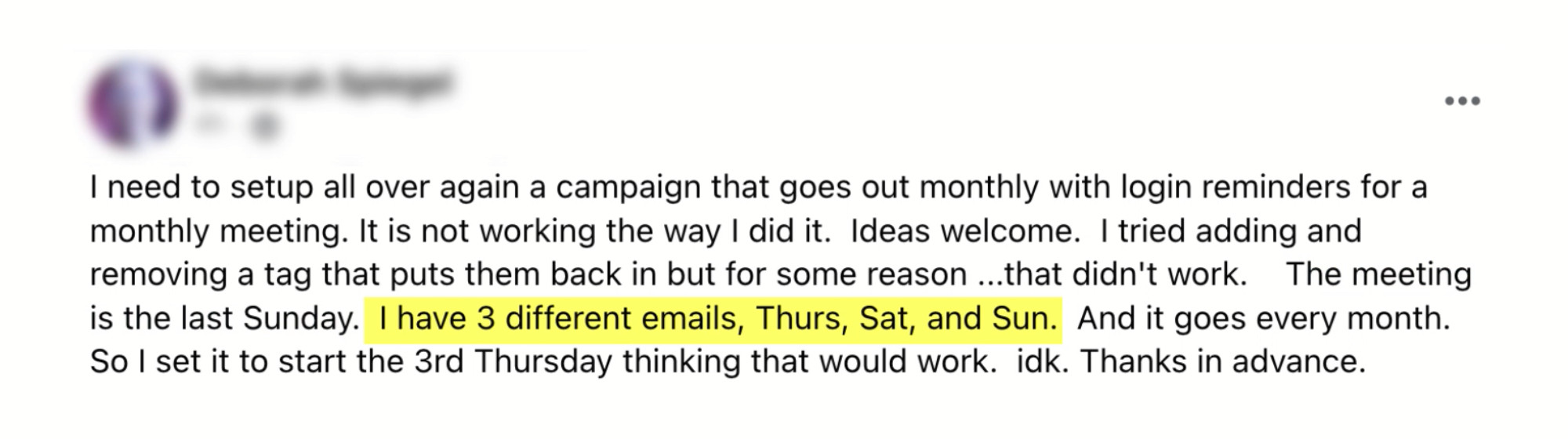
The other day a question came up in the private Monkeypod community – Deborah was asking how she can set up a campaign that reminders her subscribers about an event that happens each month on the last Sunday.

deborahs question

Generally a looping campaign isn’t that difficult – but this one was unique, because the last Sunday of the month changes (sometimes there are 4, sometimes there are 5 Sundays in a given month).

But we came up with a perfectly serviceable solution – it just required a tiny touch of human intervention.

But I knew it could be better.

So when I shared the campaign I had suggested, I invited people to call out ways it could be cleaner, or fully automated – and was thrilled at the replies I got.

I love puzzles like these, and I hope following along helps you solve challenges in your own business as well.

Thanks to Deborah for the question, and to Christine and Devan for their recommendations on how this could be solved.

As you saw, Devan’s solution includes the use of PlusThis – if you don’t have a PlusThis account yet you can check it out or start a free trial here.

File Uploads to Keap with Google Forms [and Zapier]

File Uploads to Keap with Google Forms [and Zapier]

Sometimes you need to collect a document from your Keap prospects or customers.

It could be a headshot that you attach to their contact record, or it could be something more formal – like a floor plan, or a brief for a specific project.

But regardless, there are use cases where you’ll want to be able to let someone easily upload a file and have it automatically attached to their contact record inside your Keap CRM.

There are a few ways to solve this challenge, but a solution I like is to use Google Forms as the form – which has an option for receiving a file upload as a question type.

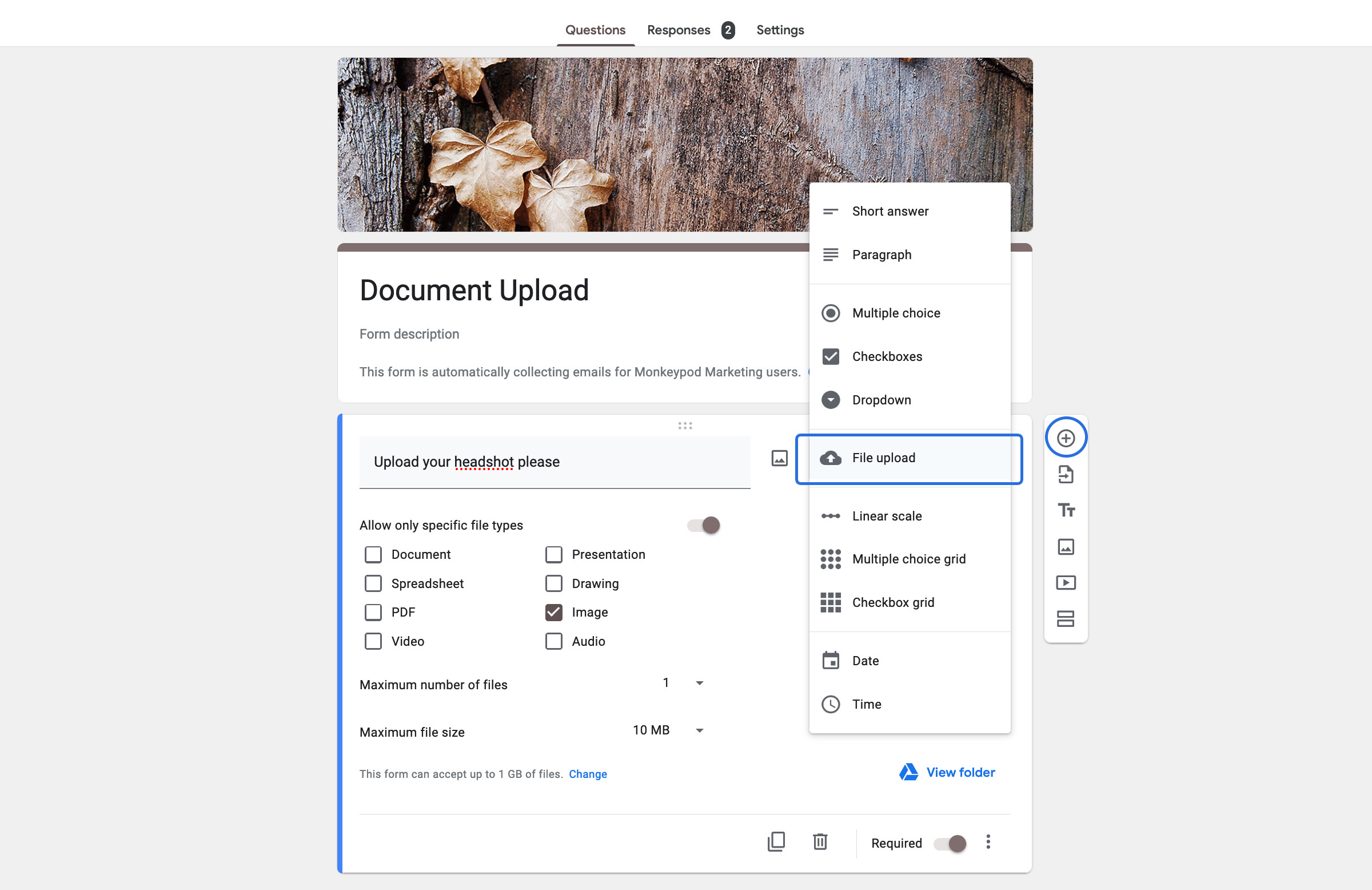
google forms upload screenshot

When you use the Google Forms file upload option, it gives you some additional settings to let you control the types of files it can receive.

The files that are received are automatically stored in Google Drive – which is useful, but if we want them to be attached to a contact in Keap we need to add one more tool to the equation

The next step is to get the Google Drive link onto the contact record in Keap, and my preference for that is Zapier.

Here’s an overview of what this process entails:

There ya go – that’s the process for collecting files via Google Forms and using Zapier attach the file to the contact record in your Keap database.

Now, if you don’t have Zapier (or don’t want it), another method for solving the same challenge is to use PlusThis – they offer a File Upload tool that works on the thank you page of your forms, and lets prospects and customers upload files which are then attached to the corresponding contact in Keap.

You can check out their solution here.

Hope this was valuable – feel free to drop any comments or questions below.