How Referral Tracking Works in Keap

How Referral Tracking Works in Keap

There have been a few conversations in public groups lately on the topic of Keap’s referral partner tracking – and so I wanted to write a quick post just to cover how the partner tracking works (and how it doesn’t).

But first, I want to make sure we’re all on the same page: This blog post is about using the built-in Keap Referral Partner Program to track sales driven by your affiliates, so that you can pay them a commission.

Still with me?

How the Infusionsoft Referral Tracking Works

Just to be clear, it WAS called Infusionsoft – it’s now the Max Classic version of Keap.

The Referral Partner section of Keap is pretty robust, and I’m just going to focus on how the technical tracking piece works – but if you want to learn how the other features work, or you want to set up a partner program for your business, check out this Referral Partner Launch course from Keap Academy.

Now then – let’s get into it:

  1. A tracking link is sent to the contact by the affiliate
  2. Contact clicks the link
  3. A cookie tied to your Keap app name domain is set (your app name domain is something like xy123.infusionsoft.com)
  4. The cookie gets read by Keap. Since that cookie can only be read by a script living on that domain, there are only a few ways this can happen:
    • Keap Web Form Submission
    • Keap Order Form Submission
    • Keap Shopping Cart Submission
    • A little known and little documented feature (more on this in a sec)
  5. Once the cookie is read and the contact is created, Keap will associate that contact with the appropriate Affiliate (the one that sent the link in step 1)
  6. When an order comes in via the Keap Order Forms, Shopping Cart, or is manually entered for that contact (and is within the tracking time window) the affiliate will earn credit based on the commission program(s) in which they are enrolled
    Note: The order record has to be in Keap for a commission to be calculated.

Okay, did you follow all that?

This begs the question “What if I’m not using Keap’s order forms or web forms or shopping cart?”

What if I use a third-party checkout system?

If you’re using something else for those things then the Affiliate information for the order would need to be set via the API.

Since cookie’s can only be read by a script living on the domain or subdomain (this isn’t an Keap limitation, btw, it’s just how cookies work), Keap would need to be able to read the cookie and send the information along.

What do I do about it?

There is a little known and not-so-well-documented feature in Infusionsoft that will return the ID of the affiliate based on the cookie set on the device (computer, phone, etc) the contact is using. This article explains how you can use that feature.

Update: Here’s a video explainer of how you can track referrals for third-party cart systems:

So, if you’re using something other than Infusionsoft to process orders, then the integration that passes the details to Infusionsoft would need to also get the affiliate for the contact from the script referenced above, and set the affiliate for the order.

Most of the standard integrations don’t do this – I happen to know that my WooCommerce plugin does, but if you’re using an integration to add orders to Infusionsoft you’ll probably want to check before you launch a partner program.

What about Spiffy? If you’re using the original Spiffy for Infusionsoft to fancify your checkout pages then you’re all set – Spiffy works seamlessly with Infusionsoft referral partner tracking.

Key Vocabulary

Affiliate: An affiliate is an individual who has enrolled in your partner program because they want to earn commission by promoting your products or services, also known as a Referral Partner.

Commission Program: A commission program defines how and when commission can be earned by the partners who are enrolled in that particular program. You can define a default commission percentage, or establish unique override commissions on a per product basis.

Clawbacks: A “clawback” is the recovery of commission that was calculated or distributed in error, as in the case of a refund request.

Ledger: The Referral Partner Ledger, or “ledger” keeps track of the commissions earned by your partners so that when it’s time to distribute payments you have a clear record of who has earned what.

Partner Tiers: Infusionsoft’s referral partner module offers the ability to support a partner program with multiple tiers – meaning that your partners could recruit other partners, and then earn commissions as a parent affiliate for those they’re recruited.

Promotional Resources: To help your partners be successful Infusionsoft allows you to create promotional resources to educate your partners, or that they can use to promote your products. The resource types available are links, banners, and promotional pages.

Referral Partner: These are the individuals who are enrolled in your partner program – also known as affiliates. All referral partners must have a corresponding contact record – but all contacts are not necessarily going to be referral partners.

Referral Partner Center: To support your partners Keap offers a portal where your partners can log in and access their links, view their existing commissions, or consume training or resources you’ve created for them. Using the referral partner center is optional, but can be a good way to encourage partner engagement.

Tracking Links: Tracking links, or redirect links, are the links that your partners will use to send traffic to your website and landing pages. When these links are clicked they initiate the cookie on the contact’s device, report information back to Keap, and resolve to the URL you defined as you were setting the link up (usually an opt-in or check-out page).

Uh, I think I need this…

If you’re interested in launching a referral partner program for yourself, or just want to understand that part of the Keap platform better – then check out the Referral Partner Launch course in the Keap Academy Platform.

How to sleuth which Infusionsoft app sent an Email using Gmail’s Show Original

How to sleuth which Infusionsoft app sent an Email using Gmail’s Show Original

This post is for anyone who works in more than one Infusionsoft account, or anyone who just likes technical tricks, or digital snooping.

K, so, if you work with a lot of different Infusionsoft applications, you may get a random notification in your email sometimes, for whatever reason.

For example, a saved search/report doing its automated reporting to you as the User.

These system notifications don’t always leave a clear paper trail as to which app the notification originated. And if that notification needs some action, this can be particularly problematic.

The good news is that with Infusionsoft, the source app name can be uncovered with a little technical know how. Which is of course the whole point of today’s post 🙂

Introducing “Show Original”

If you use Gmail (read below if you don’t) there is an esoteric function known as ‘Show Original’. This allows you to view the raw HTML of the email.

As you’ve probably guessed, the app name from a mystery notification can be found in the raw HTML of any Infusionsoft-sent email and this can easily be extracted if you know what to look for.

Which means that, even if you don’t use Gmail, you can still use this general tactic of looking at the HTML. All you need to do is figure out how to view the raw HTML for a particular email in your system.

First, let explore how the HTML of an email is structured, and I’ll try to make it exciting 🙂

Emails are similar to those websites we all know and love. There is the header information that the machines care about, and the body of the page that we see.

See, its thrilling!

Emails are the same way. You have the header information and the email body. Think of it like the envelope and the letter inside.

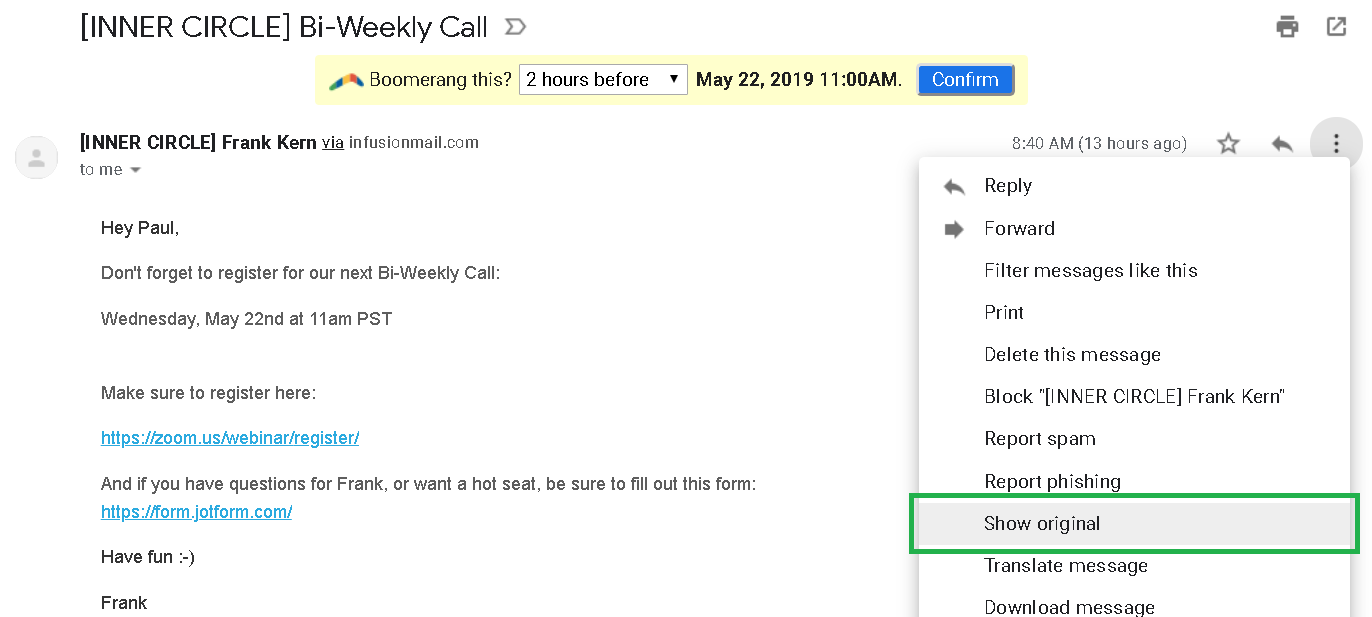
To see the raw HTML of an email, in gmail, click the ellipsis and ‘Show Original’

Boom! The HTML of your email.

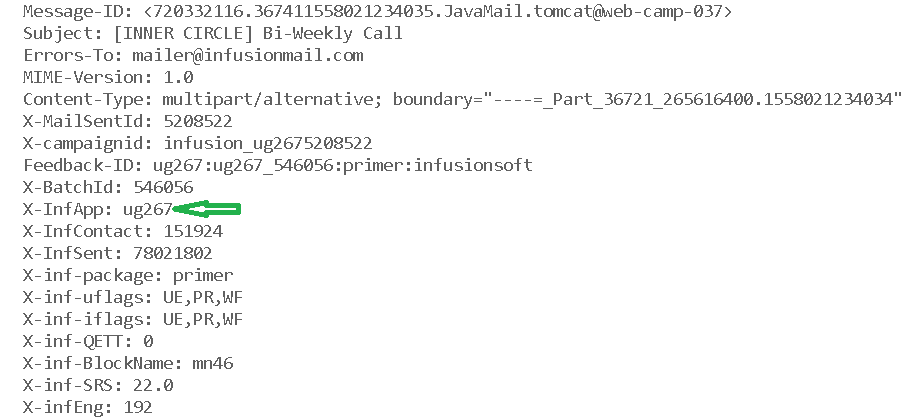
Infusionsoft packs app data in your email headers. It’s pretty easy to spot.

There is a bunch of neat info here. My favorite is the batch ID.

(Pro-tip: Which can be particularly helpful when debugging campaign emails.)

So there you have it. Nice and simple. Show original opens up new worlds.

And if you want to have a little fun, show original on spam emails. It gets pretty wacky!

Happy Sleuthing!

Calendly and Keap

Calendly and Keap

There is an undisputable rule in marketing automation: if you have appointments or events to invite contacts to, and manage or negotiate in any way, you are wasting a boatload of time and giving yourself pointless headaches if you’re not using a scheduling tool.

I’d like to highlight one today in particular, namely, Calendly.

What is Calendly?

Calendly is an online scheduling tool that connects with Google Calendar, Outlook, and iCal.  It allows you to send meetings or events to any number of individuals so that they can quickly book them.

These meetings and events can be paid or unpaid.

They can also extend to other formats, such as group trainings.  One caveat, which I’ll touch on later – Calendly excels for group appointments and small meetings better than much larger shindigs like classes or workshops.

Who should use Calendly?

It’s for any SMB owner needing to eliminate the repetitive task of negotiating meeting times with people.  Delegation is key, and any superfluous task that can be done better, automatically, without us having to micromanage it is a huge win.

Parties that are especially well suited to Calendly are consultants who sell their time, because of Calendly’s stripe integration which allows you to sell paid appointments.

It’s also excellent for operations that use sales appointments and sales meetings, considering the tools available for round-robinning (yeah, I made it a verb, whatcha gon’ do?) and fairly sophisticated team distribution.  It works well for those who offer classes, workshops or group trainings on a fairly regularized or uniform basis, although Calendly’s scheduling capacities for these is relatively simple in what it provides.

All this said, if you need more advanced features like add-ons or upsells, perhaps Acuity is a more apt choice.  This caveat is especially applicable if you need to be using more advanced criteria in the booking of the appointment (as in the case of haircuts or massages or spas) where the type of appointment varies by the kinds of resources or the types of personnel needed to perform particular services.  

Again, in these situations, Acuity is probably going to be more in your wheelhouse.

Calendly Benefits

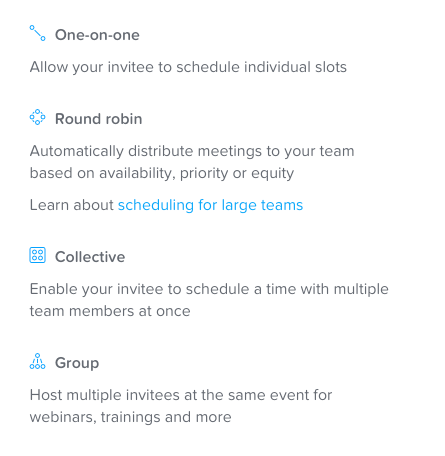
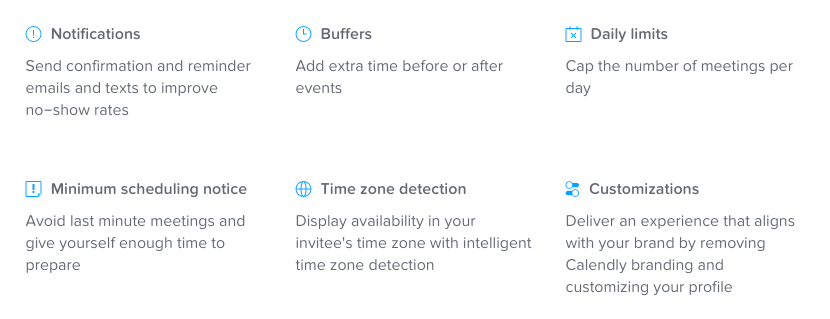
Caveats aside, I love Calendly.  It’s an extremely flexible and easy tool to use, which is predicated on how well it does the very specific job it accomplishes.  Here are a few key features listed on the Calendly site:

I also love how easy and fast it is – how easy and quick to set up/implement it and connect it to your calendars, along with the intuitiveness of its interface from the user end, along with how *literally* fast it is … I won’t name names, but not all scheduling tools are snappy about loading their calendar availability, which clearly jeopardizes your ability to reliably book appointments.

It looks great on a mobile site, and is extremely flexible for weaving into your funnels.

Here’s an exhaustive list of the Calendly features.

Calendly Drawbacks

One limitation of Calendly is that there is a rather limited number of fields you can request a contact to fill out prior to booking an appointment (I believe it’s three).

I’m not sure what the reason for this is, but if you have sophisticated form requirements, you’ll need to ask them those questions after the appointment has been booked, which isn’t always necessarily a bad thing.

Any other limitations of Calendly are really a “feature-not-a-bug” situation.

Calendly Pricing

As ever, we should probably discuss pricing.  So let’s dive in, shall we? Calendly offers three tiers of offerings:

  • Basic (which is free)
  • Premium (which is $8-10 mo.)
  • Pro (which sits at $10-12 mo.)

The Basic option is good if you’re a dabbler by nature or looking to just get a feel for the system.  You can use 1 event type, received a personalized calendar link, and can send automated event notifications via email.

Premium steps it up with unlimited event types, poole availability options (such as collective scheduling and round robins), customizable email notifications and reminders, access to metrics and reporting, integration with Zapier (key!) and Zoom and GoToMeeting.  If you don’t have paid appointments or use SMS notifications, this is the tier for you.

The Pro tier has some very useful upgrades worth noting.  In addition to everything in premium, you can send SMS notifications and reminders, and also sports and integration with Stripe and PayPal (key for processing paid appointments), and also has a google analytics integration that can be useful in certain situations, as well as invitee redirect

You can check out what their various tiers include here.

Connecting Calendly with Keap

Connecting Calendly to Keap (formerly known as Infusionsoft) is pretty painless too.  Though it offers a first-party, native integration, it has a few problems and I wouldn’t recommend it, for reasons to wordy for this blog.  However, connecting Keap and Calendly through Zapier is a snap, and I recommend it strongly.

Calendly does have some native integrations, but I’ve found some of the direct integrations aren’t as robust as what is available through Zapier.

More on their integration options here.

You can have that zap run on the booking, cancelling, or rescheduling of an appointment, and will work via the “tag app applied” option .  One of the beauties of all this is that you only need to use minimal setup between Zapier and Calendly, since Calendly native functionality is already so rich.  This may not be the case with ScheduleOnce, Acuity, or … others :/

Editor’s Note: I was reminded by the commenters below that PlusThis also has an integration that connects Calendly and Infusionsoft – so, if you’re already a PlusThis user (or you were thinking about it) then this is another tasty feature that they offer. Details here.

Now I know I’ve painted a pretty glowing picture of Calendly here, but it’s always important to remember that all tools have strengths and weaknesses compared to their competition.  

As I’ve mentioned Calendly’s strengths are legion: The pricing is really in that sweet spot, the speed and simplicity of setup is really my favorite feature of all, and it’s flexibility in accommodating different offering types and setups, and if you’re looking to use a scheduling tool in your processes Calendly is among the easiest.

As far as weaknesses go, it’s primary chink-in-the-armor is that it’s not as feature-rich as some even more robust tools like Acuity, and if you’re seeking something that is more along the lines of a facilities management kind of tool, a solution like Acuity or ScheduleOnce is going to be more adequate for you.  

Editor’s note: More on integrating Acuity with Infusionsoft in this post.

But if you find yourself in a space that doesn’t have paid appointments, Calendly earns my vote, for sure.

Bonus Tips:

Gmail Templates

If you use Calendly and Gmail, I’d recommend setting up a template that you can use to inject your calendar links into your emails when you’re interacting with people through your normal inbox channel – it can save you time by preventing the need to look it up and copy/paste, etc.

Prefill Calendly Links

You can use merge fields to append information to the calendly link which saves the prospect from having to re-enter information you’ve already collected.

Chrome Plugin

There is a Calendly Chrome Plugin that allows you to quickly grab your links and adjust your availability on the fly. Check it out.

Online Scheduling Made Easy

Online Scheduling Made Easy

Update: Unfortuantely Lidiane has closed down the SchedulerLink part of her business.The preferred integration she and I both recommend now is this one, from Plusthis. You can start a PlusThis free trial here >>

Keap and Infusionsoft users already know how valuable it is to help them engage new customers and keep up with existing subscribers, and as a Small Business CRM Coach, I’ll attest it’s a wise choice.

Today, I want to share ways you can integrate appointment scheduling with Keap using complementary software.

First, let’s take a look at Acuity Scheduling, then I’ll show you options for connecting it back to Infusionsoft.

Acuity was born in 2006 when Gavin Zuchlinski developed a software to help his mom have fewer headaches booking appointments for her massage business.

Gavin was interviewed by business productivity expert Nancy Gaines in 2018 – for a little more on his story check out that episode of her podcast here.

Anyway, over the past 12 years Gavin’s cloud-based booking system has evolved. It works well for anyone who wants to allow their clients to book appointments online.

We’ve seen it work for a variety of business types, but a few common use cases are those who have regular client appointments – lawyers, consultants, or any type of coaches (business, health, etc).

Acuity boasts a lengthy feature list. Here are a few of the highlights:

  • Set up recurring appointments. One of our business coach clients uses it for this all the time
  • Collect payment from clients at the time they schedule their appointments, through integration with Paypal and Stripe.
  • Configure group classes. We use it when we schedule meetings with client teams that include several persons. This way, all team members get the meeting reminders. Others use it to book classes. (A yoga studio we work with uses it this way.)
  • Sell gift certificates and packages of appointments or classes.
  • Apply labels within each appointment. This is a brand new feature in Acuity and  it comes in handy if you want to flag when someone confirmed the appointment, checked-in or completed the appointment.
  • Configure text message reminders in addition to emails. (This feature is available at the Growing Business subscription level.)
  • Integrate it with Zoom and send a Zoom link with your appointment reminders.

Honestly, I don’t have much to criticize – it’s a really solid product. I attribute that to the fact that Acuity team members really listen to their clients and they update their product based on feedback they receive.

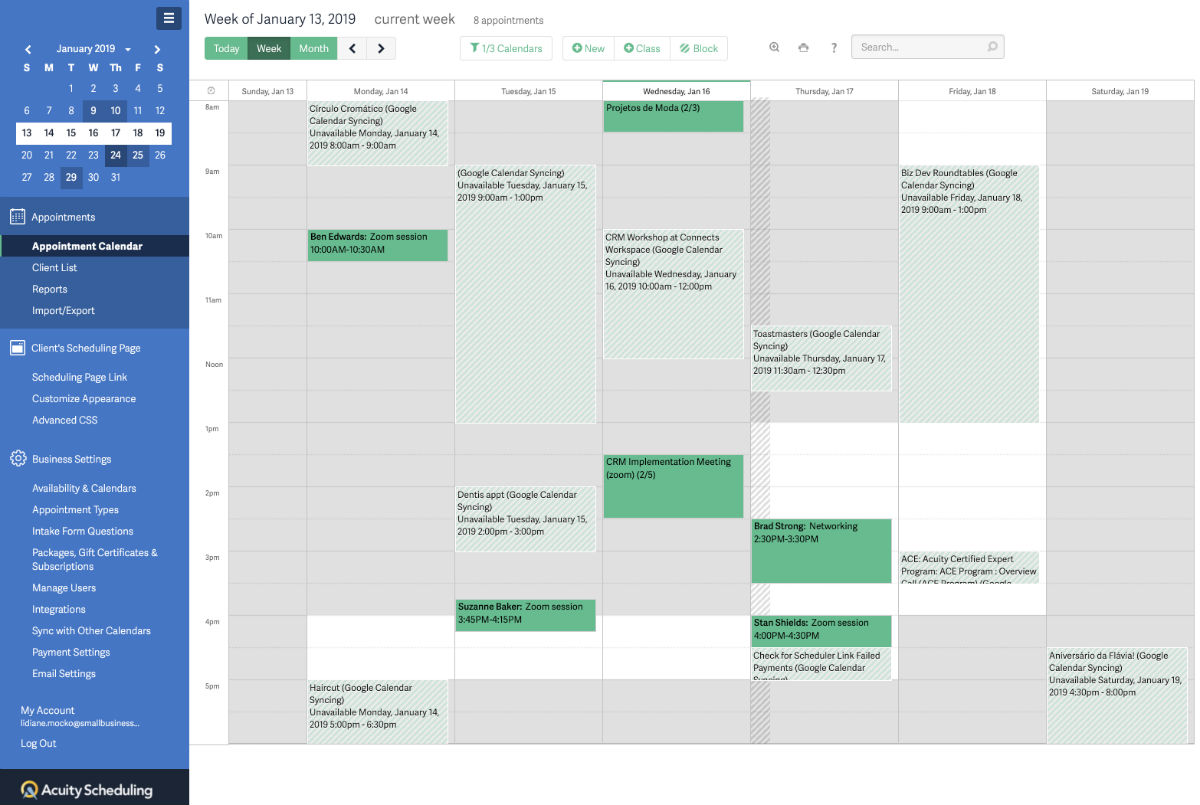
The screenshot above is Acuity. The light green areas are appointments synced from my Google Calendar and the dark green ones have been booked directly with Acuity.

Acuity pricing is based on the number of calendars, not the number of users.

The “Freebie version” gets you started and it’s, um, free.

  1. An Emerging subscription includes one calendar for $15/month.
  2. A Growing Business subscription includes two to six calendars for $25/month.
  3. The Powerhouse subscription supports businesses that need more than six calendars, up to 36. It costs $50/month.

At each level, you have the option of adding features. For all the details, check out Acuity’s pricing page.

Linking Keap and Acuity

Now for the magic: You can make Acuity Scheduling and your Keap App work together by using either Zapier or Mocknick Apps connector app called Scheduler Link.  Let’s look at each.

Connecting Infusionsoft and Acuity with Zapier

Zapier features include the ability to configure an action in Infusionsoft that corresponds with particular action happening in Acuity. Unfortunately there are drawbacks:

  • Zapier doesn’t allow you to add the appointment information to your Infusionsoft app.
  • Zapier will create an order in Infusionsoft, but not a paid one.
  • Configuring these corresponding actions is challenging because you must create a “zap” for each scenario you want to handle.

Infusionsoft is a premium connection for Zapier, so it would require a paid subscription – their starter plans start at $20/month.

Connecting Keap and Acuity

Back in 2016, one of our Small Business CRM Coach clients wanted to use Acuity and Keap (formerly Infusionsoft), so we created Scheduler Link. It uses Acuity API to talk to Keap API in its own language.

Scheduler Link includes these cool features:

  • When an appointment is scheduled in Acuity, Scheduler Link creates a corresponding appointment in Infusionsoft.
  • Appointments made with payments in Acuity generate a paid order in Infusionsoft.
  • With Scheduler Link, you can map appointment data to your contact record. For example, we have clients who map the appointment date to custom fields to trigger campaign events a few hours before or after the appointment.
  • Scheduler Link can use Acuity forms to collect additional information and map it to corresponding fields in Keap.
  • You can apply tags based on appointment types. The tags can be used to trigger campaigns and automations in Keap.

At this point Scheduler Link only handles one-way appointments; what’s scheduled in Acuity will also get set up in Keap.

Price points for Scheduler Link correspond to Acuity’s pricing structure:

  • One calendar for $10/month
  • Two to six calendars for $15/month
  • More than six calendars for $20/month

Acuity Scheduling is loaded with features. From my own experience, I know the Acuity team is very customer-focused. They’ve been a great partner to work with as we developed our Scheduler Link connector.

The bottom line is that if you’re going to use a scheduling tool – Acuity is a good one.

And if you’re going to use Acuity, then a connector between Infusionsoft and Acuity will multiply your efficiency (and help keep you sane).

This type of organization is critical for not only your business but also the experience you’re creating for your customers.

Scheduler Link was designed specifically to bridge the two systems. Once you’ve created an account with Acuity Scheduling, then check out Scheduler Link; or reach out to our team with any questions.

Update: Since SchedulerLink is no longer a suppported solution, the option we recommend now is from PlusThis.

We appreciate the opportunity to contribute to Monkeypod Blog!

Lidiane Mocko, with Small Business CRM Coach, is an ICC, an Infusionsoft Development Partner, and a proud Monkeypod OG Member. She lives in Denver, CO with her husband where they enjoy skiing in the winter and hiking during the summer.
How to talk to Infusionsoft Support

How to talk to Infusionsoft Support

Keap support doesn’t have the best reputation.

Some might say it’s terrible even.

And personally, I’m not proud of the role I’ve played in that reputation, because I honestly think it’s unfounded and based on presumptuous assumptions (consonance alliteration ftw). More on that in a second.

I always get what I need when I connect with Keap support. Always.

I always walk away from the experience satisfied with the outcome. Always.

And now I’m going to tell you how I manage that. But first, some obligatory exposition. 🙂

In my decade+ of dealing with Keap, I’ve only been disappointed in support when I expected them to be something that they aren’t (and let’s be honest, never have been) – experts in everything having to do with everything.

Keap support don’t know everything about everything. In fact, some interactions may make us feel like they don’t even know very much about Keap. As frustrating as that may seem, that is not the reason why we have trouble getting what we need from them.

The real reason is that we already know they don’t know everything, but we go ahead and act like they do (or at least should) when we call them. No wonder we’re always mad at them.

How to Work with Keap Support

Step 1 – Don’t

We all know that Keap is not the best resource for simple how-to questions. That’s not to disrespect Keap – quite the contrary; it’s virtually impossible for an entry level employee of any company to have enough context from enough industries and businesses to be capable of giving advice on specific setup questions.

Instead of calling Keap with a question that we know they probably can’t answer, why not turn to one of the plenty of other (free) resources available to get questions about implementation, strategy, or functionality answered? There are plenty of Facebook communities teeming with business owners and seasoned experts that can provide more applicable answers in realtime.

Step 2 – Prepare

Online communities can help with just about everything when it comes to Keap, but still there is the occasional situation where the issue you’re running into can only be explained as a “bug in the software”. Most of the time, frustrated business owners will call Infusionsoft support and the first thing they say is, “There’s a bug in the software.”

That is not an effective technique. A support rep can’t do anything with that. And the minute they start to feel you getting upset or angry or frustrated, it will put them on the defensive. And a defensive support rep is an unhelpful support rep. Get ready for disappointment if that’s the route you choose.

Here is a list of things that you should have prepared before you call or join chat support:

  1. Your appname
  2. Your security details (they can’t help you if you don’t have this)
  3. The name and id of the affected feature (e.g. Marketing Campaign, id 123)
  4. The exact steps that you took that caused the issue
  5. The exact steps that you took trying to replicate the issue
  6. Whether you were able to replicate the issue
  7. Screenshots (of everything)

I like to do all of this in one shot by recording a screencapture video of me duplicating the error.

Step 3 – Empathize

As difficult as it can be to swallow your pride, empathizing with the support rep will always result in a better experience. Going into the call with the understanding that the individual on the other end is not responsible for causing or fixing your issue will keep you from taking your frustration out on the rep, which, again, is simply ineffective.

But if you take that one step further, and type these exact words while the support rep is looking into the issue, that rep will go above and beyond for you:

“Thank you so much for your help. I understand this is in no way your fault, and I appreciate you taking the time to help me. If you sense any impatience or frustration, please don’t take that as frustration with you personally.”

Think about it – support reps only deal with 1 type of person – a frustrated person.

If you set yourself apart from that and recognize them as an individual, a human, and not just a cog in a bigger machine, they will make it their personal mission to help you.

Keap support aren’t perfect, but if you approach the interaction correctly, you never have to walk away from the interaction feeling like the end of the world is nigh. With a little bit of preparation and a slight mindset shift, you can get so much more out of it and end up actually satisfied with the result.

Imagine that.

Editor’s note: If you liked this, tell the world (and Bret) on twitter.

Editor’s other note: If you’re looking for more suggestions for getting the most out of your support channels, check out the tips from this article written by another former Infusionite.

Automate Recurring Live Events

Automate Recurring Live Events

If you run regular recurring events, then I think I can make your life a little easier.

Here’s how most businesses I work with handle repeating live events:

  1. Build out campaign for event 1
  2. Copy campaign for event 2
  3. Adjust email copy, and campaign timers for event 2
  4. Repeat for event 3, event 4, etc.

And heck, maybe you’ve even used campaign merge fields, and campaign links to make your life a little bit easier.

But this process is still heavily manual, and a little tiring. Right?

Right. So, I think I can make things a little easier for you, and your monthly workshop, or your meet-up every few weeks.

Let’s jump right in, shall we?

Context:

If you are promoting a live event then you likely want to put the date in the email(s) to your contacts, right? Totally normal request.

The way most people handle this problem is to use the campaign merge field.  Campaign merge fields are managed centrally on the campaign level, so if you have to make a change, you only need to go to one place to update the date and it will automatically use the new value for every email that was using that merge field.

This is especially helpful when you’re copying the campaign too, because the campaign merge fields are all copied too, so you can use the same structure and quickly update the merge fields to save yourself time.

But even if you update the campaign merge fields, you still have to manually go through and adjust all the date timers for the new event, and for some people this is a dealbreaker.

So, I’m going to show you how you can set the campaign and never need to touch it (as far as dates are concerned).

Scenario:

You are advertising on Facebook for your live event.  You have 4 events coming up in Jan and Feb.

<!-- [et_pb_line_break_holder] --><center><iframe src="https://www.youtube.com/embed/NfYlIK7x-7E?rel=0&showinfo=0" width="560" height="315" frameborder="0" allowfullscreen="allowfullscreen"></iframe></center>

Let’s Build:

Before the campaign:

For this campaign you’re going to need to set up an Event Date custom field (the field should be a Date Type), and then you’ll also need one tag, we use “Date Set” as the tag name.

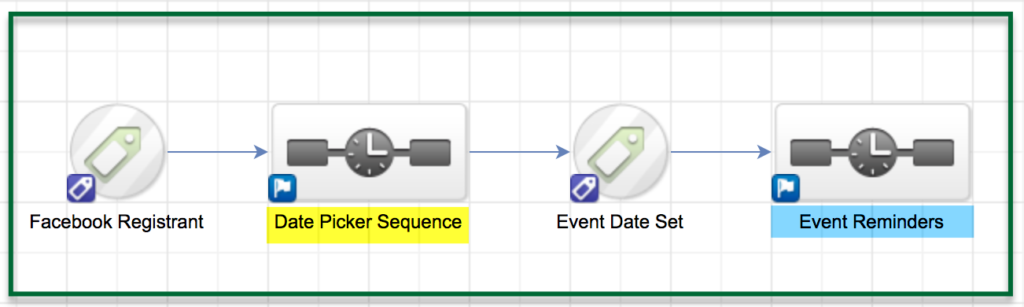
The campaign structure:
  • Create a goal to trigger the campaign.  In this case I used a tag as a goal for when people register for the event from Facebook.
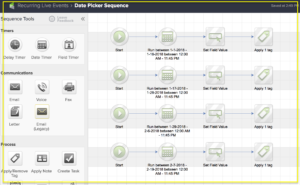
  • Create a Date Picker Sequence. (We’ll talk about what’s inside next)
  • Create a Event Date Set Tag Goal
  • Create an Event Reminder Sequence. (We’ll talk about this one in a moment too)

This is how your campaign structure should look:

Simple right? The magic happens inside the sequences. Let’s take a closer look at what is happening under the hood:

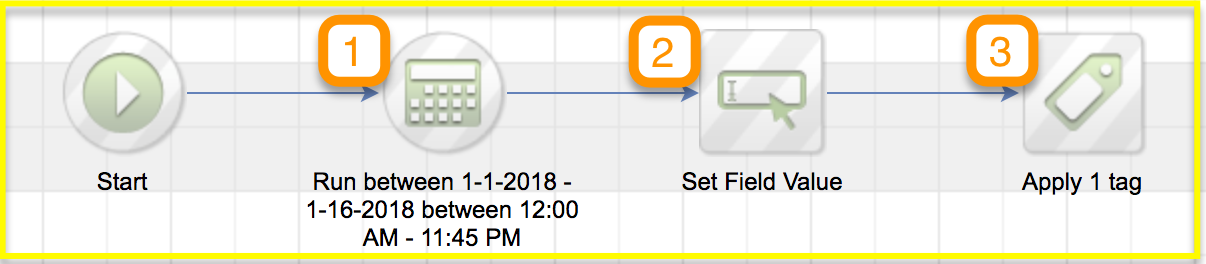
 Inside the Date Picker Sequence:
  1. Use a new start element for every event date
    (The first date timer should range from the date you will start the ads up to the date before the event. We are not going to let people register for this event on the day of, yet.  For now, if they sign up on the day of the event, they will be registered for the next event.)
  2. Add a Set Field Value widget and add the date of the event
  3. Apply the Date Set tag.

On the second Start element, add a new date timer that runs between the start date of the first event and the day before the next event.  Then repeat steps 1-3.

Here’s how the inside of the Date Picker Sequence (highlighted in yellow above) will look:

Each of the individual “tracks” inside the sequence should look like the image below:

And here are the important things to note about this:

  1. The date range timer should include all dates leading up to the first event, but you can adjust the cut off date if you want last minute registrations to automatically be registered for the following event. So, choose a range that accommodates based on your own preference.
    (Each “track” in this sequence will have a different date range, and they should not overlap.)
  2. The “Set Field Value” is the widget responsible for recording the Event Date into a custom field on the contact record, this is important because it will be used in the next sequence to control the delivery of reminders.
    (Note: The first track would have the date of event one, the second would have the date of event two, etc.)
  3. This is the “Event Date Set” tag, and this will be the same for each track in this sequence. This tag is important because once the custom field has been updated with the event date, this ensures that the contact is extracted from the sequence by achieving the Tag Goal attached to it.
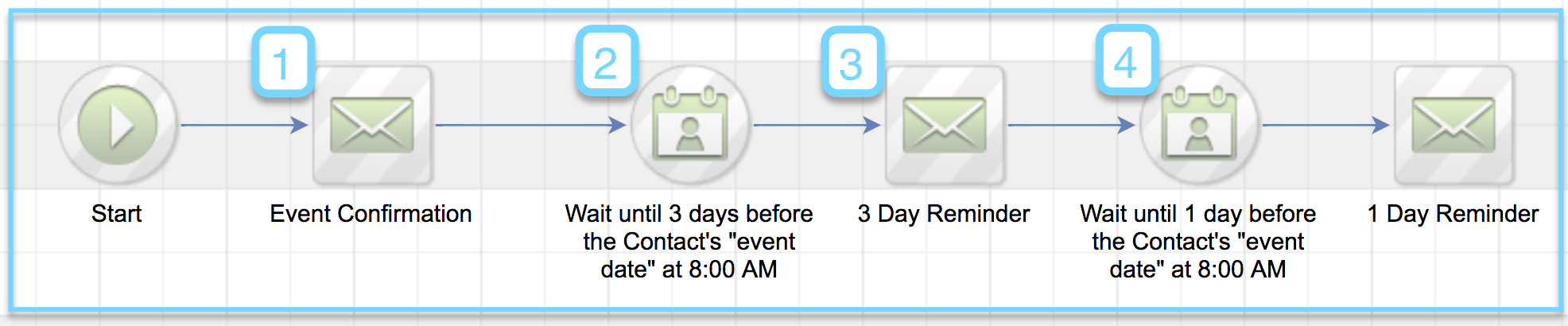
Inside the Reminder Sequence:
  1. Add the Confirmation email and merge in the Event date
  2. Use a field timer with the event date.  Be sure to choose the option – “Use year from field”
  3. Add a reminder email to let people know when the event is approaching.
  4. Add another field timer, followed by another email, for as many reminders as you’d like.

Here’s how the inside of the Event Reminders Sequence (highlighted in blue above) will look:

———–

Okay, that’s about the size of things. You should now have a functional campaign designed to automatically assign registrants to the next upcoming event, and then send reminders as the event approaches.

One benefit of this campaign is that you can set it up for as many events as you have scheduled, so if you know the event dates for the next 6 months, you can build it out, launch, and you shouldn’t have to do any real upkeep to make sure things are current.

Hope this helps lend some automation to your recurring live events! If you have any questions, please feel free to comment below, or reach out to me directly!

Editor’s Note: Kevin’s solution is great, but it got me thinking about fringe scenarios where this might not be a good fit, so I recorded a quick video to demonstrate how you can adapt this to allow registrants to sign up ON the day of the event, or to allow them to choose their date of registration, and some automation to address what happens if people sign up after your events have taken place.

Here you can create the content that will be used within the module.

<iframe src="https://www.useloom.com/embed/72c95faf415142a68e02dcc53cf0c9b6" allowfullscreen="allowfullscreen" width="630" height="394" frameborder="0"></iframe>