New AI Features in Keap

New AI Features in Keap

So as you likely have noticed, artificial intelligence (AI) has had a bit of buzz lately.

In less than a year it went from being a technical and esoteric topic to being a household term for small businesses.

And naturally, Keap is getting in on the party by introducing features that take use AI to simplify the process of producing the assets we need for automations.

There have been multiple iterations of the AI features in Keap, so if you checked them out at one point but haven’t been back lately, you may be missing out on some serious upgrades.

You’ll need to be a Keap user to take advantage of these features – if you aren’t using Keap yet you can start a 14 day free trial here.

The first thing to know is there are basically two different AI tools that Keap has been developing – there is some overlap (which I’ll expand on later), but they solve different problems, and are used differently.

The two tools are:

1. AI Automation Assistant
2. AI Content Assistant

I’ll do my best to explain both in this post – but if you’d like to see them in action, check out this free mini course.

AI Automation Assistant

The first one, the AI Automation Assistant is a tool that Keap has had in one way or another for over a year now, and effectively it lets you launch “plays” that can support your business in varying ways – by helping you collect new leads, convert more sales, or better serve your customers.

To start, you choose a “play” you want to build. Then the Automation Assistant will walk you through a series of prompts it needs to collect information from you (your company info, target customer details, offer specifics, etc).

AI Features in Keap

Once you’ve answered the questions, you click “Generate” and the AI will use your information to automatically produce tailored copywriting for the various assets the play you selected requires.

Then, you can review or edit the copy and once you feel good about it then you can use it to set up an automation.

For Keap Pro and Max users, you can launch an Easy Automation right from the interface.
Create Easy Automation

Ultimate (or Max Classic) users, and anyone who prefers advanced automations, can simply copy and paste the copy into the various components you need in order to set-up the play in the Automation Builder.

So, if the Automation Assistant helps you craft copy that you’ll use to communicate to groups of people, then the other AI tool is more about crafting personal communications.

AI Content Assistant

Rather than helping you produce copy to use in one of your automations, this one helps you write messages to individuals. (Available in Keap Pro and Max for now)

To start, you’ll open a contact record and then start to write a message. But instead of starting from scratch you’ll look for the little “wand” icon to get started.

AI Content Assistant

There are a variety of prompts you can use depending on the nature of the message you want to send, or if you have a unique scenario you can just ask it to create custom copy.

The AI will use information about your business, as well as details drawn directly from the contact record in order to draft email copy for you.

Once the first draft of a message is produced, you can use it as is or modify it by changing the tone, length, or translating to another language.

For now, this tool is only available in Keap Pro and Max, but my understanding is that they’re exploring ways to have this wand show up in more places throughout all versions of Keap.

And if you’re not yet a Keap user, but you’d like to try it out you can start a 14 day free trial here.

Where do I learn more?

If you want to see these features in action, and long with a step-by-step walkthrough of how you can use them for your own business, check out this free mini course.

Keap is Sunsetting the Legacy API Key (what to know)

Keap is Sunsetting the Legacy API Key (what to know)

Recently you may have received an email from Keap, notifying you that they are “sunsetting the legacy API key”.

It’s true – and I know this is a somewhat technical conversation, so in this post we’ll explain what that means (here’s their overview), what you need to know, and what actions to take next (if any).

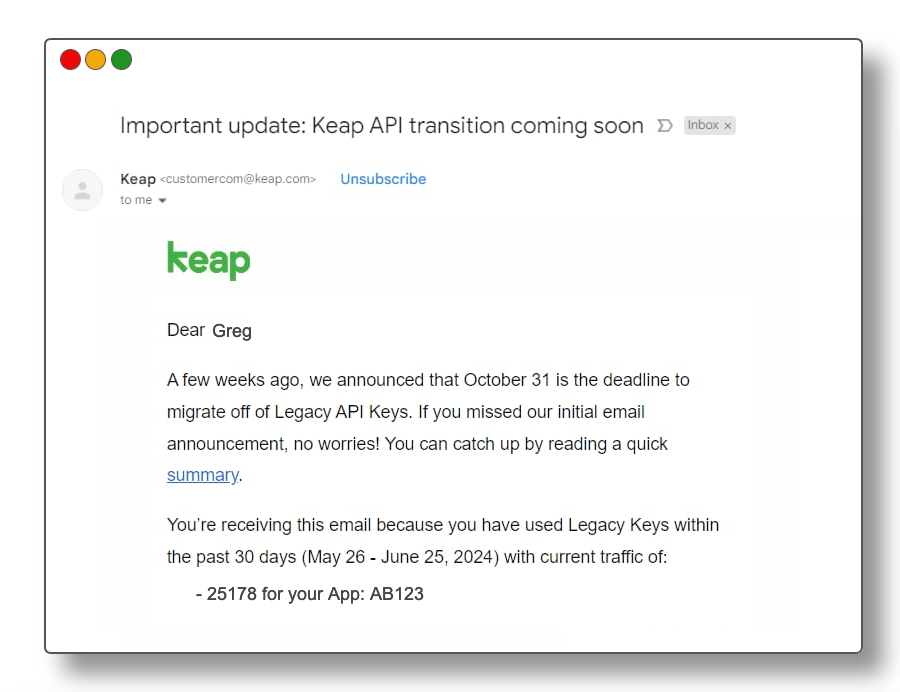
So, let’s start with the email that Keap sent out recently – it would have looked something like this:

Legacy API Email

There are a few important things to note in this email. First, there’s the deadline of October 31st.

Keap is giving users several months of notice about this planned change. But, don’t let that runway fool you – you don’t want to put this off until the last minute.

The second thing to note is that the email specifically calls out the number of API calls your Keap application has using the Legacy API key.

What is the API?

So, to be abundantly clear – API stands for Application Programming Interface. The API is effectively a method that Keap supports whereby other tools and applications can communicate with Keap, and vice versa.

If you have another piece of software that your business uses, and you want to be able to use it to pass information to Keap or receive information from Keap, then the API is generally how this would be achieved.

The API itself is not going away – at all. It is critical for Keap – in fact, it’s part of what makes Keap so powerful.

But there are several ways to use the API, and one specific access type (the Legacy API Key) is what is being removed.

Why is this changing?

Simply put, for security.

The Legacy API Key doesn’t have as much nuance as the newer connection methodologies, and therefore it was generally less secure.

What are the different API connection types?

There are a few – third-party authorized apps (OAUTH), personal access tokens, service account keys, and the legacy API key.

This video will help explain those different methods, how they differ, and why it matters:

Okay, so I think that gives a pretty solid high level overview – but if you’d like more detail, check out this 20-minute video from John Borelli, friend of Monkeypod and a Keap Certified Developer, where he digs into some more nuance regarding the different connection methods.

What do I need to do?

The Legacy API Key is going away.

If you aren’t using it – then this likely won’t affect you at all, and there’s no action required.

But if you have connections depending on this method, then it’s time to start looking into how those can be updated to use one of the other connection methods.

If you’re working with the integration offered by another tool you use but didn’t create, then you may need to contact them to make sure they’re aware of this change, and are taking measure to update how their plug-in communicates with Keap.

Now, if you have a custom built process that depends on the legacy API connection, then it may be a matter of connecting with a developer to evolve things so it doesn’t break in October when Keap stops supporting the Legacy API connection.

And, if you aren’t sure what tools you have that might be using this, then that’s where things get a little murky.

If you have some volume of legacy API calls, there isn’t currently an easy way to see which tools are using it. Everyone I’ve talked to indicates that it can take a little detective work to track down the different integrations.

Special shout out to Mark Penney, from Meppy, for generously sharing his expertise in the video above.


Introducing Keap Pay

Introducing Keap Pay

Keap Pay: Your New Payment BFF for Small Business Success?

A simple rule for business is “Make it easy for your customers to give you money.”

That’s where Keap Pay swoops in like a caped hero, ready to make life a whole lot easier. In this post, we’ll break down what Keap Pay is, how it works, and help you decide if it’s a fit for your business.

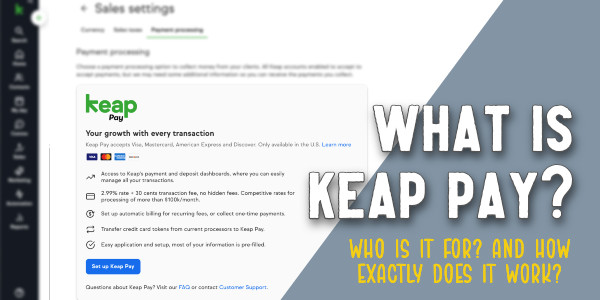
What Exactly is Keap Pay?

Keap Pay is a payment processing solution tailored just for small businesses (currently available for US based businesses).

It’s all about simplifying your payment processing, reducing transaction costs, and boosting your overall efficiency.

Features of note:

  1. Payment Variety: Keap Pay lets you accept all kinds of payments, from credit cards to PayPal (with plans to add Apple Pay). It’s like giving your customers a buffet of payment options.
  2. Invoicing Made Easy: With Keap Pay, you can create and send invoices right from the platform. No more chasing payments—your customers can pay online, making your life a whole lot simpler.
  3. Set It and Forget It: Got subscription-based services? Keap Pay’s got your back with recurring payments. Set it up once, and you’re good to go, saving you time and hassle.
  4. Keap CRM Integration: Keap Pay plays nice with Keap’s CRM software (obviously), meaning you can manage contacts and payments all in one place.
  5. Reliable Security: Keap Pay takes security seriously, using top-notch encryption to protect your payment info. Rest easy knowing your transactions are safe and sound.

To better understand the ins and outs of Keap Pay, Cameron sat down with Danny Diede (Product Manager at Keap) to get the inside scoop:

So, is Keap Pay superior? Should I switch?

If you’ve been using WePay, then yes, time to switch because WePay is closing.

But more broadly, here are some of the specific ways that Keap pay might make things easier for you and your customers:

  1. Efficiency Boost: Keap Pay streamlines your payment processes, saving you time and energy. Features like online invoicing and recurring payments take the hassle out of getting paid.
  2. Cost-Effective: Say goodbye to sky-high transaction rates. Keap Pay offers competitive pricing, helping you save big bucks on payment processing.
  3. Cash Flow Confidence: Faster payment processing means smoother cash flow for your biz. No more worrying about gaps in your cash flow—Keap Pay keeps things flowing smoothly.
  4. Happy Customers, Happy Biz: By offering multiple payment options and seamless payment processes, you’ll give your customers a top-notch experience. Happy customers = repeat business.

Wrapping It Up

Keap Pay is a competitive option for small businesses looking to simplify their payment processes and boost efficiency. If it sounds like a fit you can sign up for Keap Pay today, currently available for all US based Keap users.

I think I need training…

The Keap Academy platform features two detailed courses covering the ins and outs of using the sales and e-commerce features available in your Keap account.

There’s one course for Keap pro and max, and another for Ultimate or Max Classic (formerly Infusionsoft).

Evergreen Customer Journey [inside Keap]

Evergreen Customer Journey [inside Keap]

For a few years now we’ve been building the Keap Academy platform and filling it with free and valuable content for Keap users

And recently we crossed 25k enrollments, which is a meaningful milestone for our little team.

So we’re doing a decent job helping people find and access the content we produce, but one improvement we’ve wanted to make is creating an automated process that starts when someone finishes a course and recommends a logical next course to keep the momentum going.

The challenge is that we needed this recommendation process to take into account variables like what courses they have or haven’t already done and what version of Keap they have.

So here’s what we came up with:

This automation is designed for us to help the Keap Academy contacts continue their learning with our free resources, and build momentum that helps their business.

But this same approach could be used in myriad business scenarios where you have multiple products you offer, or competing CTAs; or any other scenario where you have a body of people with different needs to want to be able to help support as they make progress.

Alright – there you have it.

This automation is a micro example of an intentional and evergreen journey.

It starts when someone completes a course (or stalls out in one), and it stops when they start a new course. We’ve currently set it up so that the invites are only sent once, but conceivable we could design a V2 of this campaign with a new branch for repeat visitors that recommends the same set up courses using different language, or makes a completely different set of recommendations.

Where do I learn more?

Keap Academy offers a course all about journey design – Lifecycle Automation. If you’re interested in adding structure and predictability to the experience your leads and customers have, this is for you.

Email Engagement Tracking [inside Keap]

Email Engagement Tracking [inside Keap]

You’ve likely heard about the way Google, Yahoo, and Outlook are evolving, but one aspect if that is the rising importance of engagement.

It’s no longer enough to get email permission once – we need to be maintaining our list, and actively removing the contacts who stop engaging.

If you depend on email as part of your business strategy, either to produce sales, serve your customers, or for any other business function; then this is a critical habit to adopt – and soon.

So, how do we report on engagement?

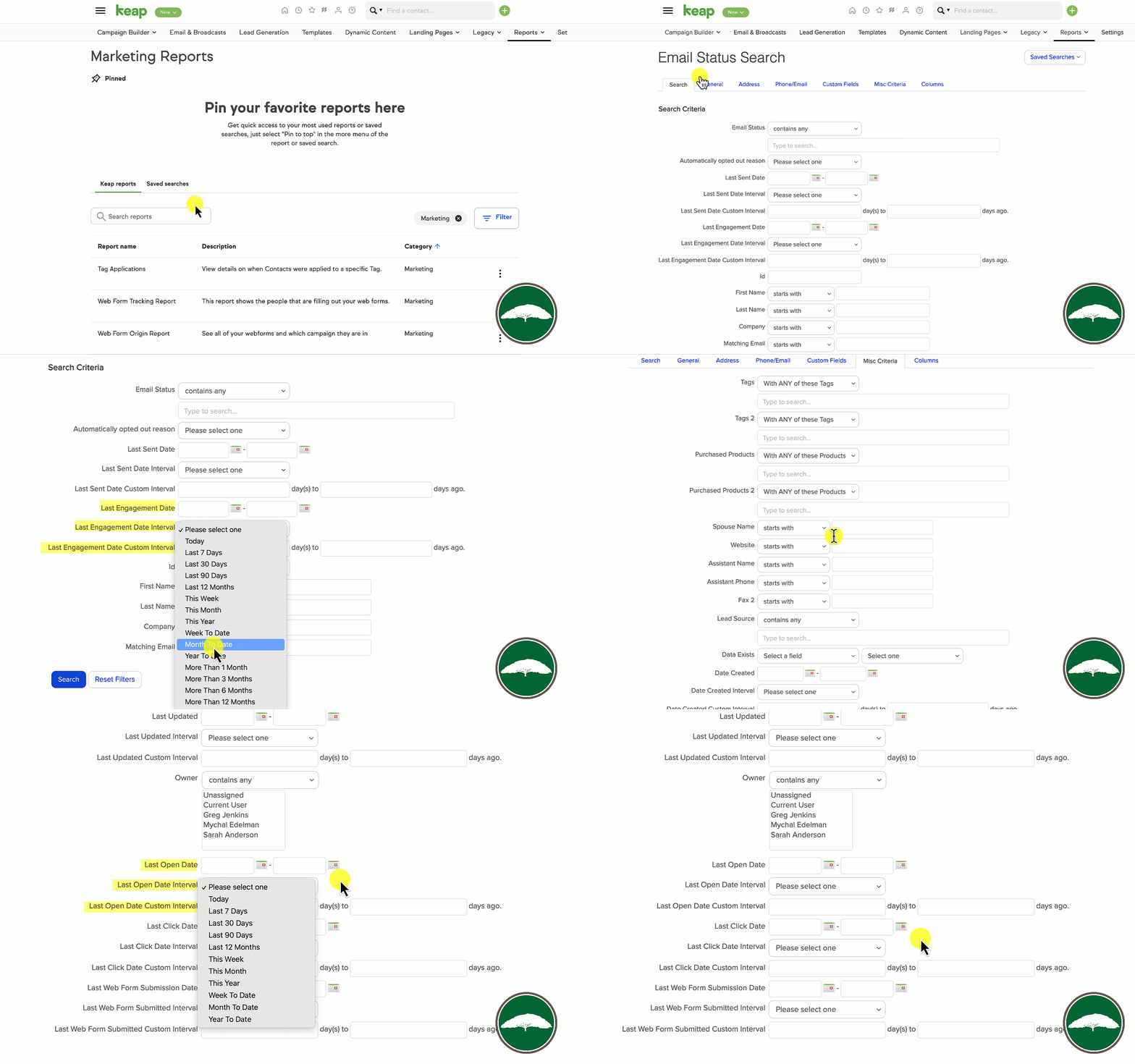
Inside of Keap there is a report you can use to manually search for contacts who have (or haven’t) engaged in various time frames.

In Keap Ultimate, formerly Max Classic, the report is called the Email Status Search.

In Keap Pro and Max it’s called the Email Engagement Tracker.

But in both versions it has a set of useful filters you can use to assess your database.

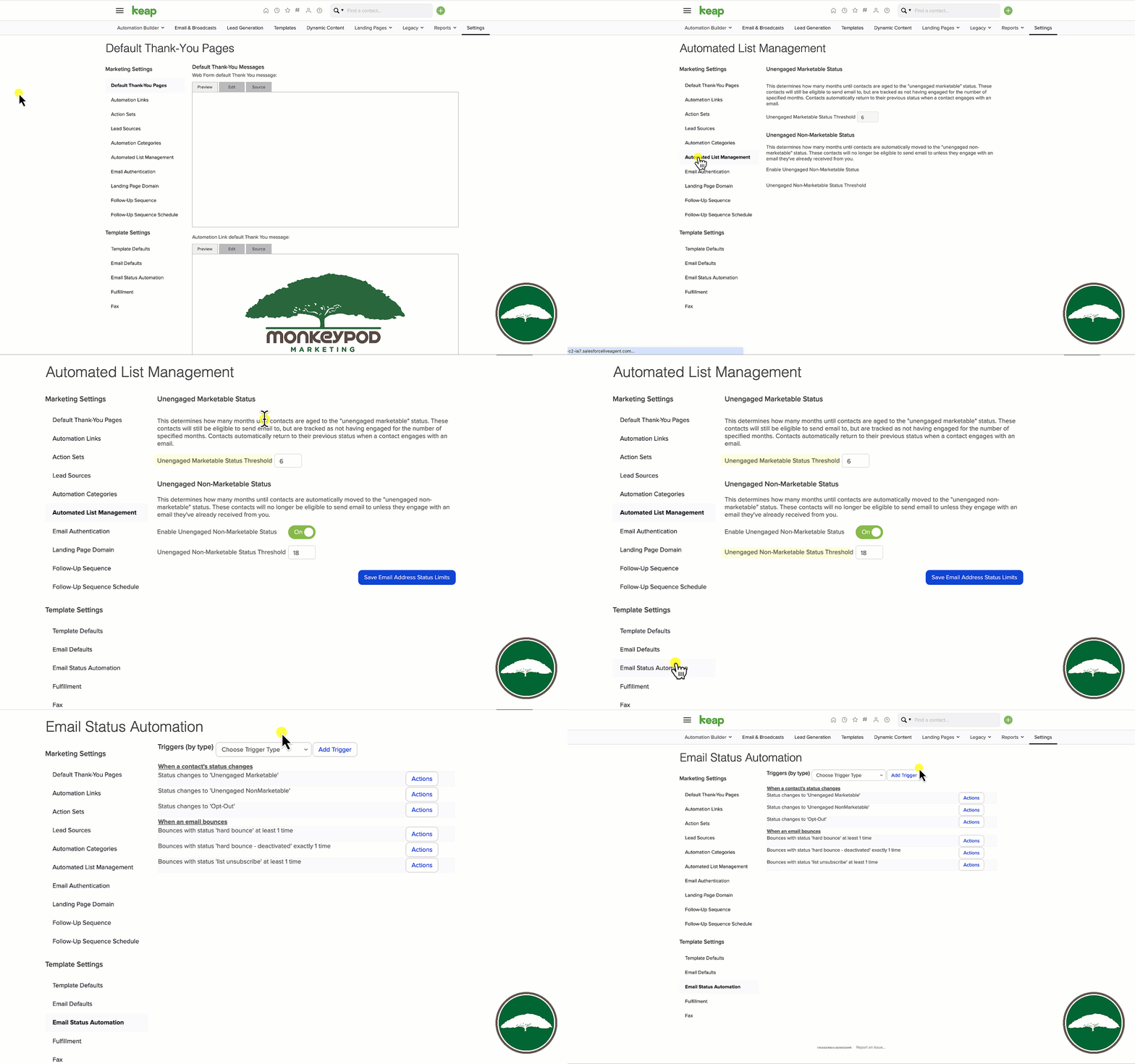
Keap Email Status Search

So that sneaky little report might just give you all the information you need.

But running it manually can be a little labor intensive…

Can I automate this?

So thankfully, the answer is yes.

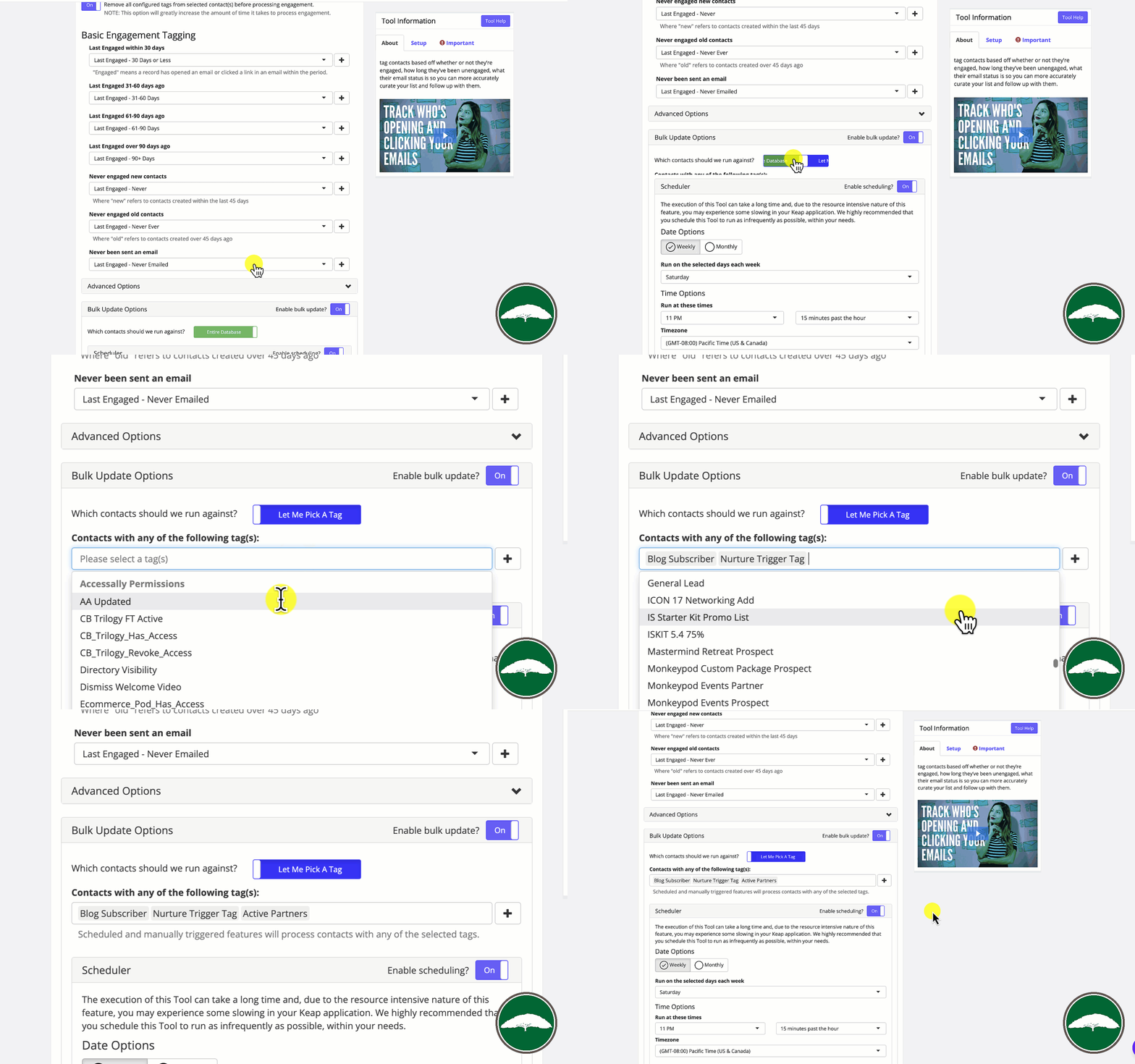
PlusThis has a feature called Email Engagement Triggers that allows you to process the contacts in your database on a recurring schedule, and automatically update their tags to reflect their most recent engagement.

Now, one thing to note is that this checks contacts individually – so it does count as a tool run per contact. If you have unlimited tool runs, no problem. But if you don’t then you might want to look at restricting the audience it runs against using the selector option.

Engagement Tracker Settings

Or, you could also use the HTTP post option and run it against contacts as they hit key steps in your automations.

Moving on – a common question I’ve been getting is “How does this differ from Keap’s native tools…”

Is this better than Keap’s native engagement tracking?

Good question. The PlusThis feature is different from the native tools in a few key ways.

First – it’s much more granular. Keap lets you automate when someone’s email status changes, or change their status when their engagement slips (unengaged marketable, and unengaged nonmarketable).

Native Keap Engagement Features

PlusThis lets you tag contacts when their engagement hits key threshholds. So, if they don’t engage for 31 days, it tags them, then again at 61, or 91, etc.

But, the other way this differs is that it runs on a schedule you can choose, and then it resets the tags. So, if someone re-engages, it’ll automatically remove the unengaged tags as it re-evaluates your database.

Alright – there you have it.

At the very least you can start analyzing your database to segment based off of engagement with the native reports, or if you’re already a PlusThis user you can quickly set up the Email Engagement Triggers and you’ll immediately have new information you can use to improve targeting and segmentation.

Or, if you’re not yet a PlusThis user – check out the plans and start a free trial here.

Where do I learn more?

The Keap Academy platform offers a course covering ways to Supercharge Your Automations using PlusThis, featuring real world examples and use cases from Keap Partners and PlusThis users.

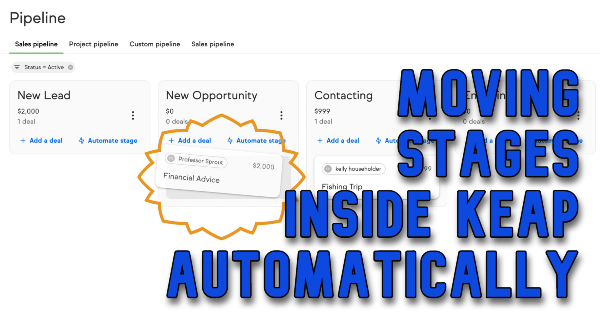
Automatic Stage Moves inside Keap

Automatic Stage Moves inside Keap

The pipeline inside Keap is a powerful tool for tracking any process. The most common use case for Keap’s pipeline is for tracking deals or opportunities in your sales process.

Generally speaking, you’d create an opportunity once a lead has expressed interest, and then you or your sales team would advance that opportunity through a set of stages as those prospects turn into customers. Here’s an overview of the pipeline for anyone who wants a refresher.

And most of the time we want this process to be manual – because we want to move the deal once we’ve interacted with them, and are ready to begin the next part of the process.

But not always.

Can I move stages automatically?

There are times where you might want to automatically advance an opportunity between stages, and yes, you can do it automatically.

So, if a prospects signs some paperwork you might move them out of the ‘signing’ stage and into the ‘closing’ stage.

Or, if they pay a quote you sent them, you might want to automatically move them from ‘quoting’ to ‘won’.

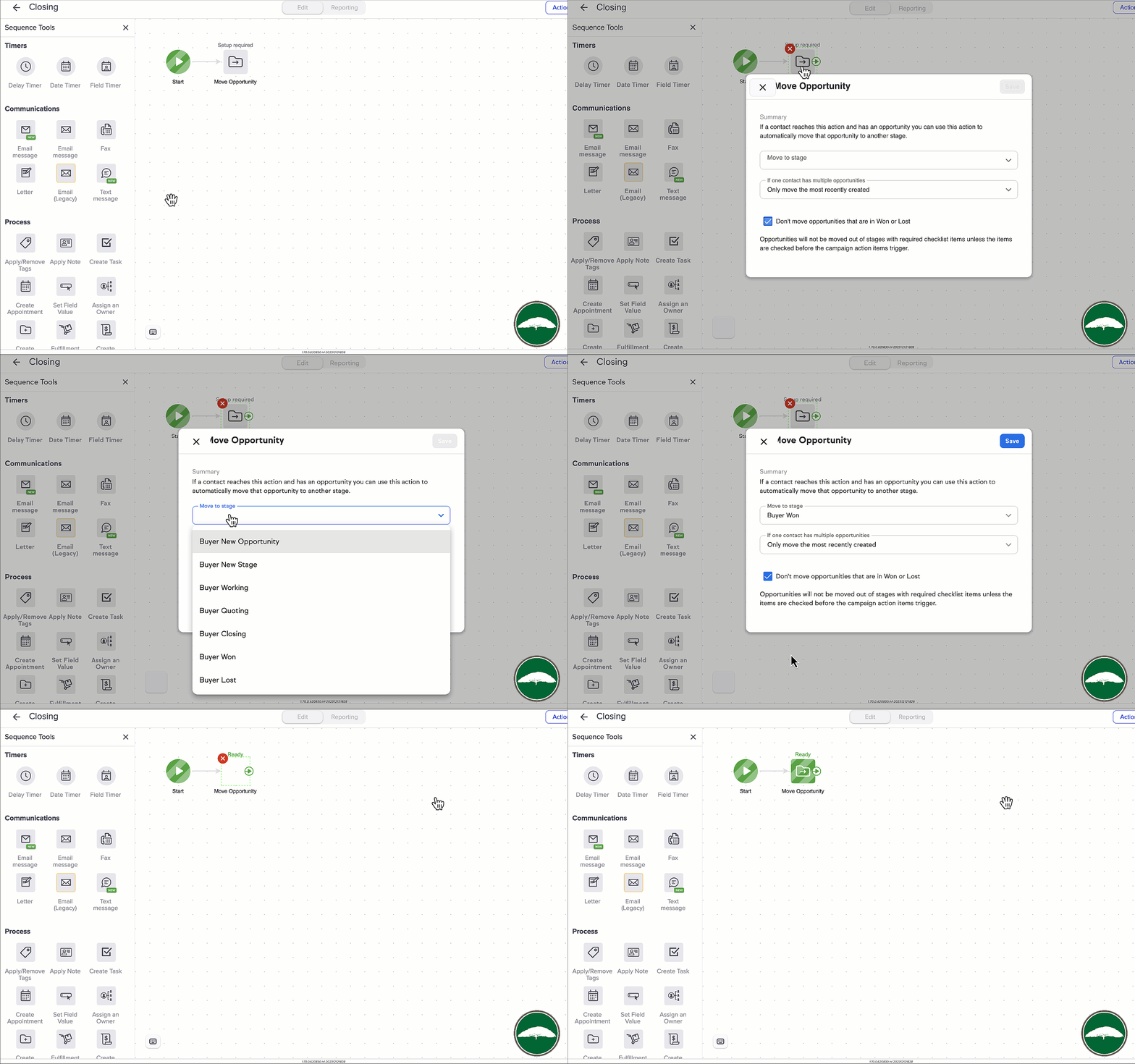
And inside Keap Ultimate (formerly called Max Classic, and before that Infusionsoft), you can move a opportunity automatically as a step inside your sequences in the campaign builder.

move a deal automatically gif

So, if you’re a Keap Ultimate user, then you’re all set. This will give you what you need.

But what about Keap Pro and Max?

In Pro and Max things work a little differently right now.

For starters, Opportunities are called “Deals” – the concept is the same, but the terminology is a little different.

And at this point there isn’t a step in Advanced Automations to automatically move a deal between stages, but it is still possible.

Here’s the workaround:

Okay, so – let’s summarize.

Ultimate (previously Max Classic) lets you move opportunities automatically as a step in the campaign builder.

Pro and Max will let you move Deals as a step in the Easy Automations builder.

So, regardless of which version of Keap you have, you should have a solution that works for you.

If you’d like to learn more about using Keap’s pipeline features check out these free courses in the Keap Academy platform.