Split Testing in Infusionsoft with Zapier

Split Testing in Infusionsoft with Zapier

If you bring up marketing automation or email marketing with someone, it seems to be just a matter of time until split testing comes up.

And if you use Keap (formerly known as Infusionsoft), you may or may not have noticed that there isn’t an easy split testing feature built into the campaign builder.

Well, fortunately some smart people have already solved this with third-party solutions like MyFusionHelper and PlusThis.

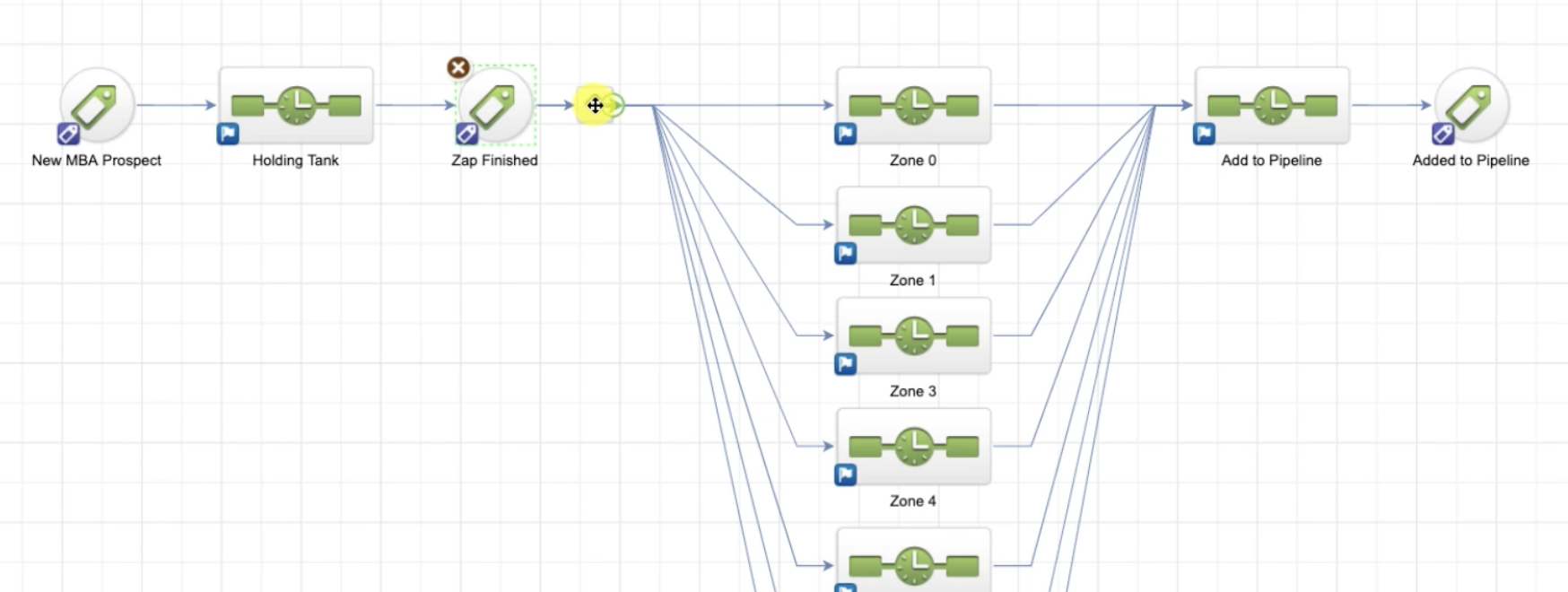
Those tools are great, and there are dozens of use cases for either one, but just last week I realized that you could use use Zapier to implement split testing in Keap as well.

I’m sure I’m not the first person to figure this out, in fact there may even be an easier way, but this was the first time I’d stumbled onto this and so I wanted to share in case it helped you out too.

Anyway, without further ado; here are the steps for using Zapier to split test in Keap:

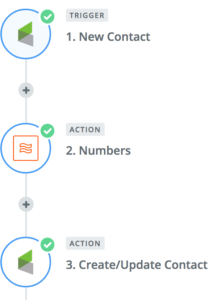
  1. Create a custom field (whole number type) in Infusionsoft, and name it Split Test.
  2. Choose the trigger for your zap: This will be what initiates the zap, you could choose to have it run when any new contact is created, or when a specific action takes place, like a tag is applied.
  3. Use the built in Zapier formatter function: This step will use the Spreadsheet Style Formula option to randomly generate a number. For that part you’ll use the RANDBETWEEN(min, max) formula. If you want to split into two groups you’d use RANDBETWEEN(1, 2), and if you wanted to split into thirds, or quarters you’d just change the second number.
  4. The third step will be to update the contact record in Infusionsoft by mapping this new value to the Split Test field you created in test one.
  5. Then, use this value to branch contacts between your various sequences, or in searches to determine your broadcast groups. (Yes, this will require a little manual effort.)

For those of you who are more visual learners, enjoy this short video walking you through the process:

Yes, this isn’t a perfect solution, and it may not be as elegant as some of the other options out there – but if you already have a Zapier subscription then this is one way to get a little more bang for your buck. We’d love to hear if you end up using this, or if you have clever ideas to simplify this further.

And if you like stuff like this, then download our Monkeypod Toolbox ebook for the full list of tools we trust:

Top 10 Subject Lines of 2016

Top 10 Subject Lines of 2016

When your email arrives in someone’s inbox, it’s often showing up between an email from Grandma, and a twitter notification that Beyoncé just retweeted you. Safe to say you’ve got some competition, and your subject line may just be the difference between being read, and being deleted.

Well, with all that emphasis on subject lines, I thought it’d be fun to look back at the last 12 months of Monkeypod emails and see which subject lines of mine performed the best, and then try and figure out why.

The folks over at Digital Marketer have done a list like this every year for the last few years, and they seem to know what they’re doing so I’m not going to reinvent the wheel. I’ll just borrow their structure and use my own findings (Here’s their 2016 list).

Feel free to steal these subject lines for your own business, or use them as inspiration when you’re writing new ones.

Note: I don’t have a massive audience, but I sent 58,000 emails in 2016. For the sake of this list, I’m only going to look at emails that were sent to 250+ recipients.

Another note: Open rates and averages can vary dramatically from business to business, and from industry to industry. I’ve worked hard to keep my list really targeted, and to set the appropriate expectations for subscribers. As a result, my audience is pretty engaged. Don’t get discouraged if your open rates aren’t as high as you’d like, it’s an opportunity.

10. 0% discount and you don’t have to open it before midnight.

  • Open Rate: 51%
  • Click Through: 15%
  • Content: Cyber Monday Anti Sale
  • Analysis: I sent this email on Cyber Monday, knowing that most people are buried in email that day, and I was surprised it did as well as it did. I think it performed better than average because a lot of people are a little burnt out on all the promotions and sales that emerge during the Holidays, especially the weekend after Thanksgiving. Rather than run a promotion of any kind, I decided to offer a free video outlining the changes and updates that had been made to the campaign builder over the past few months.

9. ICON: The Good and The Meh (BLOG)

  • Open Rate: 53%
  • Click Through: 54%
  • Content: Blog Post (read it)
  • Analysis: ICON is Infusionsoft’s annual user conference, and Infusionsoft spends a lot of money advertising and promoting ICON. I’d estimate that less than 10% of Infusionsoft users attend ICON, and probably a similar or slightly higher percentage of my audiences does. So, that leaves an overwhelming number of people who know about ICON, but didn’t go for one reason or another. From there, it’s not a huge leap that my readers were curious for some of my notes and perspectives from ICON, and this blog post scratched that itch. Oh, I also know that I can be a bit of a “fan-boy” when it comes to Infusionsoft, and people seemed to like that I called Infusionsoft out on a few things instead of just showering them with praise. The open rates were good, but the click through was incredible on this one.

8. Time to tidy up. [BLOG]

  • Open Rate: 54%
  • Click Through: 25%
  • Content: Blog Post (read it)
  • Analysis: This email was announcing a blog post with an Ebook filled with tips for cleaning up your database – I created the ebook because nearly everyone I know who uses Infusionsoft agrees that their app could be a little tidier. And I think it’s that same reason that made people so receptive when this little ditty arrived in their inbox, plus, a little alliteration never hurts.

7. The Secret to Infusionsoft Reporting

  • Open Rate: 54%
  • Click Through: 33%
  • Content: Blog Post (read it)
  • Analysis: So, this one uses the word “Secret” which is obviously a big trigger word for people. Fun fact, that’s also why you see it in the title of buzzfeed articles, and on the cover of Cosmo type magazines. At any rate, this was one of my most popular blog posts of the year, and I think it’s success stems from the fact that Infusionsoft reporting is a little limiting sometimes, and so anything that makes it easier is quite welcome.

6. KEY

  • Open Rate: 56%
  • Click Through: 49%
  • Content: Nurture Invitation
  • Analysis: I was trying something clever with this subject line. On it’s own, it doesn’t make much sense, just “KEY”. But I also send the sender’s name to be “MON” and the first text in the email to be “POD”. That way, when you view it in your inbox, you get Sender Name, Subject Line, Preview, and it spells out MON-KEY-POD. I got a handful of replies from people who absolutely loved it, and then a handful of replies from people who were confused by it, and nearly didn’t open the email because it didn’t have my name on it. Anyway, it’s clever, but use at your own risk.

MON_KEY_POD

5. Where do I start?

  • Open Rate: 58%
  • Click Through: 33%
  • Content: Blog Subscriber Welcome
  • Analysis: I think the open rates were pretty good on this email because a lot of people come to my website looking for an answer to a specific question, and then when they see the other resources I have to offer, it’s natural to wonder where to turn next. Or, what order to consume things in. So this email shows up in anticipation of that question, and gives them six of my most popular blog posts as a place to start. I think the variety and number of links in the email account for the high click-through rate.

4. New Course: The Referral Pod

  • Open Rate: 59%
  • Click Through: 19%
  • Content: Announcing the Referral Pod
  • Analysis: I launched the Referral Pod in Q1, which is a course designed to help Infusionsoft users build and launch their own Referral Partner Programs. This was the subject line that I used for the email that first announced it, and it earned high engagement and high open rates. No gimmicks on this one, I think the open rates were high because this was the first time I debuted this course, and I had dripped some teaser content leading up to it. The engagement was high because the subject line set the right expectation (and because there was a no-brainer free trial).

3. Pay to the order of: ~Contact.FirstName~

  • Open Rate: 62%
  • Click Through: 9%
  • Content: Monkeypod Partner Program Invitation
  • Analysis: I also launched a Referral Partner Program in Q1 of 2016, and in May or so I wrote my first batch of commission checks. Wow, I never thought I’d be so happy to give away money. Anyway, this email was after I wrote that first batch of checks, and was inviting another audience to sign up for my partner program in case they think they’re going to recommend Monkeypod to anyone. The open rate was solid, and the engagement seems low, but 9% worked out to be about 40 new partners.

2. Hey, I’m Greg.

  • Open Rate: 64%
  • Click Through: 1%
  • Content: Indoctrination
  • Analysis: No matter where you opt in to my list, sooner or later you’re going to wind up in my “Meet Greg” campaign. This is my version of an indoctrination campaign, and it’s designed to set expectations and introduce myself. It also gives me a chance to set the tone for who I am, and what Monkeypod is all about. This email is the first of a three part series, and so this one doesn’t have a call to action of any kind; it’s only purpose is to say Hello.

1. Just a quickie

  • Open Rate: 74%
  • Click Through: 41%
  • Content: Survey Request
  • Analysis: Last year this subject line ranked 2nd, with an open rate of 68%, and the 6% spike was enough to help it claim first place on this years list. This is a subject line that I use in a few different campaigns and it consistently performs. People like it because it’s a little suggestive, just enough to pique the recipients curiosity. And the click through is successful as well because once they open the email, it’s really quick and to the point “Hey, take this one question survey”.

Honestly, I hope you know this, but I’m certainly not sharing these subject lines and stats with you to brag. I mean, I am pretty proud of the engagement I’ve been able to sustain, but I’m also certain that there are plenty of ways I can improve, and plenty of people doing this better than I am.

I’m sharing these because I hope that you can either use them directly, or as inspiration for your own emails in the upcoming year.

Disclaimer: Yes, I know that a few hundred people isn’t a statistically significant sampling. I’m not a statistician. I just thought this would be a fun way to share some of the subject lines that have been working for me.

I’d love to hear the best or most creative subject lines you’ve ever seen. Share below, or by emailing me directly!

5 Tips for Using Infusionsoft Support

5 Tips for Using Infusionsoft Support

Editor’s note: It’s my pleasure to welcome back a good friend of mine, and today’s guest author – Thomas Jones. Thomas was the head of my department at Infusionsoft for a while, and before that, he was the director of the Technical Support team at Infusionsoft.

We all know what it’s like; you’re cruising along, working on some pretty cool stuff.

A tag here-

A link-click goal there-

KAPOW – Decision diamond configured

Then it happens.  You get stuck, an error code pops up, or a something strange happens.  What do you do?

You call support.

(I’ll readily acknowledge my bias here.  I spent exactly 5 years with Infusionsoft and even spent some of that time running the support team.  Having given you that disclaimer, I think Infusionsoft has some of the best support in the world.)

Even with a great support team, you’ll always have a rough experience on occasion.  I wanted to give you five things you can do to give yourself the best shot at getting a great experience every time.

1. Be prepared to talk about the result you’re looking for.

Notice, I didn’t say, “Know what you’re trying to do.”  Even though they’re close, they aren’t the same.  I saw it all of the time; someone calls in and asks how to do something.  The support person tells them, but it doesn’t produce the result the customer was looking for.  The question was asked and answered, but the customer was still frustrated because they didn’t get what they needed. Do you see the difference? Sometimes the thing you’re asking to do won’t produce the outcome you’re trying to achieve.

2. Do your best to see if you can replicate the issue you’re having.

This isn’t always applicable, but when you have the ability, arm the support rep with as much ammunition to attack the problem as you can.  If you’re getting an error, see if you can replicate it and save a screenshot or screencast. (You can download tools like Loom for Chrome, or jing from techsmith to create free recordings of your desktop as you retrace your steps.) The support rep absolutely wants to help you with your problem.  Anything you can give them will help that happen more quickly.  A note of caution, if you think something bad may have happened; don’t do this step.  Just write down the things you did leading up to it.  You don’t want to compound any potential issues.

(Editor’s note: It can also be helpful to do some basic trouble shooting on your own: Can you repeat the issue? Does the issue happen in more than one browser? If it’s only in one browser, can you try clearing your cache and cookies to see if that fixes it? I know how basic these things seem, but if you test these before you get on the phone/chat with support you’ll have a little more background ready to go.)

Yelling Through The Phone3. Treat the rep with respect.

You’re a business calling into a place of business, keep that in mind.  One of my first experiences at Infusionsoft was listening to the Director of Support getting on a call and telling a customer that we’d cut him loose if he kept berating our support rep.  It left a really strong impression on me.  The support reps are doing their best and are going to make mistakes on occasion.  As frustrated as you might get on occasion, remember it’s rarely a matter of always and never.  Meaning, they don’t always suck or never know what they’re talking about.  You’d be surprised how far mutual respect will go.

4. Make powerful requests.

One of the biggest problems in life is unspoken requests and assumed commitments.  I could write an entire blog post on just this one, but I’ll give you an overview.  Think about the difference between two people closing a conversation with, “Will you let me know what you find out?” and “Will you let me know by end of business tomorrow what you find out?”  Too often we’re afraid of pushing, so we hope they know how important this is.  Phrase your request so the only possible responses are yes, no, an alternative (I can’t have it by then, but how about XXX), a commit to commit (I can’t don’t know when I can have that for you, but I’ll let you know by tomorrow by 10 when I can have that for you).

Don’t leave it open ended.

(Editor’s Note: After you open a support ticket there is usually an automated email that is sent setting expectations for when they’ll get back to you, this automated email doesn’t necessarily reflect the conversation you just had. So if the messaging there is different than what the rep just told you, don’t panic. Automation isn’t always perfect.)

5. Don’t assume the answer you got was correct.

Please don’t misunderstand me.  I’m not saying you should assume the answer you get is wrong.  I’m simply saying, if it feels like the answer isn’t right or it doesn’t make sense, then don’t be afraid to keep looking for answers.  Ask your peers, join a group, call back in, do something.  I almost didn’t put this one because it’s so easy to turn this into a negative.  It’s not.  We all know Infusionsoft is capable of so much.  There’s nobody who knows everything.  I can tell you that nobody is going to think anything about you asking for a second opinion.

There you go.  It always stinks when you have to call support.  Not because they stink or it happens all of the time, but because it means you have to stop what you’re doing and make a call or log into the chat line.  When you do have to do that, give yourself the best shot at having a great experience.

Oh, and if you invest in high quality education you may find that you wind up with fewer support inquiries altogether. Now if only we knew someone with some awesome Infusionsoft training courses…

Would love to hear any additional tips or tricks you’ve picked up along the way!

3 Times Zapier Saved the Day

3 Times Zapier Saved the Day

When I worked at Keap (formerly Infusionsoft) I was often asked to recommend third party tools that would solve the problems that Keap didn’t natively address, but if I’m being honest, I didn’t really use any of those tools first hand.

I avoided using them because I was representing the Keap brand, and I didn’t want to play favorites by recommending one tool over another.

So, since leaving Keap I’ve found myself gradually adopting these tools that I avoided for so long, and each time they make my life easier, I kick myself for waiting so long.

Anyway, it’s been about 18 months since I started Monkeypod and I’m proudly using PureChat, PlusThis, LeadPages, WebinarJam and a few others. (So proudly in fact, that those are all affiliate links right there. So, go nuts.)

But this blog post isn’t about those tools, it’s about Zapier.

You see, I had heard the name Zapier thrown around for so long, I was sort of embarrassed to say that I hadn’t really used it. Fundamentally I knew what it did, but I really didn’t quite “get” it. Until recently.

At it’s core Zapier is a connector. It allows two systems to pass information back and forth.

Without Zapier there are probably other ways to make these systems talk, but it’d be massively complex. Zapier makes it easy. They’ve created the connections necessary to allows hundreds of different tools to speak to one another, and Keap is one of those options.

At any rate, to help illustrate how useful Zapier has been, I want to share 3 examples from the last 6 months where I was in a sticky situation, and Zapier saved the day for me, and for ALU.

Example 1:

Scenario: Some of you know that I do some work as a consultant for a school in Africa, The African Leadership University (ALU). There’s a remote team of 7 regional reps who are all responsible for coordinating events in a particular part of the continent. These reps host events locally to talk with prospective applicants for the school, and attendees register on a sign-in sheet. After the event the reps are responsible for uploading this information to a shared google sheet so that their manager can easily see how many leads came from each event, and a handful of other details about that prospect. The problem is that these reps aren’t all users on the Keap account. So they can’t very well add them straight to Infusionsoft, I mean, they could fill out a form for each one, but then they can’t query the data or run reports on it.

Solution: Zapier allows you to sync Google Sheets and Keap. So, when a new entry is added to our master google sheet, it automatically creates (or updates) a contact in Keap. Zapier allows you to choose which columns you want mapped to which Keap field, it checks for existing contacts via email address so you don’t end up with duplicates, and it also lets you apply a tag if you want to run specific actions. Zapier officially saved us from having to purchase an additional 7 Keap user licenses (That’s $175/mo in savings at an average user license cost of $25/mo).

Example 2:

Scenario: At ALU, we have leads coming in from a variety of channels, and when these leads show up we need them to be assigned to one of 10 teams based on their country. Each team would round robin new leads between the 1-3 owners on that team. But because there are 54 countries in Africa (now you know), this was going to be a relatively complex decision diamond. And if those countries>teams>owner combinations needed to change, it would be difficult to update the round robins, and the decision diamonds, etc.

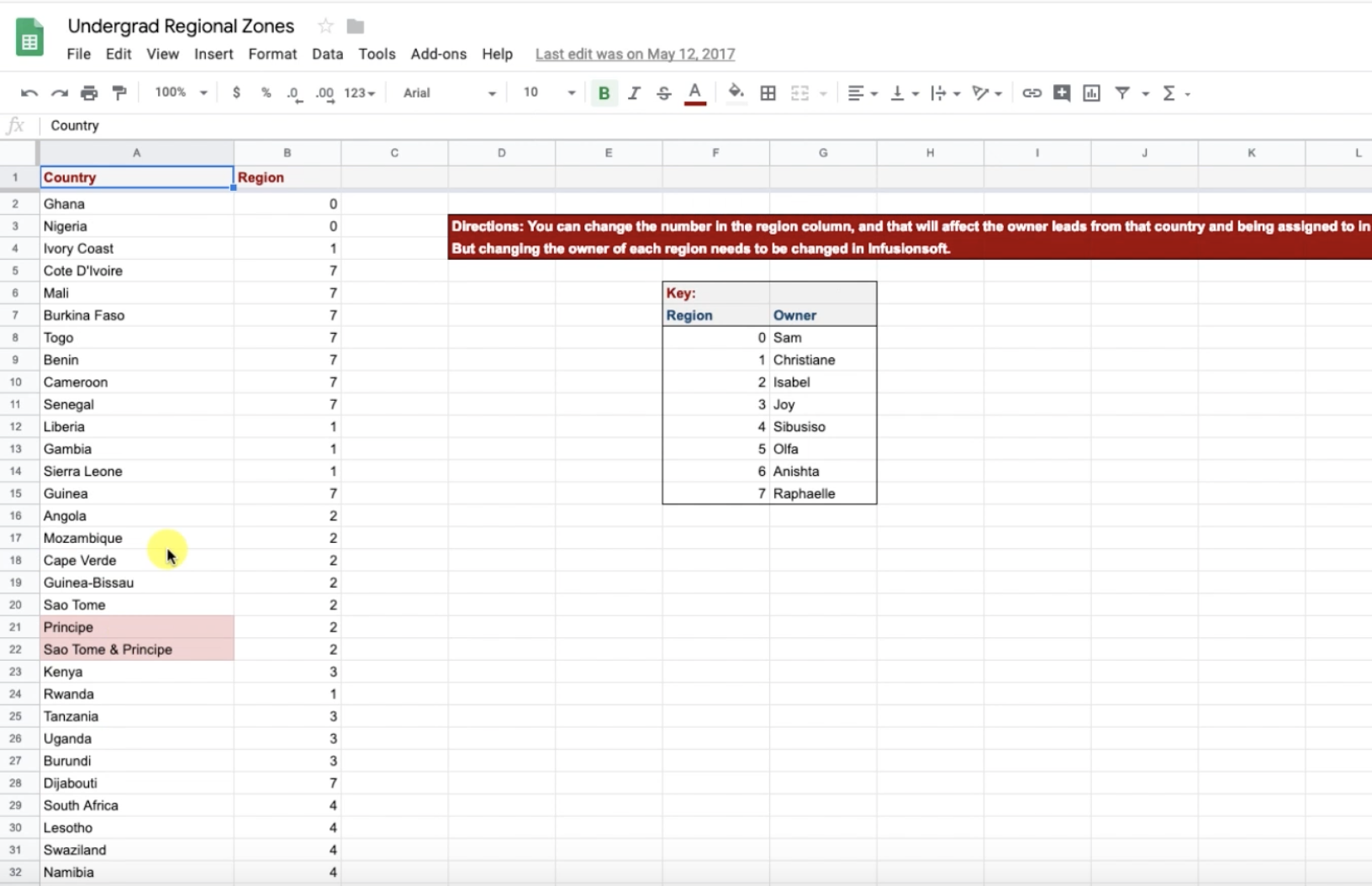
Solution: Instead of creating the decision diamond with 54 branches, we first decided to create a simple Google Sheet with all 54 countries listed, and then in the column next to them we added the “Zone” number.

zapier zone number

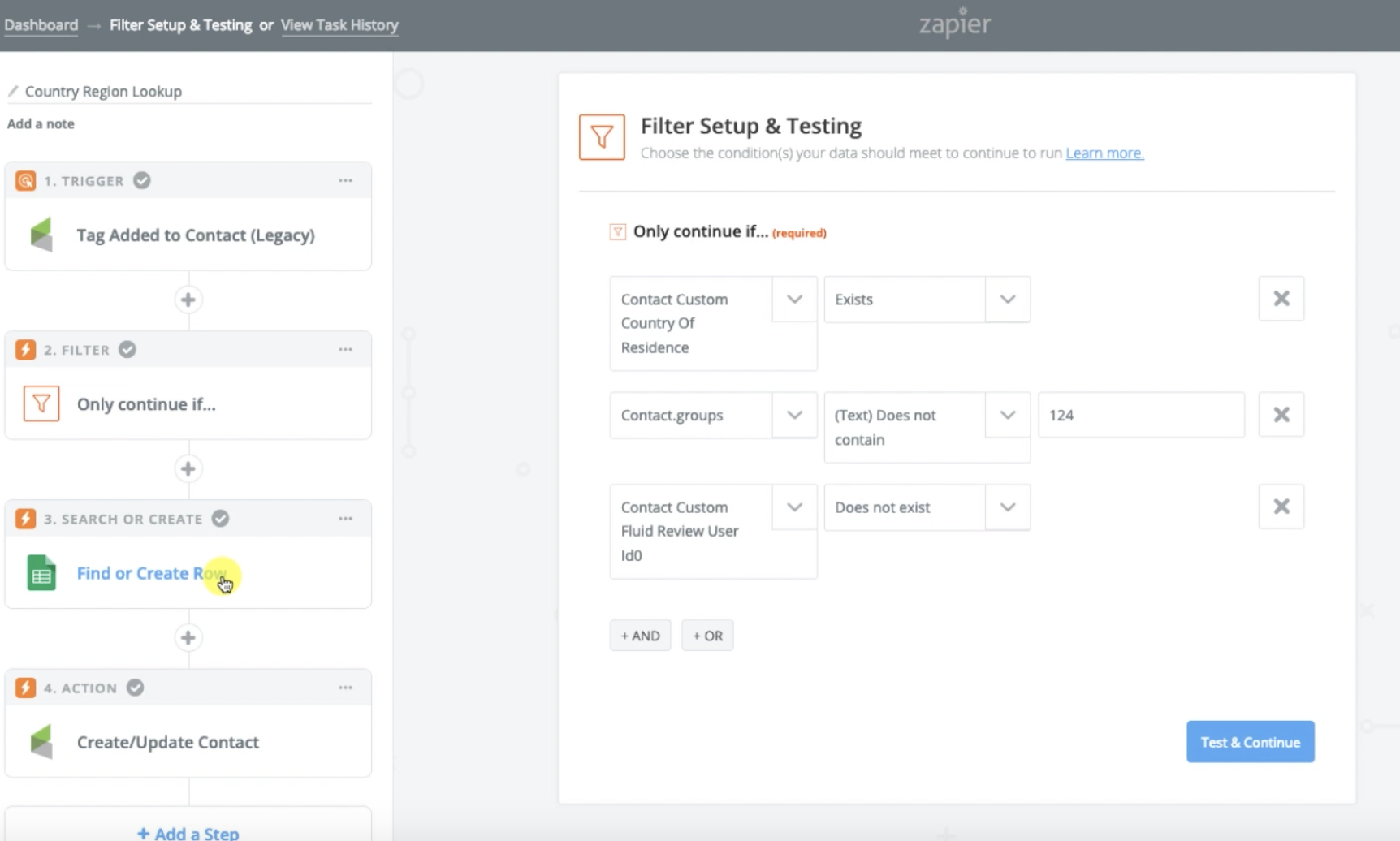
Then we used a Zap so that when a new lead is added, if they have a country, it checks that google sheet to see what “Zone” that country is assigned to, then it puts the Zone Number into a custom field, and we use that Zone number to route them into a sequence where we then assign that lead to the appropriate team.

zapier country sorter recipe

Now our decision diamond has 10 branches instead of 54, and the spreadsheet is much easier to update in case we need to rearrange how these leads are being assigned.

decision diamond image

Example 3:

Scenario: ALU also uses Zendesk to track communication and customer service inquiries. But they use one ZenDesk account to manage their undergraduate questions, as well as inquiries regarding their School of Business. However, they use separate Infusionsoft accounts for their undergraduate programme, and their School of Business programmes. So the challenge became “How do we get the ticket information and details from Zendesk mapped to the appropriate contact in the appropriate Infusionsoft account.

Solution: Whelp, Zapier saved the day again. We were able to design a zap that is initiated when a new ticket is created in Zendesk, the first thing it does is check the School of Business Infusionsoft account to see if it can find a contact with that email address. There’s a filter in this zap so that it only proceeds IF it finds someone, and the next step is to update the contact with a tag, as well as add the ticket details from Zendesk to a custom Text Area field, so any people working on that contact can easily see their most recent ticket details listed on the contact record.

Listen everyone, I’m not pretending to be a Zapier wizard, but as my understanding of it evolves, so too does my appreciation. It’s a powerful tool.

I’m honestly not sharing these examples to brag. Heck, you may have read these examples and immediately spotted areas where I could clean them up a bit. My hope is that you’ll get a few ideas and maybe something will click where you see a way Zapier can save you time or money.

Oh, and how cool is this, Zapier actually has a bug bounty program. If you find and report a vulnerability in their software, they freaking write you a check. That’s an impressive statement for a company to make.

Hope this was useful! I’d love to hear your thoughts on Zapier, or cool ways you’re using it for your own business.

Streamlining Personal Communication

Streamlining Personal Communication

A week or two ago one of my OG members, Steve, had a question about streamlining personal communication through Keap.

He was trying to trigger a template to an individual contact, and he ran into an issue where Keap wasn’t behaving as expected, and I couldn’t really solve that specific problem, but it occurred to me that there might be an easier way to get the same result.

So, I recorded a quick video for him demonstrating the solution. I wanted to share it here in case it helps you too.

Scenario:

Sometimes you want to send a personal email to a contact, but you want to send it from INSIDE your Keap database.

This might be because you want to trigger actions when they click links, or because you want a record of the email, or maybe you just want to know if they opened it; but there are a handful of ways to send a personal one-off email from the contact record.

Unfortunately most of them are just a little bit clunky.

(Worth mentioning that depending on your needs, the Gmail or Outlook Sync might do the trick for you.)

So, here’s my proposed solution: Instead of creating a template, and grabbing that template from the contact record every time you want to use it, and then personalizing that template and sending it out.

Instead, let’s create an internal form that captures your message, use that internal form to trigger an email and merge in the message you just wrote. Bing, bang, boom.

Here are the steps:

    1. Create a custom field (Text Area Type) for your “One Off Email Message”.
    2. Create a new campaign, titled “One Off Email Campaign”.
    3. Add an internal form goal to the campaign, and add the custom field from step one to this form.
    4. Add a sequence after the internal form, titled “One Off Email Delivery”.
    5. Add an email inside that sequence, and configure the body of the email to look however you like, adding the merge field for the “One Off Message” wherever you need it to go. (I recommend after the salutation, and before your signature/sign-off.)
    6. Set all items to ready, and publish.

If you’re the type of person who prefers your information be delivered via in 10-minute video modules, well, buckle up, because you’ve come to the right place:

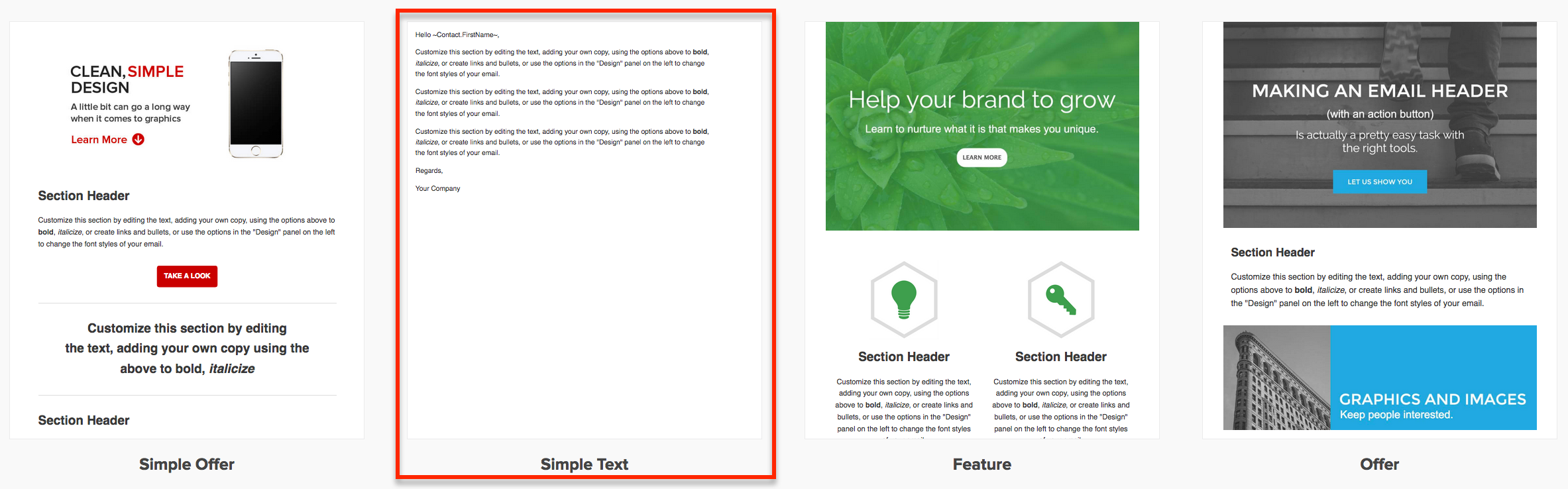
Here’s a blog post on how you can use the old builder to create a template that LOOKS like a plain text personal email. But to be honest, that’s mostly obsolete now because the new email builder has a default template for this so you can just grab and go:

Now, at the end of my video I mentioned a ninja trick for customizing this even further – if that piqued your interest and you’d like to see what else I’ve got in my bag of tricks, here ya go:

So, the above instructions basically walk you through sending an email where the entire email is custom. But sometimes you don’t want to start from scratch. Sometimes you want to grab an existing email that already has all of the information you need, and you just want to slap a different intro paragraph on it, right?

Well, all you need to do is build a handful of sequences, each holding an email with a different topic (pricing, hours, membership program, etc). And then add a radio option to the internal form so that the user can select which of your pre-crafted masterpieces to send out.

The workflow is nearly identical, but the distinction is that this new method allows you to pair your custom paragraph with one of your pre-written (and proofread, tested, refined…) templates.

That’s it for today, hope you found this useful. Leave a comment below if you made it this far!

Email Confirmation Gotcha

Email Confirmation Gotcha

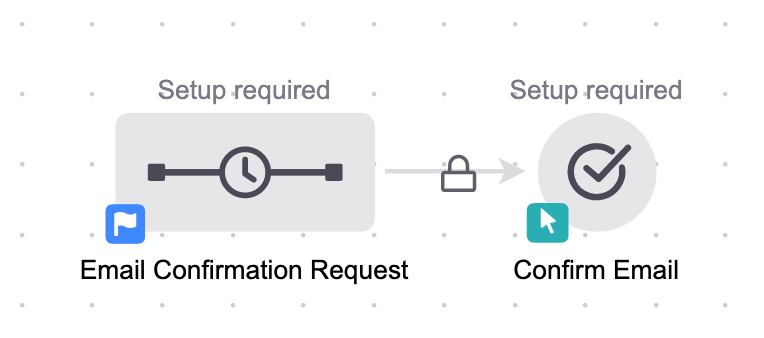
Email Confirmation is more important than ever – and full disclosure: the Email Confirmation process in Keap (formerly Infusionsoft) has a few quirks.

You may have seen the three Campaign Builder Gotchas I shared, #3 is still one of most popular posts on my blog, but today I want to highlight an issue I’ve seen people stumble on with the Keap Email Confirmation process.

If you have no idea what I’m talking about, take a look at this article for a complete breakdown of the what, how and why behind using an Email Confirmation sequence.

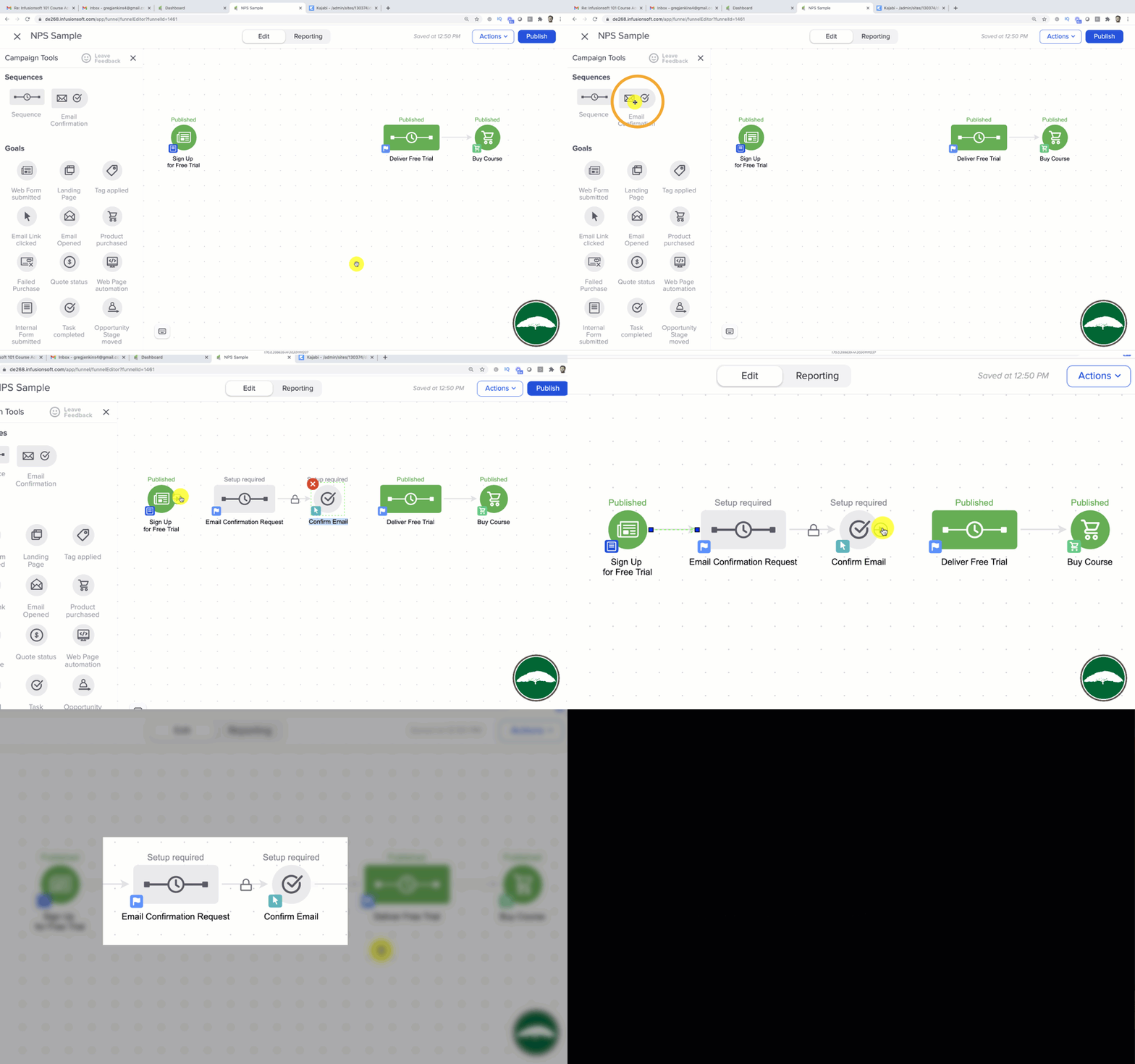
Now, I strongly recommend giving your prospects the chance to confirm their email address, and it’s not terribly hard to do that. Effectively it involves dragging out a pre-bundled campaign process and adding it between two existing steps in your campaign. Then, you just configure it and you’re off to the races.

Infusionsoft Email Confirmation

Unconfirmed folks who reach that part of your campaign will have an opportunity to confirm their email address, and people who have already confirmed will skip right over it as if it’s not even there. All good so far.

The challenge I want to address arises when you give someone the opportunity to confirm and then they don’t click the confirmation link. What happens then?

Well, by default the contact will be stuck in the confirmation sequence. That means they’ll never see the exciting stuff you’ve got planned for them after they click, and that’s not okay.

email confirmation

This causes a big problem if your customers are expecting to receive access to something they just requested, or worse, something they just bought.

Okay, so there are a few ways to solve this issue, and if you give me 6 minutes of your time, I’ll show you exactly what we’re working with:

Just to clarify… this blog post refers specifically to the Max Classic version of Keap (formerly Infusionsoft), but the “gotcha” and advice I’ve outlined also applies to the Pro and Max versions of Keap.