Keap, Tips and Tricks
As you may have gathered from the first post, Infusionsoft seems to have a renewed focus on improving the product, and they were committed at PartnerCon to demonstrating this in a meaningful way.
Lemme get back to outlining the upcoming features that I’m most excited about, and why they matter to you.
Note: It’s worth mentioning that some of these features were really raw when they were discussed/demoed, and depending on how QA goes they’ll likely be sprinkled throughout the next few releases; but look to Infusionsoft for formal release notifications.
Feature: Copy and Delete Campaign Items
Why it matters: Yes, you’ve been able to copy and delete campaign builder elements for quite some time now, but it’s always been clunky. The click-steps to cloning campaign elements were not intuitive, and they even varied slightly between Apple and PC users – well, not anymore. Now you’ll be able to select a campaign item(s), and right click, and select between Copy and Delete. This is a huge win and will make building campaigns a much easier process.
Feature: Stop a Campaign Sequence
Why it matters: Let’s say you need to remove someone from a campaign – without having them achieve a goal. This process can be a bit of a challenge, the current process isn’t exactly straightforward. And if you simply cancel the upcoming steps on their contact record, it actually fast-forwards them into the next process, instead of removing them altogether. It can be a mess. But they’re fixing it. Now there will be a Sequences section on the Campaigns tab on the contact record, and in the interactive list view. This tab will allow you to easily see all the sequences in which someone is active, and from that panel you’ll be able to extract someone from one or multiple sequences. Bing, bang, boom.
Feature: New fields accessible through the API
Why it matters: Effectively the API is a way to push information into or pull information out of Infusionsoft. At least, that’s my rudimentary understanding of it. Well, the way it works is that certain pieces of information are accessible, and other types of info aren’t. And as you may gather, as more information becomes available through the API, the number of things that you can do with that info grows accordingly. Infusionsoft announced they’ll be making a batch of new fields accessible through the API.
Here are the new fields: Read only permissions for Email Status, RESTHooks for Orders, RESTHooks for Tag Add/Update/Delete, Open Up Social Fields on the Contact Record, Create Custom Fields for Integrations.
I wrote these down in a hurry, so it’s entirely possible that I missed one, or wrote something down incorrectly. Full disclosure: I don’t do any work with the API. But for those who do, I’m told this is very exciting.
Feature: Opportunities in My Day
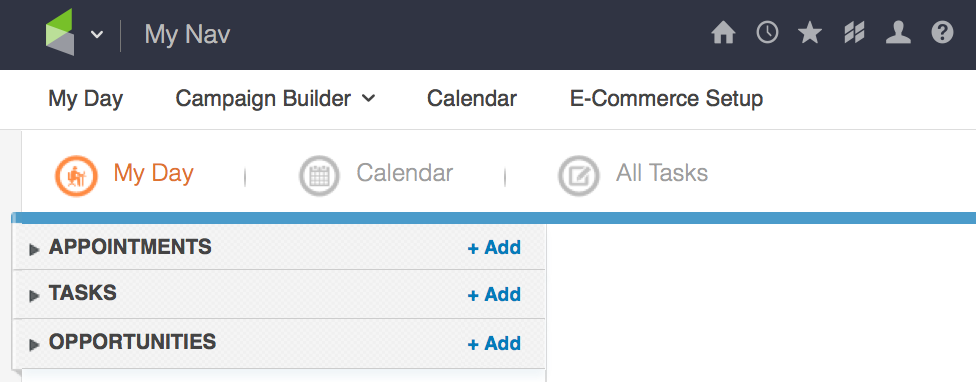
Why it matters: When My Day was released, it was really exciting. It was designed to be this centralized page to help Infusionsoft users decide what they had on their plate for the day, and how to best approach it. But there was one major component missing – opportunities didn’t make the cut. If you were an Infusionsoft user who leveraged Opportunities it effectively made My Day useless, because a good portion of the information you needed wasn’t there, and so you ended up building a custom dashboard from scratch just like before. But not anymore. They’re bringing opportunities to My Day (Dec 2015).
Feature: New Email Builder
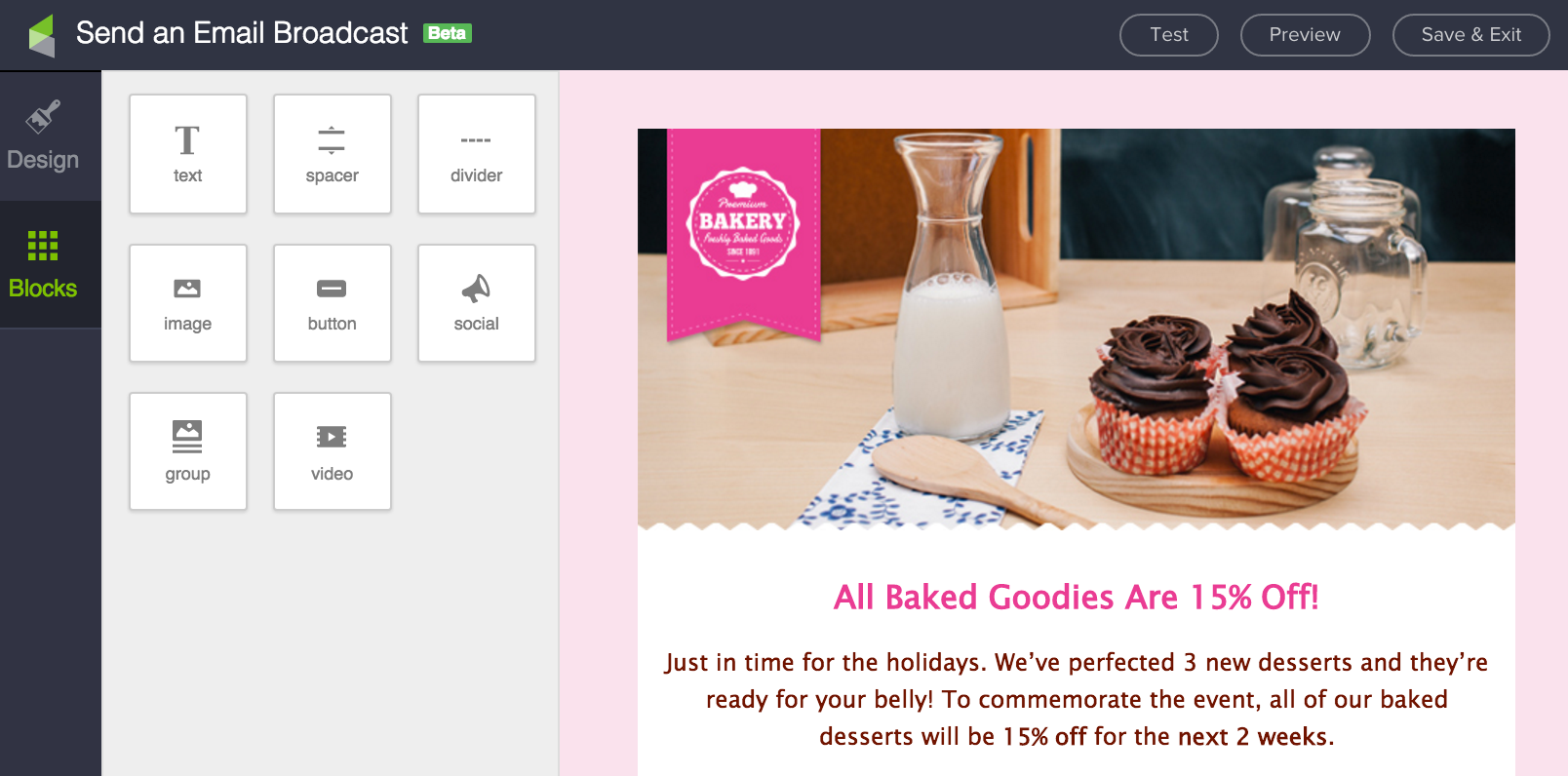
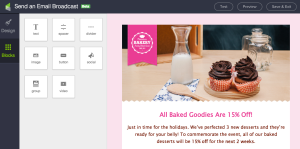
Why it matters: If you’ve had Infusionsoft for any amount of time, then you’ve probably experienced a hiccup or ten while using the email builder. I love the drag and drop functionality, and I think it’s pretty easy to use; but I also acknowledge that there are some nuances. And sometimes there are bugs, a word misused so frequently that I generally stay away from it at all costs. Well, they’ve completely rebuilt the email design experience, and it’s much cleaner. Yes, the new emails will be mobile responsive. Yes, the new builder is sexier, and will include templates that you can use as a starting point. Yes, you’ll be able to easily link out to all of your various social channels. And yes, you’ll be able to edit, crop and add filters to images you upload right then and there. Did you hear me? You’ll be able to add filters and text directly to your images as you upload them? WHAT?! Anyway. I’ve been using some version of the new email builder for a little while now, and it’s definitely a massive step in the right direction.
Well, that’s about it for the things I can share. Rest assured, the product is heading in a direction that I think we’ll all be really pleased with. And I feel like we can all breathe a little more easily with the fact that Infusionsoft has formally recommitted to demonstrating their dedication to their product, partners and customers.
Personally, I have a ton of respect for the tough choices they’re going to have to make, or have already made, in order to continue to grow and expand in the ways that they need to in order to serve the small business community.
Keap, Tips and Tricks
I’m back in San Diego after a full week in Phoenix for Infusionsoft’s annual Partner Conference, PartnerCon. In case you aren’t familiar, it’s a conference where hundreds of Infusionsoft partners descend on Phoenix from all over the globe to learn about the direction Infusionsoft is going, to get advice and wisdom from keynote speakers and one another through breakout sessions and networking.
It was an awesome week overall. If I’m being completely honest, I was caught off guard by how emotional it was for me. I’ll save the personal stuff for a later blog post, because right now I’m just too geeked up by the product updates that are coming. And, I feel like that’s probably the stuff you’re most excited about too, eh?
Okay, so a big part of PartnerCon is updating the partner community on what is coming for Infusionsoft, the software as well as the company. You know, so the partners are up to speed, and we can decide how and where it may affect our businesses. But here’s the thing, there’s an issue right now in the Infusionsoft ecosystem.
Infusionsoft has lost a lot of trust with not only their users, but also with many of their partners.
 I was an Infusionsoft employee until May of this year. And I was easily one of the most customer facing employees in the building. I traveled around delivering Infusionsoft University to groups of 30-70 attendees (In fact, that’s where I met many of you). And one of the worst parts about being in this role was that I was intimately aware of all of the intricacies, quirks, and shortcomings in the software. Not only because I’m an expert on the app, but also because they frequently came up in the course of interacting with attendees.
This dynamic made me somewhat of a lightning rod for issues. When something was affecting our user base, I would shout about it. Sometimes I felt like I was heard, and I made a difference; and other times I was frustrated that the issue just wasn’t able to be prioritized.
One of the common complaints I fielded was that users had been told something was coming, and then it didn’t come. Whether it was more features for the mobile app, new integrations, a new email builder, or localized time zones for the campaign builder. I can’t speak to every single issue that was raised, but I can say that the general sense I got was that a lot of trust had been lost. Things had been promised, and some of those things hadn’t been delivered.
Well, it’s for this reason specifically that this week was so important for me. Infusionsoft addressed this trust issue head on. They introduced their new Chief Product Office Terry Hicks, and he acknowledged that they have a lot of work to do, and then also (and more importantly) said that talking about it won’t do anyone any good. And that the only real way to earn this trust back is by taking action. By showing their users and their partners that they can do what they say they’ll do (which is one of the core values), and that when they commit to deadlines, that we can hold them to it.
So, without further ado, I’d like to share with you what I can about the bright future of the product. Some of what we were shown was done so under explicit instructions that it shouldn’t be shared outside of PartnerCon, and I want to make sure that I’m respectful of that, but rest assured, the things I can share are still very exciting.
Here’s what is coming in the near to short term future, and why it matters to you:
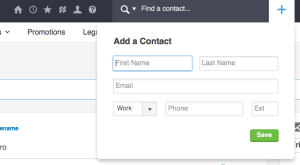
Feature: The quick add form will now support internal forms.
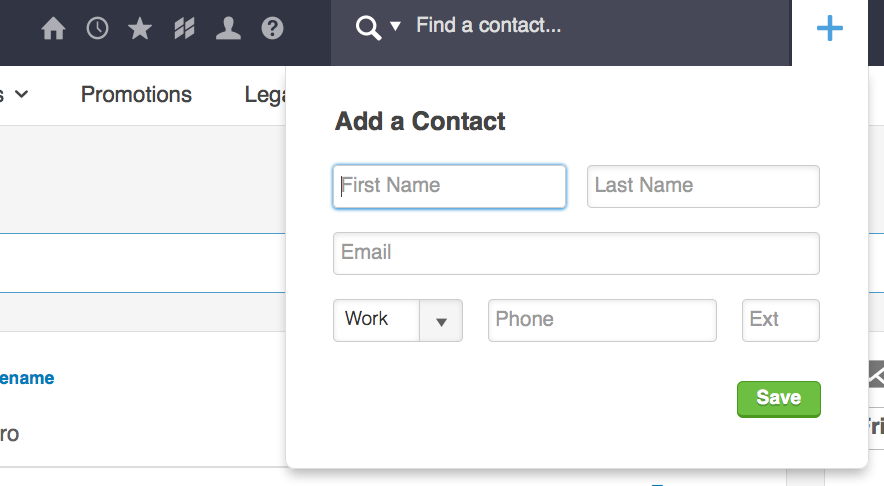
Why it matters: The plus sign in the corner of your application is the quickest way to add a contact to Infusionsoft, but until now you’ve been unable to attach any actions to that form. Moving forward you’ll be able to select an internal form as you add a contact there, and if it’s tied to a campaign, you can trigger automation right then and there.
Feature: Cloning Order Forms
Why it matters: Right now you can create an order form, and add products to it, and create a thank you page and start using it. But if you want to create something similar, the only way to do it is by starting from scratch. No more. Now you’ll be able to click “Clone” and duplicate the order form on the spot.
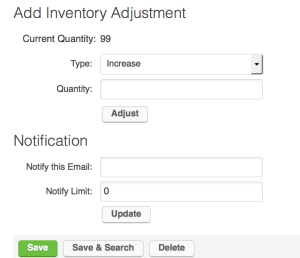
Feature: Functional Inventory
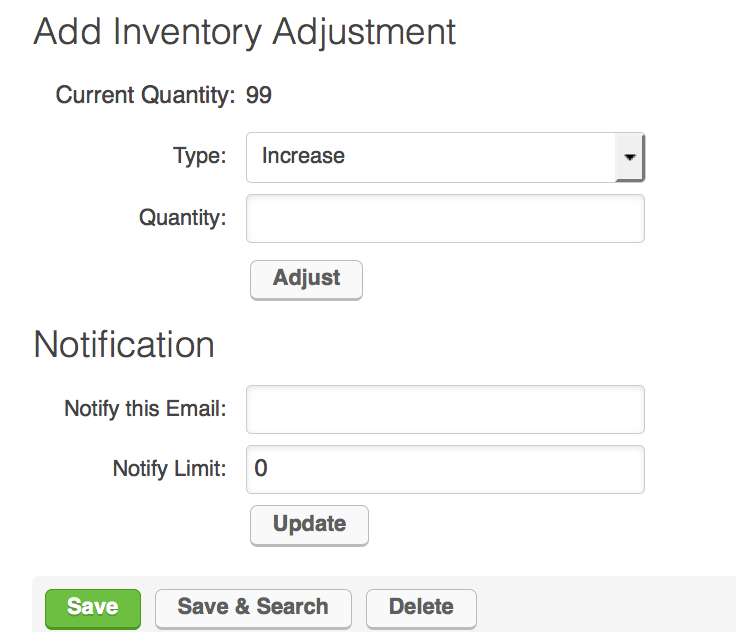
Why it matters: The Infusionsoft inventory function is a point of pain for the businesses who need it. In fact, it’s so incomplete that many of you may not even know it’s there. Here’s why – it doesn’t prevent someone from buying a product when the inventory hits zero. It allows you to set up a notification email to yourself when inventory hits a certain number, but that’s it. Well, not anymore sports fans. Now when inventory hits zero it’ll actually prevent sales by displaying a sold out message on order forms and in the shopping cart.
Feature: Mobile Responsive Order Forms
Why it matters: Right now the native order form themes in Infusionsoft aren’t very sexy, but they’re also not mobile responsive. With an increasing amount of traffic coming from and happening on mobile, this is a bigger and bigger deal. If someone can’t easily checkout, then the chance they they’ll lose interest and disappear is magnified. Well, um, yeah, not anymore. In the very short term (Dec 2015) future they’ll be introducing mobile order form themes. Hooray!
I hate to do this to you, but this post is starting to get a little long, and I’ve still got plenty more to cover. So I’m going to split this into a multi-part post. The short version is that I saw all sorts of positive indicators this week, both in terms of the direction of the product, but also in terms of improved transparency and communication.
Stay tuned for the rest of the product updates, and also the personal perspective I promised to share.
Keap, Tips and Tricks
As you are probably well aware, I’m a pretty big fan of marketing automation. And I am a firm believer that automation plays a massive role in an small business’s ability to scale.
But, along with the luxury of growing and scaling comes a handful of drawbacks. The fact of the matter is that people receive automated emails differently than they receive personal emails. They read them differently and they even respond to them differently (or not at all).
Think about the way you engage with your inbox. When an email was written to you by an actual person, you are exponentially more likely to respond than when you get a blog update, or newsletter, right?
Well, this reality also creates an opportunity. If you’re conditioning your prospects to expect one type of email from you (HTML, branded, newsletters, etc), then you have an opportunity to strategically deviate from that and capitalize on higher engagement.
One way to do this is be sending an automated email that appears to be a plain text personal email. I’m not saying to lie to anyone, I’m just saying that if you mix up the way you’re communicating you’ll experience a spike in engagement. This can be wildly effective if you sprinkle it into the middle of your nurture sequence, or your holiday promo campaign; try it.
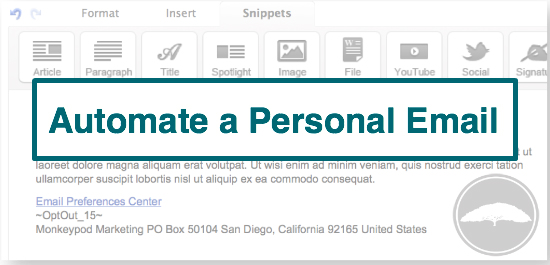
You can use the HTML email builder (in a campaign or as a broadcast) and build an email that looks like a plain text email. Navigate to the email editor in a campaign sequence, in your templates section, or as a broadcast and follow these 9 steps to try it out:
-
- Change the “from:” address to come from your actual email address. That’s right. If someone replies, you’re going to have to ac
 tually read it and do something with it. This one can’t come “noreply@” or “newsletter@”, it has to come from a person. (This alone can boost open rates significantly)
-
- Write a subject line that you would actually write. That means, go to your sent folder of your actual email client, and look at the subject lines you actually use. For this particular email you should avoid “Top Banana Slicer Reviews of 2014” or whatever. Just write what you would write if you were emailing me go to go happy hour.
-
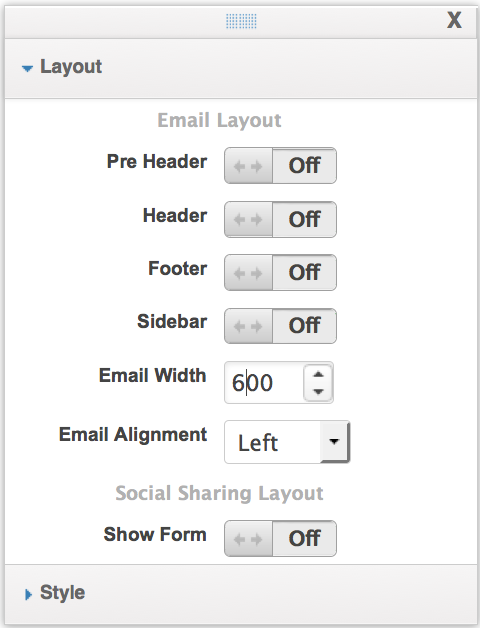
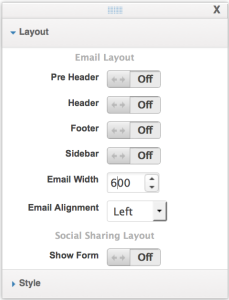
- Click on Layout & Style. Now on Layout. Turn Off the Header, Footer and PreHeader. And change the email alignment to Left.
-
- Click on Style, and select the style labeled Simple. This style should be preconfigured, what we’re going for is a black text email on a white background.
-
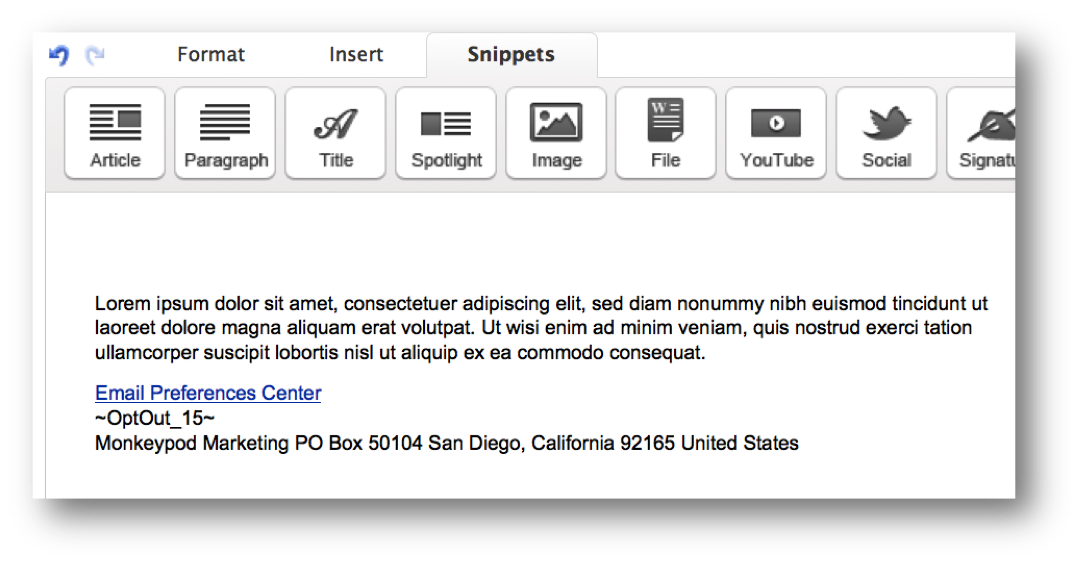
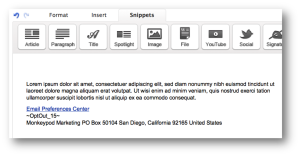
- Now remove any default snippets from the email. The only thing you should have remaining is a single paragraph, the unsubscribe link, and the address block at the footer.
-
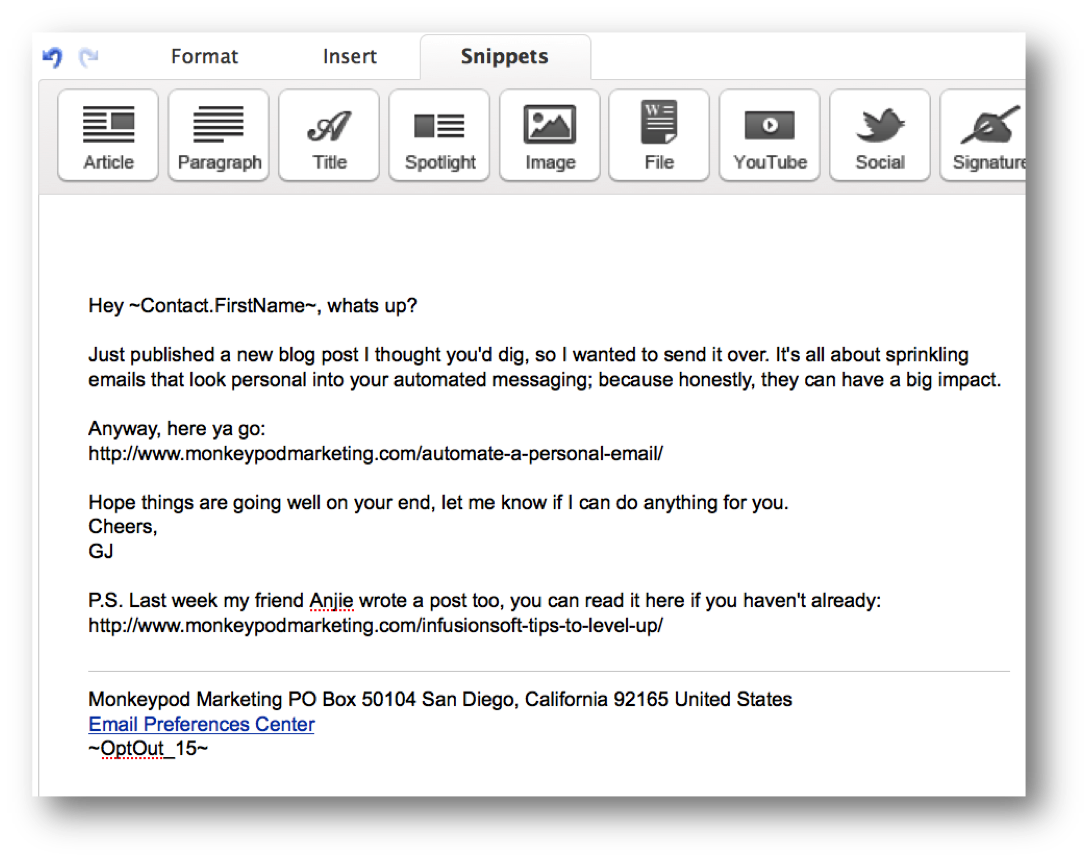
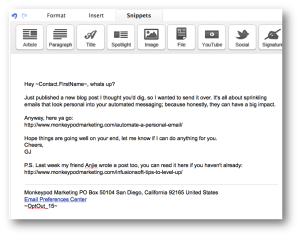
- Now write the body of the email. You can use a merge field for their first name, but remember to write it as if you were crafting a personal message to this person. Nothing extravagant. No frills. If you don’t usually use a fancy email signature, then don’t use one here. If you usually just paste a link in instead of putting it behind text, then do that.
- Your email has to have an unsubscribe, but try this. Move the unsubscribe below the address block, and then add a divider above both of them.
-
- Send a test version of the email to yourself. This is a good habit to get into for any email you build. Occasionally emails will look different depending on where you’re viewing them.
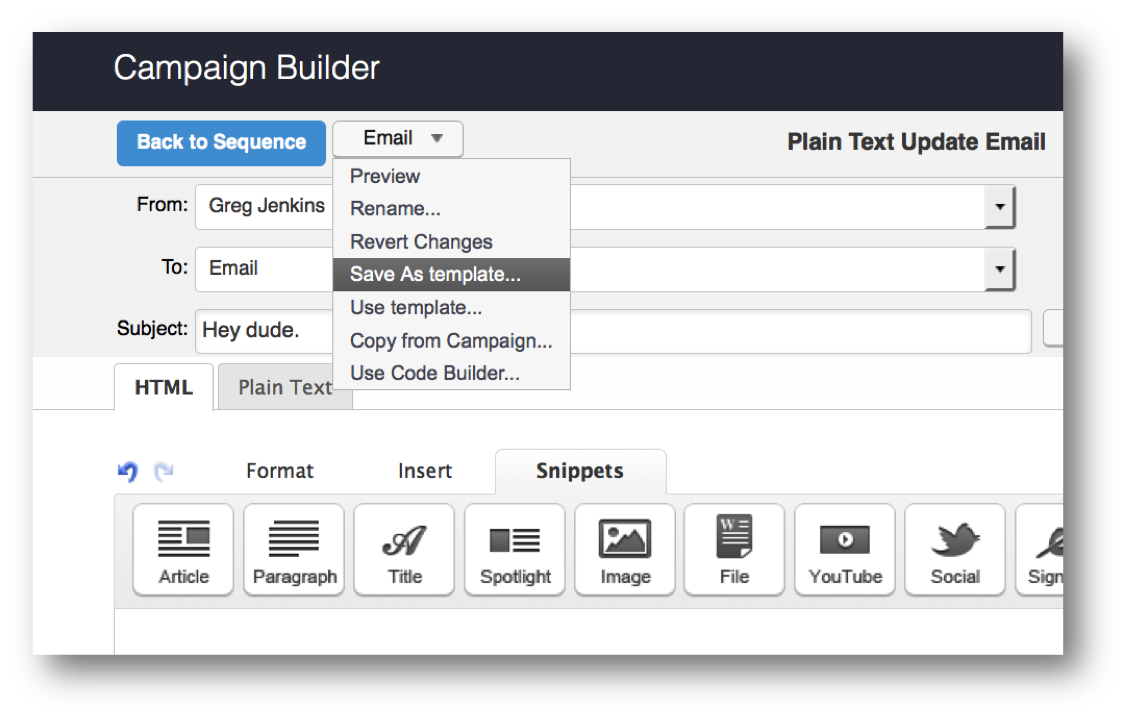
- Recommended: Save this email as a template for future use. If it’s a broadcast, you may need to send it to yourself, and then save it from the broadcast results page. If you built it in the template library, then you can skip this step.
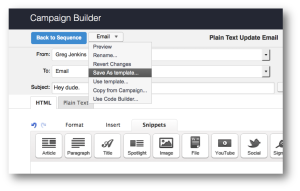
So there you have it. 9 easy-to-follow steps and you’ve got yourself an email template that looks like one you personally wrote in outlook or gmail, or wherever you write emails.
Two things to note:
A. Yes, you can go so far as to add something to the footer like “Sent from my iPhone”; but personally I think that’s overkill, and maybe even borderline unethical. The way I’ve outlined it above doesn’t overtly claim that we’re actually writing it. But, I’ll leave that to everyone’s own discretion.
B. Most email clients track opens when images are loaded, so if your email doesn’t have any images, then it’ll be really hard for Infusionsoft (or any system) to accurately track opens. One thing you could do is include a small white or clear 1×1 pixel image to help with this. (EDIT: Infusionsoft should do this for you automatically. See comments.)
Sending this email that doesn’t look like what they’re used to, at an irregular time, from a different address, will make it stand out. You can reasonably expect a higher engagement level, both in email opens as well as in replies and clicks.
All in all, this tactic is one way you can leverage pattern interrupt in your marketing to increase prospect engagement. It’s important to exercise this sparingly. In general I don’t think people mind automation, but that doesn’t mean we should beat them over the head with it. Thoughts?
Pro-tip: If you want to get rid of the default padding the email builder adds to the body of the email, you can turn the header back on (no forced padding there), and move all email elements up into the header section.

Guest Posts, Keap, Tips and Tricks

Anjie Mote, Marketing Strategist, Infusionsoft
I’ve got a blog post here from my friend Anjie Mote. She and I were consultants together at Infusionsoft for a while, and she’s great at what she does. She loves working and strategizing with entrepreneurs, it’s far and away her favorite part of being a Marketing Strategist at Infusionsoft. In her own words, Anjie lives for those moments when they contact her and share their success stories with her.
I LOVE Infusionsoft!
Infusionsoft is hard. It takes a lot of patience and commitment to learn how to use and implement the different areas of the application. And doing it in a way that makes sense beneath the surface level is even harder.
I had the opportunity to speak about the Infusionsoft product and deliver some good strategies for Infusionsoft users at a conference in Dallas a couple years ago, and I bombed.
I was like the software nerd with my laptop in the front of the room explaining campaign strategy and content in the driest way possible and I the attendees were listlessly drifting in and out. They didn’t really understand these complex things that I had been explaining for the past hour in confusing and excruciating detail.
Then my colleague Brad got up to speak and the first thing he said was, “My name is Brad, and I’m going to talk about some stuff, and when you don’t understand or you have a question, I want you to raise your hand and yell ‘I LOVE INFUSIONSOFT!”
Everyone laughed. But as Brad was speaking, hands started shooting up and cries of “I LOVE INFUSIONSOFT” rang through the room
Brad’s message was almost exactly the same as mine. But he made it fun, and made it engaging.
I firmly believe in the powerful impact that marketing automation can have on a small business. But it takes work. And perhaps more importantly, it takes positivity in the face of adversity.
Having said that, I have a few Infusionsoft Tips that you can use as a new Infusionsoft user to level up, and to set you up for long term success:
 1. Evaluate your business as it relates to Lifecycle Marketing.
Map out how Lifecycle Marketing looks in your business. Identify your gaps. Whether you need help with lead generation, or follow up, or implementing a referral program; Infusionsoft has a solution. But you need to identify what you need before you can start.
 2. Whiteboard everything prior to setting up any campaigns or templates.
You don’t want to start adding contacts into the app and designing campaigns before you have a clear plan of action and an idea of how you’ll organize everything. Organization is KEY. There are plenty of articles out there that can help you plan things out (like your tags).
3. Use your free resources!
The Help Center and the User Forums are full of valuable tips and tricks. They are searchable and if you can’t find what you need quickly, you can always get on with support over the phone, or through chat. Beyond the official Infusionsoft support resources, there are also some really valuable Facebook groups and LinkedIn groups.
Editors Note: The Monkeypod OG Membership just happens to include access to our private Q&A group on FB…
 4. Download some free campaigns from the Marketplace.
Study them and sort out how they work. Here are three campaigns the Mad Scientist recommends. Learn the basics, like the difference between a goal and a sequence. There is a lot to learn for mastering the campaign builder, but once you understand goals and sequences, you are ready to start and the Infusionsoft world is your oyster!
5. The best way to learn how to do something is by starting.
The second best way is probably by watching. Get into the application and get your hands dirty. With very few exceptions, everything that you do can be undone (except for sending an email). TRY. Build. Test. Add yourself as a test contact and play with every feature. You won’t break it (Check out #3 here).
If you do these things, and you invest time and effort into learning the software you might just find yourself yelling “I LOVE INFUSIONSOFT!” for a different reason.
Be creative, make it fun, have confidence in your ability, and when you have success – share that story! Your success can have a powerful ripple effect across the community.
Guest Posts, Keap, Tips and Tricks

Hey blog reader, it gives me great pride to publish this post because it’s written by my good friend Brett Farr. Brett and I were in the same hiring class at Infusionsoft in March of 2012. Brett, like many of us, is a self professed digital marketing nerd. He’s also an ASU Marketing graduate (Go Devils!) and was honored to be the TIME person of the year in 2006.
He is half Australian and while he grew up on an island in the Caribbean he now calls the Arizona desert his home.
Honestly, Brett knows his stuff. I strongly recommend checking him out at
Blick Digital. This article is packed with powerful small tips that can have an immediate impact on your marketing efforts. Enjoy.
7 Easy-to-Implement Tactics to Increase the Effectiveness of Your Next Campaign
I’ve only included items here that are easy to implement in your next Infusionsoft campaign. Most take no more than
2 minutes to implement. The goal of these 7 tips is to help boost your next campaign’s performance. These tips come ‘from the trenches’ of using Infusionsoft day-in and day-out for several years with a number of clients. These are small tactical tips, not strategic. If you’re looking for a strategic approach to building campaigns, take a look at
this article.
1. Use the momentum of the thank you page
There is no better time to ask your prospect to do something than after they’ve submitted a form or opted into your list (whitepaper, webinar, guide, etc). There are all sorts of psychological reasons behind this, but the main thing here is that you continue the forward momentum on the thank you page. I’ve seen too many thank you pages that say, “Check your email for…“. Seems boring, right?
Utilize this page to make sure they’re following you on social media, joining your community or ask them to tell you a little more about themselves so you can market to them more effectively. Paul Sokol even emphasized this in
his first point here.
Pro tip: You can consider offering a low-cost, high-value product to see who’s really willing to spend money with you. Although this step might require more than my promised ‘2 minutes’.
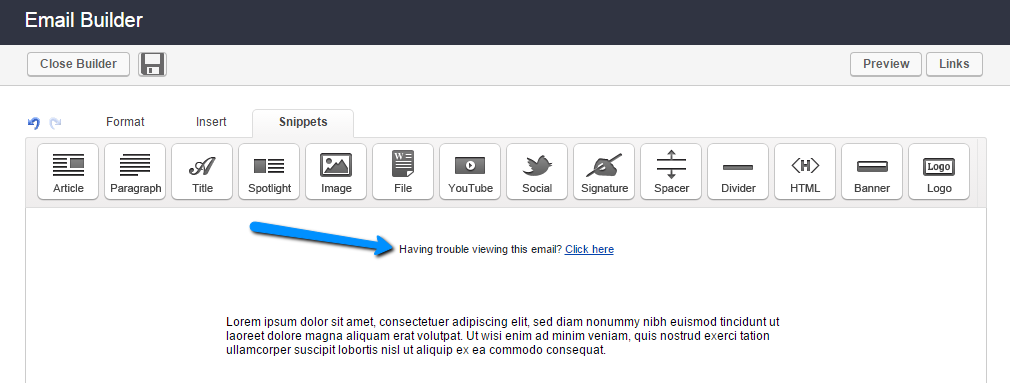
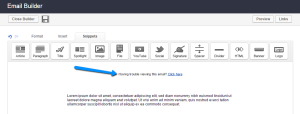
2. Remove the “Having trouble viewing this email?”
By default, Infusionsoft has a snippet at the top of your default email called ‘Having trouble viewing this email?’ Move this handy snippet to the bottom of your email or delete it all together if your email isn’t image-rich. By not moving it, your prospects and customers will see that little piece of text in their preview pane for several major email clients, including Gmail and Outlook.
3. Personalized email after a link click
I believe my good friend Greg calls this the
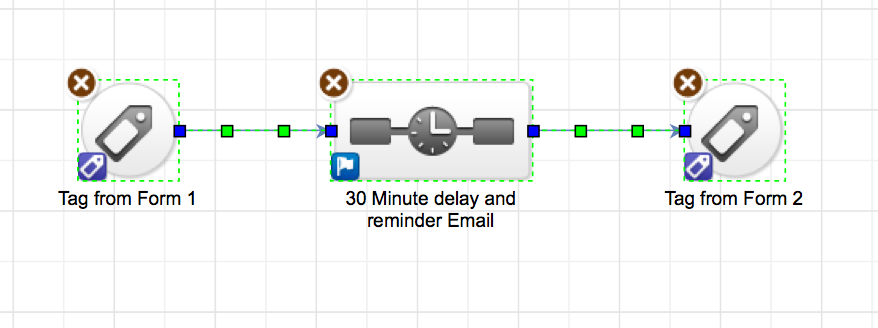
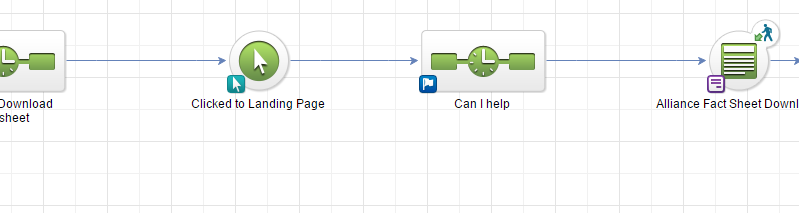
Infusionsoft nudge. If your campaign has any emails with calls to action that lead to a web form or product purchase, I highly recommend including a ‘Link Click’ goal with a 30 minute delay timer and a follow up email to ask why they haven’t completed the action yet. It could be something as simple as, “
Can I help answer any questions? Just reply to this email.” I’ll usually make sure this email is plain and non-branded as if I was writing the email from my Outlook account. When done properly, this one can have huge impact. See
this article for more specifics.
4. Occasionally insert first names into the subject line
This is a good way to boost open rates, but it’s a two-edged sword. Do it too often and it can start to annoy your email list. Use this sparingly for important emails with specific calls to action (I know, every email is important, right?).
5. Insert day of the week
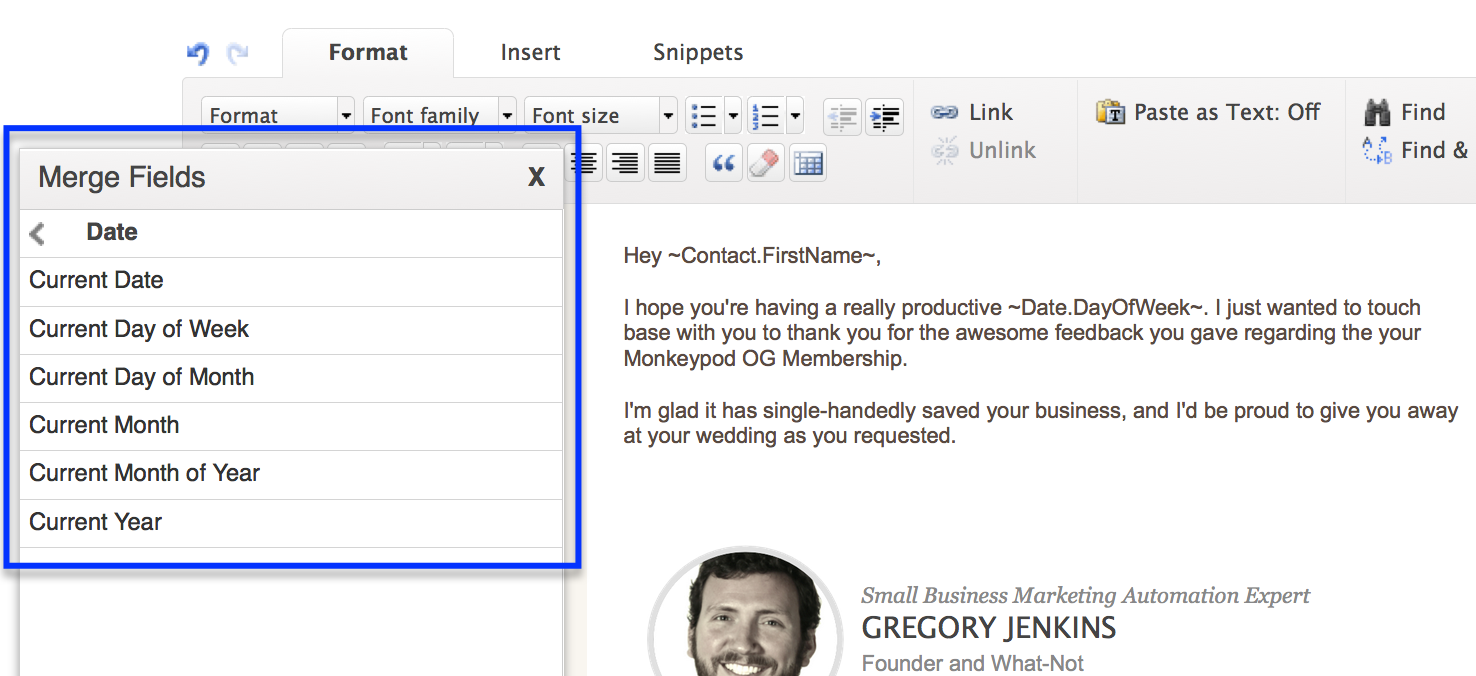
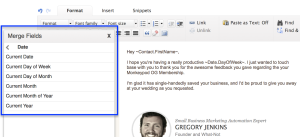
If your email is part of an automated follow up, you can make it a bit more personal by using an Infusionsoft merge field called ~Date.DayOfWeek~, which inserts the day of the week that the email was sent. This allows you to write something like “Hope you’re having a good Tuesday” instead of just “Good morning to you.” You can also use this for the current month and current year. I’ve seen this work for long-term follow up where an automated email is sent to the prospect with a message like, “You said it would be good to follow up in ~Date.Month~ (current month)“.
6. Have emails come from an actual person, not the business name
This one is pretty straight forward, but I’ve seen emails have a better impact when they’re sent from an actual person and not the business name. People do business with people. Not every situation is the same and this might not be appropriate for your business, but sending from someone’s name instead of from info@ or support@ will help increase your email opens.
7. Make sure there are no ‘image-only’ calls to action
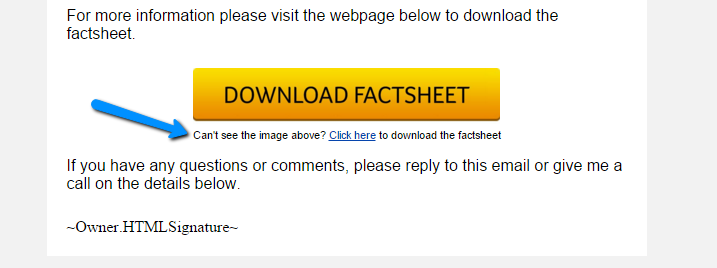
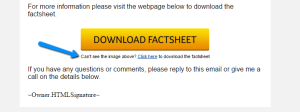
Sometimes you’ll have a button in your emails that is your main call to action. The issue with this is that if the images don’t auto-load in the recipients email client, your call to action will be missing. This happens when you see the option “Click here to download images”. If your company does mostly image button calls to action, make sure to include a small snippet of text below it that they can click on. See image below:
Looking for more ideas for your campaigns? I release ideas just like this all the time over at the Blick Digital Blog.
Click here to stay up to date.
Thanks for reading, let’s connect: Leave a comment below or reach out on Twitter – @bmfarr.
Campaign Builder, Keap, Tips and Tricks
Part of what makes Infusionsoft so powerful is your ability to be laser targeted with your communication. You can leverage not only what the person has told you about themselves, but also the actions they’ve taken. By using demographic and psychographic information you can really dial in on what might be of interest to a person.
And, naturally, the more targeted your communication is, the more impactful it will be.
When you’re using the campaign builder, this type of segmentation is primarily done through using decision diamonds. A decision diamond, or decision node, appears on the campaign canvas when Infusionsoft decides it needs some logic in order to progress.
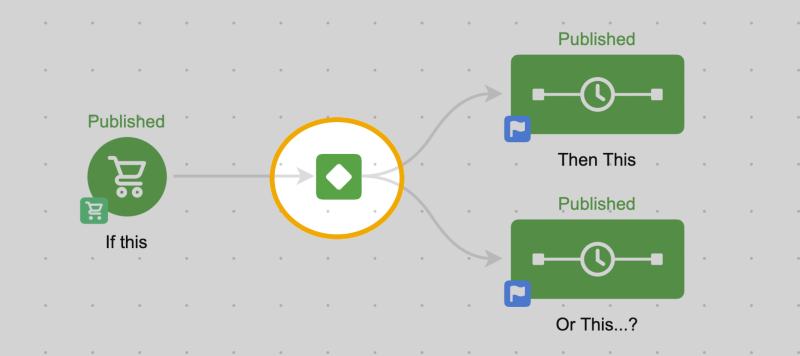
In other words, if you give Infusionsoft two paths, it’s asking “When do I send them where?”
The beauty of the decision diamond is that because you’re setting it up, you get to define the rules. It’s not arbitrary. It’s very much the opposite. You get to predict the potential scenarios and script the various outcomes you’d like to happen.
This allows you to be really detailed in your messaging because you know the exact set of criteria that a contact must have met in order to be receiving particular messages.
But, the decision diamonds aren’t exactly user friendly. In fact, they’re one of the more complex elements in the application.
That’s why I have this robust blog post answering seven important questions about using them.
As you build rules you’re expected to use logic statements, and time and time again I’ve seen these types of rules trip people up. Let’s look at an example…
If you make the following rules:
Rules for Sequence One
If Contact’s Tags doesn’t contain TAG A or TAG B or TAG C or TAG D.
Rules for Sequence two
If Contact’s Tags contains TAG A or TAG B or TAG C or TAG D.
On the surface, these rules look like they’d be opposites. If they don’t have any of the tags they go into sequence one, and if they do have any of them they’d go into sequence two, right?
Wrong. This is a real scenario posed in the community forum, and graciously answered by Infusionsoft Developer Mike Daniels.
The way the first rule actually breaks down is like this:
If Contact’s Tags doesn’t contain TAG A…
OR If Contact’s Tags doesn’t contain TAG B
OR If Contact’s Tags doesn’t contain TAG C
OR If Contact’s Tags doesn’t contain TAG D
It’s as if they are four separate rules. And therefore if the contact is missing any of those tags, then they would go into the first sequence.
So, because you’re saying “doesn’t contain” it means you need to use AND instead of OR. The new rules would look like this:
Rules for Sequence One
If Contact’s Tags doesn’t contain TAG A and TAG B and TAG C and TAG D
Rules for Sequence Two
If Contact’s Tags contains TAG A or TAG B or TAG C or TAG D
Anyway, the logic statements are a little confusing, and I’ve seen some really bright people get tripped up by this stuff. So, that’s where today’s post comes in. I’ve got a little hack for you that my colleague Paul Sokol has elegantly dubbed Cascading Logic (Originally I called it “Strung Out Logic” which makes it sound more like a junkie drug addict and less like a useful strategy…).
So, here’s how it works. Basically, you take what would be a complex decision diamond and you break it down into multiple simple decision diamonds. In a row.
This first occurred to me as I was building the teaser campaign I used to introduce Monkeypod back in May. Basically, after I announced the blog, I wanted to set expectations about what was next for everyone. But based on the relationship I had with them or the actions they had taken, I wanted to speak to them differently. This is how it would have looked:
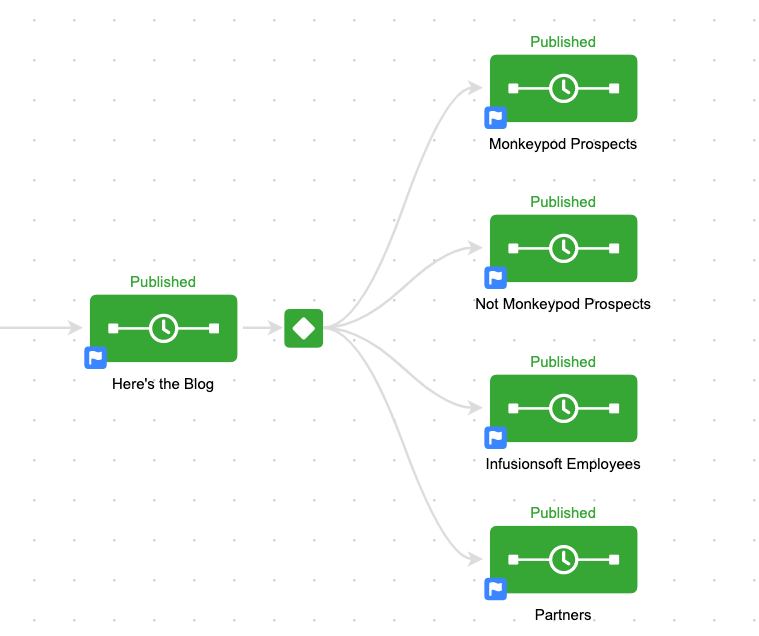
Pretty straightforward, right? I’ve got four categories: Monkeypod Prospects, Not Monkeypod Prospects, Infusionsoft Employees, and Partners.
But the challenge I was running into is that I only wanted people to end up in one of the four buckets.
So, my rules would have quickly gotten complex with things like “Send them here if they have the Uses Infusionsoft tag, but only if they don’t have the Infusionsoft Employee tag, AND if they don’t have the Infusionsoft Partner tag”.
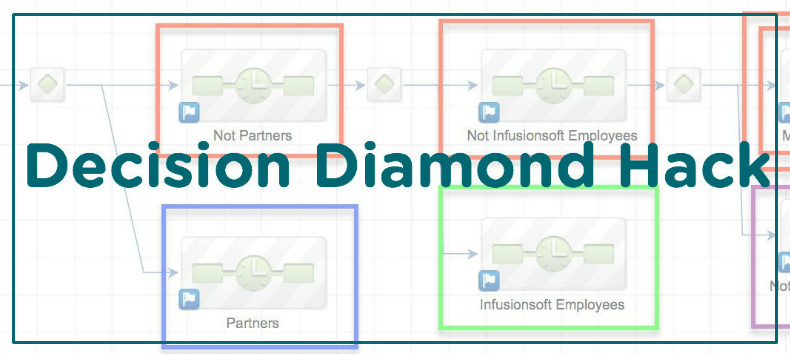
To avoid that I used a cascading logic approach and built this structure:
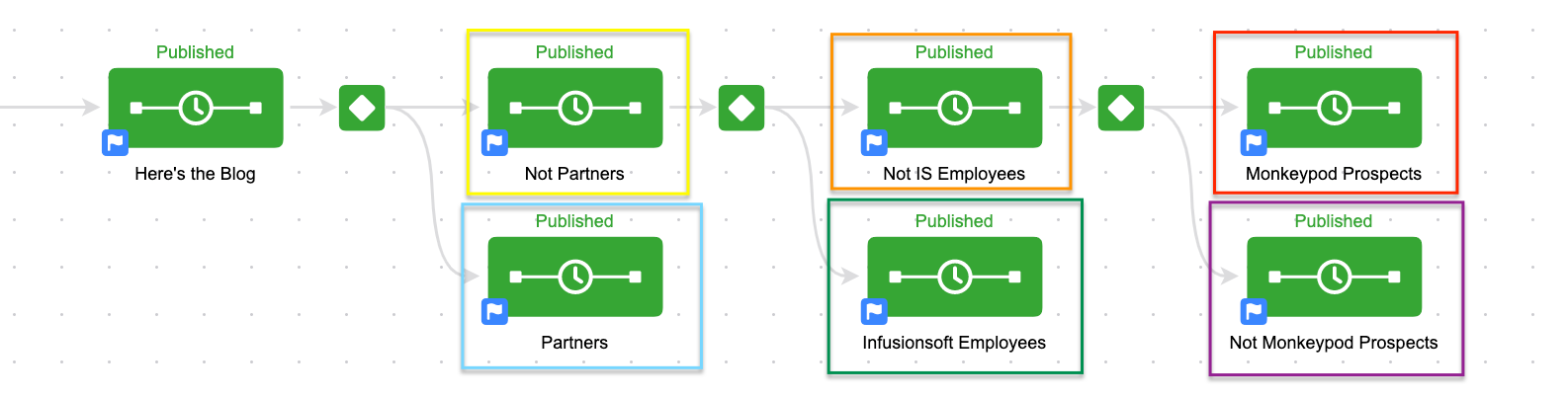
Each decision diamond had one rule. Send anyone with the partners tag here (Blue) and anyone who doesn’t have that tag stays up top (Yellow).
Then the next diamond looked to see if they were tagged as being an Infusionsoft Employee, and if so it sent them down (green), and if not, they stayed up top (Orange).
Then the final diamond checked to see if they had the Not Infusionsoft User tag, if they did, they dropped down into the final sequence (Purple) and if they didn’t, then they went to the last sequence on top (Red).
By setting it up this way I could speak specifically to the partners. Specifically to the Infusionsoft employees. Specifically to the people who don’t use Infusionsoft and specifically to the people who do (and also aren’t partners or employees).
I didn’t have to second guess my logic at any point, and I didn’t have to worry about anyone ending up in multiple sequences because every single diamond was an IF A/IF NOT A type combination.
This is also a great way to end up with a catch-all sequence. More than once I’ve heard people asking why they can’t set up some rules, and then for their final sequence just say “If they don’t go anywhere else, send them here”. Well, with this scenario, you almost build that by default.
Anyway, I know this may not work for every scenario, and it might get cumbersome if you have an overly complex decision diamond. But I wanted you to have it in your back pocket in case you ever need it.
If have more questions about decision diamonds, or the campaign builder in general, then check out one of these resources: