Zapier Sub-zaps: How and When to Use Them

Zapier Sub-zaps: How and When to Use Them

Zapier is a staple in the toolbox of so many small businesses, myself included. – and thanks to years of slow and steady effort, I consider myself a pretty savvy Zapier user.

But recently I learned a little Zapier trick and immediately knew I had leveled-up.

My long time friend Kevin Mogavero introduced me to a Zapier feature called Sub-zaps – and the power and utility hit me like a ton of bricks.

What are Zapier Sub-Zaps?

Essentially it’s a set of Zapier steps that you plan to be able to repurpose.

So, if there are common actions you want to bake into other Zapier recipes, you can build it as a sub-zap, and then just summon it as needed.

Here’s an article from the Zapier help center.

When would I use Zapier Sub-zaps?

There are lots of use cases – but essentially you could use a Sub Zap any time you have multiple Zapier recipes with multiple identical steps.

For me, the ton-of-bricks use case that came to mind was some progress tracking Zaps I had built for a course of mine.
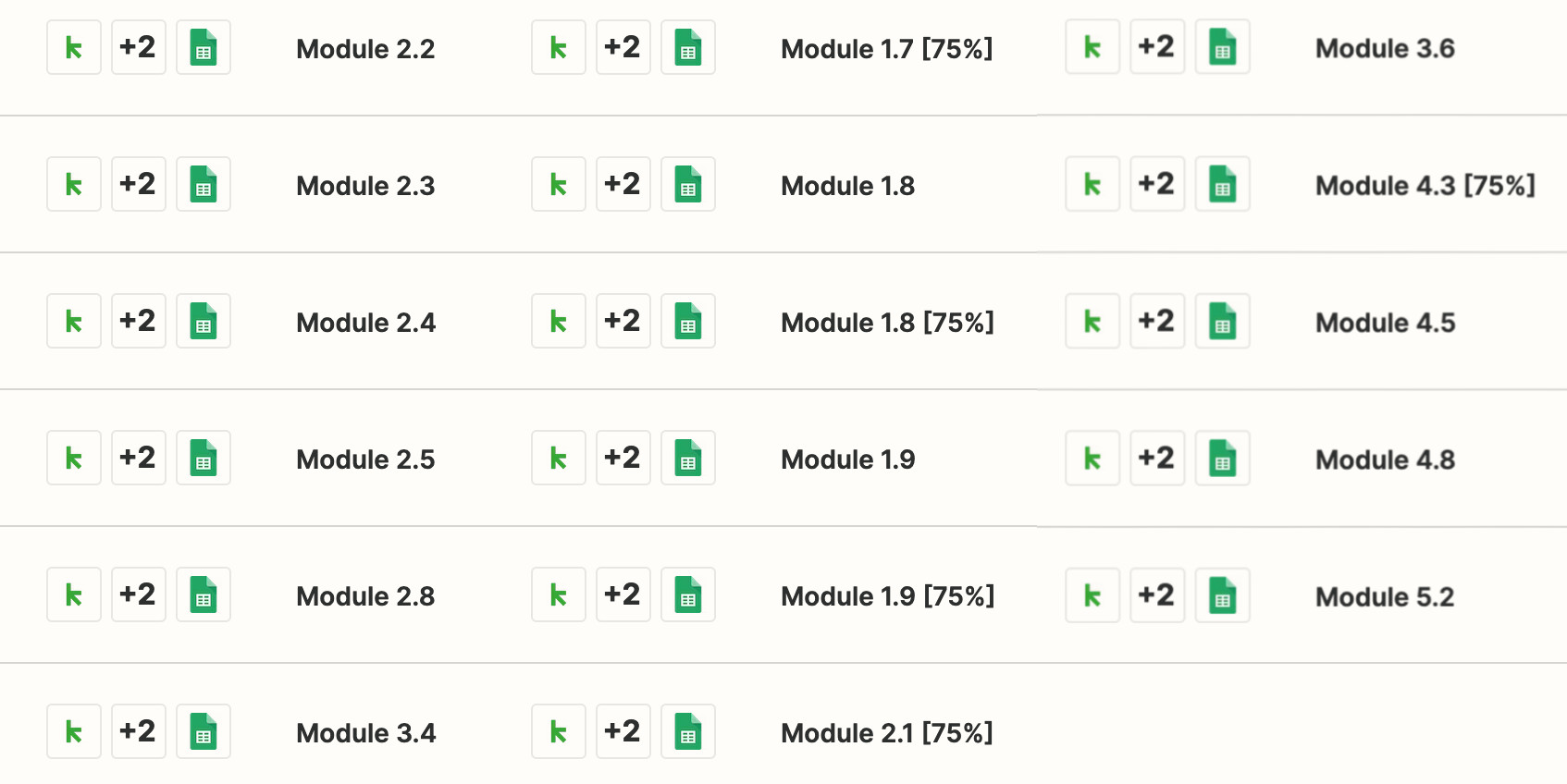
Zapier Recipes

The triggers all needed to be unique, but the subsequent steps didn’t – so I could have consolidated by sending all the initial triggers into a single sub-zap and saved myself a ton of time.

How do I set-up Zapier Sub-Zaps?

Here’s a robust walk-through from Kevin with two example use cases to illustrate just how this works:

Another way of thinking about this, for the old-time Keap users among us – subzaps are kind of like legacy Infusionsoft action sets. You bundle together things you want to have happen, then just ‘call’ that set of actions as part of another process.

Huge shout out to Kevin for turning me onto this beta Zapier feature – and for his permission to share the video with you all.

Hopefully you found this post valuable – if you have any questions feel free to drop them in the comments below. Thanks for reading (and watching).

File Uploads to Keap with Google Forms [and Zapier]

File Uploads to Keap with Google Forms [and Zapier]

Sometimes you need to collect a document from your Keap prospects or customers.

It could be a headshot that you attach to their contact record, or it could be something more formal – like a floor plan, or a brief for a specific project.

But regardless, there are use cases where you’ll want to be able to let someone easily upload a file and have it automatically attached to their contact record inside your Keap CRM.

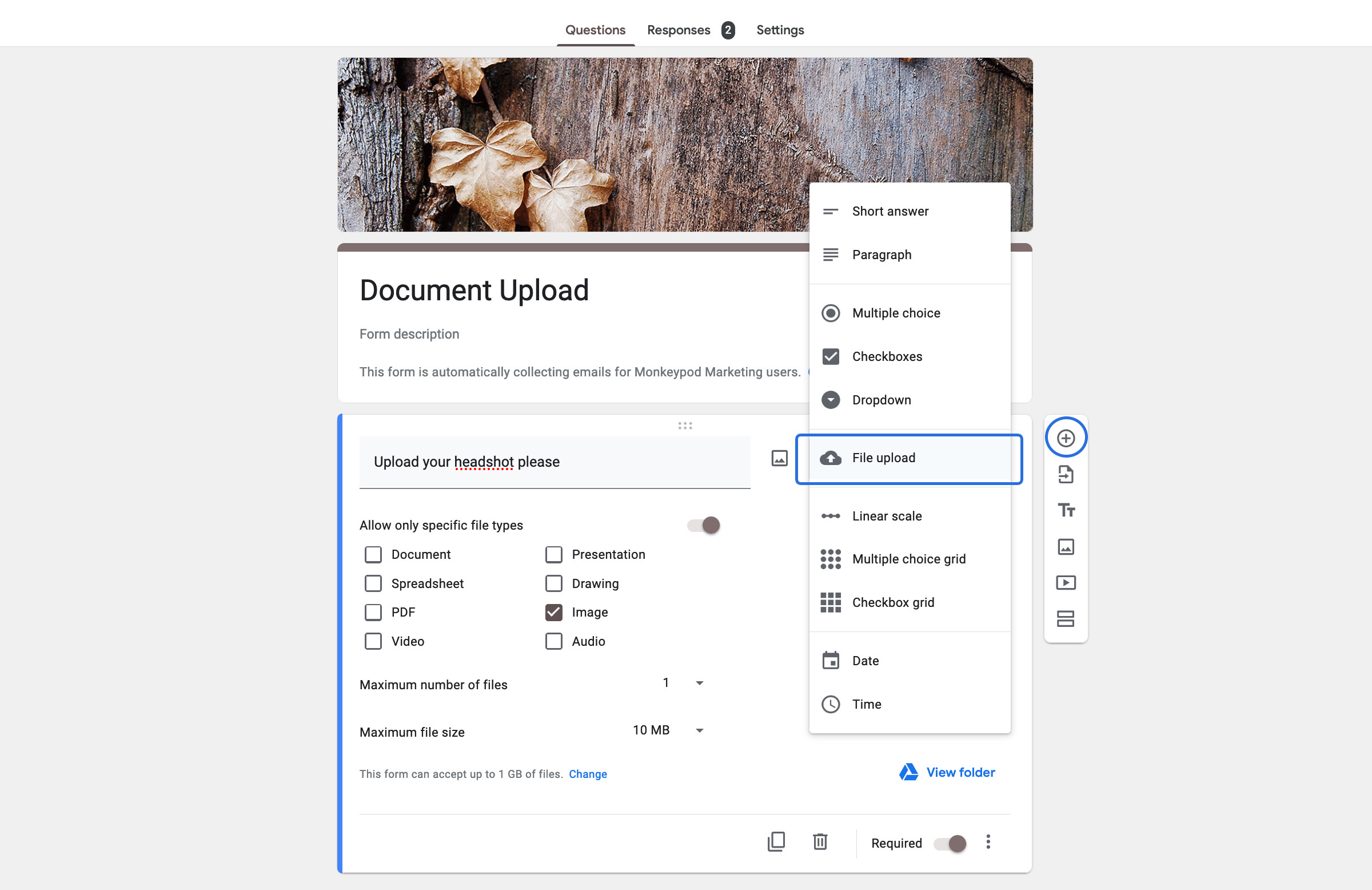
There are a few ways to solve this challenge, but a solution I like is to use Google Forms as the form – which has an option for receiving a file upload as a question type.

google forms upload screenshot

When you use the Google Forms file upload option, it gives you some additional settings to let you control the types of files it can receive.

The files that are received are automatically stored in Google Drive – which is useful, but if we want them to be attached to a contact in Keap we need to add one more tool to the equation

The next step is to get the Google Drive link onto the contact record in Keap, and my preference for that is Zapier.

Here’s an overview of what this process entails:

There ya go – that’s the process for collecting files via Google Forms and using Zapier attach the file to the contact record in your Keap database.

Now, if you don’t have Zapier (or don’t want it), another method for solving the same challenge is to use PlusThis – they offer a File Upload tool that works on the thank you page of your forms, and lets prospects and customers upload files which are then attached to the corresponding contact in Keap.

You can check out their solution here.

Hope this was valuable – feel free to drop any comments or questions below.

The Nickname Merge Field Hack

The Nickname Merge Field Hack

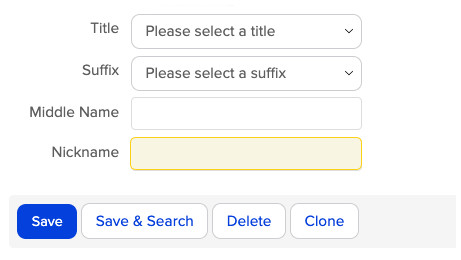
On the additional info tab of the contact record in Keap, there is a native field for Nickname.

If you know someone’s nickname, then it probably makes sense to call them that.

Screenshot of Jasons Question

(That screenshot is from the Max Classic version of Keap, but Pro and Max also have a nickname field.)

What if you don’t have their Nickname? Then what?

But if you don’t have their nickname on file, how can you make sure that Keap uses their First Name instead?

That’s the question here. I’ve seen it a few times over the years, and it came up again in the Monkeypod community the other day.

nickname merge question screenshot

The answer is “Yes”. But the process isn’t all that intuitive – in fact, it takes a little hack to make it happen.

In this video we’re going to use ‘nesting merge fields’ to create a fallback so that First Name is used if Nickname isn’t on file.

Check it out:

Obviously the use case I used here was nickname and first name, but this same tactic (nesting merge fields) could be used for any number of scenarios.

If you find this little hack useful, drop a comment below and let me know.

How to Set Up Task Reminders

How to Set Up Task Reminders

As you probably know, Keap is an automation powerhouse – but not everything can (or should) be automated.

Tasks are a useful feature for the times you need to do something manually.

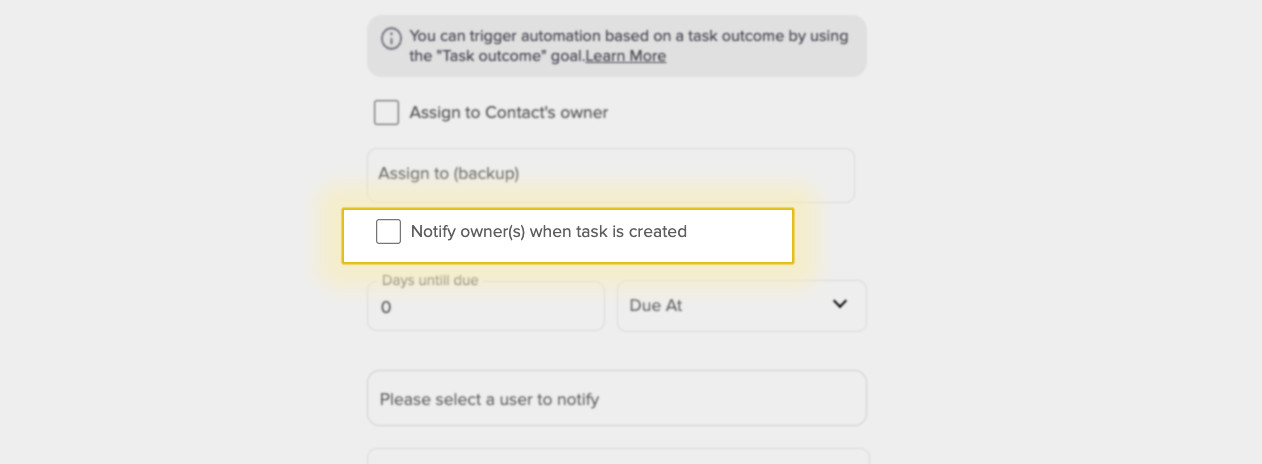
And Tasks do have a native notification at the time they’re created.

Notify Owner

And that’s great – the moment the task is created it lets the owner know that they’ve got something to do.

But, what if they don’t do it right away?

It begs the question…

How can I get a reminder as the task is due?

If you’re on top of your tasks and you always complete them immediately, then hey – don’t rub it in.

But if you’re like most humans, sometimes we get distracted – and the challenge with Keap’s tasks is that the out-of-the-box automated reminder is an objectively annoying pop-up that you see if you log in.

But what if you don’t log in every day? Or you just don’t want more pop-ups in your life?

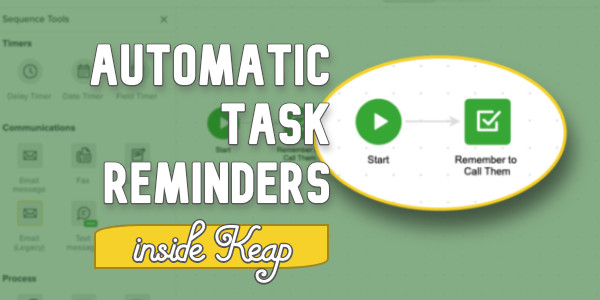
If you want an automated reminder to quietly and reliably show up in your inbox on day the task is due, there are a few ways to do that.

So there you have it – whether you are creating your tasks inside the campaign builder, or you’re setting them up manually, you can now automate ‘last minute’ reminders.

Receiving notifications on the day that tasks are due helps ensure that nothing gets missed – and having those show up in your inbox is just an extra layer of convenience.

How to use Zapier to do (almost) Anything in Keap

How to use Zapier to do (almost) Anything in Keap

Buckle up friends – this one is technically pretty advanced, and extremely powerful.

Odds are you’ve heard of Zapier, right?

It’s a ‘no code’ tool that lets you connect Keap to other tools, so you can move information around, start and stop automation, etc.

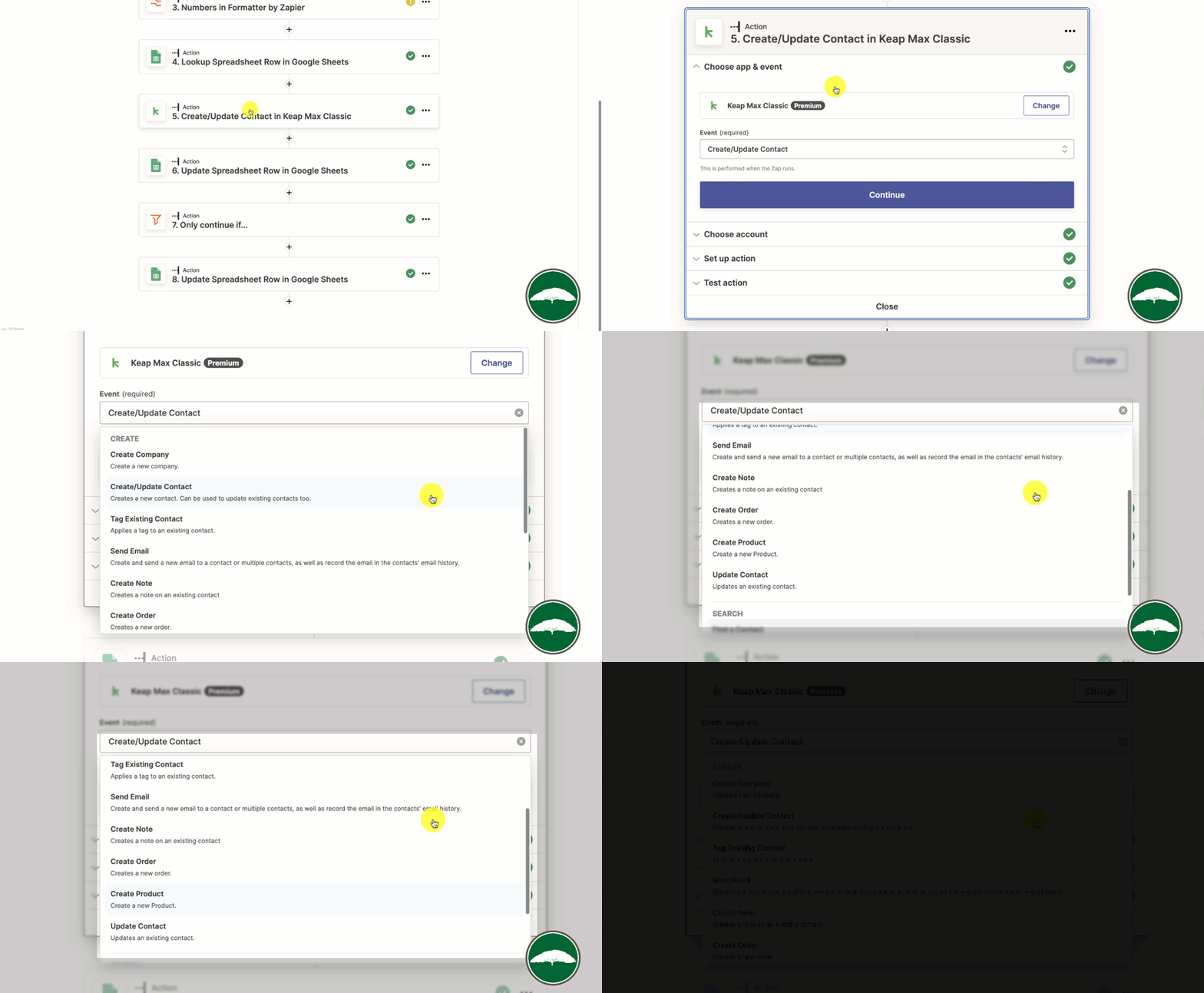
And inside Zapier, the Keap integration has a handful of options, (applying a tag, creating an order, updating a contact, etc):

Zapier Keap Options

But – you might notice that list isn’t exhaustive.

Despite how poweful Zapier is, there are plenty of things it can’t do (creating a tag, moving an opportunity, creating an affiliate, etc).

So, if you need to do something that wasn’t part of the Zapier integration – you’d have to hire a developer to custom code it, right?

Until now…

Paul Sokol, the campaign builder mad scientist, has devised a way to make direct API calls with Zapier.

This effectively means that anything you can do through the API, you can now do with Zapier.

Enjoy:

In this particular example Paul is updating an Opportunity inside Keap – but since Keap’s API is fairly flexible, this same approach could be used in any number of ways.

If you found this demo helpful, give Paul a shout out in the Keap User Group or here on Twitter.

The Three Timer Types [in Keap]

The Three Timer Types [in Keap]

Keap campaigns are built using goals and sequences – goals are the triggers, and sequences are what happens as a result.

keap fulfillment list

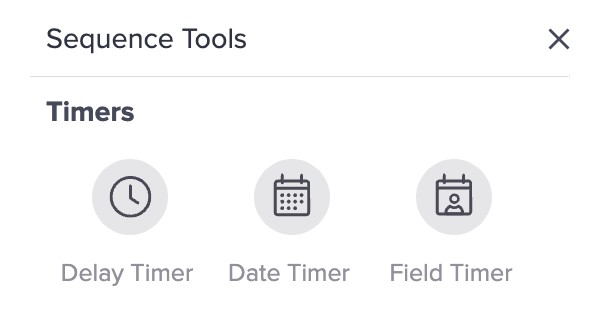
Inside your sequence there are three timer types available to control the timing and pace of the steps; Delay, Date, and Field

If you want everything in your sequence to happen all at once, you might not need a timer.

But odds are at different times you want to use each of these.

keap timer types

Let’s take a look at each of them.

What are Delay Timers?

Delay timers are the most common timer – they simply delay the contact for a set amount of time before allowing them to progress forward.

“Wait 3 days before sending this email”

What are Date Timers?

Date timers are the easiest to understand – they are used to schedule a specific step for a date on the calendar – or, a range of dates.

“Send this email on July 1st”

What are Field Timers?

Field timers are used to schedule sequence steps before or after a date unique to the contact record – like, their birthday, or their membership renewal date.

“Send this email 3 days before their next mentoring appointment.”

An important note for field timers is that it will use the value in the contact field at the moment they enter the sequence – so if the date isn’t set at that point, it won’t be able to schedule the timers.

And similarly, if the date changes after someone has already entered the sequence, it won’t reschedule unless they’re removed and re-added (or the campaign is republished).

All three of the Keap timer types have their individual merit, and plenty of scenarios where they are useful.

This video covers how to use each of them and when they might serve you best:

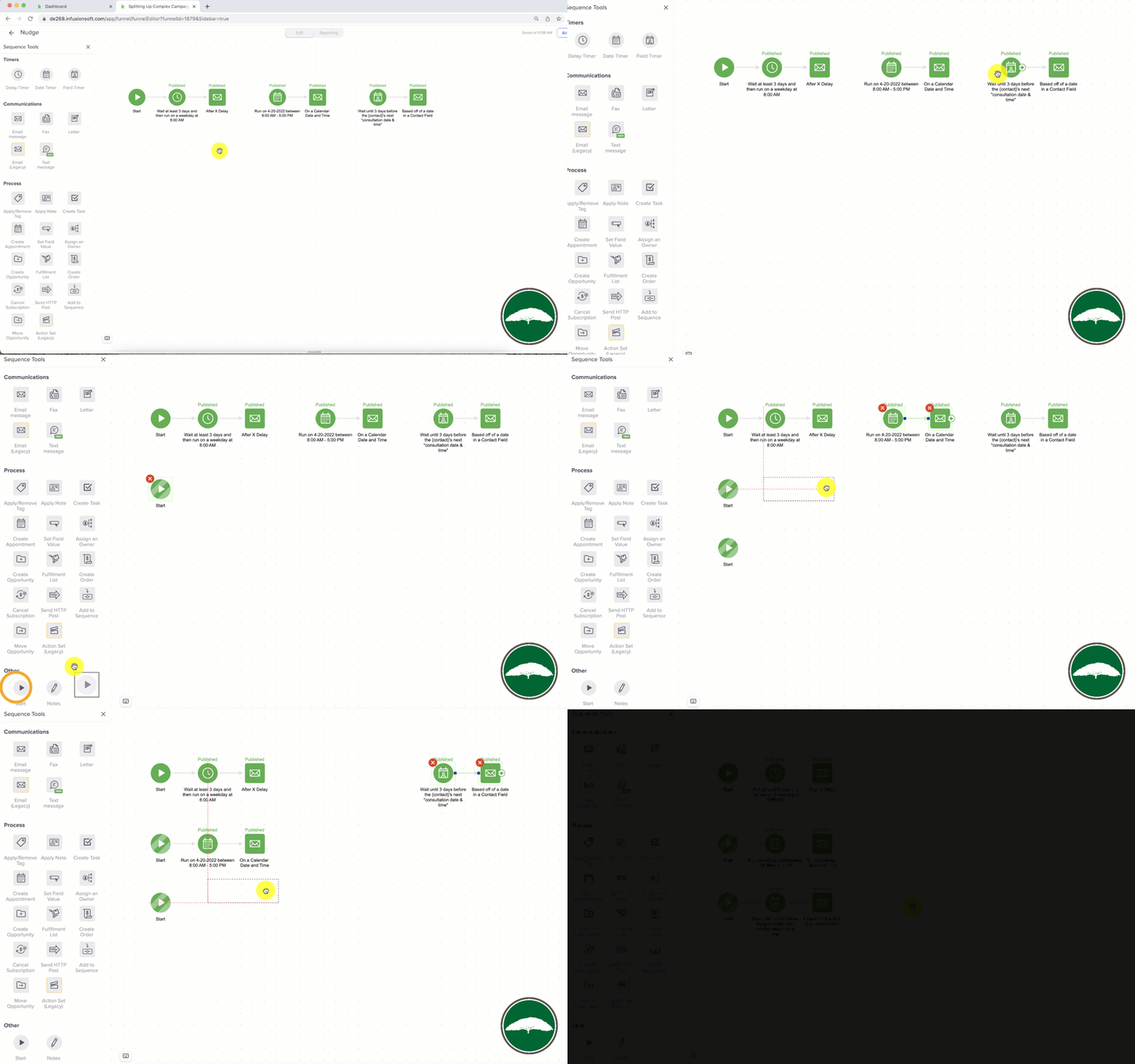
Another common misconception is that you can only use one timer type per sequence – which isn’t actually true.

The reality is that you can’t connect two timers of different types – but you can use more than one timer type in the same sequence.

The key is using separate ‘start’ triggers for the different lanes.

Keap Timer Types

The more you understand the timers, you’ll find them increasibly flexible and powerful.

Here are a few creative examples of how the timers can be used in unconventional ways:

Keap Timers Puzzle 1
Keap Timers Puzzle 2
Keap Timers Puzzle 3

Thanks for reading – as a reminder, this video is from chapter two in the CB Trilogy course. Thanks to a partnership with Keap, the full course is available here.