Finding someone’s FIRST Purchase Date (inside Keap)

Finding someone’s FIRST Purchase Date (inside Keap)

Alright, so here’s the thing: Keap gives us a ton of data about our contacts—like, a ton. You can see what people bought, how much they spent, how they paid, etc.

But one thing that’s surprisingly tricky to pin down is when someone officially became a customer. Like, their very first purchase.

This question came up recently in our private community (shout out to Susan 👋), and we realized that while the info exists in Keap, isolating it isn’t always straightforward. Sure, you could export purchase data and do the digging in a spreadsheet—but that’s manual, time-consuming, and doesn’t help you the next time you want the same info.

So we put some brainpower on it and came up with a better way—an automated option using PlusThis to calculate and store the “first purchase date” in a custom field that you can reference in searches, reports, or automations. Let’s walk through how it works:

Pretty smooth, right? Once you’ve got this set up, your system just quietly tracks that first purchase milestone in the background—no exports, no spreadsheets, no elbow grease required.

This kind of thing might feel small, but having a reliable “customer since” date opens the door to smarter segmentation, personalized follow-ups, and deeper reporting. PlusThis made it easy to pull off, and now Susan (and anyone else who needs it) can start putting that data to work.

If you give this a shot—or if you have another sneaky Keap problem you’ve been trying to solve—drop a comment or reach out. We love a good puzzle.

Have your own questions?

If you would benefit from a place to ask automation questions when you get stuck, and get ideas and inspiration from other businesses, you can join us in the Monkeypod Membership.

3-part Payment Puzzle (inside Keap)

3-part Payment Puzzle (inside Keap)

If you sell your products (or services) in the simplest fashion – then it’s likely one transaction. Someone swipes their card, and boom – it’s done.

But, depending on the nature of your business it may not be quite so simple – and fortunately, Keap has a lot of flexibility in the ways it can support more complicated purchases.

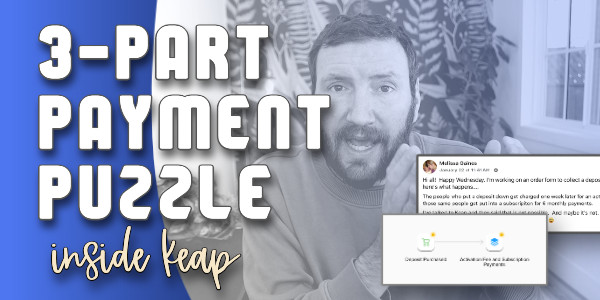
We had a question pop up recently in our private community where Melissa was looking to break a purchase up into three components – a deposit, an activation fee, and then a recurring subscription.

group question

This may feel like a puzzle (and it is), but thankfully it’s one that can be solved – and solved without needing third-party tools or integrations.

Here’s a walk-through of how to use automation to support a three-part payment process like this inside Keap:

Here are the key things to remember:

1. The initial purchase is what starts this whole process – and it’s important because this is how the credit card is added to the contact record.

2. Then, using automation we wait the specified delay before charging the card for the second amount – the activation fee.

3. Finally, after another delay, the subscription is initiated automatically – this can run in perpetuity, or for a set number of cycles.

This may feel complex at first, but if we break the purchase down into it’s individual components, it turns into a logical three step progression. The amounts and the delays can change, but this process could be used to support a wide range of use cases where we need a multi-part payment in order to complete a transaction.

Hope you find it useful – please feel free to drop questions or comments below.

Have your own questions?

If you would benefit from a place to ask automation questions when you get stuck, and get ideas and inspiration from other businesses, you can join us in the Monkeypod Membership.
Keap’s New Automation Builder

Keap’s New Automation Builder

If you’ve been a Keap user for any amount of time you are probably familiar with the Automation Builder (formerly known as the Campaign Builder).

It’s Keap’s automation engine and widely considered Keap’s most powerful feature. And it’s getting a serious update.

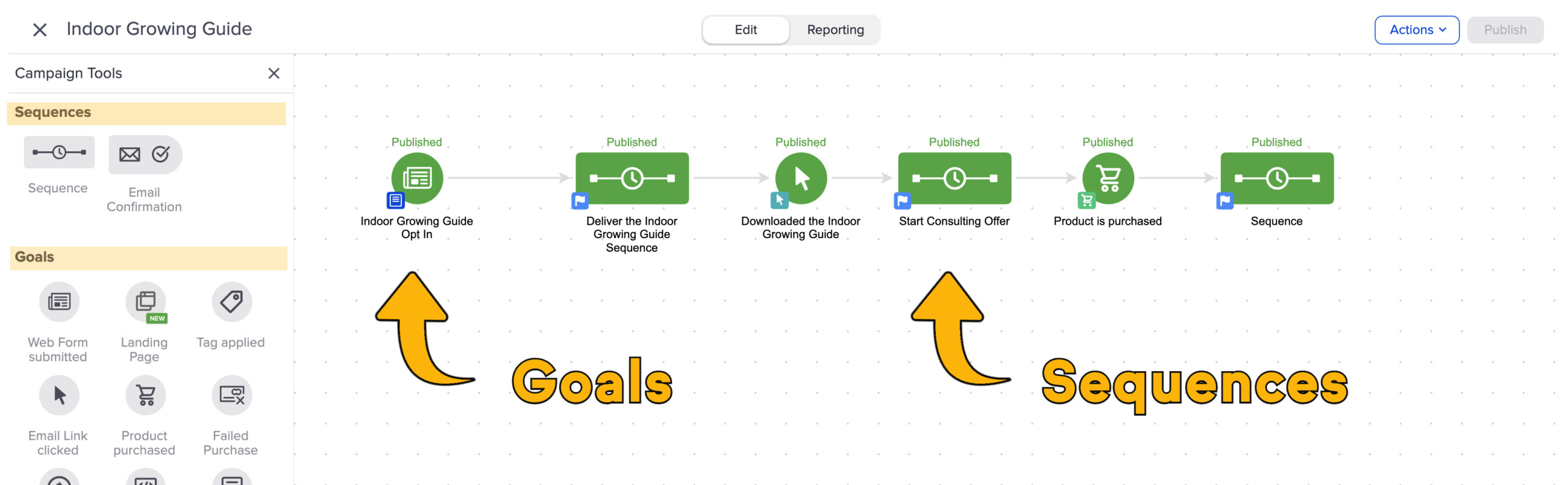
Historically automations have been built with “goals” and “sequences” as the primary building blocks. Goals are the triggers, and sequences are the actions that happen as a result.

Goals and Sequences

Now, they’re transitioning away from that.

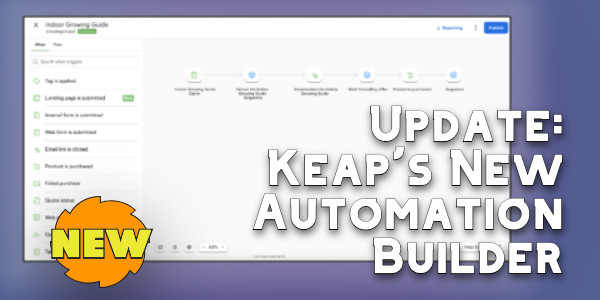
Keap is moving to a “When” and “Then” type system. Users will have a set of “When” actions you can configure that will serve to initiate (or advance) automation, and “thens” will be used to configure what you want to take place as a result. This video highlights the key differences Keap users will see as we start to see this update rolled out.

It may feel like this is a superficial update, but this visual change also represents an update in the actual platform architecture, which will make it easier to add new “when” and “then” type actions in the future.

For example, I’ve seen early concepts of an integration with Shopify that allows direct triggering of Keap automation when a Shopify purchase takes place, passing through order details and making them available in the subsequent automation steps.

So, if you’re a Keap user who feels confident in the existing interface for building automations – then this may be frustrating. I don’t want to dance around that – and I don’t think Keap should either.

And since we’re here – there IS a somewhat secret setting to help you define the experience you want as you’re adding elements to the automation canvas. This lets you decide whether or not you want the item you add to automatically open and prompt you to configure it.

There may be some turbulence as we start to familiarize ourselves with the new builder interface, but I’m trusting that the long term benefits will outweigh the short term friction.

My recommendation for now is to stay open minded, to play with the new features as they’re rolled out, and to offer feedback when you have it so that Keap can do their best to iterate and improve in the subsequent roll-outs.

And as always, if you want a place to ask questions as you work on building automation into your business, you’re welcome to join us in the Monkeypod Membership.
Evergreen Customer Journey [inside Keap]

Evergreen Customer Journey [inside Keap]

For a few years now we’ve been building the Keap Academy platform and filling it with free and valuable content for Keap users

And recently we crossed 25k enrollments, which is a meaningful milestone for our little team.

So we’re doing a decent job helping people find and access the content we produce, but one improvement we’ve wanted to make is creating an automated process that starts when someone finishes a course and recommends a logical next course to keep the momentum going.

The challenge is that we needed this recommendation process to take into account variables like what courses they have or haven’t already done and what version of Keap they have.

So here’s what we came up with:

This automation is designed for us to help the Keap Academy contacts continue their learning with our free resources, and build momentum that helps their business.

But this same approach could be used in myriad business scenarios where you have multiple products you offer, or competing CTAs; or any other scenario where you have a body of people with different needs to want to be able to help support as they make progress.

Alright – there you have it.

This automation is a micro example of an intentional and evergreen journey.

It starts when someone completes a course (or stalls out in one), and it stops when they start a new course. We’ve currently set it up so that the invites are only sent once, but conceivable we could design a V2 of this campaign with a new branch for repeat visitors that recommends the same set up courses using different language, or makes a completely different set of recommendations.

Where do I learn more?

Keap Academy offers a course all about journey design – Lifecycle Automation. If you’re interested in adding structure and predictability to the experience your leads and customers have, this is for you.

Tracking Client Sessions (inside Keap)

Tracking Client Sessions (inside Keap)

If you are a consultant, a coach, personal trainer, or anyone who works with clients over a period of time – then you probably sell some version of “sessions”.

And your clients redeem those sessions as they use them, right? If that’s the case, then it begs a very natural question…

How do I track client sessions inside Keap?

You likely will want to keep track of how many sessions a client has paid for, and how many they’ve used – and there are a variety of ways to tackle this one, but I wanna profile one solution using Keap’s native tools.

The basic idea is to create a custom field (whole number type) and then add to it when they pay for more sessions, and subtract from it as they redeem their sessions.

And yes, you can do it automatically – let’s get into the demo:

So, that covers it – the steps are basically as follows:

  1. Create the custom field (whole number type)
  2. Increment the field when they buy (automatically)
  3. Decrement the field when they use their sessions (automatically)

You can add/subtract using the native “field math” feature that is available inside the Set Field Value widget.

This type of tracking opens up a whole bunch of possibility – it would conceivably let you automatically remind people who are running out of sessions, and give you better insight and tracking for folks who have used more sessions than they should have.

If you have your own ideas or use cases for how this could be valuable, please drop them in the comments below.

Campaign Builder: Gotcha #4

Campaign Builder: Gotcha #4

A number of years ago I published a series of three blog posts highlighting common “gotchas” that trip people up inside Keap’s Campaign Builder.

Gotcha 1 | Gotcha 2 | Gotcha 3

Well, here we are now and while Infusionsoft is now Keap, and the campaign builder is now Advanced Automations – the gotchas still persist.

And today we’re highlighting another wrinkle in the campaign builder behavior that if you don’t know about it can definitely trip people up.

Check it out:

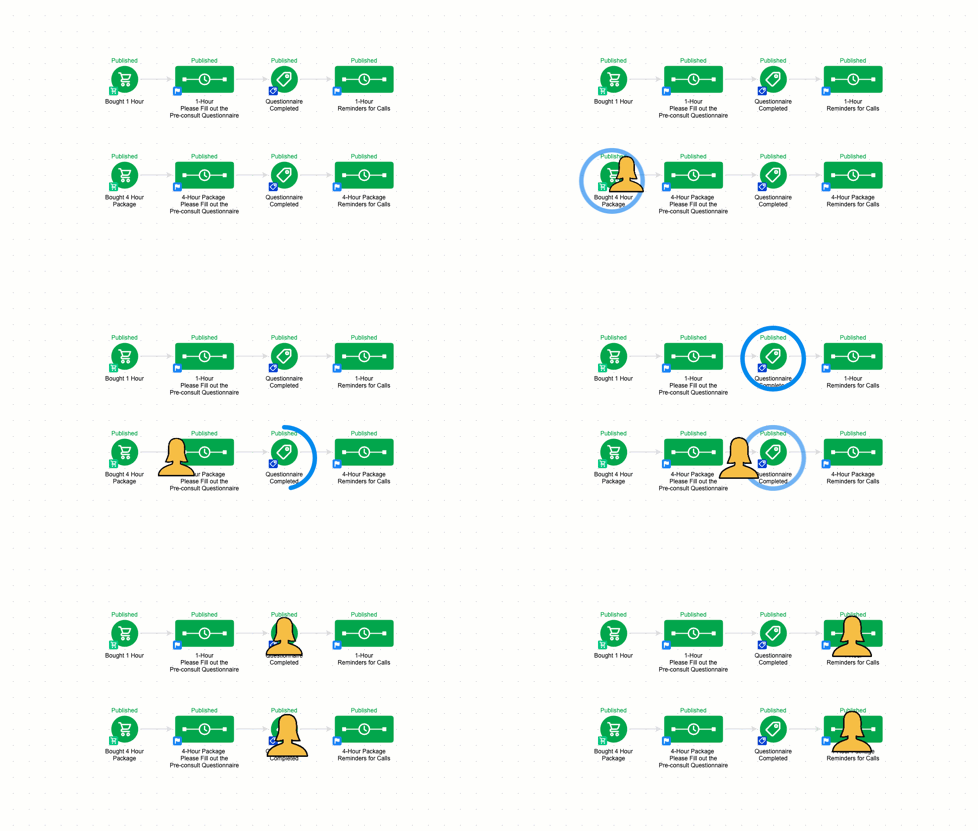
So, to summarize succinctly – if a contact is in a campaign, that means they can achieve any goal on the campaign canvas.

Even if the goal is not directly (or indirectly) attached to the sequence they are in.

gotcha for contacts inside Keap

This behavior isn’t good or bad – it’s just how it works.

If a contact is in a campaign, then they can achieve all the goals in that same campaign, even if they’re in a completely disconnected structure.

Questions? Compliments? Drop them in the comments below.

What to do next?

Well, if you’re looking to level up your campaign builder muscles (and reduce the ‘gotchas’ you don’t know about), then check out the Advanced Automations Complete Collection.

And finally, if you would benefit from a place to ask Keap questions, then check out the OG membership pricing and details here.