The Three Timer Types [in Keap]

The Three Timer Types [in Keap]

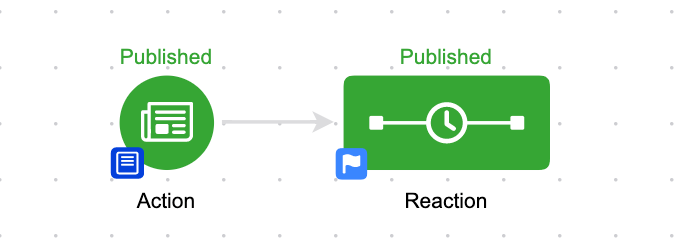
Keap campaigns are built using goals and sequences – goals are the triggers, and sequences are what happens as a result.
keap fulfillment list

Inside your sequence there are three timer types available to control the timing and pace of the steps; Delay, Date, and Field

If you want everything in your sequence to happen all at once, you might not need a timer.

But odds are at different times you want to use each of these.
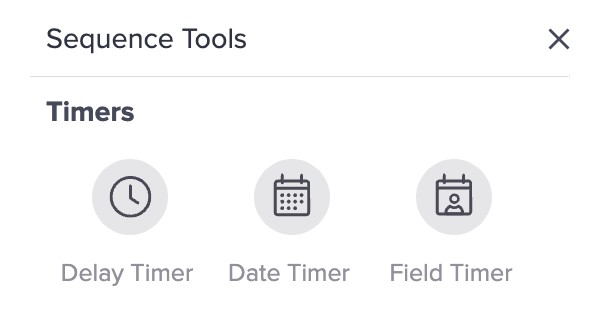
keap timer types

Let’s take a look at each of them.

What are Delay Timers?

Delay timers are the most common timer – they simply delay the contact for a set amount of time before allowing them to progress forward.

“Wait 3 days before sending this email”

What are Date Timers?

Date timers are the easiest to understand – they are used to schedule a specific step for a date on the calendar – or, a range of dates.

“Send this email on July 1st”

What are Field Timers?

Field timers are used to schedule sequence steps before or after a date unique to the contact record – like, their birthday, or their membership renewal date.

“Send this email 3 days before their next mentoring appointment.”

An important note for field timers is that it will use the value in the contact field at the moment they enter the sequence – so if the date isn’t set at that point, it won’t be able to schedule the timers.

And similarly, if the date changes after someone has already entered the sequence, it won’t reschedule unless they’re removed and re-added (or the campaign is republished).

All three of the Keap timer types have their individual merit, and plenty of scenarios where they are useful.

This video covers how to use each of them and when they might serve you best:

Another common misconception is that you can only use one timer type per sequence – which isn’t actually true.

The reality is that you can’t connect two timers of different types – but you can use more than one timer type in the same sequence.

The key is using separate ‘start’ triggers for the different lanes.
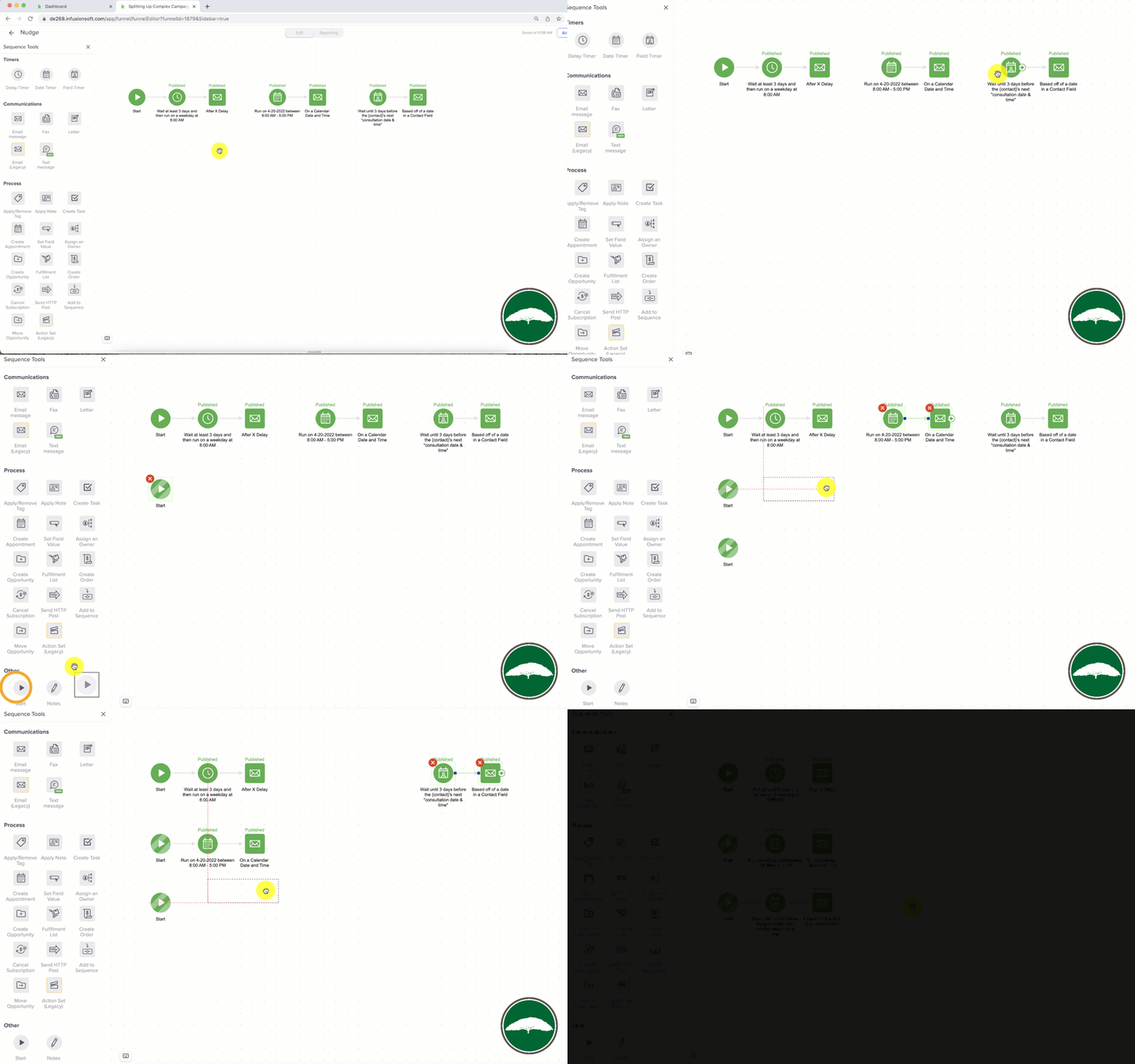
Keap Timer Types

The more you understand the timers, you’ll find them increasibly flexible and powerful.

Here are a few creative examples of how the timers can be used in unconventional ways:

Keap Timers Puzzle 1
Keap Timers Puzzle 2
Keap Timers Puzzle 3

Thanks for reading – as a reminder, this video is from chapter two in the CB Trilogy course. Thanks to a partnership with Keap, the full course is available here.
How to Use Fulfillment Lists in Keap

How to Use Fulfillment Lists in Keap

Keap’s fulfillment lists are a personal favorite of mine – and they’re definitely one of the most underused features inside of the campaign builder.

Or maybe in all of Keap (Max Classic only, I believe).

You know how automation usually happens on an individual by individual basis?

Like, if 100 people enter a sequence, there will be 100 emails sent (one to each) or 100 tags applied (one to each) or 100 tasks created (one for each), right?

Well, fulfillment lists allow you to batch those contacts together, and process them as a group.

When would you want this?

Good question – it’s for instances where you want to receive a list of the people who hit that step – like, a list of event attendees on the morning of your event (so you can print name badges).

There’s no need to receive 100 different notifiations, you can just get a single spreadsheet of those people sent directly to you.

Or, a list of people who you need to ship books to, or a list of questions you’ve received in preparation for a presentation, etc.

keap fulfillment list

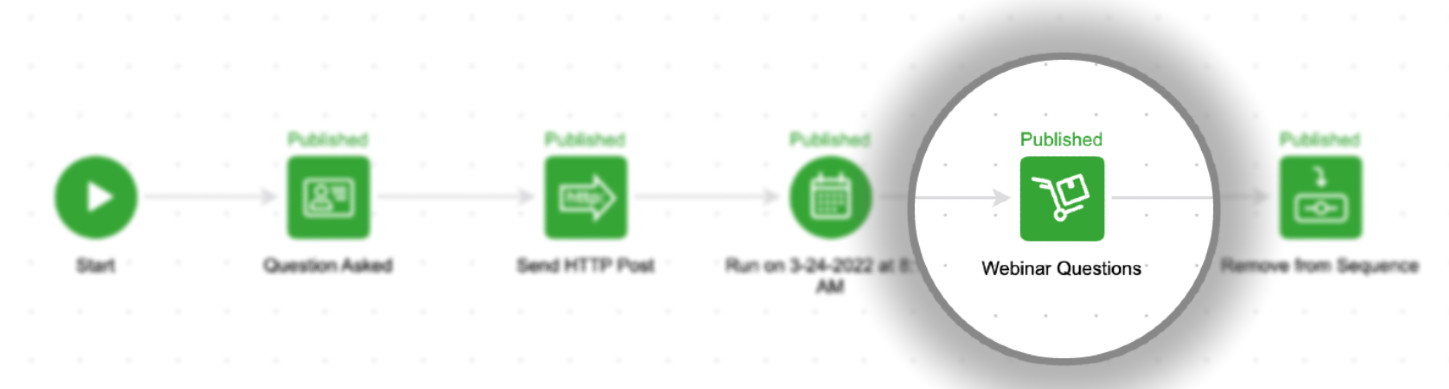
Just look for the fulfillment list item in the processes section inside of a sequence.

The use cases go on and on, but the solution for each is Fulfillment Lists. This video demonstrates how you can set it up.

So that’s fulfillment lists in a nutshell – do you have an obvious use case for them in your business?

For more training on Keap’s campaign builder, check out these resources:

Campaign Builder 101 [Blog Post]
CB Trilogy [Virtual Course]

As you’ve probably heard me say, I believe the campaign builder is the most powerful tool on the planet for small businesses.

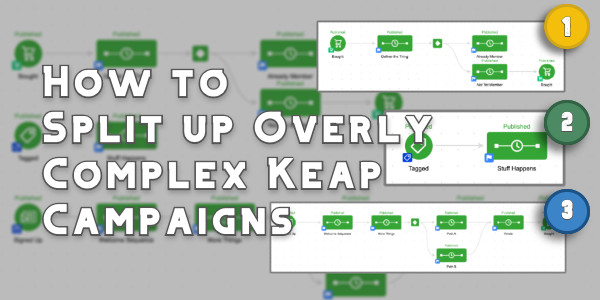
How to Split Up Complex Campaigns

How to Split Up Complex Campaigns

This blog post addresses a fairly specific Keap question about a relatively advanced scenario:

“How do I up split a complex campaign?”

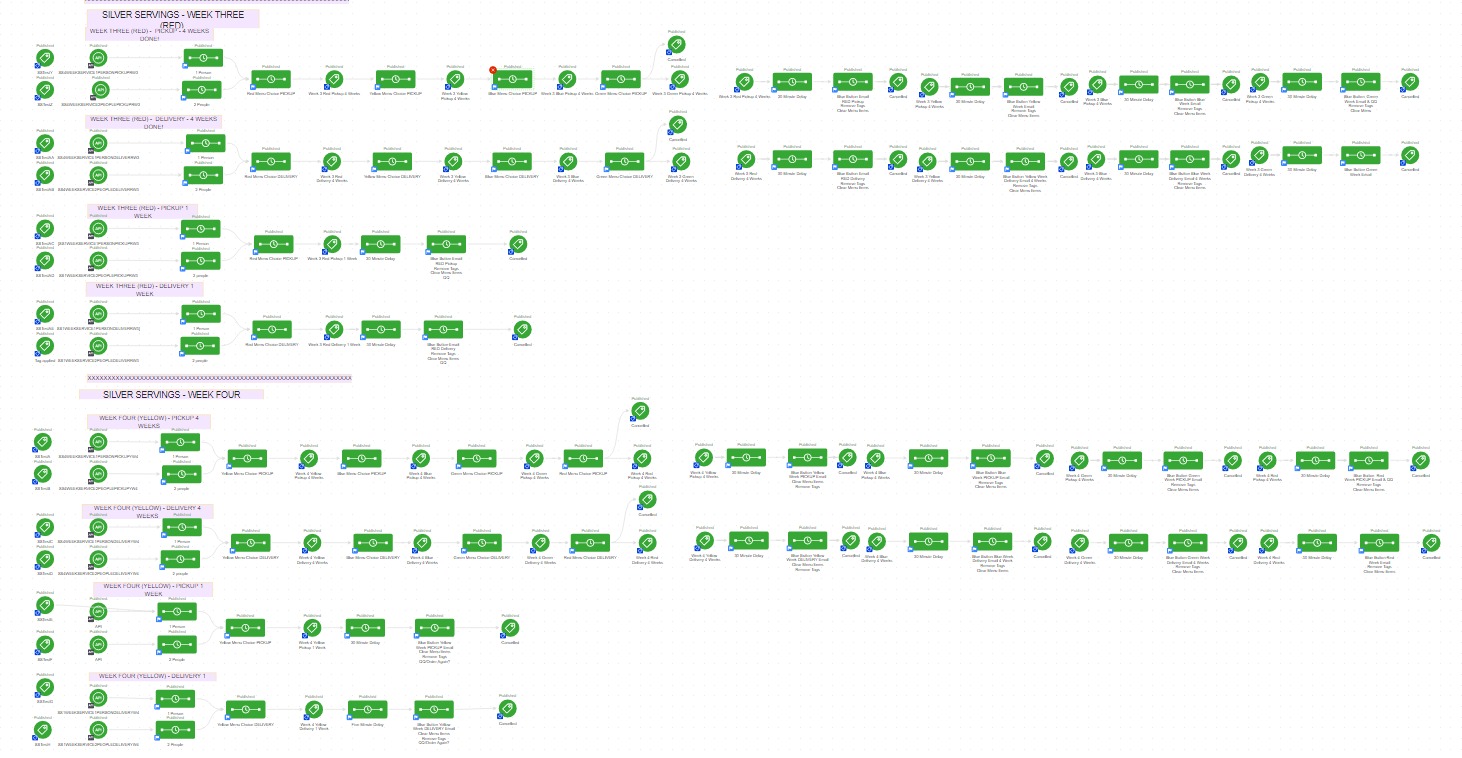
It was prompted by a question Steven, an OG Member, asked yesterday when he realized the campaign he’d built had spiraled a bit out of control.

complex keap campaign

Is the campaign functional? Sure.

But it’s cumbersome – and when a campaign is that big it has a number of drawbacks; it’s harder to manage, to modify, and to report on.

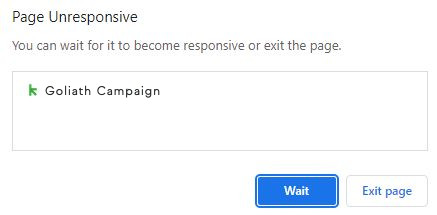
And it takes forever to load (ever seen this horror show?).

campaign loading issue

So, the answer is to generally build your campaigns in smaller more modularized structures, as Mike advises here.

And then chain those structures together, like this.

Great advice – but it doesn’t help Steven (or anyone who has an unruly campaign).

How do I break up a big Keap campaign?

But if you have an existing campaign that you want to divide into smaller campaigns you can – but there are some considerations.

First, you’ll want to decide what you want to happen to the contacts who are already in the automation.

And second, you’ll want to pay close attention to the functioning goals – some goal methods live in a singular campaign, and can’t easily be moved.

In this video I’ll show you the various ways to divide up a bloated campaign, and talk through those considerations as well.

So there you have it – now you (or Steven) have a process you can follow for making your goliath campaign more manageable.

And, in case this all feels a little advanced – here are two resources I recommend to keep exercising those campaign builder muscles:

Campaign Builder 101 [Blog Post]
CB Trilogy [Virtual Course]

The campaign builder is Keap’s automation engine – understanding how to harness this tool is the key to multiplying the ROI you get from Keap every month,

The Otherwise Hack [for Decision Diamonds in Keap]

The Otherwise Hack [for Decision Diamonds in Keap]

So, the Decision Diamond in Keap is a hyper valuable segmentation tool.

It lets us branch contacts into different paths so that we can tailor the automation we design to feel more targeted, and more personal.

(More on that here)

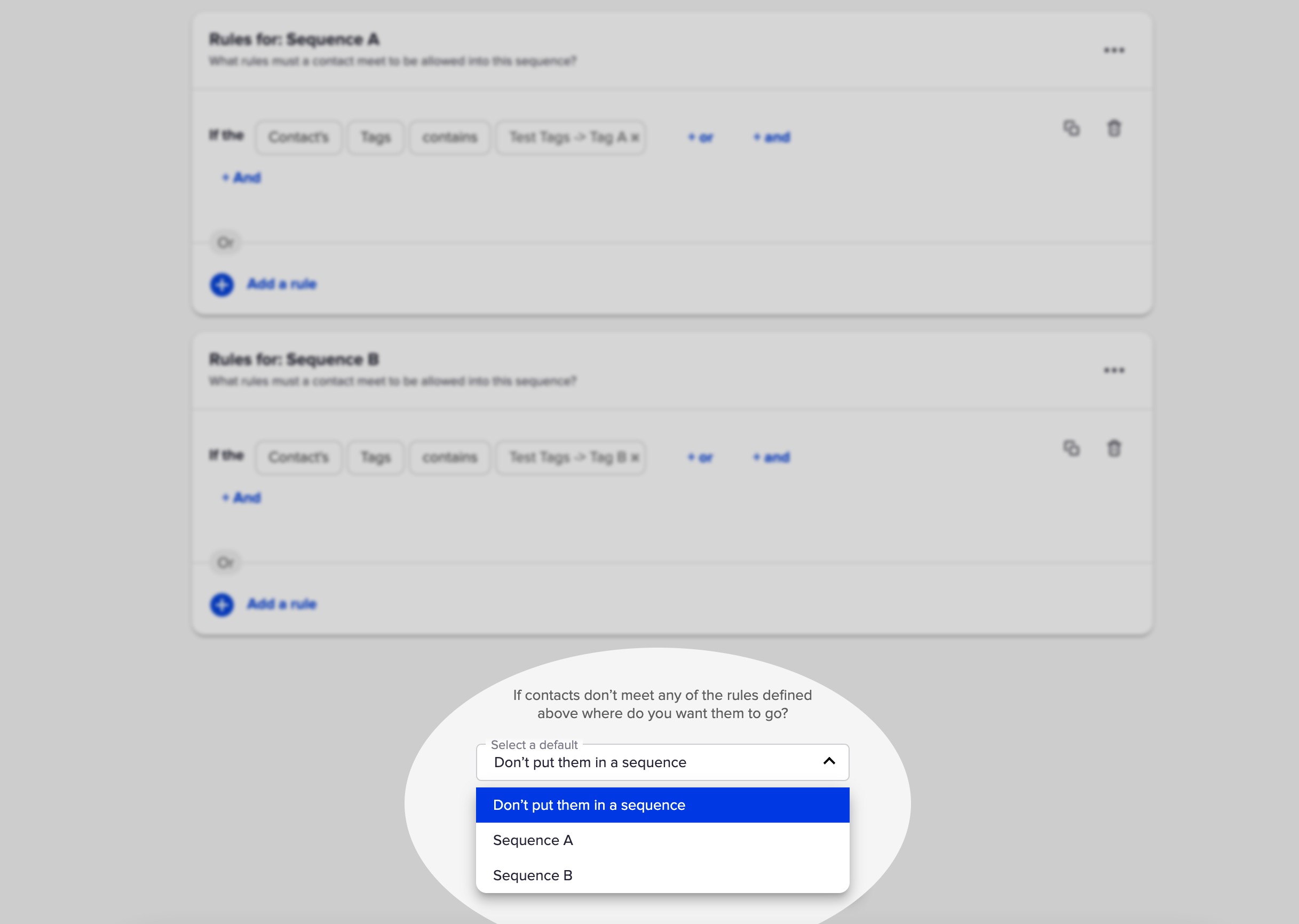
And Keap has, wisely, added a default setting so you can choose one of your existing sequences to send them to if they don’t meet the criteria for any of your rules.

Decision Diamond in Keap

But the challenge with this well-meaning feature is that it only lets you select from the two sequences that have rules.

So what if you want to send the contact somewhere else?

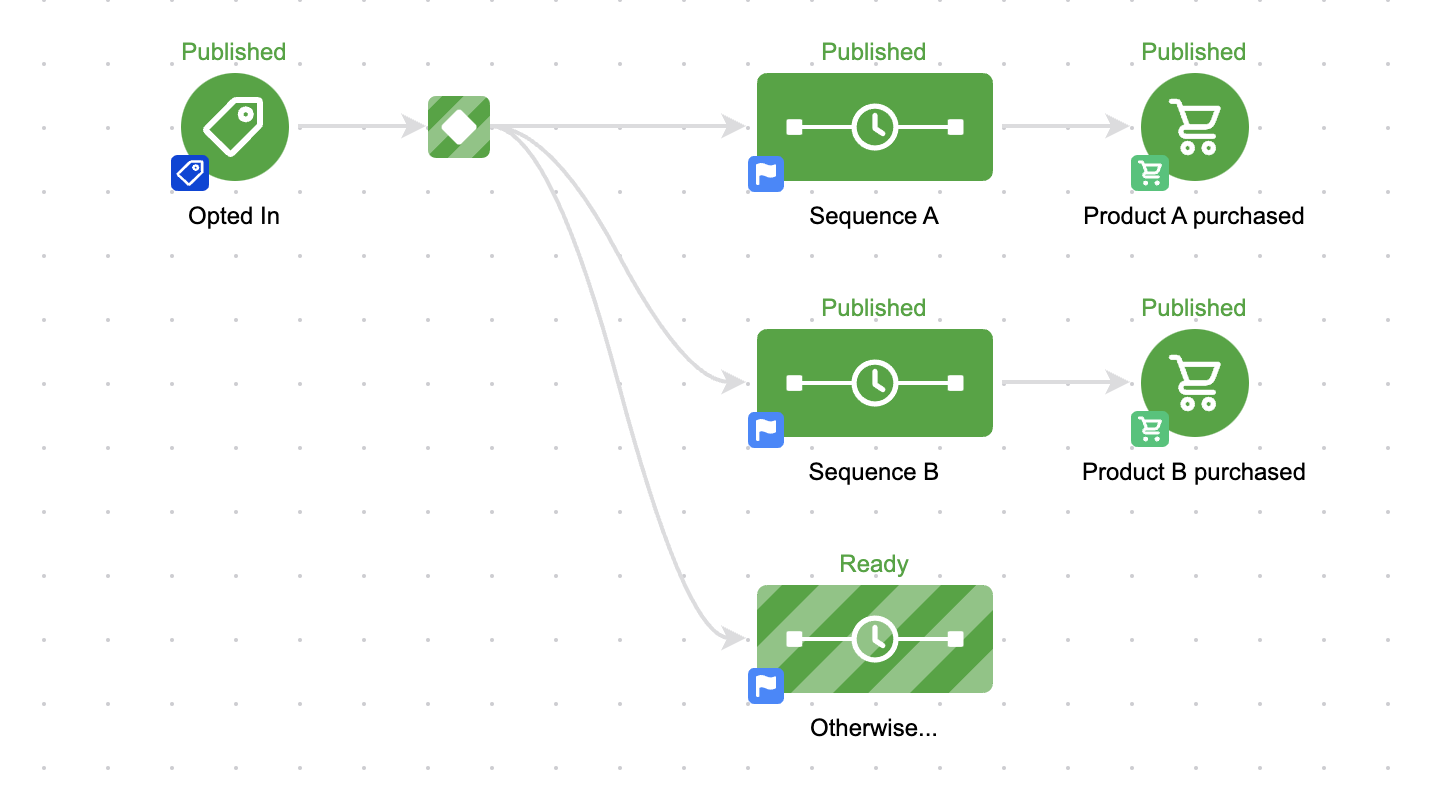
Well, you’d have to add a third sequence.

otherwise sequence in keap

That seems easy enough, but it presents a problem.

The Problem

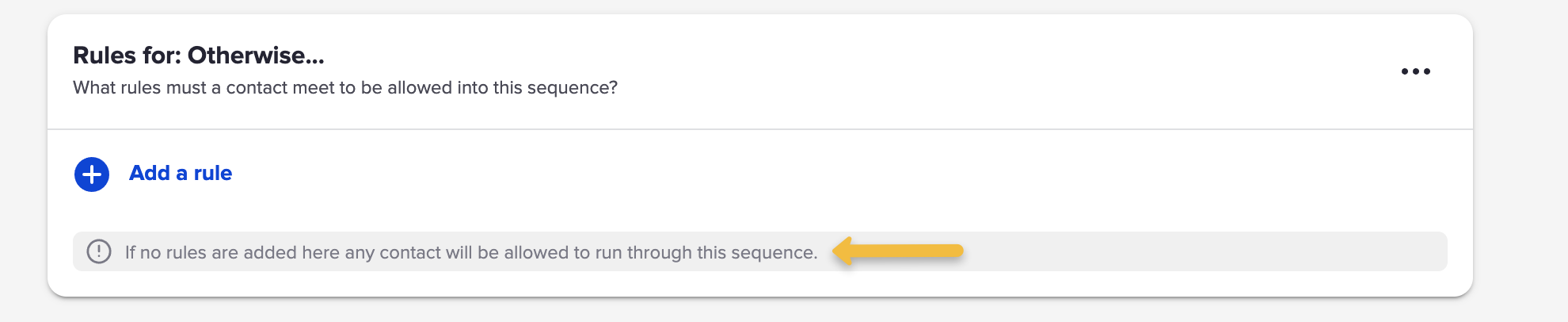
Well, by default a sequence is open to anyone, right?

So unless we set up rules – all contacts will wind up going into that third sequence.

otherwise rule decision diamond

So that means we need to add rules.

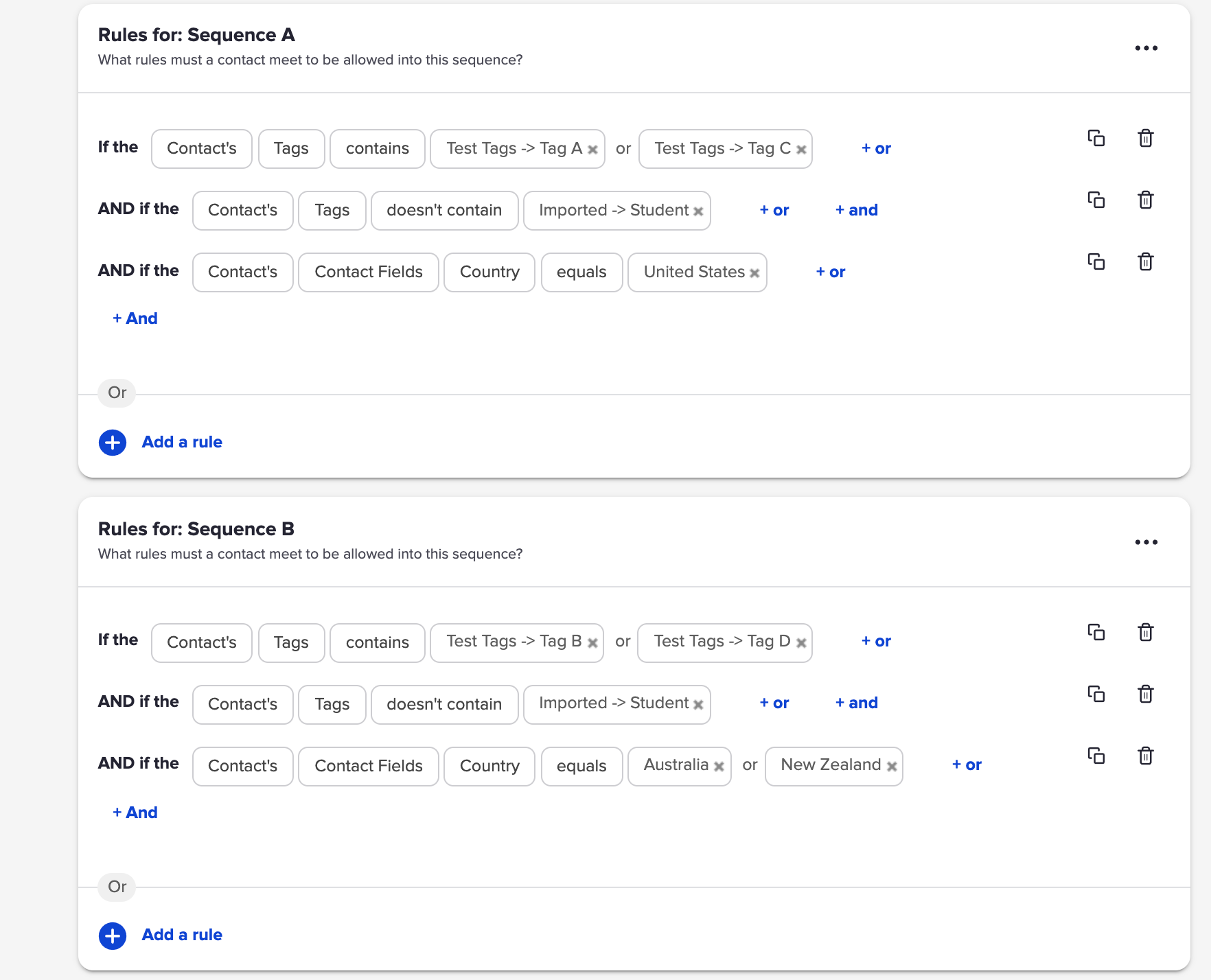
And if this is the ‘otherwise’ sequence, meaning they go here when they don’t meet the other rules – then we’d need to build out the opposite of the rules for Sequence A and B.

And that’s fine if the rules are simple.

But what if the rules are more complex?

complex decision diamond rules

That would be exhausting to rebuild – and complicated to invert.

The Solution

So, Scott Richins, one of the world class OG Infusionsoft Experts came up with a super clever (and relatively simple) hack to solve this.

Check it out:

If you find yourself building lots of campaigns, or managing complex decision diamonds, then tuck this hack in your bag o’ tricks.

Massive props to Scott for sharing this approach, and for the countless other things he’s taught me over the years.

Monthly Loop Campaign

Monthly Loop Campaign

There are plenty of scenarios in business where you want something to happen on a recurring basis – and we’ve covered the fundamentals of looping campaigns in Keap, but today I wanted to share a twist on this for a looping monthly fulfillment process.

So, for context, the scenario is this: Let’s say there’s a membership group, and each month we want to send the members something (it could be access to content, or a physical gift box, etc).

But the twist here is that we want to automatically exclude anyone who either a) cancels or b) misses a payment, and lets their account fall out of good standing.

This video breaks down a campaign that you can use for this process, and dynamically sort out the folks who shouldn’t be eligible:

Now obviously this is a fairly specific use case – but this concept, and the corresponding Keap campaign could easily be adapted for serving prospects (like creating a custom ‘call’ list), or modified to loop at a different pace (weekly, quarterly, etc).

if you found this useful, have questions, or ideas for where it might fit in your business – drop a comment below.

Thanks for reading.

Single Sequence Unsubscribe [Updated]

Single Sequence Unsubscribe [Updated]

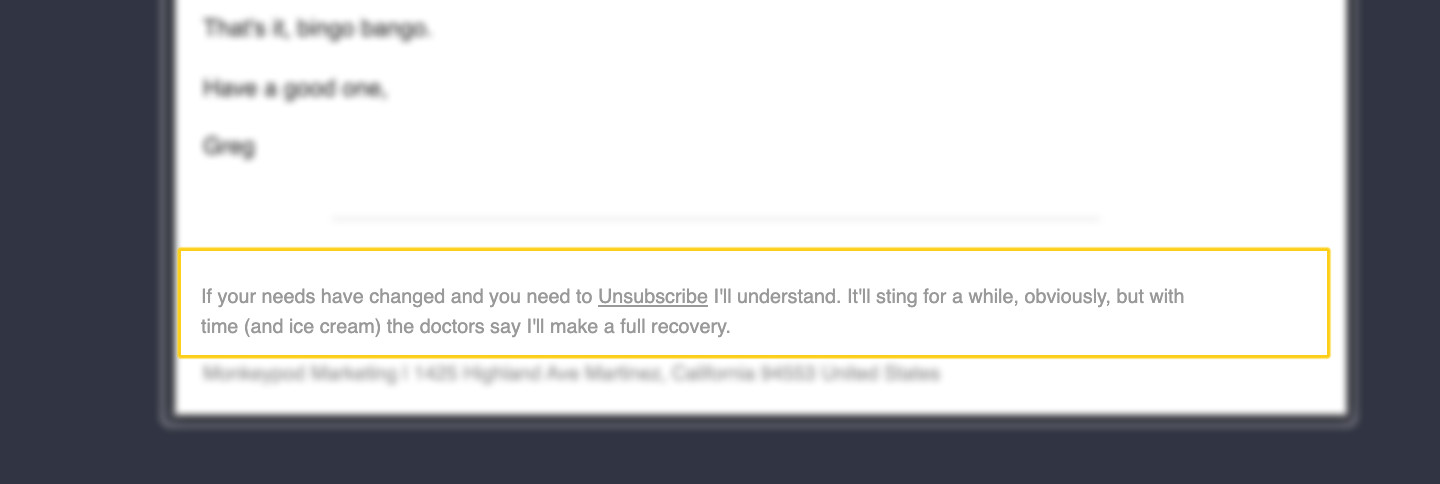
In the footer of every email we send through Keap there is, by default, a global unsubscribe link.

This is generally good, because it let’s contacts unsubscribe when their needs change and they decide they no longer want to hear from us.

Unsubscribe Footer

If someone unsubscribes it changes their email status globally.

But what happens if someone just wants to stop getting emails from one specific sequence?

Or just one campaign? Or one topic?

The reality is the native unsubscribe option just doesn’t have that type of nuance.

Which actually was the origin story for the single sequence opt out blog post I wrote back in 2016.

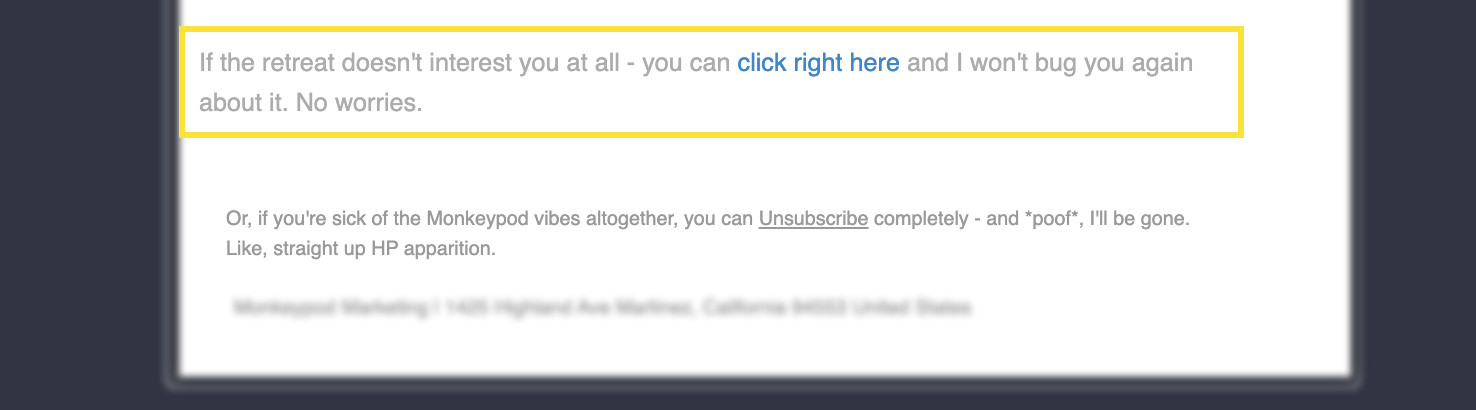
The answer is to build your own links that can function as a short-term unsubscribe – to opt them out of a single sequence or campaign.

Unsubscribe Footer2

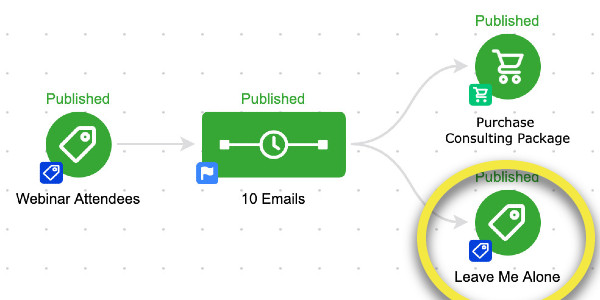
The trick is to have the link click achieve a goal directly, or apply a tag which achieves a goal.

Single Sequence Unsubscribe Campaign

Things have evolved a bit over the years, and actually, PlusThis has introduced a solution to this as well.

But I figured it was time to dust off this old tactic and give it the glow up it deserves.

Enjoy:

Simply put – this approach affords your subscribers more control.

This lets them opt-out of a single sequencing of emails – or out of a single campaign, without unsubscribing entirely.

This is good for a few reasons – it means your messages are only going to people who want them, which is good for engagement, and in turn can help with deliverability.

But the second reason this is good is because it helps you learn about your audience, and the things that they are interested in – which in turn can help you improve your segmentation, and craft new offers.

And as always, if you want more campaign builder training I recommend the CB Trilogy course – now available free of charge to all Keap users.

PlusThis Solution

If you have PlusThis, then you’ll be pleased to hear they have an Email Subscription Manager tool that handles this situation a little differently.

Their feature lets your recipients manage the types of content they receive.

Here’s their blog post about it.

And if you don’t yet have PlusThis, you can take it for a test drive with a free trial here >>