How to link Keap Campaigns

How to link Keap Campaigns

Update: In June 2020 Keap released a new feature that offers an additional option for moving your contacts between campaigns. Check out the new feature here.

Okay, so, you know it’s important to get clear on the specific journey you are creating for your customers, right?

And you know it’s important to use Keap’s campaign builder to design campaigns that support your customer journey. Right?

(Remember – Keap is the company that used to be called Infusionsoft.)

Which begs the question – where does one campaign stop and another begin?

My philosophy, and the one Mike Harris wrote about here, is to trend toward smaller more bite-sized campaigns.

Find the natural inflection points in their journey – those are usually good spots to break one unwieldy campaign into two more manageable ones.

Great – but…

How do I link Keap campaigns together?

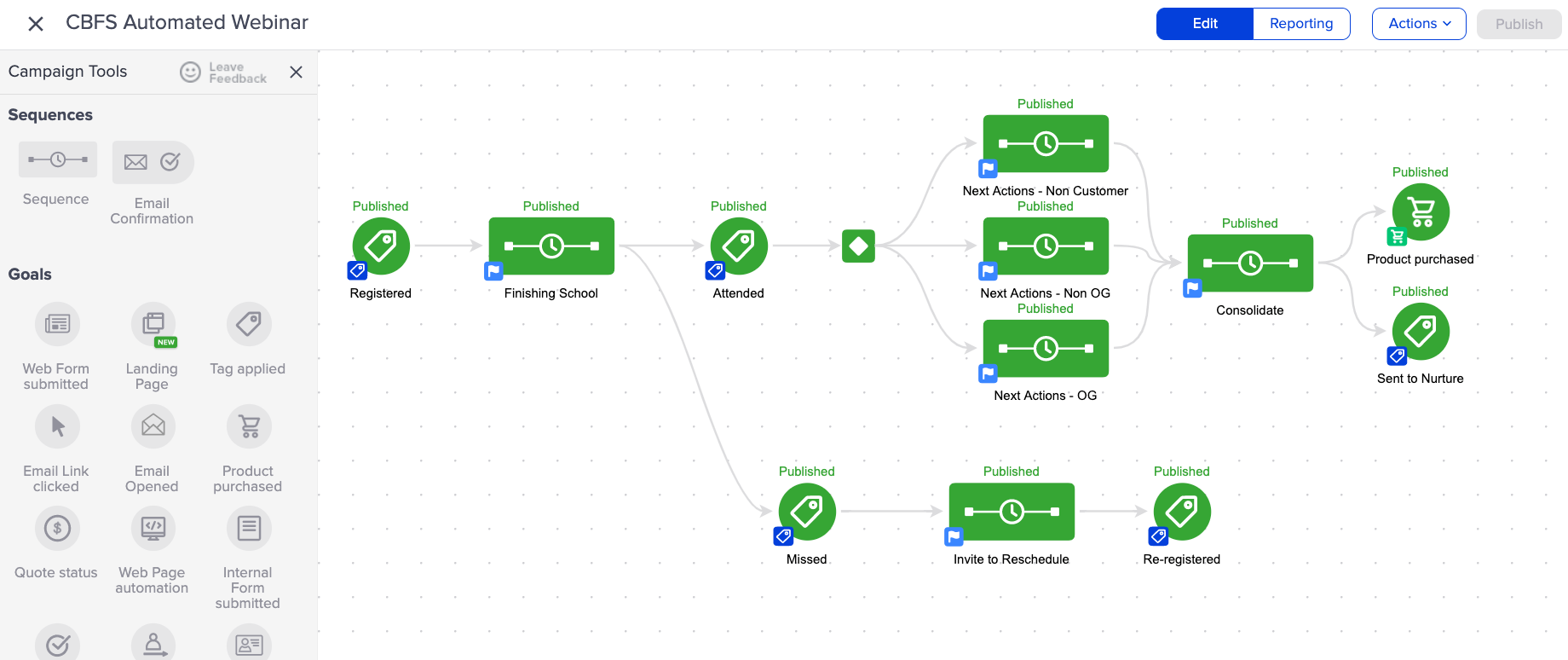
Technically speaking – the answer is goals.

You remember goals, right? They’re the triggers that are used to start and stop campaigns (need a refresher?).

So to link two campaigns together, you would configure identical goals at the end of one campaign, and at the beginning of another.
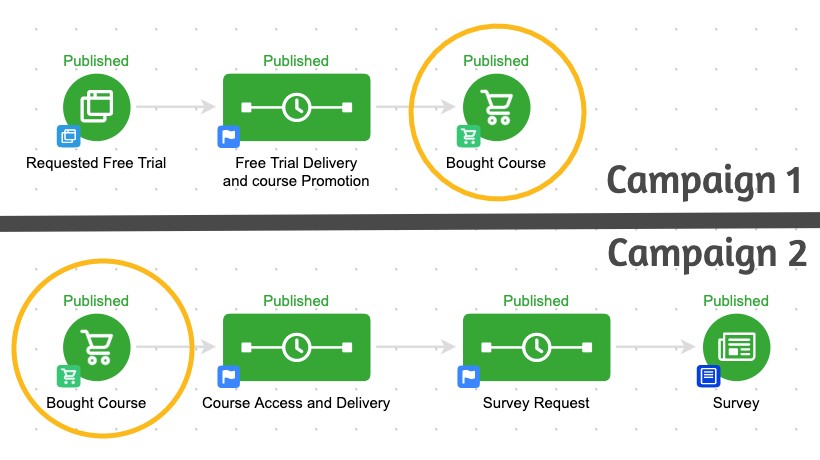
Simple – right? If they achieve the goal then it will stop the first campaign – and automatically transition them to the second.

That’s all well and good if your contacts always do the thing you want them to do, but it starts to fall apart if they don’t take the action we wanted them to take.

And that is the most important part of this concept: People don’t always do what we want them to do.

Heck, sometimes they don’t even do what they say they want to do.

But if we know that, then we can plan for it. We can use automation to create a contingency plan.

This is important people – this is how you prevent leads from slipping between the cracks.

Ya see, the cracks only exist in the first place because we designed our automation based off of what we want our contact to do.

So for those people, the ones who do what we wanted – it’s seamless.

The goal is to create a cohesive customer experience that spans the entire journey.

(Here’s a case study on what that might look like.)

And with a little extra planning we can accommodate for anyone who veers off trail, does things out of order, or takes a longer than we expected.

Remember, your campaigns exist as segments of a broader comprehensive experience – like the transformers team up to form Voltron, your campaigns team up to form the customer journey.

And if you’d like more training on the campaign builder, check out the Advanced Automations Complete Collection from Keap Academy.

Why Queued Contacts Matter

Why Queued Contacts Matter

When it comes to Infusionsoft campaigns your contacts can have one of three statuses, they are either Active, Queued, or Done.

Active and Done are fairly straightforward, but understanding queued contacts isn’t quite as straightforward.

(More on those status types here)

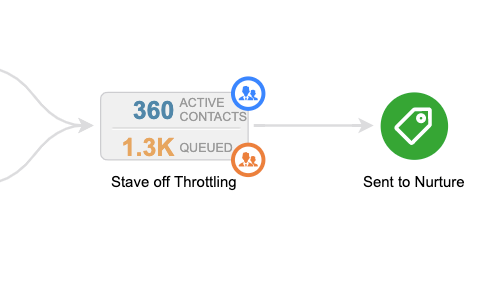
When you’re looking at the reporting tab of the campaign, queued contacts are represented by the orange number you see in each sequence – in the image below there are 1.3.k queued contacts (and 360 active ones).

Okay, Queued Contacts are contacts that are in a sequence, but they haven’t moved on – right?

So they’re just kinda hanging out – which on its surface seems pretty straight forward, but there are two reasons why I think getting super clear on this concept matters.

Why do Queued Contacts matter?

Two main reasons – they represent risk, and also opportunity.

Why are they risky?

If you don’t understand what queued contacts are and how they behave, then you could inadvertently trigger automation to someone for whom it isn’t appropriate, or that they aren’t expecting.

Beyond just being embarrassing, this can also adversely affect your relationship with that contact, and your email reputation in general.

What about that opportunity?

If you understand that goals act as milestones in your campaigns, and they’re designed to help people progress along the journey you’ve built for them, then you can think of queued contacts as the people who for one reason or another stalled out before they hit the next milestone.

There are plenty of reasons why this might happen, but when I see queued contacts in my campaigns I think of it as a place where contacts are getting stuck and treat it as an opportunity to add another touch point.

Pro Tip: Unless they move on or you remove them, contacts can stay queued indefinitely – so, if you’re adding new steps to a sequence which contains queued contacts make sure you’re clear on which contacts could be affected, and whether or not that’s what you would like to have happen.

Here’s an article from the Infusionsoft help center that digs into making changes to sequences with queued contacts.

Hope you found this post valuable – please leave any comments or questions you have below.

If you want a deeper dive on this – or anything to do with the campaign builder, check out the CB Trilogy Course, or grab the free trial below.

Keap’s Failed Purchase Goal

Keap’s Failed Purchase Goal

Listen up campaign builders – we’ve got a brand new goal method, introducing Keap’s Failed Purchase Goal.

The Failed Purchase Goal

The idea that we can trigger automation when someone attempts to purchase and is unsuccessful isn’t new, but this new goal method allows us a more direct path for starting and stopping automation inside the campaign builder.

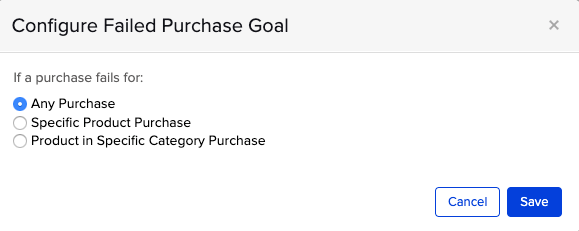
The goal has three options for when it will trigger, either on any failure, failure of a specific product, or failure for any product within a category.

The “any purchase” option doesn’t feel as useful to me simply because the automation you trigger wouldn’t be able to be as targeted as with the other two.

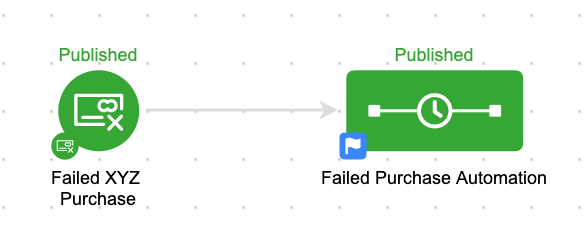
As with other campaign goals, once achieved contacts will be added to the sequence following it.

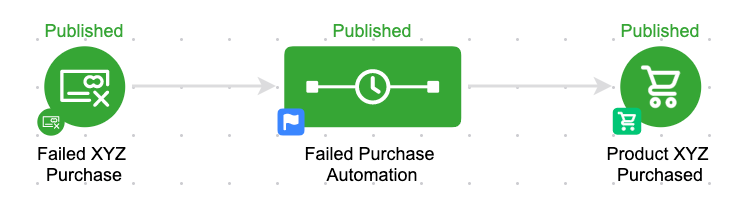
This campaign structure is obviously pretty basic, but it’s what goes inside the Failed Purchase Automation sequence that will need your attention.

If the automation you configure is designed to follow up with the buyer over time, then you’ll also want to make sure this campaign has a conclusion goal so that it automatically stops when they successfully buy.

Check out the video below as I build a sample campaign and address a few of the most common questions I’ve heard on this feature.

Oh, and the section of the video from 10:45-14:00 is no longer necessary. You can skip that sequence/task altogether.

Update: In July 2021 Keap made a change to how failed orders are handled, which simplifies the campaign structure recommended in the video about.

Simply put, failed orders no longer create an open balance. Read about the change here.

FAQS

Is this just for initial purchases?

No.

In my tests I’ve found that this goal method is also achieved when a recurring subscription payment isn’t able to process – another reason to be careful when using the “Any Purchase” option.

Can I use billing merge fields?

No.

If you need to use the credit card or order merge fields then you’ll want to stick with the options in Billing Automation.

(Want the Billing Automation presentation that I accidentally uploaded to my personal YouTube channel?)

This new goal method opens the door for lots of automation opportunities, the trick is to start looking at what is currently happening when someone tries to buy and isn’t able to – and then asking “What should be happening?”

At the very least you might want to add a step that sends them the link to the sales page – but for higher ticket items it might make sense to task a human to reach out and help facilitate the transaction.

If I missed anything here, or you have any questions, please feel free to leave them in the comments below.

The Campaign Builder Facelift

The Campaign Builder Facelift

This week Infusionsoft rolled out a brand new look and feel for the campaign builder, and the reviews are relatively varied – some folks seem to dig the new curvy lines, while others find the published green to be a little…much.

Beyond the line changes, and new colors – the most notable changes are the shift away from a background grid (you’ll see a mostly blank canvas with dots to help align and arrange elements), and the addition of “status indicator” text above the icons.

But no matter how you feel about the new look and feel of the campaign builder it’s still just that, a new look and feel.

Functionally, your existing campaigns won’t require you to do or change anything.

However, alongside this facelift Infusionsoft snuck in some features that I am excited about.

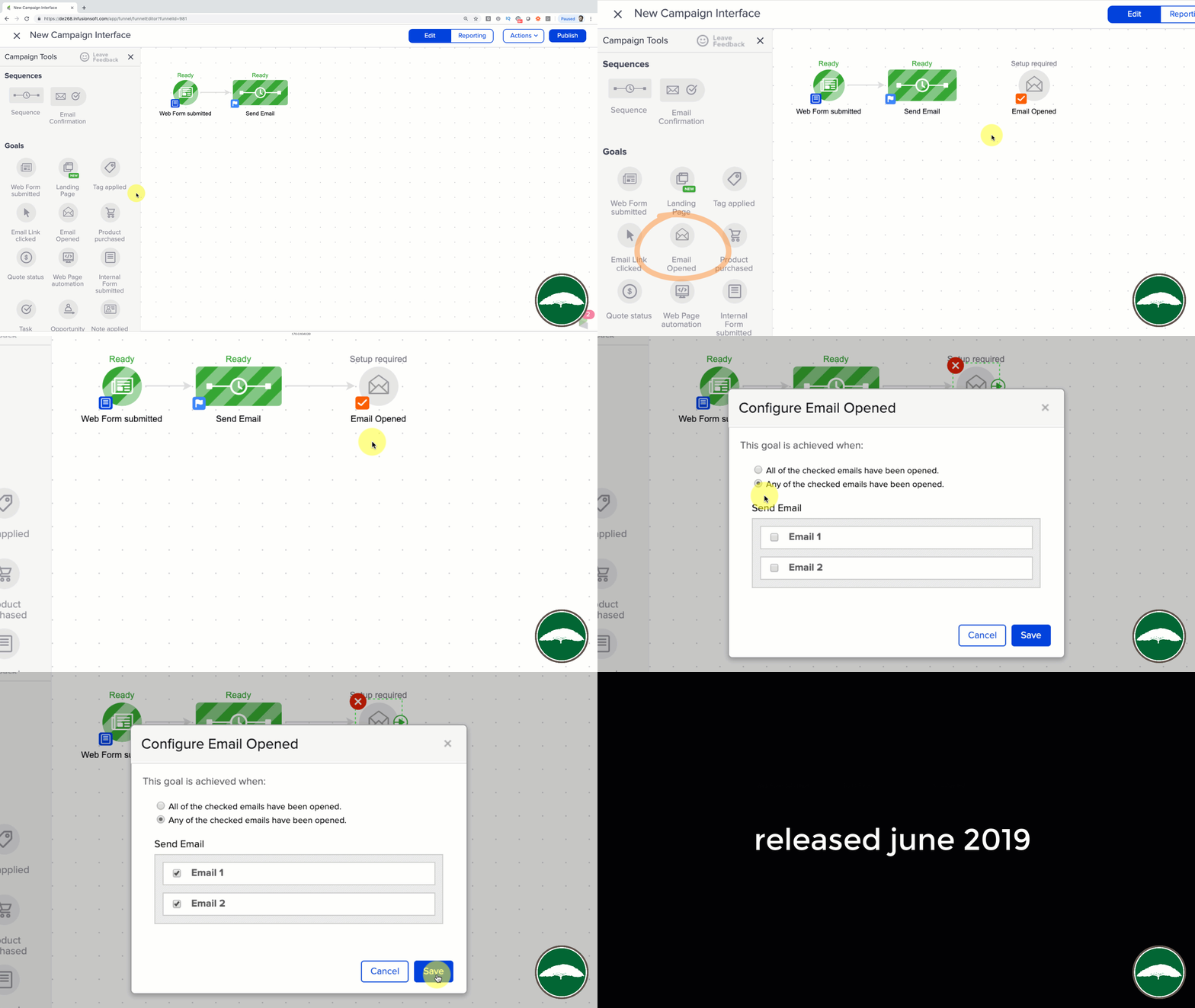
The Email Open Goal

If you’ve been an Infusionsoft user for any length of time, then odds are you’ve heard people asking for the ability to achieve a goal when contacts open an email (or maybe you’ve asked for it yourself.

Either way – the new Email Open Goal does just that.

Pretty slick, right?

With the addition of this new goal method you can now start or stop automation when an email is opened (or a series of emails).

That means you can craft sequences to automatically follow up with contacts who haven’t opened your email, because once they open it, they’ll achieve a goal and transition into the next available sequence.

This is great, but…

As exciting and powerful as this new feature is, I wanna highlight that it’s still dependent on the way email opens are tracked and reported, which has some well documented flaws.

I’ll just say this: There are a number of ways to read an email that don’t report an open, and a number of ways for an open to be reported without the recipient actually reading the email.

Does that mean not to use this goal?

Not at all.

You can totally use it, but I’d be careful about depending on it for absolutely essential parts of your customer journey, because it’s far from iron clad.

Enough about that, let’s take a look at the next shiny new feature.

The Create Order Widget

Historically you’ve been able to create orders inside of a sequence by using a legacy Action Set.

In fact, this was the only way to accomplish a “One Click Upsell” without using any third-party tools.

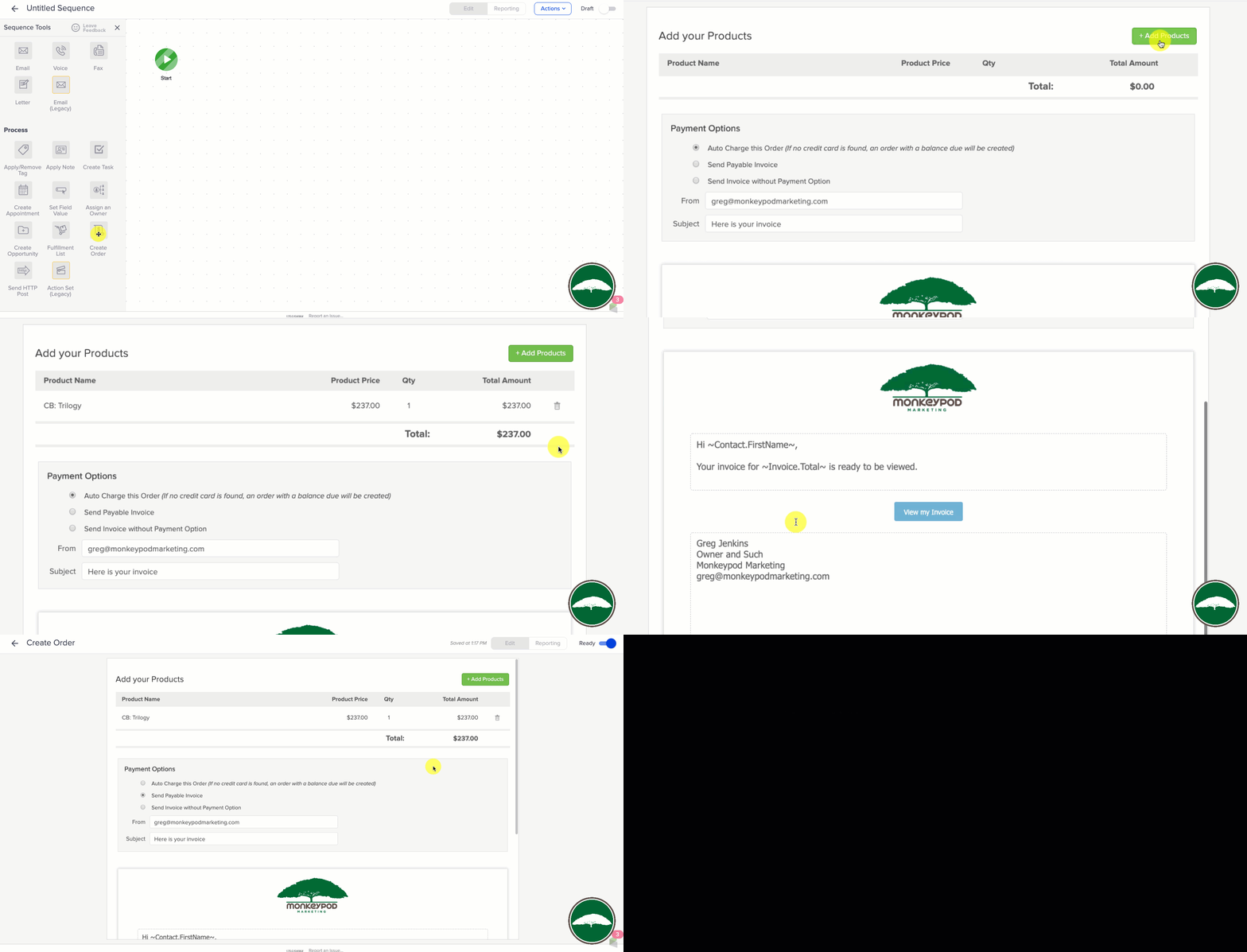
But with this update Infusionsoft also introduced the ability to create an order as a native step in a sequence.

You might be wondering…

Q: Will it trigger a purchase goal when the order is created?
A: No, it will not trigger a purchase goal if an unpaid order is created – even if you check “$0 invoices” on the purchase goal. However, it WILL trigger a purchase goal when a payment is collected for the order that was created.

(Shout out to Mallory Balnis of Plum Crazy Automation for helping test this.)

What I really like about this feature is that we have the choice to:

  1. charge the order automatically (if they have a card on file)
  2. send a payable invoice
  3. send an invoice without payment options

These are options we’ve had for a while on invoices and quotes we generate manually, but to be able to access them as part of an automated workflow opens up a lot of new possibility.

So, it’s perfect?

Not quite – it doesn’t look like you can easily adjust the price of the product once it’s added – but my hope is that they’ll add some additional options and flexibility in a future update.

What does all this mean?

Candidly, I don’t really care about the new look and feel – what I am excited about is the focus on enhancing and improving the campaign builder.

Yes, the new features – both the email open goal and create order widget give us the ability to build automation that wasn’t previously as accessible.

But beyond that – I’m stoked about the improved performance and reliability. The reduced visual complexity of the new interface has had a positive impact on speed and usability in building and reporting on campaigns.

If I missed anything, leave it in the comments below – otherwise, check out the complete release notes here.

Tips for Troubleshooting Infusionsoft

Tips for Troubleshooting Infusionsoft

The more you depend on technology and automation, the more vulnerable you are when things don’t work as planned.

In this post I wanted to cover a few tactics that can help you right the ship when things go sideways.

1. When troubleshooting campaigns…

When you build a campaign you should test it thoroughly, of course.

But even with regular testing from time-to-time you’ll find yourself trying to unravel why things didn’t play out the way your expected, and one of the best pieces of advice I can give for this scenario is to test using clean contact records.

What I mean is that most contacts have a history; a record of the things they’ve done in the past, and what upcoming automations are scheduled for them – but when you’re trying to test a specific part of a specific campaign it can be tricky to pinpoint where things aren’t working if you have other variables in the equation.

So, the advice here is to isolate by create a new contact – one who has never been in your application before, and that way you’ve got a blank slate to work with.

Pro-tip for Gmail Users

Did you know that Gmail allows you to quickly and easily create unlimited test addresses? It does.

If your normal email is hello@monkeypodmarketing.com then all you need to do is add a + after the word hello, and add anything before the @ symbol. (Example: hello+test@monkeypodmarketing.com)

As a pro-pro-tip you could also include the test number, or the actual time that the test contact was created (that can help if you’re testing and there’s a delay of any kind). So, for example a test created at 3:45 pm might be hello+345@monkeypodmarketing.com.

Just remember to periodically clean up dummy contacts you’ve created during testing.

2. When troubleshooting Ecommerce…

Use an incognito window, or private browsing tab.

This one might sound obvious but I can’t count the number of times I’ve seen this simple trick resolve an otherwise befuddling scenario.

Here’s why: Infusionsoft’s ecommerce components are trying to help simplify things for buyers – it’s trying to make their lives easier by remembering who they are, who their affiliate was, what products they wanted, and what promo codes they’ve used; and most of the time that’s what we want as well.

But, this can create unexpected behavior when we’re testing, updating, adding/removing promotions, and re-testing; so for the sake of your own sanity train yourself and your team to always use private browsing tabs when you’re testing your order forms or shopping cart.

3. When troubleshooting Emails…

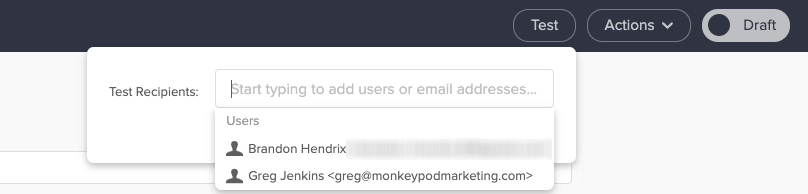
Emails are Infusionsoft’s bread and butter, but one gotcha I regularly see trip people up is that when you use the test function from within the email it sends that test to the user, not to an actual contact.

Did you catch that? The built in test option sends using the details available on the user record, not the details from a contact record.

You might be wondering why that matters – and the answer is this: User Records don’t have custom fields.

So, if your email is using any custom field information in the email body (or merged into links) then testing the email to a user will lead you to think it’s not working.

To replicate the experience an actual contact would have you should test your emails by sending to a contact record (use an email other than the one tied to your user record).

4. Assumptions will ruin us

I know, you’re smart. I get it. Heck, I like to think I’m pretty clever too.

But assumptions will ruin us when it comes to troubleshooting, because if we assume something is working we’ll skip right over it, and that leads us into sketchy territory because now we’re building off of something we think is true, but might not actually be.

The reason I included this tip was because it’s burned me before, in a big way.

To make a long story short: I tested a campaign and it worked the way I wanted it to – then when I added a bunch of contacts to the campaign it didn’t do what we expected.

I assumed that what worked for individual test contacts would also be true when we loaded the campaign up en masse; and it wasn’t.

Want the longer story?

So, this stems back to when I was working with the African Leadership University. (Btw, have you seen that case study?)

The basic idea was that we were sending out the notifications to let prospective students know whether they had been admitted, declined, or waitlisted.

But we had to build a relatively complex campaign because we had to deliver those three messages in either English, French, or Portugese, depending on the language that prospect had denoted during their application.

So, we had a series of decision diamonds – first segmenting by language, and then segmenting by their actual admission decision – and when I tested this campaign I did so by adding individual test records.

The first one was an admitted student with French as their language – it worked.

Then a declined student with English as their language – worked again.

I ran four or five tests and when I was satisfied with the results we decided it was time to add the contacts.

If you haven’t guessed by now, well, it didn’t go very well.

The decision diamonds went haywire and the contacts we added were incorrectly sent all three of the emails (admitted, declined, and waitlisted).

They all got the correct email – but they also got two others, and they had no way of knowing which one was accurate.

For some of these students this email was the single most important piece of news they’d ever received – and we botched it.

I was crushed.

As it turns out the decision diamonds had been corrupted during the process of cloning different campaign structures – and testing it one-by-one had worked just fine, but adding hundreds of contacts at the same time somehow exacerbated the issue.

We did our best to mitigate the impact – we quickly (and carefully) reached out to students to explain what had happened, and to let them know which decision was correct.

The issue was caused by a technical glitch – and my recourse is limited when it comes to fixing bugs in the software; but I still kick myself because I think might have been able to avoid substantial pain if I had thought to test with a batch of contacts, rather than individuals.

Most the of ALU project went much more smoothly than this, if you haven’t seen the whole case study it’s worth a watch.

This was one of the most painful experience of my automation career – but the lesson was this: Assumptions will ruin us.

Just because it looks good on desktop doesn’t mean it’ll look good on mobile.
Just because it works in gmail doesn’t mean it’ll work in outlook.
Just because it worked for an individual doesn’t mean it’ll work for a group.
Just because it created the outcome you expected doesn’t mean did what you expected.

5. Arm yourself with examples

If you’re troubleshooting something and it’s not making sense, at a certain point you’re probably going to end up liaising with Infusionsoft’s support team.

There are plenty of tips for talking to technical support, heck, I’ve even got two blog posts on it (one annnnd two) – but the most important piece of advice I have is to find yourself a screencapture software you like and get in the habit of using it.

I use and recommend Loom, but another popular option is Soapbox (from the fine folks at Wistia).

Infusionsoft’s support team genuinely wants to help you – but if they can’t replicate an issue then it’s infinitely more challenging.

(Sorta like when you take your car to the mechanic and the noise it was making suddenly stops…)

So, if you know you’re gearing up for a convo with support, do yourself a favor by firing up your screencapture software and recording examples of the behavior you’re seeing (or not seeing).

This is helpful for a few reasons, but primarily because it reduces the opportunity for something to get lost in translation – the longer it takes for the support rep to understand the issue, the more frustration you’re likely to experience. And being able to shortcut that process helps get everyone on the same page more rapidly.

The second benefit is that sometimes by recording the test you’re running it forces you to think differently, or helps you notice something you wouldn’t otherwise have seen; personally I’ve stumbled across more than one solution simply by trying to document the issue.

My sincerest hope is that these tips will save you some headache the next time you find yourself troubleshooting some misbehaving automation.

If you’ve got your own tips that have worked for you, or a painful automation story, please feel free to share in the comments below!

Looping Campaigns in Keap (formerly Infusionsoft)

Looping Campaigns in Keap (formerly Infusionsoft)

Update: Keap released a new sequence step item that has opened up some additional flexibility for looping structures. Check it out here.

Looping campaigns in Keap (formerly Infusionsoft) is a request that I see pop up at least once a month – it’s one of those things that isn’t exactly straightforward, but may be less complicated than you think.

Before we dig into this I should say that if you are just looking for the basics of how to build a simple campaign, then you probably want to check out my Campaign Builder 101 blog post.

When would you want a campaign to loop?

From time-to-time you may recognize that you need a campaign process to repeat itself, and in those situations it makes a lot of sense for that campaign to loop (looping just means that when the contact reaches the “end” they are automatically restarted).

Some of the most common use cases for this are scenarios where you have reminders for repeating calls or events that happen at the same interval each week, each month, or each year.

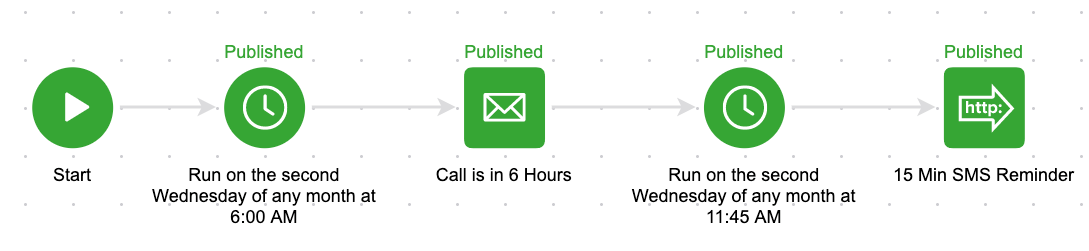
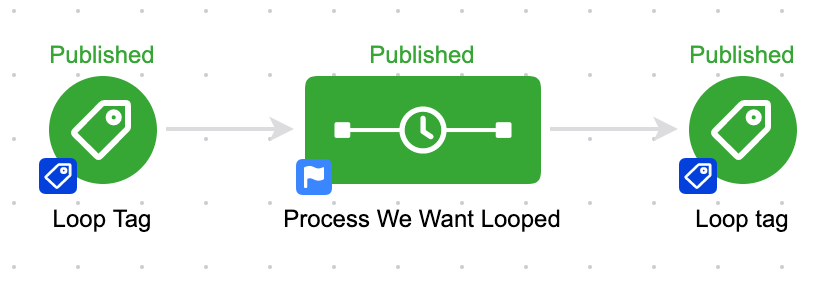
For example, let’s say you have a repeating call that always happens on the second Wednesday of the month. And the morning of that call you have an email go out 6 hours in advance, and then a 15-minute sms reminder. It’d look something like this:

You could build that process out each month, but if you know it’s going to be the same structure then it makes a lot of sense to set it up as a loop.

Another situation where looping campaigns might be valuable is when you want to issue a quarterly survey to your subscribers, or to your members – you don’t necessarily need to do this manually, but if you know that once a quarter you want to send them an invite to take the survey then you could build this process out so that it loops four times a year (once each quarter).

Technically speaking, how do I do it?

We know Goals as the “triggers” of campaigns; and largely they serve to start and stop automation.

So to loop a campaign we need to use the exact same goal at the end, and also at the beginning. That way, when the goal is completed it stops the campaign and also restarts the campaign.

The whole reason that this works ties back to a very specific intricacy in how the campaign builder processes these events, and it’s perhaps the most important part of this blog post:

When a goal is achieved, it performs the “stop” functions before it performs the “start” functions.

Now, the lag is imperceptable to humans, so it appears they’re happening simultaneously but it’s important to know that the contact is drawn out of the campaign before they’re readded; if it happened in the opposite order then the loop would immediately stop and we wouldn’t be able to depend on this methodology.

Can I have another example?

Sure, check out the example at 4:09 in the video above – it’s a perpetual resource loop to stay in touch with my referral partners and make sure they have easy access to their links and the resources I’ve created for them.

Do I have to use Tag goals?

Tag goals are by far the most common goal method used to build loops, but technically you could use any goal method that can be configured to be simultaneously achieved.

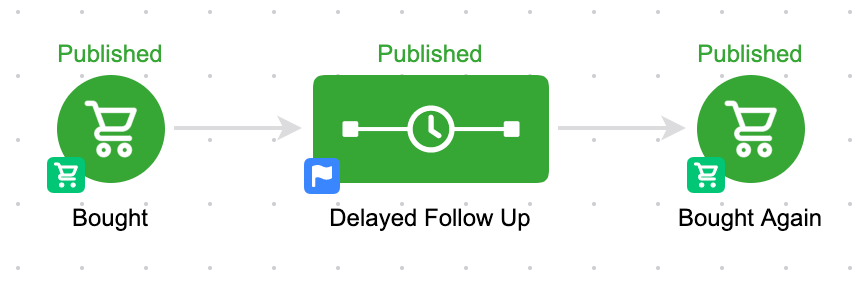
Another example might be using purchase goals – and if X amount of time elapses between purchases you could create a task to call that contact, or trigger automated outreach from their point of contact.

Here’s an example of what that campaign might look like:

I think the take-away from all this is that looping is possible, and it’s not just a novelty.

It’s a legitimate campaign builder tactic that can save you time and help maximize the mileage you get out of your Keap automations.

If you found this valuable leave a comment below – or, if you’ve got your own scenario where looping saves the day, share that.

Looping Campaigns without using Goals

Infusionsoft released a new sequence widget that permits users to add and remove contacts from campaign sequences without requiring that they achieve a goal – and Kevin Mogavero recorded this short tutorial on how you can use it to create a looping campaign structure without the use of tags (or purchase goals, etc).

Extra Campaign Builder tactics and training…for free?

If you like tactics like this, then you’re gonna love Campaign Builder Finishing School.

It’s a quick video series covering a selection of tactics you can use to level up your existing Keap campaigns.