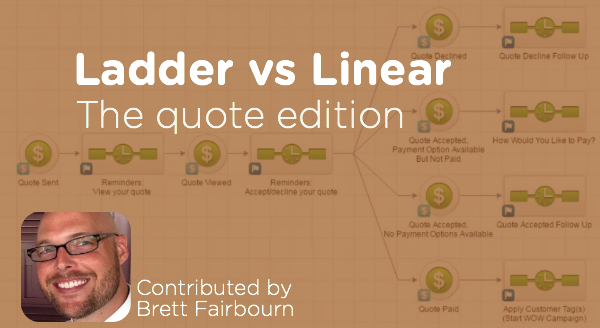
Linear vs Ladder: Quote Edition

Linear vs Ladder: Quote Edition

Brett FairbournBuckle up sports fans, I’ve got an awesome blog post comin’ in from one of the best and brightest in the Keap building. Today’s post comes from Brett Fairbourn, a fellow automation geek and Keap educator. You may recognize Brett (or his voice) from his engaging and exciting update videos when Keap has a new software release, but today we’ve asked him to dig a little deeper and give us some insight into how some of the newest features might be used for your business. Brett wrote this post and created these videos exclusively for the Monkeypod readers, enjoy!

I was recently re-reading this gem from Reyna Bovee as I prepared to record the September 2016 product update video for Keap.  I wanted to double check my logic, because the old linear vs. ladder conversation just got a little larger.  The September 2016 update introduces the “Quote Status” goal to the campaign builder, and quotes work a lot like opportunities in that you can have several of them attached to one contact.

Here’s more on the quote status options.

But wait, first of all, can I just geek out for a second?

Quotes in Keap were, until very recently, freaking terrible.  Man it feels good to get that off my chest.  They were practically useless.  BUT NOW, oh man, if you have a hands-on process, the quote-to-invoice-to-payment is so streamlined.  And if your business is compatible with a more automated approach, now we have that, too!

You just have to keep a couple things in mind.

Like I said, as with opportunities, you can have several quotes attached to a single contact.  But it’s not the quote that goes through the campaign, it’s the contact.  So 5 quotes sent to 1 contact = 1 contact in the campaign, and that contact is going around viewing quotes and clicking on things all willy nilly.  This can get confusing, and it can cause problems, especially if you’re using the linear approach to building your quote automation campaign.

The problem with the linear model is that any downstream goal will stop all upstream sequences.  In other words, if I’ve viewed one quote but haven’t acted on it, and then you send me another quote, acting on either one of those quotes will stop all preceding automation.  That means no more reminders to view the first quote if I haven’t done that yet.

Do I sometimes have multiple quotes pending for one contact at the same time?

If yes, you might want to use a ladder-style quote automation campaign.

If no, then the linear campaign will work great for you (and it’s easier to conceptualize and build, so that’s nice).

To be honest, it probably doesn’t matter in most scenarios, because we’re only talking about a two-stage process: the stage between “Quote Sent” and “Quote Viewed,” and the stage between “Quote Viewed” and the customer’s response.  In most cases, it’s not going to be vital to run both of those stages of automation at the same time.  But hey, maybe for your business, it IS vital.  So here’s the scoop:

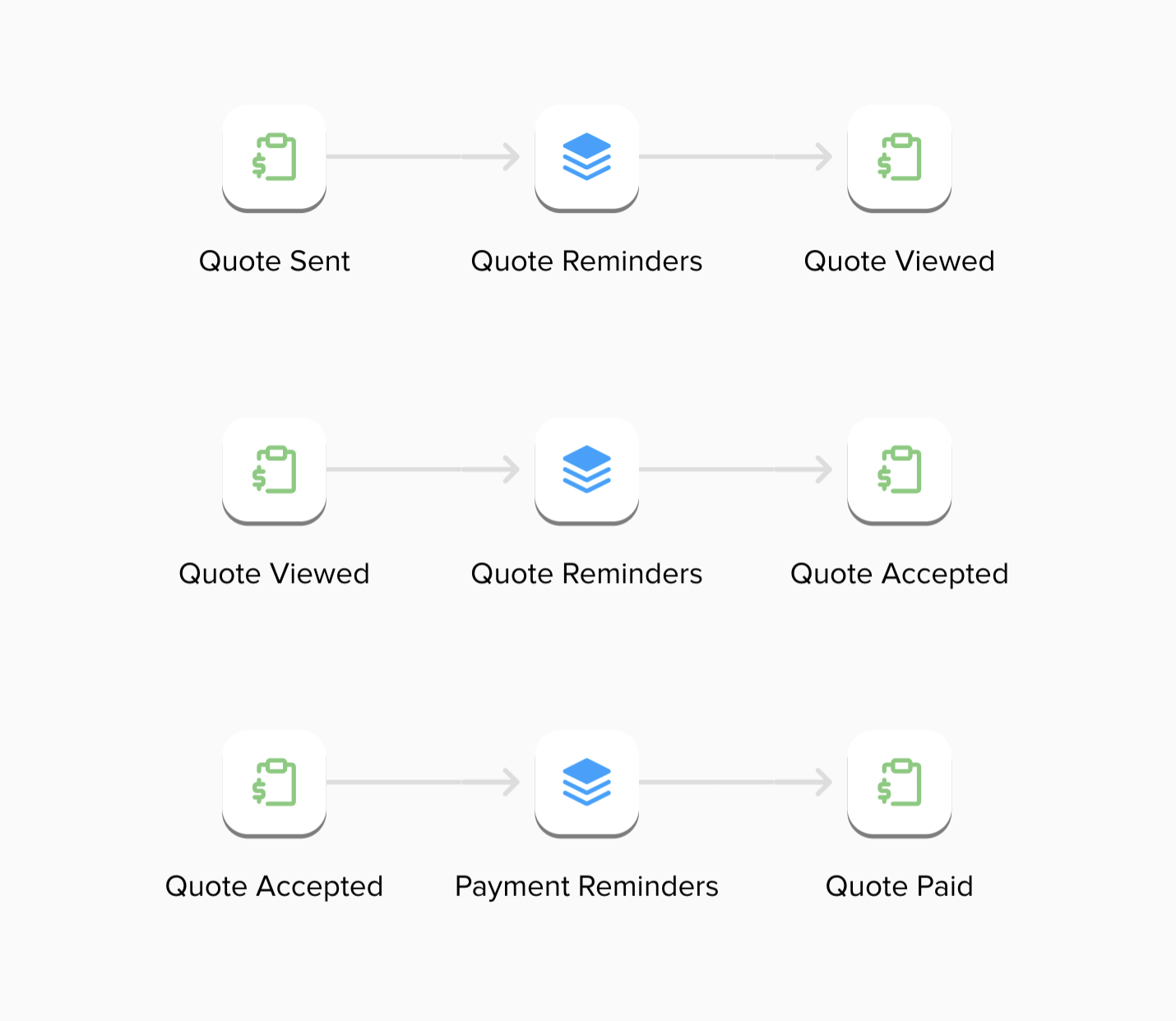
First, here’s the rundown on the linear campaign:

Linear Quotes

Next, here’s the ladder campaign:

Quote Ladder Process

So there you have it – two different automation structures using the Quote Status goal that can help support your quote sending and payment collection process. The linear process isn’t wrong, per se, but the ladder methodology has a range of benefits it offers. And in case you missed it, here’s a great post outlining the ladder process you can use for supporting a sales pipeline.
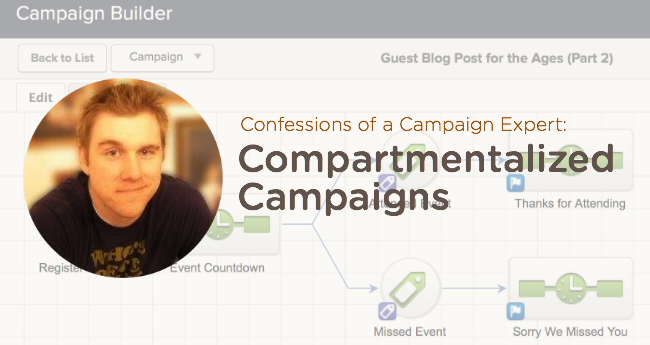

 

Confessions of a Campaign Expert: Compartmentalized Campaigns

Confessions of a Campaign Expert: Compartmentalized Campaigns

Mike Harris, the author of today’s blog post, is someone for whom I have a tremendous amount of respect. Actually, our career paths with Keap haven’t been all that different. We were hired around the same time, we’ve both run Infusionsoft University, and we both have logged the hours to call ourselves campaign experts. Mike has helped a lot of small businesses and I’m pumped that he’s taken the time to share some of his insight.

Confessions of a Campaign Expert: Compartmentalized Campaigns

Throughout my Keap career (going on 4 years) I’ve learned a lot about the campaign builder.  It was a new tool when I was hired so I simultaneously learned the old legacy Follow-Up Sequences as well and the brand new Campaign Builder.  I learned what worked well, and what didn’t, through my own experimentation as well as the experience of other customers.

One thing I noticed was that people seemed to try to cram as much as they could into a single campaign.  I understood the reasoning behind it (to keep everything related in one spot) but what they ended up with was a giant spider web that looked more like a mess than a business process.  Did they work? Sometimes.  Did they break? Yes, quite often, and with a huge campaign it’s harder to find a breaking point.

So the solution: Compartmentalize Your Campaigns

Side note about myself: I have ADD and I get distracted easily. If there’s too much going on all at once, I find it hard to focus.  This actually worked to my advantage when building campaigns or helping customers build theirs.  I tried to keep things in smaller, intuitive chunks or compartments and found that it not only worked for me but for my customers as well.

When processes are separated at natural breaking points a couple things happen.  The first is that things just tend to work better. Fewer moving pieces in a campaign usually leads to a more reliable and efficient campaign. So, try to exercise some restraint when you get a big idea.  I’ll lay out how to break that campaign up a little later.

Another benefit of breaking campaigns up into more manageable chunks is that you start to see multiple uses for certain pieces.  This means you won’t have to keep duplicating your work.  You can just piggy-back off the work you’ve already done which not only saves you time but keeps your messaging and processes consistent.

So, how do you compartmentalize your campaigns, Mike? Well, I’m glad you asked.

  1. Look for natural points of separation.
    • For instance, if you have a web form offering a free report and then guiding them towards a purchase, the purchase is a natural point of separation.  The contact goes from prospect to client at that point.  Our relationship has changed and, with it, communication should change, as well.
    • Another point of separation is where a handoff occurs.  Whether you are handing a task off to another employee or having a third-party plugin run an action, those can be good points to consider a separation of process.
    • Just remember, if it feels like you shouldn’t be starting a new campaign at a certain point, don’t do it. Make sure the separation make sense to you and those you work with.
  2. Link the campaigns together
    • There are only a couple campaign goal types that can link one campaign to another: tags and purchases are the two biggest ones.  If you are not using Infusionsoft’s Ecommerce or integrating another solution, then tags become your primary option.
    • Linking campaigns is easy.  The first campaign will have an end goal of “Tag A” being applied.  This will conclude that first campaign for the contact.  Then, the second campaign will start with a tag applied goal that also looks for “Tag A” to be applied.  So when a contact has “Tag A” applied to their record it will end the first campaign and start them in the second campaign.
  3. Recycle
    • The key with this approach is not just to break everything up but to be able to reuse pieces of different processes.  For instance, if you have a process that captures information then sends out a series of reminders, you may be able to reuse those reminders for another event.  When you start to involve merging in custom fields, it really becomes easy to reuse these smaller campaigns. (Ex. “Don’t forget about your ~Contact.EventName~ on ~Event.Date~ at ~Event.Time~.”) Using a custom field to populate an event name turns it from a single-use campaign to a multi-use campaign.
    • Another example of recycling a campaign is for fulfillment after a purchase. If you have ten lead capture campaigns all driving toward the purchase of a product, you wouldn’t want to build the fulfillment into each one of those campaigns; but if you conclude them all with the purchase of Product A, then you can trigger a single campaign that starts with purchasing Product A and consolidate all those different channels into one, streamlined process.

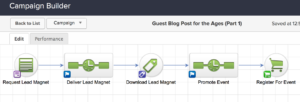
How about a demo? Here’s a campaign that needs to be broken up into smaller campaigns.

And here’s the plan for breaking that campaign up, using the Purchase Goal (blue) as the natural point of separation. The section highlighted in yellow will be the first campaign, and the orange section will become a second stand-alone campaign.
Once we’ve made the break, here is how our first new campaign looks:
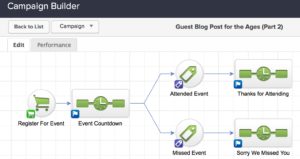
And here’s the second half of that campaign, broken out on its own as well. Notice how the “Register for Event” purchase goal concludes the first campaign AND is the trigger to start this new one.

These steps may not feel particularly groundbreaking but it really helps to consider them when we get lost in the myopia of building the “perfect campaign”. We all tend to roll our eyes when someone mentions the phrase “work smarter not harder” but, in some cases, it really rings true.

Remember, Infusionsoft gets easier each time you log in. And hopefully these tips simplify things even further. Questions, comments, drop them below!

Have your own questions?

If you would benefit from a place to ask automation questions when you get stuck, and get ideas and inspiration from other businesses, you can join us in the Monkeypod Membership.

Email Confirmation: What, Why and How

Email Confirmation: What, Why and How

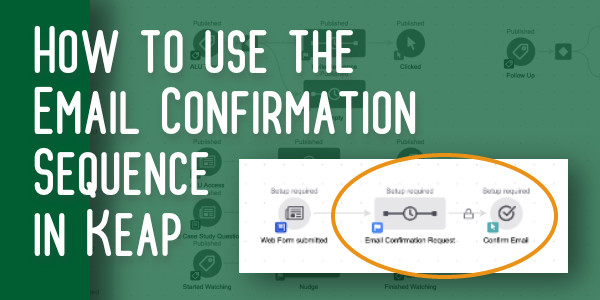
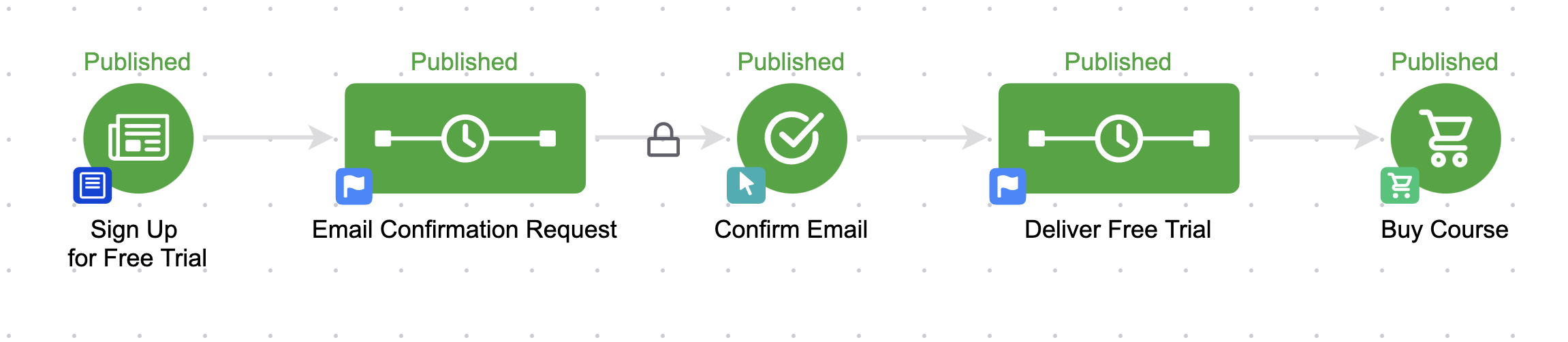
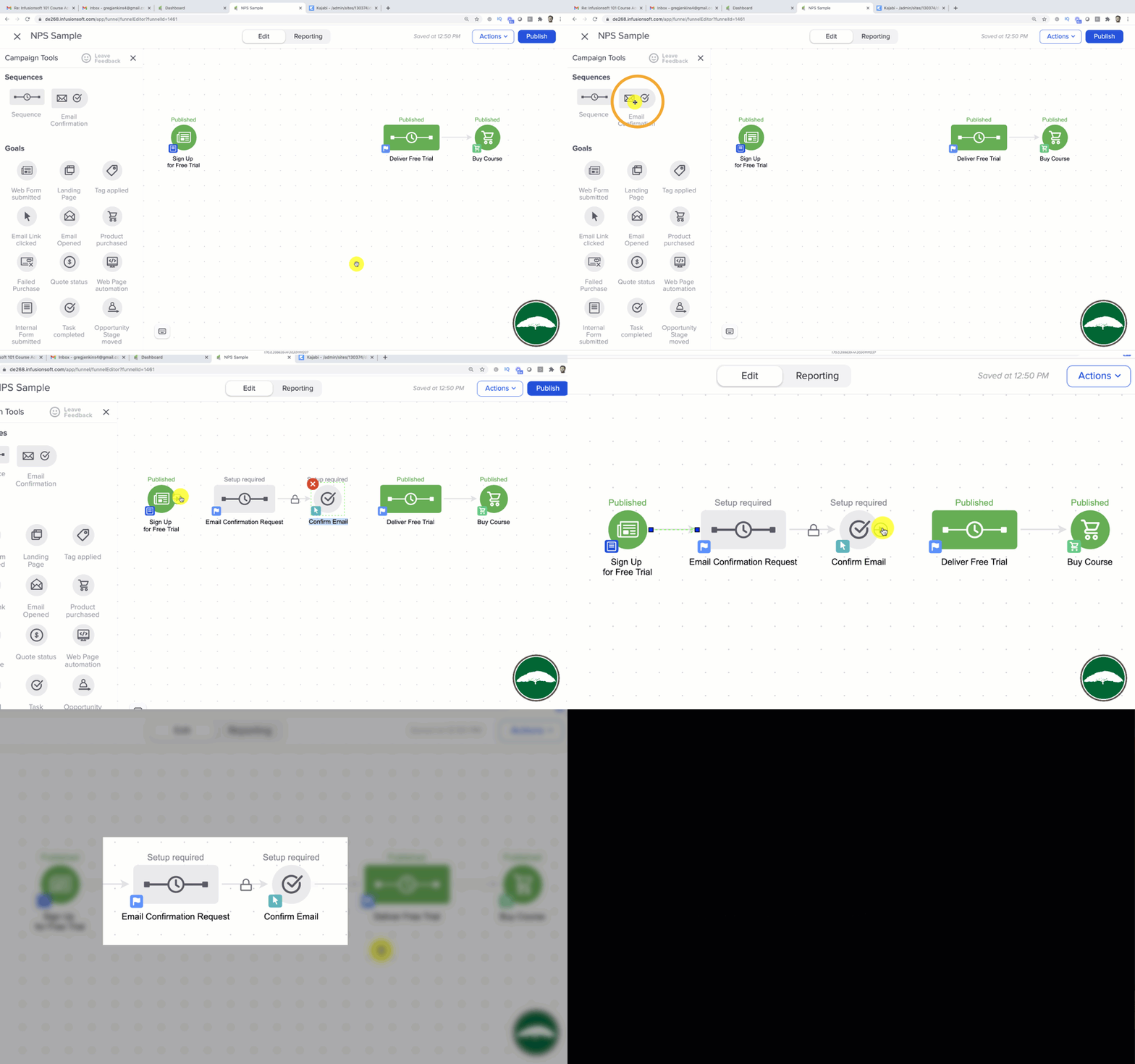
For some people, the Keap email confirmation widget is really straight forward – you add it to a campaign when you want to give a contact the opportunity to confirm their email address.

Infusionsoft Email Confirmation

But for others, it raises all sorts of questions: How does it work? Is it necessary? What if they’ve already confirmed? Why is that weird lock there?

Background Info

Lemme give you a little bit of background info in case these are the types of things you’ve wondered too:

When someone signs up for something from you (like your newsletter, your blog updates, or your Nurture Ebook), Infusionsoft considers that a Single Opt-In, and gives them an email status of Unconfirmed.

As counter-intuitive as it may seem, Unconfirmed is good. It means that you can send them marketing materials.

But, just because an email address was entered into a form doesn’t necessarily mean that the person who entered it is the owner of the inbox.

So, Keap gives us an extra tool to help confirm that our prospects really want our marketing – the Email Confirmation Sequence. When you are building campaigns, 99% of the time you want to use a plain old sequence. It’s powerful and flexible and you can make it do just about anything.

So, you may never have noticed this neglected little guy, hanging out patiently on the tool palette waiting for you to give him a click.

email confirmation

But, when you allow someone to confirm their email address (also known as “double opt-in”), it actually has a few key benefits.

First, it changes their email status from Unconfirmed, to Confirmed.

I told you Unconfirmed was good (and it is), but Confirmed is even better.

It not only means that you have permission to market to this person, but it also means that the email address you have is valid, and the person who owns it has confirmed that yes, they actually want to hear from you.

Better Inbox Placement

The next benefit is that this can literally help with inbox placement. Now, I won’t pretend to be a deliverability expert, but I do know that engagement is good.

And if someone is clicking links (like the confirmation link), then it means it is more likely that your emails will be delivered in the future.

Also, Keap actually uses a set of priority servers to send emails to confirmed email addresses – and these servers experience a marginally higher deliverability percentage.

Anyway, I created a video because a thread developed on this topic in my membership group last week, and rather than write it all out here, I thought I’d just share the video.

This video covers how to use the email confirmation, why to use it, and if you think the built in version is a little rigid, how you can get the same result with a clever little hack.

(Oh, I forgot to mention this in the video – they only have to confirm once. If someone has already confirmed their email address then they’ll just skip over the email confirmation sequence in the future.)

Enjoy:

Note: The video above was recorded in the Max Classic version of Keap (formerly known as Infusionsoft), but the Email Confirmation Snippet is also available in the Max and Pro versions of Keap.

Oh, and if you’re going to use the email confirmation process (which you should), you’ll definitely want to watch out for this gotcha.

The Secret to Keap Reporting

The Secret to Keap Reporting

Have you ever felt that Keap’s reporting was lacklust, or just plain weak? Lots of people have.

I’ve heard that sentiment more than a few times.

It’s clunky, I’ll give you that. But I think that Keap’s reporting is actually much more powerful than most people give it credit for. In fact, I think that in all my years of working with Keap, formerly Infusionsoft, I can only think of three or four instances in which I truly couldn’t find the information I was looking for.

Click here if you wanna jump straight to the video example.

Backstory and context:

Listen, there are plenty of awesome ways to get information from Keap here’s one for finding your open rates from campaign builder emails from my friend Brett at Blick Digital.

And if you want something more robust, there are tools like Graphly out there. I’m not trying to undermine or discredit any of the other resources out there, I just want to share a free trick of mine in case it helps you find the information you need faster or easier.

Okay, no more beating around the bush: Tags.

Yup, tags are the secret.

I use tags to give me nearly any number of stand-alone metrics that I want.

“But Greg, I already have a lot of tags.”

No big deal, you’re gonna have a few more.

Listen, you can’t have “too many” tags, you can only have tags that mean something to you, and tags that don’t. If you have tags that aren’t carrying valuable information – then yeah, maybe you should tidy those up. But if you have thousands of tags and they all carry meaningful data, then you’re doing just fine.

Lemme show you how I use tags for reporting by way of an example:

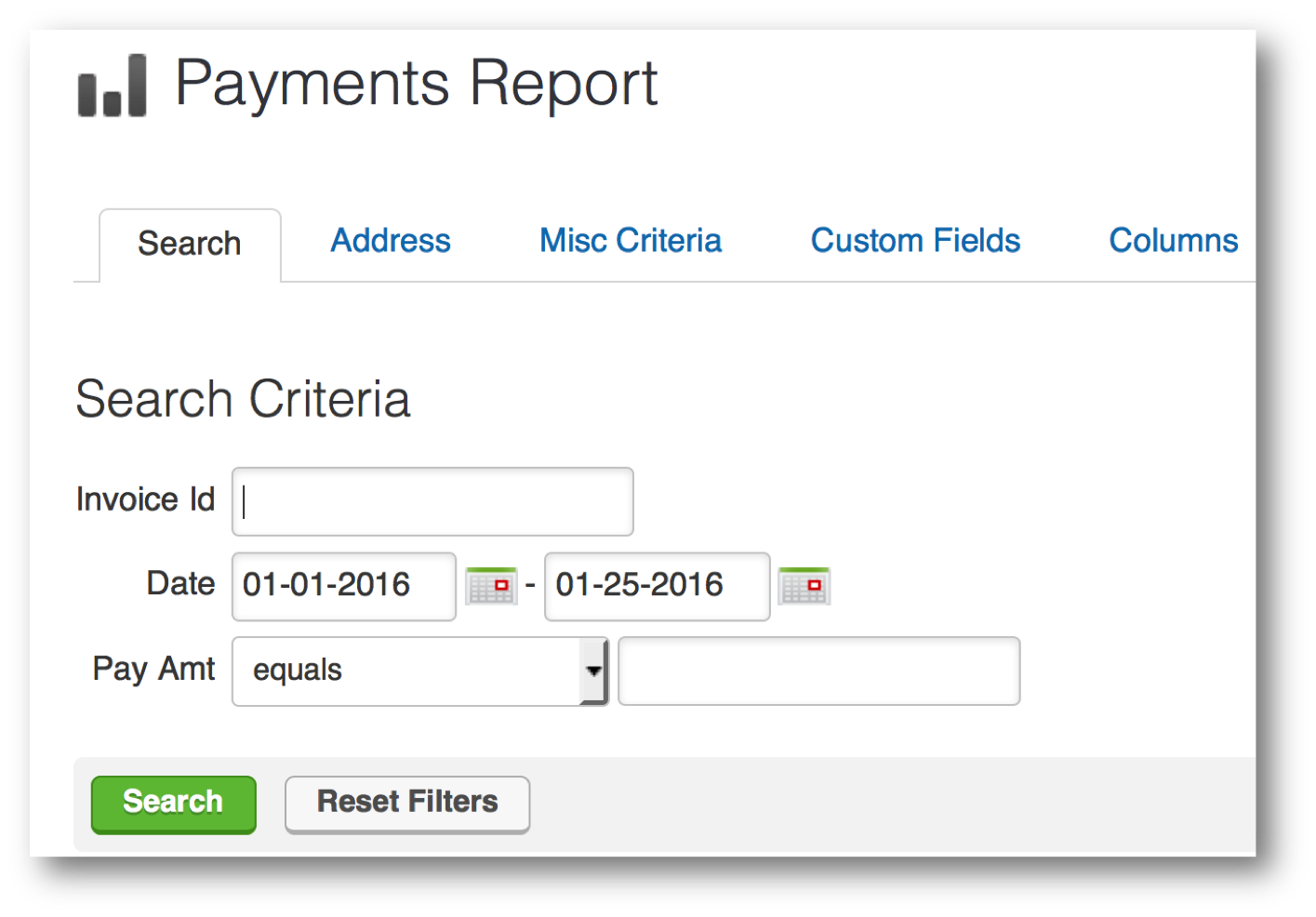
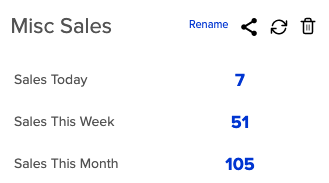
Snapshot of Infusionsoft payments reportLet’s say that when you log in, you want to know how many sales you made last week. In fact, let’s say you want to know how many sales you’ve made each week for the last four weeks, and you want that data right when you log in, every single time.

Well, you can use the All Sales Report or Payments Report, but your only date criteria for those reports is a static date range. So, if I wanted to find out how many sales I made last week, or the three weeks before, I’d have to run the report four different times. And even then I still couldn’t save it because the calendar dates are static, and so the reports wouldn’t update, and in a week I’d have to come back in and run another report for the current week. Garbage. Not gonna work.

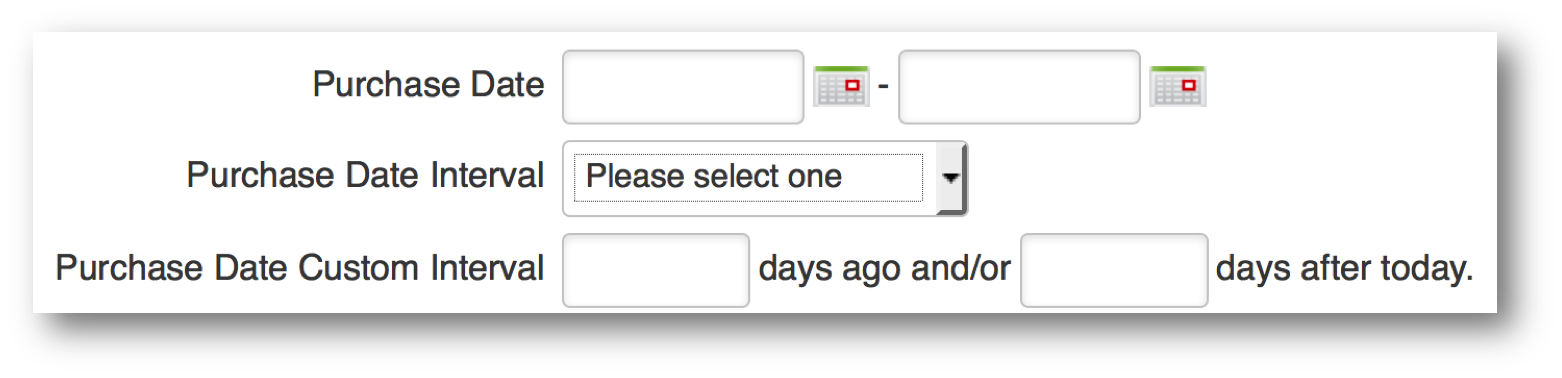
So, maybe you get a little creative, and you decide to use an Order Search. The orders section allows you to use some diffeReporting blog data fieldsrent date range logic. Now we’ve got the ability to run searches for any orders and use some dynamic date ranges.

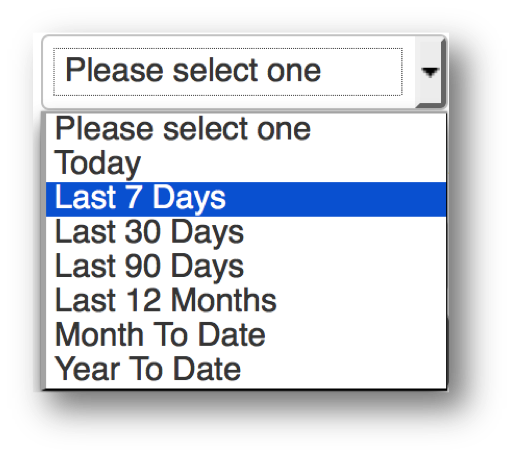
So, this is a bit of an improvement. Now I can use a purchase date intervDate Selector snapshot with Last 7 Days highlightedal, and this will always be as it pertains to today. So, I have the choice of selecting Today, Last 7 Days, Last 30 Days, Month to Date, and Year to Date. But, even if you choose Last 7 Days, it doesn’t give you the choice to say Current Week. Or, The Week Before This Week. You can use the third option for date criteria, which is Purchase Date Custom Interval, and that lets you do X number of days ago and or X number of days after today.

Pro-tip: Did you know you can use negative integers in the Purchase Date Custom Interval fields? So, you can say 60 days ago and/or -30 days after today; which will show you purchases made between 60 and 30 days ago.

The Three Timer Types [in Keap]But, it’s still based off of today, and those numbers that you put in are fixed, they won’t adjust based on what day of the week you’re looking at the report, etc.

Conundrum, right?

Well, thanks for sticking with me, because I’ve got your answer. It’s tags. But not tags on their own, ya see, it’s more the strategic application and removal of tags. And the reason most people don’t do this is that they underestimate just how powerful the timers in the Keap campaign builder are.

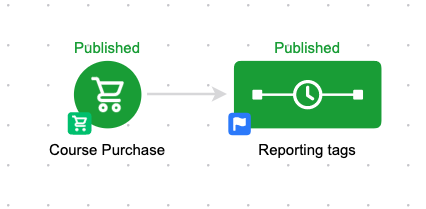
So, if you want to track sales from this week, and sales from last week, and the week before that. Here’s how you do it. Build this campaign:

Reporting Campaign

Okay, before anyone goes anywhere, that’s just the campaign structure – I promise there’s more. But honestly, it is this simple. This campaign is tracking ALL purchases – but you could easily adapt it so that you’re reporting on each of your products independently.  Just set it up once, and then decide if you want to clone it.

Okay, so, the goal triggers the sequence, and then the sequence is where we manage our tags. Here’s how that looks:

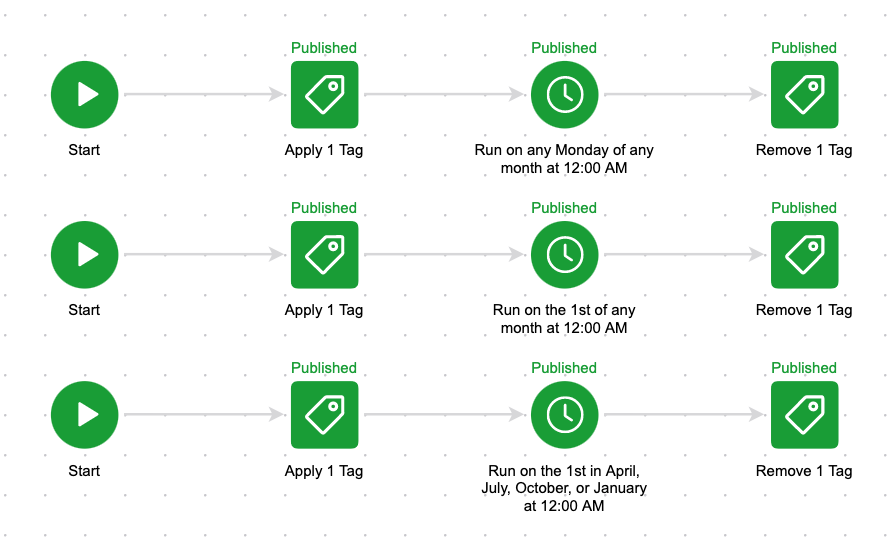
Infusionsoft Reporting Tags

So, when someone purchases it starts the top and the bottom line in this sequence. The top is tagging them as “Purchase this Week” and the bottom is tagging them as “Purchase this Month”.

Then I use timers to wait until the end of the week (Sunday morning at 12 am) and I remove the “Purchase This Week” tag and apply the “Purchase Last Week” tag, and on the bottom I do the same thing – I wait until the start of the next month (12 am on the 1st of any month) and I remove the “Purchase this Month” tag and apply the “Purchase Last Month” tag.

Reporting Example

You guys, this isn’t terribly complicated, and I hope that doesn’t disappoint you.

But this tagging structure is so powerful because the timers allow someone who purchases on Monday to have the “Purchased This Week” tag for 5 days, but someone who buys on Saturday only has it for less than a day – it adjusts based on when someone enters the sequence.

The bottom line of logic does the same thing but on a monthly basis – if someone buys on the 5th of the month, they’re going to have the “Purchase This Month” tag until the 1st of the following month (no matter what month it is), but someone who buys on the 28th may only have that tag for a few days before it’s swapped out for the “Purchase Last Month” tag.

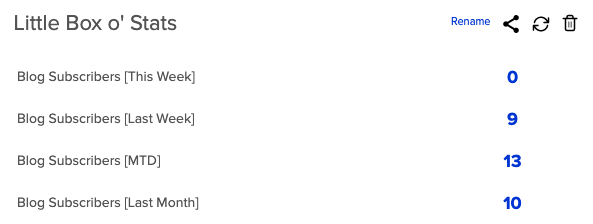
So all you need to do is run a saved search for contacts who have the “Purchased This Week” tag, and the “Purchased Last Week” tag and then let the campaign handle the application and removal of the tags so that the contact shows up on the right searches at the right times.

Or blog subscribers this week, vs blog subscribers last week, etc.

Reporting Example

This type of flexibility allows you to compare apples to apples – it helps you identify trends in your business, and it gives you powerful data that can drive your marketing decisions. Oh, and if that wasn’t enough, of course these reporting tags can be used in conjunction with your other reports and searches to make them that much more targeted

Think about the metrics you want to track in your business, and start to put together some simple campaign structures to create that data. I’d love to hear any thoughts on this or other reporting tricks you’ve sorted out on your own.

Video Example:

And if you’re looking for specific reports to help you make the most out of your Keap data, here’s a great post on the Novak Solutions blog highlighting five of Paul Sokol’s favorites.

Pro-tip:

The example I’ve used was based on a purchase, but you can use this same tag based reporting set-up to track anything – I also use it for new opt-ins for my various e-books, and to track my blog subscribers as well. Create a tag category of it’s own just for Reporting Tags.

Single Sequence Opt-Out

Single Sequence Opt-Out

A few months back I wrote two blog posts about the importance of email permission, and the value of designing an email preferences center so that your prospects can tell you exactly what they want and what they don’t. Trust me, they’re more interesting than they sound.

Tactics like this are especially valuable for a number of reasons; but primarily because it helps ensure that your prospects are only hearing about the things they’ve told you they’re interested in, and as a result, your audience will be that much more engaged

Well today I’d like to show you a simple way to take this concept one step further. I’m going to show you how to create an opt-out link for a single sequence, or a single campaign.

Yup, that means if you’ve got 10 emails promoting a special offer of yours, and after email number two the recipient decides it’s just not for them, this will allow them to opt-out of that particular promotion, while still remaining eligible for future specials and promotions you may offer.

It’s actually pretty simple, but most people don’t do it because they’re working hard enough to make the campaign builder function and this takes a little bit of extra planning.

[Jump to the video]

So let’s look at an example:

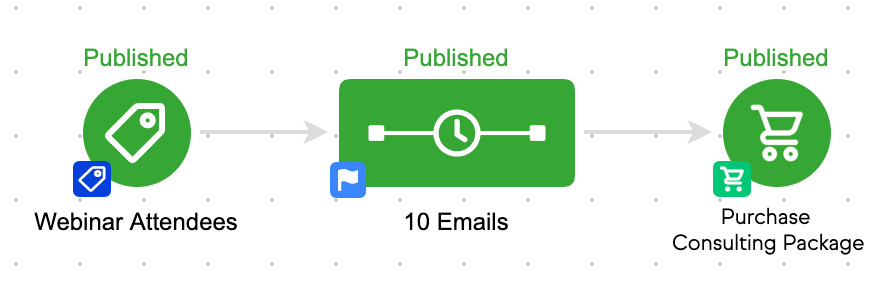
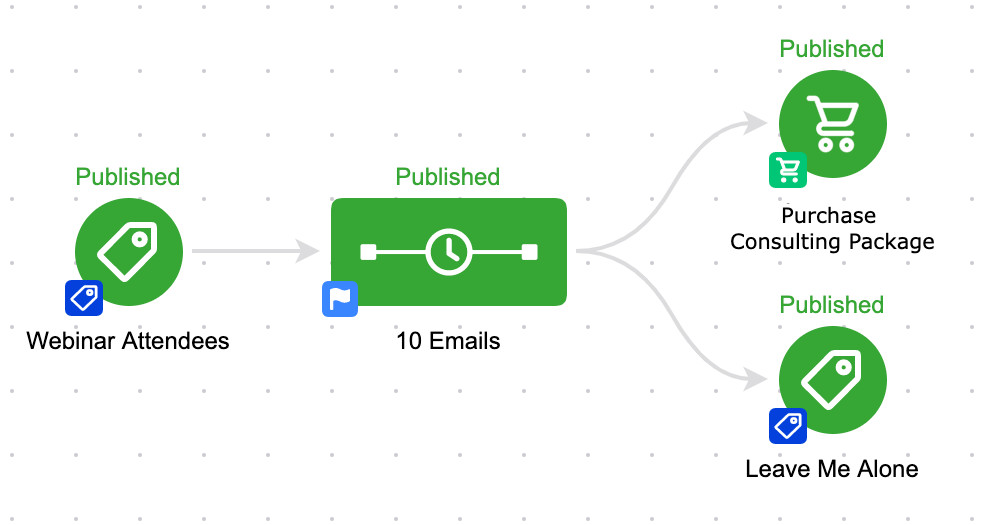
Here’s our campaign – we’re taking everyone who attended our webinar, and we’re driving them toward buying our consulting package.

Pretty straight forward, but in this scenario if someone doesn’t want those emails, their only choice is to unsubscribe completely.

Even if we have an email preferences center, if they express their preferences it won’t pull them out of this campaign.

Single Sequence unsubscribe

So what we need to do is something that’s becoming more and more common place in the Keap space – we need to add a “kill switch”.

This usually refers to a goal that you add at the end of the campaign, so that in the case of emergency you can achieve it in order to pull your contact(s) out of the campaign entirely.

But the twist in this case, is that we’re creating a kill switch, or stop trigger, that the contacts themselves can achieve if they decide they don’t want any more promotions.

Unsubscribed
Unsubscribed

So there it is. We’ve added a second goal (labeled “Leave Me Alone”) listening for contacts who no longer want to be bothered by this sequence – and we’ve configured it to listen for a tag.

But wait…

Where and how does this tag get applied? Glad you asked.

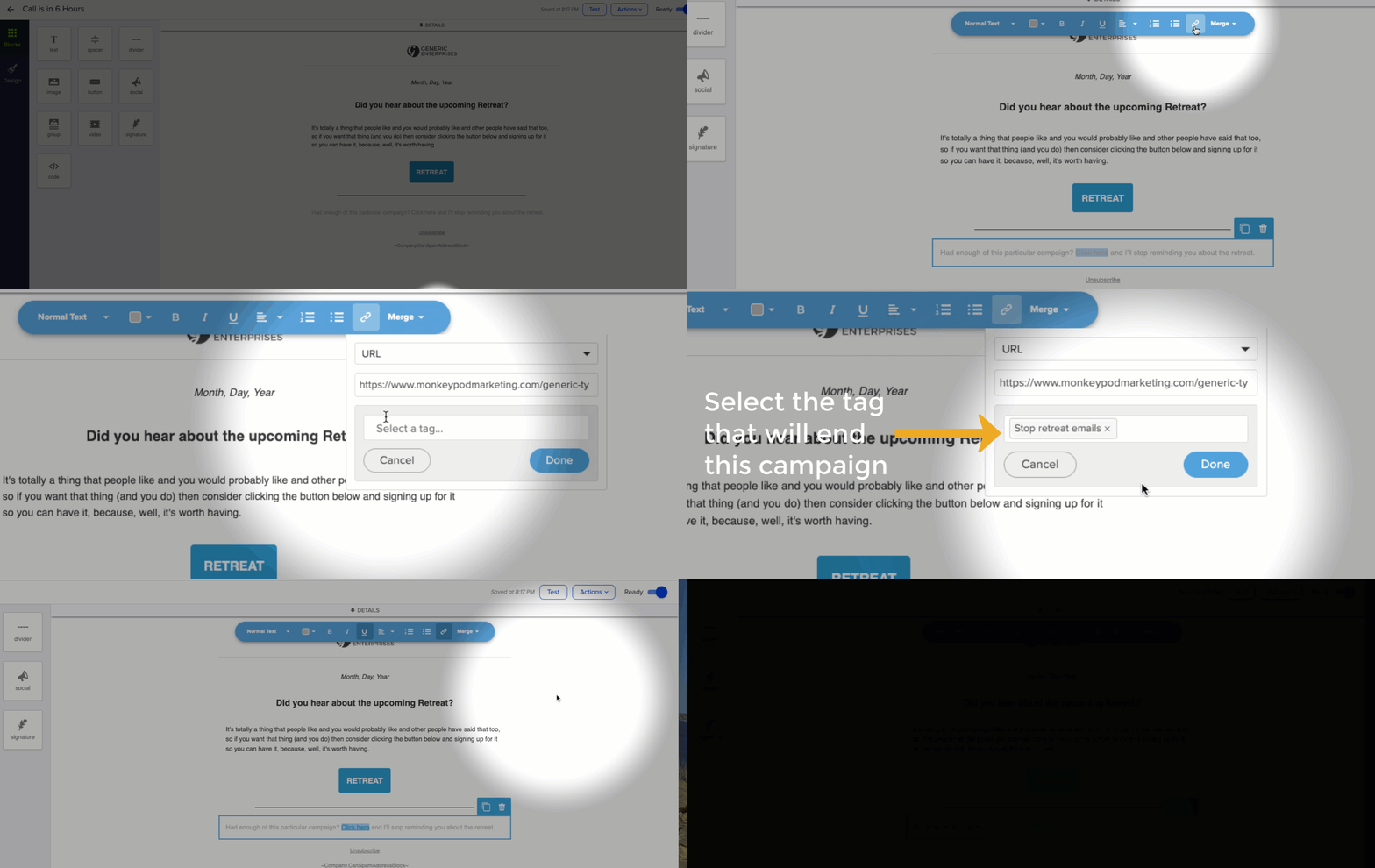
Well, in each of the 10 promotional emails we have to add a link. It doesn’t really matter what the link points to (I usually link it to a generic thank-you page).

But the value of adding this link is that when it’s clicked, we can also apply a tag – and by applying the tag, we then achieve the goal, and pull them out of the campaign.

Yes, you’ll need to create a unique tag for each time you want to set this up. I usually create a category called “Trigger Tags” for things like this.

Now, for those of you reading along judging me because I decided to use a Tag Applied goal instead of using a Link Click goal, let me explain why. Yes, you could use a Link Click goal in the above scenario and it would have worked just fine.

But, what if the campaign was a little more complex?

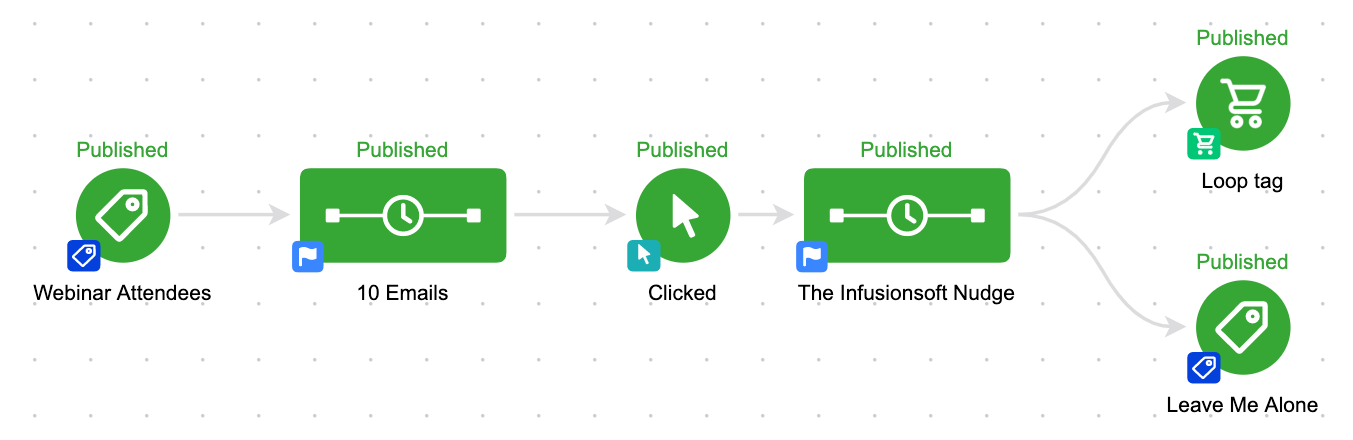
Good point. Link Click goals can only track links that are in a sequence they are directly attached to.

So, if your campaign was longer, or had a few extra sequences or steps, it’d quickly get difficult to keep everything organized. Like, let’s say you have been paying attention and you decided to include The Keap Nudge

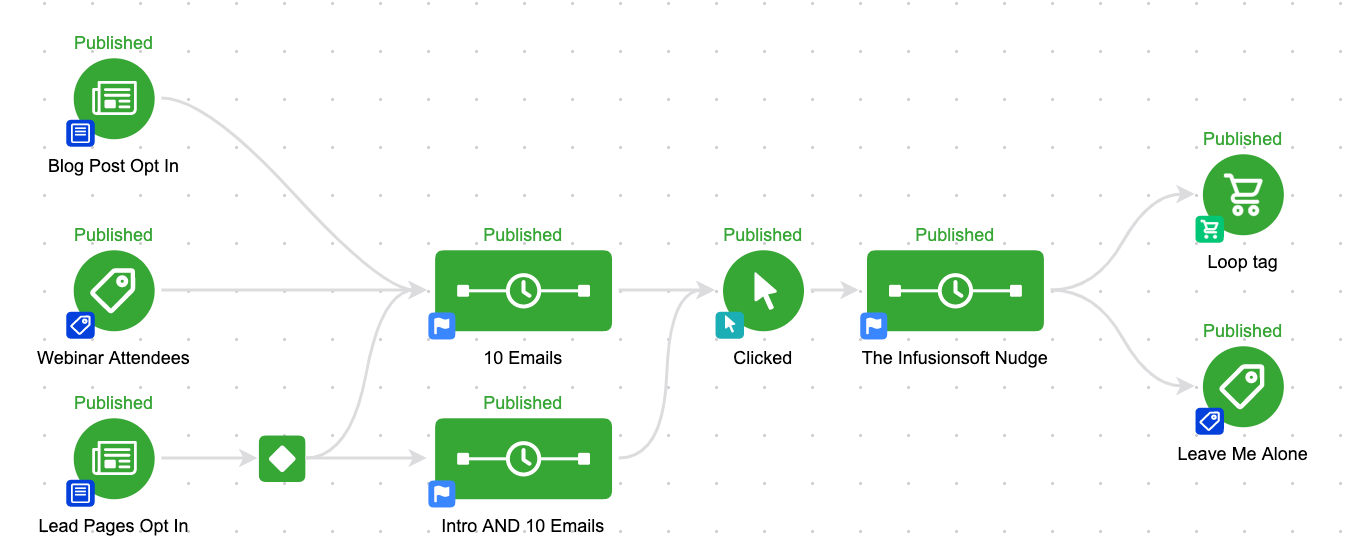
Or maybe you’ve got a much more complex campaign, and multiple paths and entry points.

You contacts could be in either of the email sequences, and if they get tagged they’ll jump right to the “Leave Me Alone” goal, and they won’t get another email from this campaign at all.

As you might remember from Campaign Builder Gotcha 1: When a goal is achieved, by default, it will stop anything upstream from it. Even if it’s not directly connected.

The challenge in remembering this is that some goals (task, link click) can only measure or track the sequences to which they’re directly connected.

So, how do you use this? Well, I use this in pretty much all of my nurture campaigns. If you opt-in to learn about one of the courses on using Keap or the OG Membership, I have educational nurture sequences in place – but you’ll also notice that I give you the option to remove yourself from that process if it’s not providing value to you, without removing you from my blog updates list – or whatever else you may be getting from me.

More of a visual learner? Check out this quick video:

Decision Diamond Hack

Decision Diamond Hack

Part of what makes Infusionsoft so powerful is your ability to be laser targeted with your communication. You can leverage not only what the person has told you about themselves, but also the actions they’ve taken. By using demographic and psychographic information you can really dial in on what might be of interest to a person.

And, naturally, the more targeted your communication is, the more impactful it will be.

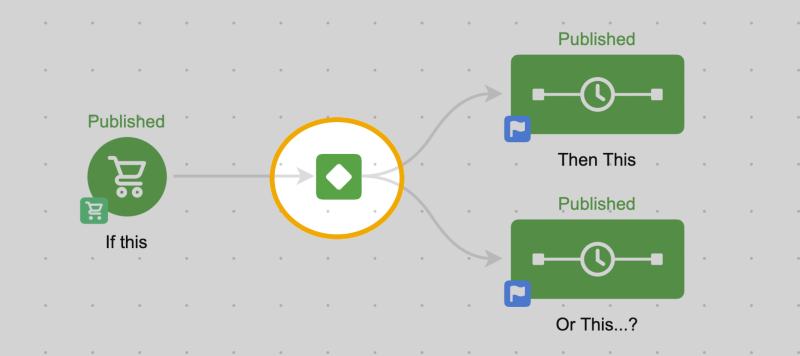
When you’re using the campaign builder, this type of segmentation is primarily done through using decision diamonds. A decision diamond, or decision node, appears on the campaign canvas when Infusionsoft decides it needs some logic in order to progress.

Decision Diamond Spotlight

In other words, if you give Infusionsoft two paths, it’s asking “When do I send them where?”

The beauty of the decision diamond is that because you’re setting it up, you get to define the rules. It’s not arbitrary. It’s very much the opposite. You get to predict the potential scenarios and script the various outcomes you’d like to happen.

This allows you to be really detailed in your messaging because you know the exact set of criteria that a contact must have met in order to be receiving particular messages.

But, the decision diamonds aren’t exactly user friendly. In fact, they’re one of the more complex elements in the application.

That’s why I have this robust blog post answering seven important questions about using them.

As you build rules you’re expected to use logic statements, and time and time again I’ve seen these types of rules trip people up. Let’s look at an example…

If you make the following rules:

Rules for Sequence One
If Contact’s Tags doesn’t contain TAG A or TAG B or TAG C or TAG D.

Rules for Sequence two
If Contact’s Tags contains TAG A or TAG B or TAG C or TAG D.

On the surface, these rules look like they’d be opposites. If they don’t have any of the tags they go into sequence one, and if they do have any of them they’d go into sequence two, right?

Wrong. This is a real scenario posed in the community forum, and graciously answered by Infusionsoft Developer Mike Daniels.

The way the first rule actually breaks down is like this:

If Contact’s Tags doesn’t contain TAG A…
OR If Contact’s Tags doesn’t contain TAG B
OR If Contact’s Tags doesn’t contain TAG C
OR If Contact’s Tags doesn’t contain TAG D

It’s as if they are four separate rules. And therefore if the contact is missing any of those tags, then they would go into the first sequence.

So, because you’re saying “doesn’t contain” it means you need to use AND instead of OR.  The new rules would look like this:

Rules for Sequence One
If Contact’s Tags doesn’t contain TAG A and TAG B and TAG C and TAG D

Rules for Sequence Two
If Contact’s Tags contains TAG A or TAG B or TAG C or TAG D

Anyway, the logic statements are a little confusing, and I’ve seen some really bright people get tripped up by this stuff. So, that’s where today’s post comes in. I’ve got a little hack for you that my colleague Paul Sokol has elegantly dubbed Cascading Logic (Originally I called it “Strung Out Logic” which makes it sound more like a junkie drug addict and less like a useful strategy…).

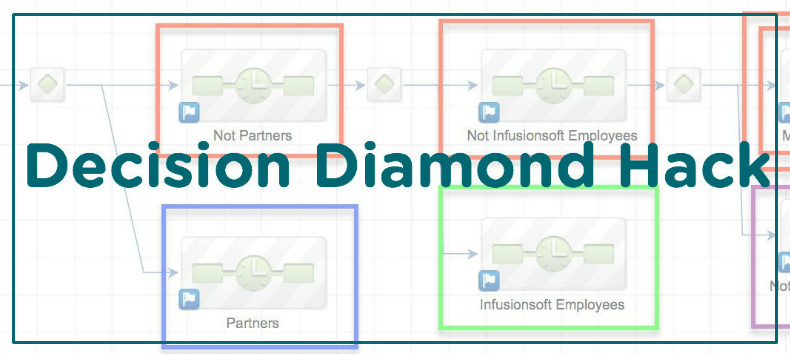
So, here’s how it works. Basically, you take what would be a complex decision diamond and you break it down into multiple simple decision diamonds. In a row.

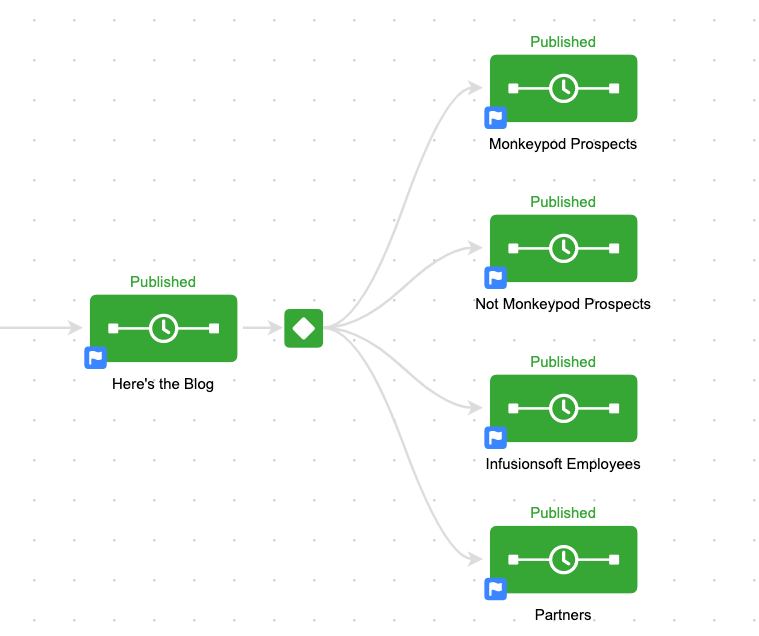
This first occurred to me as I was building the teaser campaign I used to introduce Monkeypod back in May. Basically, after I announced the blog, I wanted to set expectations about what was next for everyone. But based on the relationship I had with them or the actions they had taken, I wanted to speak to them differently. This is how it would have looked:

Infusionsoft Decision Diamond symbol with other elements
Decision diamond in Infusionsoft

Pretty straightforward, right? I’ve got four categories: Monkeypod Prospects, Not Monkeypod Prospects, Infusionsoft Employees, and Partners.

But the challenge I was running into is that I only wanted people to end up in one of the four buckets.

So, my rules would have quickly gotten complex with things like “Send them here if they have the Uses Infusionsoft tag, but only if they don’t have the Infusionsoft Employee tag, AND if they don’t have the Infusionsoft Partner tag”.

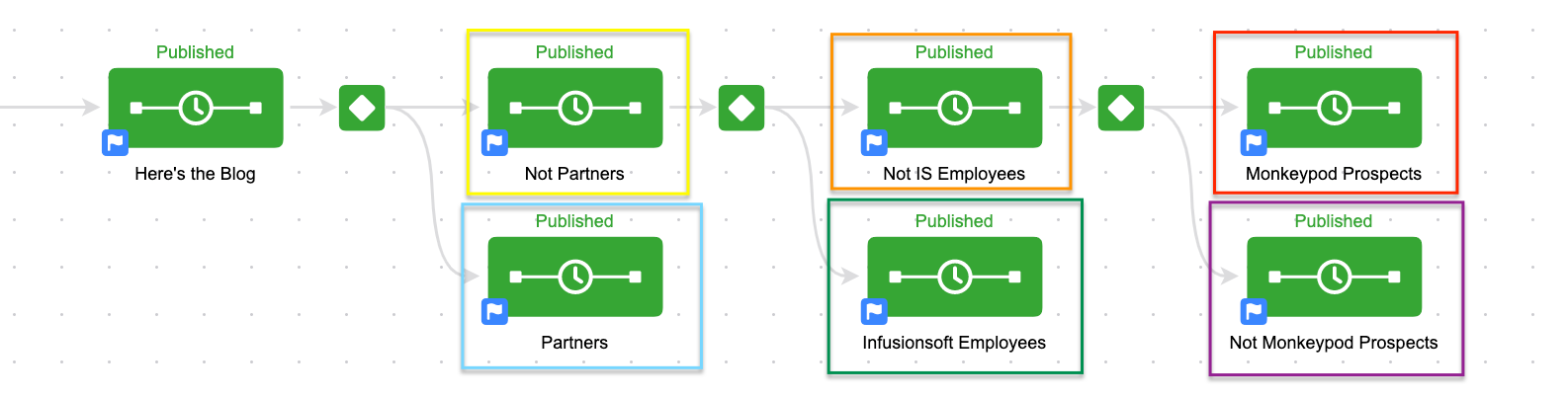
To avoid that I used a cascading logic approach and built this structure:

Diamond decision within Infusionsoft in a sequence
A decision diamond screenshot

Each decision diamond had one rule. Send anyone with the partners tag here (Blue) and anyone who doesn’t have that tag stays up top (Yellow).

Then the next diamond looked to see if they were tagged as being an Infusionsoft Employee, and if so it sent them down (green), and if not, they stayed up top (Orange).

Then the final diamond checked to see if they had the Not Infusionsoft User tag, if they did, they dropped down into the final sequence (Purple) and if they didn’t, then they went to the last sequence on top (Red).

By setting it up this way I could speak specifically to the partners. Specifically to the Infusionsoft employees. Specifically to the people who don’t use Infusionsoft and specifically to the people who do (and also aren’t partners or employees).

I didn’t have to second guess my logic at any point, and I didn’t have to worry about anyone ending up in multiple sequences because every single diamond was an IF A/IF NOT A type combination.

This is also a great way to end up with a catch-all sequence. More than once I’ve heard people asking why they can’t set up some rules, and then for their final sequence just say “If they don’t go anywhere else, send them here”. Well, with this scenario, you almost build that by default.

Anyway, I know this may not work for every scenario, and it might get cumbersome if you have an overly complex decision diamond. But I wanted you to have it in your back pocket in case you ever need it.

If have more questions about decision diamonds, or the campaign builder in general, then check out one of these resources: