What Custom Field Limit?

What Custom Field Limit?

Infusionsoft is a powerful and robust marketing tool – there’s no question about that.

But it’s not without it’s limitations. In fact, there’s a pretty common one that catches most people off guard sooner or later.

Infusionsoft only allows you to create 100 contact custom fields.

Now, depending on how long you’ve been using Infusionsoft, you may already know this, but here’s what I’m talking about in a nutshell:

At the core of using Infusionsoft is the contact record. Infusionsoft is contact-centric, so it all ties back to that central contact record. And the more detailed your contact record is, the more you know about your customer, and the more targeted you can get with your segmentation. Sounds good, right?

There are some things that Infusionsoft has native fields for (Name, Email, Phone, Birthday, Address, etc), but odds are pretty good that your business might need to keep track of something specific to your industry, or niche (like their pets name, their budget, or the date of the event they’re hosting, etc), so for anything like that, you’re going to want to use a custom field.

That’s where the contact custom field limit becomes a pain.

I’m emphasizing contact custom fields because technically you can create also create custom fields for the other record types (like order, task, or opportunity, etc), but contact custom fields are by far the most useful, and therefore valuable.

Previously the options for getting around this obstacle were creative solutions that involve tags, or possibly repurposing some of the existing contact fields you aren’t using. But not anymore.

Now there’s a tool designed specifically to help Infusionsoft users eradicate the 100 custom field limit.

Enter FieldSpace.io

Put simply, FieldSpace is a tool designed to work in tandem with Infusionsoft, and it gives you access to additional custom fields.
Let me be clear, this is a really slick tool, but this early version of it still has a few limitations.

The biggest limitation at this point is that you cannot merge information stored in FieldSpace directly into emails, and you cannot capture information from web forms and store it directly into FieldSpace.

Say what?

I know, I know, but hear me out. This really isn’t a deal breaker, and here’s why:

Use FieldSpace to archive information that is important to you, but that you aren’t actively using.

There are a handful of situations where this would be useful, but think of it this way:

If you have information that you want to keep (like survey results, fields for a service you no longer offer, or details about a past event, etc), but you a) don’t need to merge it into emails, and b) aren’t still actively collecting this info, well, then FieldSpace might just be a good fit.

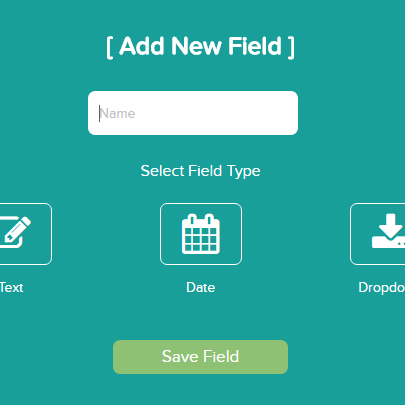
(So, just to be clear, you can’t archive any fields that are actively being used on your lead capture forms, or your surveys, etc.)Add a Field
How does it work?

Fair question. Okay, so FieldSpace is a plugin, right? It is actually a Chrome Extension, but once you’ve set it up it shows up as a slideover inside Infusionsoft.

So, you can either create custom fields directly through FieldSpace, or you can archive your existing custom fields.

Once you have your fields in FieldSpace, then you can search them like normal – with one small difference. After you complete a normal search with all the built in criteria, you can layer on a FieldSpace search and it’ll refine even further using any filters you want from your archived fields.

This integration is fairly specific, but it’s also super clever, and for the right business this just might save the day.

I have nothing but good things to say about the team that has designed, built and maintains this, so if you’ve been hung up on the custom field limitation in Infusionsoft, then I’d implore you to check out FieldSpace  (and their $1 14-day trial) as a possible solution.

If you like stuff like this, and want to see the other tools in the Monkeypod Toolbox, then download my ebook:
<script data-leadbox="148152573f72a2:14cea3446b46dc" data-url="https://gregjenkins4.lpages.co/leadbox/148152573f72a2%3A14cea3446b46dc/5806230727557120/" data-config="%7B%7D" type="text/javascript" src="https://gregjenkins4.lpages.co/leadbox-1525203682.js"></script>
The 3 Keap User Types

The 3 Keap User Types

In my experience, Keap users tend to fall into one of three categories. And I find that plenty of people either haven’t thought about this at all, or they have but things have changed since they last considered it.

The good news is that there isn’t a right or wrong answer, and one type of user isn’t in a more likely position to be successful.

Type 1: Hands On

This type of user is excited about learning new things, geeks out when they figure something out, and has an appetite for learning the nuances of a new tool. This person generally wants to learn how to use Keap on their own, and is happy to roll up their sleeves and read articles, watch videos, run tests, and make mistakes.

Type 2: Hands Off

This type of user understands the value of something like Keap, but generally doesn’t want to log in and do it themselves. They recognize that setting up automation probably isn’t he best use of their time, and they’re comfortable conveying their vision to an expert who can help them implement it.

Type 3: Hand Holding

This final type of user tends to be a hybrid of the other two. They’re not necessarily technology adverse, but they also recognize that it doesn’t come all that easily to them. They want the help of an expert, but they also would like their own level of understanding; either so they can build their own campaigns in the long run, or just maintain it and run reports when they need to.

You may already know what bucket you fit into, but if you don’t, then watch this brief video:

The whole purpose of this conversation is to help you identify and accept what user type you are, so you can get clear on the best path forward for you and your business.

And, if you’re wondering which of the Keap training courses to start with – here’s a video to help you decide.

Oh, and for those of you who serve small business owners, or Keap customers, having a conversation like this one can help you understand your audience and connect with them differently as your tailor your messaging or behavior based on who they are.

Options on Order Forms

Options on Order Forms

If you use Keap to sell online, you likely do that with the built-in shopping cart, or with Keap order forms.

The shopping cart is great if you want your customers to be able to browse around, but if you want to create a more focused buying experience with fewer distractions, then an order form is probably a better fit.

(If you haven’t set up your Keap ecommerce yet, or just want to feel more confident, check out the sales courses from Keap Academy.)

Keap’s order forms are popular for a variety of reasons. Not only are they a little more targeted than a shopping cart, which means you can set more specific expectations for the traffic you send there, but there is also no limit to how many order forms you can create.

The theme, combination of products, and thank-you page configuration can all be tailored on a form-by-form basis. But despite all of the advantages to using an order form, there are still a handful of drawbacks.

(To help navigate some of these limitations I use Spiffy, wanna see a quick demo?)

One feature that causes a little frustration is that when you use a Keap order form, you are designating which products, subscriptions, or options go on that order form. That means that if you build an order form with three products, your customers checking out have to buy all three.

It means if you place a monthly subscription on an order form, your customers won’t be able to select the annual subscription option instead. In short, it means you’re limiting the flexibility you give your customers on checkout.

Sometimes limiting their options is a good thing, because it keeps them focused.

But sometimes it’s not so good, because if they don’t see the option they want then it’s possible they’ll change their mind and walk away from the purchase completely (see more on abandon cart options here).

So, now that we’ve demonstrated the issue, let’s talk about the solution.

Basically, you’re going to want to create an order form for each of the options you want to give them, and then use the custom html sections of the order forms to give the customer links to the other choices. Watch this video for a complete step-by-step walk through of the process:

If you need help creating the code to link back and forth between your order forms, here’s a tutorial you can use.

Or, you can copy this sample code and adjust it for your purposes.

If you found this useful, or have questions about this solution, feel free to pose them below.

If you need help getting your Keap e-commerce dialed in, check out the sales courses from Keap Academy.

Update My Email, Pls

Update My Email, Pls

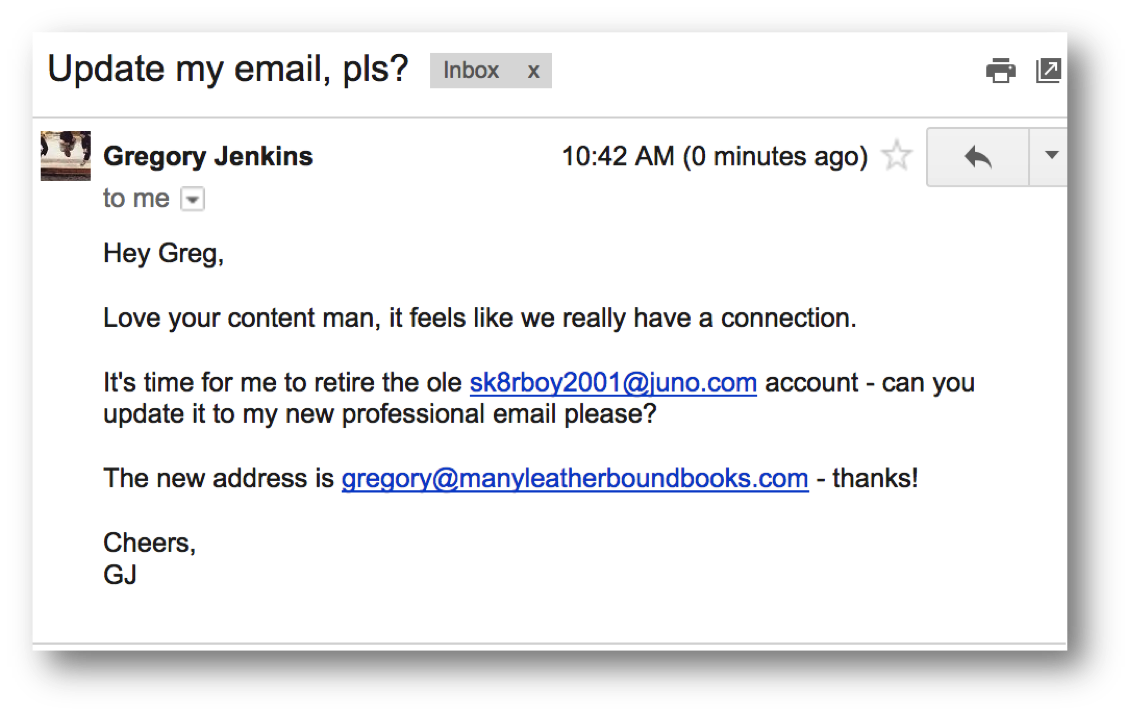
Have you ever received an email from a customer asking you to update their email address?

If so, you should probably feel flattered. It means they like you.

Most people who change their email address email their family and friends and then move on with their lives.

So, if they’re asking you to update the email you have on file for them it’s because they value the content you’re sending them, and they want more of it. Kudos.

It also likely means that they’re migrating to a new email account, and they want you to come with them. It could be that they’ve changed jobs, and they’re no longer going to use that old address, or it could be that they originally signed up with an email address they don’t really use, and now they’re gonna upgrade ya to their primary inbox (I still can’t say “upgrade ya” without singing that Beyonce song).

Regardless of the virtual fist-bump they’ve just awarded you, now it’s time to go update their email address. Now, I won’t pretend to know who you are or what the best use of your time is or isn’t, but I’m gonna go ahead and guess that updating the email address your contacts have on file is something we all can agree should be automated.

When it comes to automated solutions letting your audience update their email address the most common choice is a membership area. If you have a secure membership login area then you can totally use that to let your customers update their email, no problem.

But if you don’t, or you need a back-up option, then you may be pleased to learn that Infusionsoft has a built in tool that affords your subscribers the ability to update their own email without having to depend on you at all. It’s a lesser known legacy feature that is far from obsolete.

Check it out here:

Free Infusionsoft Campaign Note Templates

Free Infusionsoft Campaign Note Templates

Update: There’s a new section at the bottom of this post with some fancy animated notes you can swipe.

At some point or another all new Keap users ask about the notes widget in the Keap campaign builder.

In a sense, they’re useless. They don’t actually have any function, and don’t actually affect the campaign in any meaningful way.

But, in another more accurate sense, the more you build campaigns, the more you realize just how valuable they can be.

You can use these notes to leave messages for other users, to store links you’re using, color codes you may need, lists of things you still need to do, or just to log changes you’ve made so another user knows what has been done and what hasn’t.

The content from today’s blog post was shared in the Monkeypod Membership area by a member, Brian Johnson. I absolutely love little tricks like this that help keep your campaigns neat and tidy, so I asked for his permission to share this as a blog post, and he happily agreed. Thanks Brian, you rock!

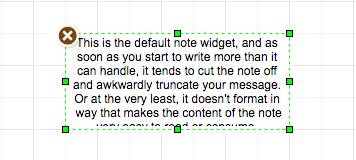
By default, the note widgets aren’t as useful as they could be.

But you have quite a bit of control over the appearance of K campaign Notes. All it takes is a little HTML code.

What? You don’t know the first thing about HTML?

Fear not!

Changing the appearance of campaign Notes is as easy as copying a short line of code from this Notes Templates file and pasting it into a Note in your campaign. That’s it. You now have a nice, custom-styled Note.

Yellow
----------------------------------------
<div style="background:#fffae6;font-size:14px;line-height:1.3;color:#292929;text-align:left;border:1px solid #fae6be;padding:20px;">xxxxxxxxxx</div>


Blue
----------------------------------------
<div style="background:#ebf5fa;font-size:14px;line-height:1.3;color:#292929;text-align:left;border:1px solid #d2dce1;padding:20px;">xxxxxxxxxx</div>


Green
----------------------------------------
<div style="background:#faffe6;font-size:14px;line-height:1.3;color:#292929;text-align:left;border:1px solid #dce6be;padding:20px;">xxxxxxxxxx</div>


Red
----------------------------------------
<div style="background:#fff0eb;font-size:14px;line-height:1.3;color:#292929;text-align:left;border:1px solid #ffd7cd;padding:20px;">xxxxxxxxxx</div>


Gray
----------------------------------------
<div style="background:#f7f7f7;font-size:14px;line-height:1.3;color:#292929;text-align:left;border:1px solid #ebebeb;padding:20px;">xxxxxxxxxx</div>


White Background with Grey Border
----------------------------------------
<div style="font-size:14px;line-height:1.3;color:#292929;text-align:left;border:2px solid #cccccc;padding:20px;">xxxxxxxxxx</div>

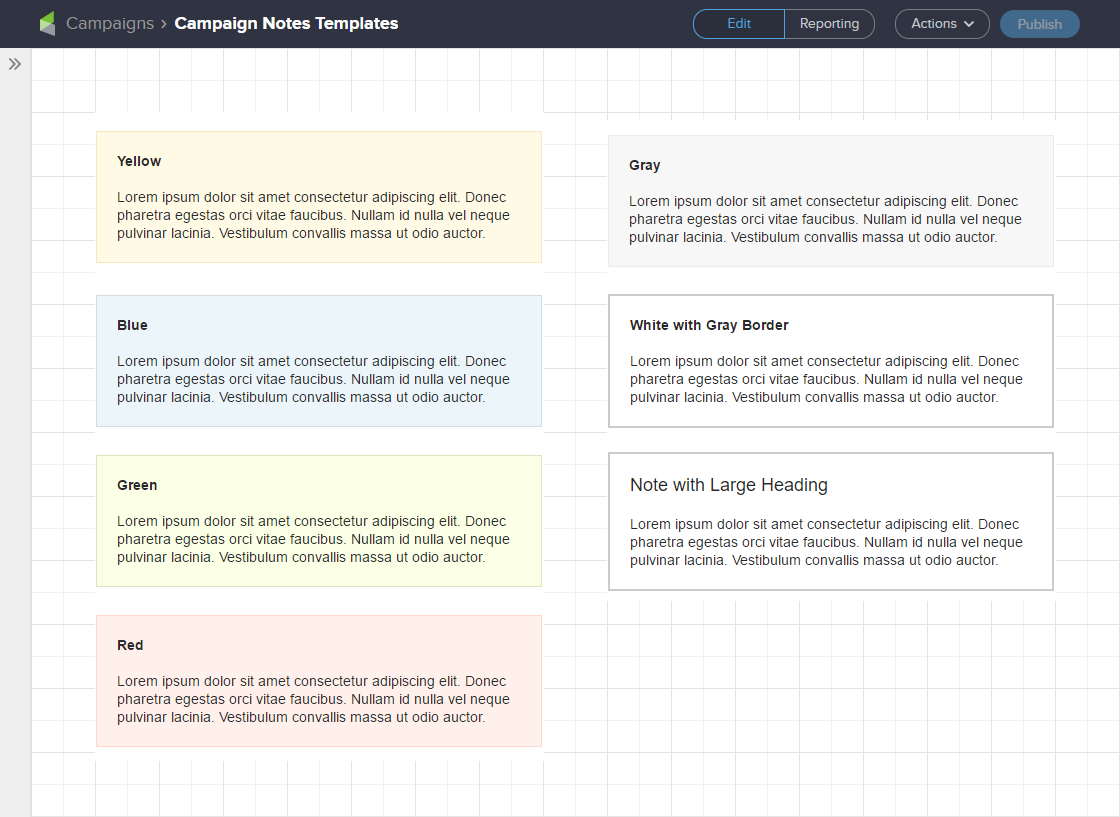
The templates file provides six different Notes style options, plus instructions for creating bold text and headings.

Screenshot of Improved Infusionsoft Campaign Note Examples

You may choose to use background colors to signify the subject matter in Notes. For example: blue for Notes that document information about the campaign; red for important, time-sensitive reminders like tasks that need to be completed before publishing or changes that need to be made; yellow for general reminders, or instructions for team members / clients, or things to consider implementing in the future; etc.

How to Use the Notes Templates

It’s best to open the Notes Templates TXT file in a text editor. Your computer should have a factory-installed text editor like Notepad or Notepad ++ (PC), or TextEdit (Mac). Avoid opening the file in a word processing program like Word — it’s not that big a deal, but using a text editor will ensure line and text spacing doesn’t get messed up.

Let’s get started.

  1. Open a campaign and drag the Notes element onto the campaign canvas.
  2. Delete the placeholder text ‘Lorem ipsum dolor sit amet.’ The Note should now be empty.
  3. Select one of the templates from the Notes Templates file, copy it, and paste it into the Note in your campaign.
  4. Double-click on the placeholder text ‘xxxxxxxxxx’ in the Note to select it and enter your text.

That’s it. Resize the Note and move it around the canvas just like you normally would.

Make Changes to the Notes Templates

You can use the Notes templates as a starting point for creating your own Notes styles.

Let’s take a look at each individual piece of the HTML in the templates to understand what the code does and how you can edit it.

First, a quick comment about colors. Colors in the Notes templates are HTML HEX values — the three or six characters after the hashtag (#). To change a color you’ll need to know the HEX value of the color you want. If you don’t have a graphics program that uses HEX values, w3schools.com has an HTML Color Picker you can play around with to find HEX color values.

Background Color

The default background color of a Note is white #fff. Each Notes template has a different background color. To change the color edit the six characters after the hashtag (#).

background:#fffae6;


Border Color

By default Notes don’t have a border. Each Notes template has a different border color. To change the color edit the six characters after the hashtag (#).

border:1px solid #fae6be;


Font Size

The default font size in Notes is 12px. The Notes templates set the font size to 14px. To change the font size edit the number.

font-size:14px;


Line Height

Line height is the space between the lines of text. The default line height in Notes is 1.2. The Notes templates increase line height to 1.3, giving a little extra breathing room between lines to improve legibility. To change the line height edit the number.

line-height:1.3;


Font Color

The default font color in Notes is black #000. The Notes templates change font color to #292929, which should be plenty dark for most people. If you want to change the font color to black, you can delete the following code or change it to ‘#000’.

color:#292929;


Text Alignment

Text is centered by default in Notes. The Notes templates left-align text. If you want the text centered delete the following code.

text-align:left;


Padding

Padding creates space between the text and Note borders. Notes don’t have any padding by default. To change the size of the padding edit the number.

padding:20px;


Style Some Text in a Note Differently

All the code talked about to this point applies styles to the entire Note. You can also apply styles that only affect some of the text in a Note.

When pasting the following code into a Note, make sure you don’t delete any of the code that is styling the entire note — i.e., this code goes between the <div> tags where your Note text is.

Bold Text

To make text bold place an HTML strong tag before and after the text you want bolded. Be sure to include the backslash in the ending strong tag.

Creating <strong>bold text</strong> is easy.


Headings

To create headings an HTML span tag is placed before and after the text. Be sure to include the backslash in the ending strong tag. To change the size of the heading edit the number.

<span style=”font-size:18px;”>Large Heading</span>


And that’s really all you need to know to start using the swipe content to make your Keap campaign notes a little sexier. My hope is that this makes your life easier, your documentation clearer, and your campaigns more effective, and if it does, give Brian a shout out on twitter to say thanks!

Animated Note Swipes

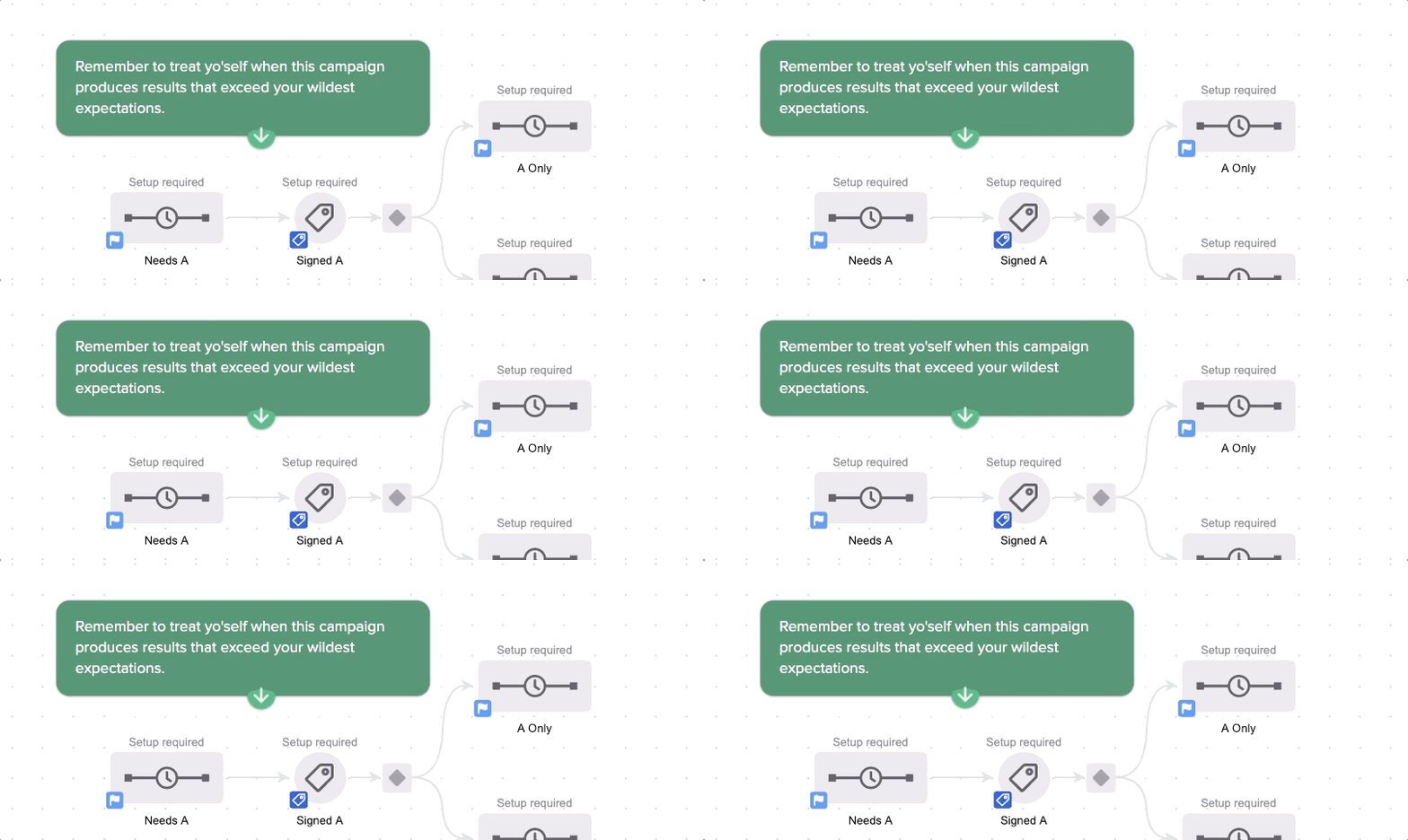
If the plain text note templates aren’t eye catching enough for ya, here are some fancier notes you can swipe that will produce a little bit of movement on your campaign canvas.

Bouncy Green

To create these I basically just downloaded a campaign from the Keap/Infusionsoft Marketplace, and then copied the code they had in their notes – changed a few colors, and voila.

Bouncy Green

<div class="info-box-1"> <p> <!--//////////////////////////-->Remember to treat yo'self when this campaign produces results that exceed your wildest expectations.<!--//////////////////////////--> </p> <div class="wrapper"> <span class="bounce_arrow-1"> <div class="arrow-guide-1"> <svg xmlns="http://www.w3.org/2000/svg" xmlns:xlink="http://www.w3.org/1999/xlink" width="36" height="27" viewBox="0 0 36 27"> <defs> <path id="b" d="M29.667 8c0 8.1-6.567 14.667-14.667 14.667S.333 16.1.333 8 29.667-.1 29.667 8z" /> <filter id="a" width="134.1%" height="148.2%" x="-17%" y="-19.3%" filterUnits="objectBoundingBox"> <feOffset dy="1" in="SourceAlpha" result="shadowOffsetOuter1" /> <feGaussianBlur in="shadowOffsetOuter1" result="shadowBlurOuter1" stdDeviation="1.5" /> <feColorMatrix in="shadowBlurOuter1" result="shadowMatrixOuter1" values="0 0 0 0 0 0 0 0 0 0 0 0 0 0 0 0 0 0 0.1 0" /> <feOffset dy="1" in="SourceAlpha" result="shadowOffsetOuter2" /> <feGaussianBlur in="shadowOffsetOuter2" result="shadowBlurOuter2" stdDeviation="1" /> <feColorMatrix in="shadowBlurOuter2" result="shadowMatrixOuter2" values="0 0 0 0 0 0 0 0 0 0 0 0 0 0 0 0 0 0 0.2 0" /> <feMerge> <feMergeNode in="shadowMatrixOuter1" /> <feMergeNode in="shadowMatrixOuter2" /> </feMerge> </filter> </defs> <g fill="none" fill-rule="evenodd"> <g transform="translate(3)"> <use fill="#000" filter="url(#a)" xlink:href="#b" /> <use fill="#37B273" xlink:href="#b" /> </g> <path fill="#F0F0F0" d="M18 0c.631 0 1.143.512 1.143 1.143v10.955l4.906-4.906a1.143 1.143 0 0 1 1.616 1.616l-6.857 6.857a1.143 1.143 0 0 1-1.616 0l-6.857-6.857a1.143 1.143 0 1 1 1.616-1.616l4.906 4.906V1.143C16.857.512 17.37 0 18 0z" /> </g> </svg> </div> </span> </div> </div> <style type="text/css"> .info-box-1 {width: auto; margin: 12px; padding: 0px 18px 2px 20px; box-sizing: border-box; line-height: 40px; display: inline-block; border-radius: 14px; box-shadow: 0 1px 3px 0 rgba(0, 0, 0, 0.1), 0 1px 2px 0 rgba(0, 0, 0, 0.2); background-color: #37875E; } .info-box-1 p {color: #ffffff; text-align: left; font-size: 16px; font-family: "Proxima Nova", sans-serif; font-weight: normal; font-stretch: normal; font-style: normal; line-height: 1.4; letter-spacing: normal; } .arrow-guide-1 {width: 100%; margin-left: 0px; margin-top: -6px; } .wrapper {width: 100%; } @keyframes bounce {0%, 100%, 20%, 50%, 80% {-webkit-transform: translateY(0); -ms-transform: translateY(0); transform: translateY(0) } 40% {-webkit-transform: translateY(-8px); -ms-transform: translateY(-8px); transform: translateY(-8px) } 60% {-webkit-transform: translateY(-6px); -ms-transform: translateY(-6px); transform: translateY(-6px) } } span.bounce_arrow-1 {position: absolute; -webkit-animation-duration: 2.6s; animation-duration: 2.6s; -webkit-animation-fill-mode: both; animation-fill-mode: both; -webkit-animation-timing-function: ease-in-out; animation-timing-function: ease-in-out; animation-iteration-count: infinite; -webkit-animation-iteration-count: infinite; color: white; } span.bounce_arrow-1 {animation-name: bounce; -moz-animation-name: bounce; } </style>

Bouncy Blue

<div class="info-box-1"> <p> <!--//////////////////////////-->Remember to treat yo'self when this campaign produces results that exceed your wildest expectations.<!--//////////////////////////--> </p> <div class="wrapper"> <span class="bounce_arrow-1"> <div class="arrow-guide-1"> <svg xmlns="http://www.w3.org/2000/svg" xmlns:xlink="http://www.w3.org/1999/xlink" width="36" height="27" viewBox="0 0 36 27"> <defs> <path id="b" d="M29.667 8c0 8.1-6.567 14.667-14.667 14.667S.333 16.1.333 8 29.667-.1 29.667 8z" /> <filter id="a" width="134.1%" height="148.2%" x="-17%" y="-19.3%" filterUnits="objectBoundingBox"> <feOffset dy="1" in="SourceAlpha" result="shadowOffsetOuter1" /> <feGaussianBlur in="shadowOffsetOuter1" result="shadowBlurOuter1" stdDeviation="1.5" /> <feColorMatrix in="shadowBlurOuter1" result="shadowMatrixOuter1" values="0 0 0 0 0 0 0 0 0 0 0 0 0 0 0 0 0 0 0.1 0" /> <feOffset dy="1" in="SourceAlpha" result="shadowOffsetOuter2" /> <feGaussianBlur in="shadowOffsetOuter2" result="shadowBlurOuter2" stdDeviation="1" /> <feColorMatrix in="shadowBlurOuter2" result="shadowMatrixOuter2" values="0 0 0 0 0 0 0 0 0 0 0 0 0 0 0 0 0 0 0.2 0" /> <feMerge> <feMergeNode in="shadowMatrixOuter1" /> <feMergeNode in="shadowMatrixOuter2" /> </feMerge> </filter> </defs> <g fill="none" fill-rule="evenodd"> <g transform="translate(3)"> <use fill="#000" filter="url(#a)" xlink:href="#b" /> <use fill="#4368C7" xlink:href="#b" /> </g> <path fill="#F0F0F0" d="M18 0c.631 0 1.143.512 1.143 1.143v10.955l4.906-4.906a1.143 1.143 0 0 1 1.616 1.616l-6.857 6.857a1.143 1.143 0 0 1-1.616 0l-6.857-6.857a1.143 1.143 0 1 1 1.616-1.616l4.906 4.906V1.143C16.857.512 17.37 0 18 0z" /> </g> </svg> </div> </span> </div> </div> <style type="text/css"> .info-box-1 {width: auto; margin: 12px; padding: 0px 18px 2px 20px; box-sizing: border-box; line-height: 40px; display: inline-block; border-radius: 14px; box-shadow: 0 1px 3px 0 rgba(0, 0, 0, 0.1), 0 1px 2px 0 rgba(0, 0, 0, 0.2); background-color: #6586DA; } .info-box-1 p {color: #ffffff; text-align: left; font-size: 16px; font-family: "Proxima Nova", sans-serif; font-weight: normal; font-stretch: normal; font-style: normal; line-height: 1.4; letter-spacing: normal; } .arrow-guide-1 {width: 100%; margin-left: 0px; margin-top: -6px; } .wrapper {width: 100%; } @keyframes bounce {0%, 100%, 20%, 50%, 80% {-webkit-transform: translateY(0); -ms-transform: translateY(0); transform: translateY(0) } 40% {-webkit-transform: translateY(-8px); -ms-transform: translateY(-8px); transform: translateY(-8px) } 60% {-webkit-transform: translateY(-6px); -ms-transform: translateY(-6px); transform: translateY(-6px) } } span.bounce_arrow-1 {position: absolute; -webkit-animation-duration: 2.6s; animation-duration: 2.6s; -webkit-animation-fill-mode: both; animation-fill-mode: both; -webkit-animation-timing-function: ease-in-out; animation-timing-function: ease-in-out; animation-iteration-count: infinite; -webkit-animation-iteration-count: infinite; color: white; } span.bounce_arrow-1 {animation-name: bounce; -moz-animation-name: bounce; } </style>


Caveat: I’ve swiped this code from smarter folks than myself – so unfortunately I can’t assist with modifying it, or troubleshooting if it stops working at some point. Good luck!

Advanced Customization

Speaking of folks smarter than myself, here’s a video from another Keap Partner, John Borelli, where he walks through some fancier options you can use to make your campaign notes really sing.

Campaign Builder Finishing School

Here’s a short video from my Campaign Builder Finishing School series where I talk a little more about this idea. If you want to check out the whole series, you can get access here.

Infusionsoft’s New Landing Page Builder

Infusionsoft’s New Landing Page Builder

Note: The landing page builder has improved dramatically since this article was written, for a more recent review of the Infusionsoft landing page builder (and other new features) check out this article.

There was some buzz at ICON surrounding Infusionsoft’s release of the new landing page builder. And if you haven’t heard, well, they’re rolling out a new landing page builder. You either already have access to it, or you will soon.

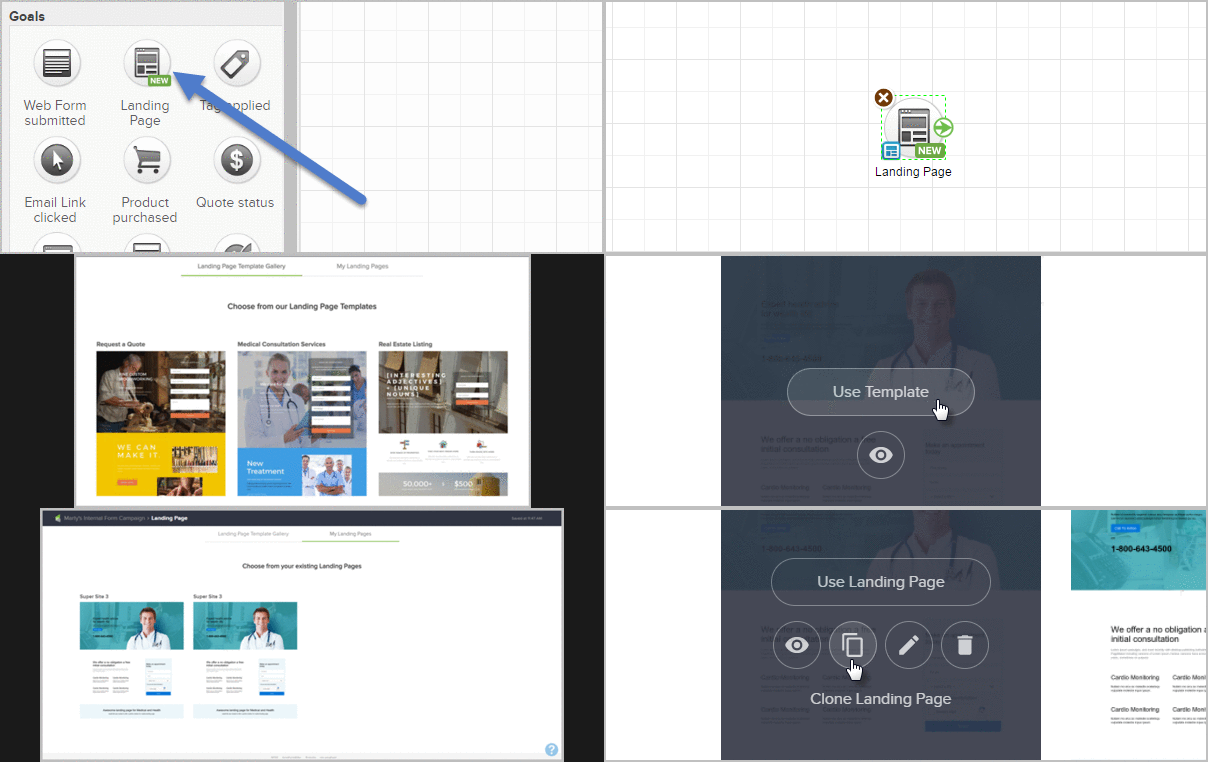
Landing Page Templates for Infusionsoft

Here is the official release video from Infusionsoft.

I won’t beat around the bush – I am disappointed in what I’ve seen from the new Landing Page Builder. I think everyone knows the love I have for Infusionsoft, so I’m sharing that with the hopes of tempering your expectations, and giving IS some open and real feedback.

Trust me, it WILL get better, but the current reality was underwhelming for me. There’s a silver lining to balance my frustration, so stay with me for a minute.

And remember, this is just my opinion. Based on my needs, this isn’t going to cut it right now.

So I’m going to stick with my third-party builder until this is a little more full-featured (I use LeadPages). I don’t wanna discourage everyone from using it altogether, my official recommendation is to play with it for yourself. Draw your own conclusions as to whether or not it’ll do what you need it to do.

The new builder has a few things that are certainly improvements, but it also has a number of features that I see as a step backward. I’ll summarize the key changes here:

Improvements:

  • I think this builder can produce landing pages that are more attractive overall.
  • It has increased overall design flexibility (set images as background, etc).
  • I love that we get built-in access to royalty-free stock images, and we can easily add overlays, or crop these images into circles, etc.
  • I really like the idea of having templates we can start from.
  • I like the concept of having pre-built blocks of content that you can add and then customize.

Drawbacks:

  • The new builder doesn’t let you capture custom fields yet. You can use the new pages to collect first name, email, and a few other standard fields, but it doesn’t allow you to collect addresses, custom fields, and many other logical pieces of data you’d want.
  • I couldn’t figure out how to change the alignment of text – yup, like, I couldn’t easily center align the text widgets I added to the page.
  • I couldn’t figure out how to change the color of the text. It seems like some really basic fundamental formatting options didn’t make this first release.
  • I was surprised that I couldn’t easily drag the content blocks around.
  • I was disappointed that there doesn’t seem to be a way to add custom code of any kind. This means that you cannot currently add a Google analytics pixel, or Facebook pixel, or any other custom code you may want to use to enhance your landing page.
  • The video widget only seems to support YouTube (it doesn’t support Wistia, and I didn’t test Vimeo).

These are mostly just observations I made from the limited experience I’ve had with it. I need to be abundantly clear that I’m not an expert with this tool, so it’s possible that some of these things are just user error on my part.

Now, I’m generally a pretty positive guy, and while I’m let down by the current reality of this new tool, there is a silver lining in all this. Infusionsoft is full of bright people who genuinely care about small businesses. They recognize that we, as small business owners, need a landing page tool that meets our needs, and this is the first step in that direction.

I know for a fact that they’re looking to make improvements to this builder, and quickly. They’re actively seeking feedback, prioritizing our suggestions, and concurrently working on the next wave of improvements. According to the release video they put out we can expect the following features to be added soon:

  • Page Settings (Google and Facebook tracking etc)
  • Site colors/theming
  • Referral Partner Tracking
  • Lead Source Tracking
  • Reordering Content Blocks
  • Pre-populate Contact Information
  • Merge Fields

If you’re able to use this builder for your business then more power to ya, but if you aren’t, then take a moment to document why not, and what you’re waiting for, and convey that feedback to Infusionsoft so they can help get us what we need as quickly as possible.