Whoa, that is easily one of the most technical and nerdy titles I’ve ever given one of my own blog posts. But, lemme explain before anyone goes anywhere. When you want to attach a file to an email in Infusionsoft, historically you’ve been able to use the File Snippet. It’s part of the standard drag-and-drop builder that Infusionsoft has had for years. However, this snippet has never given you the ability to format the attachment. It doesn’t let you adapt the link text, or the color, or the font, or anything about it. Personally, that’s never been a deal-breaker for me. The file snippet may not be super pretty, but it always did the job. In fact, I’ve even made an effort to continue using it because I try and limit the “hacks” I leverage, to make it easier in case someone wants to follow along. Well, with the recent unveiling of the new Email Builder, there are a few of those snippets that aren’t available. And the file snippet is one that has gone missing. EDIT: The “new” email builder has had a number of updates since it was released, and the new builder can now easily support linking to files and attachments. It’s left a lot of Infusionsoft users asking:
“Without a file snippet, how can I attach documents to my emails? How will I deliver my checklists and pdfs?”
Well, here’s a little trick that has been around for years, but has never been as necessary as it is today: 1. Navigate to the Files section, you’ll notice a Company Files Tab. 2. On that tab you can manage any files you’ve previously uploaded, or, you can upload new ones. 3. If you right-click on the file you want to use, you can select “Copy Link Address”. 4. Then, you can use this URL as the destination for any link you add to any of your emails, and format it however you like. So, to reiterate. Problem: The file snippet is was clunky, difficult to format and iswas not available in the new email builder. Solution: Upload files to the Company Files section, copy the link location, and then use that as the URL for any new links you create.
Without any fanfare, the long awaited mobile responsive email builder was released yesterday. And the world didn’t explode. I know that thousands of Keap users have been anxiously waiting for this builder since long before they announced it was coming (at ICON in 2015).
But for all that pent up energy around this much anticipated tool, there was very little fuss. And it’s not because the email builder isn’t slick (it is). I think it’s because Keap knows how badly this is needed. And I think it’s because Keap has wanted to release this for probably just as long as their users have wanted it.
So, without further ado, let me give you my 3 favorite things about the builder, and my least favorite things. (Or, scroll to the bottom for my video review)
Favorite things:
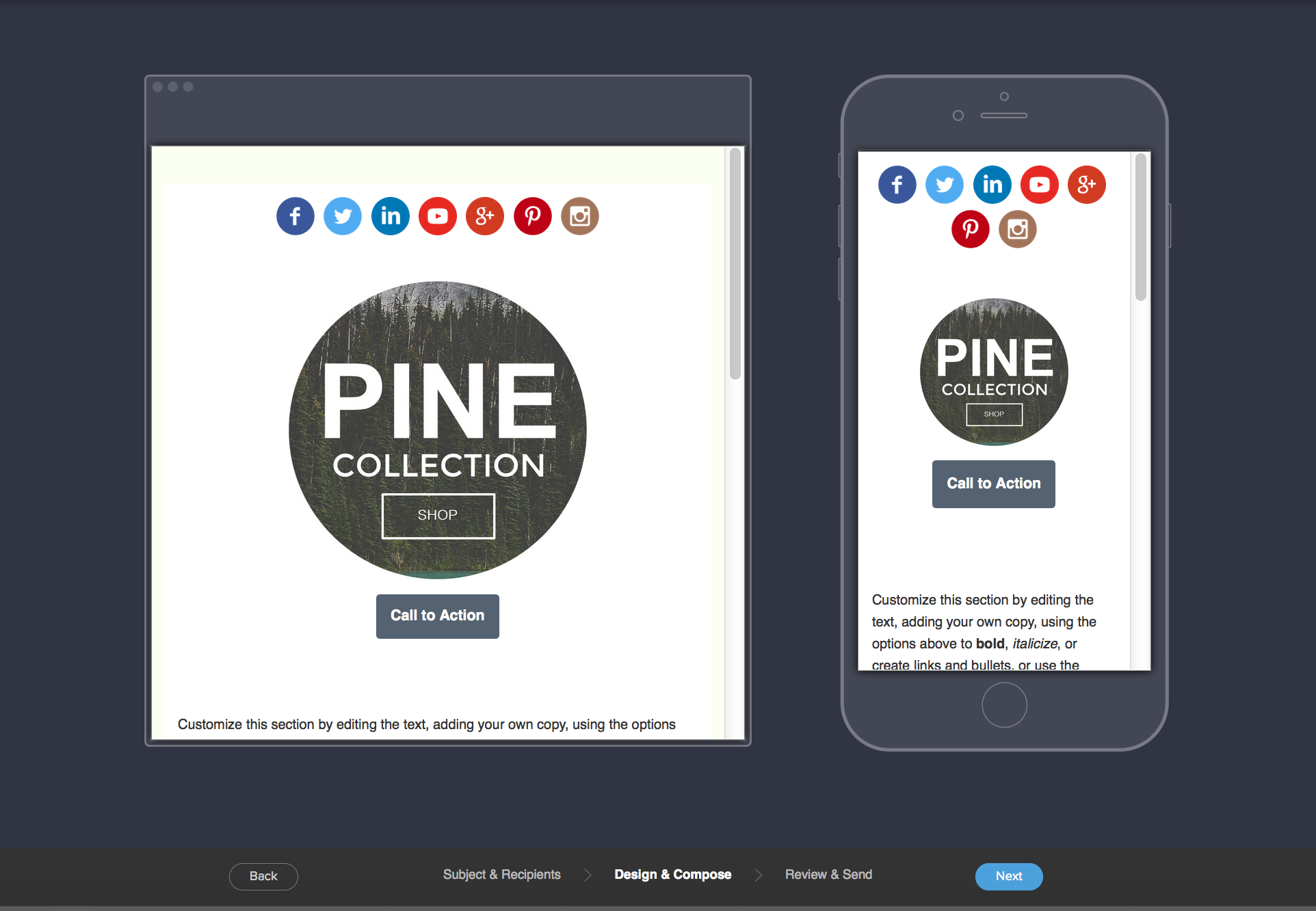
Mobile Responsive Yeah, that’s kind of big in this day and age, right? Well, the new builder produces sexy mobile responsive emails that look good on any device. Oh, and the preview pane shows you how it’ll look on mobile and on desktop. EDIT: I shouldn’t have said “any device”, as pointed out in the comments there are several exceptions.
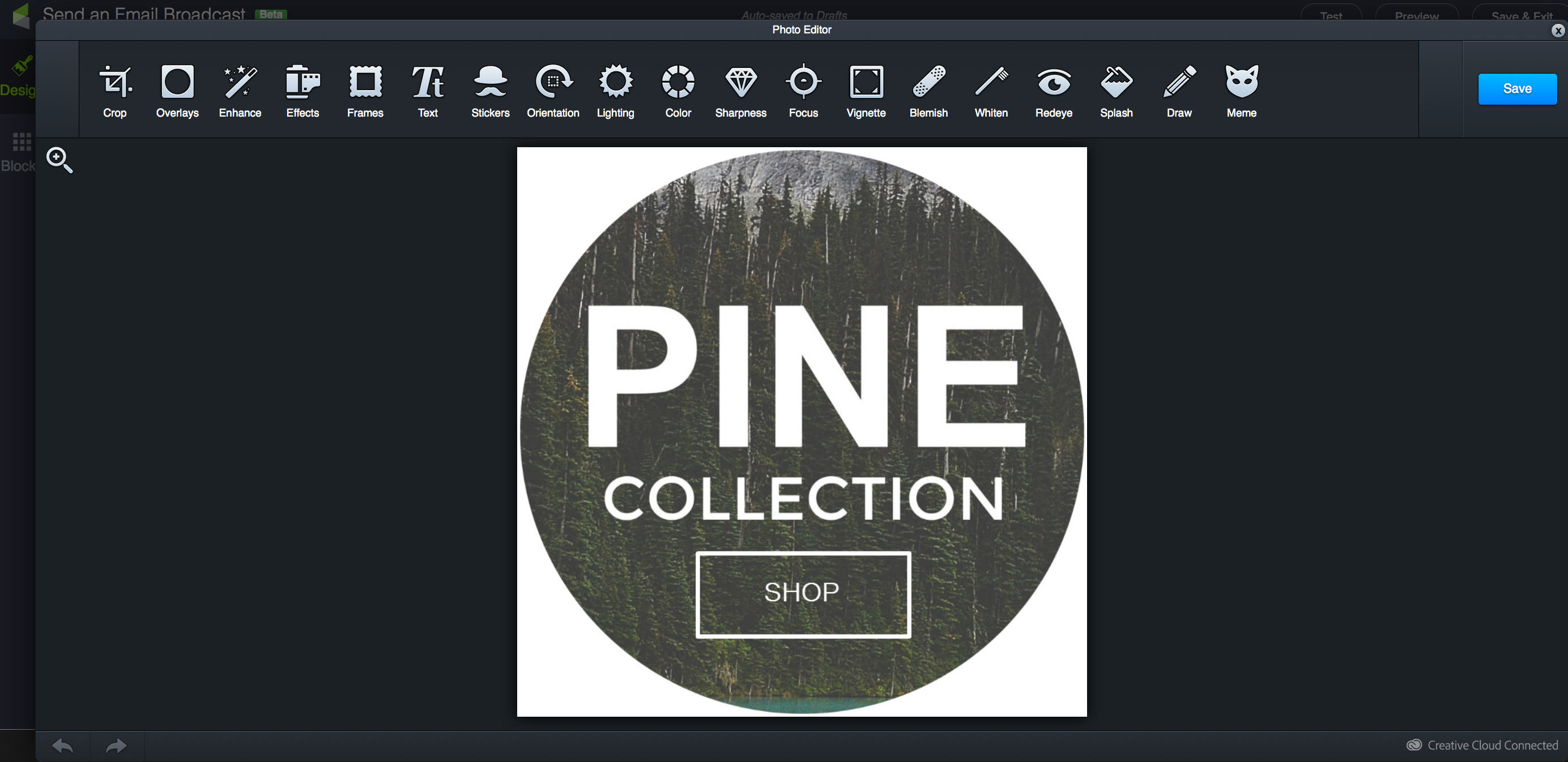
Image Editor Yup. You can upload images directly to the email builder, and then crop them, add filters, or even overlay text. Right from within your email editor. This is something I didn’t even know I wanted. But man, it’s going to save me tons of time and allow me to create beautiful and professional graphics easier than ever. (Don’t worry, there’s a “meme” option)
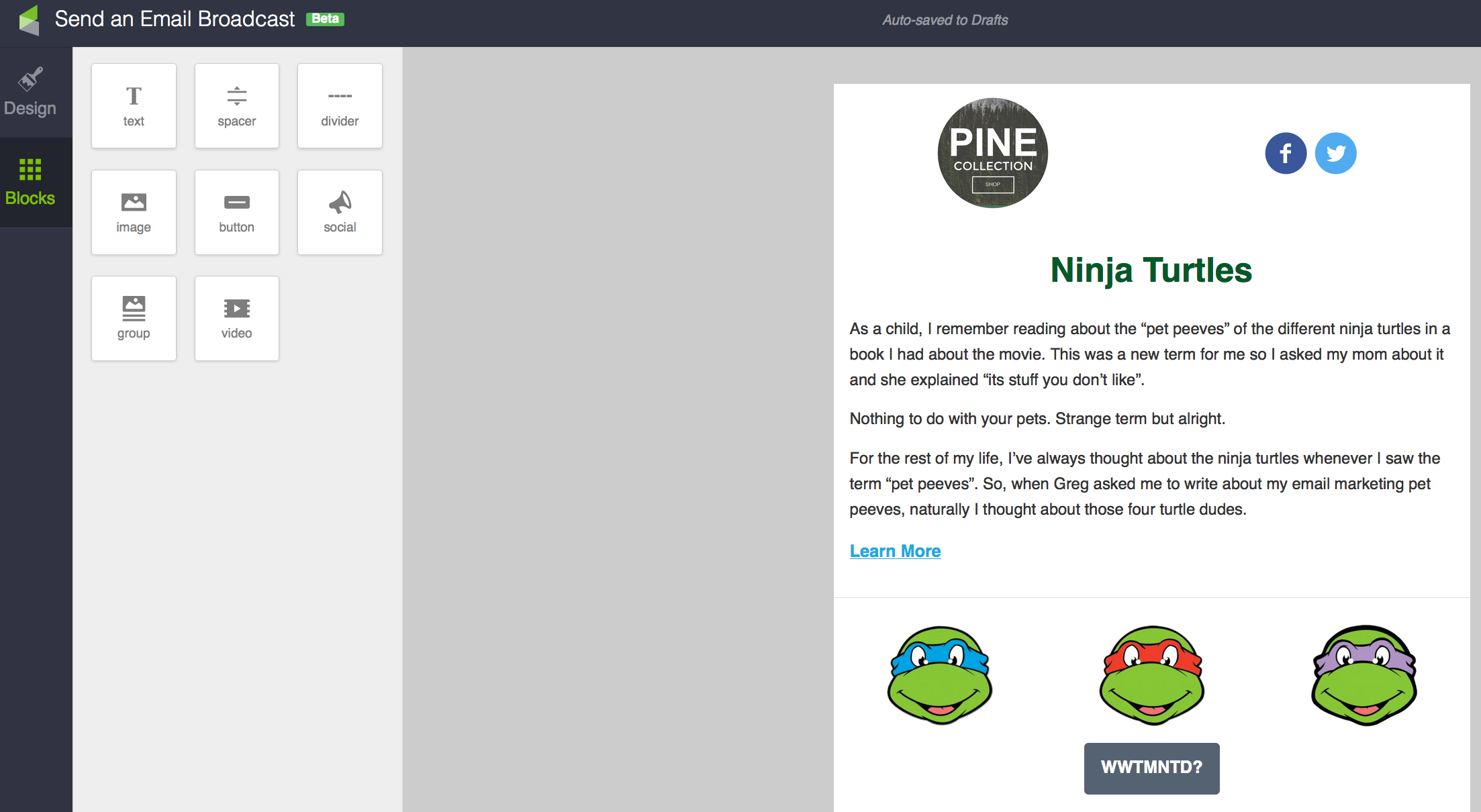
Flexible Multiple Columns So, with the old builder, you had a “body” of the email, and the body either had one column, or two. And if you turned the sidebar on, it was there for the whole email body. It was all or nothing. With the new builder you can now alternate between single column content, and up to three side-by-side snippets.
So, before I dig into the things that bug me about this new builder, it’s important to call out that this is still technically in “beta“, and I think Keap would happily acknowledge that there are plenty of other features they’d love to add to this.Edit: The email builder has experienced many updates since it’s initial release.
My Pet Peeves:
No Campaign Builder (NOTE: Since this article was written, the email builder has now been made available for campaigns) Yup, the new email builder was released to be used in broadcasts only. Obviously this really limits how we’ll be able to leverage it. They know this, and they’re working hard to bring this email design experience to the campaign builder – but it’s not there yet.
Tags on Links Don’t panic, you CAN still apply tags when someone clicks a link. But strangely you can’t create new tags from within the builder. To me this seems like it should have been built in to begin with, but I trust that there are some complexities associated with that which may be over my head. Oh, also, you have to scroll to find the tag you want – there doesn’t seem to be a way to easily search.
Missing Snippets Yeah, there are a few snippets that were available in the previous builder that didn’t make the migration to the new builder – mainly the HTML snippet, the File Snippet and the Signature Snippet. Again – no need to panic, you can still go to the Owner merge fields and merge in the HTML signature, but it’s not a prepackaged snippet. And you can host your file wherever you link, and link to it like a normal link. So these probably aren’t the end of the world for most people, but it seems like they’ll want to add these over time.
Okay, so that’s my take, and it’s probably just the tip of the iceberg. This new Keap Email Builder really is pretty impressive (Kudos to the dev and design team who worked on this). Really you should definitely play with it and figure out what you love or what you don’t love, and you should definitely comment below with your thoughts about it.
You guys know the drill. Infusionsoft releases an update – I write a blog post geeking out on all the new features we have to play with. The February 2016 release is coming out this week, and this update brought the noise and the funk just in time for ICON. Let’s do this. Here are the 4 features I’m most excited about, AND the one feature that I really think they got wrong.
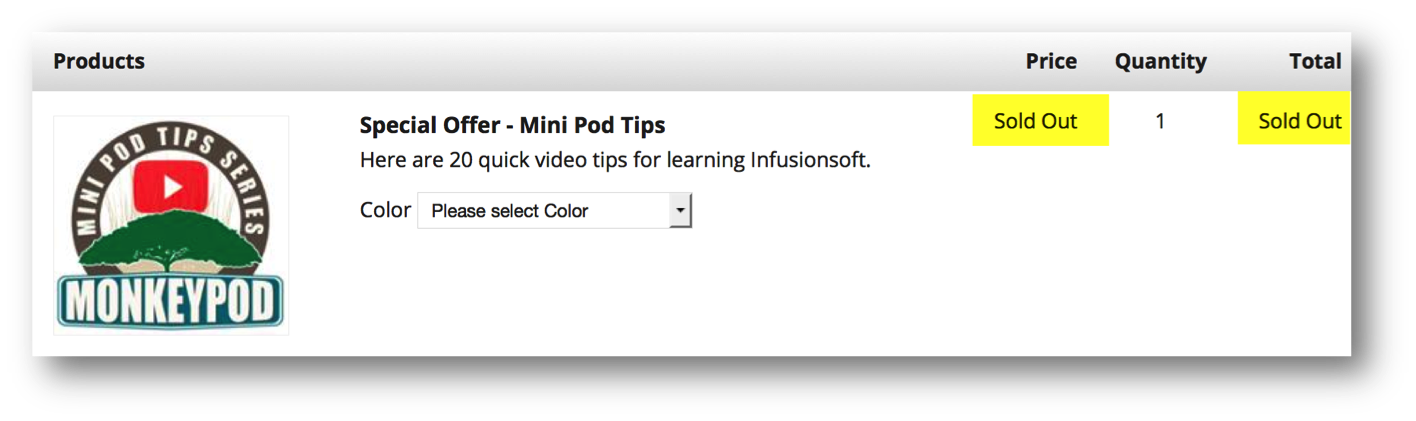
Update #1: Improved Inventory Management What it does: You can set an inventory for your physical products, and when that inventory is reached the product will be marked as “sold out” and Infusionsoft won’t process any additional orders. Why it matters: This is really straight forward e-commerce functionality – but until today, it hasn’t existed in Infusionsoft. Yes, Infusionsoft had an Inventory feature, but very few people actually knew about it or how it “worked”. This was probably the case because it didn’t really work. Basically you were able to set a notification limit and Infusionsoft would ping you when that limit was hit, then you’d have to manually go set the product to inactive to prevent it from being sold. This really didn’t do the trick if you were selling physical goods, or tickets to an event with limited seating.
Pro-tip: Turn this feature on under Ecommerce->Settings, then manage the inventory right from a new tab that appears on the contact record.
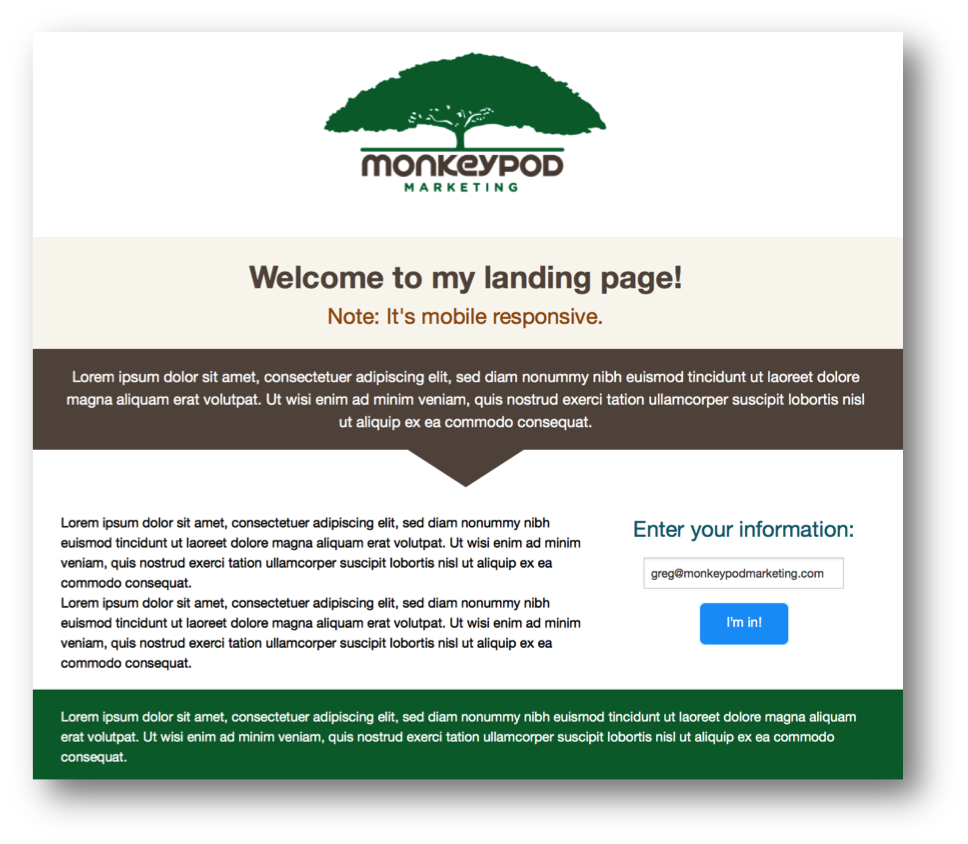
Update #2: Mobile Friendly Landing Pages What it does: New Landing Pages you created will be responsive when viewed on a mobile device. Why it matters: Yesssssss. Finally! I think most people know what this means, but yeah, any new landing pages you build using the Infusionsoft Landing Page builder will now be responsive when they’re viewed from a mobile device. That means that these landing pages have gone from borderline unusable (for a lot of people) to now being a reasonable tool to create a quick and dirty landing page. They’re much better looking right off the bat too.
Pro-tip: The features and sections of the landing page builder have been renamed, so spend a little time playing with the new sections to familiarize yourself with them.
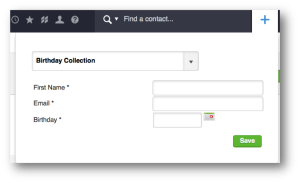
Update #3: Internal Forms available for Quick-Add What it does: You can now access internal forms from the Quick-Add feature in the top right. Why it matters: This matters because now you can quickly and easily add contacts AND trigger automation. Adding contacts has always been harder than it needed to be. That quick-add was a step in the right direction as far as making it easier to add contacts, but now it even goes one step further as it can be tied to automation which will save users lots of time.
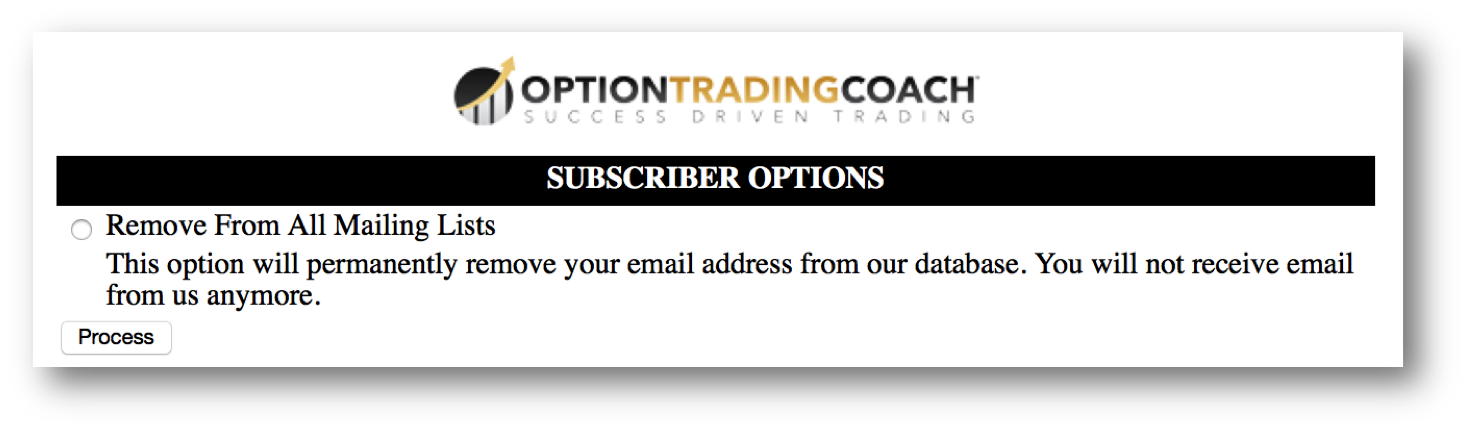
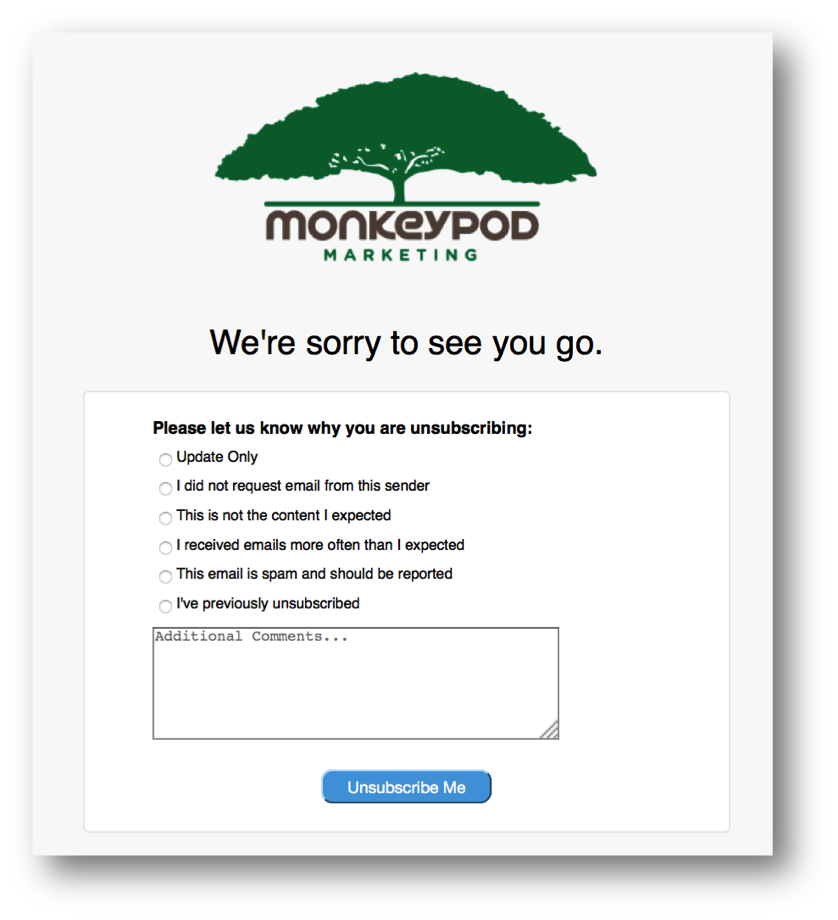
Update #4: New Opt-Out Confirmation Page What it does: They have updated the page that your prospects will see if they click opt-out. Why it matters: This matters because the page before was dated and not very aesthetically appealing. It was “off-brand” and wasn’t consistent with the customer experience anyone wanted to create. Oh, and after the click process – it prompted with “was this email spam?” – and lots of people felt that it was encouraging spam complaints (although to be fair, these would be internal ISP complaints).
Here’s the old opt-out page:
And here’s the new one:
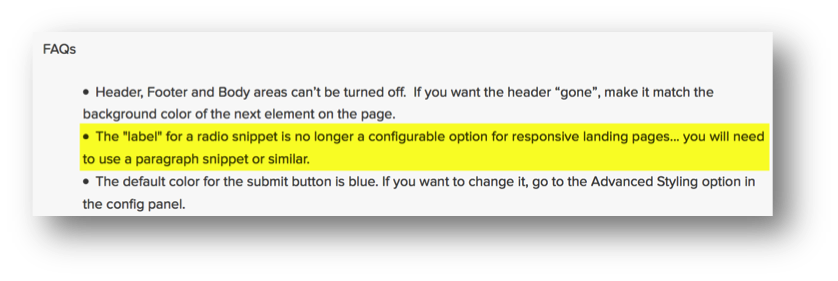
Now that I’ve covered all the things I like, time for me to give Infusionsoft some tough love. If you read the fine print on the FAQs for the mobile landing pages, here’s the bit I’m upset about:They’re effectively removing the label for your radio snippets on a web form. This isn’t that big a deal if the question is “Are you right or left handed?” and the options are “Left, Right, or Ambidextrous”.
But it becomes a much bigger deal if you’re using radio options as survey questions (and I think many of us are). Let’s say you have a survey, and you ask multiple questions, and you ask people to answer on a scale of 1-5, or 1-10. Well, if you have labels, you can tell that they gave your customer service a 9, they gave your sales team a 8 and they gave their payment processing experience a 10.
Without labels, you’d just see that they gave you and 9, and 8 and a 10, but you’d have no context for what they were rating. Here are the three places that radio option labels are most important and why I feel they should revisit this:
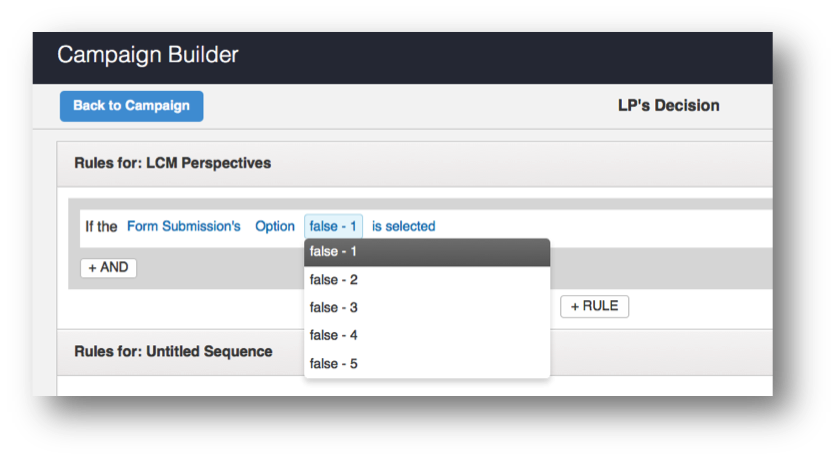
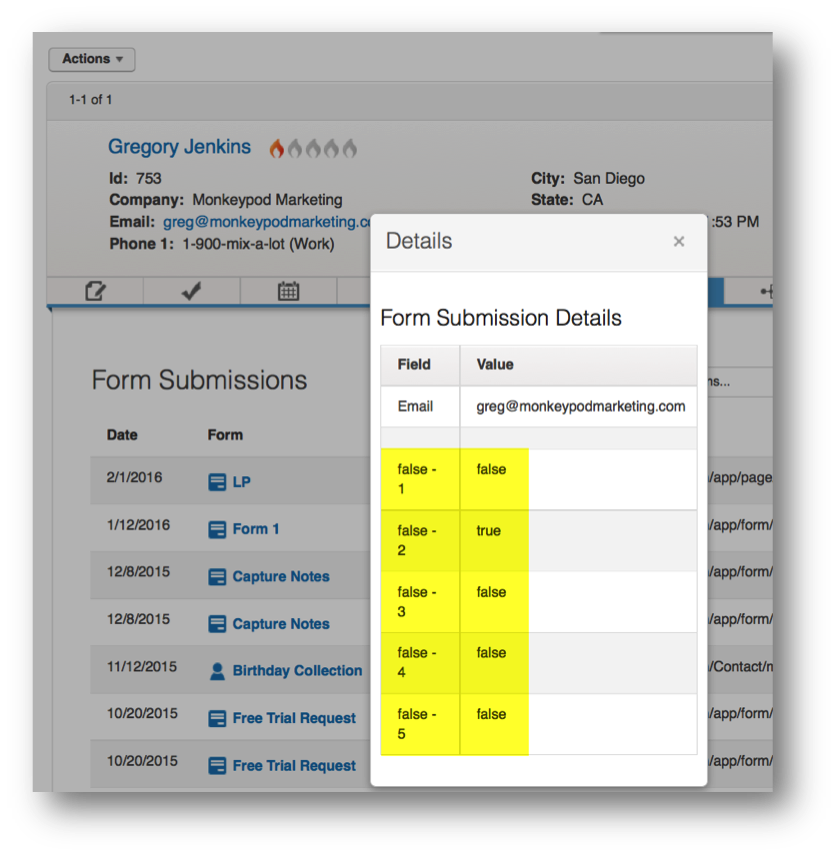
Labels are used when creating rules in decision diamonds. Labels were used to differentiate between the options on a landing page or web form. Without them, it just reads “false”, and as soon as you have multiple questions with the same set of answers (1-5 or 1-10, etc), then you’re unable to tell them apart.
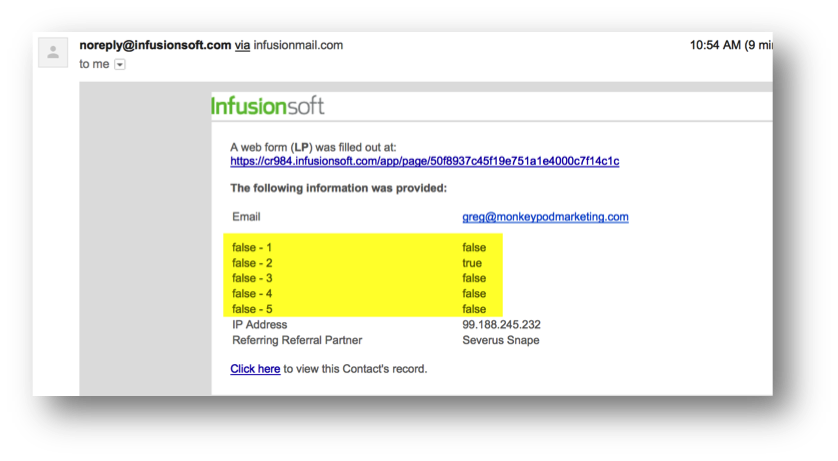
Labels are used in form notification emails – when a form is submitted you have the ability to have a notification sent to you that contains all the information they submitted. Well, without a label, the information that it sends just isn’t as useful.
Labels are also used to help you understand context when reviewing form submission history on a contact record. I’ve noticed that without the label it simply says “False” where it used to say the label to that particular question. Presumably false means that there was no value provided.
Listen, I’m as big a fan of Infusionsoft as you’ll find, but I think they overlooked something on this one, and I trust that they’ll review it, and get it right. But for now, be aware that without labels you may run into some of the issues I just outlined.
Overall, this release was really solid, and I’d encourage you to check out the detailed release notes and FAQs they had on their release page. There are a few features (Partner User designation, Contact-Company creation, etc) that were included in this release that I didn’t break down in this post.
I’ve also heard some rumors that there will be another update in the days following this release that will give everyone the option of using the new mobile responsive Email Broadcast Builder. I’ve been using the beta version of the new builder for a few months now, and it’s sexy and keeps getting sexier. So, you can expect another post dedicated to just that feature once it’s rolled out as well.
I’d love to hear what you most excited about in the comments below!
Have you ever felt that Keap’s reporting was lacklust, or just plain weak? Lots of people have.
I’ve heard that sentiment more than a few times.
It’s clunky, I’ll give you that. But I think that Keap’s reporting is actually much more powerful than most people give it credit for. In fact, I think that in all my years of working with Keap, formerly Infusionsoft, I can only think of three or four instances in which I truly couldn’t find the information I was looking for.
Listen, there are plenty of awesome ways to get information from Keaphere’s one for finding your open rates from campaign builder emails from my friend Brett at Blick Digital.
And if you want something more robust, there are tools like Graphly out there. I’m not trying to undermine or discredit any of the other resources out there, I just want to share a free trick of mine in case it helps you find the information you need faster or easier.
Okay, no more beating around the bush: Tags.
Yup, tags are the secret.
I use tags to give me nearly any number of stand-alone metrics that I want.
“But Greg, I already have a lot of tags.”
No big deal, you’re gonna have a few more.
Listen, you can’t have “too many” tags, you can only have tags that mean something to you, and tags that don’t. If you have tags that aren’t carrying valuable information – then yeah, maybe you should tidy those up. But if you have thousands of tags and they all carry meaningful data, then you’re doing just fine.
Lemme show you how I use tags for reporting by way of an example:
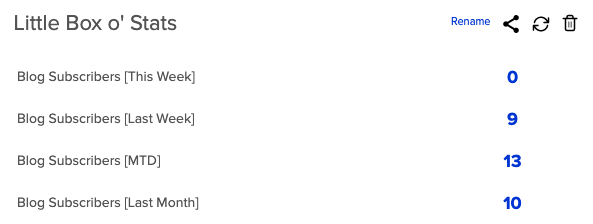
Let’s say that when you log in, you want to know how many sales you made last week. In fact, let’s say you want to know how many sales you’ve made each week for the last four weeks, and you want that data right when you log in, every single time.
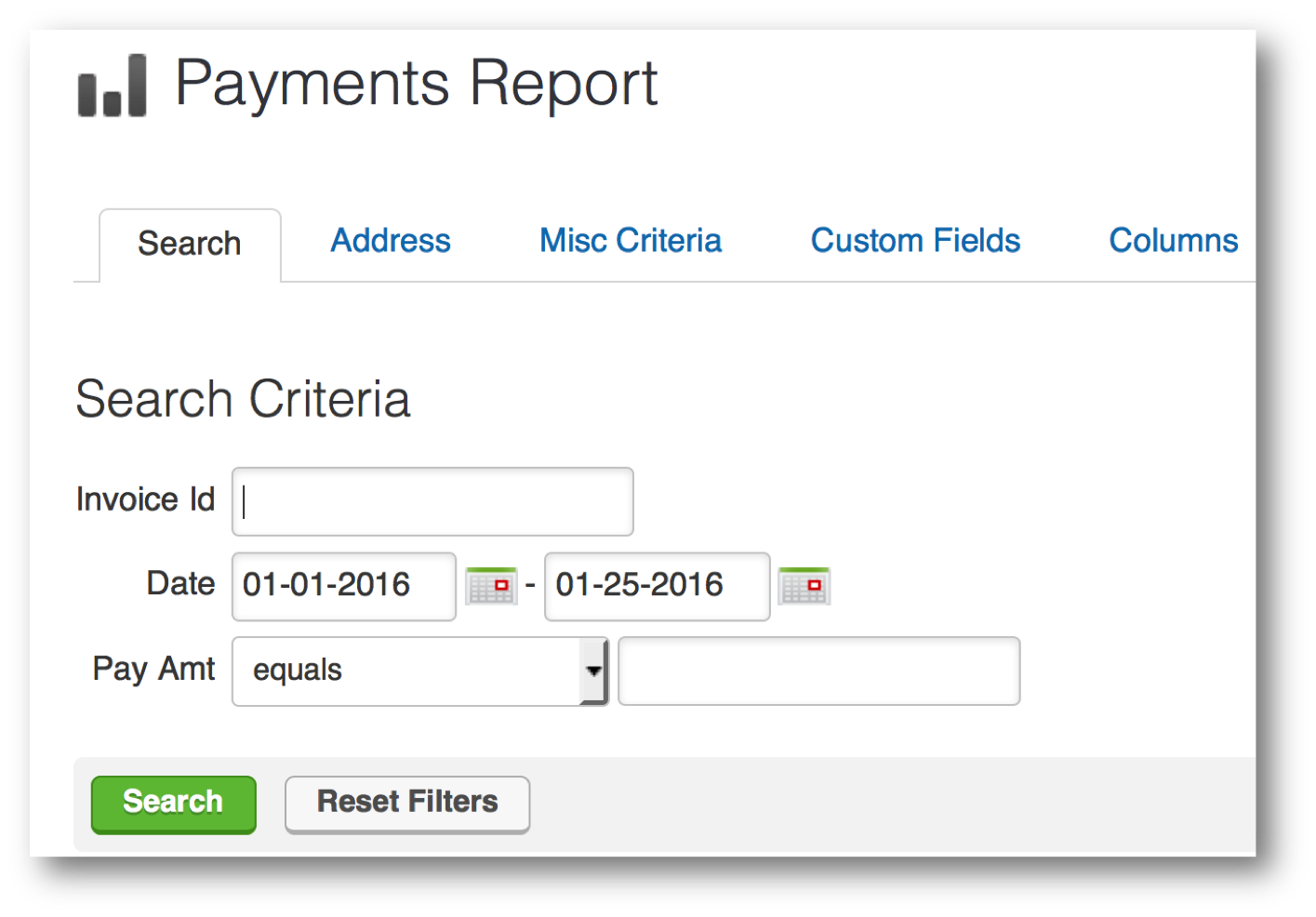
Well, you can use the All Sales Report or Payments Report, but your only date criteria for those reports is a static date range. So, if I wanted to find out how many sales I made last week, or the three weeks before, I’d have to run the report four different times. And even then I still couldn’t save it because the calendar dates are static, and so the reports wouldn’t update, and in a week I’d have to come back in and run another report for the current week. Garbage. Not gonna work.
So, maybe you get a little creative, and you decide to use an Order Search. The orders section allows you to use some different date range logic. Now we’ve got the ability to run searches for any orders and use some dynamic date ranges.
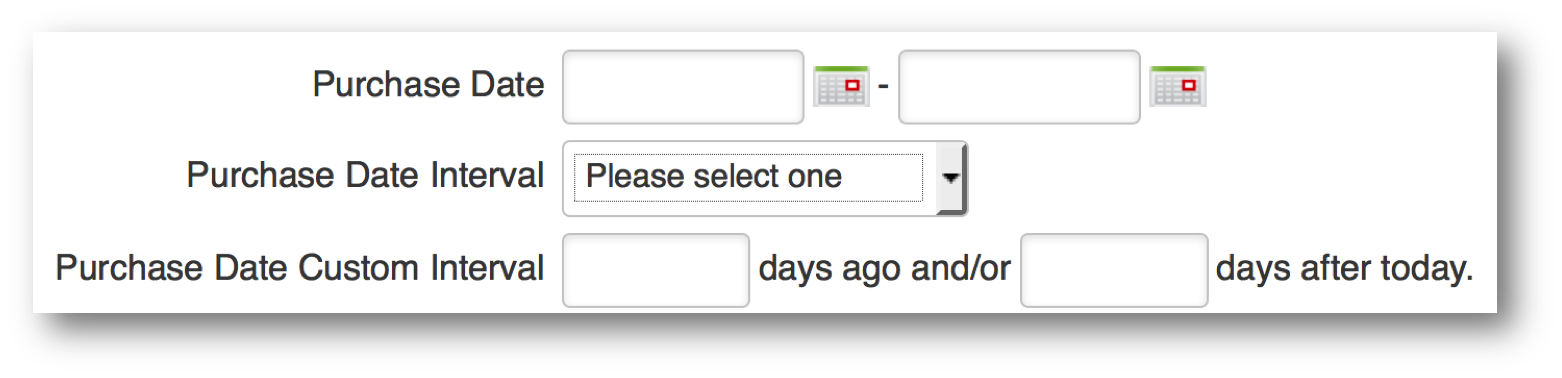
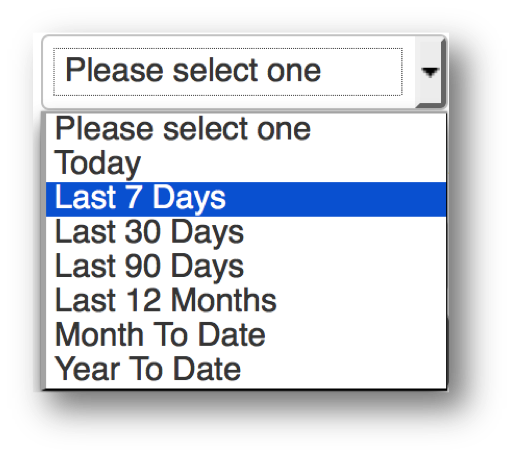
So, this is a bit of an improvement. Now I can use a purchase date interval, and this will always be as it pertains to today. So, I have the choice of selecting Today, Last 7 Days, Last 30 Days, Month to Date, and Year to Date. But, even if you choose Last 7 Days, it doesn’t give you the choice to say Current Week. Or, The Week Before This Week. You can use the third option for date criteria, which is Purchase Date Custom Interval, and that lets you do X number of days ago and or X number of days after today.
Pro-tip: Did you know you can use negative integers in the Purchase Date Custom Interval fields? So, you can say 60 days ago and/or -30 days after today; which will show you purchases made between 60 and 30 days ago.
The Three Timer Types [in Keap]But, it’s still based off of today, and those numbers that you put in are fixed, they won’t adjust based on what day of the week you’re looking at the report, etc.
Conundrum, right?
Well, thanks for sticking with me, because I’ve got your answer. It’s tags. But not tags on their own, ya see, it’s more the strategic application and removal of tags. And the reason most people don’t do this is that they underestimate just how powerful the timers in the Keap campaign builder are.
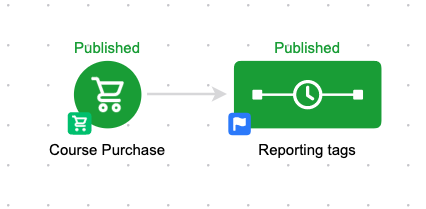
So, if you want to track sales from this week, and sales from last week, and the week before that. Here’s how you do it. Build this campaign:
Okay, before anyone goes anywhere, that’s just the campaign structure – I promise there’s more. But honestly, it is this simple. This campaign is tracking ALL purchases – but you could easily adapt it so that you’re reporting on each of your products independently. Just set it up once, and then decide if you want to clone it.
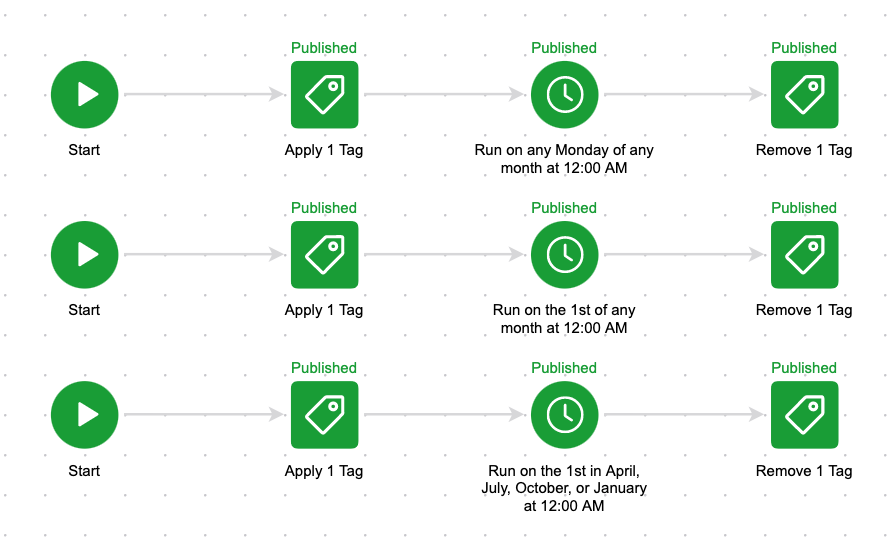
Okay, so, the goal triggers the sequence, and then the sequence is where we manage our tags. Here’s how that looks:
So, when someone purchases it starts the top and the bottom line in this sequence. The top is tagging them as “Purchase this Week” and the bottom is tagging them as “Purchase this Month”.
Then I use timers to wait until the end of the week (Sunday morning at 12 am) and I remove the “Purchase This Week” tag and apply the “Purchase Last Week” tag, and on the bottom I do the same thing – I wait until the start of the next month (12 am on the 1st of any month) and I remove the “Purchase this Month” tag and apply the “Purchase Last Month” tag.
You guys, this isn’t terribly complicated, and I hope that doesn’t disappoint you.
But this tagging structure is so powerful because the timers allow someone who purchases on Monday to have the “Purchased This Week” tag for 5 days, but someone who buys on Saturday only has it for less than a day – it adjusts based on when someone enters the sequence.
The bottom line of logic does the same thing but on a monthly basis – if someone buys on the 5th of the month, they’re going to have the “Purchase This Month” tag until the 1st of the following month (no matter what month it is), but someone who buys on the 28th may only have that tag for a few days before it’s swapped out for the “Purchase Last Month” tag.
So all you need to do is run a saved search for contacts who have the “Purchased This Week” tag, and the “Purchased Last Week” tag and then let the campaign handle the application and removal of the tags so that the contact shows up on the right searches at the right times.
Or blog subscribers this week, vs blog subscribers last week, etc.
This type of flexibility allows you to compare apples to apples – it helps you identify trends in your business, and it gives you powerful data that can drive your marketing decisions. Oh, and if that wasn’t enough, of course these reporting tags can be used in conjunction with your other reports and searches to make them that much more targeted
Think about the metrics you want to track in your business, and start to put together some simple campaign structures to create that data. I’d love to hear any thoughts on this or other reporting tricks you’ve sorted out on your own.
Video Example:
And if you’re looking for specific reports to help you make the most out of your Keap data, here’s a great post on the Novak Solutions blog highlighting five of Paul Sokol’s favorites.
Pro-tip:
The example I’ve used was based on a purchase, but you can use this same tag based reporting set-up to track anything – I also use it for new opt-ins for my various e-books, and to track my blog subscribers as well. Create a tag category of it’s own just for Reporting Tags.
A few months back I wrote two blog posts about the importance of email permission, and the value of designing an email preferences center so that your prospects can tell you exactly what they want and what they don’t. Trust me, they’re more interesting than they sound.
Tactics like this are especially valuable for a number of reasons; but primarily because it helps ensure that your prospects are only hearing about the things they’ve told you they’re interested in, and as a result, your audience will be that much more engaged
Well today I’d like to show you a simple way to take this concept one step further. I’m going to show you how to create an opt-out link for a single sequence, or a single campaign.
Yup, that means if you’ve got 10 emails promoting a special offer of yours, and after email number two the recipient decides it’s just not for them, this will allow them to opt-out of that particular promotion, while still remaining eligible for future specials and promotions you may offer.
It’s actually pretty simple, but most people don’t do it because they’re working hard enough to make the campaign builder function and this takes a little bit of extra planning.
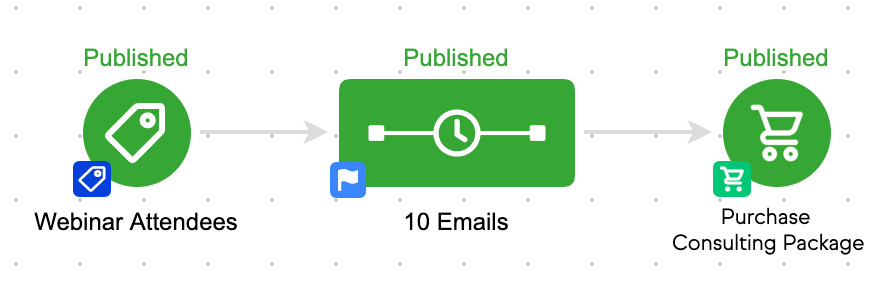
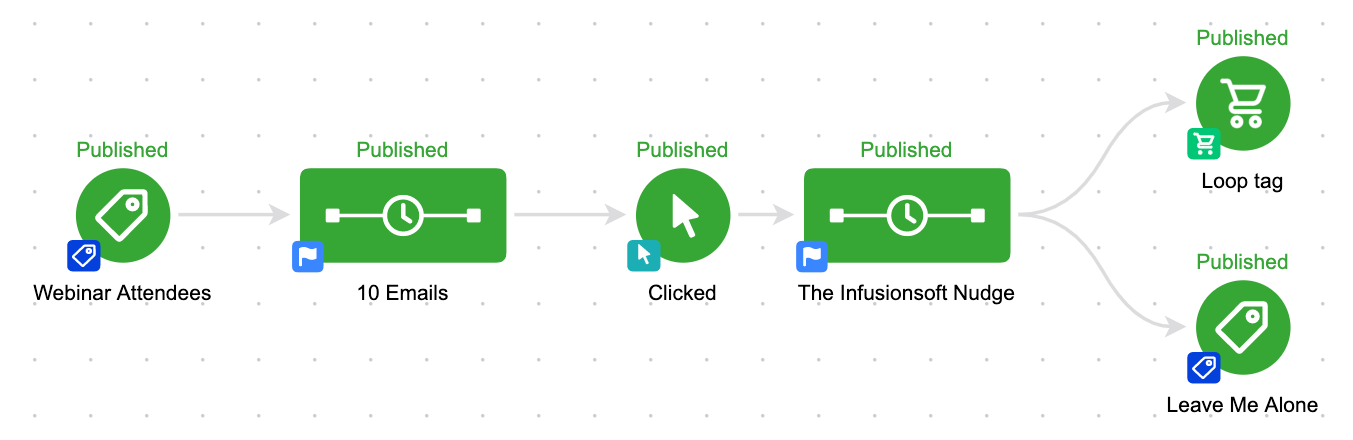
Here’s our campaign – we’re taking everyone who attended our webinar, and we’re driving them toward buying our consulting package.
Pretty straight forward, but in this scenario if someone doesn’t want those emails, their only choice is to unsubscribe completely.
Even if we have an email preferences center, if they express their preferences it won’t pull them out of this campaign.
So what we need to do is something that’s becoming more and more common place in the Keap space – we need to add a “kill switch”.
This usually refers to a goal that you add at the end of the campaign, so that in the case of emergency you can achieve it in order to pull your contact(s) out of the campaign entirely.
But the twist in this case, is that we’re creating a kill switch, or stop trigger, that the contacts themselves can achieve if they decide they don’t want any more promotions.
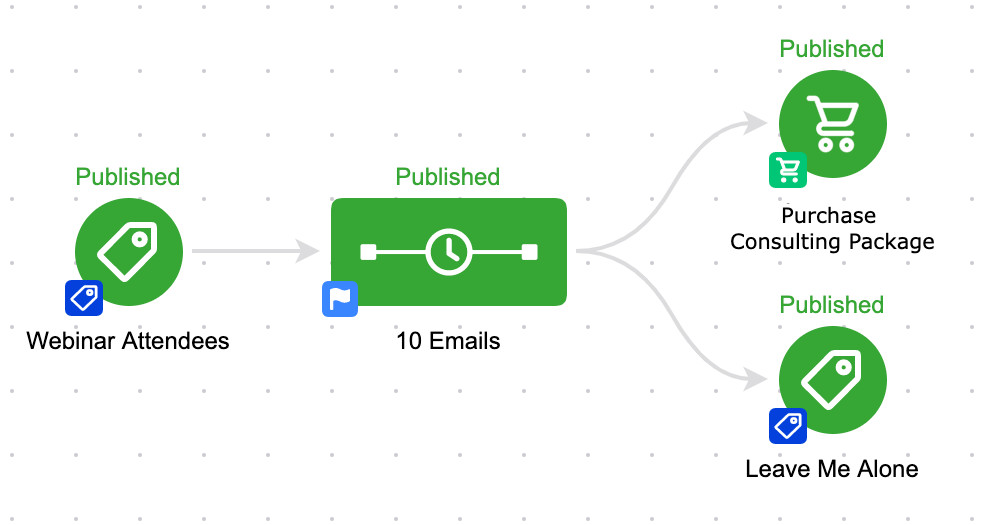
So there it is. We’ve added a second goal (labeled “Leave Me Alone”) listening for contacts who no longer want to be bothered by this sequence – and we’ve configured it to listen for a tag.
But wait…
Where and how does this tag get applied? Glad you asked.
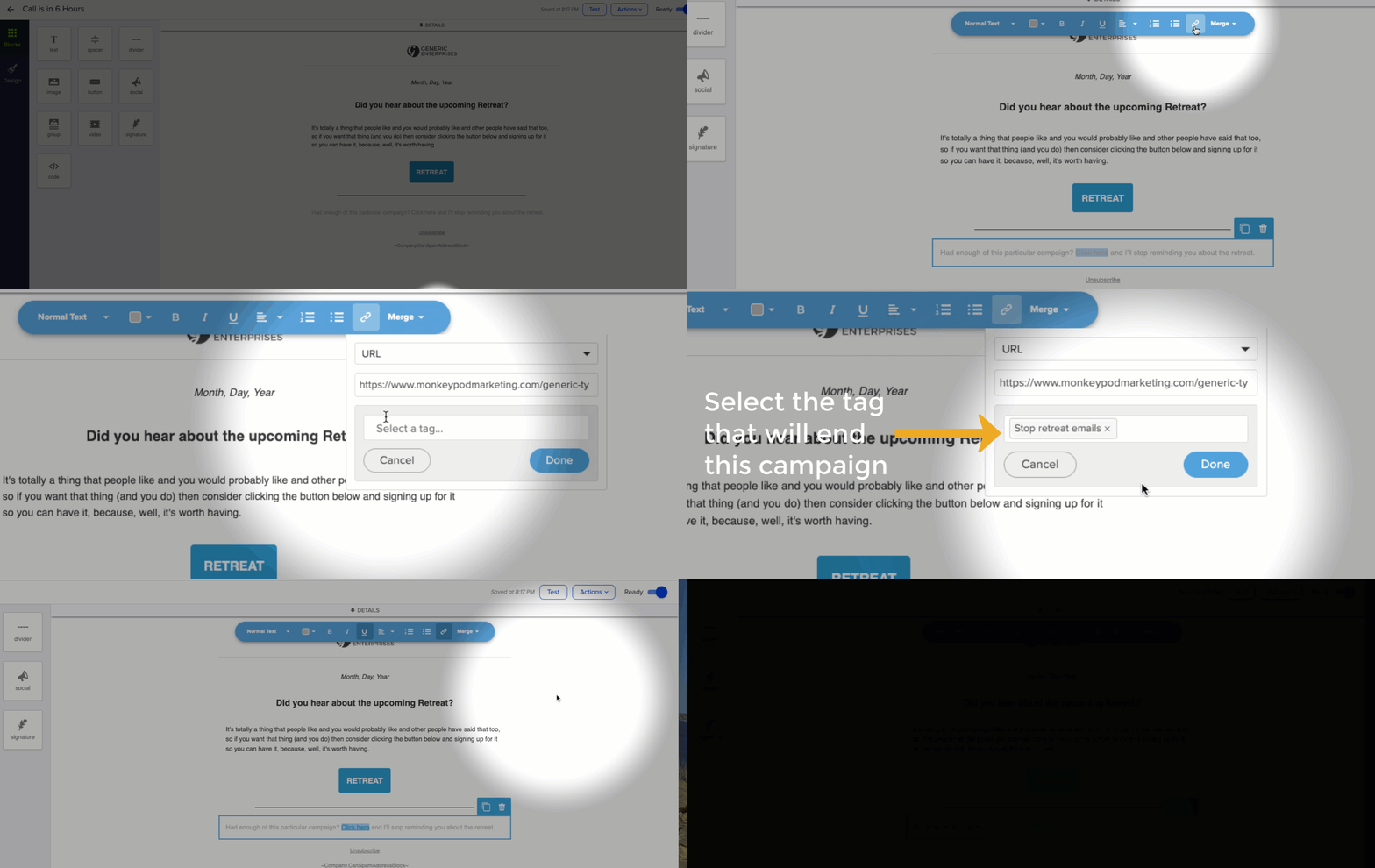
Well, in each of the 10 promotional emails we have to add a link. It doesn’t really matter what the link points to (I usually link it to a generic thank-you page).
But the value of adding this link is that when it’s clicked, we can also apply a tag – and by applying the tag, we then achieve the goal, and pull them out of the campaign.
Yes, you’ll need to create a unique tag for each time you want to set this up. I usually create a category called “Trigger Tags” for things like this.
Now, for those of you reading along judging me because I decided to use a Tag Applied goal instead of using a Link Click goal, let me explain why. Yes, you could use a Link Click goal in the above scenario and it would have worked just fine.
But, what if the campaign was a little more complex?
Good point. Link Click goals can only track links that are in a sequence they are directly attached to.
So, if your campaign was longer, or had a few extra sequences or steps, it’d quickly get difficult to keep everything organized. Like, let’s say you have been paying attention and you decided to include The Keap Nudge
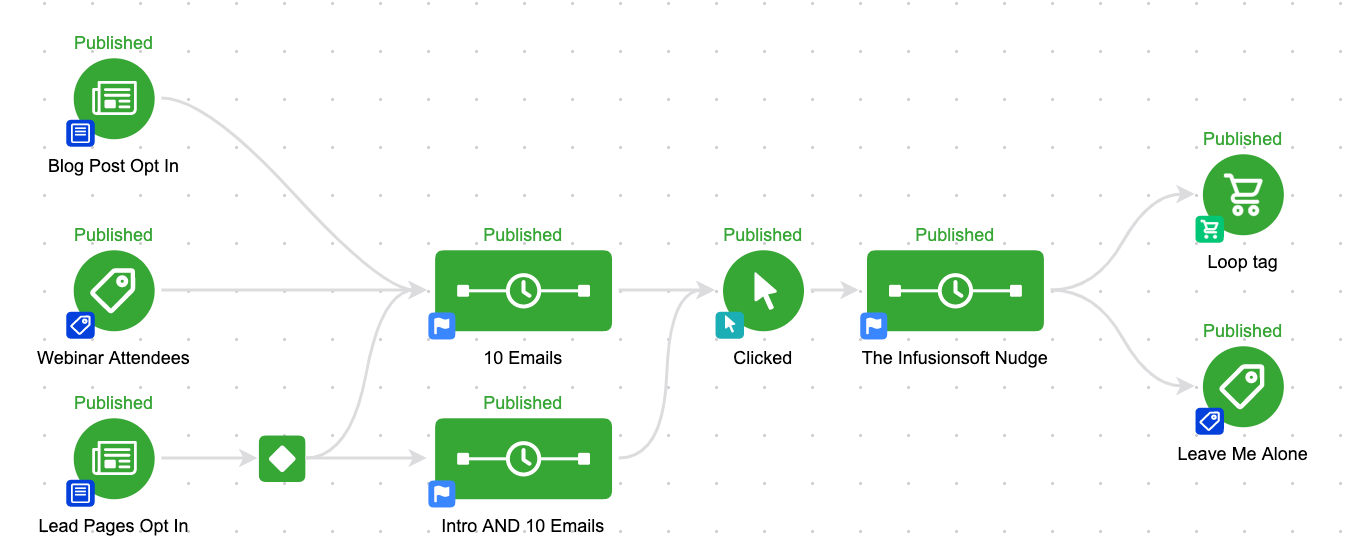
Or maybe you’ve got a much more complex campaign, and multiple paths and entry points.
You contacts could be in either of the email sequences, and if they get tagged they’ll jump right to the “Leave Me Alone” goal, and they won’t get another email from this campaign at all.
As you might remember from Campaign Builder Gotcha 1: When a goal is achieved, by default, it will stop anything upstream from it. Even if it’s not directly connected.
The challenge in remembering this is that some goals (task, link click) can only measure or track the sequences to which they’re directly connected.
So, how do you use this? Well, I use this in pretty much all of my nurture campaigns. If you opt-in to learn about one of the courses on using Keap or the OG Membership, I have educational nurture sequences in place – but you’ll also notice that I give you the option to remove yourself from that process if it’s not providing value to you, without removing you from my blog updates list – or whatever else you may be getting from me.
More of a visual learner? Check out this quick video:
In the very near future Infusionsoft will be releasing their January 2016 update, and along with it a handful of features that I’m pretty excited about. Now, some of these are small, but for those of us who use Infusionsoft all day long, these can be massive time savers. I wanted to take just a few minutes to preview the four biggest changes associated with this release, and why these updates matter to you.
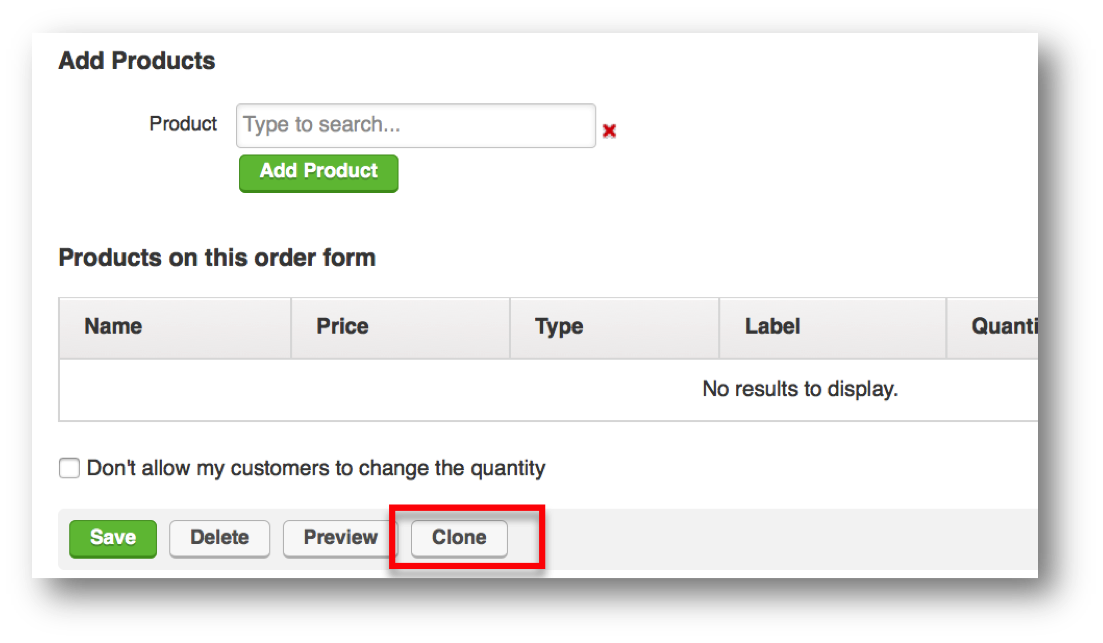
Update #1: Cloning Order Forms What it does: You’ll be able to clone order forms you’ve created with the click of a button. Why it matters: Previously, each time you created an order form you had to start from scratch. Now you’ll be able to quickly and easily duplicate order forms. This will save you the time of copying and pasting HTML from one form to another, configuring products and labels, or recreating thank you pages. I know, this probably should have been included from the get-go, but it’s here now.
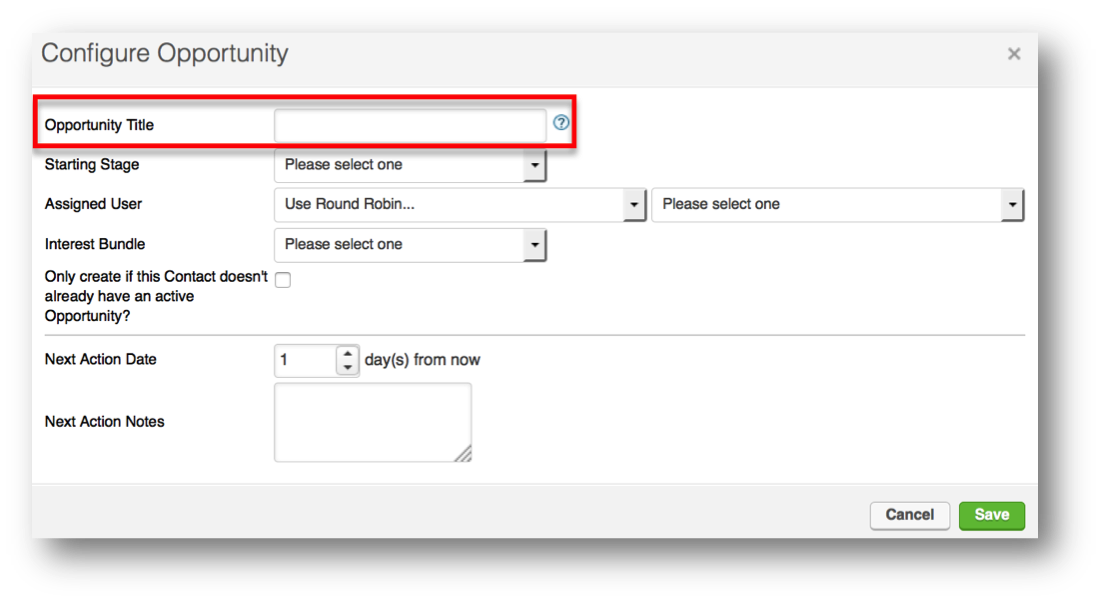
Update #2: Set an Opportunity Name What it does: You’ll now be able to set a static value as an Opportunity name when it’s generated in the campaign builder. Why it matters: Previously, the opportunity would be generated but would default to the company name. Now, you can designate where or why the opportunity was created, or for which product, which will dramatically help with opportunity searching, reporting and management.
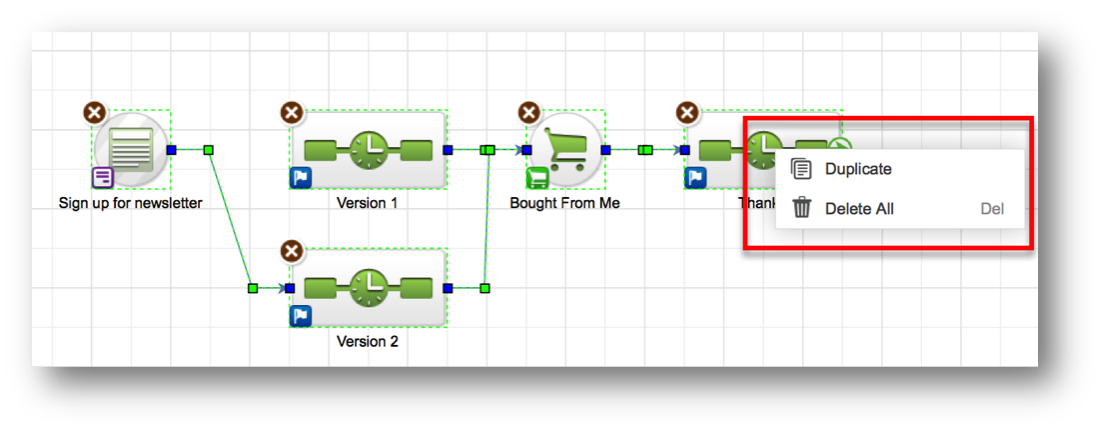
Update #3: Copy and Delete Campaign Items What it does: Well, you can easily copy and delete campaign items, individually or en masse. Why it matters: Yes, you’ve been able to do both of those things before, but not like this. Copying things was tricky – it took multiple clicks, and you have to have the order just right; in fact, some people didn’t even know you could do it. And deleting things has only been available for individual items. Now, you can easily duplicate groups of items, or, highlight and delete multiple icons. Caution: This could burn you if you delete more than you intend to.
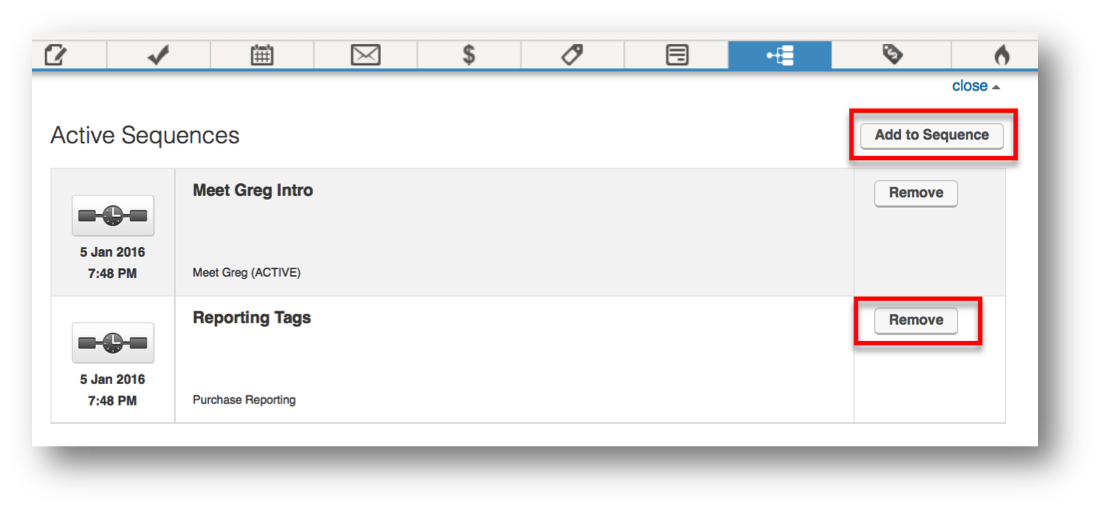
Update #4: Add to Sequence/Remove from Sequence What it does: From the contact record, you can easily add contacts to, or remove them from, sequences without needing to achieve a goal. Why it matters: Yes, you could do this previously with the actions drop down menu, but now you can interact with contacts right from the campaigns tab on the contact record. To be able to see what campaign sequences they’re currently in, add them to new ones, or remove them from unnecessary ones; this will make our lives so much easier. Note: This is only for interacting with individual contacts. If you need to do this for a group, you’ll still use this method.
All in all, this update isn’t groundbreaking, but it is really nice. All of these updates will make things incrementally easier on a day-to-day basis. I’d love to hear which of these update you’re most excited about below!

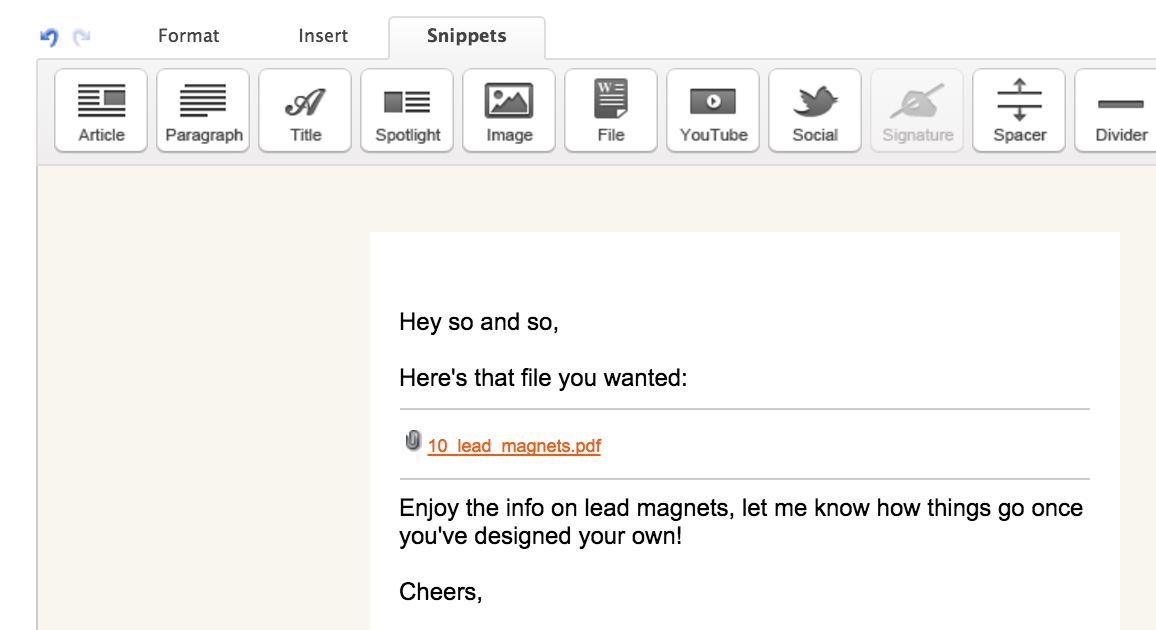 Personally, that’s never been a deal-breaker for me. The file snippet may not be super pretty, but it always did the job. In fact, I’ve even made an effort to continue using it because I try and limit the “hacks” I leverage, to make it easier in case someone wants to follow along. Well, with the recent unveiling of the new Email Builder, there are a few of those snippets that aren’t available. And the file snippet is one that has gone missing. EDIT: The “new” email builder has had a number of updates since it was released, and the new builder can now easily support linking to files and attachments. It’s left a lot of Infusionsoft users asking:
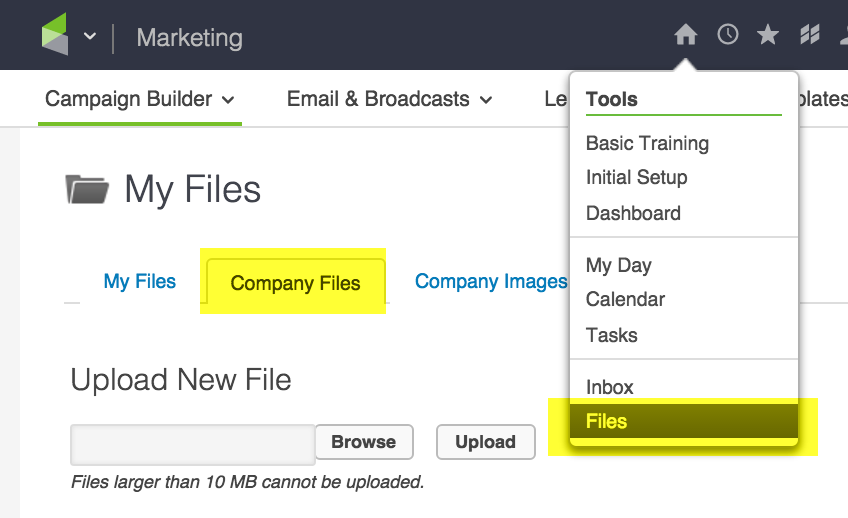 3. If you right-click on the file you want to use, you can select “Copy Link Address”.
 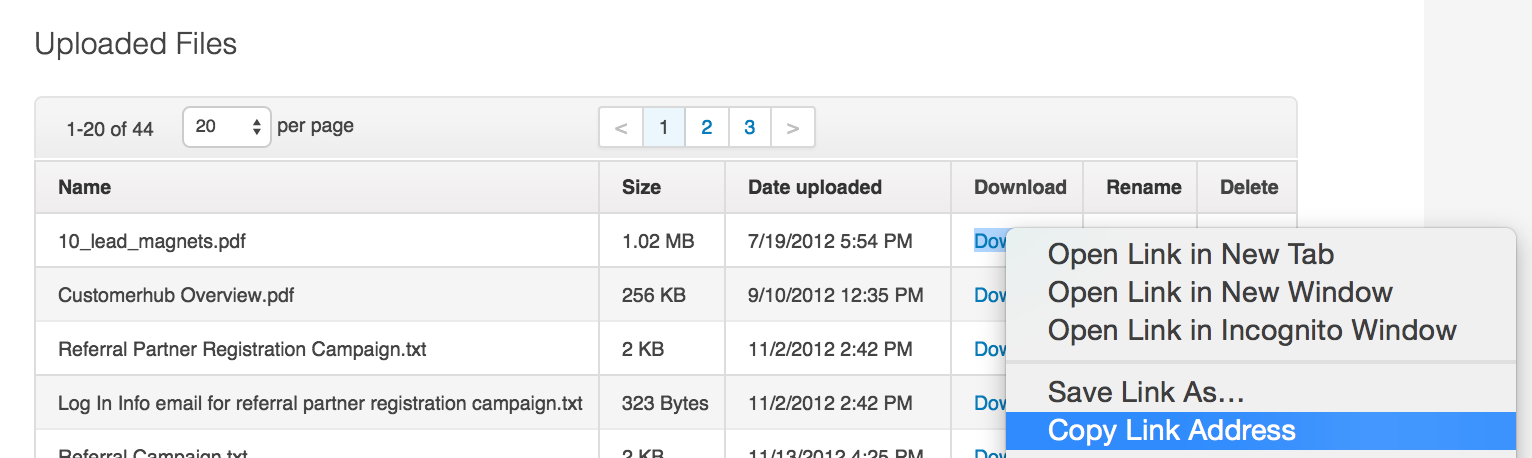 4. Then, you can use this URL as the destination for any link you add to any of your emails, and format it however you like.
 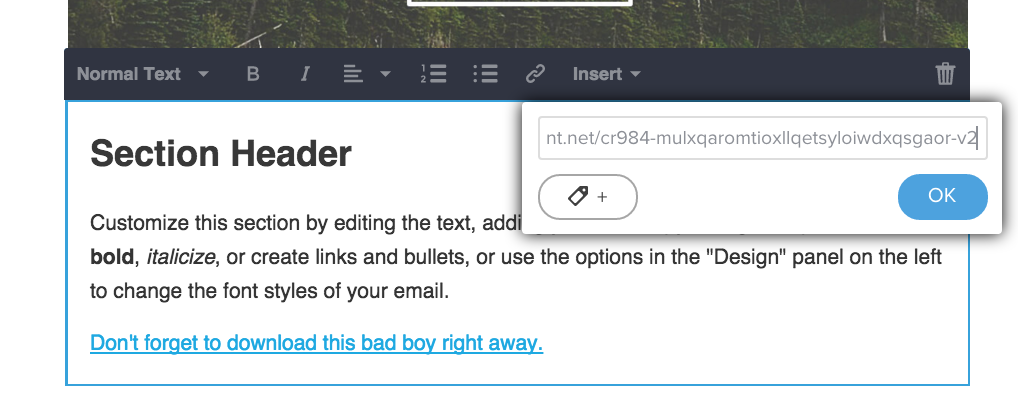 So, to reiterate. Problem: The file snippet is was clunky, difficult to format and