7 Easy-to-Implement Tactics to Increase the Effectiveness of Your Next Campaign

7 Easy-to-Implement Tactics to Increase the Effectiveness of Your Next Campaign

profile-roundHey blog reader, it gives me great pride to publish this post because it’s written by my good friend Brett Farr. Brett and I were in the same hiring class at Infusionsoft in March of 2012. Brett, like many of us, is a self professed digital marketing nerd. He’s also an ASU Marketing graduate (Go Devils!) and was honored to be the TIME person of the year in 2006.
He is half Australian and while he grew up on an island in the Caribbean he now calls the Arizona desert his home.
Honestly, Brett knows his stuff. I strongly recommend checking him out at Blick Digital. This article is packed with powerful small tips that can have an immediate impact on your marketing efforts. Enjoy.


7 Easy-to-Implement Tactics to Increase the Effectiveness of Your Next Campaign

I’ve only included items here that are easy to implement in your next Infusionsoft campaign. Most take no more than 2 minutes to implement. The goal of these 7 tips is to help boost your next campaign’s performance. These tips come ‘from the trenches’ of using Infusionsoft day-in and day-out for several years with a number of clients. These are small tactical tips, not strategic. If you’re looking for a strategic approach to building campaigns, take a look at this article.


1. Use the momentum of the thank you page
There is no better time to ask your prospect to do something than after they’ve submitted a form or opted into your list (whitepaper, webinar, guide, etc). There are all sorts of psychological reasons behind this, but the main thing here is that you continue the forward momentum on the thank you page. I’ve seen too many thank you pages that say, “Check your email for…“. Seems boring, right?


Utilize this page to make sure they’re following you on social media, joining your community or ask them to tell you a little more about themselves so you can market to them more effectively. Paul Sokol even emphasized this in his first point here.


Pro tip: You can consider offering a low-cost, high-value product to see who’s really willing to spend money with you. Although this step might require more than my promised ‘2 minutes’.

2. Remove the “Having trouble viewing this email?”
By default, Infusionsoft has a snippet at the top of your default email called ‘Having trouble viewing this email?’ Move this handy snippet to the bottom of your email or delete it all together if your email isn’t image-rich. By not moving it, your prospects and customers will see that little piece of text in their preview pane for several major email clients, including Gmail and Outlook.
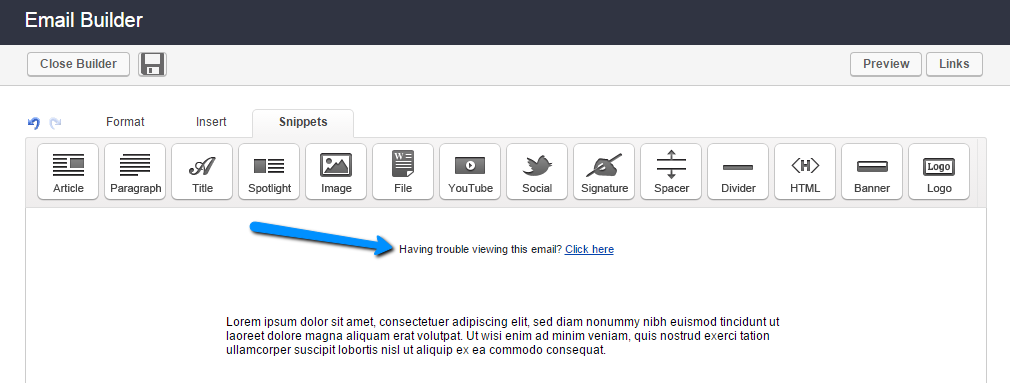
 

having trouble viewing


3. Personalized email after a link click
I believe my good friend Greg calls this the Infusionsoft nudge. If your campaign has any emails with calls to action that lead to a web form or product purchase, I highly recommend including a ‘Link Click’ goal with a 30 minute delay timer and a follow up email to ask why they haven’t completed the action yet. It could be something as simple as, “Can I help answer any questions? Just reply to this email.” I’ll usually make sure this email is plain and non-branded as if I was writing the email from my Outlook account. When done properly, this one can have huge impact. See this article for more specifics.
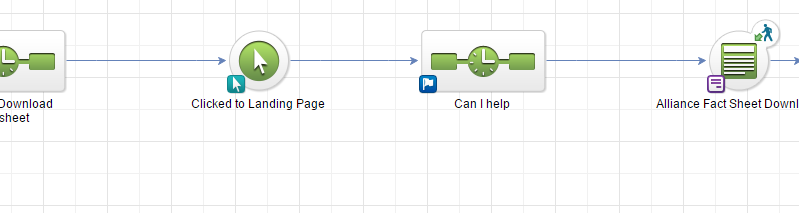
 

Infusionsoft nudge


4. Occasionally insert first names into the subject line
This is a good way to boost open rates, but it’s a two-edged sword. Do it too often and it can start to annoy your email list. Use this sparingly for important emails with specific calls to action (I know, every email is important, right?).


5. Insert day of the week 
If your email is part of an automated follow up, you can make it a bit more personal by using an Infusionsoft merge field called ~Date.DayOfWeek~, which inserts the day of the week that the email was sent. This allows you to write something like “Hope you’re having a good Tuesday” instead of just “Good morning to you.” You can also use this for the current month and current year. I’ve seen this work for long-term follow up where an automated email is sent to the prospect with a message like, “You said it would be good to follow up in ~Date.Month~ (current month)“.
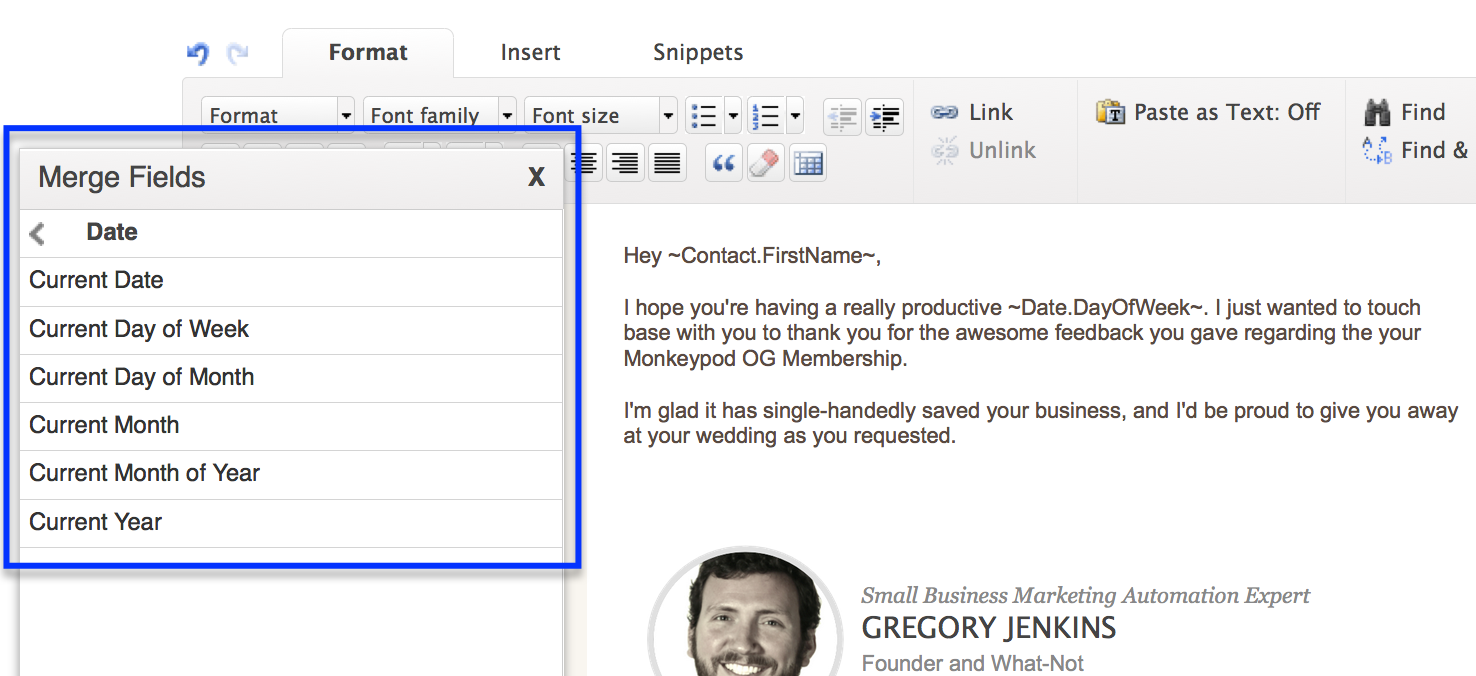
Merge_Date

6. Have emails come from an actual person, not the business name
This one is pretty straight forward, but I’ve seen emails have a better impact when they’re sent from an actual person and not the business name. People do business with people. Not every situation is the same and this might not be appropriate for your business, but sending from someone’s name instead of from info@ or support@ will help increase your email opens.


7. Make sure there are no ‘image-only’ calls to action
Sometimes you’ll have a button in your emails that is your main call to action. The issue with this is that if the images don’t auto-load in the recipients email client, your call to action will be missing. This happens when you see the option “Click here to download images”. If your company does mostly image button calls to action, make sure to include a small snippet of text below it that they can click on. See image below:
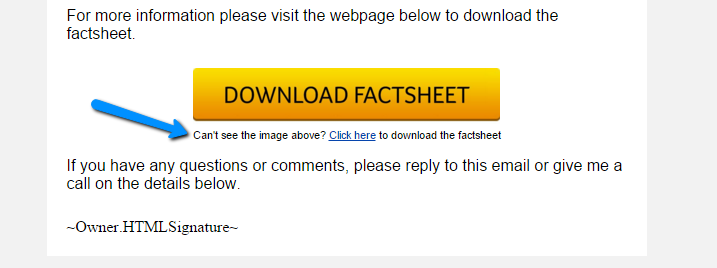
 

call to action


Looking for more ideas for your campaigns? I release ideas just like this all the time over at the Blick Digital Blog. Click here to stay up to date.

Thanks for reading, let’s connect: Leave a comment below or reach out on Twitter – @bmfarr.
Decision Diamond Hack

Decision Diamond Hack

Part of what makes Infusionsoft so powerful is your ability to be laser targeted with your communication. You can leverage not only what the person has told you about themselves, but also the actions they’ve taken. By using demographic and psychographic information you can really dial in on what might be of interest to a person.

And, naturally, the more targeted your communication is, the more impactful it will be.

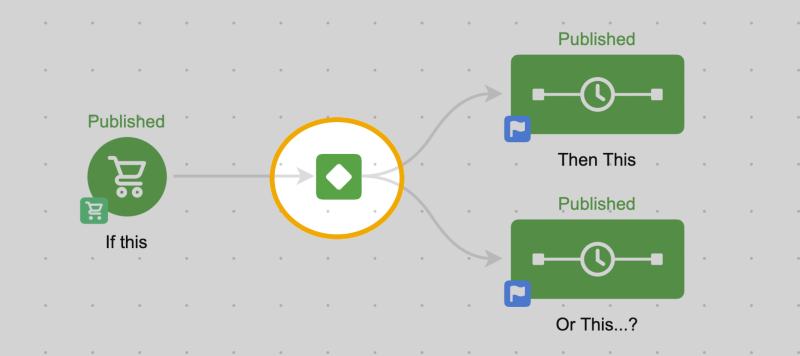
When you’re using the campaign builder, this type of segmentation is primarily done through using decision diamonds. A decision diamond, or decision node, appears on the campaign canvas when Infusionsoft decides it needs some logic in order to progress.

Decision Diamond Spotlight

In other words, if you give Infusionsoft two paths, it’s asking “When do I send them where?”

The beauty of the decision diamond is that because you’re setting it up, you get to define the rules. It’s not arbitrary. It’s very much the opposite. You get to predict the potential scenarios and script the various outcomes you’d like to happen.

This allows you to be really detailed in your messaging because you know the exact set of criteria that a contact must have met in order to be receiving particular messages.

But, the decision diamonds aren’t exactly user friendly. In fact, they’re one of the more complex elements in the application.

That’s why I have this robust blog post answering seven important questions about using them.

As you build rules you’re expected to use logic statements, and time and time again I’ve seen these types of rules trip people up. Let’s look at an example…

If you make the following rules:

Rules for Sequence One
If Contact’s Tags doesn’t contain TAG A or TAG B or TAG C or TAG D.

Rules for Sequence two
If Contact’s Tags contains TAG A or TAG B or TAG C or TAG D.

On the surface, these rules look like they’d be opposites. If they don’t have any of the tags they go into sequence one, and if they do have any of them they’d go into sequence two, right?

Wrong. This is a real scenario posed in the community forum, and graciously answered by Infusionsoft Developer Mike Daniels.

The way the first rule actually breaks down is like this:

If Contact’s Tags doesn’t contain TAG A…
OR If Contact’s Tags doesn’t contain TAG B
OR If Contact’s Tags doesn’t contain TAG C
OR If Contact’s Tags doesn’t contain TAG D

It’s as if they are four separate rules. And therefore if the contact is missing any of those tags, then they would go into the first sequence.

So, because you’re saying “doesn’t contain” it means you need to use AND instead of OR.  The new rules would look like this:

Rules for Sequence One
If Contact’s Tags doesn’t contain TAG A and TAG B and TAG C and TAG D

Rules for Sequence Two
If Contact’s Tags contains TAG A or TAG B or TAG C or TAG D

Anyway, the logic statements are a little confusing, and I’ve seen some really bright people get tripped up by this stuff. So, that’s where today’s post comes in. I’ve got a little hack for you that my colleague Paul Sokol has elegantly dubbed Cascading Logic (Originally I called it “Strung Out Logic” which makes it sound more like a junkie drug addict and less like a useful strategy…).

So, here’s how it works. Basically, you take what would be a complex decision diamond and you break it down into multiple simple decision diamonds. In a row.

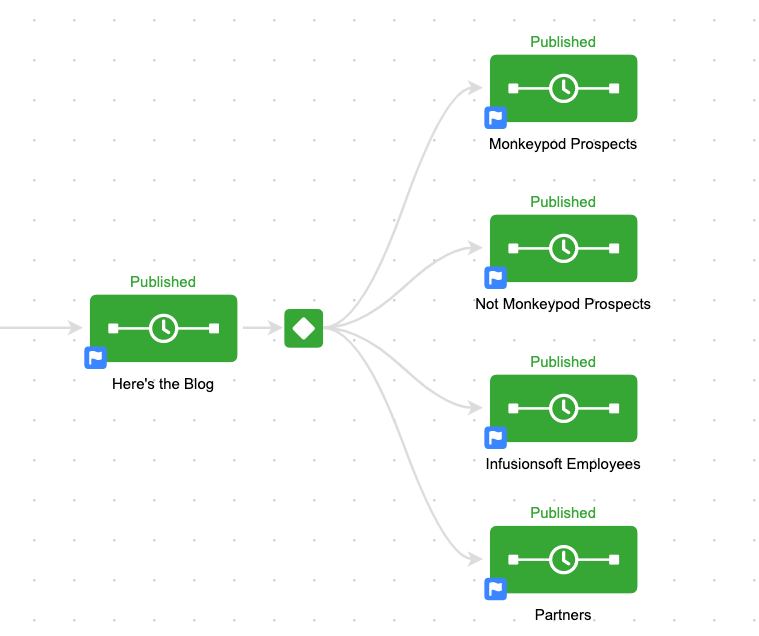
This first occurred to me as I was building the teaser campaign I used to introduce Monkeypod back in May. Basically, after I announced the blog, I wanted to set expectations about what was next for everyone. But based on the relationship I had with them or the actions they had taken, I wanted to speak to them differently. This is how it would have looked:

Infusionsoft Decision Diamond symbol with other elements
Decision diamond in Infusionsoft

Pretty straightforward, right? I’ve got four categories: Monkeypod Prospects, Not Monkeypod Prospects, Infusionsoft Employees, and Partners.

But the challenge I was running into is that I only wanted people to end up in one of the four buckets.

So, my rules would have quickly gotten complex with things like “Send them here if they have the Uses Infusionsoft tag, but only if they don’t have the Infusionsoft Employee tag, AND if they don’t have the Infusionsoft Partner tag”.

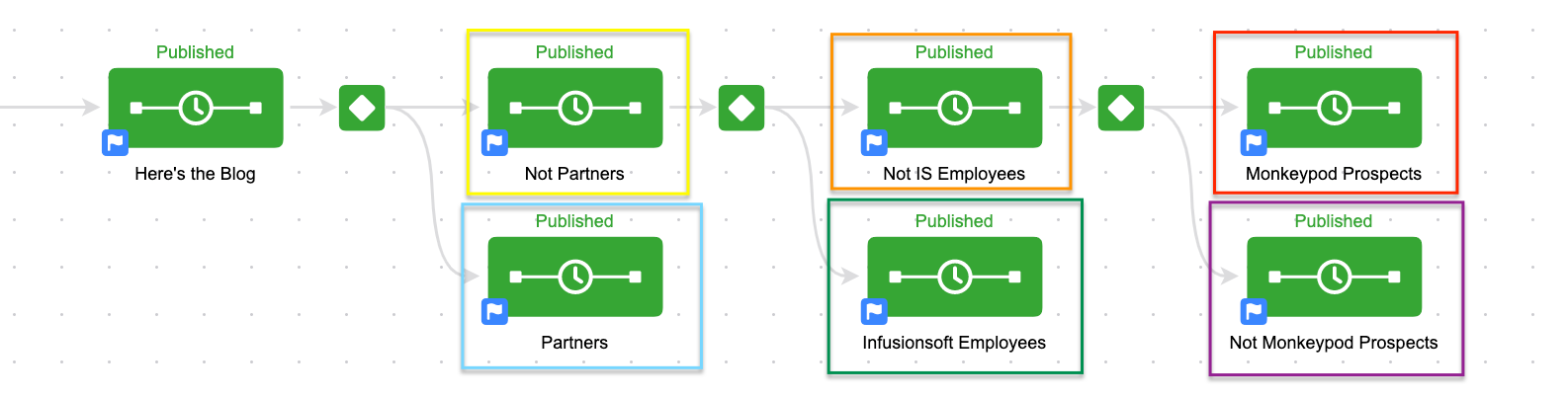
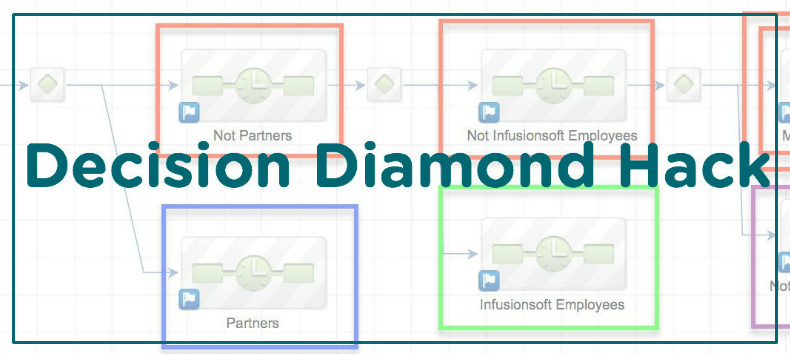
To avoid that I used a cascading logic approach and built this structure:

Diamond decision within Infusionsoft in a sequence
A decision diamond screenshot

Each decision diamond had one rule. Send anyone with the partners tag here (Blue) and anyone who doesn’t have that tag stays up top (Yellow).

Then the next diamond looked to see if they were tagged as being an Infusionsoft Employee, and if so it sent them down (green), and if not, they stayed up top (Orange).

Then the final diamond checked to see if they had the Not Infusionsoft User tag, if they did, they dropped down into the final sequence (Purple) and if they didn’t, then they went to the last sequence on top (Red).

By setting it up this way I could speak specifically to the partners. Specifically to the Infusionsoft employees. Specifically to the people who don’t use Infusionsoft and specifically to the people who do (and also aren’t partners or employees).

I didn’t have to second guess my logic at any point, and I didn’t have to worry about anyone ending up in multiple sequences because every single diamond was an IF A/IF NOT A type combination.

This is also a great way to end up with a catch-all sequence. More than once I’ve heard people asking why they can’t set up some rules, and then for their final sequence just say “If they don’t go anywhere else, send them here”. Well, with this scenario, you almost build that by default.

Anyway, I know this may not work for every scenario, and it might get cumbersome if you have an overly complex decision diamond. But I wanted you to have it in your back pocket in case you ever need it.

If have more questions about decision diamonds, or the campaign builder in general, then check out one of these resources:

The Infusionsoft Nudge

The Infusionsoft Nudge

If you’ve got a social media account of any kind you probably couldn’t help but notice the excitement generated by a few select football plays this weekend.

First, there was the wild conclusion to the Michigan v Michigan State game. (As you may know, I’m an MSU alum and was pretty pleased about this)

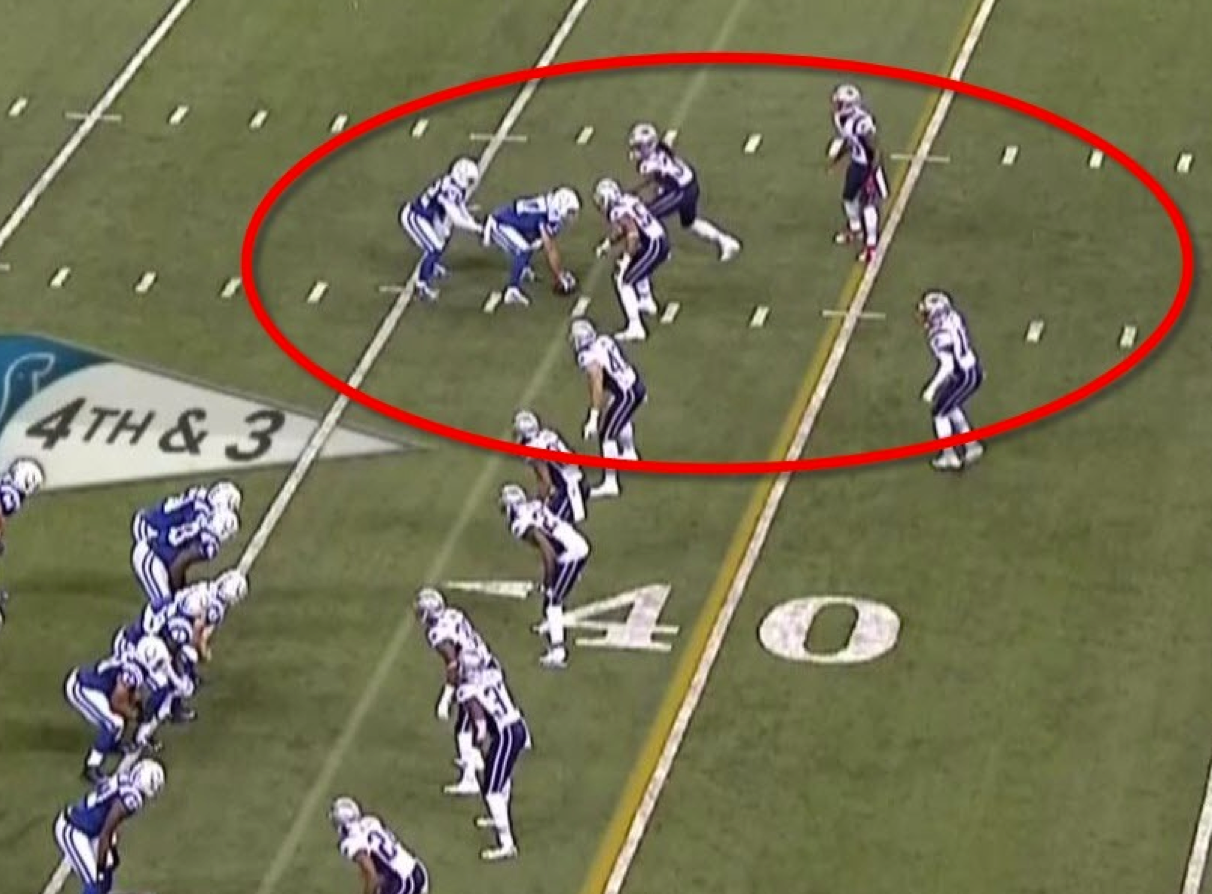
And then there was another play with the Indianapolis Colts trying some trickery with an unconventional line-up.

As I sat down to finish writing a blog post this morning I kept getting distracted by posts about those plays. They were popping up in my Twitter feed, my Facebook feed, and I even got a few texts and emails from people rehashing the excitement in one way or another.

So, I decided to postpone the blog post I had been writing, and tackle this one instead. (See what I did there?)

I want to talk about the importance of having a contingency plan.

Now, the U of M play doesn’t really deserve to be bashed too hard. They were punting the football away, on fourth down, with 10 seconds left in the game. One way or another, the ball was mishandled and MSU was able to get to the kicker; and the ball flew almost directly into the hands of an MSU player who was already streaking toward the end-zone.

Really tough luck.

Yeah, the kicker probably should have fallen on the ball instead of trying to handle it, but hindsight is 20:20 and it was a broken play once the snap was mishandled. Football playing on a fieldSo that one may not illustrate my point as clearly here, but as an MSU fan, I felt like I needed to mention it. It’s the Colt’s fake punt play that really baffles me. They were trying to trick the defense. The coach even said so after the game.

They had a play designed to move some players around, and the whole goal of the play was to catch the defense unprepared, perhaps to lure them into some sort of penalty, and generally cause confusion which they could then exploit.

But as players shuffled around and then settled into their spots, it became clear (to most people anyway) that this play wasn’t going to work out very well.

In fact, it looked like it would certainly be a loss of yardage as the Colts were now set to snap the ball to a seemingly undefended player. They stood for a few seconds…and then they snapped the ball anyway.

And sure enough, they were sacked for a loss of yards and gave the ball to the Patriots with excellent field position.

Now I’m not saying you shouldn’t practice and run trick plays.

Some coaches and teams have made their names running unorthodox plays. What I’m suggesting is that whether it be with football, or with marketing, you need to have a contingency plan.

You need to have a safety net in place.

Let me share a real life example from a campaign my friend Tyler recently launched. You see, Tyler runs a successful business where he teaches strategies for how to trade stock options. Recently he launched a membership program so that he could make himself available in one-to-many typesetting, instead of his usual consulting packages.

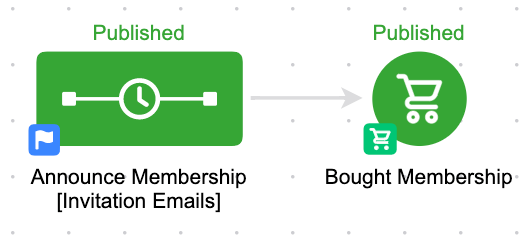
So, Tyler sent out an email message to his audience announcing the new membership he’d be building and driving people to the page where they could learn more about it.

He built it like this:

Pretty straightforward. Totally functional.

He built it as a campaign instead of a broadcast because he wanted to send more than one email plugging the membership and the benefits, and he wanted all the emails to stop in someone signed up. We had a conversation around this scenario, and decided to drill in a little deeper.

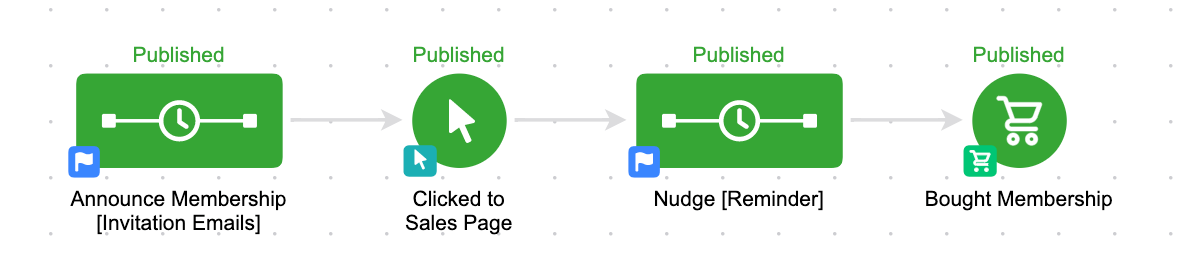
If we want someone to buy, first we need them to click through to the sales page. And because we know that clicking is something Infusionsoft can track, that gives us the ability to add in what I like to call “The Infusionsoft Nudge”. You see, if you ever have two actions you want someone to take, you can (and should) always include a nudge. So that if they take action number one, but don’t take action number two, they get a reminder prodding them to move along.

Here’s how it looks for Tyler:

The first sequence and the last goal are still identical. But now what we’ve done is we’ve added a follow-up for those people who click but don’t buy.

This is our safety net.

We’ve still built out what we’d like to happen ideally, but we’ve also structured our contingency plan in case it doesn’t happen exactly as planned.

This simple strategy can be employed literally any time you need someone to do two things.

Like, click and then register. Register and then attend. Buy and then buy again. Submit the first part of a form, then submit the second part. If you are designing any sort of strategy, you should always ask yourself:

What do I want to happen? What are the other scenarios that could happen? What will I do in each of the scenarios?

And then practice your plan B, your plan C and your plan D. If the Colts had simply said “We want this to happen, but if it doesn’t, we’ll call a timeout” they’d probably have been much more successful.

If you’d like to learn more about this concept, or see it in action, you can download the Abandoned Cart Recovery sequence from the marketplace, or check out my CB: Trilogy course where I cover this concept (and much more) in depth.

5 Massively Underused Infusionsoft Features

5 Massively Underused Infusionsoft Features

Paul Sokol, PLS Consulting

Paul Sokol, PLS Consulting

Editor’s note: Back with another stellar contribution to the ole’ Monkeypod Blog, one of our most popular guest authors, Paul Sokol. If you want Paul’s background or a full info, check out the first post he wrote for Monkeypod way back when.

An Expert’s Opinion On The 5 Most Underused Features of Infusionsoft

Look at all the cool bells and whistles on your car. Are there ones you almost never use?

For me personally, living in the desert, it’s rare to use my windshield wipers. Its even rarer to use the defrosters because it typically isn’t cold enough to use them.

However, those features are still really important in the right circumstance.

Infusionsoft is very similar. There are so many things you can do that may not be very well known OR simply aren’t fully understood from a tactical standpoint.

What follows are five features that I believe can provide great value for about 80% of small businesses using Infusionsoft. I’ll bet for you, fair reader, that you can use at least one of these to innovate and improve 🙂

Underused Feature #1 – Buy Now Links

In general, Opportunities (sales pipeline management) in Infusionsoft are typically misused. Most small businesses don’t deeply understand the theory behind what a pipeline actually is. Or if they do, they often aren’t super clear on the different stages for their specific process.

Sokolpost3_1(For a great sales pipeline starting point along with training on properly pipeline management, download the Sales Pipeline Starter Kit from the Marketplace).

From a 40,000 foot standpoint, Opportunities are intended to help a business track its sales pipeline and make money. The “Buy Now” link functionality is where the rubber meets the road on that last part.

On an Opportunity, you can indicate which products and/or subscriptions someone may be purchasing. A “Buy Now” link comes in an email to a prospect and when they click it, they are taken to the shopping cart pre-populated with the products/subscriptions on that specific Opportunity. It will also include any discounts, payment plans or subscription free trials.

This way, you can talk to someone on the phone and then send them a link for them to make the purchase. Making money with Opportunities in this manner is definitely not used as much as I would like to see. But if you haven’t, now is your chance 🙂

To learn how to send a Buy Now link, see this tutorial.

Pro-Tip: If you look in the CRM Settings for Opportunities, there are action triggers for when someone clicks on a Buy Now link AND for when someone successfully purchases through it. If you create a unique tag for each of those triggers, you can build an advanced follow-up campaign for cart abandonment. For example, when someone clicks, you can add them to a sequence that waits 15 minutes and sends the sales rep an email with the prospect’s phone number telling them to call them right now. If they purchase within 15 minutes, that sequence can be exited based on the buy now trigger.

Underused Feature #2 – Expiring Credit Card Automation

Making sure you get paid is really important, especially when your business has subscription revenue. Following up and collecting on failed auto-bills is a part of this kind of business. However, we can minimize the number of credit card fails by being proactive and having customers update credit cards that will soon expire.

Under the BillinFakeCCg Automation in eCommerce Settings, there are expiring credit card triggers. You can automate whatever you want. Maybe you do a task to call and update. This may be a great touch point to also take a sentiment check with the customer and handle any potential issues.

For a more automated approach, you can actually send an email with a link that allows the customer to update the credit card on file. In addition to this, you could also apply some functional tag to start an expiring card campaign (like the task idea above). However, for the email itself, it has to be built directly into the billing automation trigger.

To learn how to create one of these card update emails, see this tutorial.

Pro-Tip: Similar to the Buy Now automation triggers, there are triggers in eCommerce settings for when someone clicks on a card update link and when someone successfully updates their card. This can be used to notify a customer support person of any activity that needs to happen.

Editor’s Note: I actually spoke on this topic at ICON in 2015, and if you’re interested in setting something like this up, I’d recommend grabbing the free download from my talk here.

Underused Feature #3 – Lead Sources

Everybody on this planet has one mom. The person that brought them into this world. Lead sources are like the “mom” for a contact in your database. An attribution of who “brought them into the world” of your database.

What makes lead sources so powerful is that you can associate expenses with each lead source. For example, if you spend $200 on some direct mail, you can record that. Then, for each contact associated with that lead source, the system can generate ROI reports based on how many orders have come from that cohort of contacts.

Not knowing which of your marketing efforts are effective is a surefire way to throw away a marketing budget and, probably, not get the results you were expected. Unfortunately, when you don’t use lead sources, you have no data to indicate which channels are producing paying customers.

The topic of lead sources could be an entire blog post (or even series of posts) by itself because it is such a critical distinction to understand. It is absolutely worth your time to learn how they work and begin incorporating them into your marketing efforts.

For some articles on lead sources, see this tutorial and the other articles on the side there

Pro-Tip: If you create a hidden lead source field on a web form or landing page and leave the value blank, you can append ?inf_field_LeadSourceId=xx to all links pointing to the form (where “xx” is a specific lead source id) and it will attribute the lead source to any leads that opt in. This way, you can drive many different kinds of traffic to the same page and, as long as you have a different lead source ID in the URL for each traffic source, you can have one capture point and still track which channels are the most effective. For a tutorial on this tactic, read more here.

Underused Feature #4 – Note Templates for Workflow

There are definitely instances where you need to trigger some automation, but have no earthly idea how to ACTUALLY automate it. For example, when someone asks you a frequently asked question. You have a pre-written email for it, but how can you automate the delivery of it when someone asks you. Artificial intelligence? Some fancy natural language processing on your emails?

bigredbuttonMaybe, but this is where note templates shine brightly!

Think of a note template like a big red automation button. You need automation, just press the big red button and rest easy knowing what you need to happen will occur.

Using the FAQ example above, it is super easy to build a note template that, when applied to a contact, sends out the pre-written email. This can save you time and streamline your workflow down to the 5-10 seconds it takes to physically apply the note. In fact, Greg actually has a YouTube video outlining this exact example.

For a campaign template you can use as a starting point for FAQs, use this campaign and replace the task step with an email.

Pro-Tip: The name of the Note Template goal in the campaign builder is how it will display to the end-user. For a better user experience, use prefixes to group similar notes. If you are making a bunch of FAQ emails, start each note’s name with “FAQ – ” so you can quickly find them all.

Underused Feature #5 – Internal Forms for Workflow

If a Note Template is a big red automation button, an Internal Form is a big red automation button that also allows you to add or update a contact’s data at the same time.

This is particularly helpful when someone needs to make a choice or indicate some outcome. For example, having an internal form that you use to approve or decline a new referral partner. Based on the choice, you can automate and follow-up accordingly.

They are also very helpful for adding a new contact because you can, obviously, also automate whatever might need to happen (tagging, create an opportunity, etc).

Another handy use for internal forms is to personalize a templated email. Take the example of an email offering two possible times for an appointment. The only thing that changes from person to person are the times being offered, but the rest of the email is the same. You can create an internal form that collects the two times and then those are merged into an email. Talk about saving time!

For a campaign model that demonstrates this idea of personalizing a templated communication, see the Post-Appointment Follow Up campaign.

Pro-Tip: If someone needs to be submitting an internal form as the result of a task, explicitly put the name of the form in the task body to minimize human error. For example, if there is a new lead task and an internal form to indicate how the first contact attempt went, in the task body you could say “When you have made this call submit the ‘LEAD – First Call’ Internal Form”, by being this specific and clear it reduces the chance someone will forget, or be unsure which form to use.

What do you think? Can you use any of these? Did I miss a feature? Let me know in the comments! Thanks for reading.

Notes are for Humans, Tags are for Computers

Notes are for Humans, Tags are for Computers

A few weeks ago I participated in the first Mastermind Panel, hosted by my friend Jordan Hatch. It was basically a strategy session where Jordan, Paul Sokol, Nathan Paris and I dissected some campaigns, made recommendations and explored different campaign building strategies. If you missed this one, you can check out the recording here.

(It was a bunch of fun, and we’ll certainly do it again. If you’re interested you should sign up here to be notified for the next one.)LeahRemini

Anyway, after the mastermind panel I received an email from a Michael Rogan (A friend and Infusionsoft employee) who said that while listening to us strategize he had a big “Ah-ha” moment.

You know, the type where you finally connect the dots and realize that Leah Remini on King of Queens was also Stacey Carosi from that one weird season of Saved By the Bell where they all worked at a beach resort.

Anyway, his ah-ha moment can be boiled down to this:

Notes are for humans, tags are for computers.

I think Nathan said it on the call, but it resonated with Michael, and then it stuck with me when I read his follow up email.

The reason this is so important is because there are a handful of issues in the Infusionsoft community that all tie back to tags.

You see, lots of the other CRM or email marketing platforms out there operate with what are called lists. Infusionsoft doesn’t use lists, it uses tags.

But those tags can also be used to trigger automation. They can also be used as criteria for your reports. Or for your searches. And can be applied and removed automatically when someone clicks a link (or doens’t click a link).

Swiss-Army-knifeThey’re all over the place. I like the quote “Tags are like a swiss army knife. They can do a lot of things, but you have to be careful with them.

But just because a swiss army knife can open a bottle of wine, doesn’t mean it’s the easiest way to open wine. And just because a swiss army knife has a blade doesn’t mean you should cut your steak with it when you have a steak knife.

Just because a tag can be used for something, doesn’t mean it should be.

I hear people say all the time that their tags are a mess. I hear people complaining that they have too many tags, or that their tags are repetitive, or confusing. So I want to set a few things straight:

There is no tag limit. So there isn’t an official “too many” number. I’ve seen people with a few hundred tags, and I’ve seen people with 10K+.

What matters is whether or not the tags are carrying meaningful information.

If they’re redundant, or if they don’t mean anything at all, then yeah, you might want to audit your tags and trim it down. So, there are plenty of philosophies on tags, and strategies for organizing them out there, and in fact that’ll probably be a whole course of it’s own some day (here’s a good post on tags for the meantime).

I think a big part of the confusion surrounding tags is that people don’t fully understand what their other options are, so they rely on tags when they could have easily used something else.

This brings me to notes. Notes, and note templates are a remarkably valuable way for recording something that happened offline. They’re perfect for denoting something that took place as part of a process online, or even recording a specific action that took place online. You can personalize the note and add context to it as you’re using it. You can automate the application of a note, to create a time and date stamped record that something happened.

If you need to manually start a campaign process, you could use a tag to achieve a goal. Or you could use a note. (Here’s an example of a campaign I think everyone should be using, and it starts with a note)

The beauty of using a note is it allows you to not only record what happened, but also add additional details about the interaction so you can reference them down the road.

Here are the key distinctions:

  • Notes can be applied more than once, and maintain a record of each time it was used.
  • Both can be used to achieve goals.
  • Both can be applied manually by a human, or as an automated step in a sequence.
  • Tags can be applied from the Snap app or the Infusionsoft Mobile app.
  • Notes can be customized to add details from your conversation, or context around why it was applied.
  • Tags achieve multiple goals in more than one campaign.

With Infusionsoft there tend to be multiple ways to do most things. But the more you understand, the easier it’ll be to choose the best tool for your particular needs. I’m not saying that you shouldn’t use tags, just that you should use them judiciously.


BONUS: Recently I had someone ask about the difference between legacy notes in the templates section, and the notes we create in the campaign builder. So I created this video to help clear up how both work.


Campaign Builder: Gotcha #3

Campaign Builder: Gotcha #3

As you probably have gathered if you read the first and second post in this series, the campaign builder is a powerful tool.

But there are also some key nuances to it, which if you aren’t expecting, can totally catch people off guard and cause their fair share of grief.

So, in this third Gotcha I want to address one of the single hardest things for people to really grasp as it pertains to the campaign builder.

In fact, on two separate occasions I’ve seen Keap Certified Partners selling education on this exact topic in which they still get their facts wrong – or, omit a critical piece.

I’m talking about what you can expect to happen when you republish a live Infusionsoft campaign that has people in it.

First of all, you should know that republishing is a whole subject on it’s own, and there are so many “what if” type scenarios that it’d be impossible to cover them all here.

So what I’m going to address is specifically what people commonly refer to as “The Rule of 7 Days”, or as I like to call it “The 7 Day Shadow”.

(Note: The Rule of 7 Days was eliminated in an Infusionsoft update in Dec 2017.)

It’s also worth calling out that the Advanced Automations course from Keap Academy dives into this, and all of the other campaign builder nuances – so if you’re looking to really wrap your head around the rest of this topic, I’d start there.

But for now, here’s the module of that course that talks about republishing:

CB: Gotcha #3

In a perfect world, we’d all build our campaigns out from start to finish, we’d launch them, and we’d get it right the first time and we’d never have to go back and make any changes.

I remember talking with an event attendee once and they got genuinely frustrated when I said “Just don’t make any changes to your campaigns and you won’t have to remember any of this stuff.”

And of course I meant it in jest, but the reality is that the 7 Day Shadow, and any of the other republishing nuances ONLY come into play when you are making changes to a live campaign that has people in it.

UPDATE: As of December 2017 the Rule of 7 Days, or 7 Day Shadow is being removed. I’m leaving this section of the article here for historical context, but it may no longer describe the behavior in your app.

So, without further ado, let’s talk about The 7 Day Shadow. And I’ll even explain why I like this name better than “The Rule of 7 Days”. Here’s the way that it works: When you republish a campaign, the system will recalculate the steps in each individual sequence for each contact.

Steps that have already been processed, will not be processed again.

This means that if I change the timers, and an email that you’ve already received is now scheduled to happen tomorrow, it will NOT send that email, because it recognizes that you’ve already received the email. It also means if you change the content of an email, or the subject line, it will not resend that step to people who have already received it.

NOTE: Delay timers are the only timers affected by this. Field timers and Date timers ONLY run on the exact date (or during the range) for which they are scheduled.

Changes you made to the sequence can only impact Active or Queued Contacts that are in that sequence.

This means that if you make changes to a sequence, it can impact the people who are still actively receiving that specific sequence. Or, if contacts are still in that sequence and are queued (because they haven’t moved on) it could impact them too. But any changes you’ve made will not affect contacts who are “Done” (meaning that they’ve progressed into the next sequence, or they’ve achieved a goal to exit the sequence).

Any steps you’ve added that are scheduled for the future, will be scheduled as if they were always there.

If I’m receiving your 3 tips sequence, and I’m on tip number two and am scheduled to receive number three tomorrow (shown in blue), and you decide to come in and add an fourth tip (shown in red). When you republish it will schedule the fourth tip for the future, and I’ll receive it a day after the 3rd as intended. It’ll be as if it was there the whole time. FourTips

New or updates steps scheduled to occur in the past 7 days will process immediately.

This is the hard part for people to wrap their heads around. Think of it this way – if you add a new step, or you change the timing of the existing steps – the system is going to recalculate the whole sequence (for the people that are active and queued).

And if the new step you added, or any of the existing steps for which the timing been modified, happen to fall within the last seven days, then the step will process immediately. (In most of the examples I use I’m referring to emails, but the campaign uses the same logic for all sequence steps) Let’s take a look at a few examples using two of my childhood crushes to really wrap our heads around this:

Example 1:

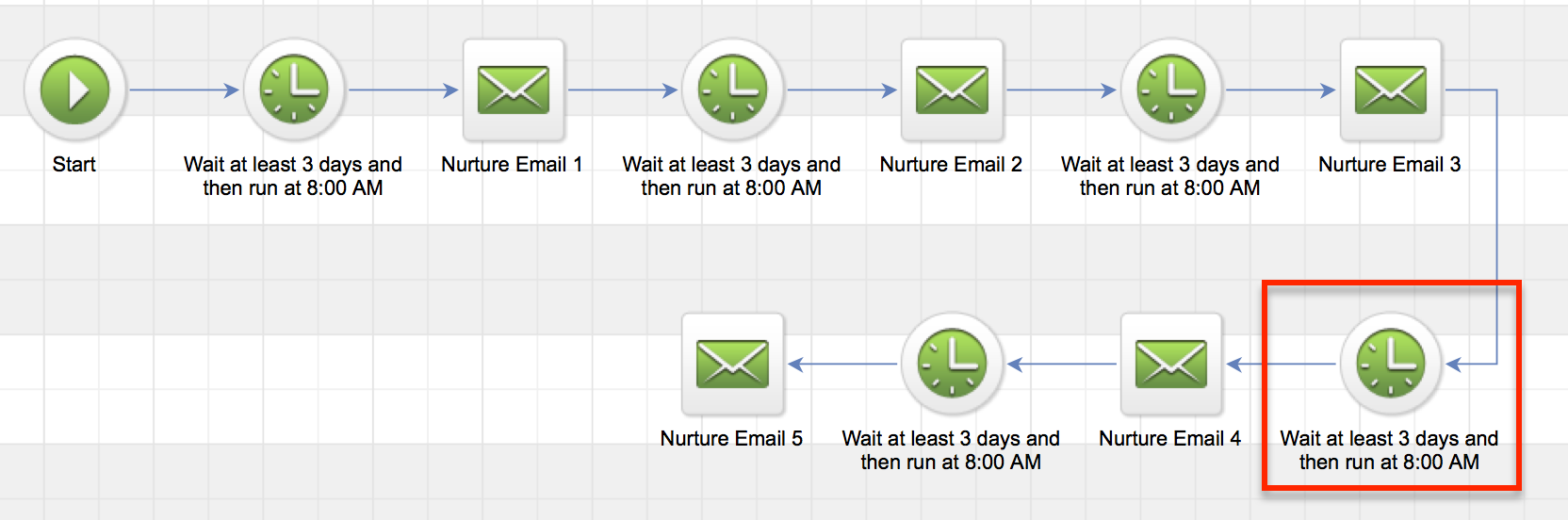
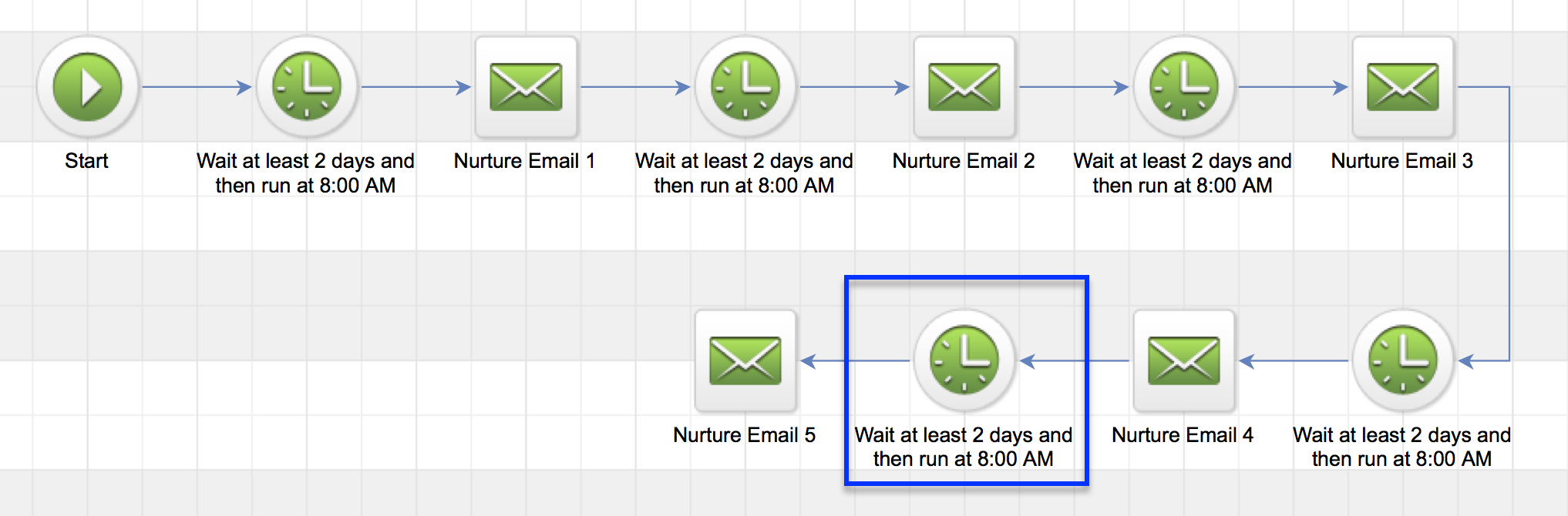
Topanga Lawrence has been in your nurture campaign for exactly 9 days. Your campaign is structured to send an email every three days. So, she’s just received her third email, and is scheduled to receive email number four in exactly three days. She’d be waiting on the timer indicated in red below. (I’ve built it using that “snake” layout just to keep it all on one screen) Nurture Campaign 1 Okay, so now let’s say you decide that you need to change the sequence timing. And instead of sending an email every three days, you decide that you want to send an email every two days. So you come into the sequence, and you change all of the timers, and then you republish.

Here’s what you can expect: Topanga has still been in the sequence exactly 9 days. But now, with the new timing, it means that email four should have been sent yesterday. It’s scheduled to be sent 8 days after someone enters the sequence. And since Topanga has been in there 9 days, email 4 would have been sent within her last 7 days. So, it’ll process immediately.

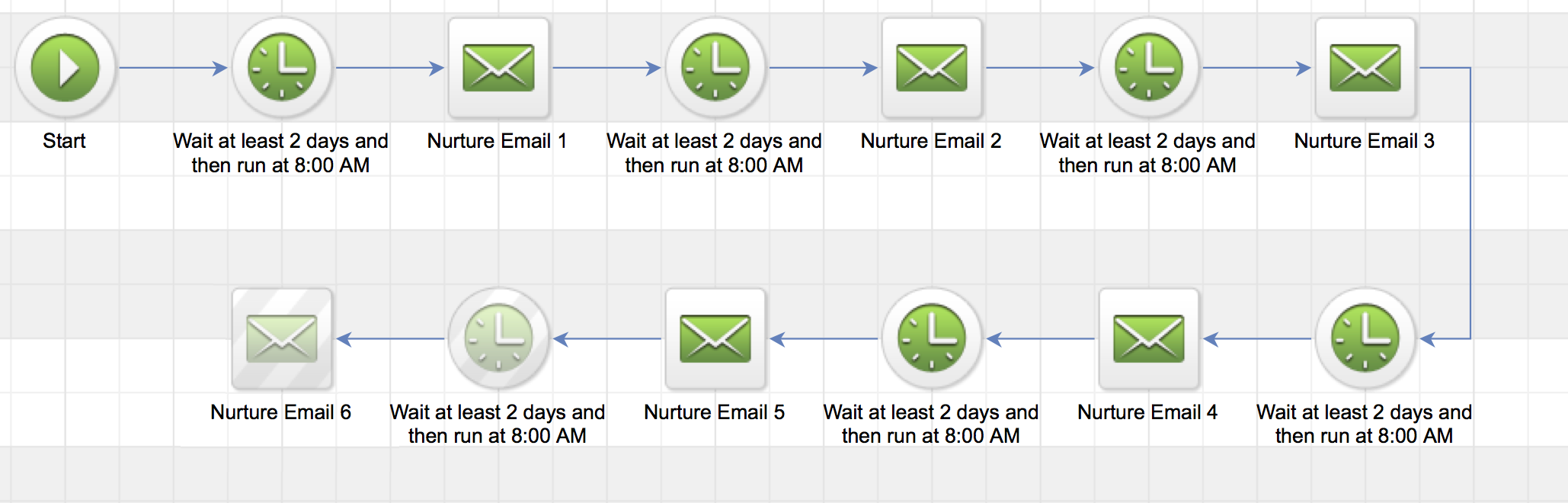
After it sends email four, then Topanga will queue up on the blue timer below waiting for Email 5. Which is scheduled for 10 days after the start of the sequence, and would be tomorrow for Topanga. Nurture Emails 2 Are you with me so far? Let’s look at another example.

Example 2:

Let’s say Kelly Kapowski is in the same sequence. But she’s been in there for 45 days. That means that she has completed all the steps you had scheduled, but she hasn’t moved on. So she’s considered “queued“.

Now you decide to extend your nurture sequence, so you add another two day delay, and then a 6th email.

Well, when you publish this new step, the system is going to recalculate the steps in the sequence, and when it realizes there’s a new step, it’ll decide whether or not it should be sent to Kelly, based on where it falls with respect to how long she’s been in the campaign. Nurture Emails 3 Because the new step is scheduled to happen 12 days after someone enters the sequence, and Kelly has been in the sequence for 45 days, this step would not have been sent to her in the last seven days. And therefore, it won’t be sent to her at all.

Now, if you added a bunch of steps (every other day), giving you 22 total emails (over 44 days), so the last of which would fall 44 days after someone entered the sequence.

Now, when you publish Kelly WOULD receive email #22. Because it should have been sent in her last 7 days. It should have happened on day 44, and she’s been in there 45 days.

But here’s the catch, Kelly will also receive emails 21, 20, and 19. Because those emails would have been sent 38, 40 and 42 days after she entered the sequence.

So, because she’s been in there 45 days, all four of those emails are within her last 7 days. This is why I call it a 7 Day Shadow. As the contact spends time in the sequence, their shadow stays with them.

It doesn’t matter if they’ve been in the sequence a year, if you add a step that falls 360 days after the start of the sequence, that step will process immediately for that particular contact. I know, it get’s a little hairy. Here’s one way to remember it.

If A is equal to the total amount of time that a contact has been in the sequence.

And B is the amount of time from the start of the sequence to the scheduled step.

If A-B is less than 7, then the step will process right away.

There are a few things to look out for here. If there is a long gap, and you add multiple steps, it’s possible that some contacts might get the last email (email 44 in the example above) without getting the in between email. It’s also possible that multiple steps could fall within their last 7 days, and so they could receive more than one step at the same time (which could also be confusing).

So, what do we do about it, right? That’s kind of the natural question here. It’s a little tricky, and of course you want to create the best possible experience for your customers, right?

Well, there are a handful of ways to handle this, and I dive into a few options in the third chapter of the CB: Trilogy course, but for the purpose of this post I recommend a tactic I call “switching the tracks”.

It works like this.

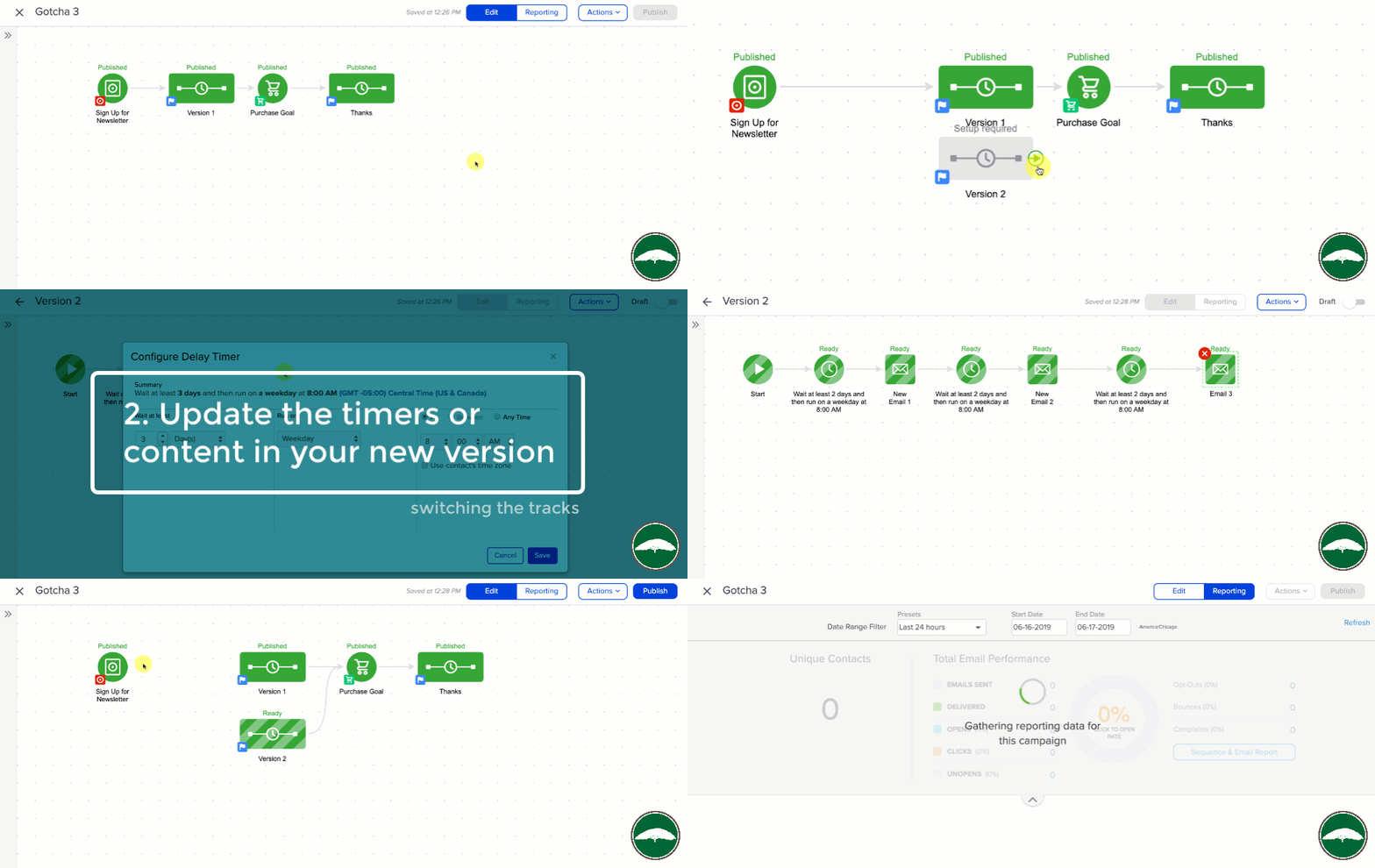
Switching The Tracks

When you want to make changes to a sequence that has contacts in it, and you aren’t sure what will happen. You make a copy of the sequence, and make all your updates to the new sequence.

Then, once it is ready to go, you just simple detach the original sequence, and switch the tracks to route new contacts into the new sequence you’ve now built. It’s not perfect, because you now have contacts in two sequences, and the folks in the original don’t get you fancy new updates, but this way guarantees that you know what your contacts will experience, and that no one gets emails out of order, or multiple emails at once.

So, that’s the 7 Day Shadow. I like this better than “Rule of 7 Days” because I think it’s clearer that the rule is on a per contact basis. I’ve heard people say that changes you make don’t matter after a contact has been in the sequence for more than 7 days. This is wrong.

I’ve heard people say that after a contact has been queued for 7 days, they drop out of the sequence. Also wrong.

What matters is how long the contact has been in the sequence. And how long after the start of the sequence the step is scheduled. That’s all. If you made it this far, thanks for reading. Lemme hear those questions!

Where do I learn more?

The Keap Academy platform features a robust course, The Advanced Automations Complete Collection, covering the fundamentals for building campaigns, from basic to advanced features and settings.