3 Methods for adding Terms and Conditions to an Infusionsoft Order Form

3 Methods for adding Terms and Conditions to an Infusionsoft Order Form

If you need to have your customers check a box agreeing to terms and conditions before they make a purchase, there are a few options for making that happen.

You can use a third-party tool, you can use custom code to modify your existing forms, and finally – there’s now a native option as well.

In this post I’ll show you all three.

Method One:

The first, is to use a tool like Spiffy.

Spiffy is an add-on that lets you level up your Infusionsoft order forms using their drag-and-drop builder. But beyond the improved look and feel, they also have a library of code snippets you can use to do more advanced customization.

This particular request is common enough that they’ve made it a simple toggle inside Spiffy.

Email Trends CTA

Spiffy also offers more advanced options if you want to capture the date and time that they agreed to the terms and store it back to a custom field, or create an on-page scroll box where the purchaser can easily review your terms and conditions.

If you want to see more of what Spiffy offers in general, check out the demo I did in this post.

Method Two:

The second method for adding terms and conditions to your Infusionsoft order forms doesn’t require a third-party tool – but it does require a little familiarity with code.

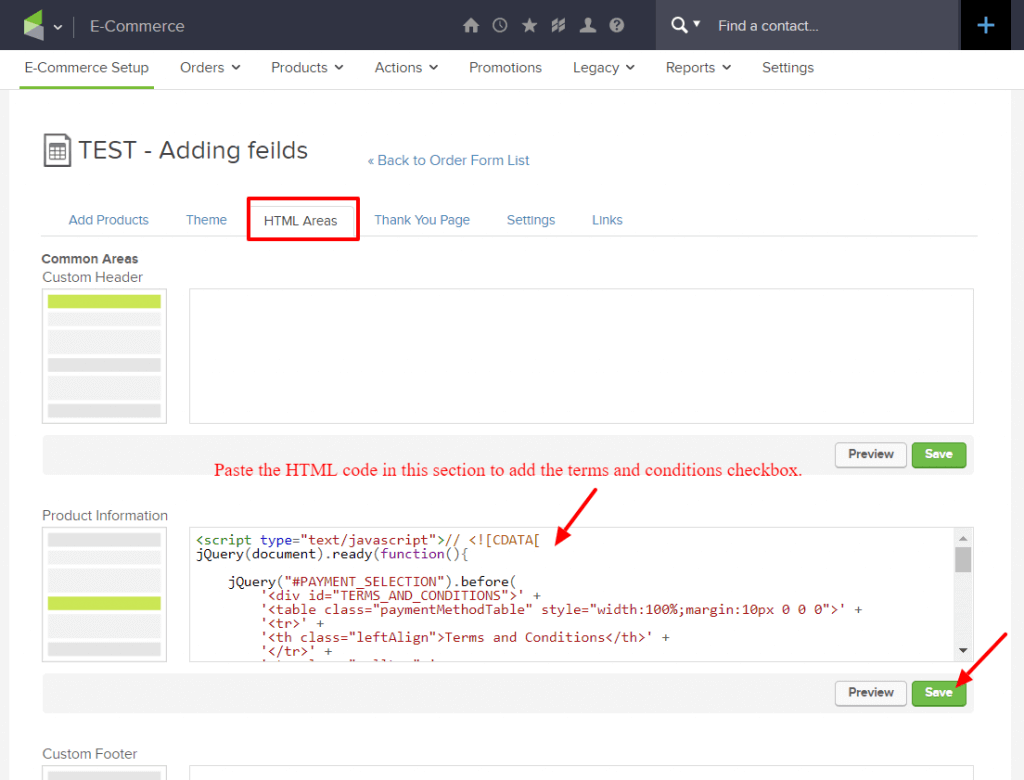
The basic idea is that you’ll be adding code to the form using the HTML areas, and manually adding a “Terms and Conditions” section that your customer can agree to before completing their purchase.
Spy on your competitors traffic

My good friend Brett has done an excellent job documenting this method over on his Blick Digital blog.

If you’re interested in going this route, check out his post where he walks you through the steps, and gives you a download file with the code you’ll need.

Method Three:

And finally, the third option here is a totally native solution.

As you might have heard, Infusionsoft introduced a fully responsive order form theme option in April of 2020.

The new theme option is fairly basic – but modern, clean, and of course it’s fully responsive.

Well, more recently they added the option for easily adding terms and conditions to order forms that are using this new theme.

Here’s a video demonstrating how you can take advantage of this new feature:

Let me be abundantly clear – this is a win.

It’s absolutely an important step in creating more flexible and robust native order forms. So, bravo Infusionsoft product team. Thank you – keep it up.

And also….

There are a few changes and improvements that would make this even more powerful.

  1. I’d love to see the “terms” tab hidden from themes where it’s not available (or, have it work with all themes, rather than just the mobile responsive themes). Right now it’s confusing to have the terms tab show up on order forms where this won’t work as expected.
  2. I think it would be useful to be able to modify the section header, and the actual language on the checkbox itself – this would make the whole area more versatile in general, and accommodate for users who need to adapt this for languages other than English.
  3. It would be valuable to be able to trigger actions when someone checks this box, or to store a timestamp into a custom field on the contact record (or even on the order record).

Okay – lets leave it there for now.

I’m excited about the update – and I love to see this section of the software getting some attention.

In the comments below I’d love to hear if you guys find this valuable, or if you have questions, or have spotted anything I might have missed on this one.


Introducing Task Outcomes

Introducing Task Outcomes

Tasks are automation’s way of telling us that something needs to happen offline – and marking the task as complete is how we report that the deed was done.

But sometimes, that’s not specific enough.

So with this new Infusionsoft feature, Task Outcomes, you can denote not only that the task was completed, but also HOW it was done, and then trigger automation accordingly.

For legacy Infusionsoft users this might feel familiar – it’s a modern version of what used to be called “Task Completion Scenarios”.

So, the first step will be configuring the different outcomes your task might have.

Email Trends

You can set up outcomes on the fly – or repurpose the outcomes you created in the past.

Then, once you’ve done that you’ll use a Task Completed goal like normal, but when you configure the goal you’ll choose which of the task outcomes satisfies that particular goal.

Infusionsoft Task Outcomes Gif2

This dramatically increases the flexibility of tasks, because they’re no longer just complete or incomplete; and the new nuance allows for better segmentation and thus more effective automation.

But, that doesn’t mean that task outcomes will be necessary everywhere – here’s a quick example of use cases where this is and isn’t going to be a fit.

All in all – massive step in the right direction. You can check out their documentation on this feature here.

There are a few small additions that I’d still like to see them add (task outcomes in the mobile app, task outcome reporting, and more accessible interface for managing the existing outcomes we’ve created), but all things considered this is a powerful update that will simplify some of our existing campaigns, and give us more options as we design future automation.

I’d love to hear what questions you have, or how you plan to use it in your own business!

Introducing Analytics for Infusionsoft

Introducing Analytics for Infusionsoft

We don’t need a whole lot of preamble on this one folk, it’s time to introduce Infusionsoft’s brand new Analytics feature.

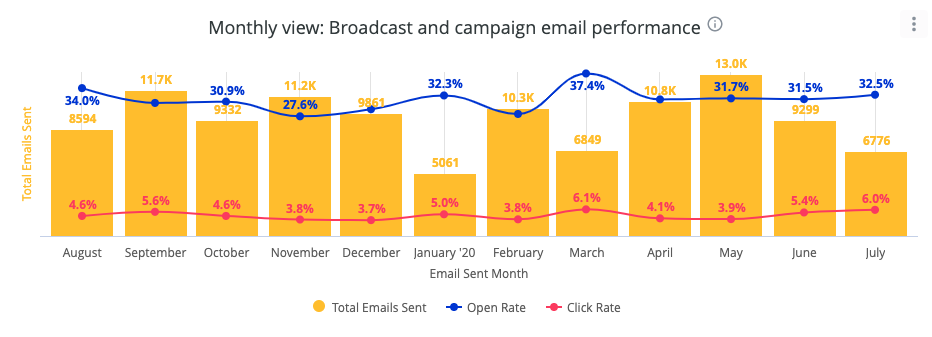
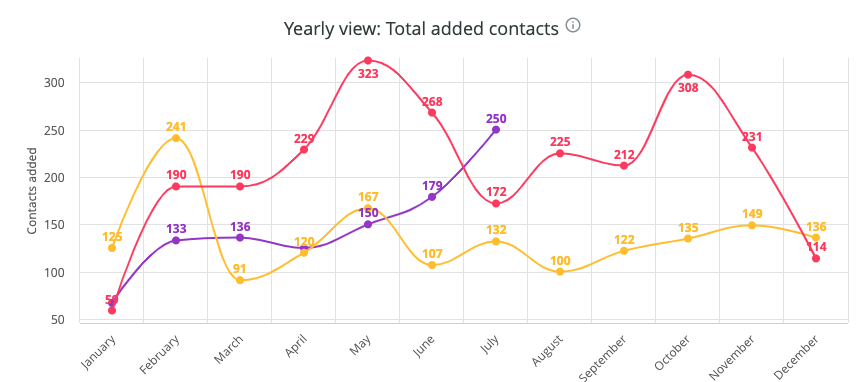
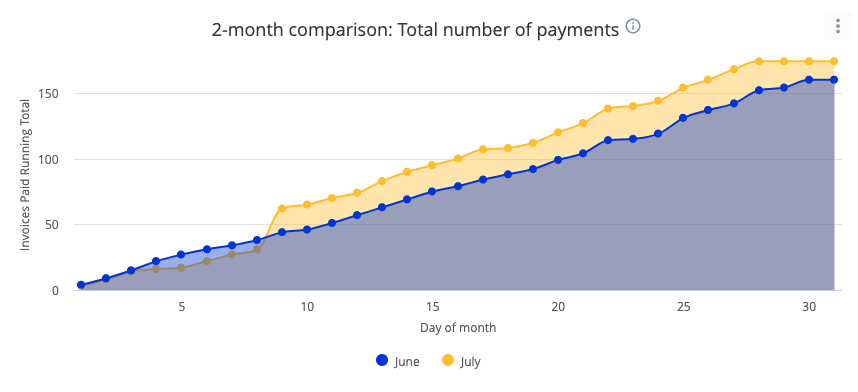
This is not a replacement for your existing dashboard, it’s a new section of the software that offers visual reporting on three key areas of your business.

Email Trends

The new analytics section offers insights and trend analysis for list growth, email engagement, and financial transactions.

Marketing automation 101 CTA
Infusionsoft 101 CTA

This feature has already been released for some users, but they are rolling it out in phases – so if you don’t see it yet be patient. It should be switched on for everyone soon.

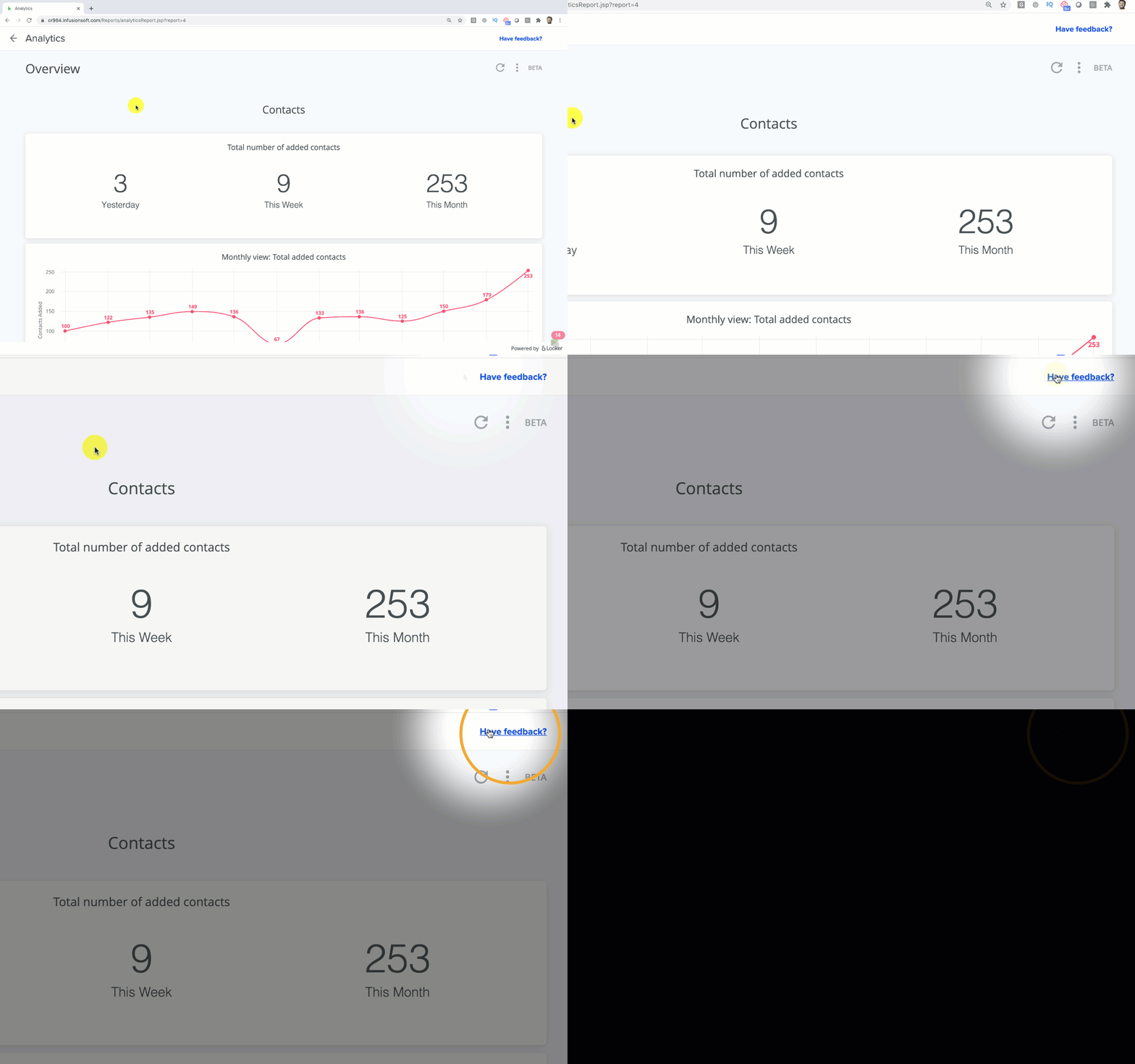
Here’s a video walk-through covering what you can expect from the new Infusionsoft analytics section.

Let me be abundantly clear – I’m really excited about this new feature.

I think it’s already incredibly valuable, but more than that – I’m excited about the progress it represents.

For a good portion of 2019, it felt like Infusionsoft was being neglected, so in contrast, it’s nice to see not just feature enhancements but totally new functionality as well.

So, nice work Infusionsoft product org – kudos. Keep it up.

Speaking of keeping it up…

It’s important to call out that this is the first version of the analytics section. So, while I love the progress it represents, I also acknowledge that there will absolutely be limitations we bump into or aspects of it that we as users wish were more flexible.

For example, right now you have a variety of default reports, but we can’t easily adjust the date ranges or filter by contact tags or other criteria.

If there are enhancements you’d like made or reports you’d like added, they’re already collecting feedback and suggestions to help shape improvements they make to this section moving forward.

Analytics Feedback

So, in summary – I’m pumped.

It’s valuable as it is, and we get to play a role in helping make it even more powerful.

I’d love to hear your thoughts as you start checking out this new feature too.

How to use Keap’s dynamic content feature

How to use Keap’s dynamic content feature

Update: If you have questions about using Dynamic Content then check out this Facebook group that started specifically as a place to share ideas and use cases for this feature.

You may have heard me say this before, but I believe Keap’s campaign builder is the world’s most powerful marketing tool for small businesses.

So, with that in mind, here’s the bold claim of the day:

Keap’s dynamic content is the most important feature since the campaign builder.

Simply put – because of the power of segmentation.

Segmentation is the key to turning generic mass marketing into targeted conversations that feel personal.

And the whole goal of this post is to encourage you to start using Keap’s dynamic content as soon as possible. Ideally, today.

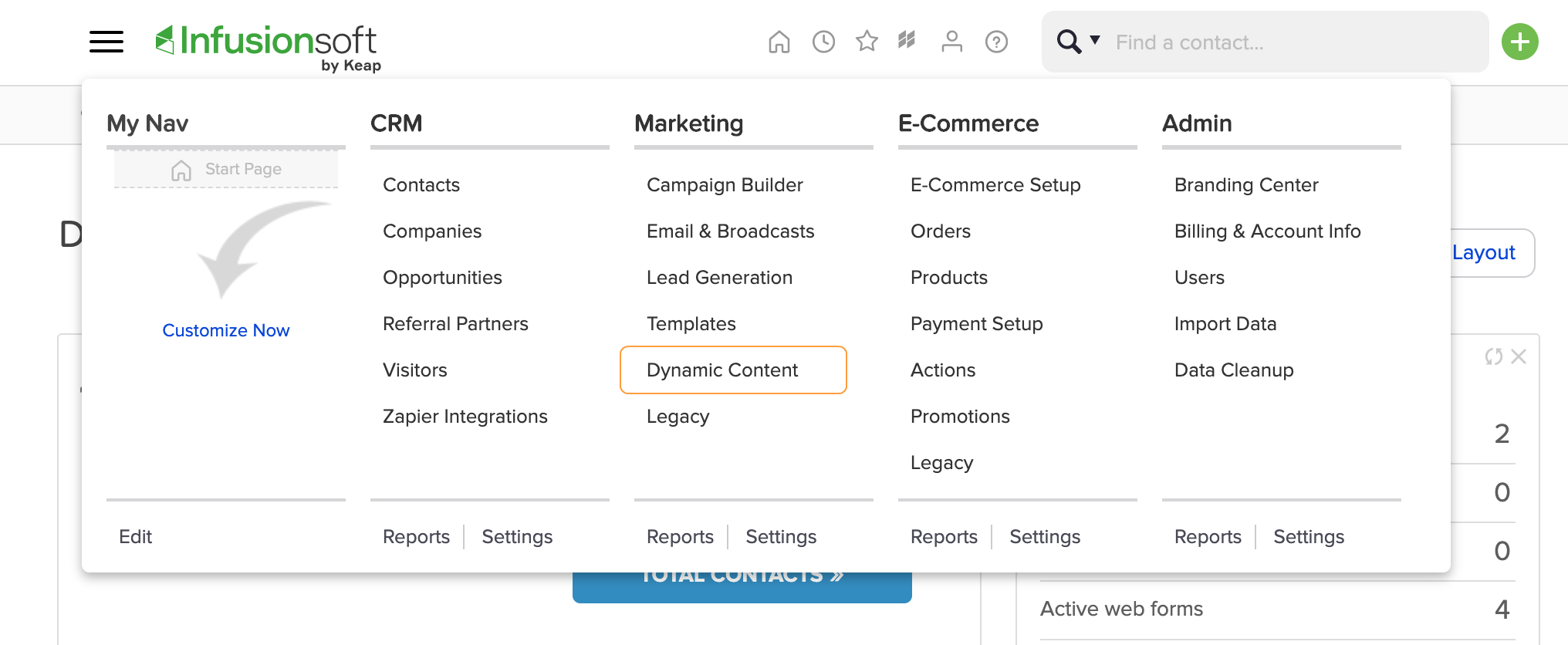
If you haven’t discovered it, the dynamic content feature is currently located on the main dropdown menu, under the marketing section (for Max Classic Users).

I dug into the concept of dynamic content, also known as liquid content, in this blog post a few months ago; so for today I’m just going to focus on how you can start using it – now.

Before we get to the power of segmentation – I want to show you some easier ways it can be used to modify content.

Example One

So, you know how you can use ~Contact.FirstName~ to merge someone’s first name into an email, right?

Well, I think we’ve all seen contacts who enter their name in ALL CAPS (or  all lower case), and then when you merge it into an email, it displays as they’re entered it, which doesn’t jive with the copy you’ve written, and reeks of automation, right?

No problem. Dynamic content can fix that – just use this merge field to “Proper Case” their first name every time: [[ contact.first_name | downcase | capitalize ]]

Good: ~Contact.FirstName~

Better: [[ contact.first_name | downcase | capitalize ]]

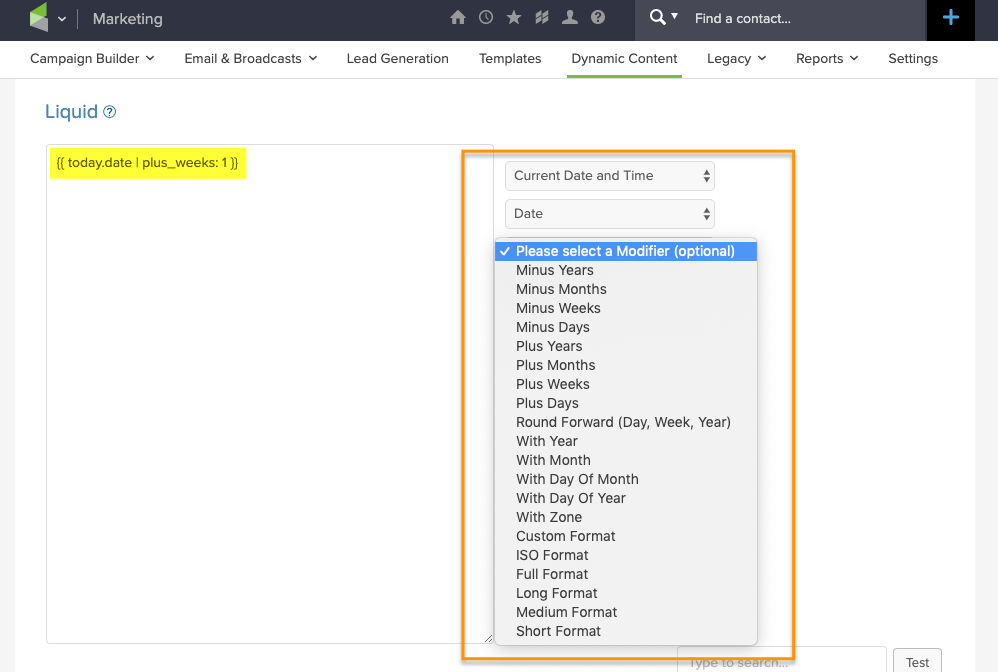
Changes like these are known as modifiers, and there are countless adjustments like this that are now natively available for adjusting a merge field (capitalizing, truncating, formatting a date, multiplying a number, etc).

The options for manipulating the field vary based on the type of data stored there (date fields, text fields, whole number fields, etc).

Example Two

The second type of dynamic content is known as conditional content – and this is really where the segmentation power comes in.

Conditionals allow you to write a statement that display one sentence (or paragraph) if a contact has a tag, and display a different message if they don’t.

Here’s an example of the code – let’s say contacts who have bought a course have Tag ID 111. So, the following code would display the first message for them, and then display the second message for anyone without that tag:

[% if contact.tags.uids contains "111" %]
Here's your login info for the campaign builder course.
[% else %]
You should totally buy this course.
[% endif %]


Here’s another example – for this one let’s say Tag ID 222 represents my Blog Subscriber tag, and 333 represents my OG Member tag. This would allow me to send one email to a group of people, and the blog subscribers would see the first message, the OG Members would see the second sentence, and then anyone else would see the final part that just says thanks for being connected.

[% if contact.tags.uids contains "222" %]
Thanks for being a blog subscriber.
[% elsif contact.tags.uids contains "333" %]
Thanks for being an OG member.
[% else %]
Thanks for being connected to Monkeypod.
[% endif %]


To use either of the examples above you’d just copy the entire code, update the Tag IDs, and change the messages that are displayed.

Here’s an example from a recent webinar of mine where we demonstrated using Keap dynamic content.

If you’d like to see the rest of that webinar, and it was a good one, then you can check out the recording here.

Now then, go use this.

For real, as much as I want them to make it easier to use this, and to add the dynamic code generator directly to the email builder, don’t wait – the power behind this feature is already immense. I can’t say it’ll be flawless, but I can say that I’ve been using it for 4+ months now with nothing but positive experiences.

I also know, firsthand, that this will change the way you think about and design campaigns. And it takes a while to re-adjust, so the sooner you start using it, the sooner you’ll start spotting opportunities where this can simplify things for you, and improve the way you are communicating with your audience.

Speaking of designing campaigns, there’s a popular virtual training course covering the ins and outs of the campaign builder available for free in the Keap Academy platform.

Bonus Resources

Here are a few additional resources for using dynamic content in more advanced scenarios, like to hide/reveal buttons and images (rather than just text), or to modify dates beyond the default formatting options available (shout out to Jordan Hatch for that one).

Bonus Bonus Example

Here’s another real world example of how you can use Dynamic Content to display only the relevant parts of a email for your clients. Shout out to my friend Mallory Balnis for this explainer video.

Conditional Content for Infusionsoft

Conditional Content for Infusionsoft

Update: If you have questions about using Dynamic Content then check out this Facebook group that started specifically as a place to share ideas and use cases for this feature.

Say what? Conditional content for Infusionsoft?

Yup. Big news sport fans. BIG news.

For a long time, dynamic email content has been one of the most requested features – and it’s finally happening.

If you’ve ever wanted the ability to send an email to a group of people, and have different sections display based on what tags someone had, or what value was in a custom field – well, it’s coming.

Introducing Conditional Content for Infusionsoft

Conditional content, aka dynamic content, aka liquid content is on the horizon (like, coming this year).

They’re still ironing out the details for how it’ll be accessed in the app, but I’ve been playing with a version of it and it’s slick. The potential behind this fuctionality is massive.

Here’s how it works:

It’s basically shortcodes for emails.

So if you’ve ever used shortcodes, like maybe inside a membership area – then this might feel familiar.

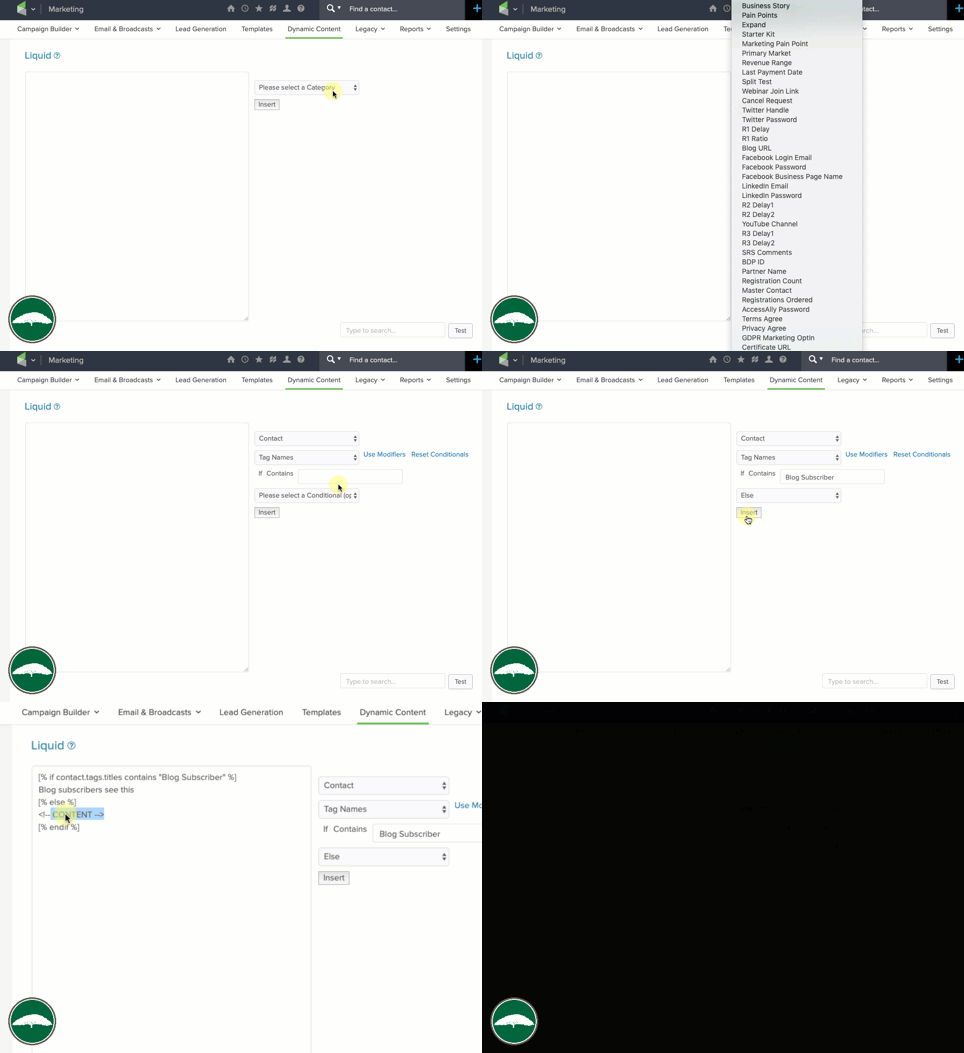
They’ve created a short code buider that allows you to set up the syntax you want – then you can copy and paste it into whatever email you want.

The process for generating the shortcodes is a little clunky at the moment – and I could definitely see that being a barrier for folks who want to adopt this.

But I suspect they’ll smooth that out over time, so for now – just focus on the potential behind this feature.

The ways it can be used seems to be divided into two main categories.

Conditionals and Modifiers

Conditionals decide what content to show to which recipients.

For years the only way to get different messages to segments of your audience was by building an email, in a sequence – the cloning that sequence, tweaking the new version of the email, and using a decision diamond to route contacts into whichever one made sense for them.

But now, with liquid content, you can build one email and use shortcodes to control which pieces of content are displayed for which recipients.

You can hide a call-to-action from anyone who has already bought that product, or deliver an update knowing only your active members will see it – the possibilities are vast.

Brilliant, right?

Lemme show you how this works:

And that’s just the conditional display portion, there’s more…

Introducing Modifiers

Modifiers allow you to tweak or adjust the copy – so, if you wanna merge in someone’s name but you want to switch it to all upper case, YOU CAN.

(…or lower case, Or Proper Case)

If you want to merge in a multiple of someone’s reported revenue – yup, ya can.

You wanna merge in a date, but automatically dial it forward a week, month, or a year – yup, yup, yup.

Exciting stuff, right?

Fun fact: When this feature is released it’ll check off another item from this old blog post wishlist I wrote.

When will this be available?

Obviously I’m not an official spokesperson for the company, but everything I’m hearing indicates conditional content for Infusionsoft emails should be available in the next month or two. Update: Release of this feature was pushed back until Q1 of 2020.

What are the drawbacks?

Honestly, I’m stoked for this – so I don’t wanna take anything away from that.

That said, it will definitely need to be easier to use – I imagine I’ll get used to building the shortcodes, but the copy/paste over into an actual email process feels…clunky.

And the other primary drawback I noticed was that it only seems to work with text – which is a great start, but longer term it’d be great if we could use this same concept to hide/display the other email elements (like buttons, images, etc). Though, worth noting that this syntax DOES appear to work with the HTML section, so that opens up some flexibility for images.

It CAN be used to hide/reveal images, buttons, or other email assets, check it out:

Real World Use Case

He’s a real world use case from my buddy Jordan Hatch – in this scenario he’s using Liquid to reformat a date he wants to insert into an email so that it’s easier to read – using this method instead of the previous one allows him to achieve the same result more quickly, and without requiring a second custom field.

Here are the links he mentioned in the video:

Now, I won’t pretend that I’ve got this whole thing figured out, my brain is still running through scenarios for how and where conditional content for Infusionsoft can be used, but the exciting part for me is two-fold; first – I’m stoked about this specific feature, it’s going to make a lot of things possible that previously weren’t.

Second, and perhaps even more importantly, I’m excited about what this represents – it’s a significant release that represents commitment to the long term development of Infusionsoft, and I know that should go without saying – but my relationship with Infusionsoft has been a little strained lately and features like this are exciting to see.

Anyway, would love to hear your thoughts and ideas in the comments below!

Modern Forms from PlusThis

Modern Forms from PlusThis

Let’s see – how do I put this diplomatically?

Keap’s web forms are….basic. (Jump straight to the fix?)

They let people opt-in for stuff, they work with Keap’s leadsource tracking and affiliate tracking, but outside of that they don’t have much going for them.

I’m about as much of a Keap fanboy as you’ll find, but the truth is they pale in comparison to the landscape of modern and responsive builders available across the digital marketplace today.

It’s for that reason that most Keap users either don’t use them at all, or only rely on them as a last resort.

(Just as a reminder, Keap is the platform that was formerly known as Infusionsoft.)

Yet given all their shortcomings, and my pronounced criticism of the forms I was still using them in two places on my website – my blog opt-in, and my referral partner application form.

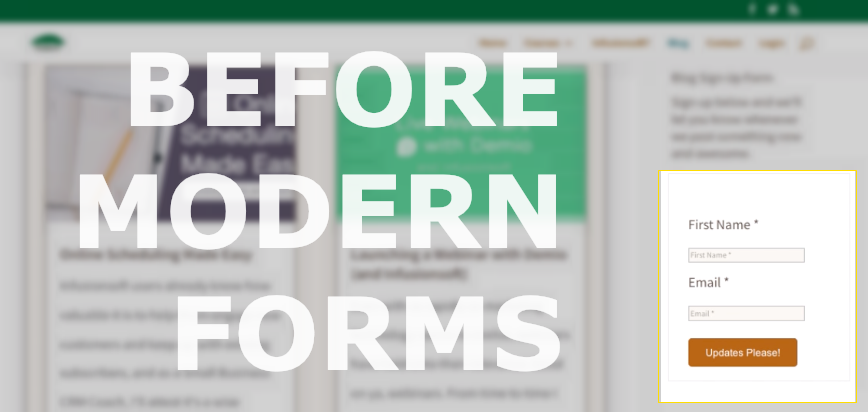
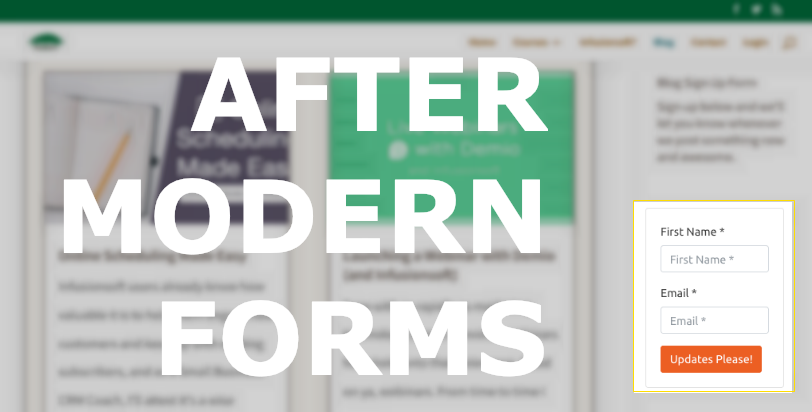
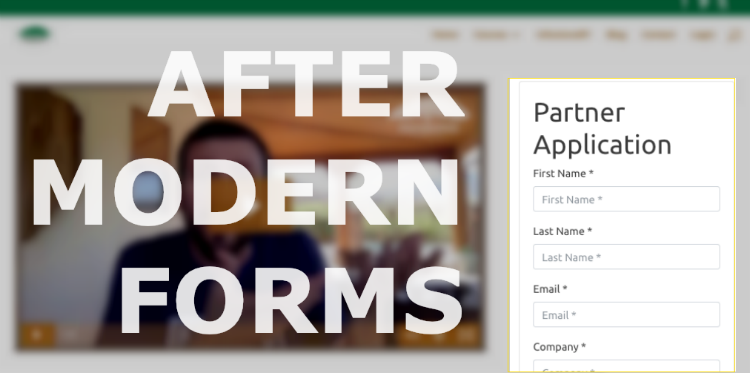
Before

After

The reason I say “was” is because just recently I learned about a tool that PlusThis offers called Modern Forms.

What does it do you might ask? Simple – it makes your forms modern.

It makes them look good, and quickly too.

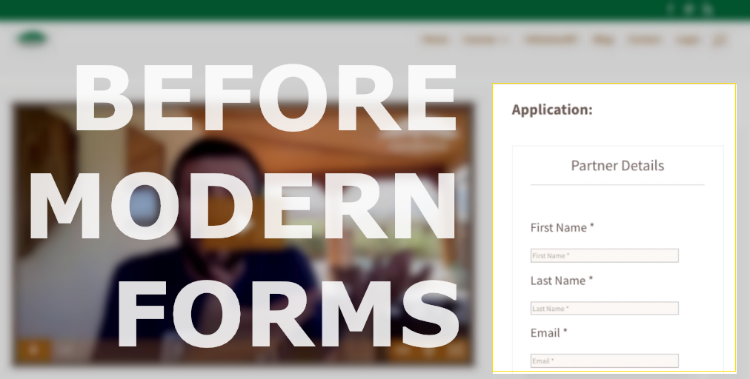
Here’s another before and after shot.

Before

After

The design changes are relatively subtle, I get that – but the fields are easier to use, and most importantly the forms are responsive.

So, if you’re already a PlusThis user then a) good on ya, and b) this tasty little feature is ready for use like – today.

Here’s a ten minute walk-through where I update two forms, totally miss a batch of settings, reach out for help, get the help, and finalize the forms.

That’s it. Now go make Xzibit proud and pimp your forms.

And if you’re not yet a PlusThis user, you can get started here.

How does it work?

This feature works pretty much as advertised.

  1. You select your form.
  2. You choose from their prebuilt “styles”.
  3. Modify if/as needed.
  4. Copy the embed code.
  5. Add it to your website.

Yeah, I know, it’d be great if Keap just made their form builder better – but until then, this tool from PlusThis is gonna be my go-to fix.

Reminder: You can do me a solid if you use my PlusThis referral link.


exit intent forms in keap

What else does PlusThis do?

Good question. Tons of stuff.

I also use it for video tracking so i can release bonus content in my courses at the exact right moment, but here’s a comprehensive list of their features.

If you dig this stuff, and want to see the other tools that have earned my trust then help yourself to my Tools Ebook.