Monthly Loop Campaign

Monthly Loop Campaign

There are plenty of scenarios in business where you want something to happen on a recurring basis – and we’ve covered the fundamentals of looping campaigns in Keap, but today I wanted to share a twist on this for a looping monthly fulfillment process.

So, for context, the scenario is this: Let’s say there’s a membership group, and each month we want to send the members something (it could be access to content, or a physical gift box, etc).

But the twist here is that we want to automatically exclude anyone who either a) cancels or b) misses a payment, and lets their account fall out of good standing.

This video breaks down a campaign that you can use for this process, and dynamically sort out the folks who shouldn’t be eligible:

Now obviously this is a fairly specific use case – but this concept, and the corresponding Keap campaign could easily be adapted for serving prospects (like creating a custom ‘call’ list), or modified to loop at a different pace (weekly, quarterly, etc).

if you found this useful, have questions, or ideas for where it might fit in your business – drop a comment below.

Thanks for reading.

Dynamic Global Merge Fields

Dynamic Global Merge Fields

You can write your Keap emails in whatever language makes the most sense – right?

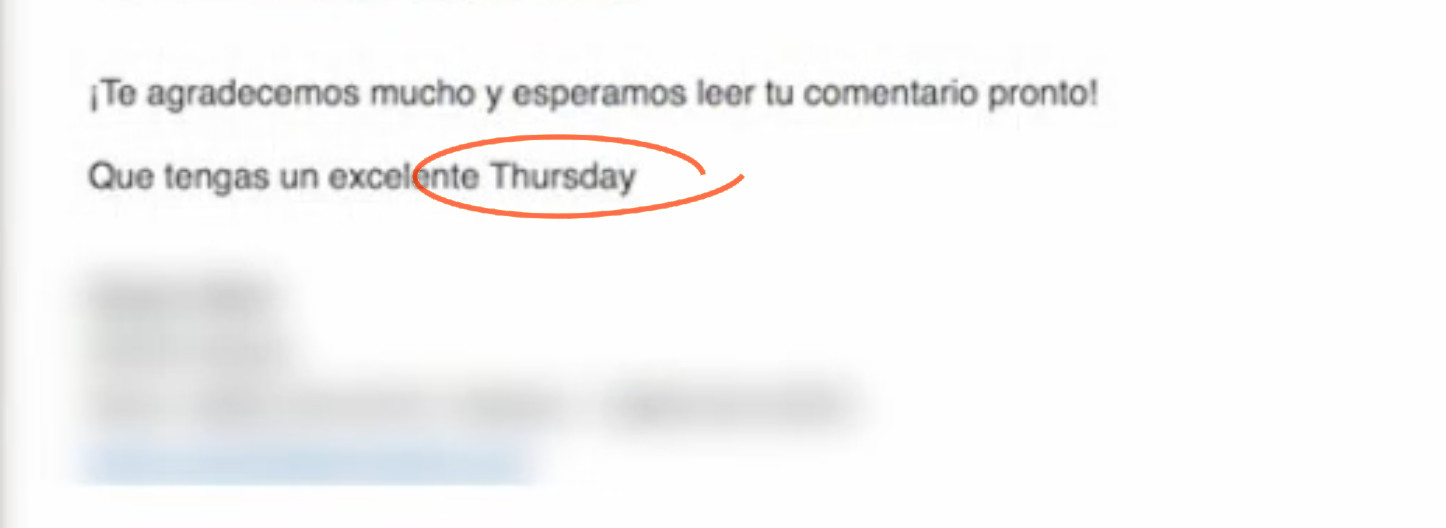
But if you want to use the date merge fields to personalize your content, then when it merges in the month (or the day of the week), it can disrupt the whole message.

day of week language

That’s not exactly gonna fly.

It begs the question, how do I create custom date merge fields for any language?

Multilingual Merge Fields

Well, the native date merge fields merge in English, but I saw a possible clever solution posted in a group – and it sparked an idea.

If you can dedicate a custom field to ‘day of the week’, you could use automation to continually update that field in whatever language(s) you deliver your content.

Check it out:

This is a solution to a relatively niche problem, but often times clever workarounds like these can spark ideas for unrelated issues.

If you see utility outside of the specific context offered in the video, I’d love to hear where else this might be valuable.

Thanks for reading!

How to Automatically Mirror Notes between Keap Contacts

How to Automatically Mirror Notes between Keap Contacts

I think notes are one of the most under-appreciated Keap features.

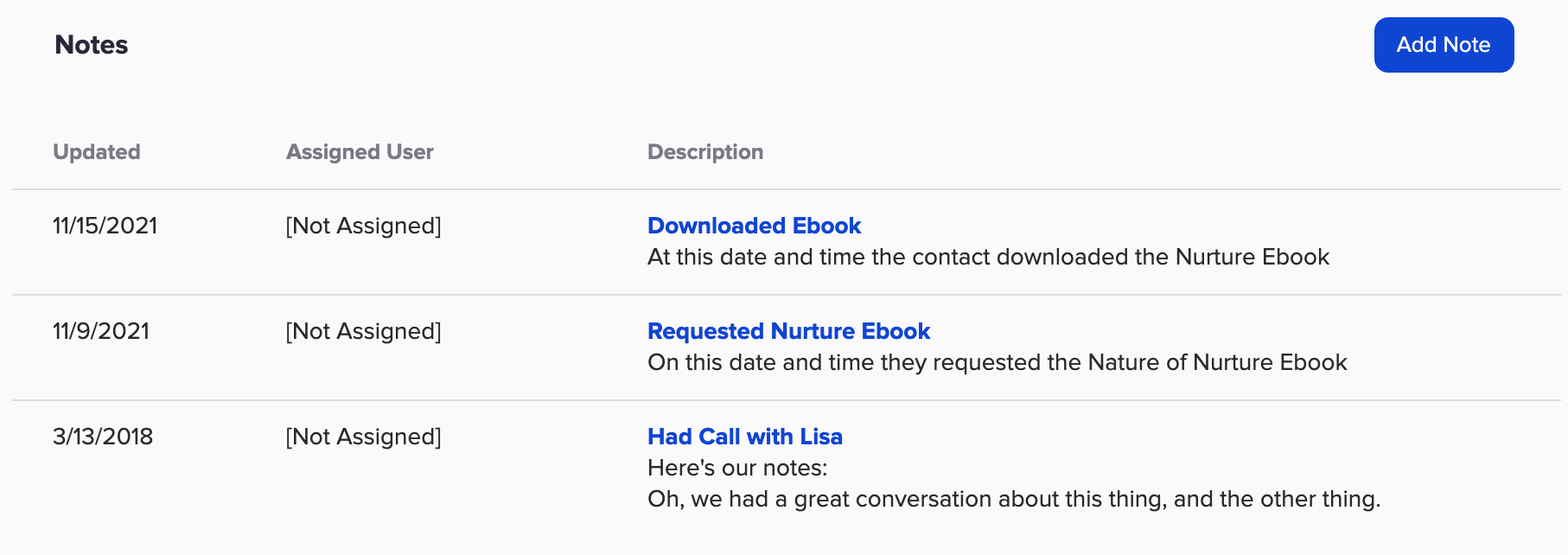
They’re flexible – notes can be applied manually to record an offline interaction, or automatically as a step in a sequence.

Sequence Step Note Applied

And if you’re diligent about applying notes at key milestones, then the notes section on the contact record can give you a useful timeline of interactions with that contact.

Note HIstory

This is all sound advice – and can help keep contact info current, reduce the need for tags, and create a consolidated history of important milestones right on the contact record.

But, what happens if you have two contacts that are associated with one another?

Can I sync notes between two contacts?

What if you want to automatically sync notes from one to the other?

Like, between two spouses – or two contacts at the same company.

This question came up in the OG members group the other day and while it isn’t possible natively, we did come up with a creative Zapier-based solution.

Check it out:

Notes are an underrated tool – and if you take nothing else away from this blog post I hope you start seeing them as a flexible way to track information.

But, if you have a situation where you need to automatically sync notes (or tasks, or appointments) between two contact records, then hopefully the Zapier solution modeled in this video gives you some ideas.

And speaking of ideas, if you want to see more Zapier use cases, check out this post.

If you found this useful (or have follow up questions), drop a comment below. Thanks for reading.
Single Sequence Unsubscribe [Updated]

Single Sequence Unsubscribe [Updated]

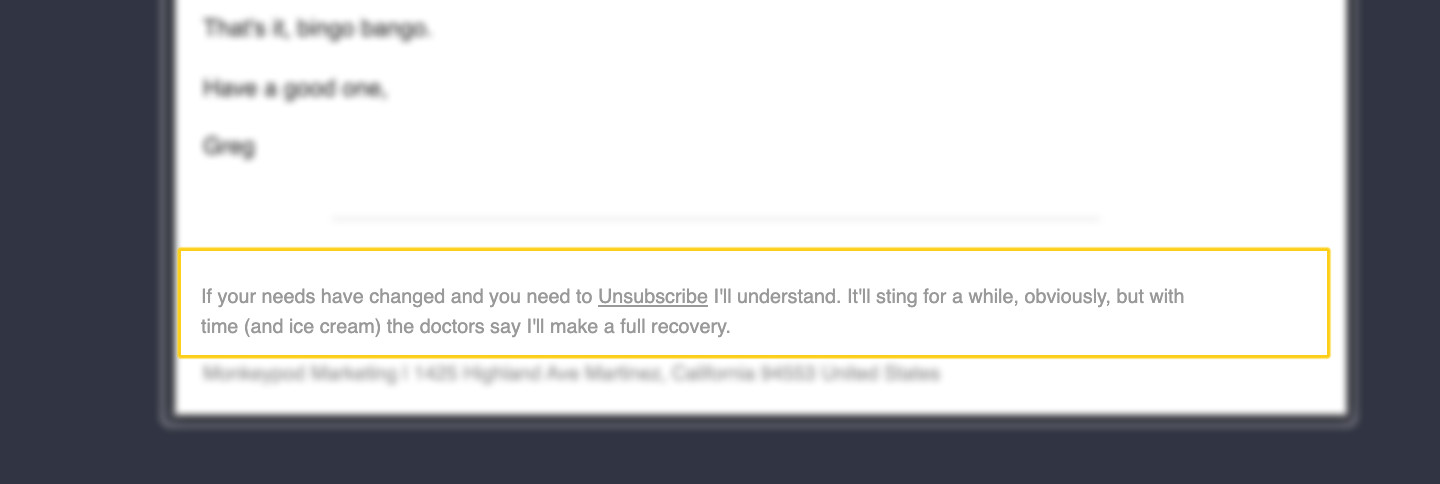
In the footer of every email we send through Keap there is, by default, a global unsubscribe link.

This is generally good, because it let’s contacts unsubscribe when their needs change and they decide they no longer want to hear from us.

Unsubscribe Footer

If someone unsubscribes it changes their email status globally.

But what happens if someone just wants to stop getting emails from one specific sequence?

Or just one campaign? Or one topic?

The reality is the native unsubscribe option just doesn’t have that type of nuance.

Which actually was the origin story for the single sequence opt out blog post I wrote back in 2016.

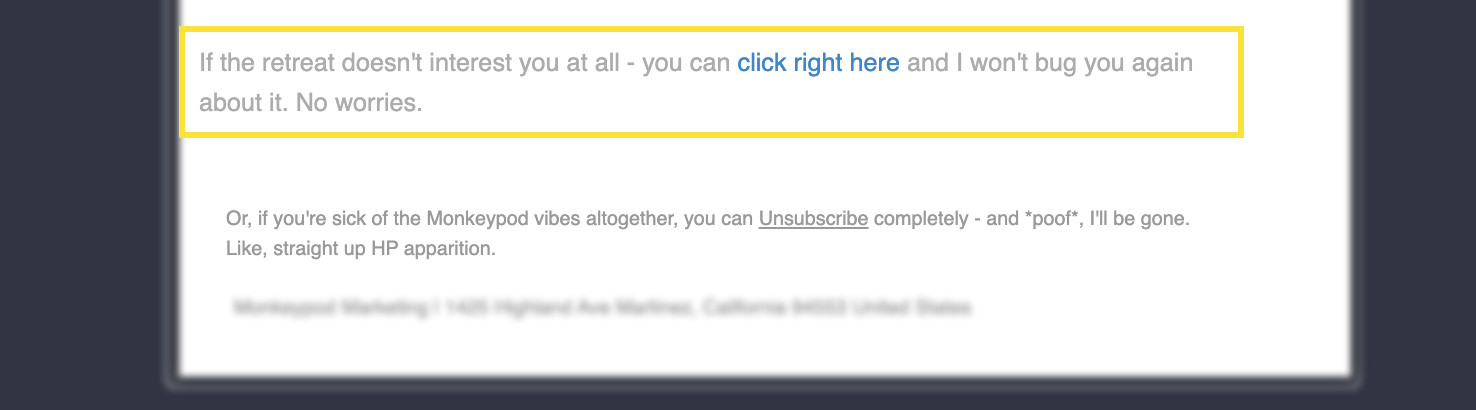
The answer is to build your own links that can function as a short-term unsubscribe – to opt them out of a single sequence or campaign.

Unsubscribe Footer2

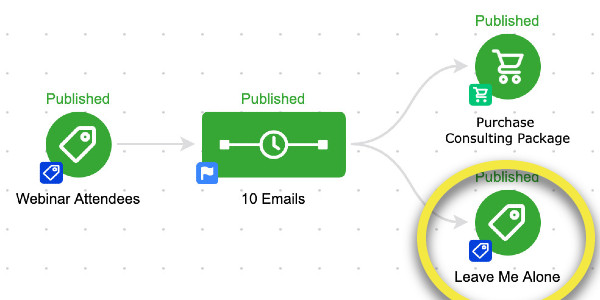
The trick is to have the link click achieve a goal directly, or apply a tag which achieves a goal.

Single Sequence Unsubscribe Campaign

Things have evolved a bit over the years, and actually, PlusThis has introduced a solution to this as well.

But I figured it was time to dust off this old tactic and give it the glow up it deserves.

Enjoy:

Simply put – this approach affords your subscribers more control.

This lets them opt-out of a single sequencing of emails – or out of a single campaign, without unsubscribing entirely.

This is good for a few reasons – it means your messages are only going to people who want them, which is good for engagement, and in turn can help with deliverability.

But the second reason this is good is because it helps you learn about your audience, and the things that they are interested in – which in turn can help you improve your segmentation, and craft new offers.

And as always, if you want more campaign builder training I recommend the CB Trilogy course – now available free of charge to all Keap users.

PlusThis Solution

If you have PlusThis, then you’ll be pleased to hear they have an Email Subscription Manager tool that handles this situation a little differently.

Their feature lets your recipients manage the types of content they receive.

Here’s their blog post about it.

And if you don’t yet have PlusThis, you can take it for a test drive with a free trial here >>

How to Round Robin Anything

How to Round Robin Anything

So, just so we’re all on the same page, a round robin is a way of distributing things equally.

A common example would be assigning leads to your different sales reps.

And in this post we’re going to show you how you can use Zapier and Google Sheets build your own custom Round Robin process.

Use Cases

I think this solution could be useful in a handful of scenarios – but here are the main ones I see:

1. If you use Keap Max or Keap Pro and need to distribute leads between your different sales reps

2. If you want to round robin between external vendors (lenders, coaches, etc) who are not users on your app

3. Or, this could be used to round robin between options – like, assigning students to study groups, or rotating mentees between mentors, or picking which bonus item goes to new purchasers

How does it work?

So, to do this you’ll want to start by setting up a list of the round robin options in a google sheet.

Then, you’ll design a zapier recipe that starts at the first option, and each time it runs it increments by 1 in order to select the next option.

The key component here is to make sure the ‘count’ is reset to 0 once you’ve reached the end of your options.

Here’s a demo for you:

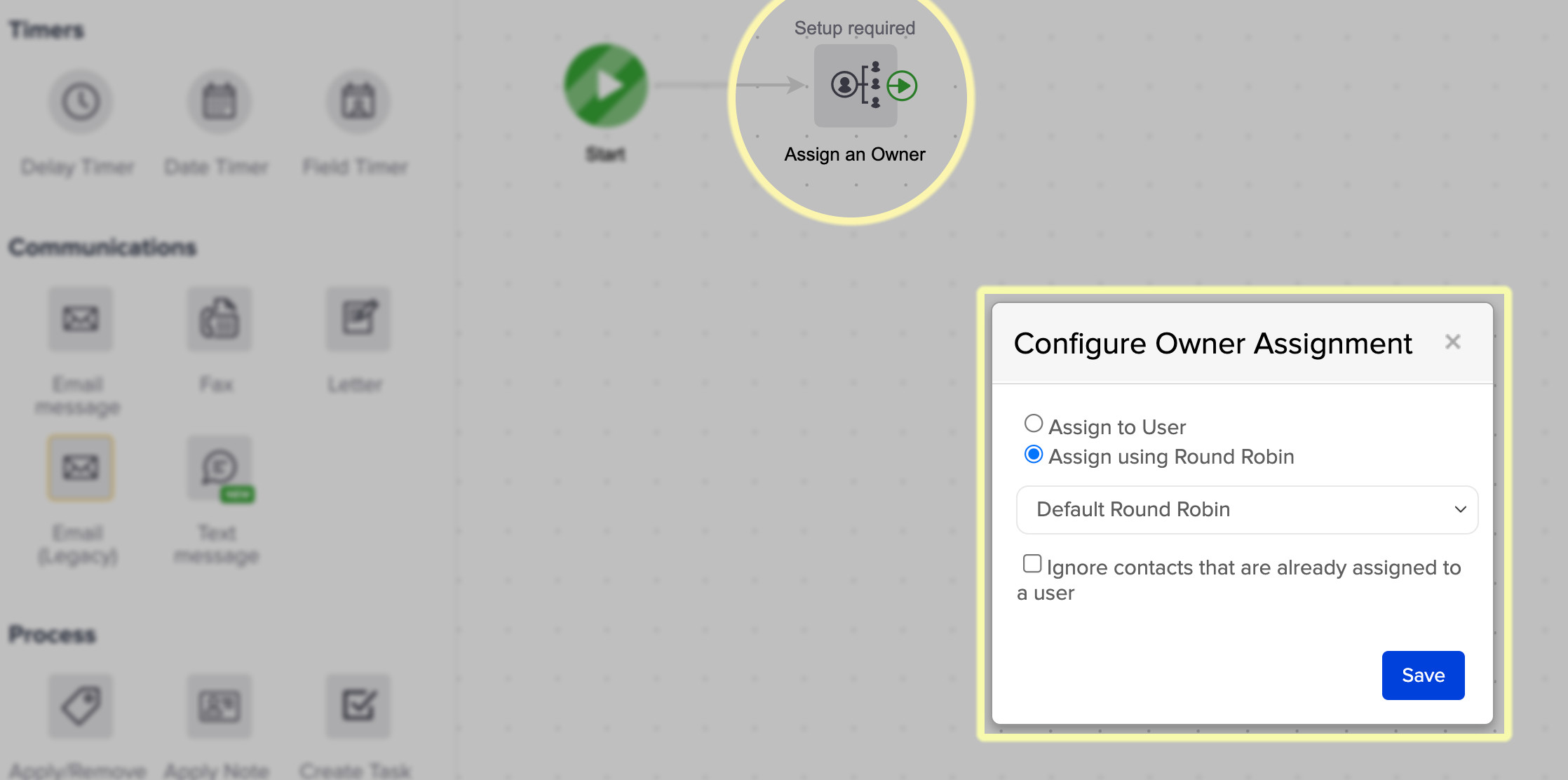
And just as a reminder, if you use Max Classic (formerly Infusionsoft) there is a built in Round Robin process for assigning leads and opportunities.

Round Robin Native

But if you don’t use Max Classic, or you need a secondary round robin option, then using Zapier to create your own might save the day.

If you go this route I’d recommend using an HTTP post to initiate the Round Robin (here’s a demo on that).

And if you’re new to Zapier, here are a handful of examples for recipes other Keap users depend on.

Thanks for reading – feel free to leave any questions or comments below.

Lead Scoring in Keap

Lead Scoring in Keap

This blog post is all about the Lead Scoring feature in the Max Classic version of Keap.

(And just as a reminder, the Max Classic version was formerly called Infusionsoft.)

But before we get to how this feature works, I wanna first talk about what it does, so you can decide if it’s something that your business will use.

As valuable as Keap’s Lead Scoring feature is, it’s utility is somewhat limited for certain business types.

Kinda like the corkscrew on a swiss army knife – if you don’t drink wine, it’s probably not that important.

But if you’re part of the rosé-all-day crew, then this little feature might just be your personal fav.

What is Lead Scoring?

Simply put, Lead Scoring is a Keap feature that evaluates your database (all your contacts) and assigns them a score based on a set of criteria you define.

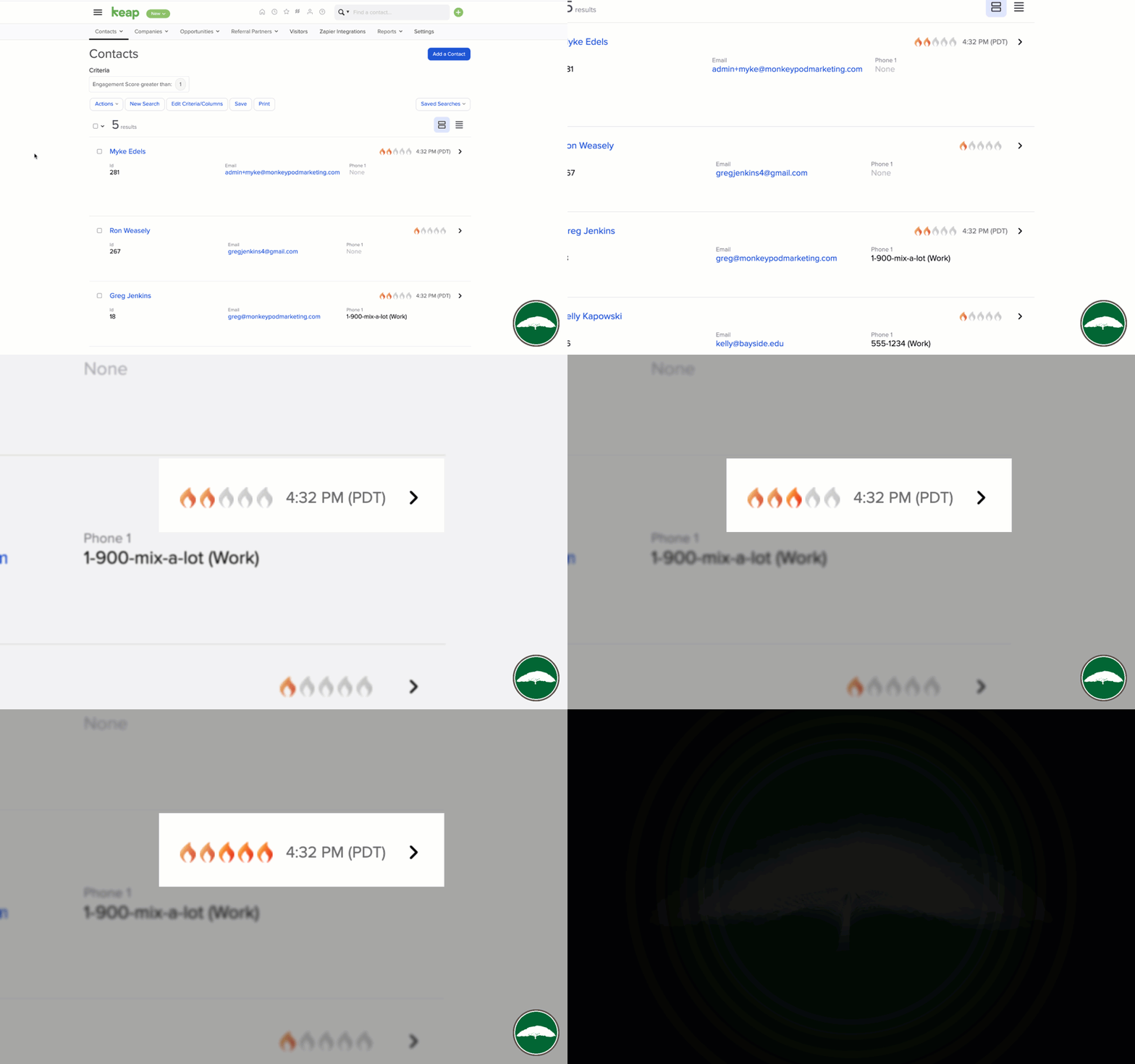
That score is represented on their contact record by flames.

Lead Score Flames in Keap

If you’ve seen those flames and wondered, now you know.

But if you’ve never seen those flames, it could be because Lead Scoring is only available in Max Classic accounts (formerly known as Infusionsoft), or that it’s simply disabled in your account (but you can flip it on).

Which begs the question – do I need it?

Do I need Lead Scoring?

Maybe. Maybe not.

It’s a cool feature – but doesn’t mean it’s critical for every business.

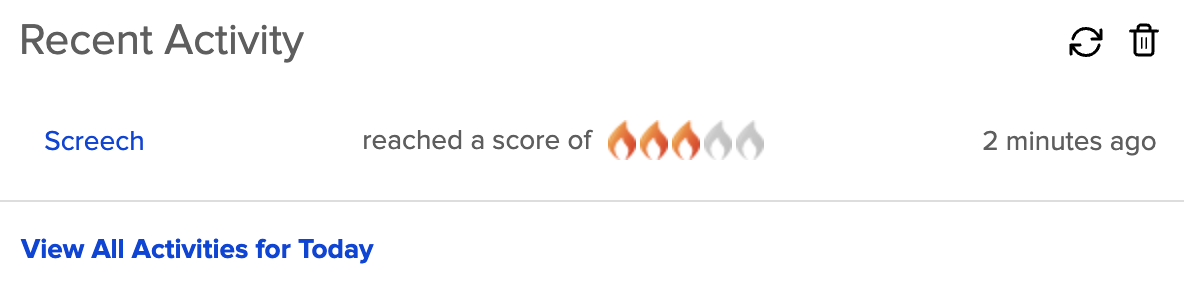
If you want to keep tabs on how your audience is engaging with your content, then Lead Scoring might be the answer. Scores calculate automatically and you can get updates on your dashboard.

Keap Lead Score Update

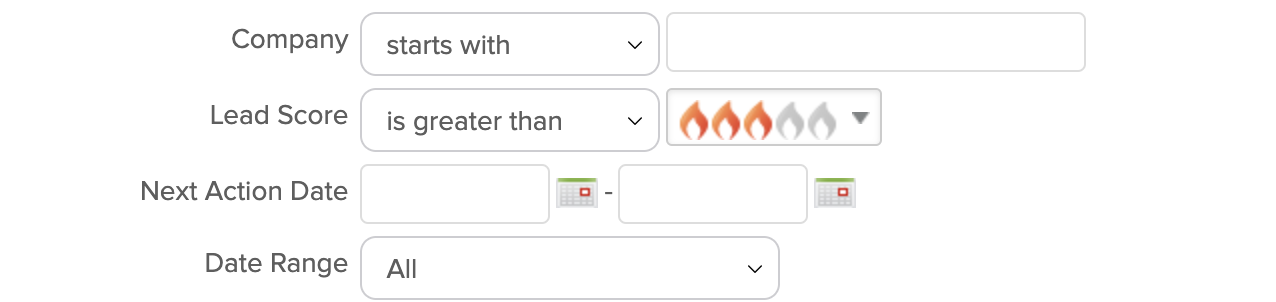
If you have a team of sales reps (or even just one) who want to make sure they’re spending their time calling the most engaged prospects in their pipeline, then Lead Scoring might be the answer. It’s available to use as search criteria.

Lead Score Criteria

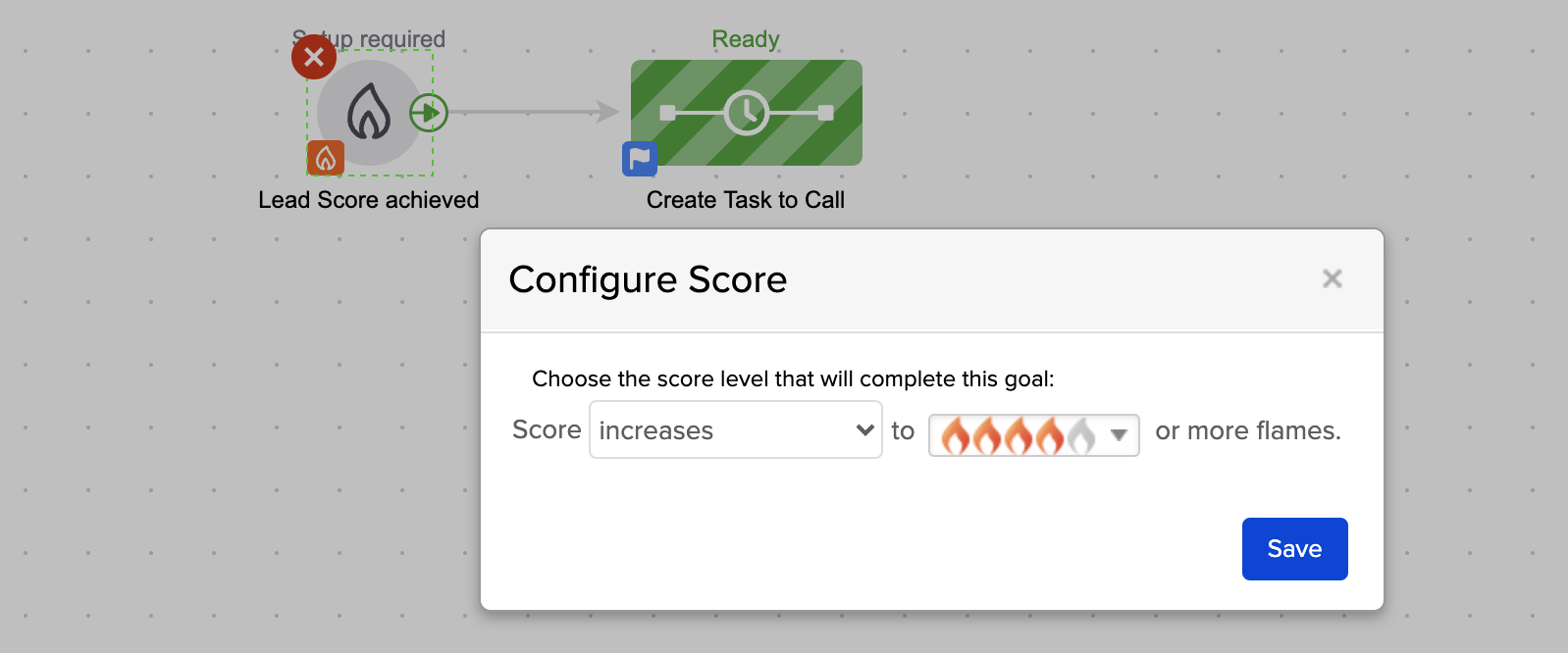
Or if you want to automatically start or stop automation based on the way someone does (or doesn’t) engage with your emails, then Lead Scoring might be the answer.

Keap Lead Score Goal

There are myriad scenarios where Lead Scoring solves real world problems – but whether or not it’s a fit for your business is going to depend on your specific set of circumstances.

But if you do decide to use it…

How do I use Lead Scoring?

If you decide it sounds interesting, or even if you’re interested-but-not-quite-sure, the next step would be to set up the initial set of criteria that the Lead Scoring feature will use to evaluate the contacts in your database.

The beauty of that is that the algorithm starts running right away, and in a matter of a few hours you’ll have a new layer of information regarding the prospects in your app.

Where do I learn more?

The Keap Academy platform features a quick mini course all about Lead Scoring, covering the how you can set it up for your business, and the different ways to start using it right away.