One Day Launch Experiment

One Day Launch Experiment

Context:

K – so this lil experiment came about because I had been intending to record an evergreen webinar, but somehow the project had been on my to do list for over a year.

I had the tools, and the experience – but for one reason or another I just wasn’t prioritizing it (sound familiar?).

So I decided to tackle it – and to prove a point (or punish myself?) I committed to doing it in a single day.

This blog post is a deconstruction of that entire experiment, from the prep, to the execution, to the lessons we learned, and the people who made it happen.

The Launch List:

In preparation for this project I made myself a launch checklist – and then it occured to me that others might want that too – so I published it as it’s own blog post (here’s the checklist).

I timed it so the checklist blog post would go live the day before the experiment was scheduled – that served two purposes, a) it gave people the list so they could follow along, or build their own webinar, and b) it gave me an extra chance to plug the actual launch day experiment and livestream.

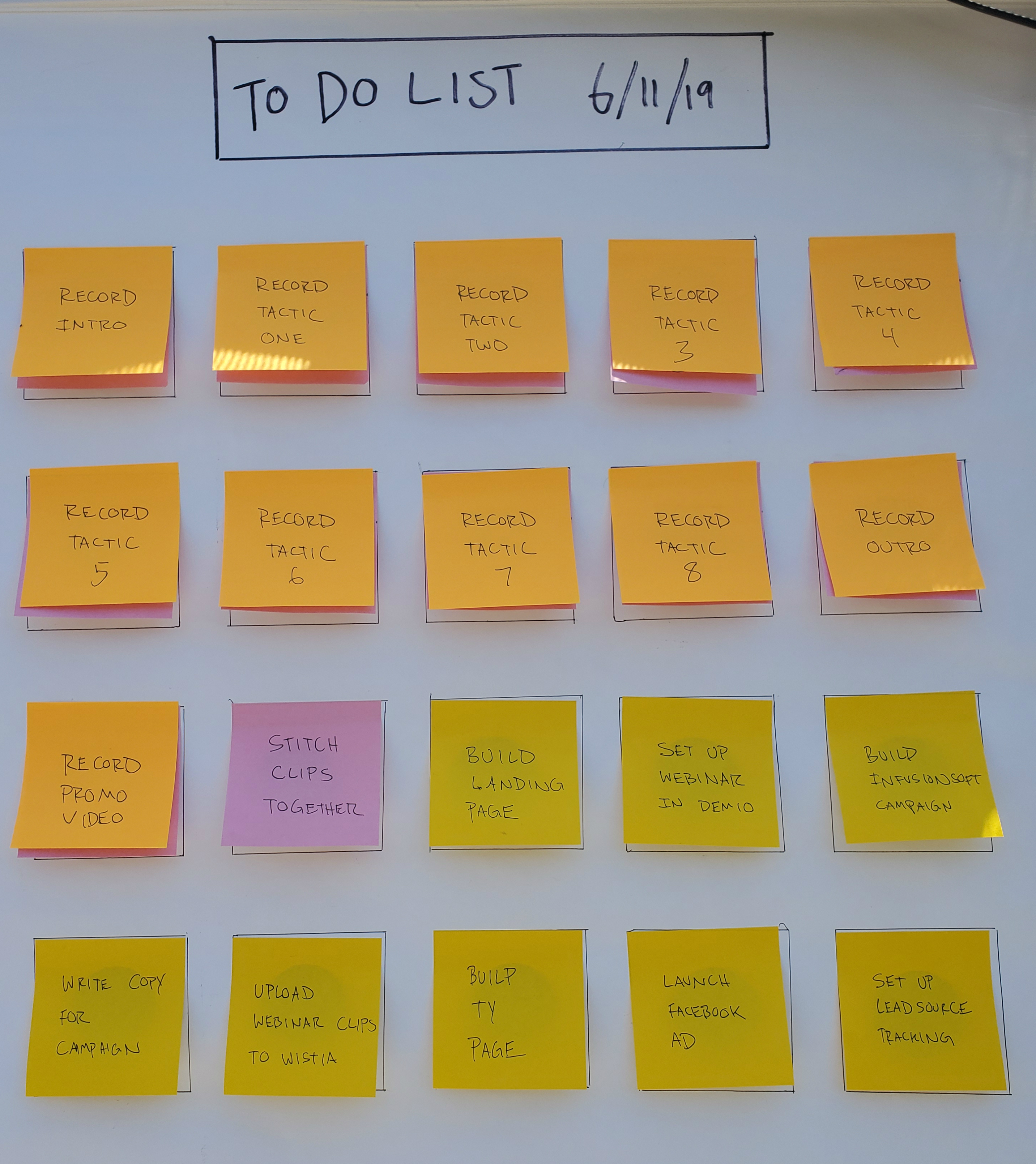
For the live experiment I turned the checklist into this handy-dandy collection of post-it notes:
The only things we prepped ahead of time were the checklist, and the actual presentation material (like, the outline for what we planned to record).

And that part was really only because it was a presentation I had delivered for SuccessCon 2018 (called “Basic to Baller: Tactics for Leveling Up Your Infusionsoft Campaigns”).

The Tools:

There are a bunch of webinar tools out there, I won’t pretend to have used them all, but for the last year or so Demio has been my platform of choice for a number of reasons. And since Demio also offers an evergreen option, that’s what we used for this project.

Here are the other tools we used in this project:

[Back to Top]

Content Strategy:

This might be my favorite part of this project.

So, we were setting out to create an evergreen webinar, right? And normally that’d be the end of that, and when you’re done you get to share the webinar you just created.

But a theme of mine lately has been trying to find ways to get additional mileage out of my efforts – so rather than just creating the webinar, we wanted to see how else this project could be valuable. If we’re doing to do the work, then we wanna make sure we’re maximizing the return we get on our efforts.

Here’s what we came up with – in addition to producing the webinar (1), we also write the checklist blog post (2), livestreamed the process from start-to-finish (3), produced a recap video (4), and wrote this blog post breaking down the entire project (5).

That’s five pieces of content from the one project, and I’m not counting the various social posts plugging those different assets. Not bad, right?

I guess my point is that different people might be interested in different parts of this project – and the same thing might be true in your business.

What ways could be getting extra mileage out of your existing efforts?

[Back to Top]

Launch Day:

I knew I’d need a little help with this, so I coordinated with Myke, Josh, and Bret, and the four of us picked a day where we were all available.

Bret was in charge of managing the livestream, and making sure he had the content he needed to produce the summary video.

Here’s the full livestream >>

And here’s the summary video >>

Josh and Myke were there to help with the actual implementation.

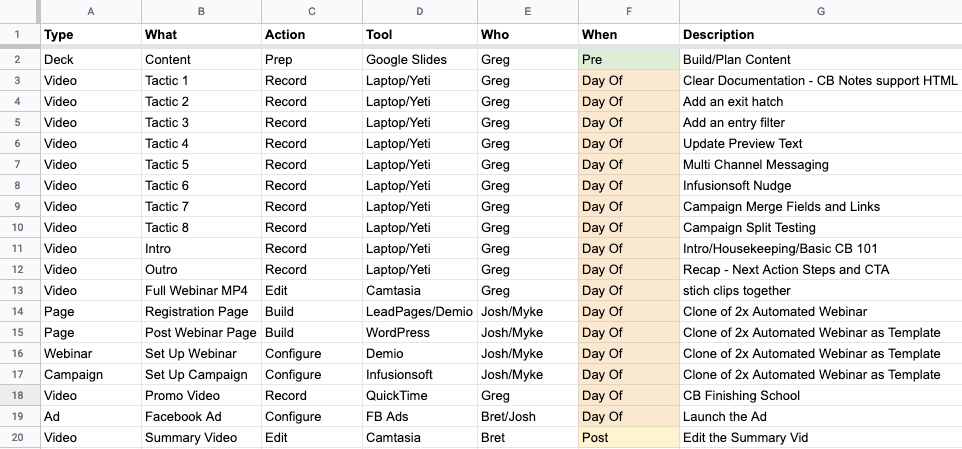
The only “work” I did ahead of time was creating an itemized plan of attack – I opened a google sheet and listed out all of the things I thought we’d need to build, including what tools we’d use, and who would be responsible.

Remember that physical “to do list”? As we completed individual tasks throughout the day we moved the ceremoniously peeled the post-it notes off. (surprisingly satisfying, I might add)
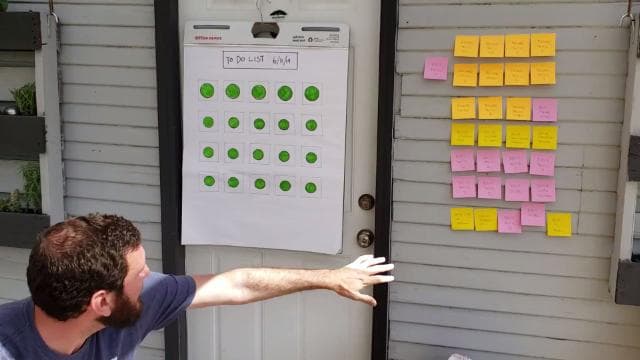
The other headstart I have to acknowledge was that we were working with content I had already presented once.

We’d still need to update it, record it, and edit it – but we didn’t need to build that out from scratch and that’s a big deal, because organizing your webinar content can be quite a hurdle.

Once the livestream kicked off I dove right into recording and editing the content, and Myke and Josh worked on setting up the webinar in Demio, creating the registration and thank you pages, and building the Keap campaign.
The editing took the bulk of the time, by far.

So Josh and Myke took off once their work was done, and Bret did his best to keep the livestream entertaining.

Then, after a light and breezy 8-hours – all the assets were built and tested and we were ready to launch. The day concluded with Bret pressing publish on this Facebook Ad to start telling people about the webinar.

[Back to Top]

The Final Webinar:

This was the second automated webinar I’ve created and so I made one big change in terms of how I prepared this one – instead of recording the automated webinar first, and then cutting it into individual chunks for the post-webinar page, I decided to record the individual chunks, and then stitch them together for the complete webinar.
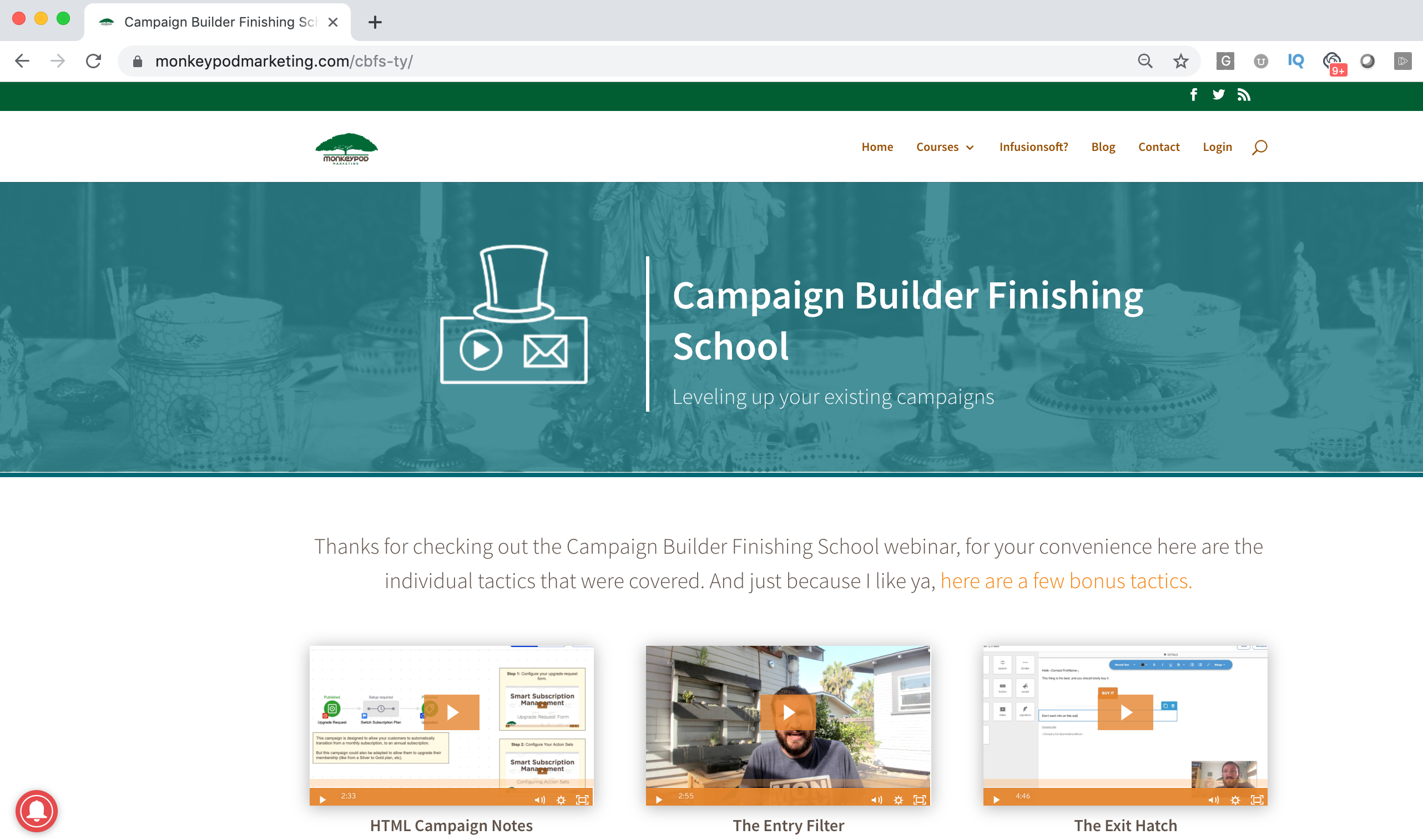
Here’s why this matters – one of the biggest drawbacks of an automated webinar is that your viewers might feel held hostage, so I like to give people the ability to exit the webinar and watch the content at their own pace on the thank you page; so I designed that piece first, and then assembled the individual clips into the large webinar recording.

This made it easy for me to record – because instead trying to find natural points where I could clip out the content, all I had to do was record an intro and outro, and then insert transitions between the individual clips.

The Recap Video:

I’m no fool – I know no one wants to watch an 8-hour livestream, no matter how majestic and inspiring it may have been.

So I hired Bret to distill the recording into something more digestible, and not to diminish his video alchemy – but *poof*, here ya go:

Another important thing to note here is that we went into this knowing we were going to produce a summary video, so that allowed us to capture footage or have conversations that would make future Bret’s life easier once he got into the editing room.

[Back to Top]

Lessons Learned:

This was a fun project, and I’d definitely chalk it up as a success.

We did what we set out to do – but, that doesn’t mean everything went swimmingly. We definitely learned a few things along the way.

1. Look for layers in your content
It would have been easy enough to just record the webinar and put it out there, in fact that’s what I think most people do.

But if we had just done that we’d really only have served people who wanted to polish up their Infusionsoft campaigns (the topic of the webinar). By recording the process and documenting our experience we were able to broaden our audience and provide valuable content for people who are interested in creating an evergreen webinar – or who want a behind the scenes peek at building the campaign to support one.

2. Plan the Livestream
This is definitely something I think we could have done better – we knew we wanted to livestream the whole thing, but we underestimated how long the editing would take, and since a livestream of me editing video might actually be boring enough to kill someone, I wish we’d have coordinated some content to help with engagement.

If I were doing this again (and we might), I’d have come up with different topics, or had some other folks come by for Bret to interview during the livestream (Parks and Rec telethon style).

3. Set Goals
Our goal was really just to see if we could do this, and we did – but I wish I’d have set more specific goals for how long it would take, and then more importantly what type of a business impact this project would have (new leads, new sales, etc).

This one feels obvious in hindsight, but when we started this project I was coming at it from a content creator’s perspective. I wanted to be valuable, which is fine – and I think it was, but I could have also given more thought to exactly how it would serve Monkeypod.

[Back to Top]

Results:

I mentioned that this wasn’t a very “goal oriented” project from the onset, but I thought I should share some numbers for those of you who like numbers (even modest ones).

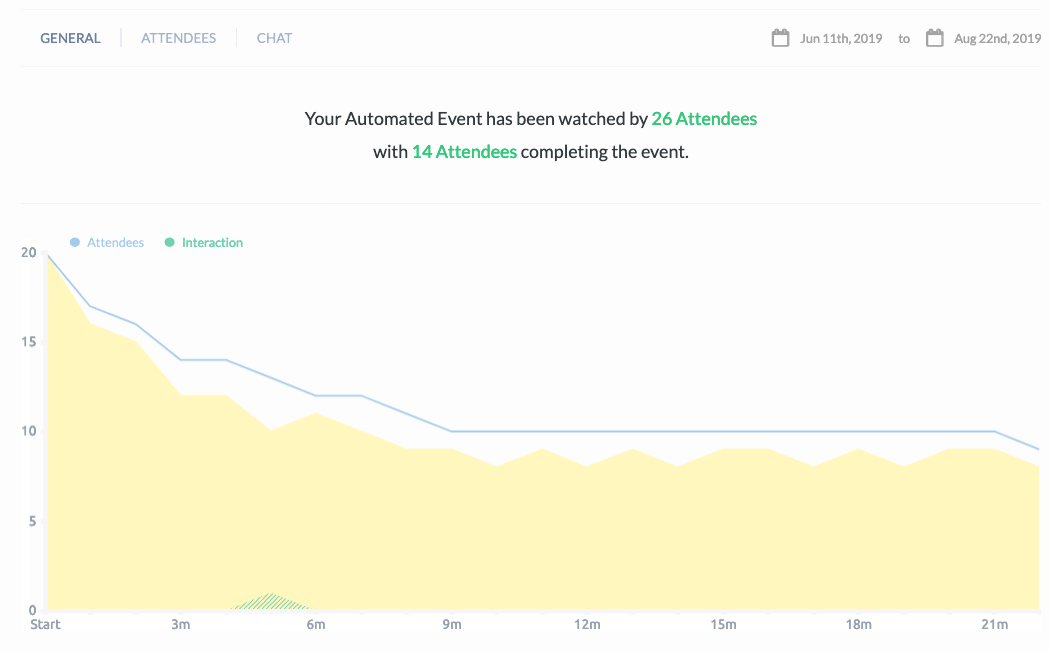
The first thing I’ve noticed, and am encouraged by – is that 80% of registrants are actually showing up for the webinar (compared to normal webinars which are generally less than 50% show rate).
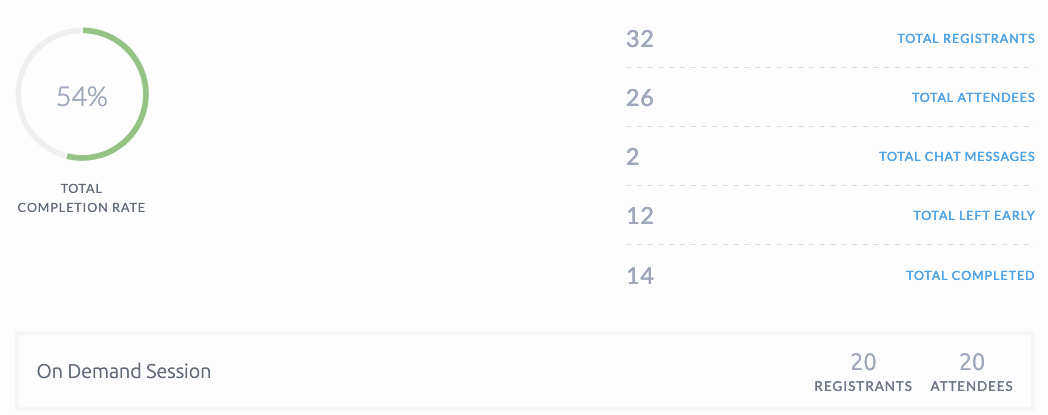
I also noticed here are that 100% of registrants who chose on-demand are showing up, this makes sense since their session can start immediately – but it’s nice to see it validated with 20 out of 20 (admittedly, a small sample).

Finally, 54% of those who show up for the webinar are staying through completion – I was surprised by that as well, because I am literally giving people an “escape hatch” to leave the webinar after a few minutes.
Shout Outs:

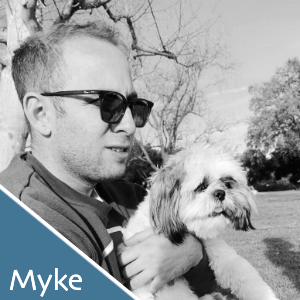
Gotta give a ton of love to Josh, Mychal for their work on this, and Bret for playing producer, and masterfully editing the recap video..

If you are interested in seeing more of Bret’s video production and editing skills I recommend checking out his YouTube channel. His last couple videos have been on fire.

(Oh, and for the dog people among us, here’s a 4-minute masterpiece he edited together using clips Sara and I shot with our cell phones during our road trip last month.)

I mentioned the tools we used above, but having the right people on your team is a huge factor in the success of any project. Happy to vouch for those three dudes if you find yourself needing any of their respective talents.
Keap’s Failed Purchase Goal

Keap’s Failed Purchase Goal

Listen up campaign builders – we’ve got a brand new goal method, introducing Keap’s Failed Purchase Goal.

The Failed Purchase Goal

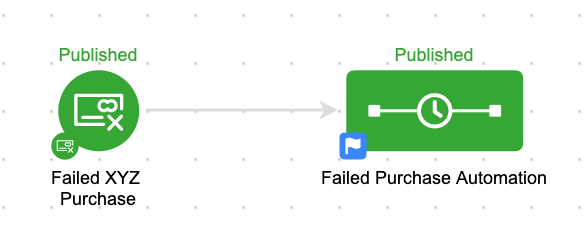
The idea that we can trigger automation when someone attempts to purchase and is unsuccessful isn’t new, but this new goal method allows us a more direct path for starting and stopping automation inside the campaign builder.

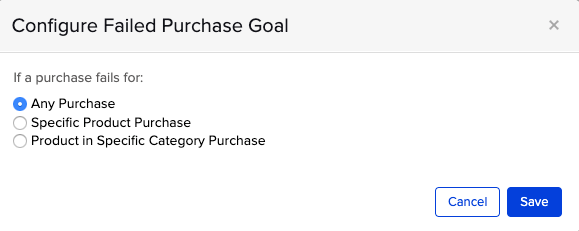
The goal has three options for when it will trigger, either on any failure, failure of a specific product, or failure for any product within a category.

The “any purchase” option doesn’t feel as useful to me simply because the automation you trigger wouldn’t be able to be as targeted as with the other two.

As with other campaign goals, once achieved contacts will be added to the sequence following it.

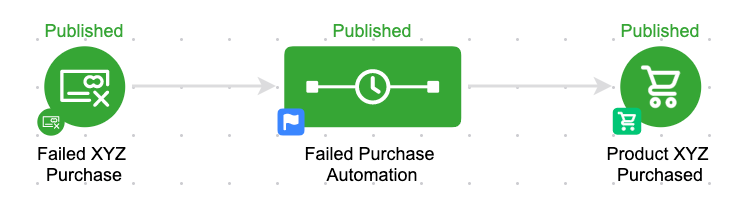
This campaign structure is obviously pretty basic, but it’s what goes inside the Failed Purchase Automation sequence that will need your attention.

If the automation you configure is designed to follow up with the buyer over time, then you’ll also want to make sure this campaign has a conclusion goal so that it automatically stops when they successfully buy.

Check out the video below as I build a sample campaign and address a few of the most common questions I’ve heard on this feature.

Oh, and the section of the video from 10:45-14:00 is no longer necessary. You can skip that sequence/task altogether.

Update: In July 2021 Keap made a change to how failed orders are handled, which simplifies the campaign structure recommended in the video about.

Simply put, failed orders no longer create an open balance. Read about the change here.

FAQS

Is this just for initial purchases?

No.

In my tests I’ve found that this goal method is also achieved when a recurring subscription payment isn’t able to process – another reason to be careful when using the “Any Purchase” option.

Can I use billing merge fields?

No.

If you need to use the credit card or order merge fields then you’ll want to stick with the options in Billing Automation.

(Want the Billing Automation presentation that I accidentally uploaded to my personal YouTube channel?)

This new goal method opens the door for lots of automation opportunities, the trick is to start looking at what is currently happening when someone tries to buy and isn’t able to – and then asking “What should be happening?”

At the very least you might want to add a step that sends them the link to the sales page – but for higher ticket items it might make sense to task a human to reach out and help facilitate the transaction.

If I missed anything here, or you have any questions, please feel free to leave them in the comments below.

AppointmentCore and Infusionsoft

AppointmentCore and Infusionsoft

I wanted to cover another popular solution when it comes to scheduling tools that work with Infusionsoft – but it’s been a while since I had any real world experience with AppointmentCore, so I turned to a few friends of mine who use this tool daily.

I asked the questions I thought would help you understand what AppointmentCore is, why it’s valuable, and decide whether or not it’s a fit for your business.

Big thanks to Francis Jones (KHJ Consulting), Mike Harris (GoldFixe Solutions), and Moshe Gotfryd (Maximind.ca) for their contributions below.

What is AppointmentCore?

Francis: “It is an online scheduling software. It allows your audience to find a convenient time to talk with/meet you without having to do the ‘does this date and time work for you’ dance.”

Mike: “AppointmentCore is a powerful scheduling tool that is specifically for Infusionsoft. It allows you to tie your business and personal calendars together so you’re never double-booked. It can then capture contact information, payments, and trigger automation when someone books, reschedules, and/or cancels.”

Moshe: “AppointmentCore is the easy way for clients and co workers to schedule your time”

Who should use AppointmentCore? (…and who shouldn’t)

Francis: “It is for any business that has a desire to give their customers and prospects an option to schedule time with them. The only businesses I have worked with that don’t find it helpful are businesses that schedule appointments all over the place and therefore can’t reliably use it for scheduling. For instance, a pest control company that does appointments all over town. If he or she lets me book an appointment on my own, how will the system know when it’s ok to open up the next time slot. There are too many variables.”

Mike: “AppointmentCore is for Infusionsoft customers who have an ongoing need to schedule appointments (virtual or in-person). It’s not for people who do not use Infusionsoft as their primary CRM. It is also not for people who are easily frustrated with slow software.”

Moshe: “AppointmentCore is for Infusionsoft users who want to leverage automation and simplicity in driving bookings for any type of meeting.”

What are your favorite Appointmentcore features?

Francis: “I love that it syncs to Infusionsoft and let’s me apply tags to run actions. It will also let me populate custom fields. I love the “Make me look busy” feature. I also love the buffers before and after an appointment. I love that I can create as many calendars as I need. I know other tools do some of those things as well, but those are the things I like about Appointmentcore.”

Mike: “No limits to number of appointment links you can make. Easy to fire automation via tags for each appointment type. They have built in email and SMS reminders. You can make booking links for multiple team members where only one team member needs to be available or you can require that all team members listed attend. Perfect for round-robins as well as client transition meetings and interviews. It check all users calendars and only serves up the times where everyone is available.”

Moshe: “- The appointment link knows who is booking, so you don’t end up with duplicate contacts.
– Flexibility for any scheduling need
– Merge fields into Infusionsoft
– Trigger API calls or apply tags for appointments that need it, or create a link with no integration to infusionsoft at all – no matter your need there is an easy quick solution.”

For a complete list of the AppointmentCore features, check out this page on their site.

What are Appointmentcore’s drawbacks?

Francis: “I sometime have a hard time linking it to a calendar. It can be a pain sometimes. The user interface is a little dated, although that doesn’t bother me nearly as much as other people I talk with.”

Mike: “It is soul-crushingly slow when you are setting anything up or just navigating between pages as a logged in user. So slow that it can easily discourage new users who are on their free trial to bail and use another software. You can ask custom questions on the booking form but cannot map them to Infusionsoft custom fields. No expiring/single-use scheduling links.”

Moshe: “There are a lot of features, and setting things up for the first time might take some exploration and trial and error. That being said, they have a great support team, and you can get all the help and advice you need in the Monkeypod private group. The community is powerful!”

How does Appointmentcore Pricing work?

Francis: “The pricing is competitive. To be honest, the real reason is I recommend it over the others is that the others make you pay to add integrations with Infusionsoft. Yes, Calendly is $8 a month, but to add the Infusionsoft integration is $20 (or whatever). I hate. I loathe ala cart pricing.”

Mike: “It’s tiered by a range of users (1-2, 3-5, 6-10). A lot of competitors will charge per user instead of a range. However, a lot of competitors offer a lower rate per user but you often will need a connector (like Zapier) to send the information to Infusionsoft. If you’re already paying for Zapier (or PlusThis), it might be wise to use a more inexpensive (but great) tool like Calendly.”

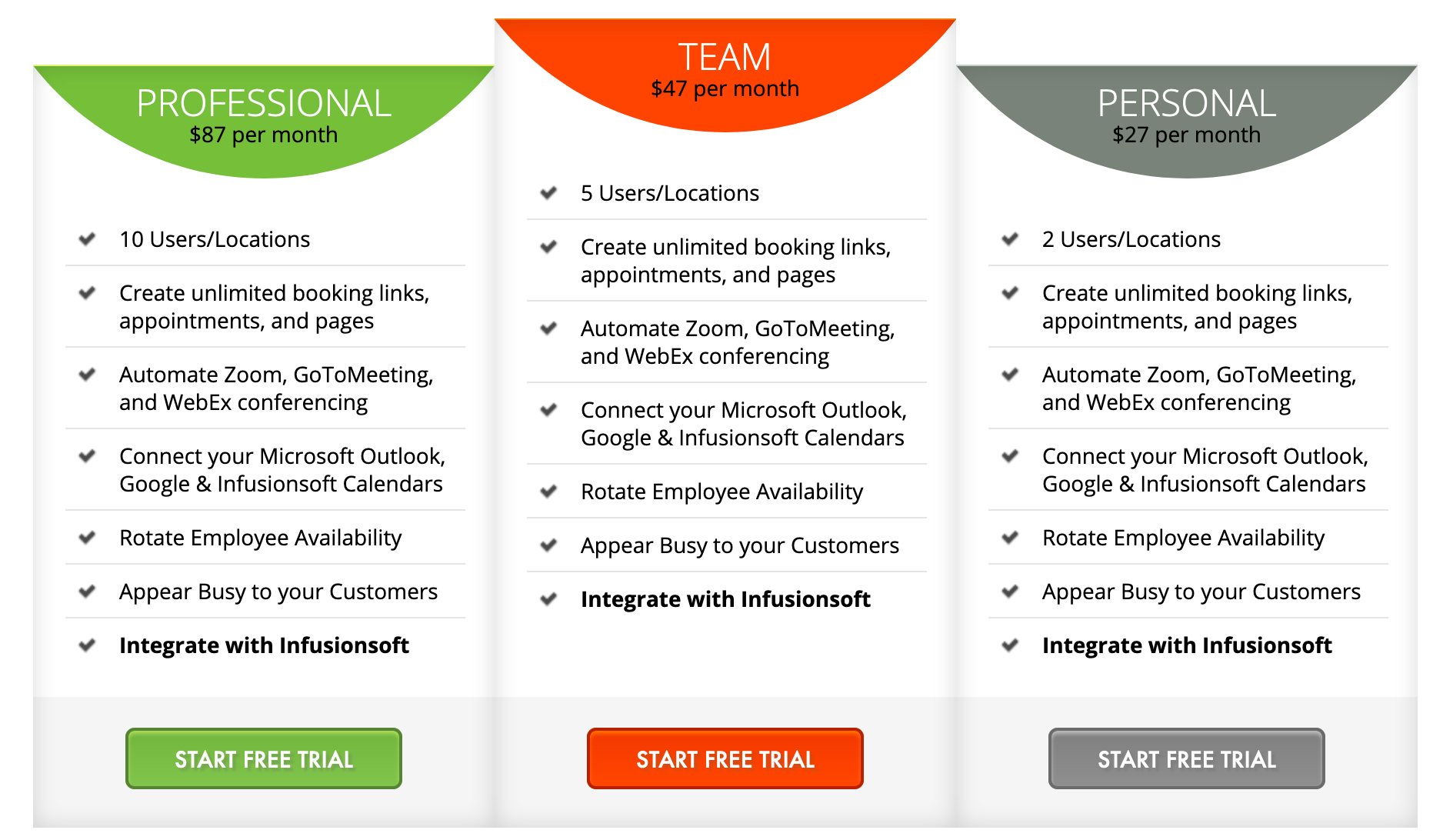
Moshe: “AppointmentCore scales with you. Starting at $27 for two users, $47 for 5 users, and $87 for 10 users.”

Here’s a look at the pricing from the AppointmentCore website:

How does the connection to Infusionsoft work?

Francis: “I thought it was really easy to set up and it has worked quite well for me. To be fair, I haven’t used it for anything gangster. Whatever I need it to do, it has done without any issues.”

Mike: “It works great for the transferring of basic contact info as well as the appointment information. All the automation is caused by tags when someone schedules, reschedules, or cancels. You can add multiple tags to each of these actions to trigger multiple automations. As mentioned earlier, even though AppointmentCore allows you to capture custom fields on the booking form, those fields cannot be mapped to Infusionsoft custom fields. They only appear in the confirmation email that AppointmentCore sends. Sometimes when you add tags in Infusionsoft they don’t appear right away in AppointmentCore. I’ve fixed this a couple different ways; from logging out then back in up to disconnecting Infusionsoft and reconnecting (not recommended).”

Moshe: “It natively connects with Infusionsoft so there is no need for something like Zapier to make things work. I like to leverage the custom merge fields and api calls instead of using the tags and default merge fields.

There are some cool things you can do if you introduce Zapier to the mix. I replace the appointment description with custom fields and person notes from the contact record. I also update the appointment with “Confirmed” in the title if they confirm their attendance.”

Another big thank you to Francis, Mike and Moshe for sharing their insights in this post.

If you’re curious about some of the other scheduling options, check out this post on Calendly, or this one on Acuity.

The Campaign Builder Facelift

The Campaign Builder Facelift

This week Infusionsoft rolled out a brand new look and feel for the campaign builder, and the reviews are relatively varied – some folks seem to dig the new curvy lines, while others find the published green to be a little…much.

Beyond the line changes, and new colors – the most notable changes are the shift away from a background grid (you’ll see a mostly blank canvas with dots to help align and arrange elements), and the addition of “status indicator” text above the icons.

But no matter how you feel about the new look and feel of the campaign builder it’s still just that, a new look and feel.

Functionally, your existing campaigns won’t require you to do or change anything.

However, alongside this facelift Infusionsoft snuck in some features that I am excited about.

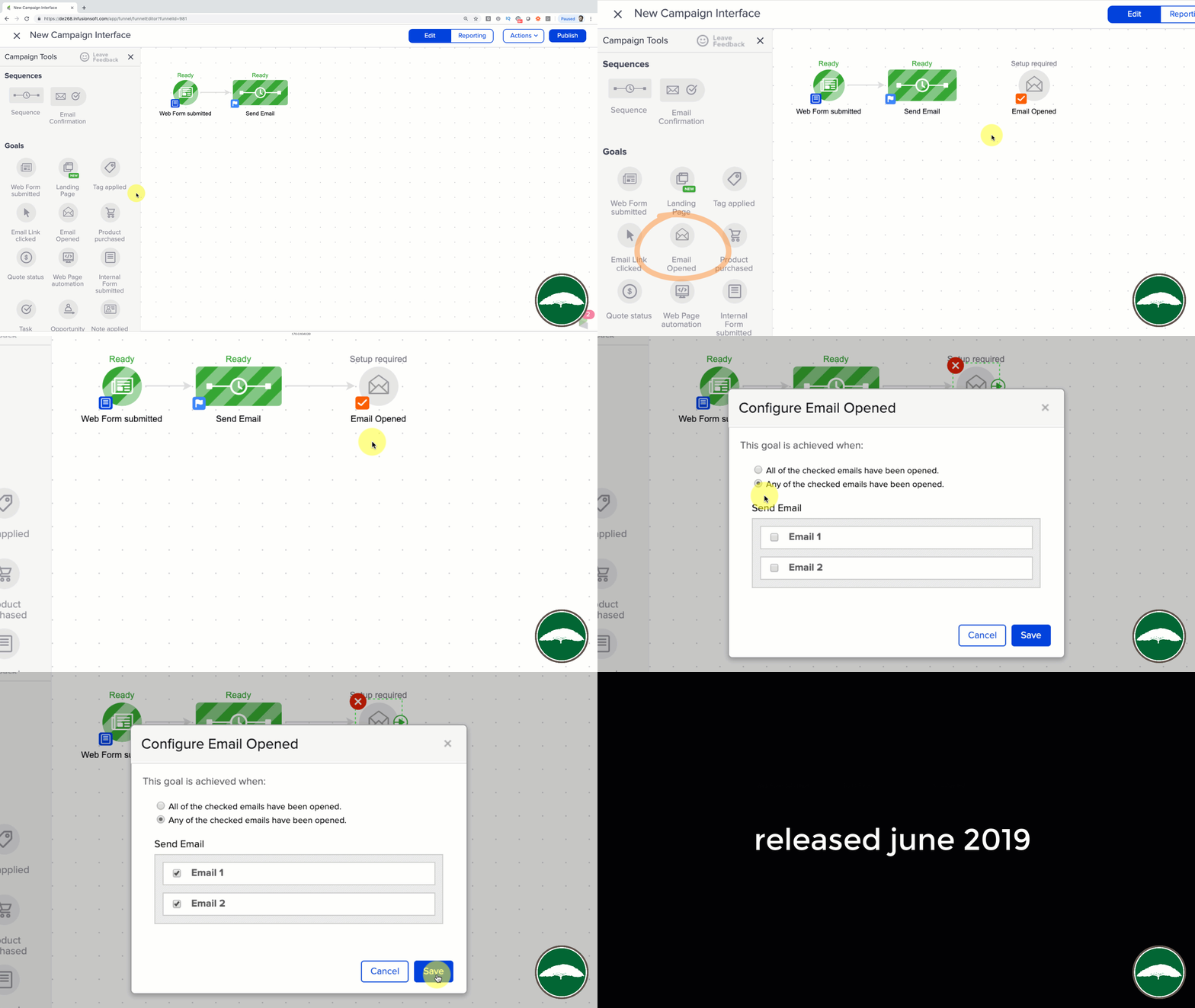
The Email Open Goal

If you’ve been an Infusionsoft user for any length of time, then odds are you’ve heard people asking for the ability to achieve a goal when contacts open an email (or maybe you’ve asked for it yourself.

Either way – the new Email Open Goal does just that.

Pretty slick, right?

With the addition of this new goal method you can now start or stop automation when an email is opened (or a series of emails).

That means you can craft sequences to automatically follow up with contacts who haven’t opened your email, because once they open it, they’ll achieve a goal and transition into the next available sequence.

This is great, but…

As exciting and powerful as this new feature is, I wanna highlight that it’s still dependent on the way email opens are tracked and reported, which has some well documented flaws.

I’ll just say this: There are a number of ways to read an email that don’t report an open, and a number of ways for an open to be reported without the recipient actually reading the email.

Does that mean not to use this goal?

Not at all.

You can totally use it, but I’d be careful about depending on it for absolutely essential parts of your customer journey, because it’s far from iron clad.

Enough about that, let’s take a look at the next shiny new feature.

The Create Order Widget

Historically you’ve been able to create orders inside of a sequence by using a legacy Action Set.

In fact, this was the only way to accomplish a “One Click Upsell” without using any third-party tools.

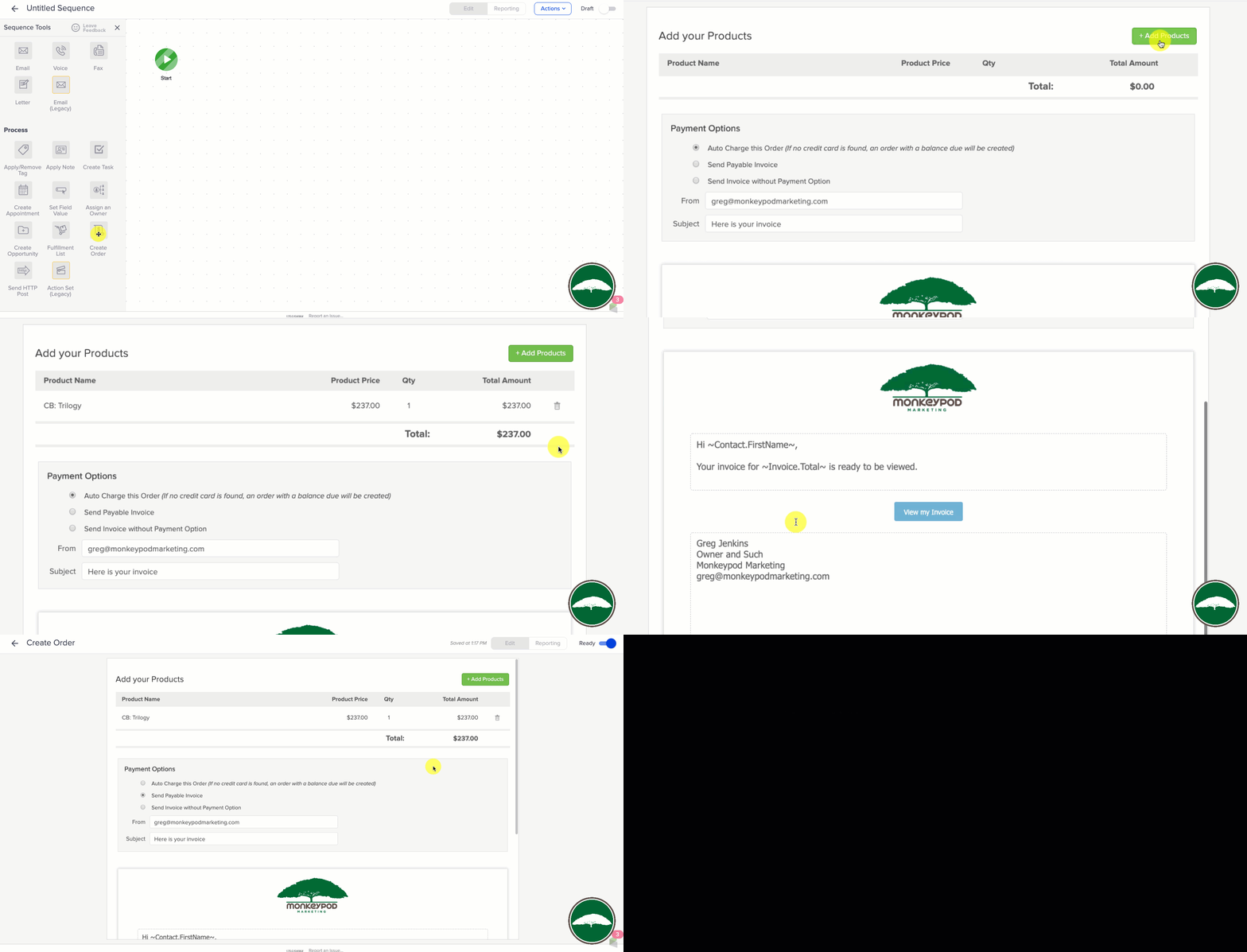
But with this update Infusionsoft also introduced the ability to create an order as a native step in a sequence.

You might be wondering…

Q: Will it trigger a purchase goal when the order is created?
A: No, it will not trigger a purchase goal if an unpaid order is created – even if you check “$0 invoices” on the purchase goal. However, it WILL trigger a purchase goal when a payment is collected for the order that was created.

(Shout out to Mallory Balnis of Plum Crazy Automation for helping test this.)

What I really like about this feature is that we have the choice to:

  1. charge the order automatically (if they have a card on file)
  2. send a payable invoice
  3. send an invoice without payment options

These are options we’ve had for a while on invoices and quotes we generate manually, but to be able to access them as part of an automated workflow opens up a lot of new possibility.

So, it’s perfect?

Not quite – it doesn’t look like you can easily adjust the price of the product once it’s added – but my hope is that they’ll add some additional options and flexibility in a future update.

What does all this mean?

Candidly, I don’t really care about the new look and feel – what I am excited about is the focus on enhancing and improving the campaign builder.

Yes, the new features – both the email open goal and create order widget give us the ability to build automation that wasn’t previously as accessible.

But beyond that – I’m stoked about the improved performance and reliability. The reduced visual complexity of the new interface has had a positive impact on speed and usability in building and reporting on campaigns.

If I missed anything, leave it in the comments below – otherwise, check out the complete release notes here.

Evergreen Webinar Launch List

Evergreen Webinar Launch List

This is what it takes to launch an evergreen webinar – mine happens to be integrated with Infusionsoft, but you could use the CRM and follow-up platform of your choice.

Just for funsies we attempted tackle everything on this launch list in a marathon day, here’s the entire livestream and link to the final product.

✅ Step 1: Prep The Content

The biggest hurdle for launching a webinar is figuring out what you’re going to say; for this project I’m going to use an updated version of a presentation I did about a year ago.

✅ Step 2: Record the Content

The benefit of an evergreen webinar is the content can be prepared in advance – this means you can rehearse, it also means you can record in smaller chunks – which allows you to follow an outline, and stay focused on individual sections of the webinar.

✅ Step 3: Edit the Video

Because you’re preparing the webinar in advance, that means you can edit the video to add effects, and remove segments that are distracting or confusing.

✅ Step 4: Set-up the Webinar

You’ll want to choose a webinar platform – Demio is my tool of choice. Use whatever you like, just make sure that the platform you choose integrates with your CRM.

✅ Step 5: Create the Registration Page

Demio actually has native registration pages – but my preference is to build my own using LeadPages, and then integrate it with Demio by using the registration box embed code that Demio supplies.

✅ Step 6: Build the Post-Webinar Page

After the webinar finishes you’ll want to have a page to send people to with the recommended next action steps, an offer of some sort, or a recap of the material covered on the webinar.

✅ Step 7: Connect the Webinar to your CRM

Technically you could just launch your webinar as is, but integrating it with your CRM (Infusionsoft in my case) allows you to track whether or not people attended, and segment your database based on their behavior and engagement.

✅ Step 8: Build a Webinar Campaign

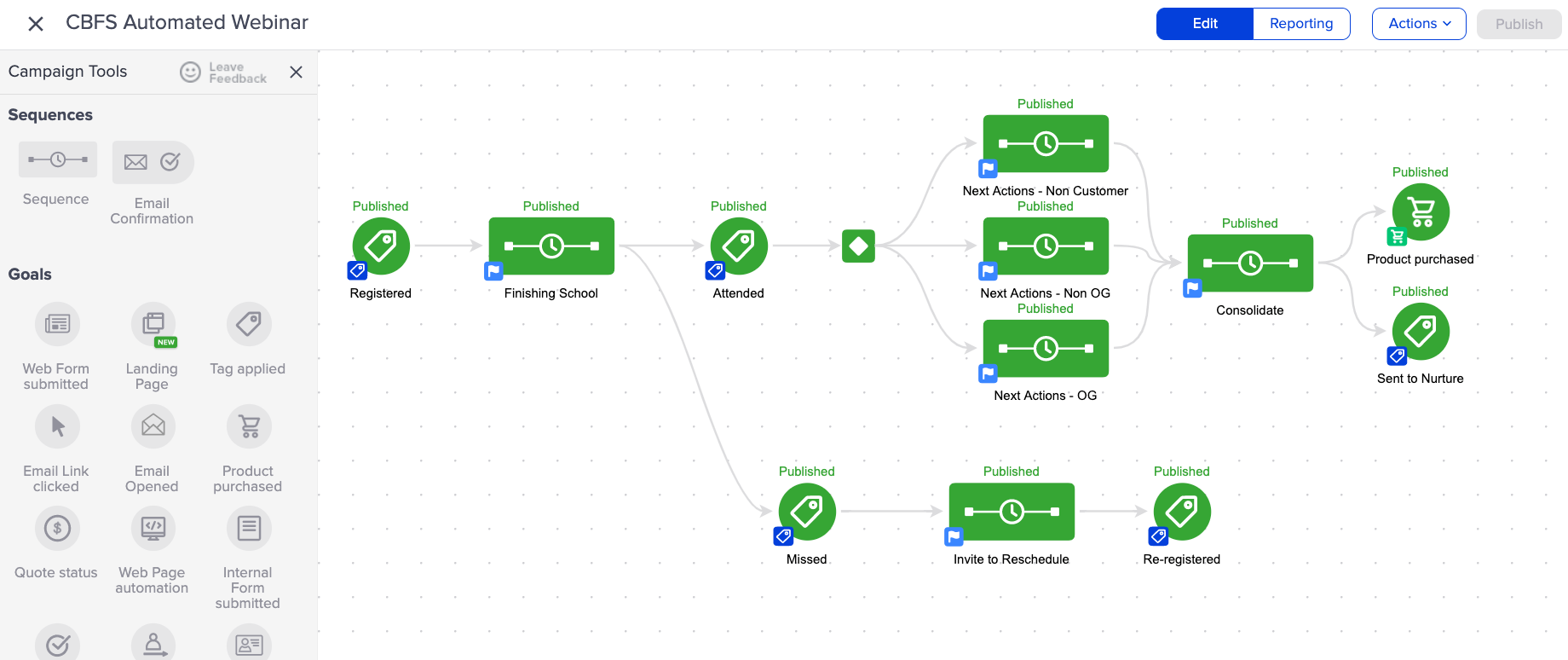
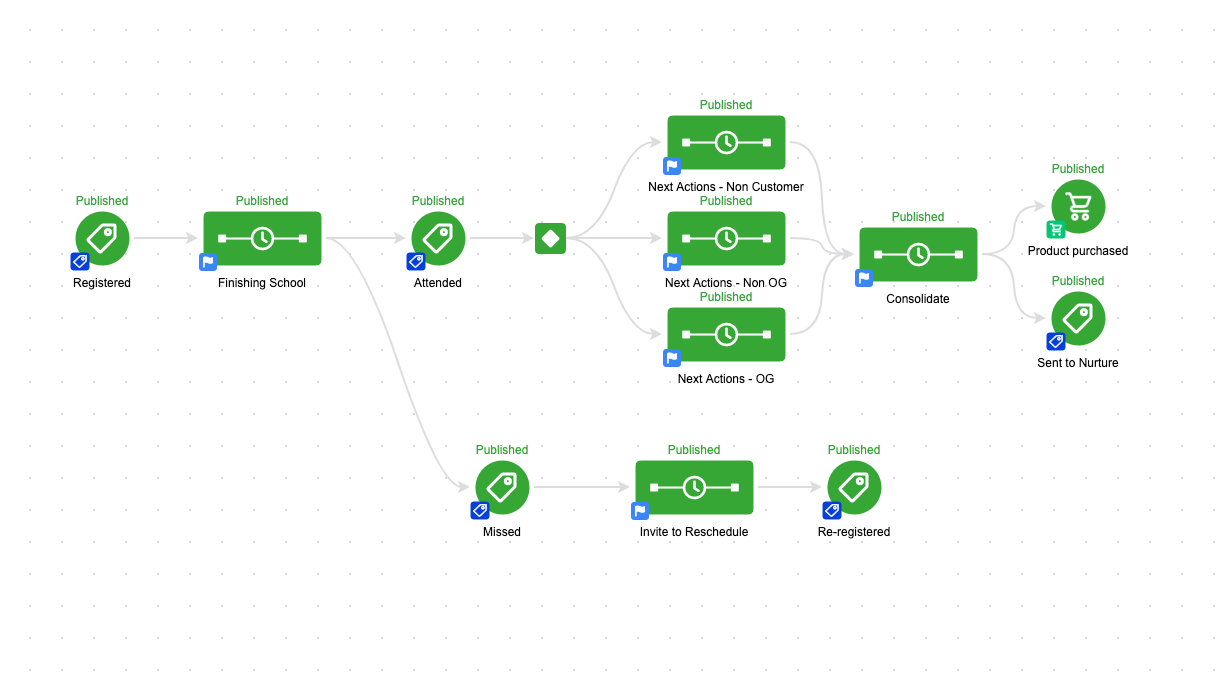
Once it’s integrated with Infusionsoft you can build a campaign to invite people to the webinar, follow up with people afterward, or encourage folks who miss the webinar to re-register for another one.

Here’s a campaign structure I’ve had success with.

✅ Step 9: Test the Webinar

Before you put people through the webinar, or the campaign, test them both. You want to make sure that the technical components are working, the integrations are stable, and that the experience reflects what you set out to create.

✅ Step 10: Create a Traffic Strategy

Once your webinar is configured you’ve done most of the heavy lifting you can tell the world about it – but you’ll also want an ongoing plan for traffic in order to maximize the mileage you get out of your work. For my, my plan is to integrate this into my existing nurture process, add registration buttons to some of my complementary content, and run some low dollar Facebook ads to drive direct registrations.

We wanted to see if we could to tackle everything on this list (except the content planning) and launch an evergreen webinar in a single marathon-style day.

We’re done now, but if you want to check out the recap, summary, or the webinar we built – here ya go.

Tips for Troubleshooting Infusionsoft

Tips for Troubleshooting Infusionsoft

The more you depend on technology and automation, the more vulnerable you are when things don’t work as planned.

In this post I wanted to cover a few tactics that can help you right the ship when things go sideways.

1. When troubleshooting campaigns…

When you build a campaign you should test it thoroughly, of course.

But even with regular testing from time-to-time you’ll find yourself trying to unravel why things didn’t play out the way your expected, and one of the best pieces of advice I can give for this scenario is to test using clean contact records.

What I mean is that most contacts have a history; a record of the things they’ve done in the past, and what upcoming automations are scheduled for them – but when you’re trying to test a specific part of a specific campaign it can be tricky to pinpoint where things aren’t working if you have other variables in the equation.

So, the advice here is to isolate by create a new contact – one who has never been in your application before, and that way you’ve got a blank slate to work with.

Pro-tip for Gmail Users

Did you know that Gmail allows you to quickly and easily create unlimited test addresses? It does.

If your normal email is hello@monkeypodmarketing.com then all you need to do is add a + after the word hello, and add anything before the @ symbol. (Example: hello+test@monkeypodmarketing.com)

As a pro-pro-tip you could also include the test number, or the actual time that the test contact was created (that can help if you’re testing and there’s a delay of any kind). So, for example a test created at 3:45 pm might be hello+345@monkeypodmarketing.com.

Just remember to periodically clean up dummy contacts you’ve created during testing.

2. When troubleshooting Ecommerce…

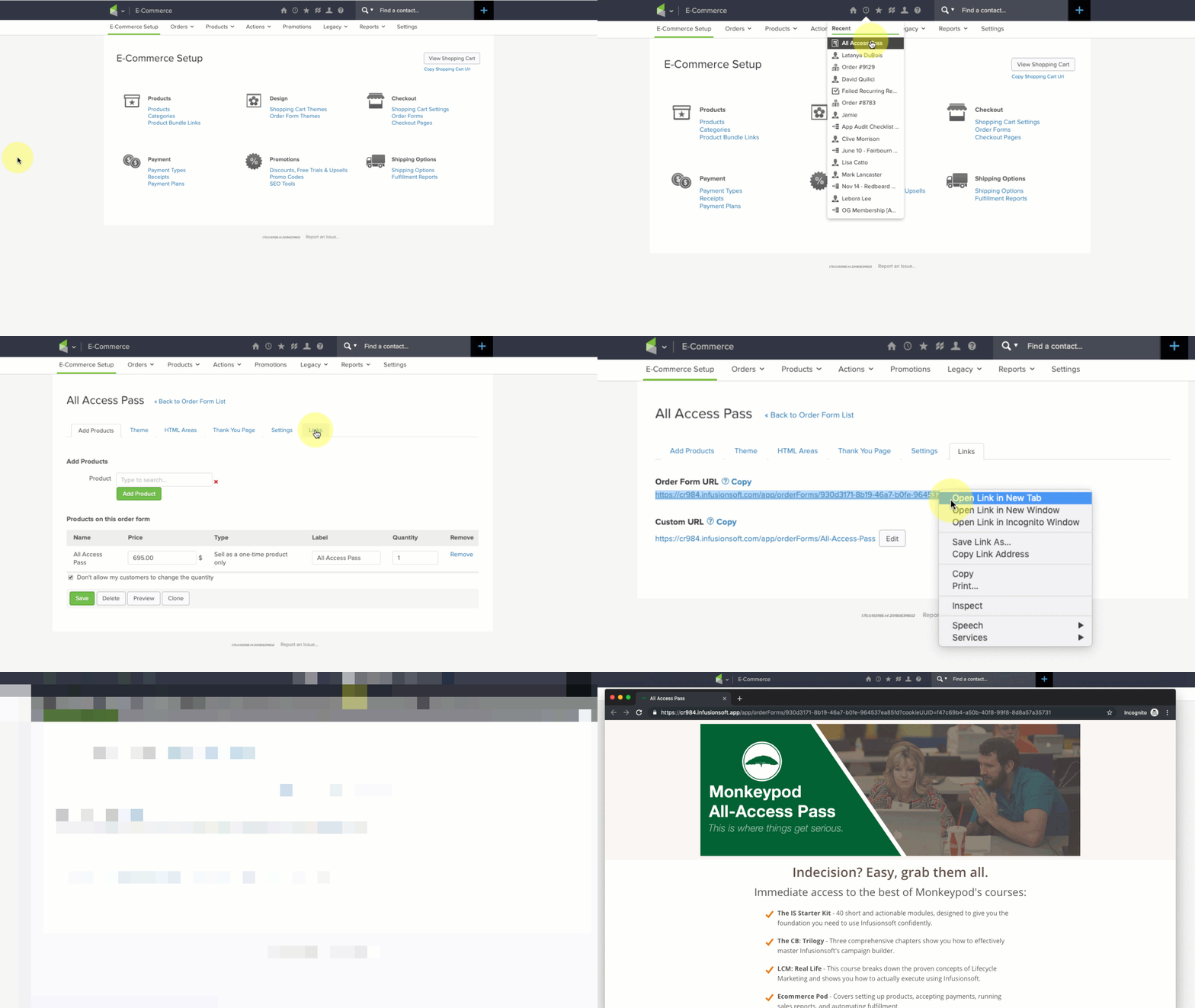
Use an incognito window, or private browsing tab.

This one might sound obvious but I can’t count the number of times I’ve seen this simple trick resolve an otherwise befuddling scenario.

Here’s why: Infusionsoft’s ecommerce components are trying to help simplify things for buyers – it’s trying to make their lives easier by remembering who they are, who their affiliate was, what products they wanted, and what promo codes they’ve used; and most of the time that’s what we want as well.

But, this can create unexpected behavior when we’re testing, updating, adding/removing promotions, and re-testing; so for the sake of your own sanity train yourself and your team to always use private browsing tabs when you’re testing your order forms or shopping cart.

3. When troubleshooting Emails…

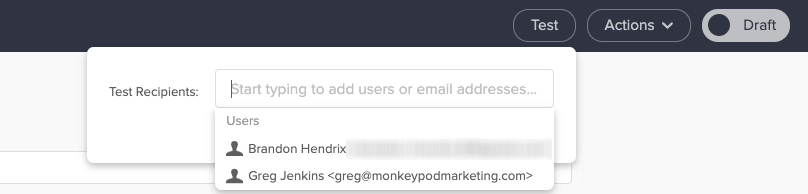
Emails are Infusionsoft’s bread and butter, but one gotcha I regularly see trip people up is that when you use the test function from within the email it sends that test to the user, not to an actual contact.

Did you catch that? The built in test option sends using the details available on the user record, not the details from a contact record.

You might be wondering why that matters – and the answer is this: User Records don’t have custom fields.

So, if your email is using any custom field information in the email body (or merged into links) then testing the email to a user will lead you to think it’s not working.

To replicate the experience an actual contact would have you should test your emails by sending to a contact record (use an email other than the one tied to your user record).

4. Assumptions will ruin us

I know, you’re smart. I get it. Heck, I like to think I’m pretty clever too.

But assumptions will ruin us when it comes to troubleshooting, because if we assume something is working we’ll skip right over it, and that leads us into sketchy territory because now we’re building off of something we think is true, but might not actually be.

The reason I included this tip was because it’s burned me before, in a big way.

To make a long story short: I tested a campaign and it worked the way I wanted it to – then when I added a bunch of contacts to the campaign it didn’t do what we expected.

I assumed that what worked for individual test contacts would also be true when we loaded the campaign up en masse; and it wasn’t.

Want the longer story?

So, this stems back to when I was working with the African Leadership University. (Btw, have you seen that case study?)

The basic idea was that we were sending out the notifications to let prospective students know whether they had been admitted, declined, or waitlisted.

But we had to build a relatively complex campaign because we had to deliver those three messages in either English, French, or Portugese, depending on the language that prospect had denoted during their application.

So, we had a series of decision diamonds – first segmenting by language, and then segmenting by their actual admission decision – and when I tested this campaign I did so by adding individual test records.

The first one was an admitted student with French as their language – it worked.

Then a declined student with English as their language – worked again.

I ran four or five tests and when I was satisfied with the results we decided it was time to add the contacts.

If you haven’t guessed by now, well, it didn’t go very well.

The decision diamonds went haywire and the contacts we added were incorrectly sent all three of the emails (admitted, declined, and waitlisted).

They all got the correct email – but they also got two others, and they had no way of knowing which one was accurate.

For some of these students this email was the single most important piece of news they’d ever received – and we botched it.

I was crushed.

As it turns out the decision diamonds had been corrupted during the process of cloning different campaign structures – and testing it one-by-one had worked just fine, but adding hundreds of contacts at the same time somehow exacerbated the issue.

We did our best to mitigate the impact – we quickly (and carefully) reached out to students to explain what had happened, and to let them know which decision was correct.

The issue was caused by a technical glitch – and my recourse is limited when it comes to fixing bugs in the software; but I still kick myself because I think might have been able to avoid substantial pain if I had thought to test with a batch of contacts, rather than individuals.

Most the of ALU project went much more smoothly than this, if you haven’t seen the whole case study it’s worth a watch.

This was one of the most painful experience of my automation career – but the lesson was this: Assumptions will ruin us.

Just because it looks good on desktop doesn’t mean it’ll look good on mobile.
Just because it works in gmail doesn’t mean it’ll work in outlook.
Just because it worked for an individual doesn’t mean it’ll work for a group.
Just because it created the outcome you expected doesn’t mean did what you expected.

5. Arm yourself with examples

If you’re troubleshooting something and it’s not making sense, at a certain point you’re probably going to end up liaising with Infusionsoft’s support team.

There are plenty of tips for talking to technical support, heck, I’ve even got two blog posts on it (one annnnd two) – but the most important piece of advice I have is to find yourself a screencapture software you like and get in the habit of using it.

I use and recommend Loom, but another popular option is Soapbox (from the fine folks at Wistia).

Infusionsoft’s support team genuinely wants to help you – but if they can’t replicate an issue then it’s infinitely more challenging.

(Sorta like when you take your car to the mechanic and the noise it was making suddenly stops…)

So, if you know you’re gearing up for a convo with support, do yourself a favor by firing up your screencapture software and recording examples of the behavior you’re seeing (or not seeing).

This is helpful for a few reasons, but primarily because it reduces the opportunity for something to get lost in translation – the longer it takes for the support rep to understand the issue, the more frustration you’re likely to experience. And being able to shortcut that process helps get everyone on the same page more rapidly.

The second benefit is that sometimes by recording the test you’re running it forces you to think differently, or helps you notice something you wouldn’t otherwise have seen; personally I’ve stumbled across more than one solution simply by trying to document the issue.

My sincerest hope is that these tips will save you some headache the next time you find yourself troubleshooting some misbehaving automation.

If you’ve got your own tips that have worked for you, or a painful automation story, please feel free to share in the comments below!