Campaign Builder: Gotcha #4

Campaign Builder: Gotcha #4

A number of years ago I published a series of three blog posts highlighting common “gotchas” that trip people up inside Keap’s Campaign Builder.

Gotcha 1 | Gotcha 2 | Gotcha 3

Well, here we are now and while Infusionsoft is now Keap, and the campaign builder is now Advanced Automations – the gotchas still persist.

And today we’re highlighting another wrinkle in the campaign builder behavior that if you don’t know about it can definitely trip people up.

Check it out:

So, to summarize succinctly – if a contact is in a campaign, that means they can achieve any goal on the campaign canvas.

Even if the goal is not directly (or indirectly) attached to the sequence they are in.
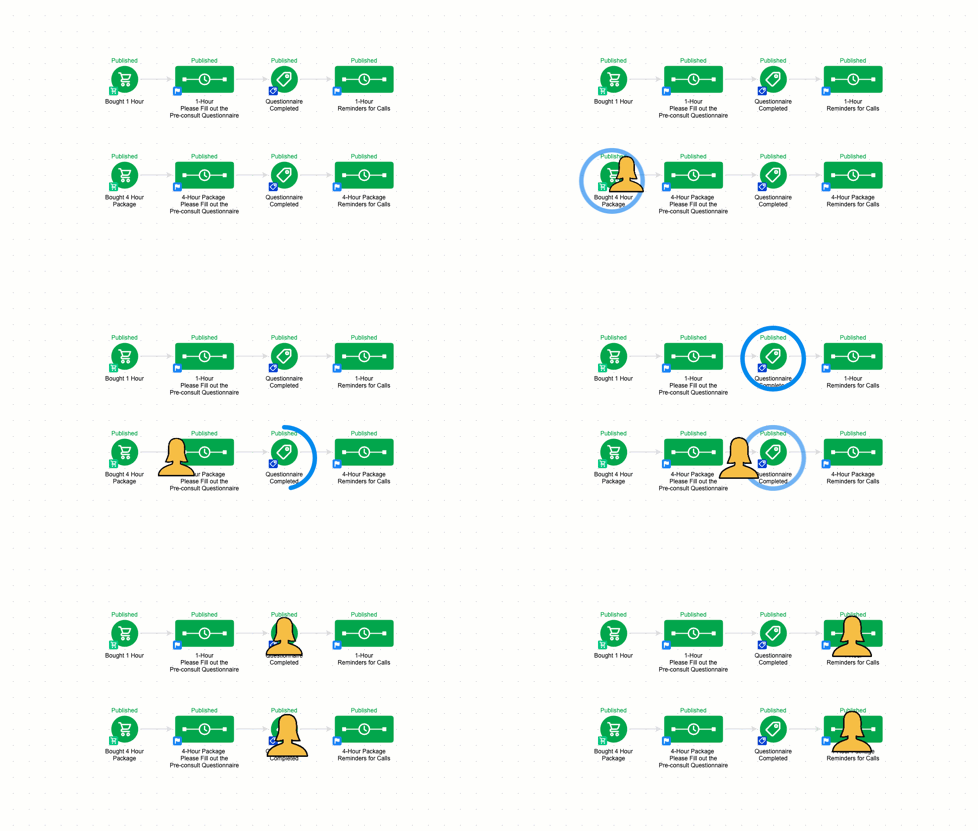
gotcha for contacts inside Keap

This behavior isn’t good or bad – it’s just how it works.

If a contact is in a campaign, then they can achieve all the goals in that same campaign, even if they’re in a completely disconnected structure.

Questions? Compliments? Drop them in the comments below.

What to do next?

Well, if you’re looking to level up your campaign builder muscles (and reduce the ‘gotchas’ you don’t know about), then check out the Advanced Automations Complete Collection.

And finally, if you would benefit from a place to ask Keap questions, then check out the OG membership pricing and details here.

How to Write Off Invoices in Keap

How to Write Off Invoices in Keap

If you determine that a Keap invoice is not going to be paid, what do you do with it?

Sure, you have a brief period of frustration, or grief – but then you’ve got to figure out how to reconcile that invoice in your bookkeeping – and Keap’s write-off feature is exactly what you need.

The challenge is that the write-off function inside Keap is poorly documented, and not intuitively located – but this video shows you where to find it and how to use it.

So that’s how you write off a Keap invoice you’re not going to be able to collect.

And remember…

In case you missed it – remember to exclude write-offs from your different payment reports:

write off payment type criteria

I know that extra step is annoying, but it’s important in order to keep your reports accurate.

The “payments” report is really just reporting on transactions – and the write-off is a type of transaction.

What to do next?

And finally, if you would benefit from a place to ask Keap questions, then check out the OG membership pricing and details here.
Appointment Booking in Keap

Appointment Booking in Keap

If you use appointments in your business then you probably are familiar with the old song-and-dance to get people book and then show up for their appointment.

(And I say ‘appointment’ but this process is also true for consults, for demos, or any other scheduled meeting.)

So when this question came up the other day we thought it was worth recording a demo of how you can use a super simple Keap campaign structure to a) invite people to book and b) remind them to show up for their appointment.

This process works for ScheduleOnce, AppointmentCore, Acuity, Calendly, or any other appointment booking tool that integrates wtih Keap.

Worth mentioning that PlusThis has integrations for Calendly and Acuity. Check those out here.

And, once they’ve booked the appointment you can remind them about it – and if you conduct your appointments on Zoom then here’s a little extra detail about how to streamline that process.

What to do next?

This was a simple campaign, but if you want to learn more about using the Advanced Automations feature inside Keap then check out this free course from Keap Academy.

And finally, this question originated inside our private community, if you think you’d benefit from a place to ask questions like this, then check out the OG membership pricing and details here.

Advanced Keap Reporting [with Google Sheets]

Advanced Keap Reporting [with Google Sheets]

Sometimes the native Keap reports give you exactly what you’re after.

And when that happens, life is great.

But use Keap long enough and you’re bound to run into a constraint, or limitation you didn’t expect.

Sometimes there seems to be some aspect of the report that is unnecessarily rigid.

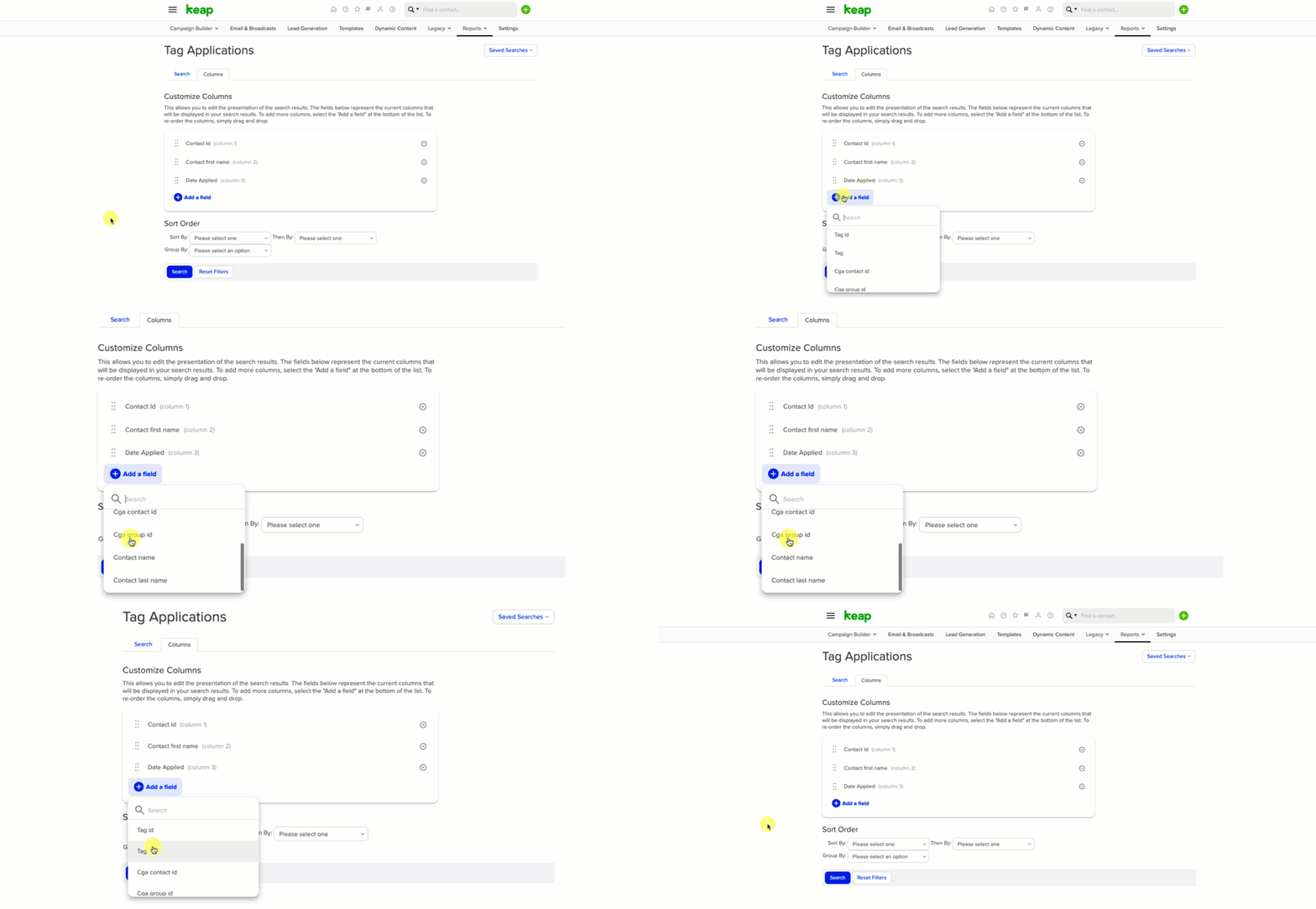
A common situation is when you have the criteria you need on one report, but the fields you want to add to the results aren’t available.

limited keap reports

This happens because different reports query different types of records. So, you might be querying tag data, but trying to pull in contact fields.

Or searching against email data, and trying to draw in order information, etc.

What do I do about it?

One solution is to export the info you can from the report with the criteria you want, and then use Google Sheets (or excel) to finesse the rest of what you’re after.

A similar scenario came up recently in the Monkeypod Community and Jade and Moshe put their heads together to come up with a solution.

Check it out:

I’ll be the first to admit that spreadsheets make my eyes glaze over a bit – but if you can develop a baseline level of comfort with them, you can really unlock some massive power.

Here are the specific formulas Jade described in the video above:

=IFERROR(ARRAYFORMULA(VLOOKUP(A2:A,‘Contact search – with tag and custom fields’!A:B,2,FALSE)),“”)


=VLOOKUP(A2,’Contact search – with tag and custom fields’!A:C,2,FALSE)

 
Hope this helps you multiply the value you’re getting from the data inside your Keap account. Thanks for following along.
 
Oh, and if you like this type of stuff, here’s another trick for bending the rules on Keap’s reporting.
Dynamic Monthly Loop Campaign

Dynamic Monthly Loop Campaign

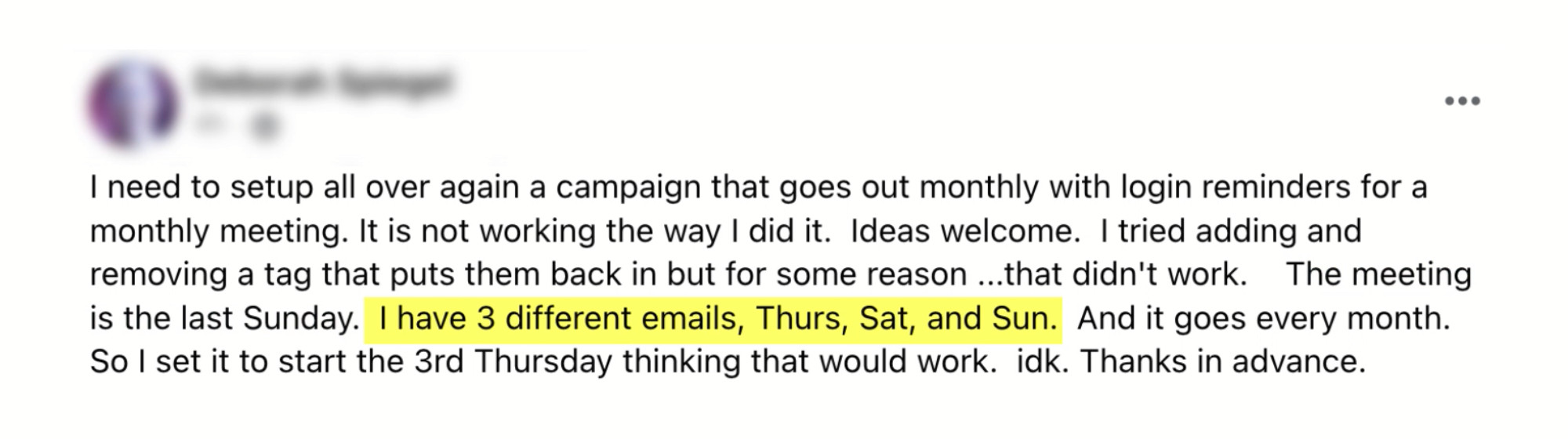
The other day a question came up in the private Monkeypod community – Deborah was asking how she can set up a campaign that reminders her subscribers about an event that happens each month on the last Sunday.

deborahs question

Generally a looping campaign isn’t that difficult – but this one was unique, because the last Sunday of the month changes (sometimes there are 4, sometimes there are 5 Sundays in a given month).

But we came up with a perfectly serviceable solution – it just required a tiny touch of human intervention.

But I knew it could be better.

So when I shared the campaign I had suggested, I invited people to call out ways it could be cleaner, or fully automated – and was thrilled at the replies I got.

I love puzzles like these, and I hope following along helps you solve challenges in your own business as well.

Thanks to Deborah for the question, and to Christine and Devan for their recommendations on how this could be solved.

As you saw, Devan’s solution includes the use of PlusThis – if you don’t have a PlusThis account yet you can check it out or start a free trial here.

File Uploads to Keap with Google Forms [and Zapier]

File Uploads to Keap with Google Forms [and Zapier]

Sometimes you need to collect a document from your Keap prospects or customers.

It could be a headshot that you attach to their contact record, or it could be something more formal – like a floor plan, or a brief for a specific project.

But regardless, there are use cases where you’ll want to be able to let someone easily upload a file and have it automatically attached to their contact record inside your Keap CRM.

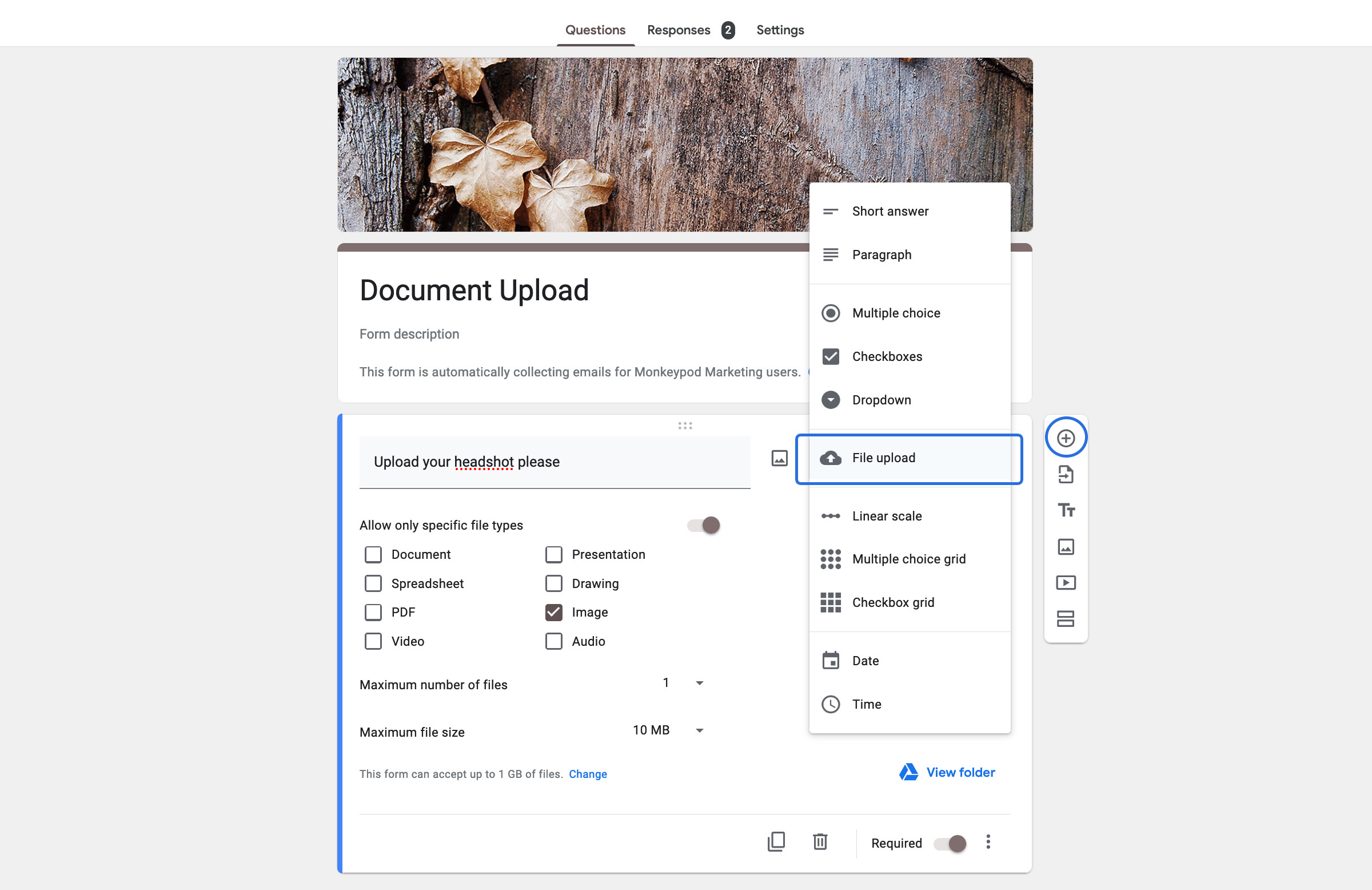
There are a few ways to solve this challenge, but a solution I like is to use Google Forms as the form – which has an option for receiving a file upload as a question type.

google forms upload screenshot

When you use the Google Forms file upload option, it gives you some additional settings to let you control the types of files it can receive.

The files that are received are automatically stored in Google Drive – which is useful, but if we want them to be attached to a contact in Keap we need to add one more tool to the equation

The next step is to get the Google Drive link onto the contact record in Keap, and my preference for that is Zapier.

Here’s an overview of what this process entails:

There ya go – that’s the process for collecting files via Google Forms and using Zapier attach the file to the contact record in your Keap database.

Now, if you don’t have Zapier (or don’t want it), another method for solving the same challenge is to use PlusThis – they offer a File Upload tool that works on the thank you page of your forms, and lets prospects and customers upload files which are then attached to the corresponding contact in Keap.

You can check out their solution here.

Hope this was valuable – feel free to drop any comments or questions below.