Automated Content Sharing Recipe

Automated Content Sharing Recipe

Ever feel like you’re creating strong content, but it’s not getting the attention it deserves? Yeah—same.

I think this dynamic affects most everyone who produces content – we know what we’re putting out is valuable, but for any number of reasons it might not be reaching the people it can really serve.

One of the ways we try to squeeze a little extra mileage out of the stuff we publish is by making sure it actually gets posted to all of our social channels. In this video, I’ll break down the exact automation recipe we use to share new Monkeypod content—mostly YouTube videos and blog posts (like this one)—out to our different social channels.

It’s a simple formula that runs through Zapier, but it helps us stay visible, consistent, and efficient.

This simple setup helps us get more eyes on the content we’re already creating—without adding a bunch of extra work to the pile.

While I demonstrated it using Zapier (because that’s what we use), you could totally build a similar system with other automation platforms like Pabbly, Make, n8n, or whatever tool fits your stack.

The real takeaway here is that a little bit of automation can go a long way in making sure your content actually gets the attention it deserves.

And as an added benefit, it helps keep your social channels from going stale if you aren’t regularly publishing new material. Happy sharing.


Looking for Ideas?

This was a fairly unique automation use case – but these types of scenarios are all over the place. If you aren’t sure where automation would fit – we’ve built a course specifically designed to help you identify those opportunities.
Productivity Hacks (for my ADHD brain)

Productivity Hacks (for my ADHD brain)

Staying organized is tough enough for most of us, and when your brain doesn’t play by the rules that adds a whole new layer.

Our beloved Monkeypod Community Manager, Jade, has ADHD – and over the years she’s built a system of tools, habits, and little brain hacks to help her stay on top of things. And in this video, she’s pulling back the curtain to share what works for her.

If you feel like you’re constantly juggling a hundred things (and maybe dropping a few along the way), this one’s for you. Check out Jade’s setup and see if any of her tools strategies can help you hack your brain too.

The thing about productivity is that there’s no one-size-fits-all approach—what works for one person might not work for another.

But the key is finding tools and systems that complement your brain, not fight against it. Hopefully, some of Jade’s tricks gave you a few ideas to test out in your own world.

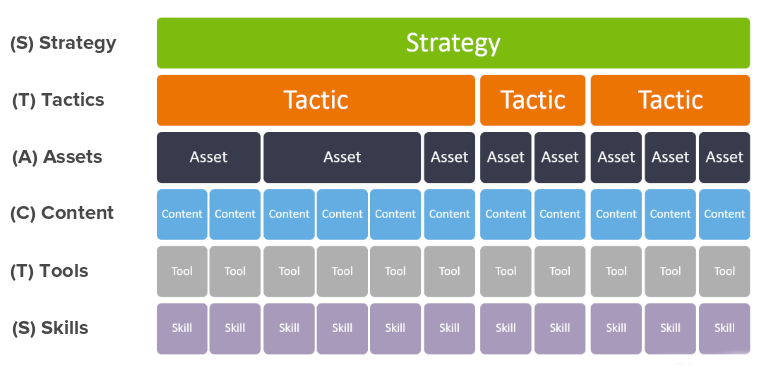
And, if you’re planning a project from scratch – here’s a framework tool that can help you avoid friction as you bring a project to life.

Want a demo of this framework in action? Check it out here.

If you’ve got your own favorite hacks (or tools you like) for staying organized, drop ‘em in the comments—we’re always down to learn something new.

Notebook LM: Why it’s changing the game (and how to use it)

Notebook LM: Why it’s changing the game (and how to use it)

If you’re anything like me, you’ve been on a webinar or watched a recording and thought, “Wow, there’s some gold in here… but do I really have the time to sift through it all?”

Well, say hello to Notebook LM, a google tool designed to turn endless content and concise resources. I recently sat down to test it out, and honestly, it feels a little like magic.

For anyone who creates (or consumes) content Notebook LM offers a way to maximize your effort. It’s about squeezing every last drop of value out of the content you’ve already invested in.

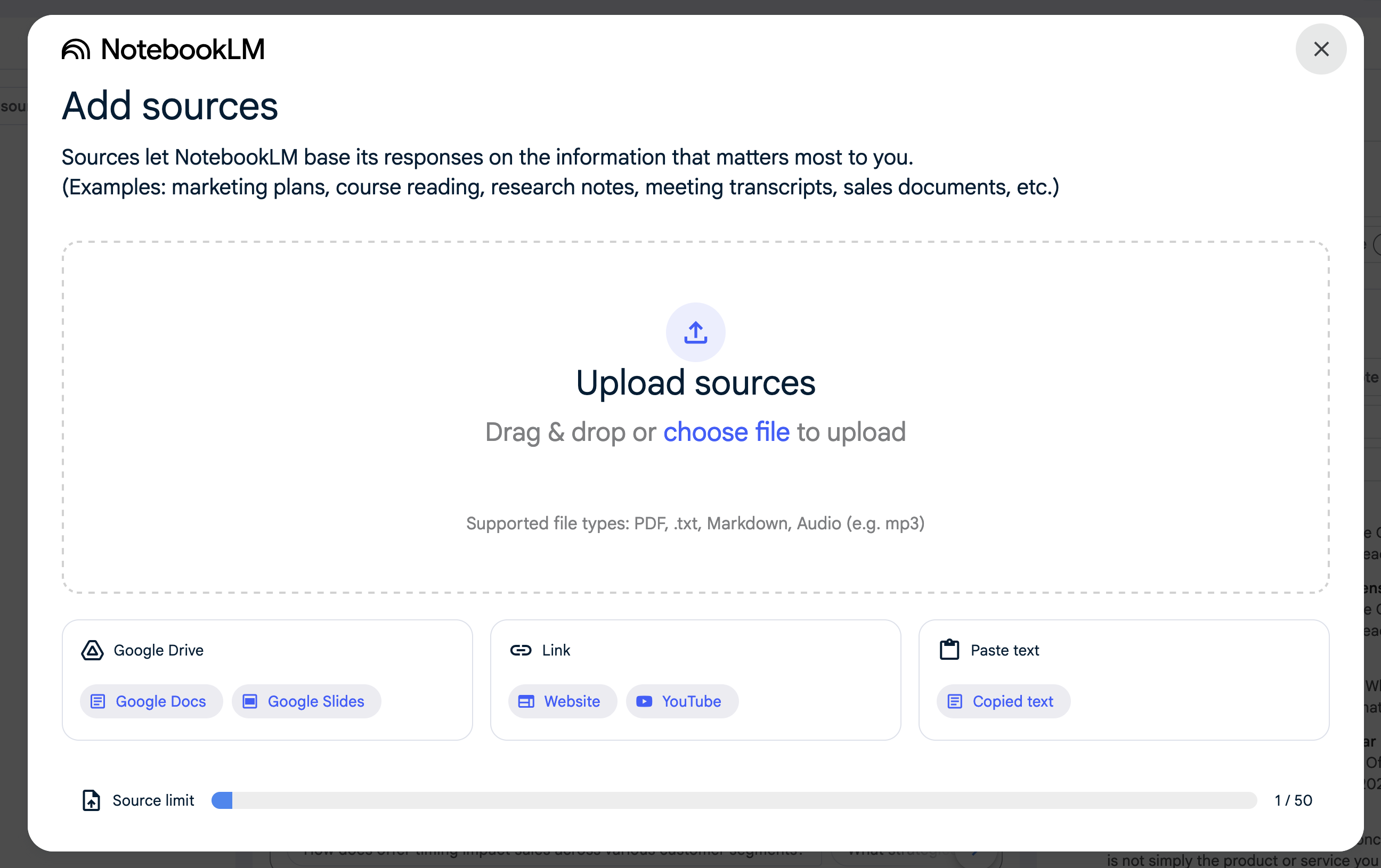
What kind of sources can Notebook LM accept?

You can upload txt docs, MP3 files, markup, PDFs, or link to google docs, youtube videos, or even paste content in directly.

It will transform what you upload into an range of assets: concise notes, detailed summaries, FAQ questions, study guide resources, or even an audio podcast overview.

Notebook LM Sources Screenshot

For the purposes of this demo, we used the transcript of the Creating Offers that convert webinar – here’s the full replay of that event.

And here’s the demo of Notebook LM turning the transcript into a handful of other resources:

Notebook LM has the potential to be a real game-changer for content creators. In just a few minutes, it can ingest a ton of information and digest it, helping transform that content into a range of resources serving multiple purposes.

What kind of resources will Notebook LM produce?

  • Briefing Doc: Highlight key points or takeaways for quick consumption—ideal for team recaps or decision-making.
  • Timeline: Organize the input into clear sections or themes to support deeper dives into specific areas.
  • FAQ Questions and Answers: Find and structure answers to common questions based on the content.
  • Study Guide: Take the content you input, and generate a collection of questions to help make sure the most important lessons are retained.
  • Podcast: Yes, an actual audio podcast with two AI generated speakers discussing the subject matter you supplied.

Here’s an example of what that podcast can look like – this is based off of the demo we did with the webinar on crafting offers.

(If the podcast doesn’t feel organic enough, you could also use it as a starting prompt for a summary you record yourself.)

Are there any drawbacks?

Okay, so Notebook LM doesn’t create polished emails, blog posts, or social media content for you—but it does give you the groundwork to build those assets quickly and effectively. I can see countless ways for this tool to make our lives easier.

If you’re just looking to digest information quickly, boom. This can help.

But if you’re producing long form content and really want to make the most out of your efforts, yes, it can help with that too.

Either way, Notebook LM might just be the tool that changes the game in 2025.

If you’re using this already, or plan to, please drop your ideas in the comments below. We’d love to hear the variety of ways this is solving problems for small businesses.

Email Engagement Tracking [inside Keap]

Email Engagement Tracking [inside Keap]

You’ve likely heard about the way Google, Yahoo, and Outlook are evolving, but one aspect if that is the rising importance of engagement.

It’s no longer enough to get email permission once – we need to be maintaining our list, and actively removing the contacts who stop engaging.

If you depend on email as part of your business strategy, either to produce sales, serve your customers, or for any other business function; then this is a critical habit to adopt – and soon.

So, how do we report on engagement?

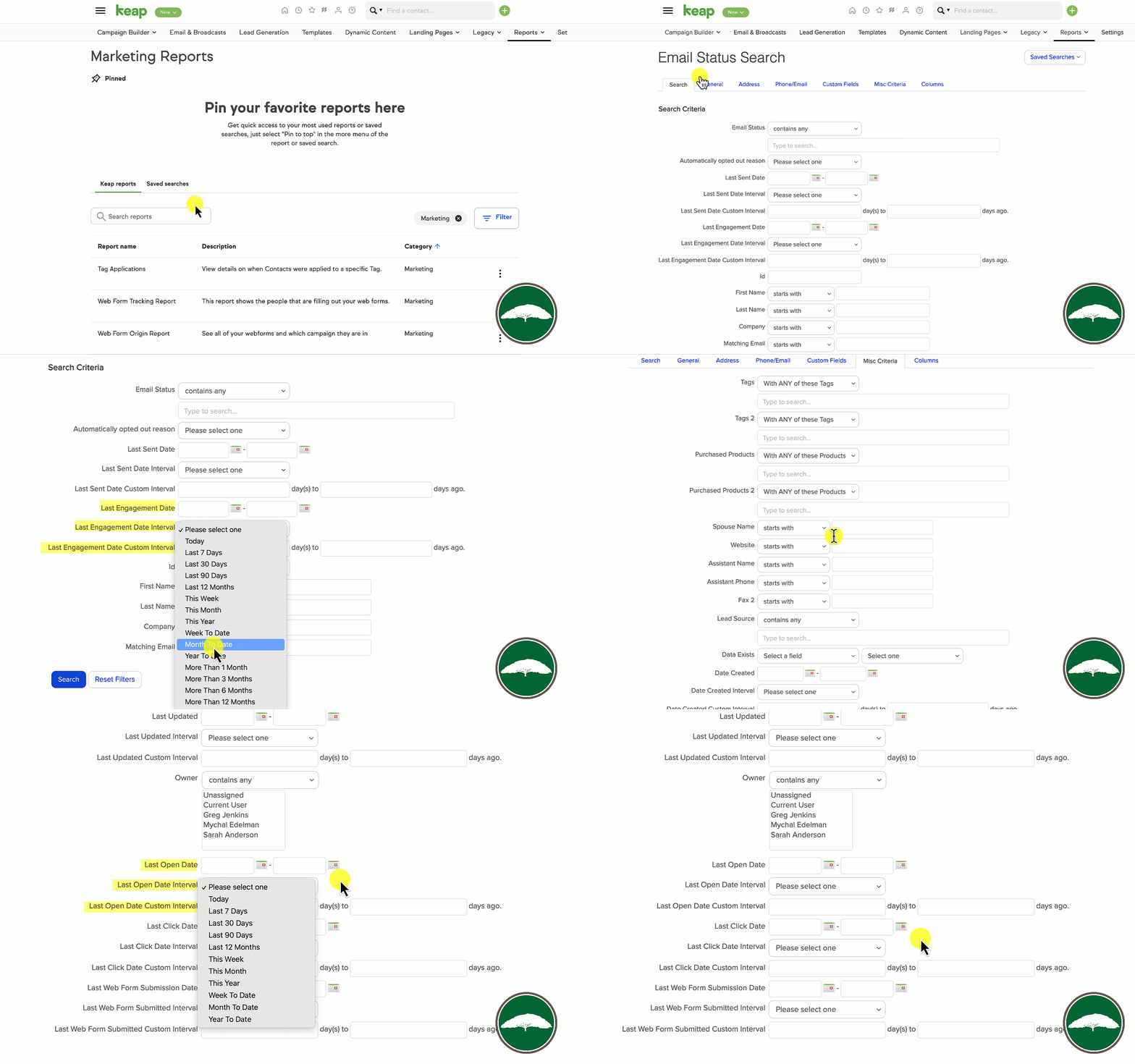
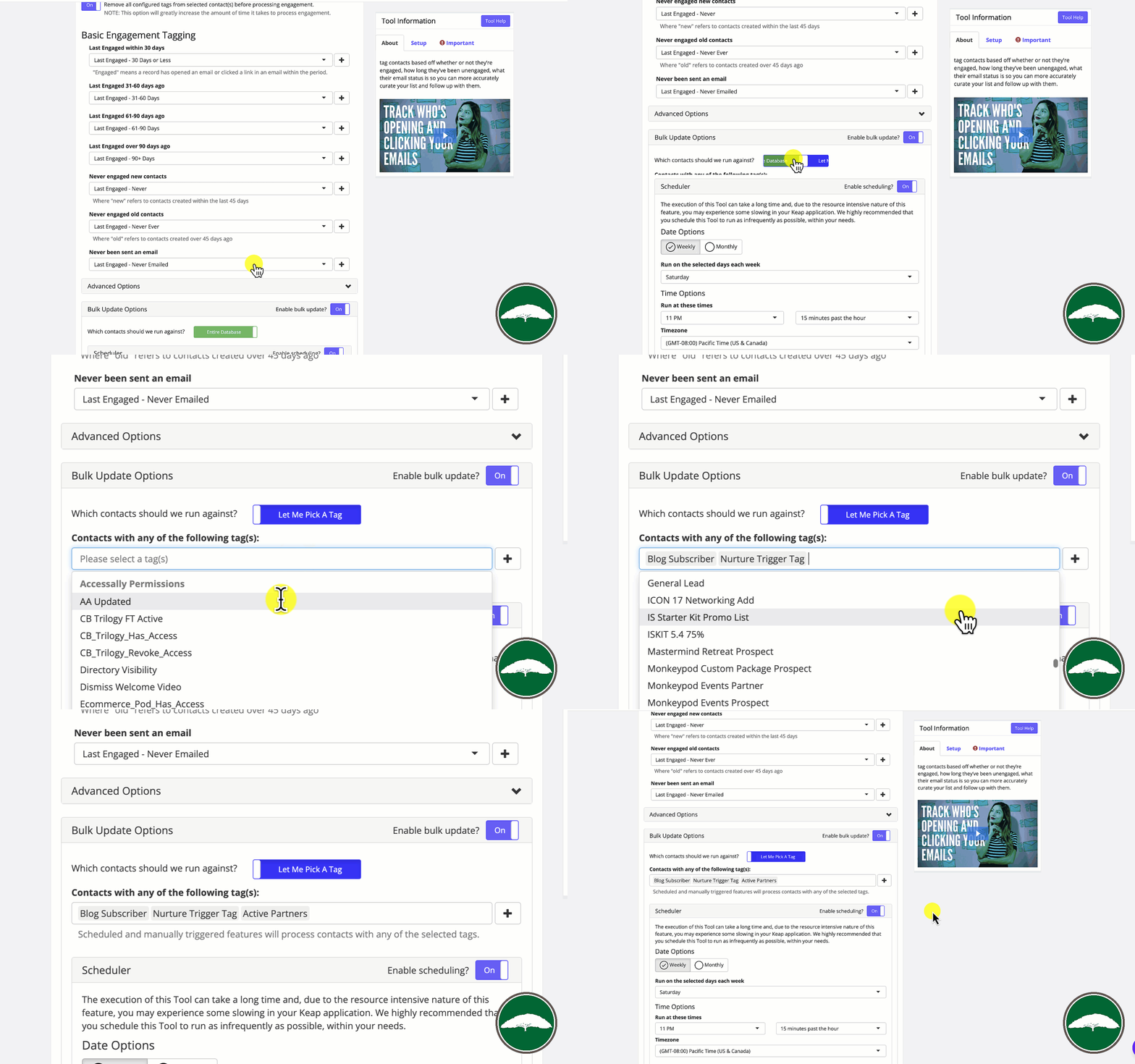
Inside of Keap there is a report you can use to manually search for contacts who have (or haven’t) engaged in various time frames.

In Keap Ultimate, formerly Max Classic, the report is called the Email Status Search.

In Keap Pro and Max it’s called the Email Engagement Tracker.

But in both versions it has a set of useful filters you can use to assess your database.

Keap Email Status Search

So that sneaky little report might just give you all the information you need.

But running it manually can be a little labor intensive…

Can I automate this?

So thankfully, the answer is yes.

PlusThis has a feature called Email Engagement Triggers that allows you to process the contacts in your database on a recurring schedule, and automatically update their tags to reflect their most recent engagement.

Now, one thing to note is that this checks contacts individually – so it does count as a tool run per contact. If you have unlimited tool runs, no problem. But if you don’t then you might want to look at restricting the audience it runs against using the selector option.

Engagement Tracker Settings

Or, you could also use the HTTP post option and run it against contacts as they hit key steps in your automations.

Moving on – a common question I’ve been getting is “How does this differ from Keap’s native tools…”

Is this better than Keap’s native engagement tracking?

Good question. The PlusThis feature is different from the native tools in a few key ways.

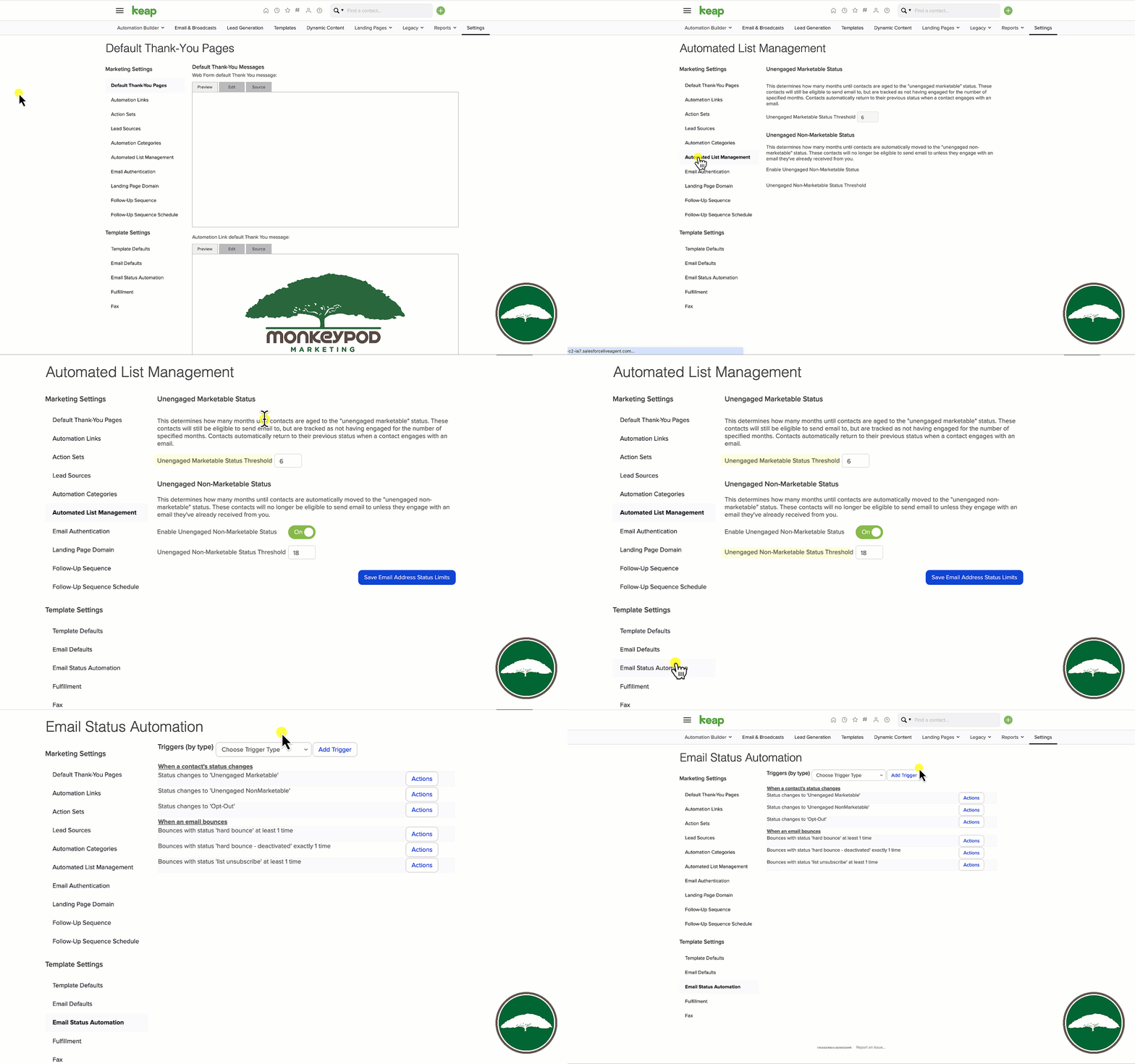
First – it’s much more granular. Keap lets you automate when someone’s email status changes, or change their status when their engagement slips (unengaged marketable, and unengaged nonmarketable).

Native Keap Engagement Features

PlusThis lets you tag contacts when their engagement hits key threshholds. So, if they don’t engage for 31 days, it tags them, then again at 61, or 91, etc.

But, the other way this differs is that it runs on a schedule you can choose, and then it resets the tags. So, if someone re-engages, it’ll automatically remove the unengaged tags as it re-evaluates your database.

Alright – there you have it.

At the very least you can start analyzing your database to segment based off of engagement with the native reports, or if you’re already a PlusThis user you can quickly set up the Email Engagement Triggers and you’ll immediately have new information you can use to improve targeting and segmentation.

Or, if you’re not yet a PlusThis user – check out the plans and start a free trial here.

Where do I learn more?

The Keap Academy platform offers a course covering ways to Supercharge Your Automations using PlusThis, featuring real world examples and use cases from Keap Partners and PlusThis users.

Connecting WebinarJam and Keap (in 2023)

Connecting WebinarJam and Keap (in 2023)

When WebinarJam first came out I was using it for a handful of projects, and wrote this blog post covering the process for configuring your webinar and integrating with Keap (which was called Infusionsoft at the time).

But then I moved onto Demio for my webinars, and eventually onto Zoom (here’s a guide for connecting Zoom and Keap) – and the information in my blog post got a little stale. I was no longer using WebinarJam, so I couldn’t keep the post updated.

Fast forward to today – thanks to Nathan Householder from SuccessEngine, we’ve got a brand new update for how you can automatically register your Keap contacts into your webinars hosted with WebinarJam.

There are a few reasons you might want this – but the main one is that if you already have someone’s info, then requiring them to enter it again into another system is never ideal.

In this video Nathan will walk you through the steps to follow to create an HTTP post that automatically registers contacts for your WebinarJam webinars:

So, that covers it – this process might a little technical but if you follow the steps in the video it should give you a reliable way to improve your customer’s experience when registering for your webinars.

Huge appreciation to Nathan Householder, from SuccessEngine, who found my old blog post, realized it was outdated, and took the time to record this video so that I could publish an updated method for Keap users that depend on WebinarJam.

How to Pay Commission for Leads (not sales) inside Keap

How to Pay Commission for Leads (not sales) inside Keap

If have partners sending traffic your way and you want to pay them when their traffic produces new sales, that is the exact use case Keap’s referral partner features are designed to solve – but what if you want to pay them for leads?

Can I pay commission for leads (not sales) inside Keap?

Short answer, yes.

There are a few reasons you might want this: Maybe you want to offer an incentive for leads they register for your free workshop, or maybe you want to offer an incentive for a refer-a-friend type program.

The native Keap Affiliate features CAN handle this, but it takes a little extra ingenuity in order to get things set-up.

In this video I’ll walk you through the steps to follow to create a program that calculates commission for your partners based on Leads they send you (not sales).

So, that covers it – if you need to automatically calculate commission without a sale being processed – you can do it using this workaround.

The key elements here are having a commission program set up that defines the commission you’ll be paying for the lead.

Having individuals enrolled in that program.

Having links those individuals can use.

And then having a process in place to create a $0 order so that the system will calculate the lead commission – and doing this with an Action Set (rather than the create order campaign builder item).

Warning: If you decide to set up a system like this, you’ll want to make sure you have a process for vetting the leads that you’re paying commission on – without a payment being required this process could be vulnerable to bad actors who might want to deceive it.

What do I do next?

If you want a start-to-finish overview of the Affiliate features Keap offers, check out the Referral Partner Launch course from Keap Academy.