Guest Posts, Keap, Small Business, Tips and Tricks
Paul Sokol is an automation expert, a close friend, a pretty talented Eminem impersonator (proof), one of Monkeypod’s most popular guest authors, and the former Campaign Builder Mad Scientist over at Keap. In addition to all those things, Paul is also a dedicated musician, and has started a charity to help raise money for local music and arts programs.
Being the marketing automation nerds that we are, we recently got talking about some of the more unorthodox use cases we’d seen, and before long – we were talking about non-profits. Anyhoozle, I asked Paul to tell us a little about his charity, and the role Keap (formerly known as Infusionsoft) plays in it.

Keap for Non-Profits: A Monkeypod Case Study
Hello Monkeypodders! It is great to see you again 🙂
I’m Paul Sokol, one of Greg’s good friends, and just happen to work in the same space of automation. We actually met at Keap years ago (back when it was called Infusionsoft).
In any case, Greg was wondering about how I use Keap for my non-profit charity, and I figured why not write a lil guest post about it so everyone can learn?
As you are probably expecting, I’ll do a shameless plug of the charity at the end of this post, but for now the main context for discussion is a non-profit using Keap.
My particular charity is relatively new, less than 2 years old, but I’m still finding ways to leverage automation to save time and build a community.
First off, every year our charity partners with a local promoter for a music festival. I head up the marketing and promotion which means I’m using automated workflows that tell me when to post stuff on social media and automated emails to the bands with content for them to help promote the show. Really simple stuff. The post workflow is just a chain of tasks that say “the show is one 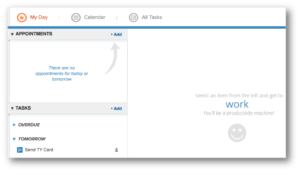 month away, copy/paste this status and share it”, “the show is 2 weeks away…” and so on. Task. Complete. Task. Complete. I can live out of MyDay which is really nice.
The emails to the bands are basically the same thing. “The show is in a month, copy/ paste this to your page and here is your trackable band link”. I use hidden lead source fields on most of my capture forms (see an example). This way, I can create a unique lead source for different bands and see who does a good job driving traffic.
Regarding the ticketing checkout, the tickets themselves come through TicketFly so I position it as a two-step check out. First step is name and email which takes you to step 2; as far down the TicketFly funnel as I can get people. This builds a list for presales next year. Unfortunately, we haven’t yet implemented a cart abandon mechanism because getting data out of TicketFly is controlled by the venue we partner with. Just hasn’t happened yet.
Outside of the annual festival, on the charity’s website, the donation process is also positioned as a two-step checkout. Since all payments are going through Keap directly, we have implemented a donation abandon campaign, if you’ve been reading this blog for a while, you’ll know it as “The Nudge“. In addition to some emails, it has a task for me to personally reach out and try to “close the sale”. Like I said earlier, we are a new charity so the traffic to our site is basically nothing so the personal 1:1 calls are manageable. Once we grow that isn’t going to scale and we’ll have to find another way to add that personal non-email touch.
 Speaking of donations, while it wasn’t automated, because all donations create an Order record in Keap I was able to easily pull a list of donors and send a hand-written thank you card at the end of 2015. Now that I type it out, that’s a great opportunity for something to automate! :::makes mental note:::
Besides accepting donations, the website also serves as a press release news board. Every press release lives formally on our website. Each press release page has a capture form so people can receive updates as new releases come out.
That’s how I use it right now. In the future as we scale, the plan is to build our list of donors and encourage repeat donations automatically. As we do more events, I plan to use the Opportunity module to track the process of event acquisition and execution. As we become more global, I could even see giving different regions their own affiliate codes to track where donations are coming from the most. I’ll even use it to filter out potential hires early in the recruiting process.
In other words, I’ll be able to use Keap for a good long time as my charity grows 🙂
Lastly, remember, there is a huge problem in the world: school budgets are being slashed which is forcing cornered administrators to cut arts programs, particularly music programs. If this continues, in a few generations there will be no new music and we will have lost a beautiful part of human culture, society and self-expression. I refuse to live into that world which is why I founded Keep Children Rockin. We provide music equipment donations to public schools. In 2015 we were able to help one local school with lots of equipment. In 2016 we tripled that impact and helped three local schools. To make a donation and learn more about the cause, please visit
www.keepchildrenrockin.org.
Campaign Builder, Keap, Marketing, Tips and Tricks
For some people, the Keap email confirmation widget is really straight forward – you add it to a campaign when you want to give a contact the opportunity to confirm their email address.
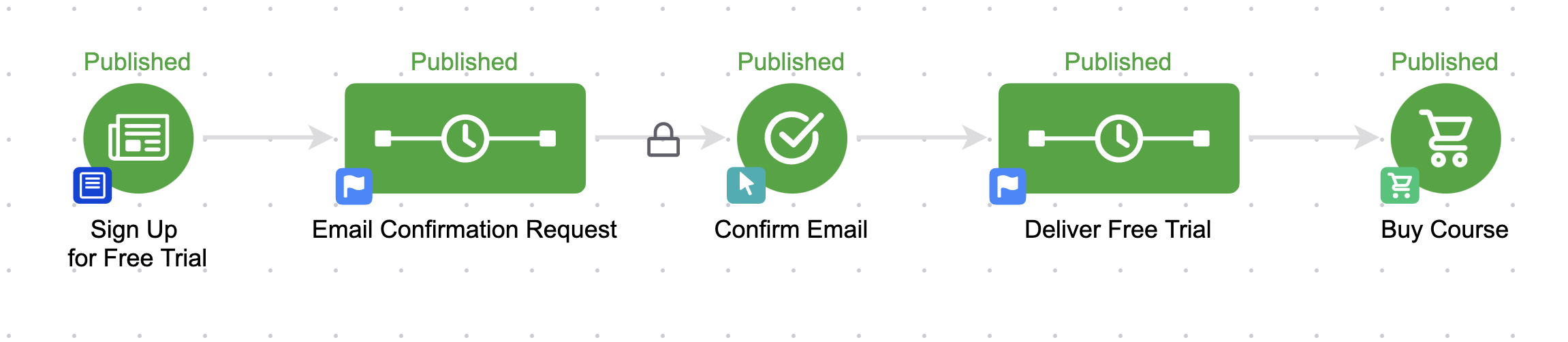
But for others, it raises all sorts of questions: How does it work? Is it necessary? What if they’ve already confirmed? Why is that weird lock there?
Background Info
Lemme give you a little bit of background info in case these are the types of things you’ve wondered too:
When someone signs up for something from you (like your newsletter, your blog updates, or your Nurture Ebook), Infusionsoft considers that a Single Opt-In, and gives them an email status of Unconfirmed.
As counter-intuitive as it may seem, Unconfirmed is good. It means that you can send them marketing materials.
But, just because an email address was entered into a form doesn’t necessarily mean that the person who entered it is the owner of the inbox.
So, Keap gives us an extra tool to help confirm that our prospects really want our marketing – the Email Confirmation Sequence. When you are building campaigns, 99% of the time you want to use a plain old sequence. It’s powerful and flexible and you can make it do just about anything.
So, you may never have noticed this neglected little guy, hanging out patiently on the tool palette waiting for you to give him a click.
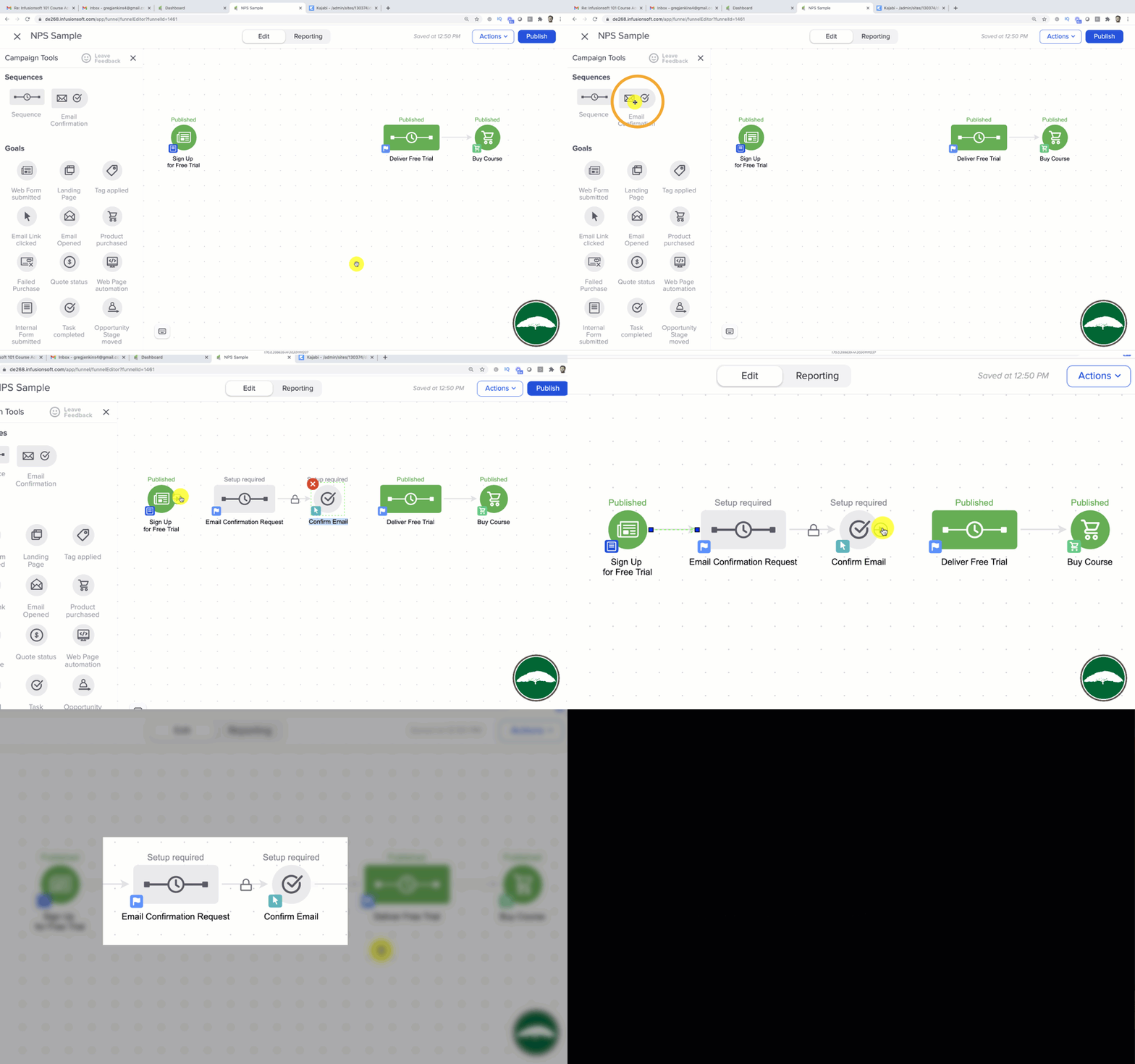
But, when you allow someone to confirm their email address (also known as “double opt-in”), it actually has a few key benefits.
First, it changes their email status from Unconfirmed, to Confirmed.
I told you Unconfirmed was good (and it is), but Confirmed is even better.
It not only means that you have permission to market to this person, but it also means that the email address you have is valid, and the person who owns it has confirmed that yes, they actually want to hear from you.
Better Inbox Placement
The next benefit is that this can literally help with inbox placement. Now, I won’t pretend to be a deliverability expert, but I do know that engagement is good.
And if someone is clicking links (like the confirmation link), then it means it is more likely that your emails will be delivered in the future.
Also, Keap actually uses a set of priority servers to send emails to confirmed email addresses – and these servers experience a marginally higher deliverability percentage.
Anyway, I created a video because a thread developed on this topic in my membership group last week, and rather than write it all out here, I thought I’d just share the video.
This video covers how to use the email confirmation, why to use it, and if you think the built in version is a little rigid, how you can get the same result with a clever little hack.
(Oh, I forgot to mention this in the video – they only have to confirm once. If someone has already confirmed their email address then they’ll just skip over the email confirmation sequence in the future.)
Enjoy:
Note: The video above was recorded in the Max Classic version of Keap (formerly known as Infusionsoft), but the Email Confirmation Snippet is also available in the Max and Pro versions of Keap.
Oh, and if you’re going to use the email confirmation process (which you should), you’ll definitely want to watch out for this gotcha.
Lifecycle Marketing, Small Business, Tips and Tricks
 This is now the third post in the Lifecycle Marketing Perspectives series, the first one is right here if you’d like to catch up.
But here’s the gist of it, Lifecycle Marketing is invaluable, and every small business should map out and implement a Lifecycle Marketing strategy. At least, that’s how I feel about it.
As a consultant and trainer during my time at Infusionsoft, I noticed there was a trend among the most successful small businesses I worked with, nearly every time they had a crystal clear Lifecycle Marketing strategy, and more often than not, we were using automation to execute it.
Today I’ve got some insights from Kevin Mogavero. Kevin, who is a fellow entrepreneur and Infusionsoft Partner, was a colleague of mine at Infusionsoft and is an absolute small business rockstar; and was kind enough to answer a few quick questions about LCM and Small Business.
GJ: Can you briefly explain why lifecycle marketing matters to small businesses?
KM: It’s a great tool to deliberately think about what you need to do in every step of your customer’s lifecycle in your business. Everyone business has to go though each of those steps, and anyone of them (whether you refer to the 3 step model or the 7 step model) is a place that you can really differentiate themselves. Most people don’t ever stop and really think of these business processes in these individual steps, they just kind of mush it all together in their heads. Putting it down on paper and thinking about each individual step makes things flow a lot smoother
GJ: What is the hardest part about lifecycle marketing?
KM: What I’ve found to be the hardest part for most people is creating content for every part. Most people are pretty strong one area, but weak in another, so they either leave it out all together or they leave lots of room for improvement.

GJ: What do most people misunderstand about lifecycle marketing?
KM: What do they misunderstand? I think that Lifecycle Marketing isn’t something you “do” it’s something that is always happening. Customers/Prospects are always going through the steps of the lifecycle, whether the business has something set up at each stage or not. If there is nothing set up at any given step, opportunities are being lost.
If I could choose a second thing, it’d be that doesn’t work well unless you know who your audience is. If your perfect customer definition includes the word “Anyone who…” then Lifecycle marketing probably isn’t working for you as well as it could be.
GJ: Talk about the relationship between Lifecycle Marketing and Infusionsoft (the company or the software):
KM: Once the business does its part in identifying its target market and driving traffic, infusionsoft is designed to bring people though the rest of the customer lifecycle in the easiest way invented for small business. It’s not perfect, and it does take time to learn, but you won’t find another system that is more complete and easier to use, guaranteed.
GJ: Why are you an expert on Lifecycle Marketing?
KM: I’ve worked hundreds of businesses through the Lifecycle Marketing model. My job is to make using the Lifecycle Marketing tool, easy for the business. Each business and each user has their own peculiarities. For example, some just don’t get the concept of Note Templates, or just refuse to use them. Although in certain cases, note templates note templates might be the “best” tool to use for a process, if the user just doesn’t like it, and routinely forgets to use it, then it’s not really the “best” tool for the job for that user. So, I find what the user will do, and set it up that way. My goal is to make it easy for you, not to make you an infusionsoft expert.
If you’d like to connect with Kevin directly, feel free to use the info below, or leave a comment:
Name: Kevin Mogavero
Company: KRM Development
Website: KRMTrainingPlus.com
LinkedIn: Kevin Mogavero
[rad_rapidology_inline optin_id=optin_4]
Keap, Software Updates, Tips and Tricks
Without any fanfare, the long awaited mobile responsive email builder was released yesterday. And the world didn’t explode. I know that thousands of Keap users have been anxiously waiting for this builder since long before they announced it was coming (at ICON in 2015).
But for all that pent up energy around this much anticipated tool, there was very little fuss. And it’s not because the email builder isn’t slick (it is). I think it’s because Keap knows how badly this is needed. And I think it’s because Keap has wanted to release this for probably just as long as their users have wanted it.
So, without further ado, let me give you my 3 favorite things about the builder, and my least favorite things. (Or, scroll to the bottom for my video review)
Favorite things:
- Mobile Responsive
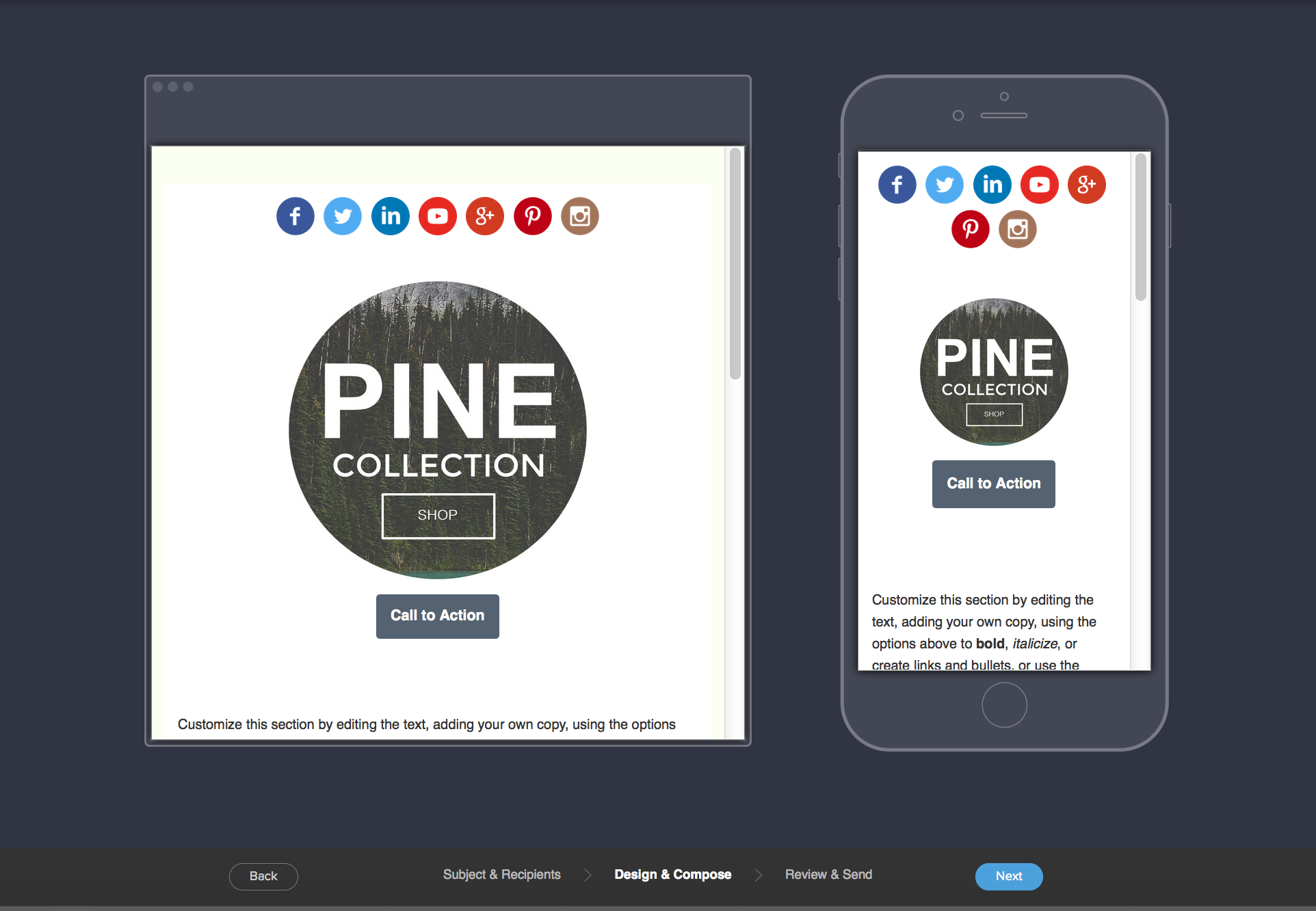
Yeah, that’s kind of big in this day and age, right? Well, the new builder produces sexy mobile responsive emails that look good on any device. Oh, and the preview pane shows you how it’ll look on mobile and on desktop. EDIT: I shouldn’t have said “any device”, as pointed out in the comments there are several exceptions.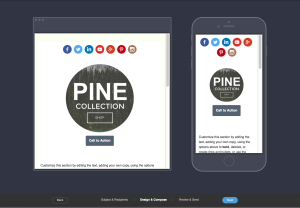
- Image Editor
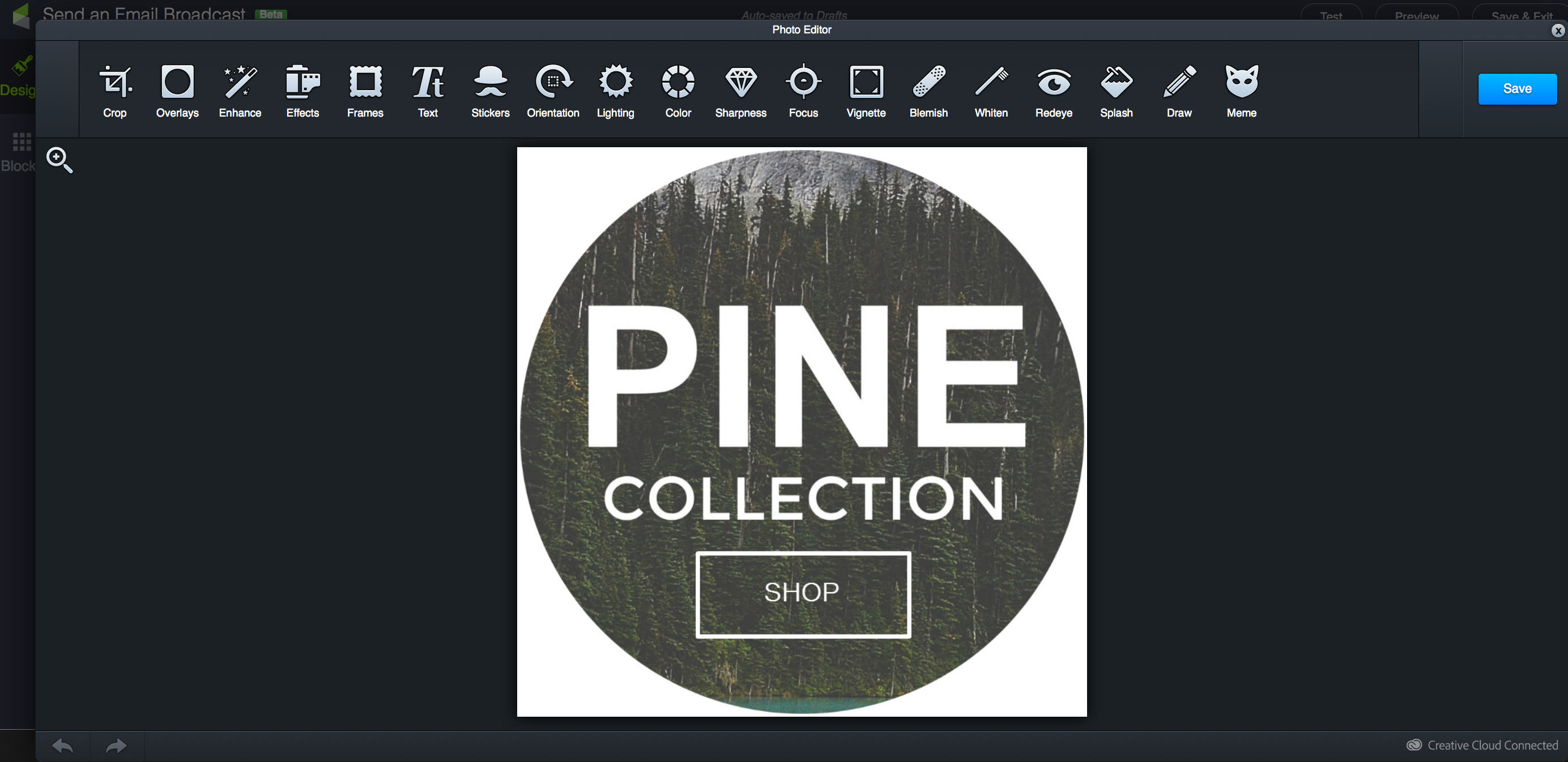
Yup. You can upload images directly to the email builder, and then crop them, add filters, or even overlay text. Right from within your email editor. This is something I didn’t even know I wanted. But man, it’s going to save me tons of time and allow me to create beautiful and professional graphics easier than ever. (Don’t worry, there’s a “meme” option)

- Flexible Multiple Columns
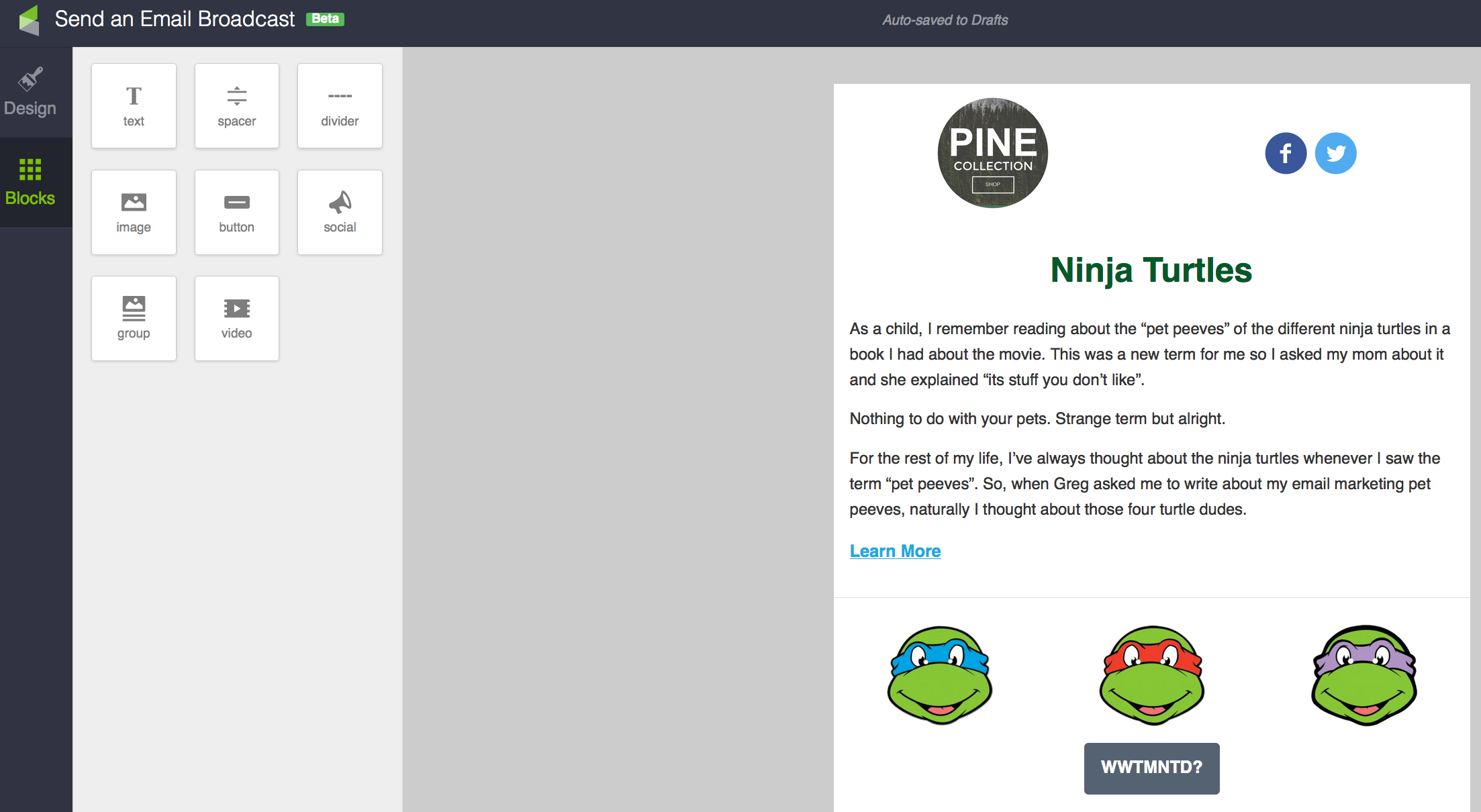
So, with the old builder, you had a “body” of the email, and the body either had one column, or two. And if you turned the sidebar on, it was there for the whole email body. It was all or nothing. With the new builder you can now alternate between single column content, and up to three side-by-side snippets.
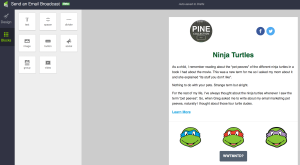
So, before I dig into the things that bug me about this new builder, it’s important to call out that this is still technically in “beta“, and I think Keap would happily acknowledge that there are plenty of other features they’d love to add to this. Edit: The email builder has experienced many updates since it’s initial release.
My Pet Peeves:
- No Campaign Builder (NOTE: Since this article was written, the email builder has now been made available for campaigns)
Yup, the new email builder was released to be used in broadcasts only. Obviously this really limits how we’ll be able to leverage it. They know this, and they’re working hard to bring this email design experience to the campaign builder – but it’s not there yet.
- Tags on Links
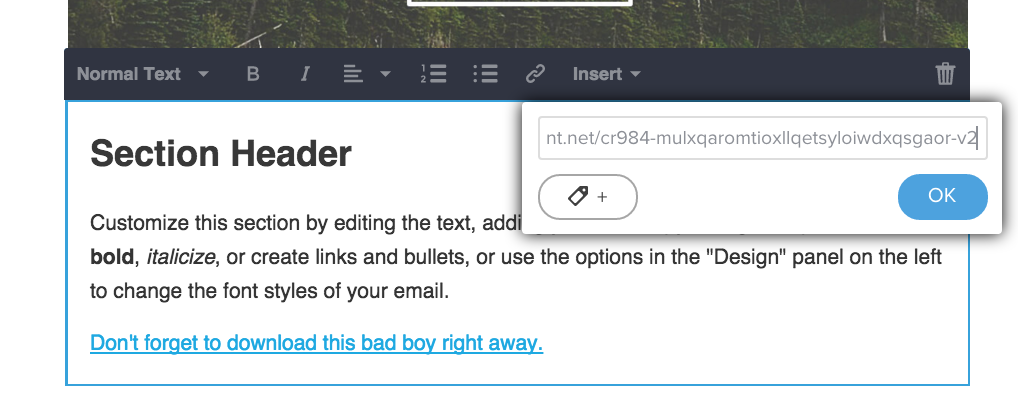
Don’t panic, you CAN still apply tags when someone clicks a link. But strangely you can’t create new tags from within the builder. To me this seems like it should have been built in to begin with, but I trust that there are some complexities associated with that which may be over my head. Oh, also, you have to scroll to find the tag you want – there doesn’t seem to be a way to easily search.
- Missing Snippets
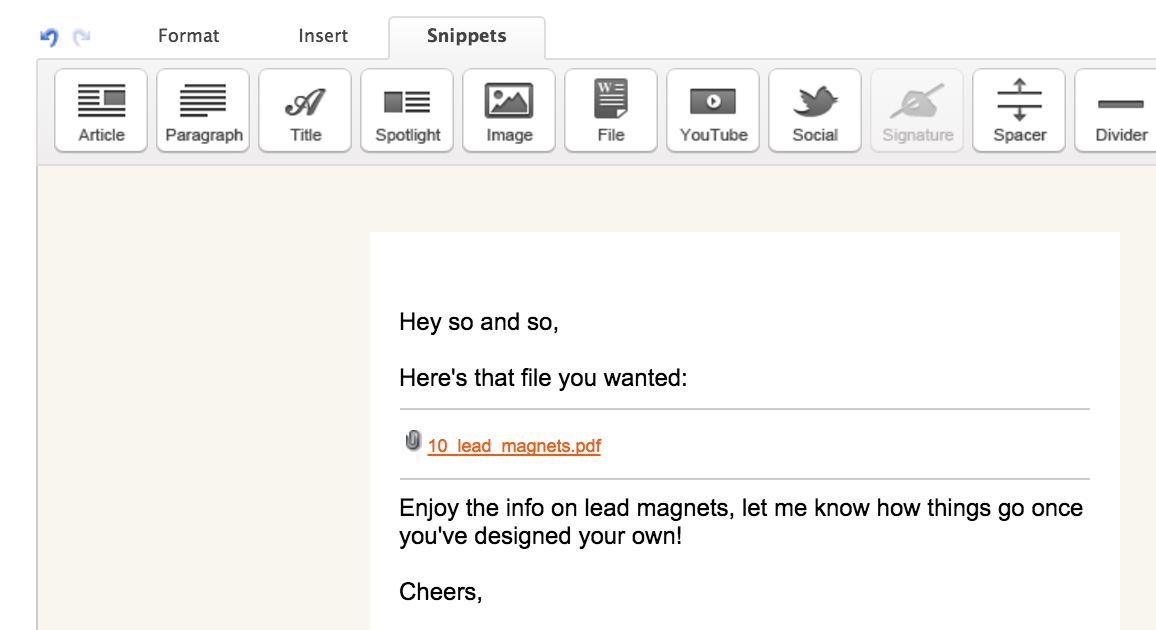
Yeah, there are a few snippets that were available in the previous builder that didn’t make the migration to the new builder – mainly the HTML snippet, the File Snippet and the Signature Snippet. Again – no need to panic, you can still go to the Owner merge fields and merge in the HTML signature, but it’s not a prepackaged snippet. And you can host your file wherever you link, and link to it like a normal link. So these probably aren’t the end of the world for most people, but it seems like they’ll want to add these over time.
Okay, so that’s my take, and it’s probably just the tip of the iceberg. This new Keap Email Builder really is pretty impressive (Kudos to the dev and design team who worked on this). Really you should definitely play with it and figure out what you love or what you don’t love, and you should definitely comment below with your thoughts about it.
In the meantime, enjoy this video:
Campaign Builder, Keap, Small Business, Tips and Tricks
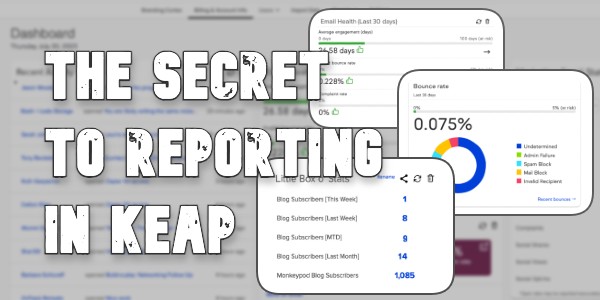
Have you ever felt that Keap’s reporting was lacklust, or just plain weak? Lots of people have.
I’ve heard that sentiment more than a few times.
It’s clunky, I’ll give you that. But I think that Keap’s reporting is actually much more powerful than most people give it credit for. In fact, I think that in all my years of working with Keap, formerly Infusionsoft, I can only think of three or four instances in which I truly couldn’t find the information I was looking for.
Click here if you wanna jump straight to the video example.
Backstory and context:
Listen, there are plenty of awesome ways to get information from Keap here’s one for finding your open rates from campaign builder emails from my friend Brett at Blick Digital.
And if you want something more robust, there are tools like Graphly out there. I’m not trying to undermine or discredit any of the other resources out there, I just want to share a free trick of mine in case it helps you find the information you need faster or easier.
Okay, no more beating around the bush: Tags.
Yup, tags are the secret.
I use tags to give me nearly any number of stand-alone metrics that I want.
“But Greg, I already have a lot of tags.”
No big deal, you’re gonna have a few more.
Listen, you can’t have “too many” tags, you can only have tags that mean something to you, and tags that don’t. If you have tags that aren’t carrying valuable information – then yeah, maybe you should tidy those up. But if you have thousands of tags and they all carry meaningful data, then you’re doing just fine.
Lemme show you how I use tags for reporting by way of an example:
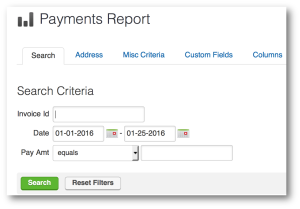 Let’s say that when you log in, you want to know how many sales you made last week. In fact, let’s say you want to know how many sales you’ve made each week for the last four weeks, and you want that data right when you log in, every single time.
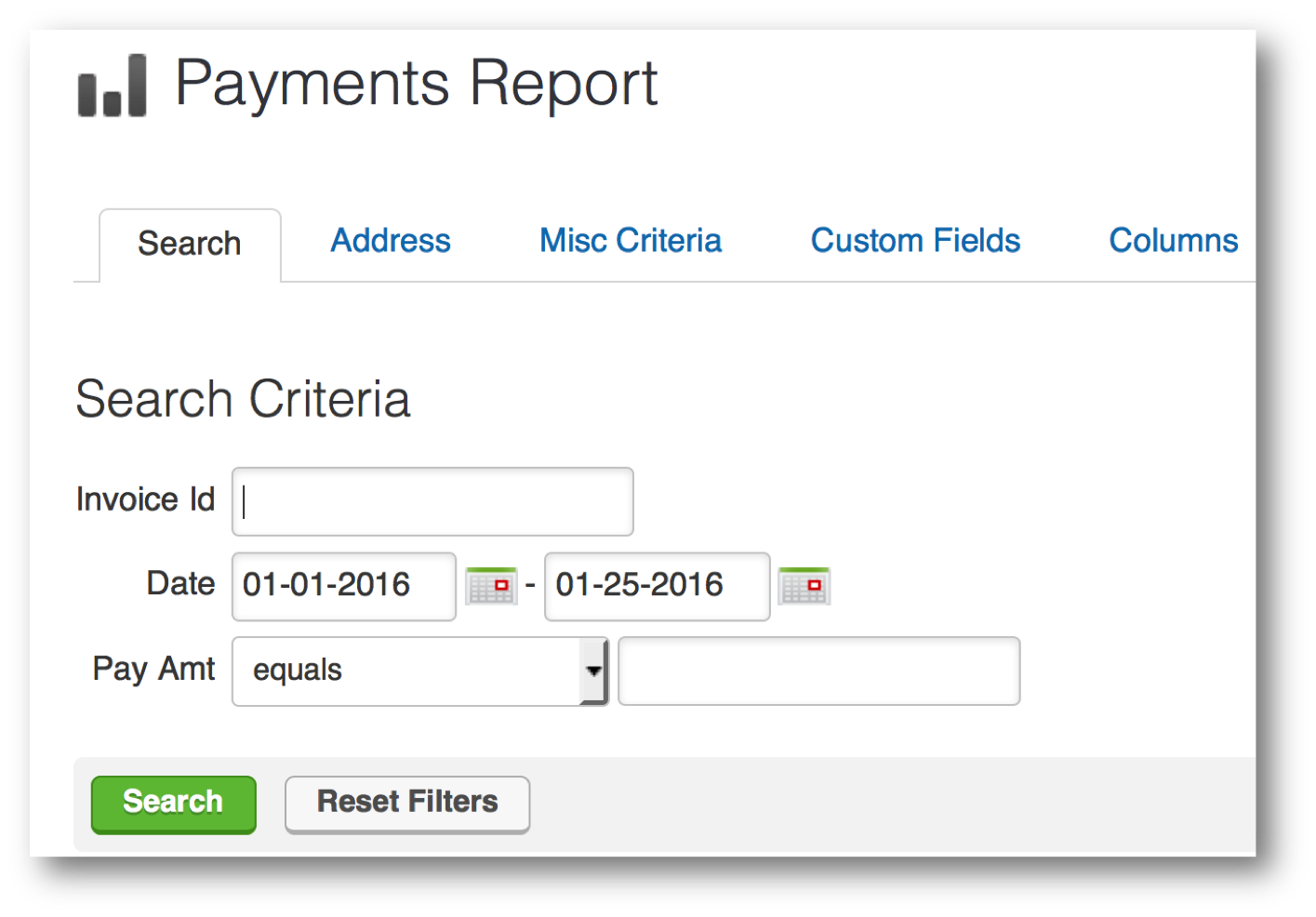
Well, you can use the All Sales Report or Payments Report, but your only date criteria for those reports is a static date range. So, if I wanted to find out how many sales I made last week, or the three weeks before, I’d have to run the report four different times. And even then I still couldn’t save it because the calendar dates are static, and so the reports wouldn’t update, and in a week I’d have to come back in and run another report for the current week. Garbage. Not gonna work.
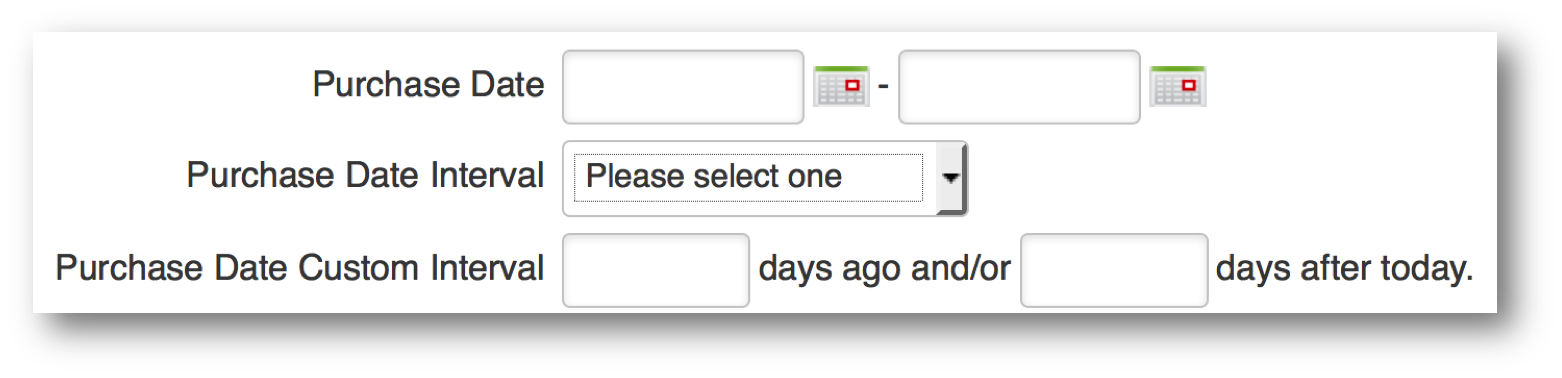
So, maybe you get a little creative, and you decide to use an Order Search. The orders section allows you to use some diffe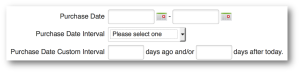 rent date range logic. Now we’ve got the ability to run searches for any orders and use some dynamic date ranges.
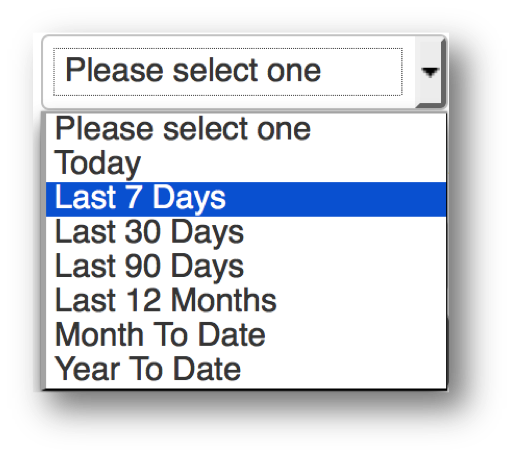
So, this is a bit of an improvement. Now I can use a purchase date interv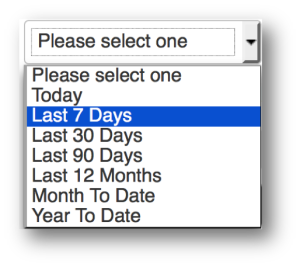 al, and this will always be as it pertains to today. So, I have the choice of selecting Today, Last 7 Days, Last 30 Days, Month to Date, and Year to Date. But, even if you choose Last 7 Days, it doesn’t give you the choice to say Current Week. Or, The Week Before This Week. You can use the third option for date criteria, which is Purchase Date Custom Interval, and that lets you do X number of days ago and or X number of days after today.
Pro-tip: Did you know you can use negative integers in the Purchase Date Custom Interval fields? So, you can say 60 days ago and/or -30 days after today; which will show you purchases made between 60 and 30 days ago.
The Three Timer Types [in Keap]But, it’s still based off of today, and those numbers that you put in are fixed, they won’t adjust based on what day of the week you’re looking at the report, etc.
Conundrum, right?
Well, thanks for sticking with me, because I’ve got your answer. It’s tags. But not tags on their own, ya see, it’s more the strategic application and removal of tags. And the reason most people don’t do this is that they underestimate just how powerful the timers in the Keap campaign builder are.
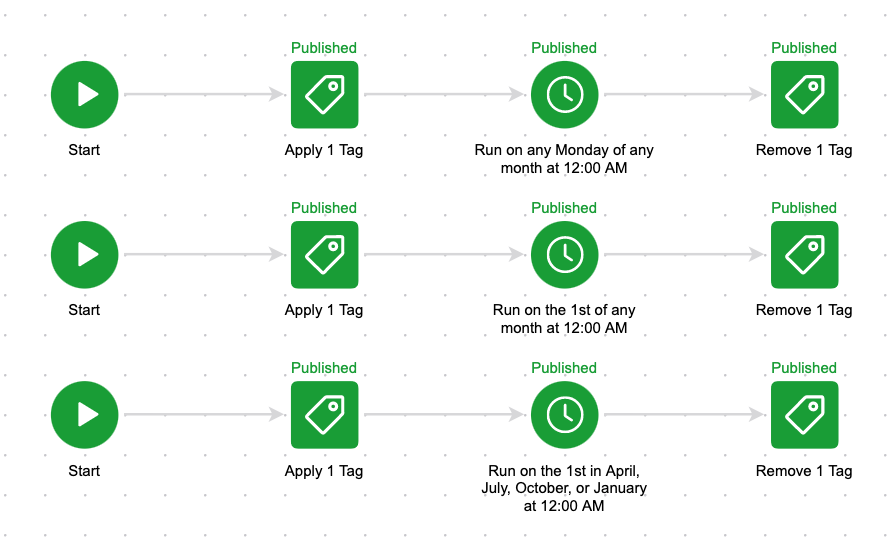
So, if you want to track sales from this week, and sales from last week, and the week before that. Here’s how you do it. Build this campaign:
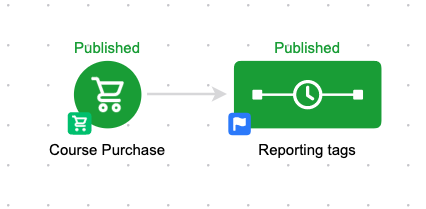
Okay, before anyone goes anywhere, that’s just the campaign structure – I promise there’s more. But honestly, it is this simple. This campaign is tracking ALL purchases – but you could easily adapt it so that you’re reporting on each of your products independently. Just set it up once, and then decide if you want to clone it.
Okay, so, the goal triggers the sequence, and then the sequence is where we manage our tags. Here’s how that looks:
So, when someone purchases it starts the top and the bottom line in this sequence. The top is tagging them as “Purchase this Week” and the bottom is tagging them as “Purchase this Month”.
Then I use timers to wait until the end of the week (Sunday morning at 12 am) and I remove the “Purchase This Week” tag and apply the “Purchase Last Week” tag, and on the bottom I do the same thing – I wait until the start of the next month (12 am on the 1st of any month) and I remove the “Purchase this Month” tag and apply the “Purchase Last Month” tag.
You guys, this isn’t terribly complicated, and I hope that doesn’t disappoint you.
But this tagging structure is so powerful because the timers allow someone who purchases on Monday to have the “Purchased This Week” tag for 5 days, but someone who buys on Saturday only has it for less than a day – it adjusts based on when someone enters the sequence.
The bottom line of logic does the same thing but on a monthly basis – if someone buys on the 5th of the month, they’re going to have the “Purchase This Month” tag until the 1st of the following month (no matter what month it is), but someone who buys on the 28th may only have that tag for a few days before it’s swapped out for the “Purchase Last Month” tag.
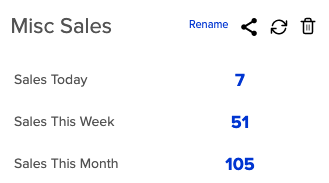
So all you need to do is run a saved search for contacts who have the “Purchased This Week” tag, and the “Purchased Last Week” tag and then let the campaign handle the application and removal of the tags so that the contact shows up on the right searches at the right times.
Or blog subscribers this week, vs blog subscribers last week, etc.
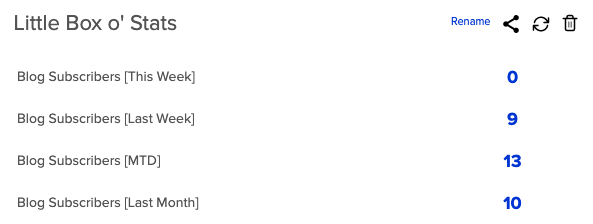
This type of flexibility allows you to compare apples to apples – it helps you identify trends in your business, and it gives you powerful data that can drive your marketing decisions. Oh, and if that wasn’t enough, of course these reporting tags can be used in conjunction with your other reports and searches to make them that much more targeted
Think about the metrics you want to track in your business, and start to put together some simple campaign structures to create that data. I’d love to hear any thoughts on this or other reporting tricks you’ve sorted out on your own.
Video Example:
And if you’re looking for specific reports to help you make the most out of your Keap data, here’s a great post on the Novak Solutions blog highlighting five of Paul Sokol’s favorites.
Pro-tip:
The example I’ve used was based on a purchase, but you can use this same tag based reporting set-up to track anything – I also use it for new opt-ins for my various e-books, and to track my blog subscribers as well. Create a tag category of it’s own just for Reporting Tags.


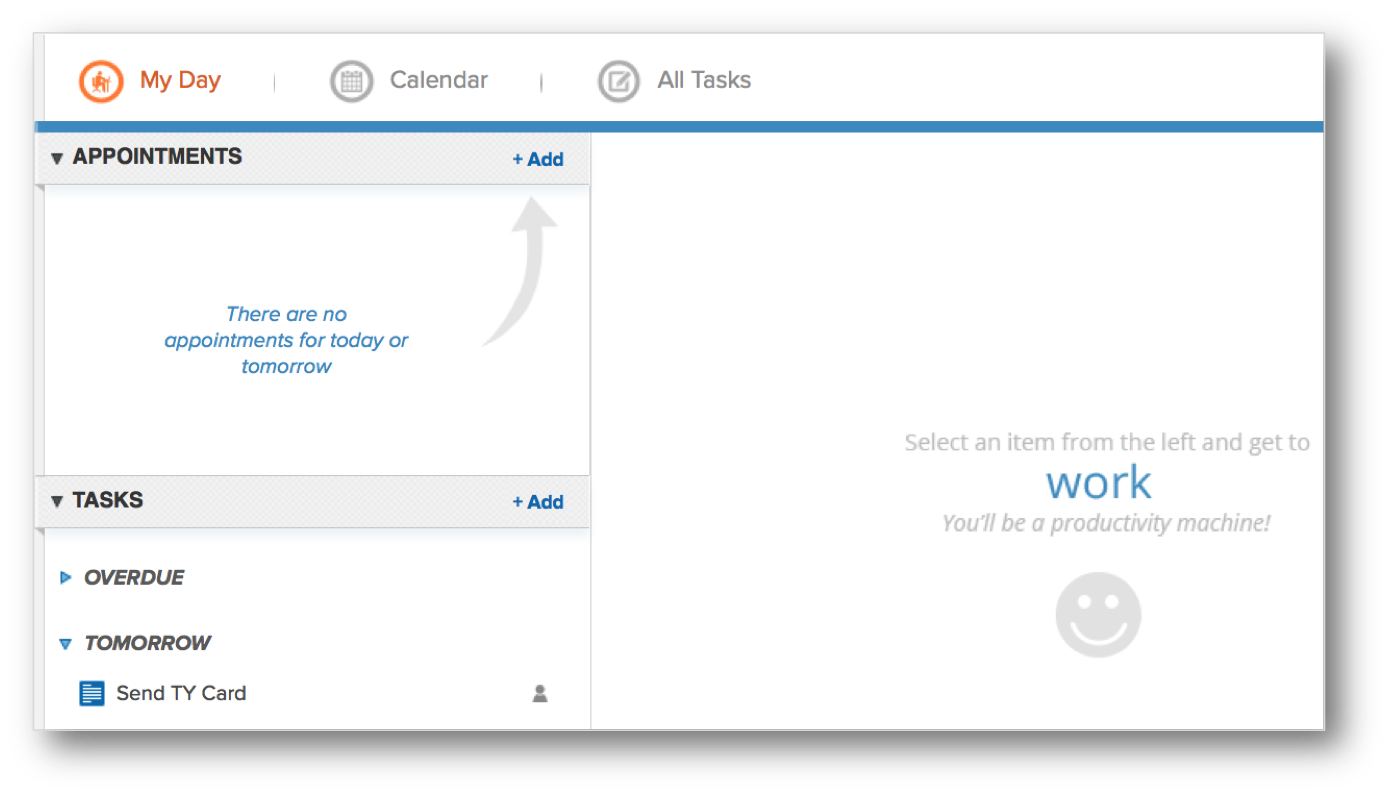 month away, copy/paste this status and share it”, “the show is 2 weeks away…” and so on. Task. Complete. Task. Complete. I can live out of MyDay which is really nice.