Creating Certificates with Zapier

Creating Certificates with Zapier

I’ve put this one off for way too long, so let’s get right into it. I’m gonna show you how you can build a 100% automated process to create certificates and send them to people.

Like this one:

You can see why it might be useful to generate those without lifting a finger, right?

Cool, let’s do this.

(Special shout out to my homie Kelsey Bratcher, from Hired Gun Solutions, for teaching me this one.)

Tools You Need

1. Infusionsoft (paid)
2. Zapier (paid)
3. Google Slides (free)

General Flow

Infusionsoft will trigger the zap with an HTTP post, then Zapier will use an existing Google Slide Deck as a “template” and create a PDF for the certificate, and pass the URL for that certificate back to Infusionsoft, and then you can send an email to the contact with the link to their shiny new certificate.

Specific Flow

Here’s the campaign:
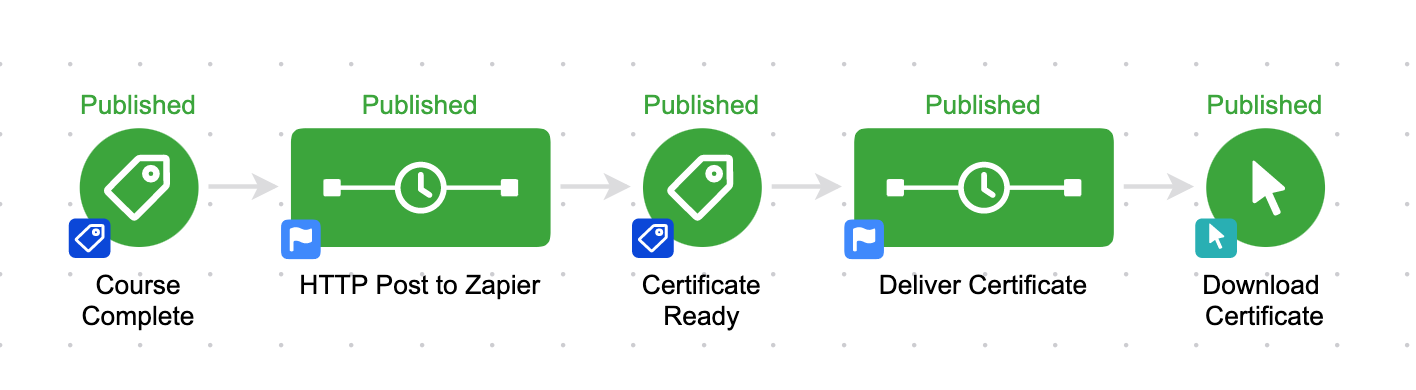
Zapier Certificates

Just Show Me

Fine, get in here.

Did ya catch all that? Here’s the step-by-step.
Step-by-step Instructions
1. Create a custom field (website type) in Infusionsoft to store the Certificate URL, and a tag called “Certificate Ready”.

2. Create a campaign that starts when you want the certificate created (like when a course is completed), and then a sequence with an HTTP post.

3. Create a Zap that is triggered with a webhook.

4. Add that webhook URL from the Zap to the HTTP Post in the sequence. Make sure to send email, and any other fields you may want to merge into the certificate.

5. Send a test post to Zapier WITH values, not just merge fields.

6. Set up a google slide – design it to look however you like, and use the following format for fields you want to merge in, like name, date, course, etc: {{name}}

7. Add a step to your Zap that create a slide from a template, and choose the google slide deck you created in step 5.

8. Map the fields from your HTTP post to the merge placeholders you set up on your slide.

9. Add a step to the zap to update a contact record, and map the export/PDF URL to the custom field you created in step 1, and add the tag you created in step 1 also.

10. In your campaign, add a tag goal after the HTTP post sequence listening for the “Certificate Ready” tag.

11. Add a sequence after the tag goal, with an email in that sequence, and the merge field for the “Certificate URL” so that the contact can download it.

AccessAlly Method
I recently started using AccessAlly and learned that AccessAlly also has a built in feature for certificates (under the ProgressAlly features). Personally, if I decide to start offering certificates I think I’ll probably use this route because it keeps everything nicely organized within the membership area.

Here’s a tutorial on how AccessAlly handles this.
Four Magic Tricks for OBS

Four Magic Tricks for OBS

Well hello there fellow podders!

It’s your arguably-favorite-guest-author here with some small business tool training that will absolutely impact all aspects of your customer journey.

Nearly 100 years ago, silent movies went extinct when “talkies” showed up.  Movies with sound were a technological advancement that shifted the entire industry.  Film studios which only made silent movies now had to evolve or die.

When the internet first started, transfer speeds were so slow that images (and animated gifs) had dominion over the land of bits and bytes. These days, EVERYTHING is video for the most part. At any rate, video is the most engaging type of content out there, and has also become very easy to produce.

Businesses today MUST leverage video or remain silent, forever.

Most of us have all the equipment we need to record and produce a video file in our pockets. This is a good thing. It means that consumers are more forgiving of poor production quality AND that they can be more easily won over with some simple production elements.

Even a basic text overlay on some video driving a call-to-action can improve conversions. You used to need knowledge of video editing to accomplish anything even borderline sophisticated.

And if you didn’t, you were going to pay a pretty penny for someone who had the skills.

The tool I’m about to share can make the need for video editing disappear. And say goodbye to any render time. 😉

So now, the one free open source tool that tech companies hate:

Drum roll please…

:::drum roll:::

Open Broadcast Software

Also known as OBS, this free software uses open source licenses for video, audio, and live stream standards.

You can live stream to nearly any platform from your computer, and you can produce full quality video files without any render time. You can do both simultaneously. Record or stream your screen, your webcam, a pre-recorded video, images – or any combination of those. If you felt the drive to, you can even do live chroma keying (that green screen stuff they do Hollywood). Lastly, there is a formidable cadre of coders who are always working to make it easier and bug free – it’s worth noting that in my experience the software is quite stable.

If OBS sounds uber-robust, that’s because it is.

I am continually finding new ways to use it and deeper and more thorough ways to leverage all the built-in features.

Fun fact: I use OBS to live stream and record concerts at Club Red out in Phoenix. We patch in the perfectly mixed soundboard audio and use my webcam to capture the stage show. A few transparent overlays to tell viewers who they are watching, and you can broadcast an entire phenomenon in the local music scene.  (We’ve even experimented with 360 video live streams.)

It’s also worth remembering that OBS is completely free.

Does OBS replace video editing or the need for screen capture tools like Camtasia?

In some cases, yes. If you need to stitch together various clips you probably still need a video editor program. If you really need those cursor call-outs and zoom bits, you’ll still want your screen recording software; but if you simply want to show your screen and webcam with the world then you can probably use OBS exclusively.

Alright, enough gushing for now. I promised you some magic tricks, so let’s dive right in.

Open Broadcast Software Trick #1: Video Sales Letter Formulator

A video sales letter, or VSL, is typically produced with some kind of screen recording software. Someone will have a slideshow presentation with a pitch and record themselves going through the slides.

With OBS, you simply hit ‘start recording’, go through your slides & pitch, and hit ‘stop’. Then you immediately upload the video, no editing, or waiting for rendering required. Assuming you like the take, of course. 🙂

I’ve figured out a solid rig for recording VSLs if you have two monitors. On your right monitor, load the slideshow and have OBS use that screen only as a video source. Use your mic as an audio source. On your left screen, you can have your VSL script ready to go and the OBS software hiding out. I even like to include my webcam in the bottom right of the shot for more of a human connection with the audience.

OBS screenshot

Reading from a script while not LOOKING like you are reading from script takes some practice, but the payoff is well worth it!

Open Broadcast Software Trick #2: Customer Service Number Booster

There are many different ways to measure customer service effectiveness. That’s not the magic trick here. Still, this trick should be able to help you achieve more customer satisfaction. 🙂

Use OBS to record quick explanations on customer support issues – bonus points for putting your webcam in the corner so they can see your face. You can even overlay a watermark to dissuade people from sharing/recycling if you’re so inclined.

This will only qualify as a “trick” for another 5-10 years though! Pretty soon, video support is going to be expected by consumers and this will be old hat. Until then, developing the muscle to bust open OBS, hit ‘start recording’ and put together a short clip can very much improve the customer experience.

That only leaves the delivery of the video file, and for that I recommend free file transfer services. My goto is WeTransfer.com because the download expires after 14 days.

To review, the workflow is:

  • Some customer service issue needs to be handled, you figure out what is going on
  • Open OBS and load your ‘customer service’ scene with webcam, desktop and watermark.
  • Record a quick video explaining what is going on
  • Upload the video file to the client using WeTransfer.com

And if you really want to get fancy, you can send the video to yourself and then deliver the download link through some other system. For example, maybe you use a ticketing system for responses. After getting a download link from WeTransfer, paste it into your response and boom, world-class service. 🙂

Editor’s Note: If you are comfortable with OBS then this is a perfectly viable way to level up the support you’ve given with an added personal touch, but it’s not the only choice for recording quick video replies to your customers. For those who like options you may also want to consider SoapBox from Wistia, Jing, or my personal favorite, Loom.

Open Broadcast Software Trick #3: Live Stream Producer

Ok, so this is kind of a lame “trick” because it’s just one of the main functions of the software.  But it’s nice to be able to do it for free. The “trick” is that in most cases, there is no need to purchase a fancy live streaming software. OBS will do just fine.

This is true even if you need to stream from multiple contributors. You can use your existing tools for those kinds of things. Zoom. Google Meetings. Skype. Then in OBS, you’ll just use an audio source for the system output (aka what YOU would hear participating in the meeting) and then an audio source for your own mic. Oh, and showing your screen is probably a good idea too.

OBS is designed to work with all the major players in streaming today: Youtube, Twitch, Facebook, etc. You can even configure it for custom streaming servers if you’re company is particularly savvy. There are ways to control the bandwidth of the stream and other nerdy settings too. For example, if the internet signal is weak you can send less data to avoid lagging.

Keep in mind, you can have different scenes as well so that you can actually produce a show (think about the way a live sports broadcasts seamlessly switches between camera angles depending on what’s happening in the game). Use a static image for the start, transition to your webcam, switch to your desktop, play a pre-recorded clip, return to your webcam, and add a call-to-action graphic at the end.

And all this without a lick of editing. You are basically editing on the fly in real-time as you switch between scenes.

Open Broadcast Software Trick #4: World’s Best Screen Recorder For PC (or Mac)

For anyone who is an info-product producer or does software training, OBS should be your best friend. With its ability to deal out raw screen recordings without any editing or render time, one could record an entire course in a day. Again – without needing to edit a thing. I want to drive it home and reinforce the value there because editing is an incredible bottleneck for companies trying to produce courses and training materials.

Even if you need to do a bit of editing for branding and such, the speed with which one can produce a recording is enviable.

I will personally never use another software to record my screen. I cannot imagine anything else being as straightforward or powerful as OBS. This piece of software has become my favorite tool by far over the past few years and it continues to serve me and my ventures. I believe it can do the same for you too!

So there you have it folks – Four tricks that Open Broadcast Software can perform for your business.

I’d recommend you go download it now and start playing with it. Please leave any questions or comments below, or hit me up on the twitter machine!

Runs Until Completed

Runs Until Completed

We’re going to talk about Keap sequence settings, but first – let me be clear:

Keap’s campaign builder is, in my opinion, the most powerful marketing tool on the planet. Period.

At it’s most basic, it’s a tool for building automation into your processes.

But the more time you spend with the campaign builder, you’ll find that there are exceptions to many of the rules you thought you knew.

These exceptions have led to frustrated users (and empty wine bottles) on more than a handful of occasions.

If you’ve ever wished the campaign builder would stop surprising you, then let me take a moment to cordially invite you to check out the Advanced Automations Complete Collection – available for free on the Keap Academy platform.

Okay, the purpose of this post is to talk about a hidden little Keap sequence setting that many users may not even know exists.

The “Runs Until Completed” sequence setting.

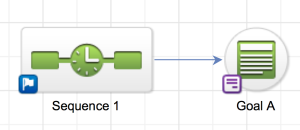
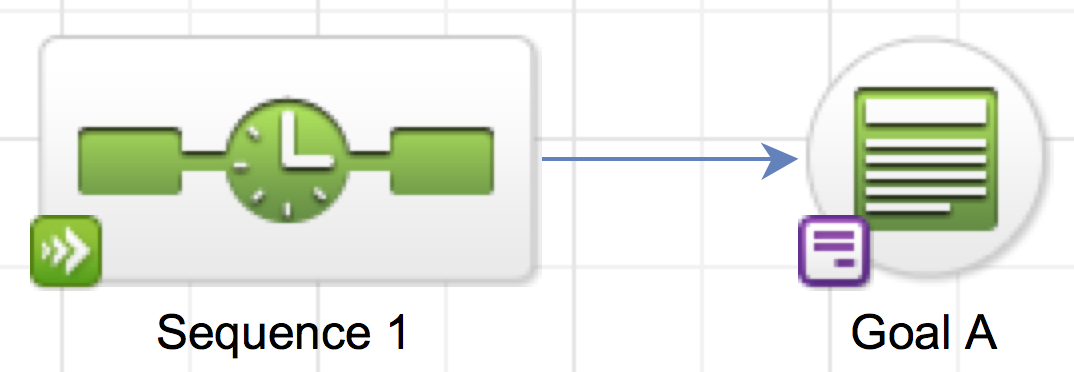
You know how normally your sequence has a little blue flag in the lower left hand corner, right?

That blue flag means that if someone is in that sequence, and they fill out the web form to achieve Goal A, that they will immediately STOP that sequence.

That’s the default.

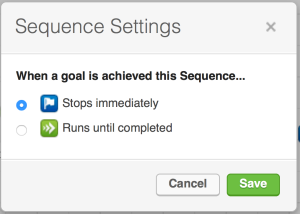
But you CAN change that setting – simply click on the little blue flag, and you’ll open up the sequence settings window.

So, if you switch that setting to “Runs Til Completed”, then you’ll notice that the blue flag indicator is replaced by a green arrow indicator, meaning that this all the steps in this sequence will continue to process, EVEN if the contact achieves Goal A.

Why does this matter?

Great question.

I’ve been working with Keap for a while now, and honestly, I always thought this setting was kind of pointless.

If the point of a sequence is to run automation, to get people to take a specific action – then it seems pretty logical that once they take that action, you’d want to stop the things that got them there.

When someone registers for a webinar, you don’t want to keep reminding them to register, right?

And when someone buys something, you don’t want to keep emailing them links to the sales page?

I’ll answer that for you – you don’t.

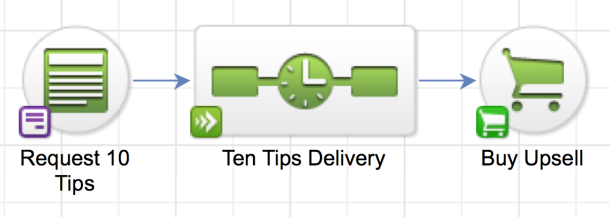
So literally the only example I was able to give for why this feature even existed, was for scenarios like a “10 Tips Sequence”, where you’d promised to deliver something over a period of time, and you need to fulfill your commitment, EVEN if the person takes an action and achieves a goal that would have otherwise removed them from that sequence.

Until now.

Just the other day I was cruising around building a campaign for my All Access Pass, and I hit a snag – and after puzzling on it briefly I realized that the “Runs til Completed” scenario would PERFECTLY solve the hitch I was up against.

Check it out:

Now, I get it, there are certainly other ways to restructure the campaign which could have achieved the same result – but since this was a eye-opener for me, I figured it may be useful to tuck in your toolbelt too.

If you have any questions about this Infusionsoft sequence setting, or have found your own use cases for it, please share in the comments below.

Opportunities 101

Opportunities 101

How to get around this guide:

What are Keap Opportunities? What is the pipeline? Do I need it? How does it work? What does it do?

I’ll be honest – when I first started working with Keap, I didn’t know what “opportunities” were. I didn’t get it.

It felt abstract, and I didn’t see how it tied together with the rest of the platform.

So, even though I was using the software daily, I avoided it…for months.

And I know I’m not the only one.

I don’t have a course covering opportunities, I might someday, but for now, consider this Opportunities 101 – for anyone who has ever wondered what they are or where they fit, but has been afraid to ask, or just hasn’t taken the time.

I want to be clear – you might not need opportunities at all. If your sales process is entirely online and doesn’t involve manual interaction, then this may not be for you at all.

But unless you know what it does, and how it works, you don’t know what you’re missing out on.

So, what are Opportunities anyway?

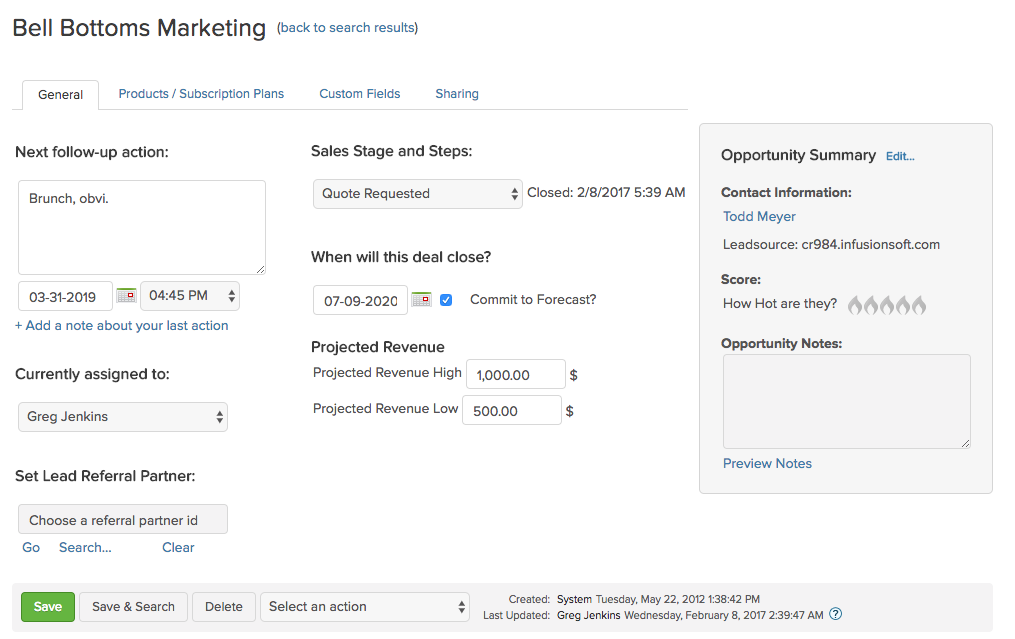
‘Opportunities’ are records (like contact records), but they represent an interest, rather than a person. In Keap Pro and Max, Opportunities are called “Deals”.

Opportunities in Keap are tied to a contact. And contacts can have multiple opportunities, but opportunities can only be attached to a single contact.

Opportunities serve as a vehicle to move someone through a process, most commonly, to track their progression through a series of stages, like a sales pipeline.

Opportunities module screenshot

Wait, what is a Pipeline?

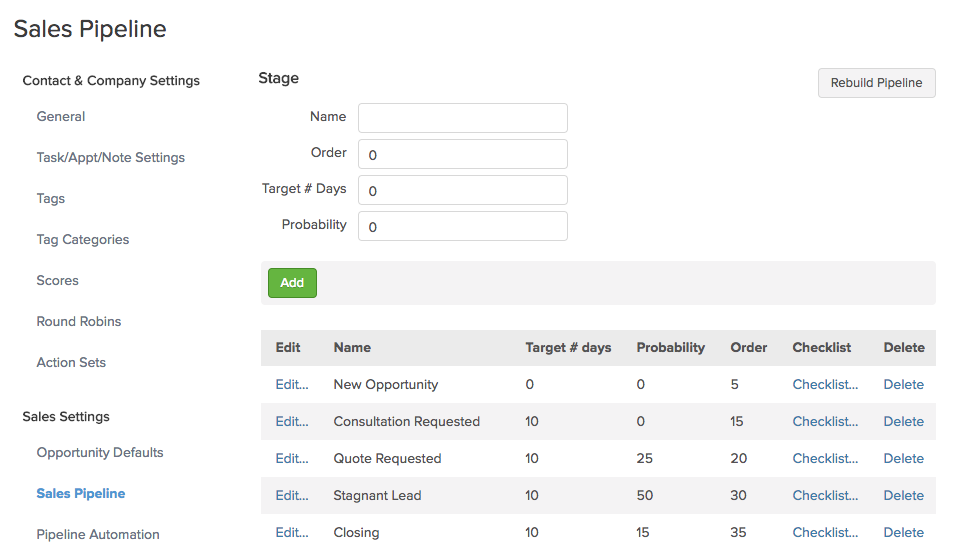
The Keap pipeline, or sales pipeline, is just a tracking mechanism for a process. Any process, but usually a manual offline sales process.

You move opportunities through the pipeline stages you define.

Sales Pipeline module screenshot

The reason I say “Any Process” is that you could use Infusionsoft’s pipeline to track something other than a sales process. For example, if you have a manual fulfillment process that needs to happen after someone places an order, it might make sense to create an opportunity record AFTER someone purchases.

How does this benefit my business?

The primary benefit to a business is that it helps you get clear on the process and journey leading up to a purchase – so you can see where your sales are going to come from. As you use it, you can start to gauge “Hey, if they make it to this stage, they have an X% chance of buying.”

As you use the pipeline, it can also help you identify bottlenecks, and gives you transparency into your processes. If you know that people are getting stuck in a certain stage for much longer than you’d expect, you can then go investigate why.

Opportunities in Keap also afford you the ability to assign a projected revenue range – which helps you know the total value of the opportunities in your pipeline, or in a specific stage. When you combined this with projected “close” dates and weighted forecasting it unlocks robust reporting and analysis that can be used to inform key decisions.

You can literally help a sales team decide how to allocate their resources, or prioritize their day.

[Back to Top]

Opportunities help you track your prospects through your sales process without letting any slip through the cracks. And once you’ve got that – you can also use the stage moves to trigger automation for the repetitive follow up.

Mallory Balnis

Plum Crazy Automation

When do I create an opportunity?

If you’re going to use Opportunities to track prospects through your sales journey (or any journey) then a natural question is “When do I create an opportunity?

As soon as I get their business card? When the prospect signs up for something? Only after they’ve asked for a quote?

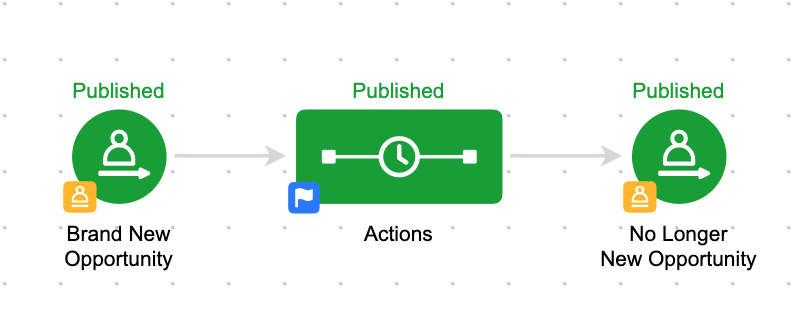
Opportunities sequence screenshot

The answer is “it depends”. My rule of thumb is that an opportunity record should be created when it’s time for a human to get involved. And the good news is that no matter when you decide an opportunity should be created – it can be automated.

So, if the prospect has expressed interest enough to merit some human interaction, then that’s usually when I recommend creating an opportunity to track their progression.

Here’s a good article from Brett Farr over at Blick Digital covering this question, and some ideas for aligning your sales and marketing teams.

How do I get my team to use the sales pipeline?

The biggest challenge, in my experience, is adoption.

Sometimes sales teams will be resistant to the whole concept because a) they don’t want their process, or lack of process, to be exposed, or b) they worry that they’ll be replaced, or c) it’s technical, or hard, and they see it as one more thing that gets in their way.

So, because of those reasons, it’s really important that you own your adoption. Normally this is a sales manager. (I’ve been in a room with 8 sales reps who I was supposed to train on a $5k pipeline process that was built for them, and 0 of the 8 wanted it. Twas a little awkward.)

The trick is creating an appetite for it. It has to make their life easier. Usually this is by helping them focus their time. And saving them from repetitive shiz, like sending the same “I just left you a voicemail” email over and over.

Here’s a good post on sales pipeline adoption.

Can I build more than one pipeline?

Normally you’ll want to set up your sales stages to be broad or general enough that you can use it to track opportunities of all types, but in some instances, you may find that the sales journey for two of your offerings is quite different. So, in those fringe cases you can set up multiple pipelines using this strategy.

Can I automate it?

Previously my answer to this was “Moving an opportunity between stages is ALWAYS manual*. Which is by design.”

And I’d go on to explain that it’s because the pipeline process largely happens offline. Moving someone from one stage to another is a representation of offline interaction, like, having a conversation.

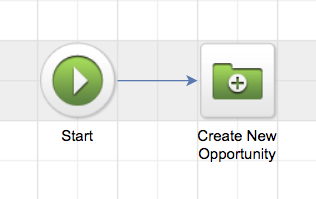
But in 2021 Keap released a feature that allows you to move an opportunity automatically as a step in a sequence – more on that here.

So now you can move an opportunity using automation, or trigger automation when you manually update an opportunity.

The second one is where Keap really shines – tying this offline interaction to automation. Moving an opportunity between stages and trigger and stop automation (this happens by achieving a campaign builder goal).

So, your sales rep (or whoever) will manually move an opportunity record from one stage to another – but then that manual action can trigger an automated reaction. It’s like tipping over the first domino, and then watching what you’ve built run it’s course.

[Back to top]

Opportunities will force you, wearer of many hats, to organise, simplify and automatate your sales process – which will make it possible for you to hire someone for that role in the future.

Jake Lunniss

JakeLunniss.com

What should my campaign look like?

Once you’ve defined your stages, and you’re ready to start layering in automation, you’ll want to design a campaign. This article shows you how to build the actual Keap campaign structure which will support the automation between each stage move.

Are you sure you don’t have a video training on this, Greg?

I’m sure. But Keap Academy has two courses on using the pipeline features.

Opportunities snapshot

Who can own opportunities?

Just like you can assign an owner on a contact level, you can also assign an owner on an opportunity level. But there are a few things to know:

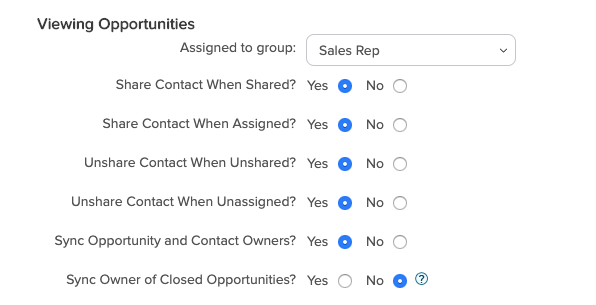
First, for someone to be the owner on an opportunity record, they must be part of the group you’ve selected in the Opportunity Defaults section. This is usually the “Sales Rep” group, but you can change that selection under CRM >> Settings >> Opportunity Defaults.

Viewing opportunities module

The second thing to know is that the opportunity and contact owner could be the same person, and in many cases, that’s what you’ll want – but it doesn’t have to be. You could have one person responsible for the relationship with the prospect at large (if they’re a long term client) and a different person responsible for the specific conversation happening around that individual opportunity.

For that reason, you’ll notice settings above that allow you to choose whether or not you want to sync the owner of the contact and opportunity – and a separate setting for active vs closed opportunities.

In the screenshot above, I have “Yes” selected for syncing open opportunities – because I always want the contact owner and opportunity owner to be the same.

But I have “No” selected for syncing closed opportunities because I want to be able to see who was the owner an opportunity that has already closed, and if those were updated when the contact owner changed then I’d lose that historical record.

Can I use them on my phone?

Yup.

I get it, maybe your sales reps are on the go. And if they’re going to  use Opportunities in any meaningful way, they need to be able to access and update the opportunities in their pipeline from their phone, or tablet, palm pilot, or whatever.

The Infusionsoft Mobile app DOES support opportunities. Check out this article for an overview.

Opportunities allow you to track and manage your leads. They also allow you to automate the actions that need to take place in different stages, which keeps your sales process consistent and makes you a better rep.

Josh Hindeman

Capsule 5

How do I report on this?

One of the biggest benefits of using the opportunity pipeline is that it offers you data about your sales process.

You can see where people are in the sales journey, forecast upcoming revenue, as well as highlight bottlenecks or areas where folks may be slipping between the cracks.

There is a pre-built dashboard widget that sales reps can use to manage their personal pipeline, and there is a set of reports specifically to help sales managers keep tabs on how things are going.

Sales Report GIF

Ugh – do you even look at those reports and think “Why can’t they just say what they do in plain English?”

Well, apparently you’re not the only one – because Paul Sokol wrote a juicy blog post that does exactly that – it breaks down every single Sales Pipeline Report to explain not only what it does, but what questions it answers, and why you might find it valuable. Check it out here:

* You may have noticed that I said “Moving an Opportunity Stage is ALWAYS manual” and then I tossed a cheeky little asterisk in there.

Most of the time you WANT an opportunity to be moved manually because it means a human is recording an outcome that happened offline. But there are a few legitimate times when you may want to automate this – like if someone purchases, and you want to just move that opportunity to a “Won” stage – so, the truth is that an opportunity CAN be moved from one stage to another via the API.

This can be accomplished through this native feature, or with custom development, or by using a tool like PlusThis Opportunity Updater, FixYourFunnel’s Opportunity Advance Bot, or the Pocket Developer tool from The API Guys.

Okay, how’d we do?

Do you feel more confident? Let me know in the comments below if there is anything I overlooked, or if you have any additional questions!

[Back to top]

Where do I learn more?

The Keap Academy platform features two detailed courses covering the strategic and technical aspects of using a pipeline in your business.

There’s one course for Keap pro and max, and another for Max Classic (formerly Infusionsoft).

Automating Subscription Reminders

Automating Subscription Reminders

We had a great question the other day from one of our OG members, and it’s a question we’ve heard before, so I thought I’d create a resource to help answer it in case it’s something that your business has come across as well.

Question: How can I send automated reminders to my annual subscribers as their next payment approaches?

It’s a fairly straightforward question – I mean, if it’s a full year between payments, you should probably give that subscriber a little heads up that their card is going to be charged, right?

In the video below we’ll show you three methods for sending automated reminders to your subscribers as their renewal date approaches – and, we’ll show you a ninja trick for using undocumented modifiers on the date merge fields to tell the subscriber exactly when their next charge is going to be.

The demo above was built using Keap Ultimate (which was called Infusionsoft at the time), but this same approach would work for Max, Pro, or any version of Keap with the automation builder (and subscription functionality).

So, as you saw, method one and two are totally native. They just use the built in features to count from the prior payment up toward the next one.

But the third method involves using a third-party tool to take things a little further and gives you the ability to count down as the next payment date approaches. We use PlusThis, but there are a variety of tools that can handle this – take a look at Zapier, FixYourFunnel, or MyFusionHelper to see what is the best fit for your business.

Have your own questions?

If you would benefit from a place to ask automation questions when you get stuck, and get ideas and inspiration from other businesses, you can join us in the Monkeypod Membership.

Celebrate New Sales with a Rotating GIF

Celebrate New Sales with a Rotating GIF

Update: I discovered a built in Zapier feature that makes this a little easier. If you use the “pick from list” formatter function you can cut out the Google Sheets step I outlined below.

Just a fun little trick this week, nothing ground shattering – but a nice way to layer a little excitement into your marketing.

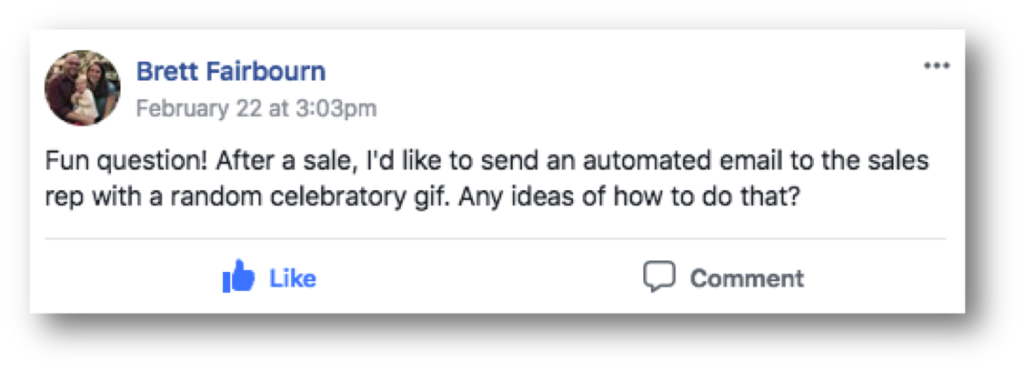
An interesting question came up in the Monkeypod Grove the other day:

How can I set up a rotating gif?

I always love a good challenge, so I sat down to try and solve it, and with a little help from Zapier we had a solution that gave Brett exactly what he was after.

After recording this super specific video I realized that this exact same concept could be applied in all sorts of scenarios – you could use the GIF tactic for customer facing communication, or for an automated Tweet after someone buys, or any countless other scenarios.

Give the video a watch and let me know what other use cases come to mind:

Also, I mentioned that I recorded this video as an answer to Brett’s question in our private membership group. I love solving problems like this, and if you find yourself with questions from time to time, you might get a lot from the OG Membership – check out the details here.