A full guide to connecting Zoom Webinars and Keap

A full guide to connecting Zoom Webinars and Keap

If you use Zoom (don’t we all?), then you likely have looked for a way to integrate it with Keap.

There are a few options out there, but my favorite is PlusThis.

In this post we’re going to look at the PlusThis connection for Zoom webinars – but they do offer tools for Zoom Meetings as well (here).
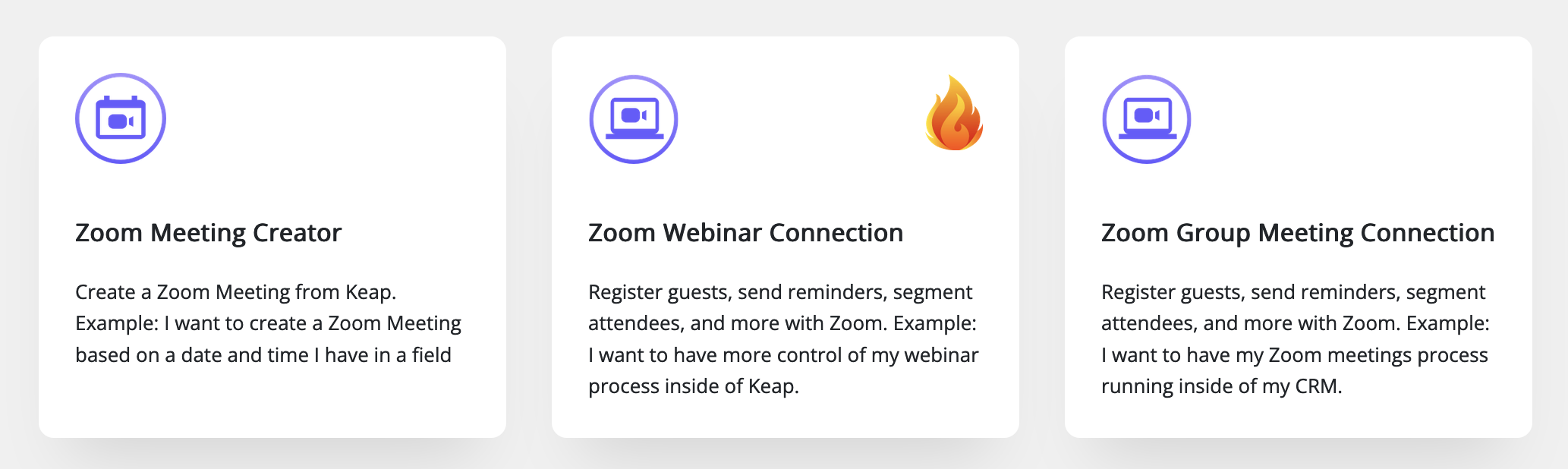
PlusThis Zoom Option

If you host webinars with Zoom, there are a few key parts of this tool that will simplify things for you.

PlusThis Zoom Webinar Connection

Here’s how it works:

You set up your webinar in Zoom like normal, then you hop into PlusThis and define the Keap Tag you want automatically applied when someone registers.

Tag Registrants

You can also tag webinar registrants based on whether or not they attend – which lets you easily segment your post-webinar communications.
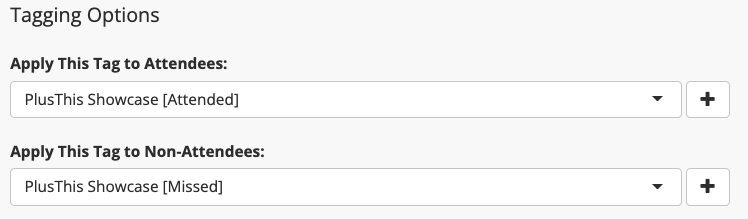
PlusThis Tag Zoom Attendees

There are a few other options, but if you’re using Zoom’s native registration page and reminder emails then that’s about the size of things.

Here’s a quick walkthrough of how you can set up this feature:

That’s all you need to use this feature – but, if you’ve ever felt that the Zoom registration page was too rigid, or you wanted more flexibility for the reminder emails, then you might want to build your own inside Keap.

What if I want to build my own emails?

You can send your reminder (and invite) emails from Keap.

The PlusThis connector offers a few settings that help with this – first, you can map the registrants unique join link through to a custom field in Keap – which lets you create your own reminders.

But second, PlusThis also gives you add-to-calendar links you can use in your Keap emails.

plusthis add to calendar links

(Pro tip: using add-to-calendar links help improve webinar attendance)

And, if you’re inviting your existing Keap audience, then you can use the one-click registration link that PlusThis offers – that way your contacts won’t have to fill out info they’ve already given you.

What if I want to build my own registration page?

You can do that too – using the Keap landing page builder, or whatever tool you prefer.

(This is perfect if you have partners driving traffic to your webinars and you don’t want to compromise affiliate tracking.)

Here’s a deeper dive into the customization options available in PlusThis – and a breakdown of the campaign I use for promoting my own webinars.

Okay – that was a lot. Maybe more than you need, but I wanted to make sure we covered all the bells and whistles in this powerful feature.

The reality is Zoom has become a household name, and if you’re using Zoom for webinars (or meetings) you’ll likely want it to communicate with your Keap CRM, and the best way to make that happen is with PlusThis.

If you aren’t using PlusThis yet you can check it out or start a free trial here.

How to let Contacts Purchase for Someone Else

How to let Contacts Purchase for Someone Else

Reassigning Keap Purchases. Gifting purchases in Keap. How to let one person buy something for someone else.

I struggled with the name of this blog post.

We’re talking about how one contact can make a purchase, but assign the access to someone else.

There are plenty of scenarios where you might want this, but it is particularly useful if you have someone buying tickets for another team member, or gifting access to course content, etc.

I’ve seen this question come up time and time again and recently when it was asked in the OG group, Jake Talbert (the legend from Sixth Division) took the time to record a walkthrough of two ways he’s solved this challenge in the past.

PlusThis Method

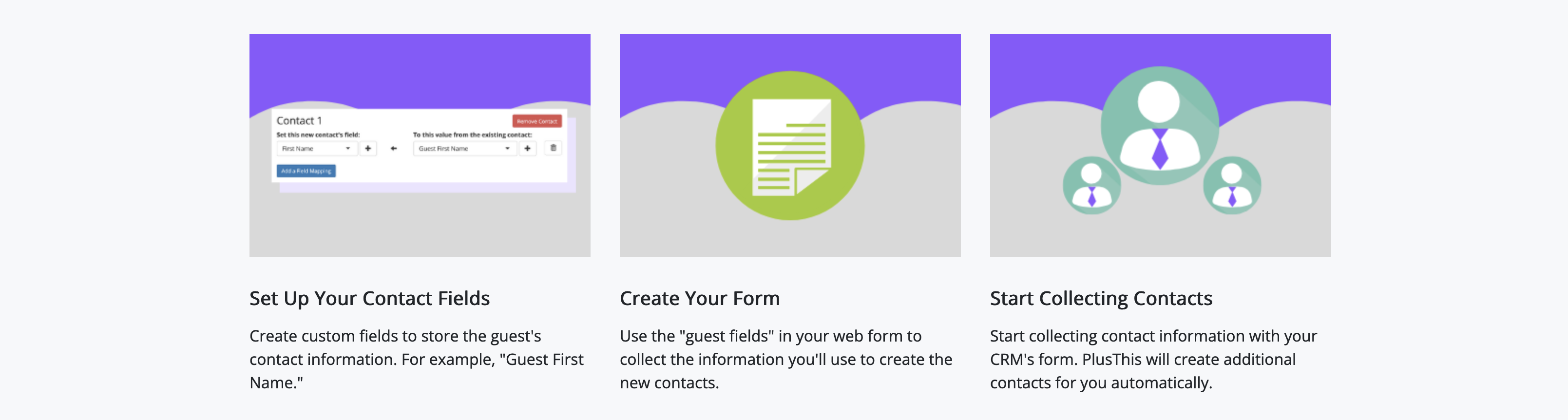
In the video, Jake covers two methods for handling this type of need – the first using the Contact Creator tool from PlusThis. This one lets you capture the information into custom fields, and then use that data to create a separate contact and trigger the corresponding automation

PlusThis Contact Creator

As a bonus, it also includes an option for linking the contacts as well.

Zapier Method

And the second method Jake demonstrated uses Zapier – similarly, the info is all collected, but the Zapier recipe uses distinct steps to create unique contacts for the different individuals.

If you’re interested in connecting with Jake, or learning more about SixthDivision – check them out here.

And as a final note, I’ll also give a shout out to Mark Penney, a friend of mine and Keap Certified Partner – I hired him to help me solve this issue a few years back, and he designed a custom code-based process that lets users buy licenses to a course and then assign the access out to others.

If you want to hear more about Mark’s solution, drop him a line here.

Thanks for reading! Feel free to drop any questions in the comments below.

Informed Marketing Solutions

Here’s another method for solving this, from Jillian Kendrick over at Informed Marketing Solutions:

If you’d like to get the access exchange code Jillian describes in the video you can sign up here.

PlusThis Contact Creator

BOGO Method from Box Out

Our friends over at Box Out Marketing did some training on the Buy One Gift One method. You can check out their approach here.

Internal Forms for Prospect Intake

Internal Forms for Prospect Intake

The other day a question was posed in our OG community – here’s the scenario:

The member gets voicemails (and emails) with interest from prospects who are looking for more information about their products and services.

But their details didn’t have a reliable way of making it into the CRM – which meant that leads were sometimes slipping between the cracks.

There are probably a few ways to improve this process, but I proposed using internal forms.

What are internal forms?

Internal forms in Keap are a way of creating a form specifically designed to be used by you and your team members, with the sole intention of adding contacts to Keap, or updating contacts who are already in your database.

They’re just like web forms – but instead of being externally accessible, they’re built for your team to use.

How do I use Internal Forms?

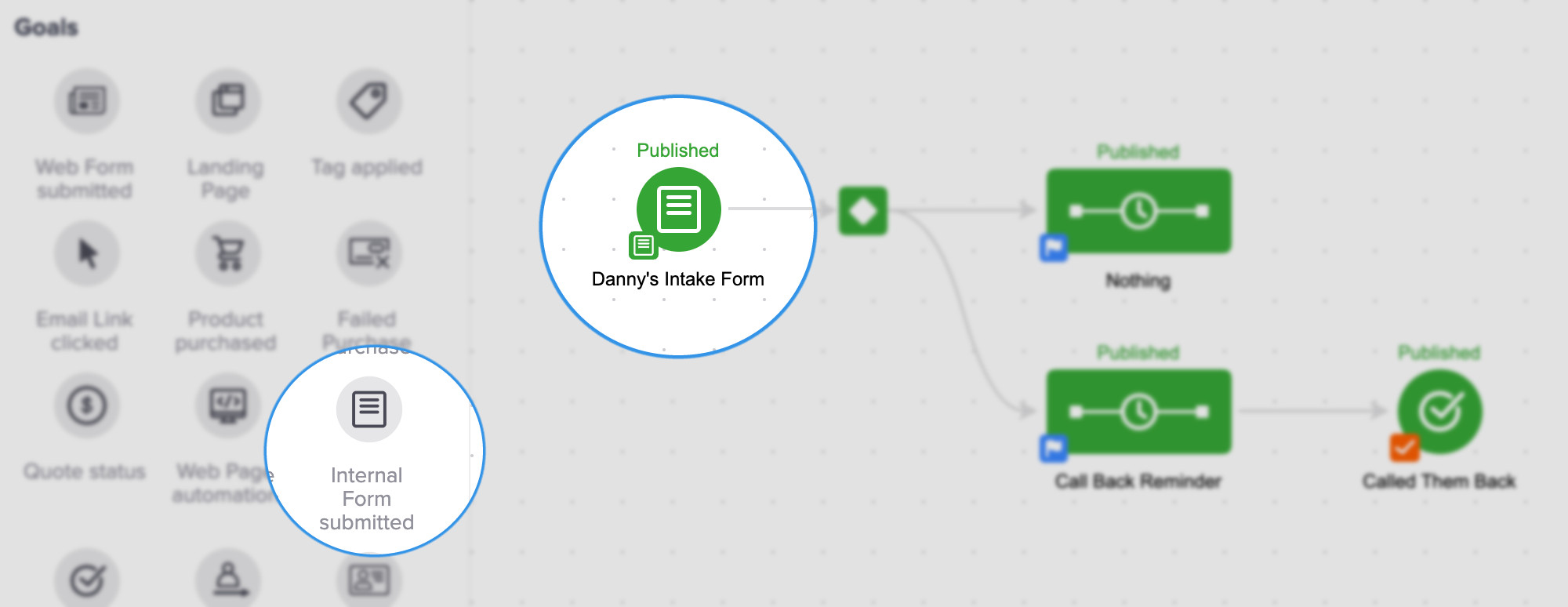
Well – they live inside the automation builder, just like your other goal methods.

So you’ll drag one onto your canvas, and define the fields you want to use it to collect.

Internal Forms in Keap

But, it’s worth pointing out that if you’re using Keap Pro or Keap Max the process is a little different – here’s a walkthrough for Pro and Max users.

Regardless of how you set it up, it’ll give you a repeatable process you can use to add contacts, with options for triggering automation.

Internal Forms are definitely one of Keap’s underrated features.

The primary use case is adding new contacts – but you can also use internal forms to add information to existing contacts, and launch automation as a result.

Or, I’ve seen internal forms used as a manual way of approving applicants for a mastermind, for your partner program, or whenever you want the ability to manually make a decision about what happens next to a contact.

If you’re using Keap’s internal forms in your business, drop a comment below and share one of your use cases.

Thanks for reading.

Have your own questions?

If you would benefit from a place to ask automation questions when you get stuck, and get ideas and inspiration from other businesses, you can join us in the Monkeypod Membership.

How to use LeadSources [in Keap Max Classic]

How to use LeadSources [in Keap Max Classic]

LeadSources in Keap are definitely one of those features that most people agree are important AND wish they were better with.

Let’s start with some basic questions…

What are LeadSources in Keap?

Simply put – LeadSources are the different channels through which leads, prospects, and customers end up in your database.

This lets you know where people are coming from – so you can double down on what’s working.

Why do LeadSources matter?

Measuring your different leadsources helps determine which of your traffic channels are producing new contacts, and new customers, and at what rates.

And if you’re recording expenses against the leadsources, it’ll also calculate the average cost per contact, and per customer.

Having a clear understanding of this helps you make confident decisions, so you know which of your efforts to invest in, and which to stop.

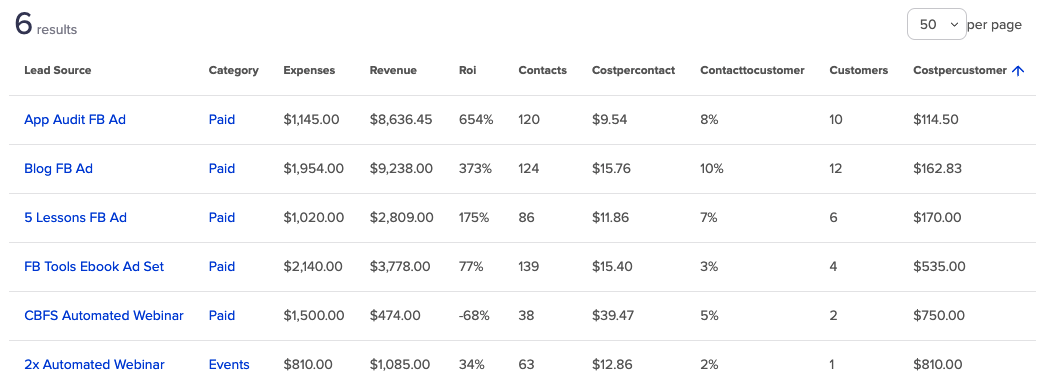
Keap LeadSources Screenshot

Not all leads are created equal – and not all leadsources produce equally.

So the goal is to surface up this type of info so you can determine which channels are not only producing the most leads, but the leads that then go on to spend the most money with you.

To do this in Keap you’ll need a firm understanding of the Lead Generation section of the software – this covers visitor records, as well as LeadSources, and LeadSource ROI reporting.

Here’s a video, plucked from the IS Starter Kit course that covers the various features available in this section of Keap:

If you’re tracking purchase info in Keap (directly or through an integration) then the LeadSource reports will give you an indication of your ROI on each channel (the return on your investment).

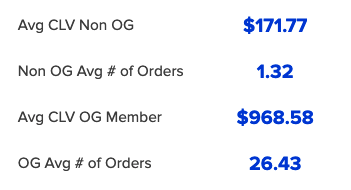
The goal is to have your Cost Per Customer (also known as Customer Acquisition Cost) less than your average Customer Lifetime Value (the amount customers spend with you over their lifetime).

The greater the difference in those two numbers, the more profitable the traffic channel.

Average CLV Screenshot

Knowing how much customers spend with you on average helps you decide how to spend your marketing budget.

How do I use LeadSources?

The simplest way to use them is just to measure which channels are adding contacts to your database.

But, if you have purchase and expense data available, you can go beyond that.

Naturally, if you are spending more to acquire the customer than you are making on it, that’s likely an indicator that the traffic channel isn’t currently viable.

What do I do with traffic channels that aren’t profitable?

If you notice that a specific leadsource isn’t producing – or isn’t producing in a profitable way, it could be for a few different reasons.

It is either a signal to revisit some aspect of it or stop running that ad altogether.

Before you discontinue it entirely, you might try refining (or expanding) the targeting to see if you can improve the flow of leads, or quality of leads you’re getting from that channel.

Or, you could revisit the ad content itself. Review the ad copy, video, and graphics – are they aligned? How could they resonate more with the audience you’re targeting?

It’s worth mentioning that paid advertising is an extremely nuanced space – so if this is an area where you feel out of your depths, it might be a good time to bring on an expert who specializes in designing or optimizing ad campaigns.

Additional Resources

If you’ve found this useful and want more on LeadSources specifically here’s a solid blog post from Jordan Hatch about using LeadSources in your business.

And another one from Tyler over at Box Out – Ad Tracking the Right Way in Keap.

If you want to take things to the next level, check out the ROI Tracker Tyler discusses in his post.

And if you want more training like this, you can unlock the rest of the IS Starter Kit course here.

The Any vs All Tag Goal Update

The Any vs All Tag Goal Update

All campaigns in Keap are a combination of goals and sequences – goals are the triggers, and sequences are what happens as a result.

And perhaps the most popular goal method is the Tag Applied goal (certainly the most versatile).

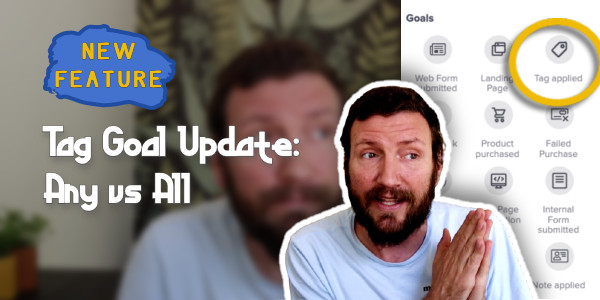
And recently, this little celebrity was upgraded with some brand new functionality.

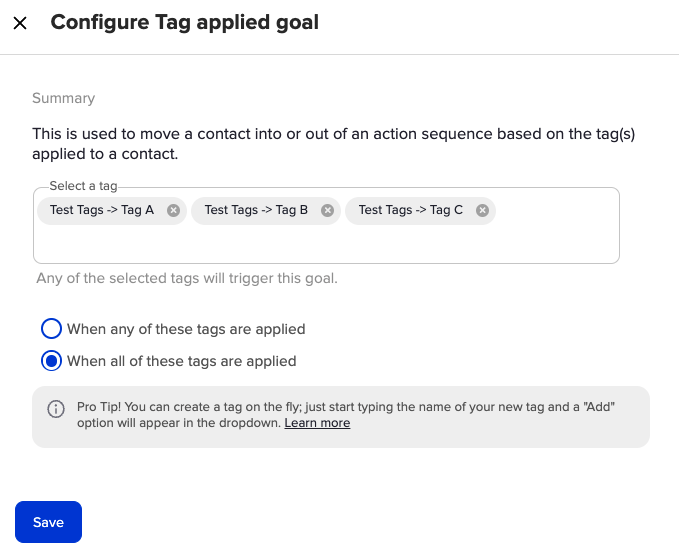
Historically the Tag Applied goal could listen for the application of a tag, or any one from a set of tags.

But now, you can set up up the goal so that it’s only achieved once ALL of the tags on a set have been applied to a contact.

Any All Tag Goal Screenshot

This new functionality opens up lots of potential.

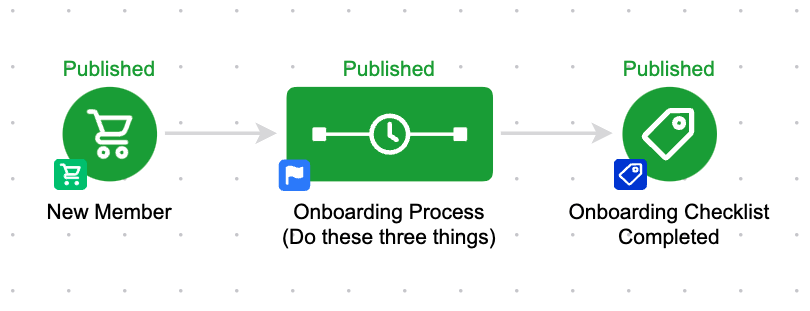
Like – let’s say you have three things you want your new members do to after they purchase:

1. Schedule a call
2. Fill out an assessment
3. Watch an orientation video

With this new functionality, you can structure your automation to continue to remind them until they’ve done all three of those things.

Any All Example Keap Campagin

Previously this would have been tricky, since the tag goal would have been achieved by any one of the tags – but now, it waits until the contact has all three before extracting them from the preceding automation.

Let’s take a look at another example in this video:

And – if you want to take this to another level, you can use Dynamic Content to make sure that the messaging is adjusted along the way.

If they’ve done two of the three things, you could hide those from the email so they’re only being prompted to do the last remaining item from the list.

The utility of this update goes on and on, feel free to share your own use cases in the comments below.

How to use Zapier to do (almost) Anything in Keap

How to use Zapier to do (almost) Anything in Keap

Buckle up friends – this one is technically pretty advanced, and extremely powerful.

Odds are you’ve heard of Zapier, right?

It’s a ‘no code’ tool that lets you connect Keap to other tools, so you can move information around, start and stop automation, etc.

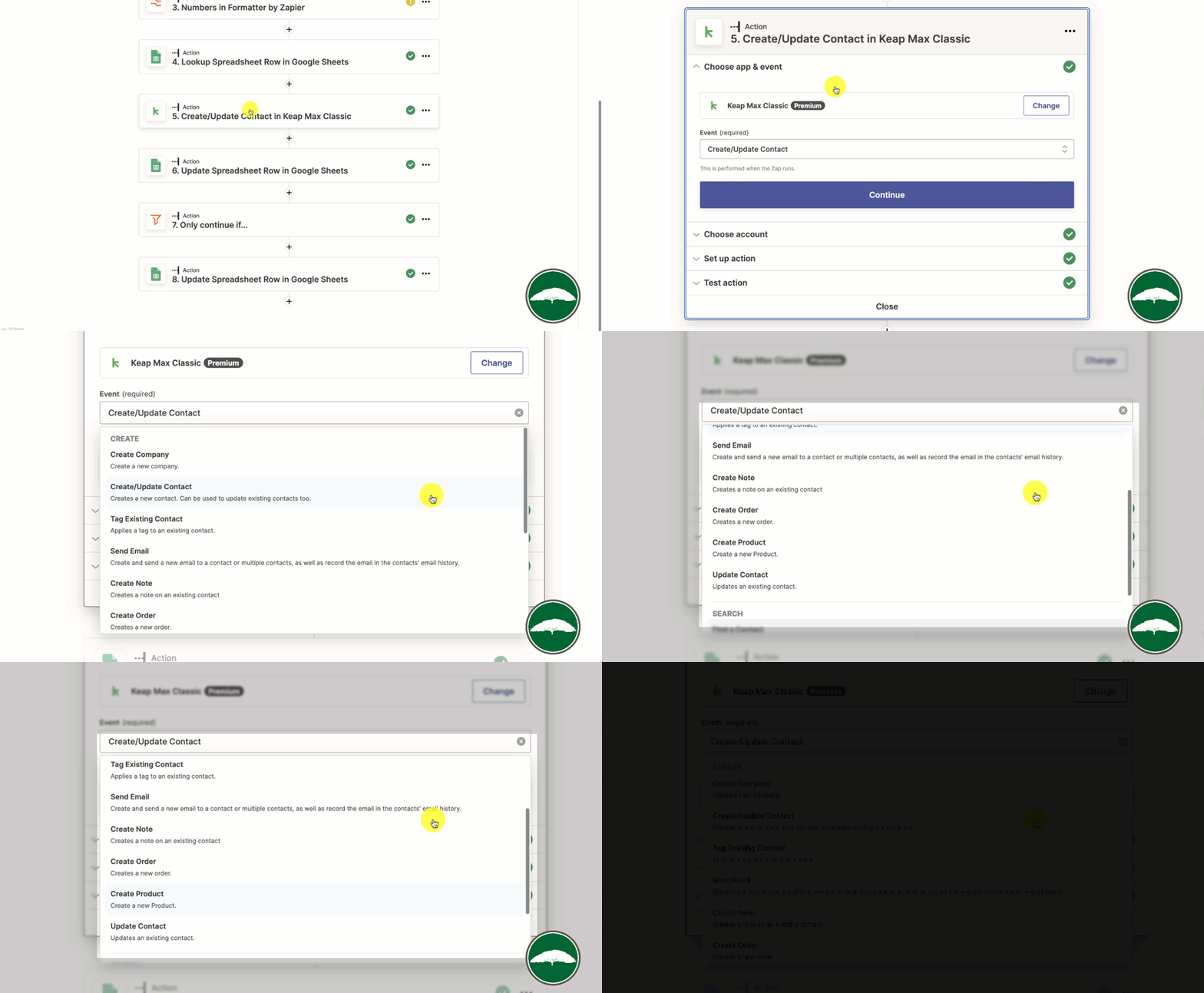
And inside Zapier, the Keap integration has a handful of options, (applying a tag, creating an order, updating a contact, etc):

Zapier Keap Options

But – you might notice that list isn’t exhaustive.

Despite how poweful Zapier is, there are plenty of things it can’t do (creating a tag, moving an opportunity, creating an affiliate, etc).

So, if you need to do something that wasn’t part of the Zapier integration – you’d have to hire a developer to custom code it, right?

Until now…

Paul Sokol, the campaign builder mad scientist, has devised a way to make direct API calls with Zapier.

This effectively means that anything you can do through the API, you can now do with Zapier.

Enjoy:

In this particular example Paul is updating an Opportunity inside Keap – but since Keap’s API is fairly flexible, this same approach could be used in any number of ways.

If you found this demo helpful, give Paul a shout out in the Keap User Group or here on Twitter.