Campaign Builder Examples and Real World Use Cases

Campaign Builder Examples and Real World Use Cases

“Do you have any Keap campaign examples?”

This is one the of the questions I’ve heard most over the years.

Like, if you’ve never used Keap’s campaign builder at all – then I’d probably start with this Campaign Builder 101 Blog Post.

And if you are looking for a comprehensive campaign builder training course – then you’re gonna want the CB Trilogy.

(And just in case you hadn’t heard – thanks to a partnership with Keap the CB Trilogy, and all my other courses, are now free to all Keap users.)

But, even if you have a solid grasp on how the campaign builder works, that doesn’t necessarily mean you’ve exhausted all the areas it can serve your business.

3 Critical Campaigns

Here’s a great place to start, with 3 of the most common campaigns that I think can help just about any business on the planet.

Those three examples are pretty high level – and I think could be useful for any business, regardless of your industry, business model, or part of the world.

Two More Campaign Use Cases

The next video I’ve got is also a bonus from the Infusionsoft 101 mini course, and covers two more scenarios where I think the campaign builder can save the day.

Check it out:

My hope is that as you watch these videos, you’re getting ideas for automation you might be able to use in your own business.

Remember, if you need training on how the campaign builder works – the CB trilogy is where I’d recommend you start.

But I know that a big part of maximizing the ROI we get from Keap comes from our ability to spot automation opportunities, and I hope these examples have helped.

Speaking of examples, here are a few more…

More Keap Campaign Examples

Lead Magnet Campaign

Offering a lead magnet is a tried and true way to collect leads and grow your list. And if you’re dealing with any sort of volume, then automation is an essential ingredient for this process. This opt-in campaign offers an ebook, but could just as easily work for almost any lead magnet you might have.
Watch Demo >>

Gather Extra Info

I think we usually think of web forms and landing pages as being tools to collect leads – but you can also use them to gather supplementary info about the folks who are already in your database. Here’s a campaign example designed to collect extra info from your existing list.
Watch Demo >>

Webinar Campaign

Webinars are a great way to engage with prospects, or to build rapport with your existing audience. But in both scenarios you’ll want to build out automation to support the experience (and increase attendance). Here’s a detailed breakdown of the campaign I use for Monkeypod’s webinars.
Watch Demo >>

Two Things Campaign

Sometimes we need automation to happen, but only after the prospect has done two things (like sign a contract, and make a payment), so this demo shows you how you might set up a campaign to accommodate that situation.
Watch demo >>

Course Fulfillment Campaign

Generating new leads is important (obviously), but sometimes I think it gets a disproportionate amount of focus. We can also use Keap Campaigns to support our post-purchase customer experience. Here’s a demo of how you can use automation in the fulfillment part of a customer’s journey.
Watch Demo >>

Flexible Goals Example

Goals work to start and stop sequences – but occasionally we want the same sequence to be stopped when one goal is achieved (like when they buy), but we want it to persist when other goals are met (like when they open, or click), so here’s a campaign set up that can handle that.
Watch demo >>

Here are a few more, organized into a playlist on the ole Monkeypod YouTube channel. But please feel free to drop comments below withe use cases of your own, or requests for campaigns I can model in future posts or videos.

Thanks for reading.
Introducing Field Math

Introducing Field Math

That’s right – field math has been released as a native function inside of Keap.

Historically you’ve been able to set or update a contact field as a step inside your campaigns, but with this update you can now also perform basic math functions (add, subtract, multiply, divide) – which takes things to a whole new level.

There are countless use cases where this can be valuable – but a common scenario is when you want to unlock a bonus for someone after they’ve made a certain number of purchases.

Like, a punch card at a sandwich shop – or any sort of frequent flyer program.

Here’s a demo of how that campaign structure might look using this new feature:

Okay party people – that’s the new field math feature.

This isn’t quite as flexible as PlusThis, Zapier, or some of the other third-party tools that handle this – but it’s nice to have a native option that handles simple use cases.

Here’s a link to the full release notes from the Keap help site.

If you have any questions or comments please leave them below – I’d love to hear the different use cases you might have for this throughout your business.

Editing Live Campaigns

Editing Live Campaigns

“What happens when I edit a Keap campaign?”

Versions of this question come up over and over in the Keap community, and for a few good reasons.

Here are two:

First, no matter how much time you spend planning and designing your campaign, once it goes live you’re bound to notice things you overlooked, or you wish you would have done.

And second, being able to confidently edit a live campaign lets us launch a lean version more quickly – with plans to rapidly iterate.

editing campaigns

If you’re brand new to campaign building, then I’d recommend starting this Campaign Builder 101 blog post for some basics.

But, if you’ve got a few live campaigns then lets get right to the point…

Can I edit my Keap campaigns after I’ve published them?

Yes. Absolutely.

It’s normal and expected to need to edit your campaigns after they’ve launched.

But, it begs the question…

What happens if I modify a live campaign?

The answer to that one is “It depends on what changes you make”.

The behavior for editing campaigns IS predictable – as in, there is logic to how it behaves.

But it isn’t always intuitive – and so when things happen that people don’t expect, it can feel unsettling.

There are enough Keap users who have been burned by something they didn’t anticipate, that it’s created a sense of mystery and intrigue around the idea of republishing.

Here’s a video I plucked from the CB Trilogy course that details the expected behavior in some of the most common republishing situations:

So to recap – it’s safe to edit your existing campaigns.

Editing an Email

If all you are changing is the copy in an email (or the sender, or the subject line, etc), then when you publish it will start sending the new version to contacts who hit that step. But it won’t affect contacts for whom that email has already sent.

Adding a Goal

When you add a new goal – it starts listening right away. Contacts who have taken that action in the past won’t automatically achieve it* – because at the time they took that action, the goal wasn’t listening.

*the lone exception to this is tags – entry point tag goals will give you the option to pull in contacts who have previously received that tag

Adding a Sequence after a Goal

When you add a sequence after a goal, contacts who achieve the goal in the future will be added to the sequence. But anyone who had previously achieved that goal won’t automatically be added to the sequence (if needed, you can do that manually).

Adding a Sequence after a Sequence

When you add a sequence after an existing sequence, with no goal in between, active contacts will remain active until they complete the scheduled steps in their current sequence, and queued contacts from the first sequence will immediately flow into the second sequence (because now they have a place to go).

Adding or Changing Steps inside a Sequence

When you add a new step, or modify the timers inside a sequence, the system recalculates each contact’s position in that sequence.
 
If the step you’ve added is in the future (or would be, based on when they entered the sequence), then they’ll queue up and receive it at the time you intended (governed by the timer).
 
But if the step ‘would’ have happened in the past, then it won’t schedule it for them. It would run the same logic check, and decide “oh, that WOULD have already happened, so don’t run it”.

The video above is part of chapter three in the campaign builder trilogy course, which is a comprehensive deep dive training on Keap’s campaign builder.

Thanks to a partnership with Keap, this course is now available free of charge. If you’d like to learn more about the campaign builder, you can unlock the course today.

Automatically Sending a CC or BCC Email with Keap

Automatically Sending a CC or BCC Email with Keap

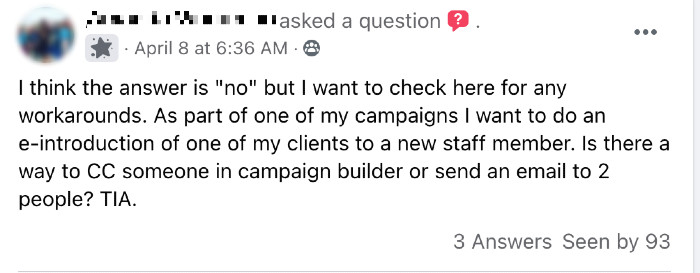
Every now and again I see questions pop up when someone needs to use Keap to send an email and CC (or BCC) someone else.

CC or BCC email with Keap

There are plenty of use cases where you might want this type of functionality – most commonly introducing two peoeple, connecting someone to their account manager, or looping in a third-party.

And while the Keap email builder doesn’t have a native option to CC someone else, there are a few ways to do this.

Can Keap automatically send an email and CC (or BCC) someone?

With a little creativity, the answer is “Yes”.

This video demonstrates two methods – one native option for Max Classic users, and an option for all Keap users through Zapier.

So to recap – it is possible.

Method One:

If you have access to the legacy templates section, you can set up a template that includes a CC or BCC, and then trigger that email with an Action Set.

This route is totally native.

Method Two:

Or, you can use an HTTP post to trigger a zap – and send the email through another service that way.

This option does require a paid subscription to Zapier.

But either way, hopefully you’ve got an option to have Keap automatically send your CC or BCC email.

Feel free to share any other methods you’ve used for tackling this scenario in the comments below.

Decision Diamonds Explained

Decision Diamonds Explained

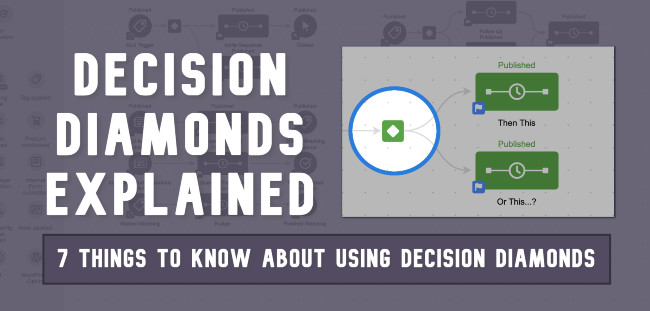
The campaign builder is the most popular part of Keap – and decision diamonds are a critical piece of what makes it so powerful.

In this blog post I’m going to answer some of the most common questions Keap (formerly Infusionsoft) users have about using decision diamonds in their campaigns.

Click on the link to jump to one of the specific questions:

If reading feels like a whole thing and you prefer the video version of this conversation then click here to jump to the video summary.

And if you find yourself wanting more information on decision diamonds, or the campaign builder in general, I recommend checking out this Campaign Builder 101 post, or hopping on the free trial of my CB Trilogy course.

Okay then – first up, what are they?

What are decision diamonds?

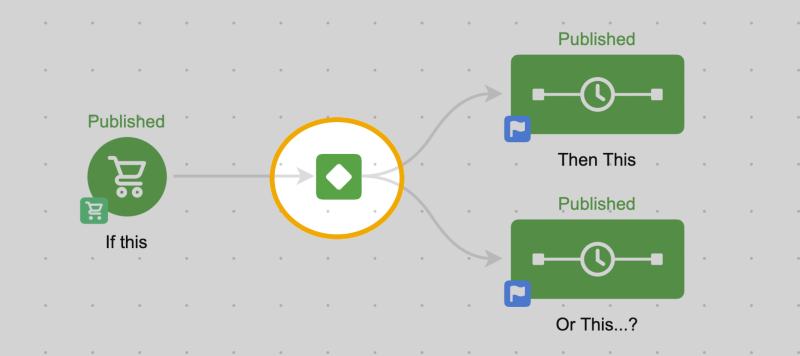
Well, simply put – decision diamonds are a node in the campaign builder that route contacts in different parts of your campaign.

Decision Diamond Spotlight

I think of it like the little ticket taker at one of those massive 24-theater Movie complexes. When a contact hits that point of the campaign, the decision diamond rips their ticket and points them in the right direction.

This brings us to the next question – why do they matter?

Why are decision diamonds valuable?

Decision diamonds are valuable for one simple reason – segmentation.

They allow us to treat different people differently, based on what we know about them.

This type of robust segmentation is really what helps Keap (formerly Infusionsoft) users create automation that doesn’t feel quite so….automated.

As you might know, the campaign builder works off of goals and sequences – which basically work out to “if this, then that” style logic.

If this goal is achieved, then add the contact to this sequence.

And you can totally build campaigns using this formula – goal, sequence, goal, sequence.

Campaign Builder 101 - Campaign Screenshot

(In fact, that’s absolutely how I recommend most people start – keep it simple when you can.)

However, it’s only a matter of time until you run into a scenario where you want different things to happen after a goal is achieved – based on any number of factors, and this is where decision diamonds come in.

They allow us to create different outcomes for the same action – so, two people fill out the same web form, but receive different follow up.

There are any number of reasons you might want to have different outcomes after an action – like, different behavior for people based on whether they’re a repeat buyer, or a new buyer; or different automation based on where they live in the world, or some other detail about themselves.

Which brings us to the next question – what information can I use?

What criteria is available for decision diamonds?

In general, decision diamonds can access contact information – which means field data, and tags.

This might sound basic, but it opens up a lot of possibilities for us – because it means we can not only access their general contact details, like their city or state, or whether or not they have a phone number on file, but it also means we can check the value of any of the custom fields we’ve created.

Decision Diamond Rules

A simple use case would be if you ask a question on the opt-in, you can then tailor the automated response that is sent to match the answer that contact gave you as they were signing up.

This could mean using examples you know are relevant for that person – or even changing what product or service you recommend for them.

It’s worth pointing out that the options for building your rules change based on the type of field you’re using – so, if its a whole number field you can do greater than and less than, whereas if it’s a text field you’d do things like contains, or doesn’t contain.

Decision Diamond Field Types

In addition to the contact fields you can also use tags to create rules.

This makes decision diamond criteria infinitely more flexible, because tags can be applied automatically anytime someone takes an action. So, if you’re using the presence of tags to track behaviors – like, filling out a web form, clicking a link, or buying a product, then now you can use the contacts behavior (represented by tags) to route the contact into different sequences based on what they have or haven’t done.

And finally, decision diamonds can also access the data collected in a web form- meaning the selections a contact makes in radio options and checkboxes on Infusionsoft web forms and legacy landing pages.

This one is lesser known because this option really only shows up when a decision diamond is used immediately following the web form (or legacy landing page).

[Back to Top]

You might be thinking “man, these things are powerful – do they have any drawbacks?”

What limitations do decision diamonds have?

Decision diamonds have a few limitations – first, and most notably, at this point the rules you build are really only able to use information from the contact record itself.

That means you can’t use order details, opportunity details, or design rules using logic based off of the time of day, or the date.

My hope is that they’ll expand that over time (or soon would work too), and introduce some new flexibility that lets us segment contacts based on whether they used a promo code in their order, or if they’ve spent over $X with us over their lifetime, etc; but in the meantime we can create workarounds for most those scenarios using tools like Zapier, FixYourFunnel Bots, or PlusThis to copy information into custom fields, or to tags.

Another limitation for decision diamonds is that they can only use the information available at the time the contact hits that point in the campaign.

This isn’t so much a drawback as it is just something to be aware of – the decision diamond is a filter that assesses the contact using the rules you’ve created and then sorts it into one of the sequences options you’ve designed.

Like the Hogwarts Sorting Hat (I’m a ravenclaw, btw).

But if the contact’s information changes after they’ve been sorted, it doesn’t re-evaluate using the new info because the contact has now passed that point in the campaign.

Like I said – this isn’t necessarily a drawback – it’s just important to understand so you can build your campaigns to accommodate for that.

Alright – so you know the pros and cons, let’s talk about how to actually use it.

How do I add a decision diamond?

Decision diamonds are maybe the only element in Keap’s campaign builder that aren’t actually added by the user.

They don’t live on any of the menus – which can definitely be confusing at first, because it leaves users wondering “how do I add it…”

The answer is generally one of those facepalm moments: They show up when they’re needed.

(Kinda like the Room of Requirement, just to keep the Harry Potter references rolling.)

Decision diamonds appear when the campaign builder notices there are more than one possible outcome for an action, and it wants us (the user) to help it decide when to send people where.

Decision Diamond Poof

So if you have one goal leading to one sequence – no decision diamond needed.

It knows exactly what to do when that goal is achieved.

But if you have one goal leading to two (or more) sequences, then poof – the decision diamond pops in asking us to set up the rules that determine when they go where.

[Back to Top]

How do I configure the decision diamond rules?

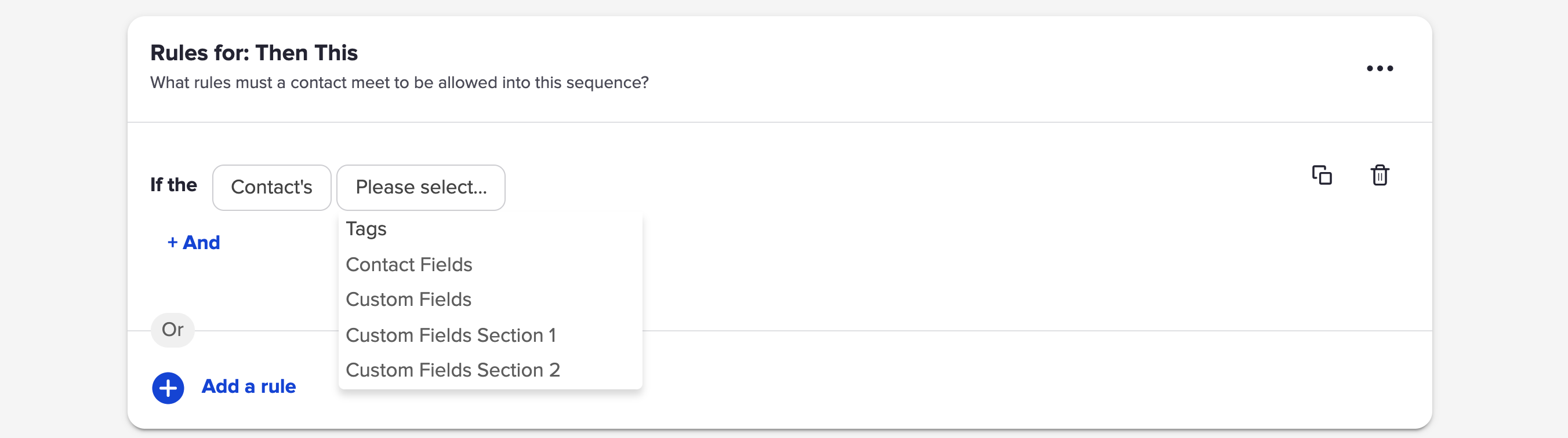
Like any element in the Keap campaign builder, you’ll double click on the decision diamond when you want to configure it.

This takes you into the interface where you can design the rules for each sequence.

If you don’t design rules the default is that the contact will go into each of the available sequences – sometimes that’s okay, but normally you’ll want to set up rules so that they only go into the sequences that make the most sense for them.

Building the rules is kinda like creating a mad libs sentence – just follow the prompts.

Rule Building

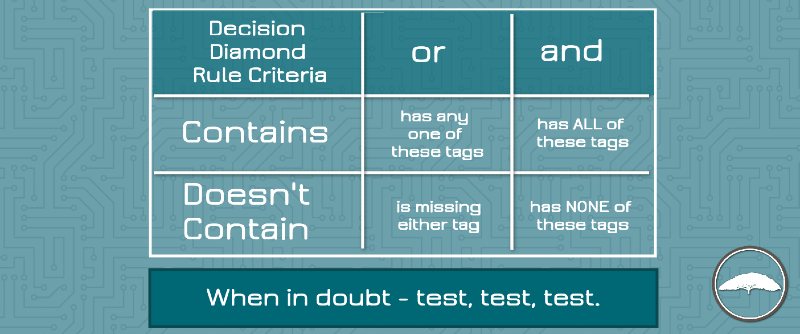
It uses boolean logic, which can get a little complex – so my advice is to try and keep your rules simple, and always always test your logic.

Here’s the cheat sheet I refer back to when in doubt.

Decision Diamond Cheat Sheet

Two things to look out for here:

  1. You can copy rules from one sequence to another, which can reduce the opportunity for human error when you’re creating multiple similar rules.
  2. You can also define a default outcome for people who don’t meet the criteria for any of your rules – choosing to let them drop out of the campaign, or, placing them in one of the sequences anyway.

Once you’ve set up your rules (and run a few tests), just go back to the campaign level. If the goal and sequences on either side of the diamond are set as ready then the diamond should be ready to publish too.

Here’s a little more documentation from the Keap help center.

And here’s a video from Box Out Marketing’s 12 Hacks of Christmas series where Tyler talks about testing decision diamonds.

[Back to Top]

The final question I’ll tackle in this post is one I’ve been hearing more and more lately.

Does Dynamic Content replace the need for decision diamonds?

Short answer: No.

Longer answer: Sometimes.

Dynamic Content, also known as Liquid Content, is a feature Keap quietly released at the start of 2020 – and it’s terrific.

You can read more about it here if you’d like, but basically it allows you to hide or show different parts of an email based on what you know about the recipient.

This type of advanced personalization is huge – and it absolutely reduces the need for decision diamonds (because we can do things like hide the CTA for someone who has already purchased).

But even with as flexible as dynamic content can be, it only changes the email content – not the overall experience.

So, decision diamonds are still the best bet for when you want to create two totally different sets of automation – like, sending a single email to some people and an entire email series to others.

Video Version

If you’re the type of person who likes your answers read to you aloud, then here’s a summary video answering all seven questions. Enjoy

Conclusion

Alright party people – I hope this has been useful and given you some more confidence for using decision diamonds throughout your Keap campaigns.

If you are interested in learning more about the campaign builder check out this Campaign Builder 101 blog post or this Campaign Builder Finishing School video series.

If you have any feedback, or specific questions about decision diamonds, drop a comment below. Thanks for reading.

Bonus Use Case

I believe that pretty much every campaign ever built could be improved through the use of a decision diamond – simply because adding segmentation means you’re able to personalize the experience you’re creating for people. Which is always a good thing.

Here’s a simple (and common) use case for how a decision diamond might fit:

Introducing Task Outcomes

Introducing Task Outcomes

Tasks are automation’s way of telling us that something needs to happen offline – and marking the task as complete is how we report that the deed was done.

But sometimes, that’s not specific enough.

So with this new Infusionsoft feature, Task Outcomes, you can denote not only that the task was completed, but also HOW it was done, and then trigger automation accordingly.

For legacy Infusionsoft users this might feel familiar – it’s a modern version of what used to be called “Task Completion Scenarios”.

So, the first step will be configuring the different outcomes your task might have.

Email Trends

You can set up outcomes on the fly – or repurpose the outcomes you created in the past.

Then, once you’ve done that you’ll use a Task Completed goal like normal, but when you configure the goal you’ll choose which of the task outcomes satisfies that particular goal.

Infusionsoft Task Outcomes Gif2

This dramatically increases the flexibility of tasks, because they’re no longer just complete or incomplete; and the new nuance allows for better segmentation and thus more effective automation.

But, that doesn’t mean that task outcomes will be necessary everywhere – here’s a quick example of use cases where this is and isn’t going to be a fit.

All in all – massive step in the right direction. You can check out their documentation on this feature here.

There are a few small additions that I’d still like to see them add (task outcomes in the mobile app, task outcome reporting, and more accessible interface for managing the existing outcomes we’ve created), but all things considered this is a powerful update that will simplify some of our existing campaigns, and give us more options as we design future automation.

I’d love to hear what questions you have, or how you plan to use it in your own business!