Testing Keap Campaigns

Testing Keap Campaigns

If you spend a bunch of time and effort building a Keap campaign you’re proud of, it can be really tempting to proudly hit the publish button and go make yourself an old timey malt.

But even the most experienced campaign wizards have been burned a time or two by launching without properly testing.

This is, at least in part, because Keap (formerly Infusionsoft) doesn’t make it all that easy to test campaigns. There isn’t a “test mode” or staging environment – once you publish, it’s just live.

So here’s my process for testing campaigns (specifically in the Max Classic version of Keap – formerly known as Infusionsoft), hope it helps:

1. Publish the campaign

Before you can properly test any campaign elements, they’ll need to be in “ready” mode, and the campaign will need to be published. Some campaign elements (web forms, emails, etc) do have their own “test” feature, but these built in test components use information from your User record, and so they often won’t give you the actual contact experience.

2. Add yourself to the campaign

If the entry point to the campaign is a goal that you can achieve, then simulate achieving that goal by applying the tag, or submitting the form. You’ll want to verify that the entry point goal functions as you expect.

Pro-tip: If you’re using Gmail then you can add a +extension to your own email to create infinite testing versions. For example, greg@monkeypodmarketing.com becomes greg+campaign1test1@monkeypodmarketing.com

If you can’t achieve the entry point goal, or there is none, then add yourself to the campaign manually.

3. Verify that steps have scheduled properly

To do this, navigate to the contact record, scroll to the bottom half, find the campaigns tab, and check the Recent Campaign History, and Upcoming Campaign Items.

Recent Campaign History should show the goal you just achieved, and possibly any steps that were set to run immediately (if they’ve processed), and Upcoming Campaign Items should show any steps scheduled for the future.

4. Manually process upcoming items

Once you’ve verified that the campaign steps have scheduled at the interval you intended (and you’re not sending 50 emails on the same day, etc), then you can manually process the scheduled steps, and verify that the automation is working as you’d expect.

Check to see that tasks are created, tags are applied, emails are sent (and formatted properly), etc.

5. Advance through the campaign

Once you’ve tested the initial automation you can progress this contact through the campaign by achieving whatever the next goal is; refresh the Campaign reporting tab, and then repeat steps 3 through 5.

Pro-tips:

Isolate and test third-party integrations. Just because the automation worked in Keap doesn’t necessarily mean it created the intended outcome in the other system.

Test and retest decision diamond logic. It’s nice when a decision diamond works the way we expect, but make sure you run multiple test contacts through it to test the different criteria and logic combinations.
Integrating 3rd Party Tools with Infusionsoft

Integrating 3rd Party Tools with Infusionsoft

I’ve been in the Infusionsoft Eco-system for almost 10 years now. In that time Infusionsoft has gotten easier to use, and the community of marketing automation experts that specialize in Infusionsoft has grown dramatically.

It’s never been easier to find someone with the expertise to help you implement your marketing strategies into solid campaigns.

But the process of integrating Infusionsoft with other platforms still flabbergasts all but the most technical in the Infusionsoft community.

For the rest of us, we usually end up searching for help and this is how the conversation goes:

You: “I love Infusionsoft, but I wish it would do ~What-I-Wish-Infusionsoft-Could-Do~.”

Infusionsoft Expert (or Plugin Sales Rep): “Infusionsoft can’t do that out of the box, but with ~Really.CoolPlugin~ you can make it happen.”

You: “Great, so I just buy it and then I’m good to go”

Expert: “No, you have to ~Super-Techie-Explanation-That-Doesn’t-Sound-Worth-The-Effort~”

You: ~Favorite.Expletive~

At this point one of three things happens:

  1. You give up… let’s face it, this is going to take way more effort than you have time to give.
  2. You dive in (because you have the can-do attitude and amazing work ethic). You end up spending way more time trying to figure out how to make it work, eventually giving up, or figuring it out (at least to the point that the stupid thing kind of works, and you can move to revenue producing actives).
  3. You hire an expert to do it for you (which is a great option if you have the budget).

But what if you don’t have the budget to pay an expert to do it for you? Or what if you are just the type of person that wants to understand how everything works? If so, this guide was written for you.

Understanding Plugins

If you want to learn all the terminology and intricate details of integrations, this isn’t the article for you. I’m going to keep this simple, but there are a few details you MUST understand before you get started with any plugin.

  1. To start off, you need to understand that plugins (sometimes called integrations or connectors) allow Infusionsoft to “communicate” with another solution or tool so each can do more for you. They usually pass information either from one to the other, or, back and forth.

2. There is a difference between direct integrations and 3rd party integrations.

Some tools integrate directly with Infusionsoft. To use an analogy, when you have a direct integration it’s like Infusionsoft and the other tool can speak the same language, so they don’t need to hire an interpreter to talk to each other.

But sometimes a third party is required to integrate Infusionsoft with another app or tool. Keeping with the analogy, let’s say Infusionsoft speaks English, and the other tool you are trying to integrate with speaks Spanish… and neither one wants to learn the other language to make life easier for you as the end user. When that is the case, a 3rd party integration comes to the rescue and acts as an interpreter so the two can work together and you get what you need from both tools.

Shout out to Jordan Hatch for the analogy assist.

3. You will need to give the two tools permission to talk to each other. This is a good thing, otherwise any tool could integrate with your Infusionsoft account and wreak all sorts of havoc.

If you are working with a direct integration you typically only have to authorize that tool to talk to your Infusionsoft app.

If you are working with a  3rd party integration you will need to authorize the 3rd party tool (remember this is the interpreter) to talk to your Infusionsoft app AND the other tool you want to integrate with Infusionsoft.

4. There are generally two ways to grant permission

  • The first is call OAuth. Don’t worry about the term, this just means to grant permission by entering your username and password for Infusionsoft (and/or the other tool if they are set up with OAuth as well), and then click a button that says that you give the integration permission. It’s that easy. You’ve probably done this many times (like when you used your Facebook account to login to your Candy Crush or Clash of Clans account).
  • The second is by providing your API key and app name.  This is the ‘old’ way of integrating. It is a little less secure, but still does the trick. If your integration is asking for your app name and api key you can follow these steps.

5. You need to understand how the integration will communicate with Infusionsoft.

Most of the time you will be working with integrations that tie into the campaign builder. If that’s the case, there are typically two goals that your integration will use to trigger automation to start or stop, and one way for Infusionsoft to trigger your other application to do its thing.

Normally integrations trigger automation in Infusionsoft by either achieving a campaign API goal or applying a tag.

API goals are one of the scarier goals to work with initially because most of us don’t write code, or completely understand what is happening in the background. When you go to configure an API goal it asks you for your “Integration” and “Call Name”.  You don’t need to worry about the specific terminology here. Your integration is essentially sending a signal to Infusionsoft with these two key pieces of Information and Infusionsoft is watching for those to know which campaigns need to be triggered.

All you need to do is ensure that the “Integration” and “Call Name” you set up in the tool you are integrating match the “Integration” and “Call Name” you configure in your campaign.

The majority of integrations with Infusionsoft work by applying tags. Back when Infusionsoft’s campaign builder was released tags were really the only way to trigger automation to start and stop from an integrated tool. And thus, tags became the Infusionsoft API developer’s go to tool.

For this, and a handful of other reasons, tags cause more confusion than they should.

Tags were originally designed to segment your database into lists, and to be able to slice your lists any way you could dream of, but when developers started using tags out of necessity to trigger campaign automation, things got a little messy, but with a good tag naming convention you can overcome this confusion and make tags work for you.

(If you don’t have a tagging system yet, check out this list of options Greg put together.)

One gotcha you need to account for when using tags to start or stop campaign sequences is that a tag cannot be applied to a contact who already has that tag.

So, if you ever need to achieve the same goal multiple times you will need to remove the tag before reapplying it. This can be done automatically in campaign sequences, but you’ve gotta plan for this scenario if you don’t want to bang your head against the wall while you try to figure out why the integration isn’t working the way you were expecting it to.

In my opinion, completing an API goal is the cleanest way to trigger automation from an Infusionsoft integration. Unlike tags, API goals can be achieved multiple times without issue.

Whenever I have the option between these two, I go with the API goal completion.

The way Infusionsoft can trigger things to happen in your plugin tools (such as sending an SMS, or triggering a batch of delicious cookies to be sent to the contact) is by sending an HTTP post to a dedicated URL that will be provided by your integration provider. Typically, the tool you are working with will provide you with detailed instructions on how to set up these HTTP posts.

6. Have a strategy.

This isn’t an exhaustive list of everything you need to know to integrate every tool out there with Infusionsoft; that would take years to compile. But this is a list of the basics you need to know when integrating another tool with Infusionsoft.

But knowing how to tie two systems together and having a strategy to effectively use multiple tools in your marketing automation efforts are two different things. If you don’t have a well planned out strategy you will end up frustrated and disappointed.

So, once you understand what it’s going to take to integrate a tool with Infusionsoft, take the time to create a solid strategy that will help you get results and not just a new shiny object in your automation toolkit.

If you are a DIY type of person and you need help coming up with a strategy, the Monkeypod Grove FB group is a great place to start (you should join if you haven’t already).

If integrating another tool still intimidates you, you may also consider reaching out to a well-qualified expert to help you design and implement your Infusionsoft integration set up.

Editor’s note: Justin is a long time friend of mine, and established expert in the Infusionsoft ecosystem, if you’d like to learn more about working with him or his team you can check them out at Bandera Marketing.

Runs Until Completed

Runs Until Completed

We’re going to talk about Keap sequence settings, but first – let me be clear:

Keap’s campaign builder is, in my opinion, the most powerful marketing tool on the planet. Period.

At it’s most basic, it’s a tool for building automation into your processes.

But the more time you spend with the campaign builder, you’ll find that there are exceptions to many of the rules you thought you knew.

These exceptions have led to frustrated users (and empty wine bottles) on more than a handful of occasions.

If you’ve ever wished the campaign builder would stop surprising you, then let me take a moment to cordially invite you to check out the Advanced Automations Complete Collection – available for free on the Keap Academy platform.

Okay, the purpose of this post is to talk about a hidden little Keap sequence setting that many users may not even know exists.

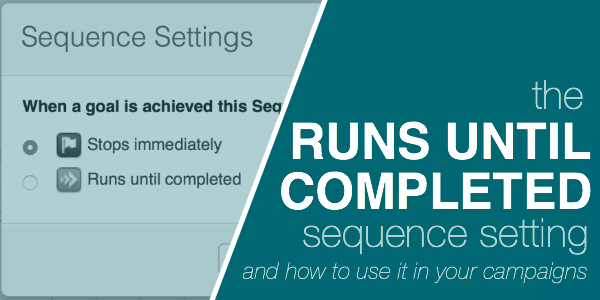
The “Runs Until Completed” sequence setting.

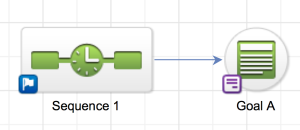
You know how normally your sequence has a little blue flag in the lower left hand corner, right?

That blue flag means that if someone is in that sequence, and they fill out the web form to achieve Goal A, that they will immediately STOP that sequence.

That’s the default.

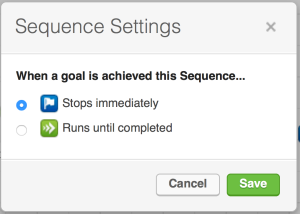
But you CAN change that setting – simply click on the little blue flag, and you’ll open up the sequence settings window.

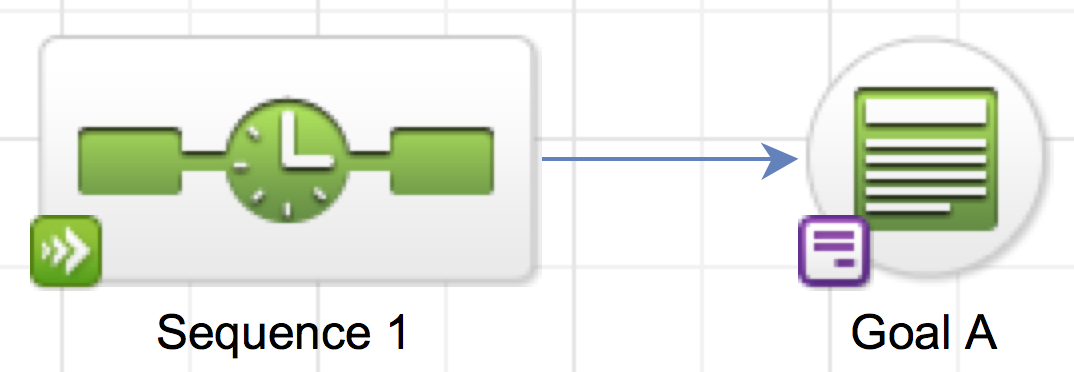
So, if you switch that setting to “Runs Til Completed”, then you’ll notice that the blue flag indicator is replaced by a green arrow indicator, meaning that this all the steps in this sequence will continue to process, EVEN if the contact achieves Goal A.

Why does this matter?

Great question.

I’ve been working with Keap for a while now, and honestly, I always thought this setting was kind of pointless.

If the point of a sequence is to run automation, to get people to take a specific action – then it seems pretty logical that once they take that action, you’d want to stop the things that got them there.

When someone registers for a webinar, you don’t want to keep reminding them to register, right?

And when someone buys something, you don’t want to keep emailing them links to the sales page?

I’ll answer that for you – you don’t.

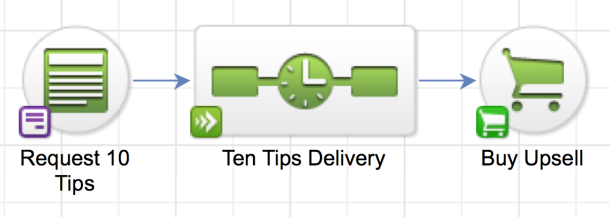
So literally the only example I was able to give for why this feature even existed, was for scenarios like a “10 Tips Sequence”, where you’d promised to deliver something over a period of time, and you need to fulfill your commitment, EVEN if the person takes an action and achieves a goal that would have otherwise removed them from that sequence.

Until now.

Just the other day I was cruising around building a campaign for my All Access Pass, and I hit a snag – and after puzzling on it briefly I realized that the “Runs til Completed” scenario would PERFECTLY solve the hitch I was up against.

Check it out:

Now, I get it, there are certainly other ways to restructure the campaign which could have achieved the same result – but since this was a eye-opener for me, I figured it may be useful to tuck in your toolbelt too.

If you have any questions about this Infusionsoft sequence setting, or have found your own use cases for it, please share in the comments below.

Get Started with Spiffy

Get Started with Spiffy

Well, this post is long overdue – but here we go.

We use Spiffy. And we love it…now.

In case you don’t know, Spiffy is a tool that takes normal unassuming Keap Order Forms and turns them into modern elegant works of art.

Full disclosure: We ARE Spiffy affiliates, so if you’re going to sign up for Spiffy we’d love it if you’d use our link. (Here’s the link)

But the reason for this post isn’t to make tens of dollars through a shameless affiliate promotion – it’s because it’s a good product. One that we actually use, and are proud to recommend. If you’d like to see why, just watch the video below.

So, we’ve had a Spiffy account for years, but we hadn’t used it – we basically false-started, it felt hard, then we never went back.

Until a few months ago – and man, it’s really freakin’ good now.

I quickly created three order forms, and then had to force myself to stop, because I wanted to write a blog post, and record a video of me actually building one (three months later that’s this blog post, and the video below).

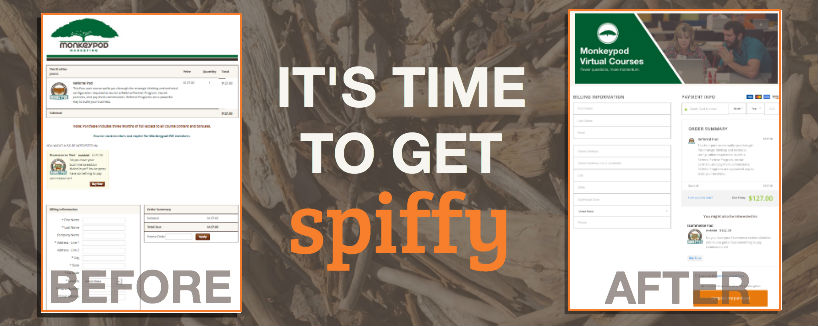
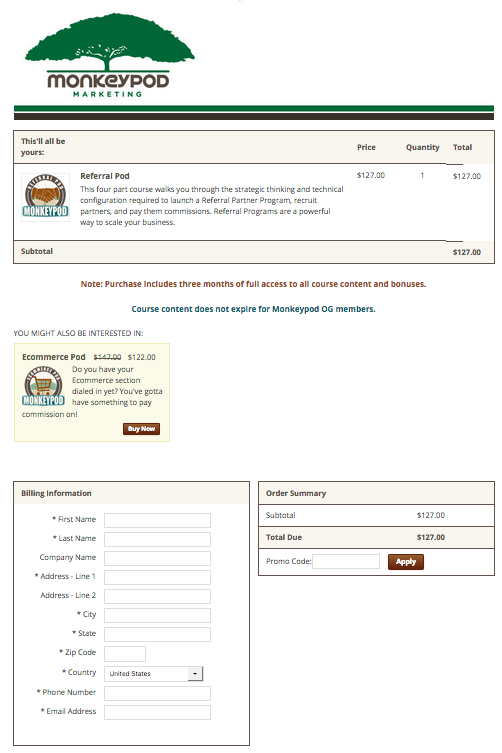
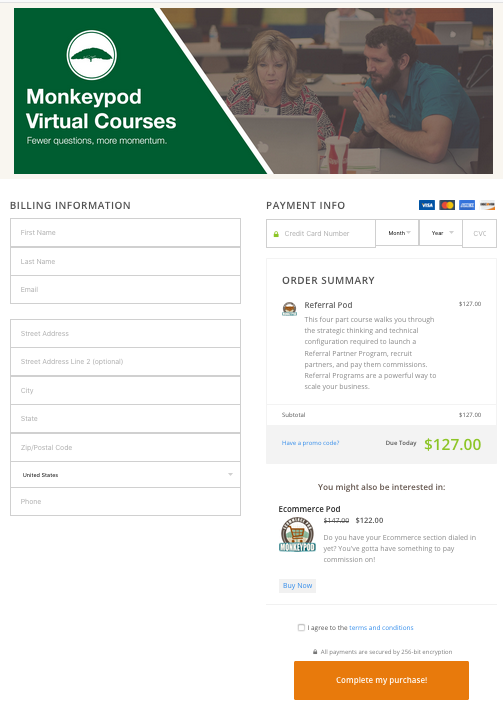
Here’s a little before and after action:

Before:

Spiffy snapshot

After:

Spiffy screenshot

Why now?

Why now you might ask?

One answer is that it’s because I have had a running theme this year of revisiting my existing processes and making them better. I’ve been circling back to stuff we set up years ago, stuff that isn’t even broken, and just looking at it through my current lens, and with the new tools and perspective, I now have.

Another possibly more accurate and definitely more succinct answer is GDPR.

You’ve always been able to add terms and conditions checkboxes to Keap order forms with a little trickery.

Building a Spiffy Order Form [GDPR Compliant]

Spiffy makes your order forms (and shopping cart) mobile responsive, which on its own probably justifies the monthly price – but it also offers templates and a drag and drop builder that you can use to really dress up your check out pages.

And if you can’t find what you need using their builder – they’ve got a library of custom code snippets designed to solve the more fringe scenarios.

Here’s a follow-up video showing you how you can set a favicon, define the terms and conditions URL, and quickly add testimonials to your order form.

How to Add Testimonials

Okay, we know – Spiffy is impressive, but you might be wondering if it’s all razzle dazzle.

Does Spiffy Actually work?

The answer is a unequivocal yes.

Here is a graph of our monthly course sales before and after we implemented Spiffy.

Bar graph with blue and orange results

Okay, well, we hope you found this resource valuable. Feel free to share it with anyone you think may enjoy it!

And if you’re going to give Spiffy a look, we’d be grateful if you’d use our tracking link.

Leave any questions or comments below, thanks all!

Oh, and if you like stuff like this – download the Monkeypod Toolbox Ebook to see the rest of our favorites.

Opportunities 101

Opportunities 101

How to get around this guide:

What are Keap Opportunities? What is the pipeline? Do I need it? How does it work? What does it do?

I’ll be honest – when I first started working with Keap, I didn’t know what “opportunities” were. I didn’t get it.

It felt abstract, and I didn’t see how it tied together with the rest of the platform.

So, even though I was using the software daily, I avoided it…for months.

And I know I’m not the only one.

I don’t have a course covering opportunities, I might someday, but for now, consider this Opportunities 101 – for anyone who has ever wondered what they are or where they fit, but has been afraid to ask, or just hasn’t taken the time.

I want to be clear – you might not need opportunities at all. If your sales process is entirely online and doesn’t involve manual interaction, then this may not be for you at all.

But unless you know what it does, and how it works, you don’t know what you’re missing out on.

So, what are Opportunities anyway?

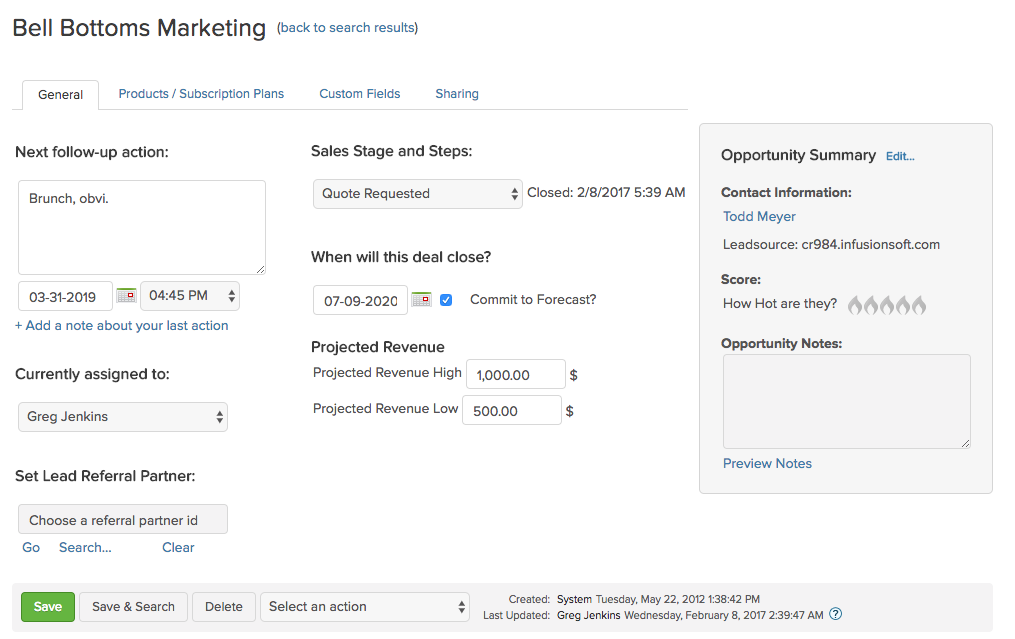
‘Opportunities’ are records (like contact records), but they represent an interest, rather than a person. In Keap Pro and Max, Opportunities are called “Deals”.

Opportunities in Keap are tied to a contact. And contacts can have multiple opportunities, but opportunities can only be attached to a single contact.

Opportunities serve as a vehicle to move someone through a process, most commonly, to track their progression through a series of stages, like a sales pipeline.

Opportunities module screenshot

Wait, what is a Pipeline?

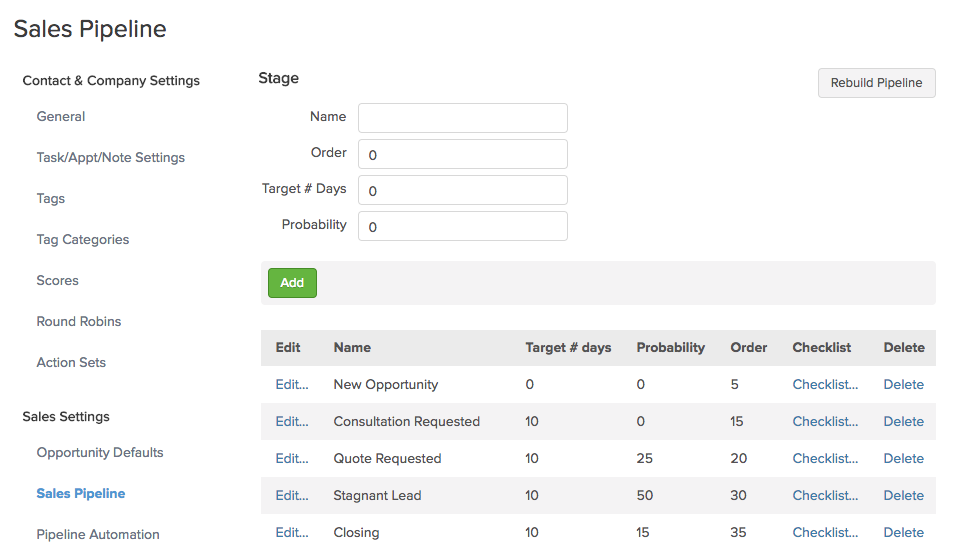
The Keap pipeline, or sales pipeline, is just a tracking mechanism for a process. Any process, but usually a manual offline sales process.

You move opportunities through the pipeline stages you define.

Sales Pipeline module screenshot

The reason I say “Any Process” is that you could use Infusionsoft’s pipeline to track something other than a sales process. For example, if you have a manual fulfillment process that needs to happen after someone places an order, it might make sense to create an opportunity record AFTER someone purchases.

How does this benefit my business?

The primary benefit to a business is that it helps you get clear on the process and journey leading up to a purchase – so you can see where your sales are going to come from. As you use it, you can start to gauge “Hey, if they make it to this stage, they have an X% chance of buying.”

As you use the pipeline, it can also help you identify bottlenecks, and gives you transparency into your processes. If you know that people are getting stuck in a certain stage for much longer than you’d expect, you can then go investigate why.

Opportunities in Keap also afford you the ability to assign a projected revenue range – which helps you know the total value of the opportunities in your pipeline, or in a specific stage. When you combined this with projected “close” dates and weighted forecasting it unlocks robust reporting and analysis that can be used to inform key decisions.

You can literally help a sales team decide how to allocate their resources, or prioritize their day.

[Back to Top]

Opportunities help you track your prospects through your sales process without letting any slip through the cracks. And once you’ve got that – you can also use the stage moves to trigger automation for the repetitive follow up.

Mallory Balnis

Plum Crazy Automation

When do I create an opportunity?

If you’re going to use Opportunities to track prospects through your sales journey (or any journey) then a natural question is “When do I create an opportunity?

As soon as I get their business card? When the prospect signs up for something? Only after they’ve asked for a quote?

Opportunities sequence screenshot

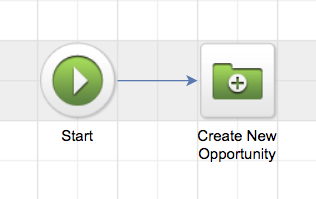
The answer is “it depends”. My rule of thumb is that an opportunity record should be created when it’s time for a human to get involved. And the good news is that no matter when you decide an opportunity should be created – it can be automated.

So, if the prospect has expressed interest enough to merit some human interaction, then that’s usually when I recommend creating an opportunity to track their progression.

Here’s a good article from Brett Farr over at Blick Digital covering this question, and some ideas for aligning your sales and marketing teams.

How do I get my team to use the sales pipeline?

The biggest challenge, in my experience, is adoption.

Sometimes sales teams will be resistant to the whole concept because a) they don’t want their process, or lack of process, to be exposed, or b) they worry that they’ll be replaced, or c) it’s technical, or hard, and they see it as one more thing that gets in their way.

So, because of those reasons, it’s really important that you own your adoption. Normally this is a sales manager. (I’ve been in a room with 8 sales reps who I was supposed to train on a $5k pipeline process that was built for them, and 0 of the 8 wanted it. Twas a little awkward.)

The trick is creating an appetite for it. It has to make their life easier. Usually this is by helping them focus their time. And saving them from repetitive shiz, like sending the same “I just left you a voicemail” email over and over.

Here’s a good post on sales pipeline adoption.

Can I build more than one pipeline?

Normally you’ll want to set up your sales stages to be broad or general enough that you can use it to track opportunities of all types, but in some instances, you may find that the sales journey for two of your offerings is quite different. So, in those fringe cases you can set up multiple pipelines using this strategy.

Can I automate it?

Previously my answer to this was “Moving an opportunity between stages is ALWAYS manual*. Which is by design.”

And I’d go on to explain that it’s because the pipeline process largely happens offline. Moving someone from one stage to another is a representation of offline interaction, like, having a conversation.

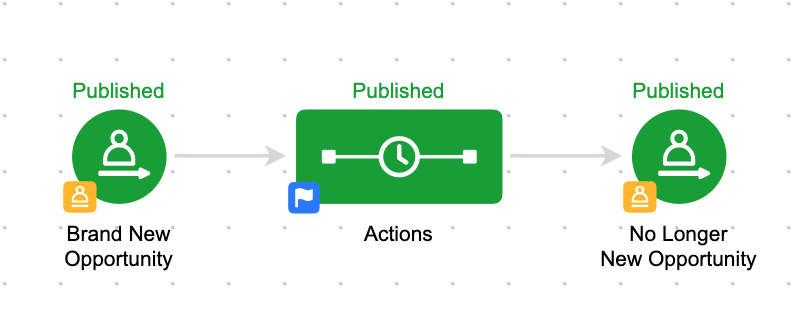
But in 2021 Keap released a feature that allows you to move an opportunity automatically as a step in a sequence – more on that here.

So now you can move an opportunity using automation, or trigger automation when you manually update an opportunity.

The second one is where Keap really shines – tying this offline interaction to automation. Moving an opportunity between stages and trigger and stop automation (this happens by achieving a campaign builder goal).

So, your sales rep (or whoever) will manually move an opportunity record from one stage to another – but then that manual action can trigger an automated reaction. It’s like tipping over the first domino, and then watching what you’ve built run it’s course.

[Back to top]

Opportunities will force you, wearer of many hats, to organise, simplify and automatate your sales process – which will make it possible for you to hire someone for that role in the future.

Jake Lunniss

JakeLunniss.com

What should my campaign look like?

Once you’ve defined your stages, and you’re ready to start layering in automation, you’ll want to design a campaign. This article shows you how to build the actual Keap campaign structure which will support the automation between each stage move.

Are you sure you don’t have a video training on this, Greg?

I’m sure. But Keap Academy has two courses on using the pipeline features.

Opportunities snapshot

Who can own opportunities?

Just like you can assign an owner on a contact level, you can also assign an owner on an opportunity level. But there are a few things to know:

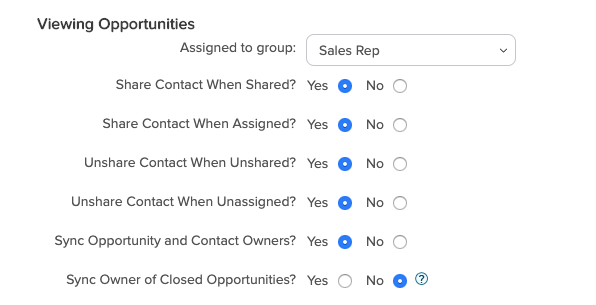
First, for someone to be the owner on an opportunity record, they must be part of the group you’ve selected in the Opportunity Defaults section. This is usually the “Sales Rep” group, but you can change that selection under CRM >> Settings >> Opportunity Defaults.

Viewing opportunities module

The second thing to know is that the opportunity and contact owner could be the same person, and in many cases, that’s what you’ll want – but it doesn’t have to be. You could have one person responsible for the relationship with the prospect at large (if they’re a long term client) and a different person responsible for the specific conversation happening around that individual opportunity.

For that reason, you’ll notice settings above that allow you to choose whether or not you want to sync the owner of the contact and opportunity – and a separate setting for active vs closed opportunities.

In the screenshot above, I have “Yes” selected for syncing open opportunities – because I always want the contact owner and opportunity owner to be the same.

But I have “No” selected for syncing closed opportunities because I want to be able to see who was the owner an opportunity that has already closed, and if those were updated when the contact owner changed then I’d lose that historical record.

Can I use them on my phone?

Yup.

I get it, maybe your sales reps are on the go. And if they’re going to  use Opportunities in any meaningful way, they need to be able to access and update the opportunities in their pipeline from their phone, or tablet, palm pilot, or whatever.

The Infusionsoft Mobile app DOES support opportunities. Check out this article for an overview.

Opportunities allow you to track and manage your leads. They also allow you to automate the actions that need to take place in different stages, which keeps your sales process consistent and makes you a better rep.

Josh Hindeman

Capsule 5

How do I report on this?

One of the biggest benefits of using the opportunity pipeline is that it offers you data about your sales process.

You can see where people are in the sales journey, forecast upcoming revenue, as well as highlight bottlenecks or areas where folks may be slipping between the cracks.

There is a pre-built dashboard widget that sales reps can use to manage their personal pipeline, and there is a set of reports specifically to help sales managers keep tabs on how things are going.

Sales Report GIF

Ugh – do you even look at those reports and think “Why can’t they just say what they do in plain English?”

Well, apparently you’re not the only one – because Paul Sokol wrote a juicy blog post that does exactly that – it breaks down every single Sales Pipeline Report to explain not only what it does, but what questions it answers, and why you might find it valuable. Check it out here:

* You may have noticed that I said “Moving an Opportunity Stage is ALWAYS manual” and then I tossed a cheeky little asterisk in there.

Most of the time you WANT an opportunity to be moved manually because it means a human is recording an outcome that happened offline. But there are a few legitimate times when you may want to automate this – like if someone purchases, and you want to just move that opportunity to a “Won” stage – so, the truth is that an opportunity CAN be moved from one stage to another via the API.

This can be accomplished through this native feature, or with custom development, or by using a tool like PlusThis Opportunity Updater, FixYourFunnel’s Opportunity Advance Bot, or the Pocket Developer tool from The API Guys.

Okay, how’d we do?

Do you feel more confident? Let me know in the comments below if there is anything I overlooked, or if you have any additional questions!

[Back to top]

Where do I learn more?

The Keap Academy platform features two detailed courses covering the strategic and technical aspects of using a pipeline in your business.

There’s one course for Keap pro and max, and another for Max Classic (formerly Infusionsoft).

Automating Subscription Reminders

Automating Subscription Reminders

We had a great question the other day from one of our OG members, and it’s a question we’ve heard before, so I thought I’d create a resource to help answer it in case it’s something that your business has come across as well.

Question: How can I send automated reminders to my annual subscribers as their next payment approaches?

It’s a fairly straightforward question – I mean, if it’s a full year between payments, you should probably give that subscriber a little heads up that their card is going to be charged, right?

In the video below we’ll show you three methods for sending automated reminders to your subscribers as their renewal date approaches – and, we’ll show you a ninja trick for using undocumented modifiers on the date merge fields to tell the subscriber exactly when their next charge is going to be.

The demo above was built using Keap Ultimate (which was called Infusionsoft at the time), but this same approach would work for Max, Pro, or any version of Keap with the automation builder (and subscription functionality).

So, as you saw, method one and two are totally native. They just use the built in features to count from the prior payment up toward the next one.

But the third method involves using a third-party tool to take things a little further and gives you the ability to count down as the next payment date approaches. We use PlusThis, but there are a variety of tools that can handle this – take a look at Zapier, FixYourFunnel, or MyFusionHelper to see what is the best fit for your business.

Have your own questions?

If you would benefit from a place to ask automation questions when you get stuck, and get ideas and inspiration from other businesses, you can join us in the Monkeypod Membership.