The Nickname Merge Field Hack

The Nickname Merge Field Hack

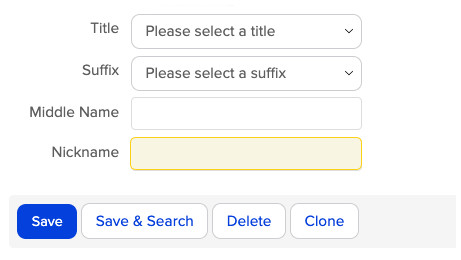
On the additional info tab of the contact record in Keap, there is a native field for Nickname.

If you know someone’s nickname, then it probably makes sense to call them that.
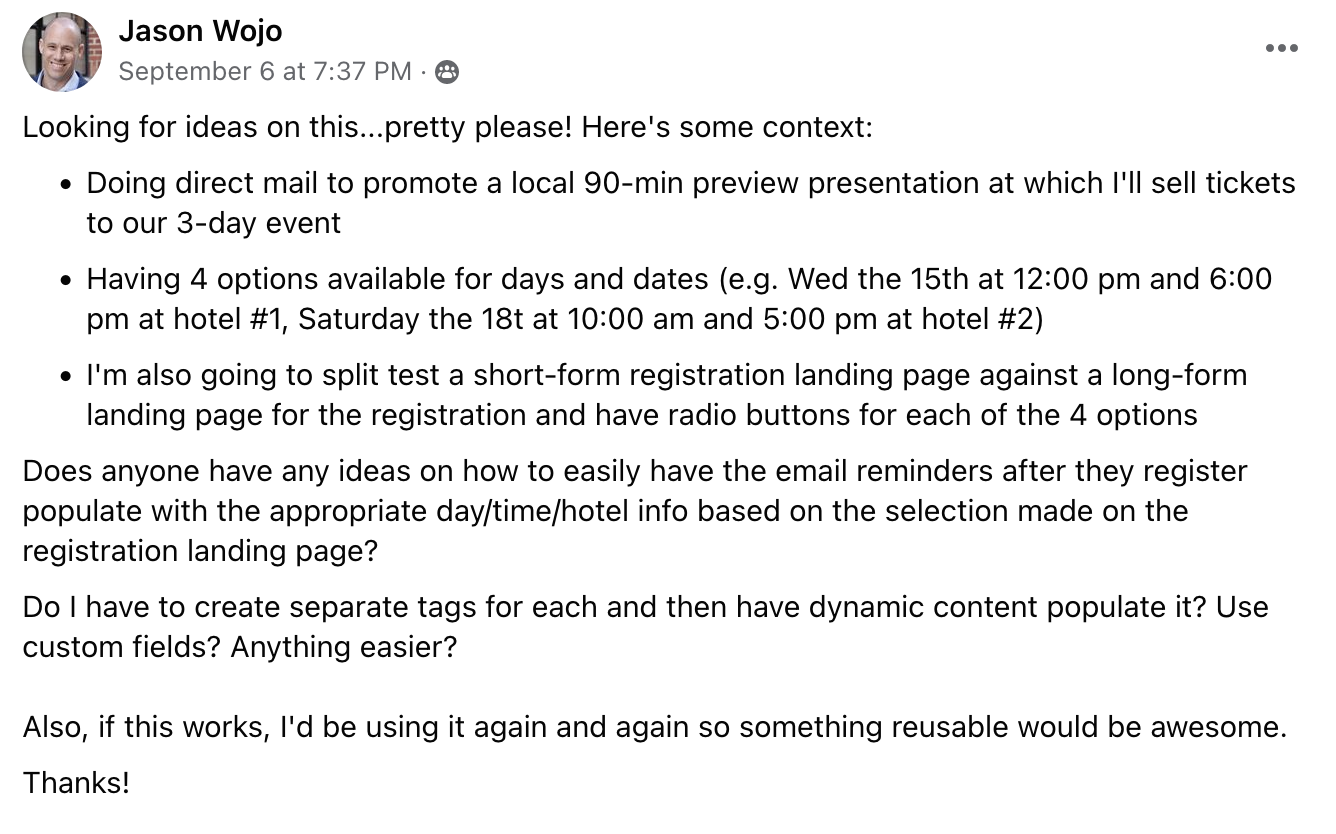
Screenshot of Jasons Question

(That screenshot is from the Max Classic version of Keap, but Pro and Max also have a nickname field.)

What if you don’t have their Nickname? Then what?

But if you don’t have their nickname on file, how can you make sure that Keap uses their First Name instead?

That’s the question here. I’ve seen it a few times over the years, and it came up again in the Monkeypod community the other day.

nickname merge question screenshot

The answer is “Yes”. But the process isn’t all that intuitive – in fact, it takes a little hack to make it happen.

In this video we’re going to use ‘nesting merge fields’ to create a fallback so that First Name is used if Nickname isn’t on file.

Check it out:

Obviously the use case I used here was nickname and first name, but this same tactic (nesting merge fields) could be used for any number of scenarios.

If you find this little hack useful, drop a comment below and let me know.
Streamlined Follow-Up for Multiple Event Options

Streamlined Follow-Up for Multiple Event Options

Had a great question come up recently inside the Monkeypod Community – Jason shared a scenario and asked how he could streamline it:

Screenshot of Jasons Question
He wanted to let prospects register for one of his four events, and then design automated event reminders to follow up with them.
 
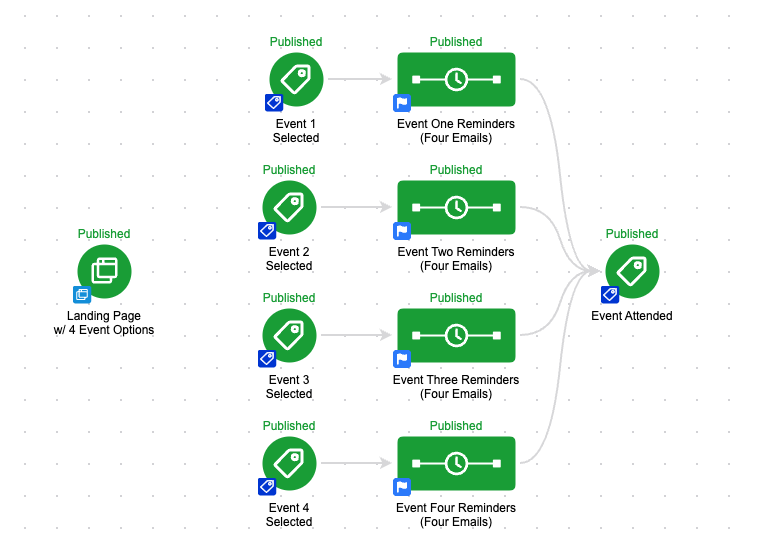
There are a number ways to do this inside Keap – I think most people would build something like this:
event campaign screenshot

But with four events and a handful of reminders for each – that campaign could get complicated quickly.

And, eventually you’d need to make an update – which would compound the complexity.

 
So in this video I’ll show you what I recommended (and basically what Jason suggested too). It’s a streamlined solution using a campaign with field timers, dynamic content, and campaign merge fields.

There are a few pieces to this puzzle – but they aren’t mutually dependent, so feel free to pick and choose whichever you find useful.

You can learn more about using Dynamic Content to hide/reveal sections of an email here.

And more on using Campaign Merge Fields and Links here.

And finally, this question originated in the Monkeypod private community – if you’d benefit from a place to ask questions or get inspiration, check out the OG Membership details.


Restore Version and Revert Changes

Restore Version and Revert Changes

The other day I was working on a project with a long-time Keap user – someone who I consider to be an expert campaign builder.

And we had a conversation that went something like this:

Him: I can’t find the emails we’re after.
Me: Oh, right – the campaign has been updated, so you may need to scroll through the past versions.
Him: …wait a minute…

He went on to confess that he hadn’t really used Restore Version (or Revert Changes), so he wasn’t crystal clear on how they worked.

And it occurred to me, that he’s likely not the only one treating those menu items with a bit of caution.

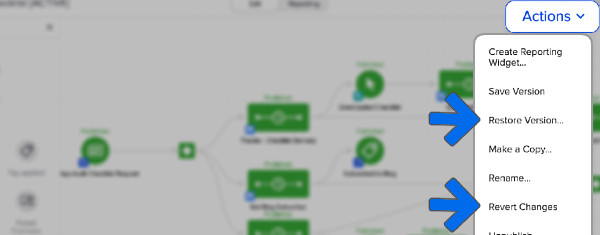
Just to be clear, we’re talking about a few of the options you see on the campaign dropdown menu, under the Actions button in the top right when you’re editing a campaign.

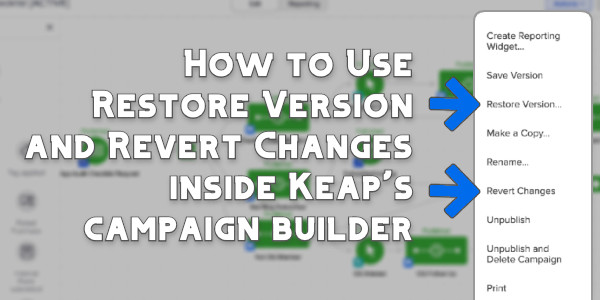
Restore Version Screenshot

All the items on that menu are useful in their own way, but there are a few that have similar sounding names.

Save Version: This one is the simplest – it stores a time and date stamped version of the campaign.

Restore Version: This allows you to view previously saved or published versions of the campaign (it does not immediately replace your current live version).

Revert Changes: This undoes the edits that have been made during the current editing session, or since the most recent publish.

Let’s demonstrate each of these:

One final caveat is that the “Restore Version” option doesn’t affect the content inside of an email – it’s really more about the actual campaign structure.

It can bring back an email that you’ve since deleted – but if you’ve updated the content inside an email, it won’t restore the actual email copy to the prior version.

There we have it – the save version, restore version, and revert changes options all have use cases where they’re valuable. Feel free to play with them, test them out, and drop any questions you have in the comments below.

And if you’re looking for more training on the Advanced Automations builder, check out this three-part course inside the Keap Academy platform.

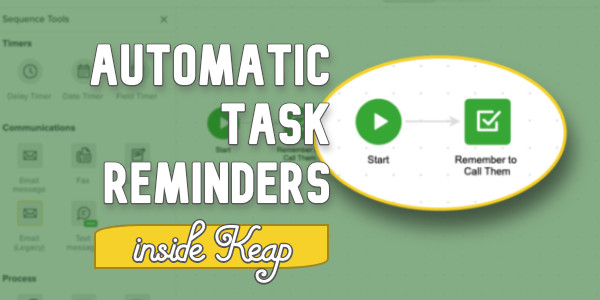
How to Set Up Task Reminders

How to Set Up Task Reminders

As you probably know, Keap is an automation powerhouse – but not everything can (or should) be automated.

Tasks are a useful feature for the times you need to do something manually.

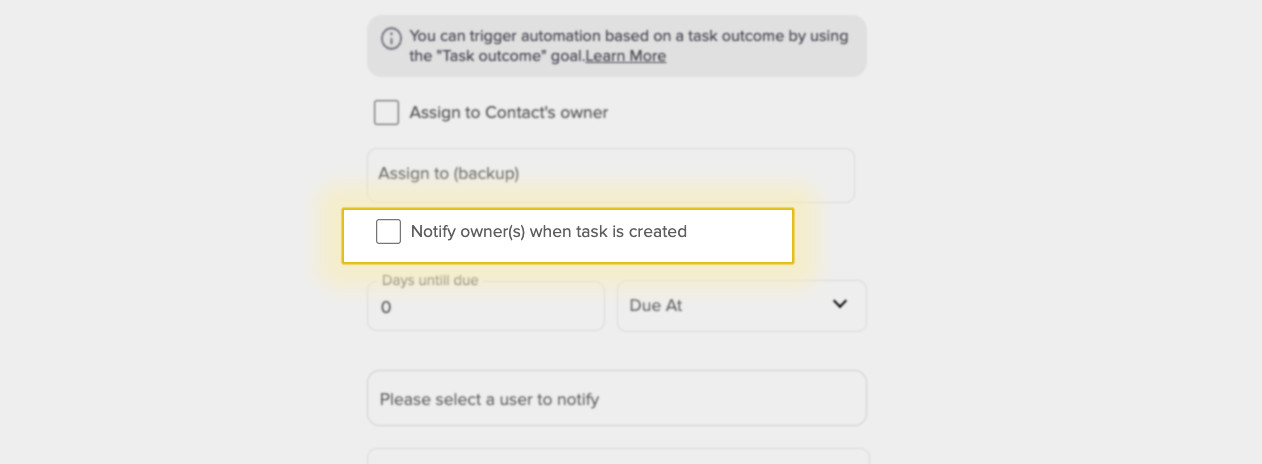
And Tasks do have a native notification at the time they’re created.

Notify Owner

And that’s great – the moment the task is created it lets the owner know that they’ve got something to do.

But, what if they don’t do it right away?

It begs the question…

How can I get a reminder as the task is due?

If you’re on top of your tasks and you always complete them immediately, then hey – don’t rub it in.

But if you’re like most humans, sometimes we get distracted – and the challenge with Keap’s tasks is that the out-of-the-box automated reminder is an objectively annoying pop-up that you see if you log in.

But what if you don’t log in every day? Or you just don’t want more pop-ups in your life?

If you want an automated reminder to quietly and reliably show up in your inbox on day the task is due, there are a few ways to do that.

So there you have it – whether you are creating your tasks inside the campaign builder, or you’re setting them up manually, you can now automate ‘last minute’ reminders.

Receiving notifications on the day that tasks are due helps ensure that nothing gets missed – and having those show up in your inbox is just an extra layer of convenience.

A full guide to connecting Zoom Webinars and Keap

A full guide to connecting Zoom Webinars and Keap

If you use Zoom (don’t we all?), then you likely have looked for a way to integrate it with Keap.

There are a few options out there, but my favorite is PlusThis.

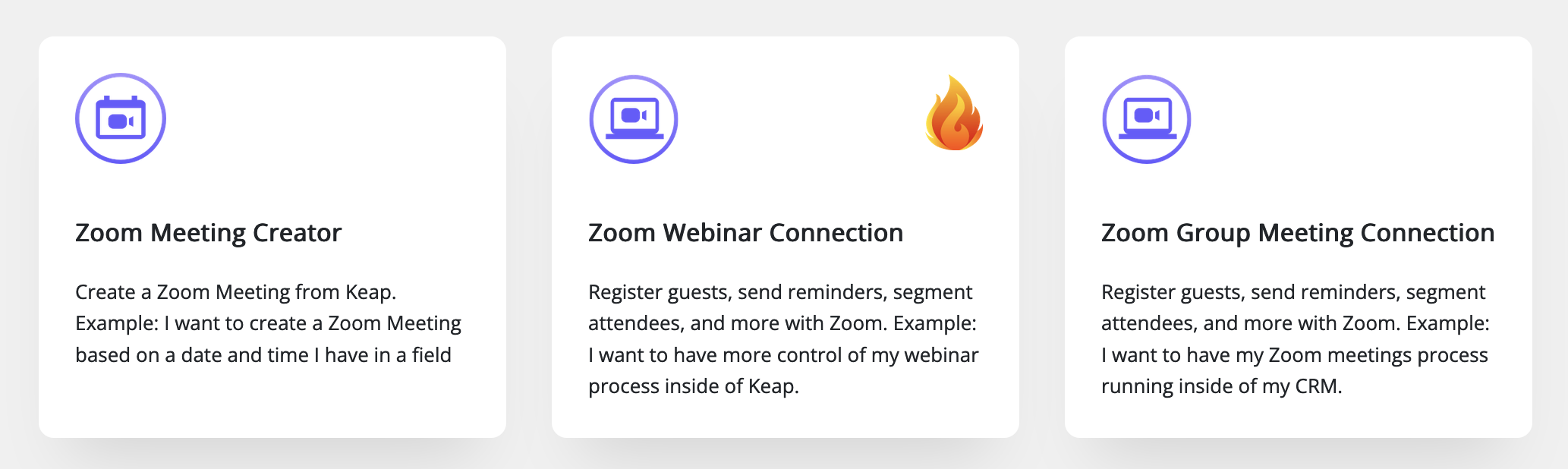
In this post we’re going to look at the PlusThis connection for Zoom webinars – but they do offer tools for Zoom Meetings as well (here).

PlusThis Zoom Option

If you host webinars with Zoom, there are a few key parts of this tool that will simplify things for you.

PlusThis Zoom Webinar Connection

Here’s how it works:

You set up your webinar in Zoom like normal, then you hop into PlusThis and define the Keap Tag you want automatically applied when someone registers.

Tag Registrants

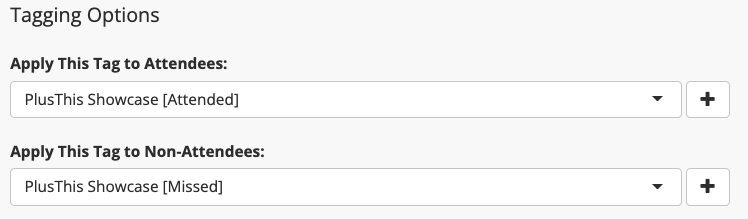
You can also tag webinar registrants based on whether or not they attend – which lets you easily segment your post-webinar communications.

PlusThis Tag Zoom Attendees

There are a few other options, but if you’re using Zoom’s native registration page and reminder emails then that’s about the size of things.

Here’s a quick walkthrough of how you can set up this feature:

That’s all you need to use this feature – but, if you’ve ever felt that the Zoom registration page was too rigid, or you wanted more flexibility for the reminder emails, then you might want to build your own inside Keap.

What if I want to build my own emails?

You can send your reminder (and invite) emails from Keap.

The PlusThis connector offers a few settings that help with this – first, you can map the registrants unique join link through to a custom field in Keap – which lets you create your own reminders.

But second, PlusThis also gives you add-to-calendar links you can use in your Keap emails.

plusthis add to calendar links

(Pro tip: using add-to-calendar links help improve webinar attendance)

And, if you’re inviting your existing Keap audience, then you can use the one-click registration link that PlusThis offers – that way your contacts won’t have to fill out info they’ve already given you.

What if I want to build my own registration page?

You can do that too – using the Keap landing page builder, or whatever tool you prefer.

(This is perfect if you have partners driving traffic to your webinars and you don’t want to compromise affiliate tracking.)

Here’s a deeper dive into the customization options available in PlusThis – and a breakdown of the campaign I use for promoting my own webinars.

Okay – that was a lot. Maybe more than you need, but I wanted to make sure we covered all the bells and whistles in this powerful feature.

The reality is Zoom has become a household name, and if you’re using Zoom for webinars (or meetings) you’ll likely want it to communicate with your Keap CRM, and the best way to make that happen is with PlusThis.

If you aren’t using PlusThis yet you can check it out or start a free trial here.

How to let Contacts Purchase for Someone Else

How to let Contacts Purchase for Someone Else

Reassigning Keap Purchases. Gifting purchases in Keap. How to let one person buy something for someone else.

I struggled with the name of this blog post.

We’re talking about how one contact can make a purchase, but assign the access to someone else.

There are plenty of scenarios where you might want this, but it is particularly useful if you have someone buying tickets for another team member, or gifting access to course content, etc.

I’ve seen this question come up time and time again and recently when it was asked in the OG group, Jake Talbert (the legend from Sixth Division) took the time to record a walkthrough of two ways he’s solved this challenge in the past.

PlusThis Method

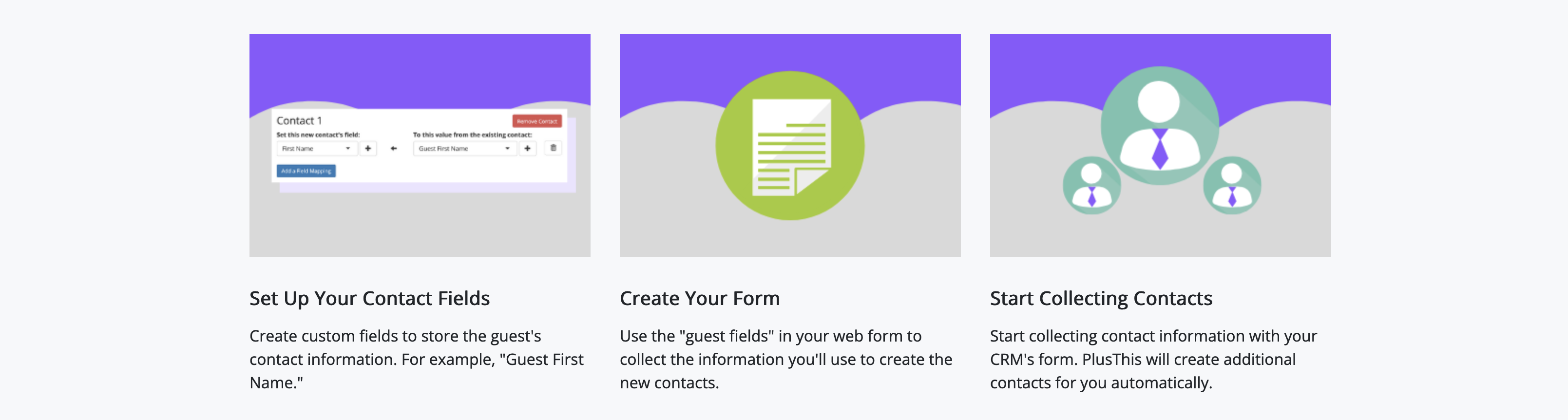
In the video, Jake covers two methods for handling this type of need – the first using the Contact Creator tool from PlusThis. This one lets you capture the information into custom fields, and then use that data to create a separate contact and trigger the corresponding automation

PlusThis Contact Creator

As a bonus, it also includes an option for linking the contacts as well.

Zapier Method

And the second method Jake demonstrated uses Zapier – similarly, the info is all collected, but the Zapier recipe uses distinct steps to create unique contacts for the different individuals.

If you’re interested in connecting with Jake, or learning more about SixthDivision – check them out here.

And as a final note, I’ll also give a shout out to Mark Penney, a friend of mine and Keap Certified Partner – I hired him to help me solve this issue a few years back, and he designed a custom code-based process that lets users buy licenses to a course and then assign the access out to others.

If you want to hear more about Mark’s solution, drop him a line here.

Thanks for reading! Feel free to drop any questions in the comments below.

Informed Marketing Solutions

Here’s another method for solving this, from Jillian Kendrick over at Informed Marketing Solutions:

If you’d like to get the access exchange code Jillian describes in the video you can sign up here.

PlusThis Contact Creator

BOGO Method from Box Out

Our friends over at Box Out Marketing did some training on the Buy One Gift One method. You can check out their approach here.