Appointment Booking in Keap

Appointment Booking in Keap

If you use appointments in your business then you probably are familiar with the old song-and-dance to get people book and then show up for their appointment.

(And I say ‘appointment’ but this process is also true for consults, for demos, or any other scheduled meeting.)

So when this question came up the other day we thought it was worth recording a demo of how you can use a super simple Keap campaign structure to a) invite people to book and b) remind them to show up for their appointment.

This process works for ScheduleOnce, AppointmentCore, Acuity, Calendly, or any other appointment booking tool that integrates wtih Keap.

Worth mentioning that PlusThis has integrations for Calendly and Acuity. Check those out here.

And, once they’ve booked the appointment you can remind them about it – and if you conduct your appointments on Zoom then here’s a little extra detail about how to streamline that process.

What to do next?

This was a simple campaign, but if you want to learn more about using the Advanced Automations feature inside Keap then check out this free course from Keap Academy.

And finally, this question originated inside our private community, if you think you’d benefit from a place to ask questions like this, then check out the OG membership pricing and details here.
Dynamic Monthly Loop Campaign

Dynamic Monthly Loop Campaign

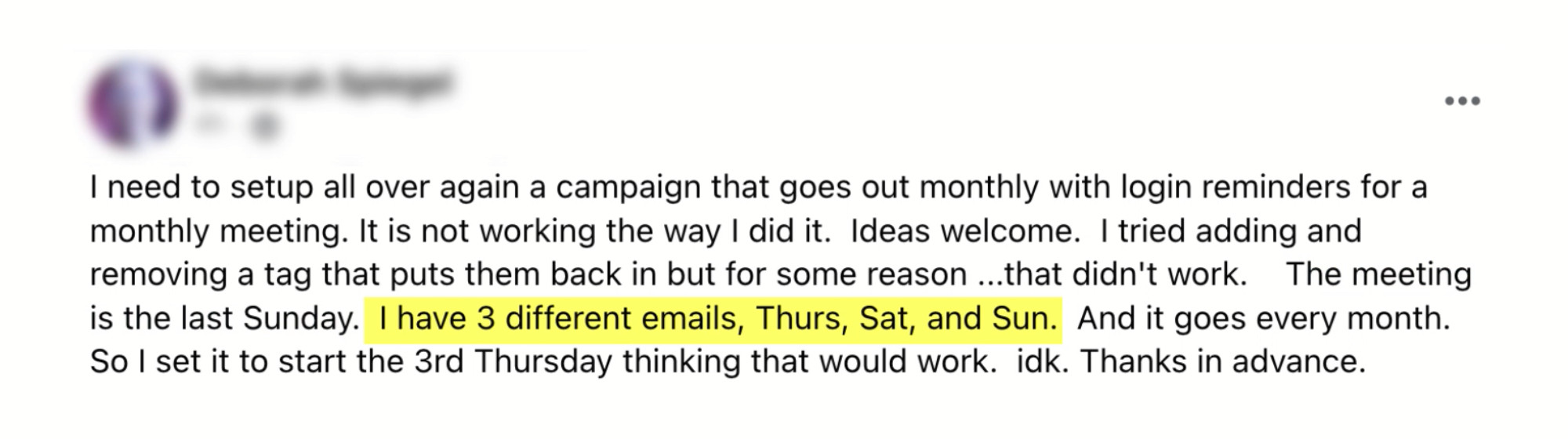
The other day a question came up in the private Monkeypod community – Deborah was asking how she can set up a campaign that reminders her subscribers about an event that happens each month on the last Sunday.

deborahs question

Generally a looping campaign isn’t that difficult – but this one was unique, because the last Sunday of the month changes (sometimes there are 4, sometimes there are 5 Sundays in a given month).

But we came up with a perfectly serviceable solution – it just required a tiny touch of human intervention.

But I knew it could be better.

So when I shared the campaign I had suggested, I invited people to call out ways it could be cleaner, or fully automated – and was thrilled at the replies I got.

I love puzzles like these, and I hope following along helps you solve challenges in your own business as well.

Thanks to Deborah for the question, and to Christine and Devan for their recommendations on how this could be solved.

As you saw, Devan’s solution includes the use of PlusThis – if you don’t have a PlusThis account yet you can check it out or start a free trial here.

Streamlined Follow-Up for Multiple Event Options

Streamlined Follow-Up for Multiple Event Options

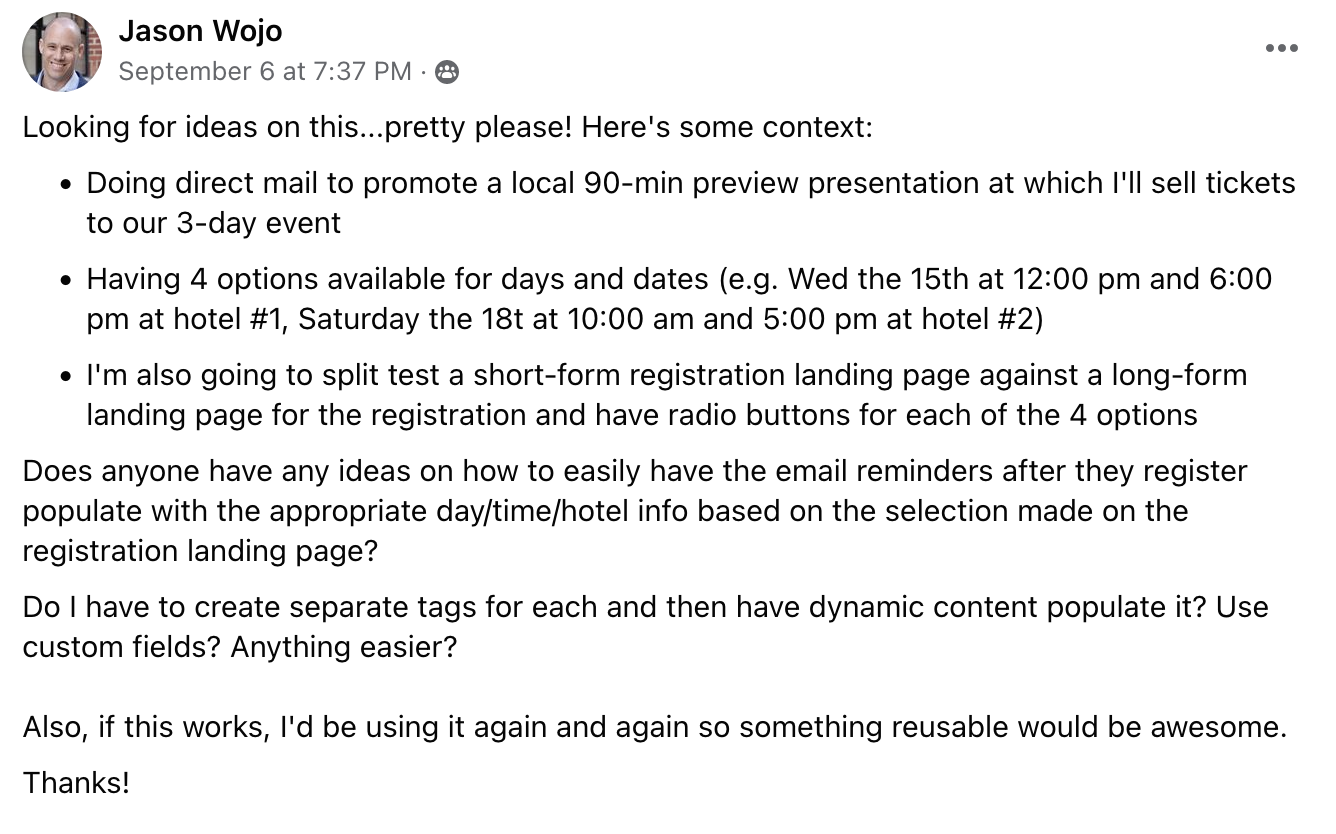
Had a great question come up recently inside the Monkeypod Community – Jason shared a scenario and asked how he could streamline it:

Screenshot of Jasons Question
He wanted to let prospects register for one of his four events, and then design automated event reminders to follow up with them.
 
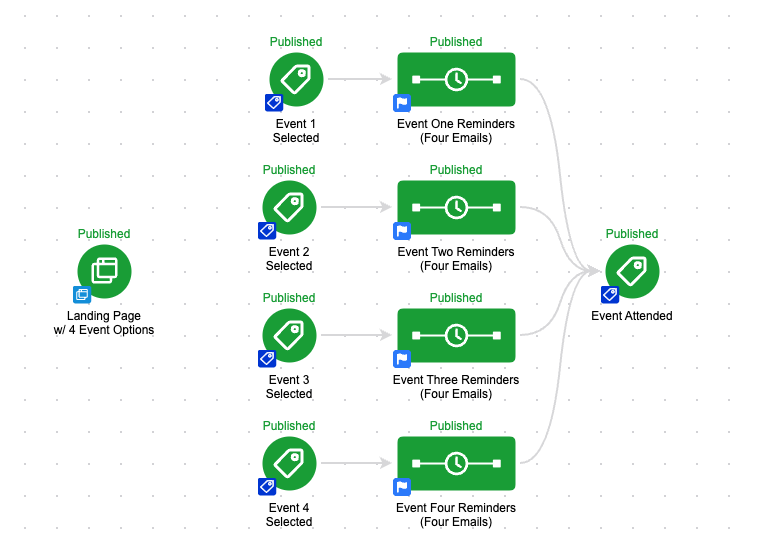
There are a number ways to do this inside Keap – I think most people would build something like this:
event campaign screenshot

But with four events and a handful of reminders for each – that campaign could get complicated quickly.

And, eventually you’d need to make an update – which would compound the complexity.

 
So in this video I’ll show you what I recommended (and basically what Jason suggested too). It’s a streamlined solution using a campaign with field timers, dynamic content, and campaign merge fields.

There are a few pieces to this puzzle – but they aren’t mutually dependent, so feel free to pick and choose whichever you find useful.

You can learn more about using Dynamic Content to hide/reveal sections of an email here.

And more on using Campaign Merge Fields and Links here.

And finally, this question originated in the Monkeypod private community – if you’d benefit from a place to ask questions or get inspiration, check out the OG Membership details.


Restore Version and Revert Changes

Restore Version and Revert Changes

The other day I was working on a project with a long-time Keap user – someone who I consider to be an expert campaign builder.

And we had a conversation that went something like this:

Him: I can’t find the emails we’re after.
Me: Oh, right – the campaign has been updated, so you may need to scroll through the past versions.
Him: …wait a minute…

He went on to confess that he hadn’t really used Restore Version (or Revert Changes), so he wasn’t crystal clear on how they worked.

And it occurred to me, that he’s likely not the only one treating those menu items with a bit of caution.

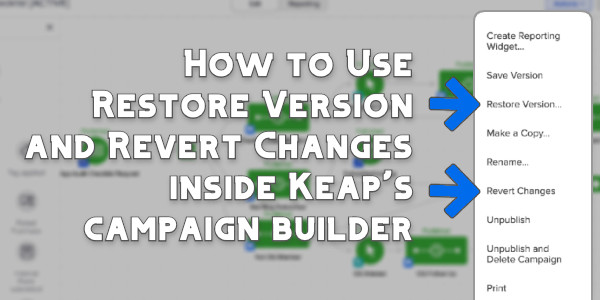
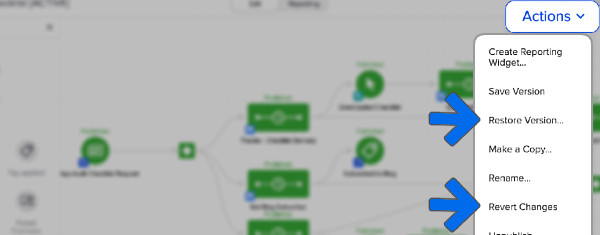
Just to be clear, we’re talking about a few of the options you see on the campaign dropdown menu, under the Actions button in the top right when you’re editing a campaign.

Restore Version Screenshot

All the items on that menu are useful in their own way, but there are a few that have similar sounding names.

Save Version: This one is the simplest – it stores a time and date stamped version of the campaign.

Restore Version: This allows you to view previously saved or published versions of the campaign (it does not immediately replace your current live version).

Revert Changes: This undoes the edits that have been made during the current editing session, or since the most recent publish.

Let’s demonstrate each of these:

One final caveat is that the “Restore Version” option doesn’t affect the content inside of an email – it’s really more about the actual campaign structure.

It can bring back an email that you’ve since deleted – but if you’ve updated the content inside an email, it won’t restore the actual email copy to the prior version.

There we have it – the save version, restore version, and revert changes options all have use cases where they’re valuable. Feel free to play with them, test them out, and drop any questions you have in the comments below.

And if you’re looking for more training on the Advanced Automations builder, check out this three-part course inside the Keap Academy platform.

Internal Forms for Prospect Intake

Internal Forms for Prospect Intake

The other day a question was posed in our OG community – here’s the scenario:

The member gets voicemails (and emails) with interest from prospects who are looking for more information about their products and services.

But their details didn’t have a reliable way of making it into the CRM – which meant that leads were sometimes slipping between the cracks.

There are probably a few ways to improve this process, but I proposed using internal forms.

What are internal forms?

Internal forms in Keap are a way of creating a form specifically designed to be used by you and your team members, with the sole intention of adding contacts to Keap, or updating contacts who are already in your database.

They’re just like web forms – but instead of being externally accessible, they’re built for your team to use.

How do I use Internal Forms?

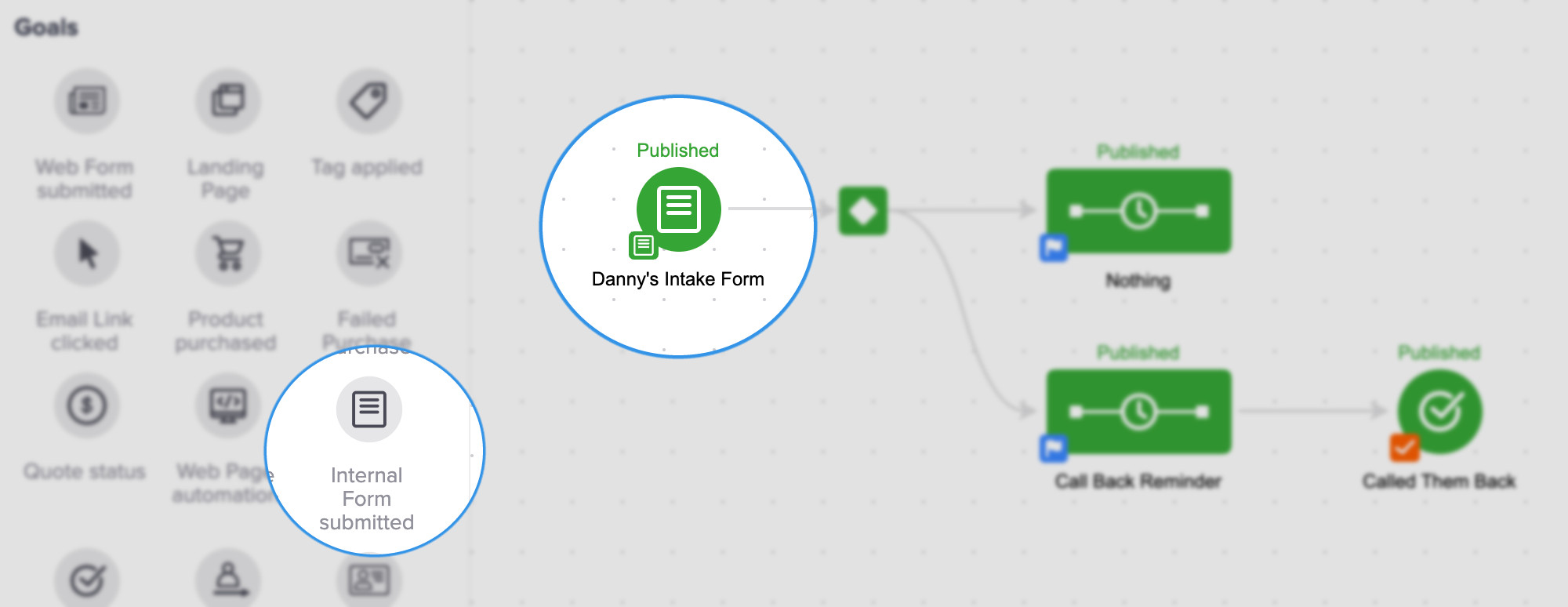
Well – they live inside the automation builder, just like your other goal methods.

So you’ll drag one onto your canvas, and define the fields you want to use it to collect.

Internal Forms in Keap

But, it’s worth pointing out that if you’re using Keap Pro or Keap Max the process is a little different – here’s a walkthrough for Pro and Max users.

Regardless of how you set it up, it’ll give you a repeatable process you can use to add contacts, with options for triggering automation.

Internal Forms are definitely one of Keap’s underrated features.

The primary use case is adding new contacts – but you can also use internal forms to add information to existing contacts, and launch automation as a result.

Or, I’ve seen internal forms used as a manual way of approving applicants for a mastermind, for your partner program, or whenever you want the ability to manually make a decision about what happens next to a contact.

If you’re using Keap’s internal forms in your business, drop a comment below and share one of your use cases.

Thanks for reading.

Have your own questions?

If you would benefit from a place to ask automation questions when you get stuck, and get ideas and inspiration from other businesses, you can join us in the Monkeypod Membership.

The Any vs All Tag Goal Update

The Any vs All Tag Goal Update

All campaigns in Keap are a combination of goals and sequences – goals are the triggers, and sequences are what happens as a result.

And perhaps the most popular goal method is the Tag Applied goal (certainly the most versatile).

And recently, this little celebrity was upgraded with some brand new functionality.

Historically the Tag Applied goal could listen for the application of a tag, or any one from a set of tags.

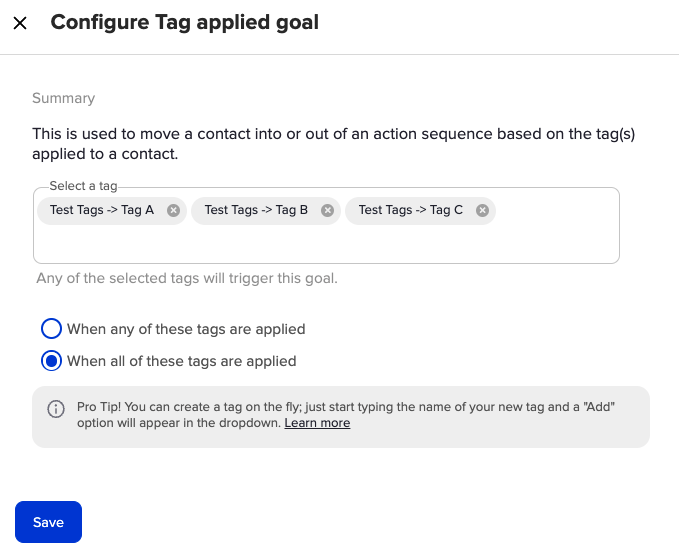
But now, you can set up up the goal so that it’s only achieved once ALL of the tags on a set have been applied to a contact.

Any All Tag Goal Screenshot

This new functionality opens up lots of potential.

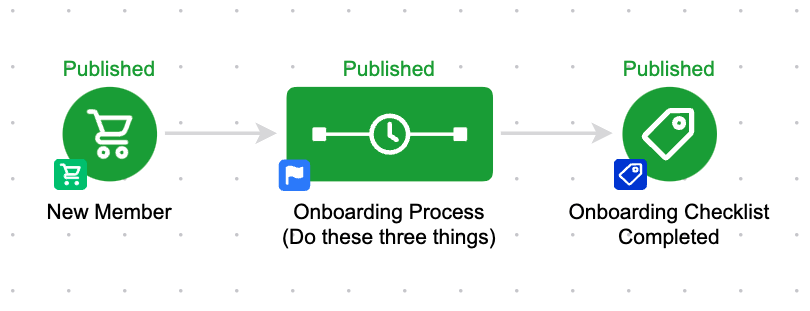
Like – let’s say you have three things you want your new members do to after they purchase:

1. Schedule a call
2. Fill out an assessment
3. Watch an orientation video

With this new functionality, you can structure your automation to continue to remind them until they’ve done all three of those things.

Any All Example Keap Campagin

Previously this would have been tricky, since the tag goal would have been achieved by any one of the tags – but now, it waits until the contact has all three before extracting them from the preceding automation.

Let’s take a look at another example in this video:

And – if you want to take this to another level, you can use Dynamic Content to make sure that the messaging is adjusted along the way.

If they’ve done two of the three things, you could hide those from the email so they’re only being prompted to do the last remaining item from the list.

The utility of this update goes on and on, feel free to share your own use cases in the comments below.