Infusionsoft is now Keap Max Classic

Infusionsoft is now Keap Max Classic

If you were at IKON (or PartnerCon) a few months ago then you might have heard some rumblings about Keap Max.

But if you weren’t, or even if you were, you likely have some questions.

The tl;dr version is this:

  1. New name. Same product. More innovation. (All products are going to continue improving)
  2. Keap is unifying the product, brand, community. (We’re all Keap users)

In this post, and the video below, I’m going to answer as many Keap Max namechange questions as I can.

First up – what is Keap Max?

Simply put – Keap Max, or just Max, will be the new name for Infusionsoft.

Technically it’ll be ‘Max Classic’, more on that in a second.

Two years ago, at the start of 2019, Infusionsoft the company rebranded entirely to Keap (details here), but at the time they decided not to change the name of Infusionsoft, the platform.

So Keap, the company, had two versions of software that they offered: Keap and Infusionsoft.

Keap and Infusionsoft

Since then they’ve evolved a bit and their offerings now look like this:

Keap Grow >> Keap Pro >> Infusionsoft*

keap infusionsoft progression

*for the last year or so, there have been two versions of Infusionsoft – the original, which looks like this:
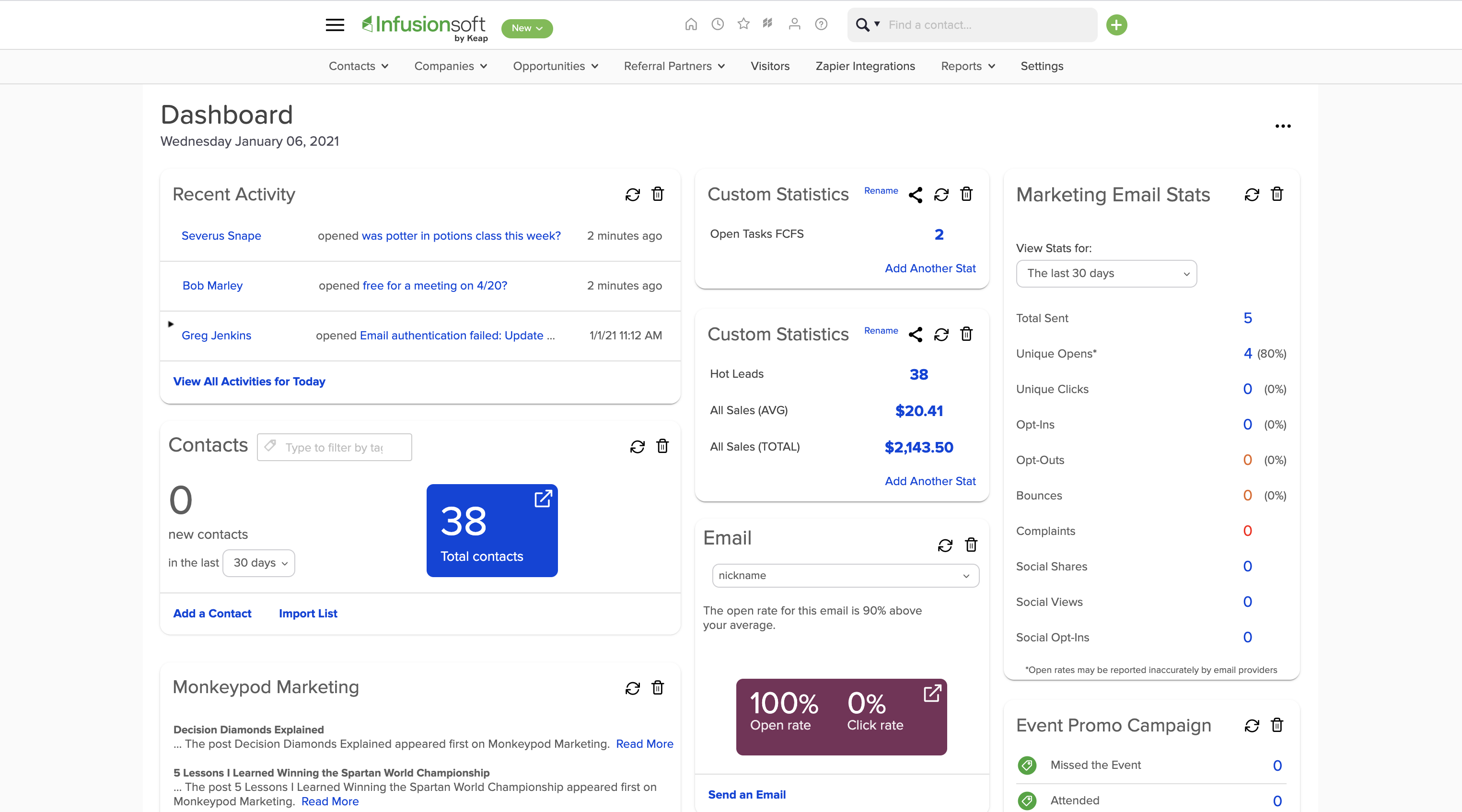
Keap Max Classic UI

And a version with a more modern interface, which looks like this:
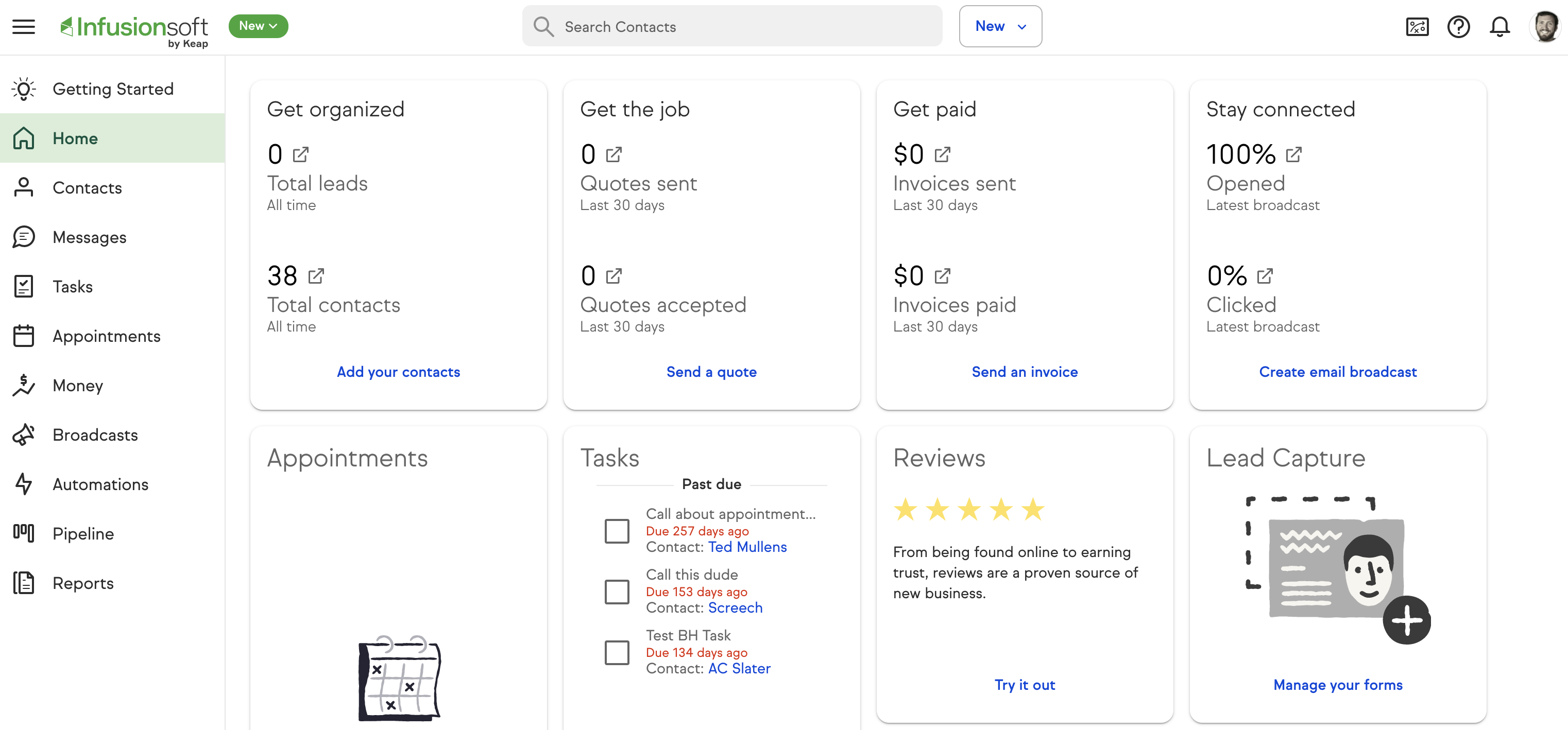
Keap Max UI

Most users don’t know that, because – well, because most people only use the version that they use.

The vision behind this product line-up was to create versions of Keap that serve entrepreneurs at every business stage and sophistication level.

Businesses can start with the lighter version, and more graduate onto the more robust versions as their needs evolve.

Why change Infusionsoft’s name?

Three reasons:

  1. Unifying the products
  2. Unifying the Keap brand
  3. Unifying the Keap family

Changing Infusionsoft’s name creates a clearer cohesion within the family of products that Keap offers.

Instead of Keap Grow, Keap Pro, and Infusionsoft, it’ll be Keap Grow, Keap Pro, and Keap Max.

Or, Grow, Pro and Max (which is more likely how we’ll refer to them).

As much as I love the Infusionsoft platform, the reality is that a name is just a name; and for new users signing up I can totally see why they’d want to create more obvious alignment between their offerings.

And I want to underscore bullet three on the list of reasons above – they’re working hard to strengthen the sense of community that our user base has always been known for.

So, Infusionsoft is now Keap Max, that’s it?

Sort of. There’s one more twist.

Remember how I said earlier there are technically two versions of Infusionsoft?

There’s Infusionsoft, the timeless beloved product that most of us know and love; and then there’s also a version of Infusionsoft with an updated interface and slightly different feature set known as “Infusionsoft on the Keap Experience”.

In fact, if you contact support you can have them enable a toggle that allows you to switch between the two interfaces:
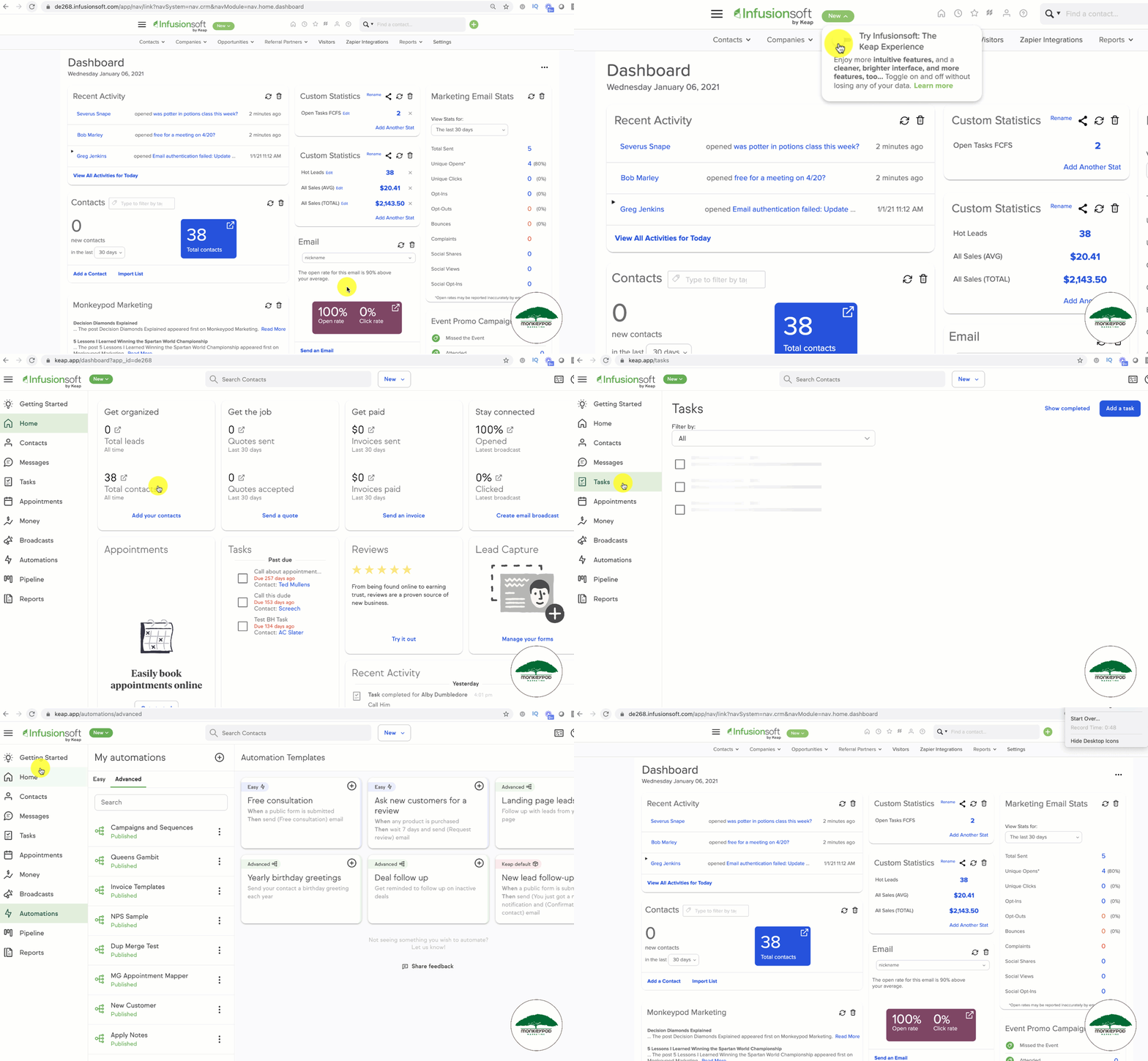
Keap Max UI Toggle

The one known as “Infusionsoft on the Keap Experience” is going to be called Keap Max, or just “Max”.

And the original version of Infusionsoft is going to be known as Keap Max Classic, or simply “Max Classic”.

Support, development, and updates on both will continue as we’ve been experiencing, but their names will be changed to create a more obvious family of products.

What is the difference between Keap Max and Keap Max Classic?

The two platforms have plenty of similarities, but each also have several features that are not available on the other.

Keap Max Classic is this one:
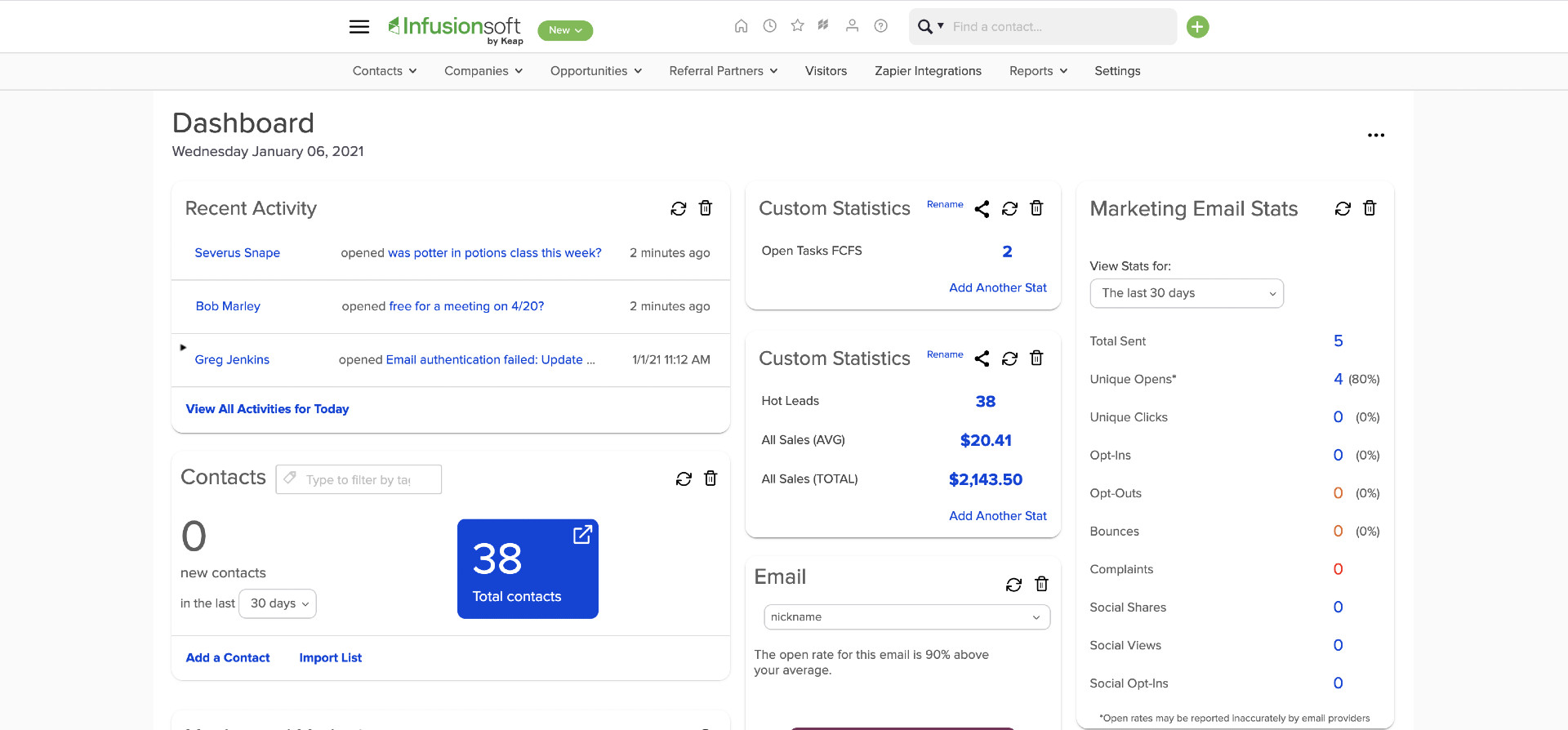
Keap Max Classic UI

Keap Max is this one:

Keap Max UI

Here are the key feature differences between Max and Max Classic:
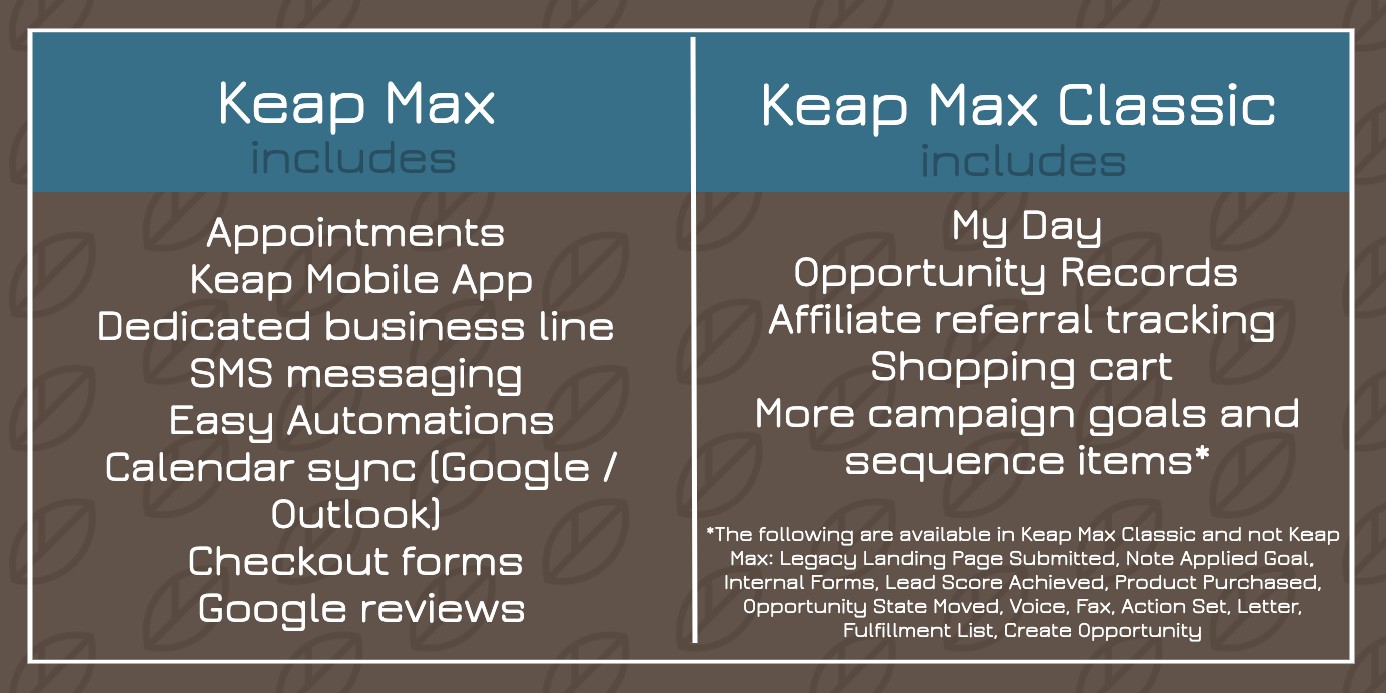
Keap Max Feature Chart

You can find more detail on these similarities and differences in the Keap help article here.

Update: Max has received a few updates since the article I linked to was published, and it now does have goal types for Product Purchase and Lead Score Achieved. Thanks to Scott Martineau who offered some clarifying details in the comments below.

It’s also worth noting that as the products continue to evolve the current discrepancies will change (for example, I hear native text messaging is coming to the campaign builder soon).
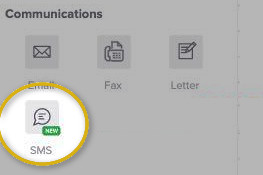
native sms

How does this affect me?

Depending on who you are, it might not really matter to you much at all.

Neither the software nor the improvements to them we’ve been enjoying are changing – this is just a new name.

If you’ve been an Infusionsoft user, then you’ll switch to saying “I’m a Keap user”.

And if you need to clarify the version you’re using, we’ll say “I use Max” or “I use Max Classic”.

If you’re a Keap Partner then this might mean updating your website, or your various offerings so that you’re promoting Max and Max Classic services – rather than Infusionsoft.

This kind of change probably matters most to content producers who have a body of content that are using the term “Infusionsoft”.

For folks like us we’ll have to do some serious work revising our content strategy, and updating what we can (blog posts, videos, courses) to make sure things are kept as relevant as possible.

But for everyday purposes – this is just a new name.

Same product, new name, more innovation.

Should I be alarmed by the word “Classic”?

No.

I mean, it’s a fair question. I can’t blame you for asking.

But no – you can have confidence that they are committed and innovating on all products, including Max Classic.

If you feel term “classic” sounds a little unsettling, you’re not alone. I asked about that too.

The answer I was given is that we should think of it less like “Classic cars” and more like “Classic Coke”.

In other words, a timeless favorite rather than a discontinued model.

And if you’re still skeptical – trust me, I get it. Here’s what Clate Mask, CEO and co-founder, had to say:

Over the past year we’ve worked hard to reduce bugs, add new features, make deliverability improvements, and organize the company to better serve Infusionsoft users. We will continue to show our commitment every week with continued innovation in the product you and I love.

Clate Mask

Keap CEO and Co-Founder, Keap

If you have questions, ask them – the best thing we can do as a user base is let them know what we’re worried about, so they can respond directly to our concerns.

When is this change taking place?

Word on the street is that the new name(s) will go into effect in February. I’m sure there will be a handful of more formal announcements as this process unfolds.

The goal of this post was just to put it on the radar so we all knew it was coming, and can think through any relevant considerations.

Anything else?

One more thing – Keap Grow is being renamed to Keap Lite.

The product progression now looks like this:

good better best current

But again, we’ll probably refer to them more familiarly – as Lite, Pro, Max, and Max Classic.

My Two Cents

As always, they don’t need my permission to do anything – so the following is just my personal opinion. But hey, this happens to be my blog, so here we go:

“Keap Max Classic” wouldn’t be my first choice for a new name, but I do think that renaming Infusionsoft is the right thing to do.

That isn’t easy for me to say.

I am or was an Infusionsoft employee, shareholder, user, and partner.

The company and the software have changed my life – and I, like many others, have a fair amount of emotional capital invested in the name “Infusionsoft”.

But the truth is that I’ve noticed a divide in the ecosystem ever since the rebrand. It has felt like the community fractured into two groups – those on Infusionsoft, and those using Keap.

And at the end of the day our goals are the same – serve more customers by designing systems that employ automation to grow our businesses .

This name change is intended to help unify the community, and that’s a goal I’m fully behind.

Video Summary

I recorded a quick video to try and clarify the new names and various versions. Enjoy:

More FAQs

Will the login process change?

When Infusionsoft becomes Keap Max and Keap Max Classic, I suspect they will change the logo in all the places it appears (in the app, the log-in screen, etc). But that’s just a visual change – users will log in using their current username and password like normal.

Will the name change affect existing APIs?

There is no expected disruption to any existing APIs. They’ll be unchanged.

If you notice difficulty or inconsistencies with your API connections then report that as quickly as you can – but there are no anticipated adverse effects.

Where can I read more about this?

Here’s an article from the Keap Help center discussing Keap Max, and answering some additional questions.

Informed Marketing Solutions Summary

Here’s another announcement video from a friend of mine, Jillian Kendrick. Jillian and her team support Keap users through their services at Informed Marketing Solutions.
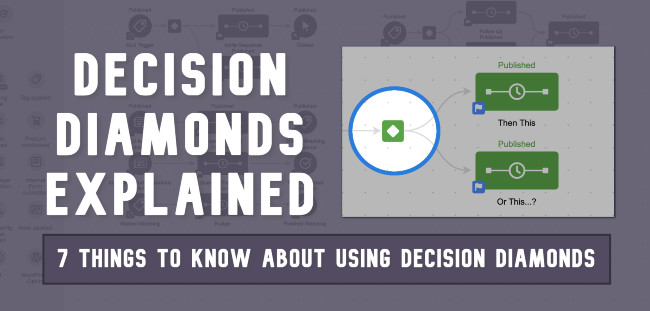
Decision Diamonds Explained

Decision Diamonds Explained

The campaign builder is the most popular part of Keap – and decision diamonds are a critical piece of what makes it so powerful.

In this blog post I’m going to answer some of the most common questions Keap (formerly Infusionsoft) users have about using decision diamonds in their campaigns.

Click on the link to jump to one of the specific questions:

If reading feels like a whole thing and you prefer the video version of this conversation then click here to jump to the video summary.

And if you find yourself wanting more information on decision diamonds, or the campaign builder in general, I recommend checking out this Campaign Builder 101 post, or hopping on the free trial of my CB Trilogy course.

Okay then – first up, what are they?

What are decision diamonds?

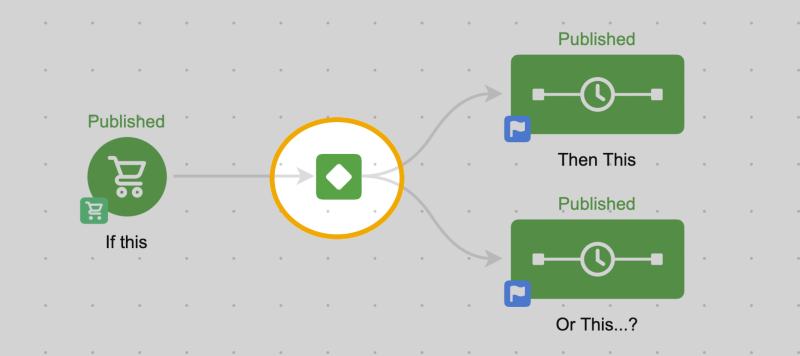
Well, simply put – decision diamonds are a node in the campaign builder that route contacts in different parts of your campaign.

Decision Diamond Spotlight

I think of it like the little ticket taker at one of those massive 24-theater Movie complexes. When a contact hits that point of the campaign, the decision diamond rips their ticket and points them in the right direction.

This brings us to the next question – why do they matter?

Why are decision diamonds valuable?

Decision diamonds are valuable for one simple reason – segmentation.

They allow us to treat different people differently, based on what we know about them.

This type of robust segmentation is really what helps Keap (formerly Infusionsoft) users create automation that doesn’t feel quite so….automated.

As you might know, the campaign builder works off of goals and sequences – which basically work out to “if this, then that” style logic.

If this goal is achieved, then add the contact to this sequence.

And you can totally build campaigns using this formula – goal, sequence, goal, sequence.

Campaign Builder 101 - Campaign Screenshot

(In fact, that’s absolutely how I recommend most people start – keep it simple when you can.)

However, it’s only a matter of time until you run into a scenario where you want different things to happen after a goal is achieved – based on any number of factors, and this is where decision diamonds come in.

They allow us to create different outcomes for the same action – so, two people fill out the same web form, but receive different follow up.

There are any number of reasons you might want to have different outcomes after an action – like, different behavior for people based on whether they’re a repeat buyer, or a new buyer; or different automation based on where they live in the world, or some other detail about themselves.

Which brings us to the next question – what information can I use?

What criteria is available for decision diamonds?

In general, decision diamonds can access contact information – which means field data, and tags.

This might sound basic, but it opens up a lot of possibilities for us – because it means we can not only access their general contact details, like their city or state, or whether or not they have a phone number on file, but it also means we can check the value of any of the custom fields we’ve created.

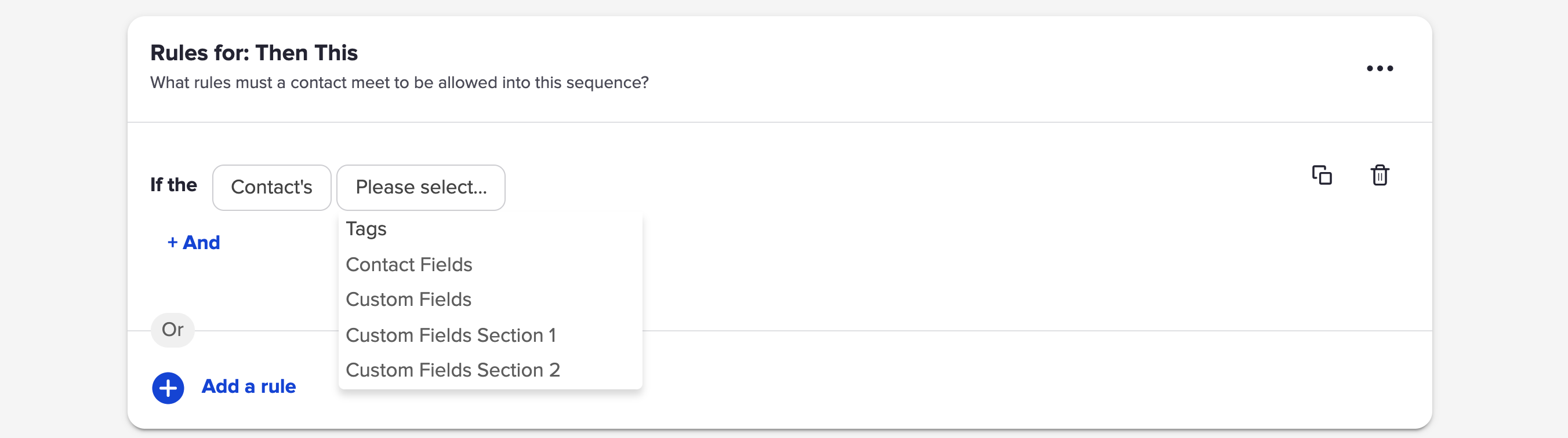
Decision Diamond Rules

A simple use case would be if you ask a question on the opt-in, you can then tailor the automated response that is sent to match the answer that contact gave you as they were signing up.

This could mean using examples you know are relevant for that person – or even changing what product or service you recommend for them.

It’s worth pointing out that the options for building your rules change based on the type of field you’re using – so, if its a whole number field you can do greater than and less than, whereas if it’s a text field you’d do things like contains, or doesn’t contain.

Decision Diamond Field Types

In addition to the contact fields you can also use tags to create rules.

This makes decision diamond criteria infinitely more flexible, because tags can be applied automatically anytime someone takes an action. So, if you’re using the presence of tags to track behaviors – like, filling out a web form, clicking a link, or buying a product, then now you can use the contacts behavior (represented by tags) to route the contact into different sequences based on what they have or haven’t done.

And finally, decision diamonds can also access the data collected in a web form- meaning the selections a contact makes in radio options and checkboxes on Infusionsoft web forms and legacy landing pages.

This one is lesser known because this option really only shows up when a decision diamond is used immediately following the web form (or legacy landing page).

[Back to Top]

You might be thinking “man, these things are powerful – do they have any drawbacks?”

What limitations do decision diamonds have?

Decision diamonds have a few limitations – first, and most notably, at this point the rules you build are really only able to use information from the contact record itself.

That means you can’t use order details, opportunity details, or design rules using logic based off of the time of day, or the date.

My hope is that they’ll expand that over time (or soon would work too), and introduce some new flexibility that lets us segment contacts based on whether they used a promo code in their order, or if they’ve spent over $X with us over their lifetime, etc; but in the meantime we can create workarounds for most those scenarios using tools like Zapier, FixYourFunnel Bots, or PlusThis to copy information into custom fields, or to tags.

Another limitation for decision diamonds is that they can only use the information available at the time the contact hits that point in the campaign.

This isn’t so much a drawback as it is just something to be aware of – the decision diamond is a filter that assesses the contact using the rules you’ve created and then sorts it into one of the sequences options you’ve designed.

Like the Hogwarts Sorting Hat (I’m a ravenclaw, btw).

But if the contact’s information changes after they’ve been sorted, it doesn’t re-evaluate using the new info because the contact has now passed that point in the campaign.

Like I said – this isn’t necessarily a drawback – it’s just important to understand so you can build your campaigns to accommodate for that.

Alright – so you know the pros and cons, let’s talk about how to actually use it.

How do I add a decision diamond?

Decision diamonds are maybe the only element in Keap’s campaign builder that aren’t actually added by the user.

They don’t live on any of the menus – which can definitely be confusing at first, because it leaves users wondering “how do I add it…”

The answer is generally one of those facepalm moments: They show up when they’re needed.

(Kinda like the Room of Requirement, just to keep the Harry Potter references rolling.)

Decision diamonds appear when the campaign builder notices there are more than one possible outcome for an action, and it wants us (the user) to help it decide when to send people where.

Decision Diamond Poof

So if you have one goal leading to one sequence – no decision diamond needed.

It knows exactly what to do when that goal is achieved.

But if you have one goal leading to two (or more) sequences, then poof – the decision diamond pops in asking us to set up the rules that determine when they go where.

[Back to Top]

How do I configure the decision diamond rules?

Like any element in the Keap campaign builder, you’ll double click on the decision diamond when you want to configure it.

This takes you into the interface where you can design the rules for each sequence.

If you don’t design rules the default is that the contact will go into each of the available sequences – sometimes that’s okay, but normally you’ll want to set up rules so that they only go into the sequences that make the most sense for them.

Building the rules is kinda like creating a mad libs sentence – just follow the prompts.

Rule Building

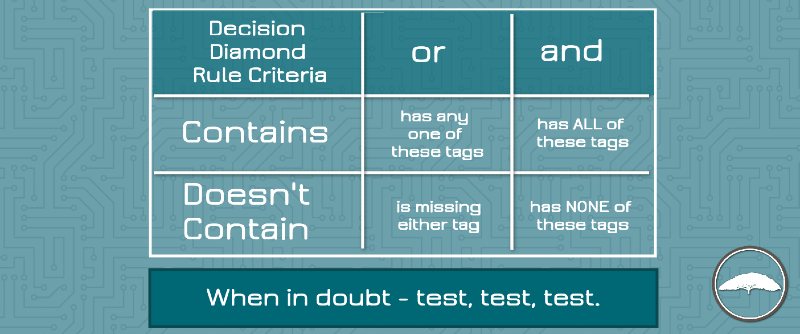
It uses boolean logic, which can get a little complex – so my advice is to try and keep your rules simple, and always always test your logic.

Here’s the cheat sheet I refer back to when in doubt.

Decision Diamond Cheat Sheet

Two things to look out for here:

  1. You can copy rules from one sequence to another, which can reduce the opportunity for human error when you’re creating multiple similar rules.
  2. You can also define a default outcome for people who don’t meet the criteria for any of your rules – choosing to let them drop out of the campaign, or, placing them in one of the sequences anyway.

Once you’ve set up your rules (and run a few tests), just go back to the campaign level. If the goal and sequences on either side of the diamond are set as ready then the diamond should be ready to publish too.

Here’s a little more documentation from the Keap help center.

And here’s a video from Box Out Marketing’s 12 Hacks of Christmas series where Tyler talks about testing decision diamonds.

[Back to Top]

The final question I’ll tackle in this post is one I’ve been hearing more and more lately.

Does Dynamic Content replace the need for decision diamonds?

Short answer: No.

Longer answer: Sometimes.

Dynamic Content, also known as Liquid Content, is a feature Keap quietly released at the start of 2020 – and it’s terrific.

You can read more about it here if you’d like, but basically it allows you to hide or show different parts of an email based on what you know about the recipient.

This type of advanced personalization is huge – and it absolutely reduces the need for decision diamonds (because we can do things like hide the CTA for someone who has already purchased).

But even with as flexible as dynamic content can be, it only changes the email content – not the overall experience.

So, decision diamonds are still the best bet for when you want to create two totally different sets of automation – like, sending a single email to some people and an entire email series to others.

Video Version

If you’re the type of person who likes your answers read to you aloud, then here’s a summary video answering all seven questions. Enjoy

Conclusion

Alright party people – I hope this has been useful and given you some more confidence for using decision diamonds throughout your Keap campaigns.

If you are interested in learning more about the campaign builder check out this Campaign Builder 101 blog post or this Campaign Builder Finishing School video series.

If you have any feedback, or specific questions about decision diamonds, drop a comment below. Thanks for reading.

Bonus Use Case

I believe that pretty much every campaign ever built could be improved through the use of a decision diamond – simply because adding segmentation means you’re able to personalize the experience you’re creating for people. Which is always a good thing.

Here’s a simple (and common) use case for how a decision diamond might fit:

Keeping Contact Info Current

Keeping Contact Info Current

Call me old school, but I like to send a physical thank you card to anyone who buys one of my courses, or joins the OG membership.

(Don’t believe me? Try it.)

But, sometimes the address we use at checkout isn’t the same address where we receive mail, which means occasionally the thank you card is bounced back to me.

Return to Sender

And this doesn’t happen all that often, so in the past I’ve just dealt with it manually.

Normally I just send the recipient a quick email asking if there’s a better address I can use  – but last week I decided to build a simple automated process that handles this for me.

Campaign Structure

The following video breaks down the campaign above.

It reaches out to someone, and invites them to add information to their contact record – in my example it’s their shipping address I’m collecting, but this exact same structure could be used to collect any additional information about your contacts you might need (details about their business, about their goals, or details about them personally).

Check it out:

So, as you saw – this campaign is initiated by applying a note template, and then it reaches out the contact (multiple times if you like) asking them to add information to their contact record.

In my situation it was collecting the shipping address – but this same process could also be used to collect any other information you need, or to confirm information you already have on file, or adapted to let them review and update their email preferences.

If you’re curious about the FAQ campaign process I mentioned in the video – here’s an old video detailing the FAQ campaign set-up.

If you found this useful or have any questions about this process drop a comment below and let me know.

3 Methods for adding Terms and Conditions to an Infusionsoft Order Form

3 Methods for adding Terms and Conditions to an Infusionsoft Order Form

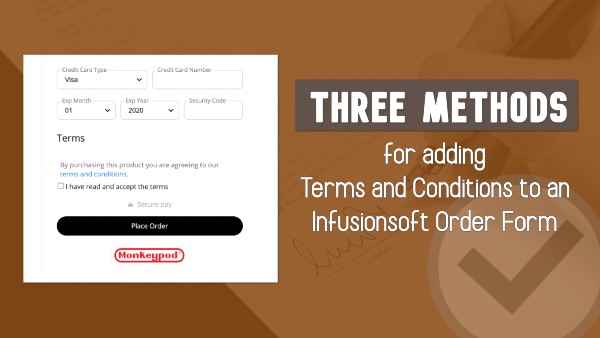
If you need to have your customers check a box agreeing to terms and conditions before they make a purchase, there are a few options for making that happen.

You can use a third-party tool, you can use custom code to modify your existing forms, and finally – there’s now a native option as well.

In this post I’ll show you all three.

Method One:

The first, is to use a tool like Spiffy.

Spiffy is an add-on that lets you level up your Infusionsoft order forms using their drag-and-drop builder. But beyond the improved look and feel, they also have a library of code snippets you can use to do more advanced customization.

This particular request is common enough that they’ve made it a simple toggle inside Spiffy.

Email Trends CTA

Spiffy also offers more advanced options if you want to capture the date and time that they agreed to the terms and store it back to a custom field, or create an on-page scroll box where the purchaser can easily review your terms and conditions.

If you want to see more of what Spiffy offers in general, check out the demo I did in this post.

Method Two:

The second method for adding terms and conditions to your Infusionsoft order forms doesn’t require a third-party tool – but it does require a little familiarity with code.

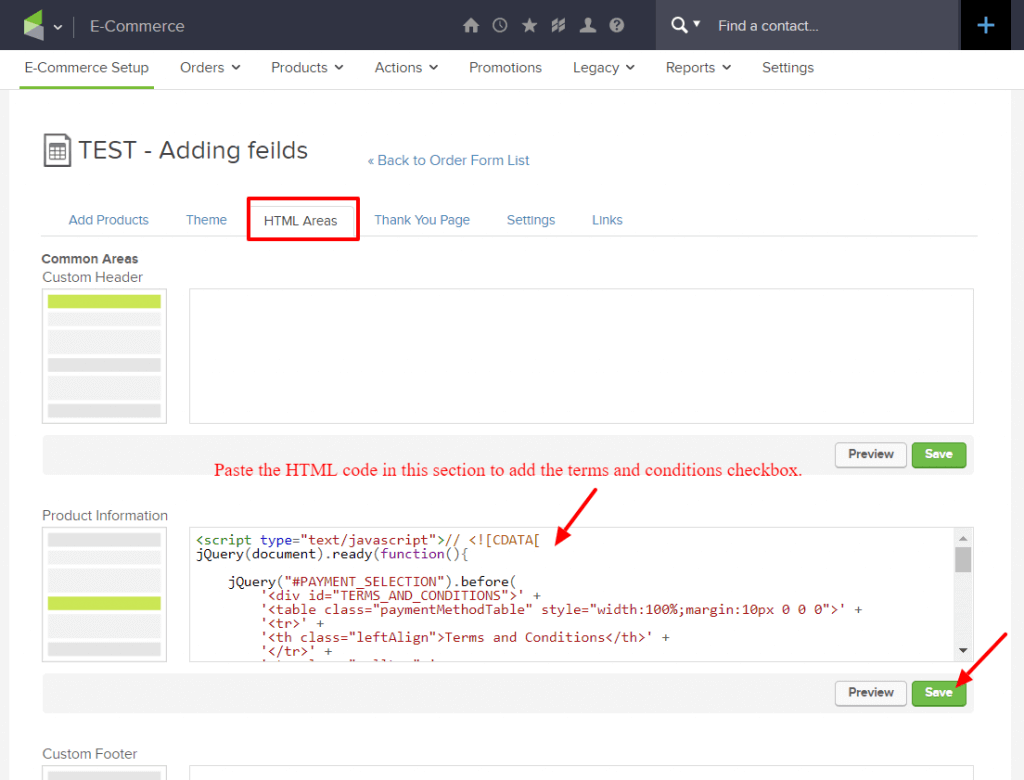
The basic idea is that you’ll be adding code to the form using the HTML areas, and manually adding a “Terms and Conditions” section that your customer can agree to before completing their purchase.

Spy on your competitors traffic

My good friend Brett has done an excellent job documenting this method over on his Blick Digital blog.

If you’re interested in going this route, check out his post where he walks you through the steps, and gives you a download file with the code you’ll need.

Method Three:

And finally, the third option here is a totally native solution.

As you might have heard, Infusionsoft introduced a fully responsive order form theme option in April of 2020.

The new theme option is fairly basic – but modern, clean, and of course it’s fully responsive.

Well, more recently they added the option for easily adding terms and conditions to order forms that are using this new theme.

Here’s a video demonstrating how you can take advantage of this new feature:

Let me be abundantly clear – this is a win.

It’s absolutely an important step in creating more flexible and robust native order forms. So, bravo Infusionsoft product team. Thank you – keep it up.

And also….

There are a few changes and improvements that would make this even more powerful.

  1. I’d love to see the “terms” tab hidden from themes where it’s not available (or, have it work with all themes, rather than just the mobile responsive themes). Right now it’s confusing to have the terms tab show up on order forms where this won’t work as expected.
  2. I think it would be useful to be able to modify the section header, and the actual language on the checkbox itself – this would make the whole area more versatile in general, and accommodate for users who need to adapt this for languages other than English.
  3. It would be valuable to be able to trigger actions when someone checks this box, or to store a timestamp into a custom field on the contact record (or even on the order record).

Okay – lets leave it there for now.

I’m excited about the update – and I love to see this section of the software getting some attention.

In the comments below I’d love to hear if you guys find this valuable, or if you have questions, or have spotted anything I might have missed on this one.

Introducing Task Outcomes

Introducing Task Outcomes

Tasks are automation’s way of telling us that something needs to happen offline – and marking the task as complete is how we report that the deed was done.

But sometimes, that’s not specific enough.

So with this new Infusionsoft feature, Task Outcomes, you can denote not only that the task was completed, but also HOW it was done, and then trigger automation accordingly.

For legacy Infusionsoft users this might feel familiar – it’s a modern version of what used to be called “Task Completion Scenarios”.

So, the first step will be configuring the different outcomes your task might have.

Email Trends

You can set up outcomes on the fly – or repurpose the outcomes you created in the past.

Then, once you’ve done that you’ll use a Task Completed goal like normal, but when you configure the goal you’ll choose which of the task outcomes satisfies that particular goal.

Infusionsoft Task Outcomes Gif2

This dramatically increases the flexibility of tasks, because they’re no longer just complete or incomplete; and the new nuance allows for better segmentation and thus more effective automation.

But, that doesn’t mean that task outcomes will be necessary everywhere – here’s a quick example of use cases where this is and isn’t going to be a fit.

All in all – massive step in the right direction. You can check out their documentation on this feature here.

There are a few small additions that I’d still like to see them add (task outcomes in the mobile app, task outcome reporting, and more accessible interface for managing the existing outcomes we’ve created), but all things considered this is a powerful update that will simplify some of our existing campaigns, and give us more options as we design future automation.

I’d love to hear what questions you have, or how you plan to use it in your own business!

Introducing Analytics for Infusionsoft

Introducing Analytics for Infusionsoft

We don’t need a whole lot of preamble on this one folk, it’s time to introduce Infusionsoft’s brand new Analytics feature.

This is not a replacement for your existing dashboard, it’s a new section of the software that offers visual reporting on three key areas of your business.

Email Trends

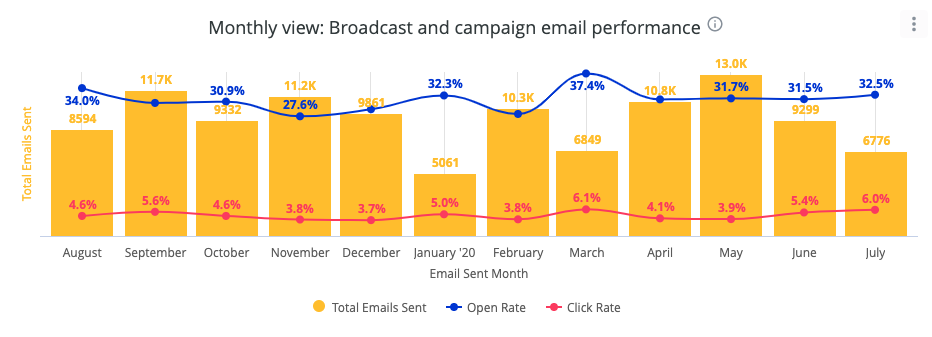
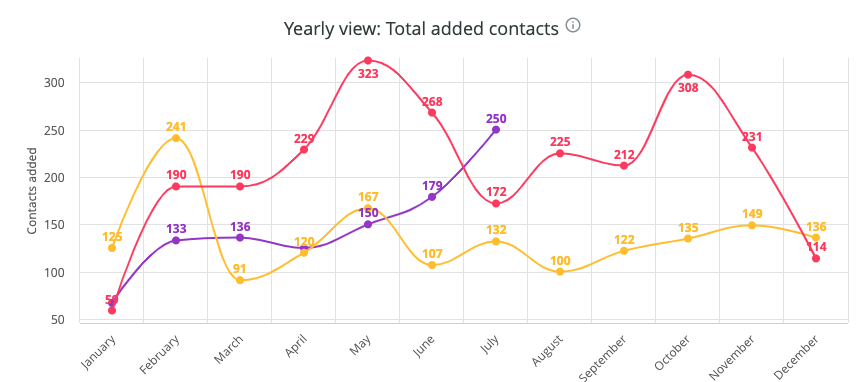
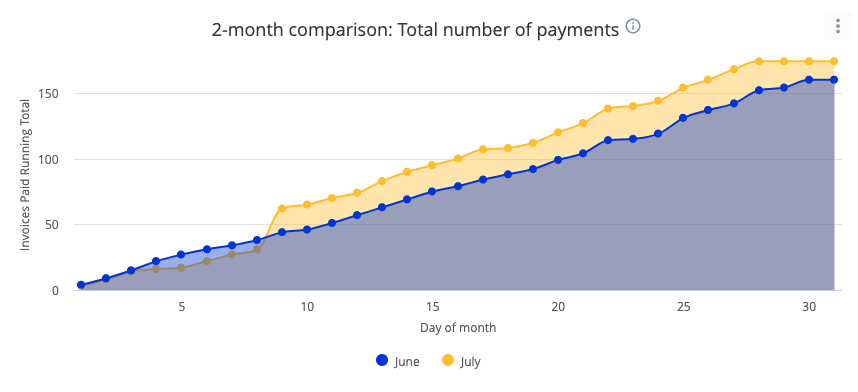
The new analytics section offers insights and trend analysis for list growth, email engagement, and financial transactions.

Marketing automation 101 CTA
Infusionsoft 101 CTA

This feature has already been released for some users, but they are rolling it out in phases – so if you don’t see it yet be patient. It should be switched on for everyone soon.

Here’s a video walk-through covering what you can expect from the new Infusionsoft analytics section.

Let me be abundantly clear – I’m really excited about this new feature.

I think it’s already incredibly valuable, but more than that – I’m excited about the progress it represents.

For a good portion of 2019, it felt like Infusionsoft was being neglected, so in contrast, it’s nice to see not just feature enhancements but totally new functionality as well.

So, nice work Infusionsoft product org – kudos. Keep it up.

Speaking of keeping it up…

It’s important to call out that this is the first version of the analytics section. So, while I love the progress it represents, I also acknowledge that there will absolutely be limitations we bump into or aspects of it that we as users wish were more flexible.

For example, right now you have a variety of default reports, but we can’t easily adjust the date ranges or filter by contact tags or other criteria.

If there are enhancements you’d like made or reports you’d like added, they’re already collecting feedback and suggestions to help shape improvements they make to this section moving forward.

Analytics Feedback

So, in summary – I’m pumped.

It’s valuable as it is, and we get to play a role in helping make it even more powerful.

I’d love to hear your thoughts as you start checking out this new feature too.